

Link grabber gathers many links at once, sorts them into packages, and lets you tick the ones to download. VDM can then extract the archives it downloaded (zip, 7z, rar and more), by itself or when you ask.
De onde vêm os links
- The browser. Right-click a page for Download all links with Volt Download Manager, or select part of it for Download selected links with Volt Download Manager. The page's referrer and cookies go with each link. Both also send the pictures located on the page (or in the selection), hidden at first (see Hide images located on this web page below).
- Imagens de uma página. O botão da barra de ferramentas do suplemento do navegador, Esta página → Procurar imagens, envia as imagens de uma página no maior tamanho listado, as que manteve por tamanho e tipo (Imagens nesta página).
- Tarefas → Importar → De ficheiro de texto e De ficheiro de exportação do IDM. Um ficheiro
.ef2traz o referenciador e os cookies de cada transferência, e o nome do ficheiro quando a lista o indica (uma linhafilename:; apenas o nome, nunca uma pasta). - Vários links, ou uma lista
.txtou.ef2, largados na lista de transferências. - A área de transferência. Tarefas → Adicionar transferência em lote da área de transferência (Ctrl+B, também no menu do ícone da bandeja) lê o texto copiado quando o seleciona e lista todos os links de transferência nele:
http,https,ftpe links magnet, numa lista, numa publicação de fórum, Markdown ou HTML, cada um uma vez. Um linkthunder://,flashget://ouqqdl://é listado como o endereço nele contido, então o mesmo ficheiro com link contido e simples é uma linha; isto também se aplica a texto colado e listas importadas. - Colar. Selecione Tarefas → Link grabber... e prima Ctrl+V: todas as ligações de transferência no texto copiado são adicionadas.
- A web page's address. Paste or copy the address of a page (
https://example.com/downloads) and VDM reads the page and lists the links on it, as the browser's Download all links does, in a package named after the page. The page itself is left unticked. This works for addresses that came on their own (pasted, copied, typed, in a list), not for the links found on a page, so VDM never wanders off through a site. VDM reads only what the page itself holds: links a page's scripts add after it loads come only through the browser. - A folder. Paste or copy the address of an
ftp://folder (ftp://ftp.example.org/pub/) or of the page a web server makes of a folder ("Index of /pub/"), and VDM lists every file in it and in its subfolders, each folder's files in a package of their own. See Folders. - A Hugging Face model or dataset, a GitHub release. Paste the address of a model or dataset on Hugging Face, of a folder in one, or of a release on GitHub, in Add URL or here, and VDM lists every file in it, with its size and folder. See Models, datasets and releases.
- A Google Drive folder. Paste a shared folder's link (
https://drive.google.com/drive/folders/…) in Add URL or here, or right-click it in the browser and choose Download with Volt Download Manager, and VDM lists every file in it and in its subfolders. See Google Drive folders. - Botões Click'n'Load em sites de ligações, depois de o ativar. Consulte Click'n'Load.
A magnet link shows as Magnet link and isn't looked up: once you click Start or Add to queue, VDM finds the torrent's files and adds it with all of them, in the package's folder (or the Torrents folder when the package has none).
Os links que chegam enquanto a janela está aberta juntam-se aos que já lá estão. Um link que já está na janela não é adicionado duas vezes. Um link que já está na sua lista de transferências aparece em Já na lista, desmarcado.
Pacotes
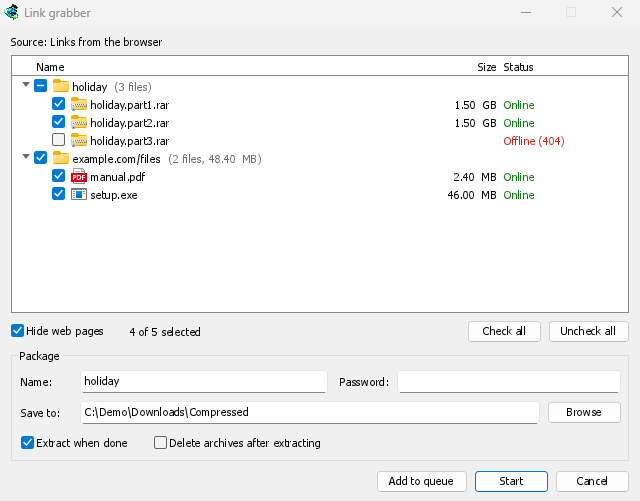
Cada pacote é uma linha que pode abrir e fechar (clique na seta, faça duplo clique ou prima Seta para a direita e Seta para a esquerda). Marcar um pacote marca todos os seus links; a sua caixa fica meio preenchida quando apenas alguns estão marcados.
- Os volumes de um arquivo (
movie.part1.rar,movie.part2.rar…, oubackup.7z.001,backup.7z.002…) formam um pacote com o nome do arquivo, desde que venham do mesmo site. - Os outros links de uma página formam um pacote com o nome da página.
- Tudo o resto vai para Vários ficheiros.
- As ligações que um site empacotou (Click'n'Load) mantêm os pacotes e nomes do site, com a respetiva palavra-passe do arquivo, se o site a forneceu.
- Os ficheiros de uma pasta formam um pacote para cada pasta, com o nome desta, cujo Guardar em mantém a árvore da pasta (ver Pastas).
- Os ficheiros de um modelo, de um conjunto de dados ou de uma versão formam um pacote, cujo Guardar em mantém as suas pastas (consulte Modelos, conjuntos de dados e versões).
Pastas
Dê ao Link grabber o endereço de uma pasta, da mesma forma que dá o de uma página: cole-o com Ctrl+V, copie-o para Tarefas → Adicionar transferência em lote da área de transferência, coloque-o numa lista para Tarefas → Importar, ou arraste-o para a lista de transferências.
- An FTP folder: an
ftp://,ftpes://orftps://address that ends in/(ftp://ftp.example.org/pub/). VDM logs in as it does for a download from that address (its user name and password, else your Sites Logins, else as anonymous) and asks the server for the folder's list. Each file comes with the size the server lists, so it isn't looked up again. - A web server's folder listing: the page Apache, nginx, IIS and other servers make of a folder without its own page, titled Index of /pub/ (or Directory listing for /pub/). VDM recognizes it, so it reads the folder instead of listing the page's links.
O Link grabber lista então todos os ficheiros na pasta e nas suas subpastas. Os ficheiros de cada pasta são um pacote com o nome da pasta, e o seu Guardar em é essa pasta sob a sua pasta de transferências (Opções → Guardar em), para que a árvore seja mantida: ftp://ftp.example.org/pub/iso/disc.iso vai para Downloads\pub\iso\disc.iso. Marque o que quiser; Ocultar páginas web e as caixas de pacote funcionam como para quaisquer links.
Options → Archives and Link grabber → Folders: 3 levels deep, types: ... sets how far VDM goes and what it keeps:
- Níveis de profundidade: quantos níveis de subpastas são lidos, 3 por predefinição, no máximo 10. 0 lista apenas os ficheiros da própria pasta.
- Tipos: apenas os ficheiros destes tipos, escritos como na página Tipos de ficheiro (
ISO ZIP R0*). Vazio (o predefinido) mantém todos os tipos.
VDM stays inside the folder you gave. It never goes up to the folder above (../), never onto another site, never through a link the listing makes to somewhere else, and an FTP folder's links to other folders (symbolic links) aren't followed. A name that isn't a plain file or folder name (one with / or \ in it, ..) is left out. One folder lists at most 10,000 files, and VDM reads at most 500 folders for it; past that, the window's Source line says the folder was listed only in part (pub: only its first 10000 files).
As pastas são lidas apenas com Procurar links quando chegam ativado (o predefinido), como as páginas web. Um endereço FTP sem o seu / final é considerado um ficheiro.
Modelos, conjuntos de dados e lançamentos
Cole um destes endereços em Adicionar URL (Ctrl+N), ou no Link grabber com Ctrl+V (copiado, importado ou arrastado também funciona):
- Um modelo ou conjunto de dados do Hugging Face:
https://huggingface.co/<owner>/<name>ouhttps://huggingface.co/datasets/<owner>/<name>, o repositório completo. - Uma pasta de um deles, num ramo, uma etiqueta ou um commit: o endereço da página da pasta,
https://huggingface.co/<owner>/<name>/tree/<revision>/<folder>. - Uma versão do GitHub:
https://github.com/<owner>/<repo>/releases/tag/<tag>, ou…/releases/latestpara a mais recente. Uma etiqueta sem uma versão lista o seu código-fonte.
VDM asks the site's public API for the list of files and opens Link grabber with all of them in one package: each file with its size and the folder it is in, unticked, so you tick only what you need (the package's box ticks them all). Its Save to is the address's path under your download folder (Options → Save to), and each file keeps its folder inside it: onnx/model.onnx of huggingface.co/org/tiny goes to Downloads\org\tiny\onnx\model.onnx, a dataset's files under Downloads\datasets\…, a release's under Downloads\<owner>\<repo>\<tag>. A folder of a repository keeps its place in it (org\tiny\onnx\…), so files you take later from another folder land beside it. Start or Add to queue adds them as one group, with one summary when the last is done.
- Checked against the site's digest. Hugging Face publishes a SHA-256 for each large file, GitHub for each release file. VDM checks the finished file against it, as Verify checksum does; a file that doesn't match stays unfinished and says so (the file's SHA-256 checksum doesn't match), and Redownload fetches it again. Small files kept in the repository itself, and a release's source code, have no digest of their own to check.
- Uma versão. Os ficheiros de um repositório são pedidos no commit para o qual o seu ramo ou etiqueta apontava quando foi listado, para que um ramo que avança enquanto são transferidos nunca misture duas versões.
- Straight from the sites. Files come from Hugging Face's and GitHub's own servers, never through a mirror, through VDM's own connections, speed limits and proxy, like any download.
- Modelos protegidos. Um repositório cujos ficheiros precisam que os seus termos sejam aceites é transferido com o seu token de acesso do Hugging Face: aceite os termos na sua página, crie um token nas suas definições do Hugging Face e adicione-o em Opções → Inícios de Sessão de Sites com o site
huggingface.co, qualquer nome de utilizador e o token como palavra-passe. É mantido com as suas outras palavras-passe, no porta-chaves do sistema, e enviado apenas parahuggingface.co, nunca para os servidores de onde envia os ficheiros. A linha Origem indica quando um repositório protegido ainda não tem um token. - Limites. Ambos os sites permitem apenas um certo número de pedidos de um computador sem conta (GitHub 60 por hora). Quando o limite é atingido, a linha do endereço indica Tentar novamente mais tarde, e a sua dica indica por quanto tempo.
O que a lista de um site diz é verificado antes de ser usado: um ficheiro cujo caminho levaria para fora da sua pasta (.., um caminho absoluto, uma letra de unidade, um nome de dispositivo como CON) é omitido, e a linha Origem conta-os. No máximo 10.000 ficheiros são listados para um endereço. Tal como as pastas, são lidos apenas com Procurar ligações quando chegam ativado (o padrão).
Google Drive folders
Paste a shared folder's link, the one Drive's Share → Copy link gives (https://drive.google.com/drive/folders/…?usp=sharing), in Add URL (Ctrl+N) or in Link grabber with Ctrl+V. VDM reads the folder's page, the one your browser opens, and its subfolders' pages, one after the other, and opens Link grabber with all their files in one package, ticked, each with its name and size and the subfolder it is in. Its Save to is a folder of the Drive folder's name under your download folder (Options → Save to), and each file keeps its subfolders inside it: Day 2/hills.jpg of a folder named Holiday photos goes to Downloads\Holiday photos\Day 2\hills.jpg. Start or Add to queue adds them as one group, with one summary when the last is done.
- Each file as a single Drive file. Every file downloads the way a Drive file's own link does (Google Drive links): from Google's own servers, through VDM's connections, speed limits and proxy, past the can't scan this file for viruses page as Download anyway does. When Drive refuses one (too many downloads lately, a sign-in needed, no access), that file says so in its row, and the others go on.
- Google Docs, Sheets and Slides come as Word (
.docx), Excel (.xlsx) and PowerPoint (.pptx) files, Drawings as.png; their size shows once they are looked up. Forms, shortcuts and Sites aren't files: they are left out, and the Source line says how many. - Folders shared with your account only. Sign in to Google in your browser, right-click the folder's link there and choose Download with Volt Download Manager: the browser add-on passes your Google sign-in with it, and VDM uses it for the folder's pages and its files, on Google Drive only. Pasted without one, the folder's row says Needs a sign-in.
- 50 items a folder. Drive's page lists a folder's first 50 items, so a folder (or a subfolder) with more shows only 50 of them. The Source line says so when a folder shows 50; Drive's own Download on the folder gets all of it, as a zip, which the browser add-on hands to VDM.
- Names. Drive lets a name hold characters a disk doesn't take (
a/b,x:y) or be a Windows device's name (CON); VDM makes them plain names (a_b,x_y,_CON), as for any download. A name that is only dots (..) is left out, and the Source line counts it. A file's address is made from its Drive ID, never taken from the page.
Click'n'Load
Many link sites have a Click'n'Load button that sends their links straight to a download manager on your computer, as JDownloader's documentation for web sites describes. Turn it on in Options → Archives and Link grabber → Accept Click'n'Load from web pages (off by default). VDM then listens on port 9666 of this computer only, and the links a page sends open in Link grabber, with the page's package name and archive password.
Any web page can send links there, not only the link site you are on, so VDM is careful with them:
- The first time a site sends links, VDM asks: Allow (that site's links go to Link grabber from now on), Block (they never do), or Not now (these links are dropped, and the site is asked again next time). The site is the one your browser names, never what the page claims. When the browser names none (a page that hides where it is, or one inside a sandboxed frame), the window says An unknown site: it is asked about every time, and its answer is never kept. Turning Click'n'Load off forgets the answers.
- As ligações que uma página enviou não são pesquisadas: o Link grabber mostra-as como Não pesquisado, e nenhum pedido é enviado para elas, com ou sem os seus Inícios de Sessão de Sites ou contas debrid, até que as adicione à fila. Nada é transferido antes disso.
- Links to this computer or your network are left out: a link to
localhost, to a private or link-local address (192.168.…,10.…,172.16.…,169.254.…, their IPv6 kin), or to a name without a dot or under.local,.lanor.internalnever reaches Link grabber. A link site's files aren't there, and such an address could be your router or another device. VDM judges the address as written: a public-looking name that points into your network isn't recognized, so look at a package before you add it. - Limits: at most 10 posts a minute from one site, 500 links and 256 KB a post; more is refused, and one site's posts don't use up another's. At most 20 posts wait for an answer. A site brings VDM's window to the front at most once a minute; its links still arrive in Link grabber in between.
- O endereço da própria página não é enviado como o referenciador das ligações: uma página pode nomear qualquer um.
- VDM doesn't say it is JDownloader. Some sites first ask whether JDownloader is running (a script named
jdcheck.js) and show their button only then. VDM doesn't answer that question, so such a site may say no program was found; a site that simply sends its form works. - Only one program can listen on port 9666. If JDownloader is running, VDM says so: close it, then turn the option off and on again.
- A button that sends a DLC container instead of links isn't taken: reading one needs a key VDM can't use. The site's plain links, or its Click'n'Load button, are the way.
- Some sites hide the key in a script VDM doesn't run (only the plain form the documentation shows is read): then their button reports a failure, and the site's plain links are the way.
Procurar links
As links arrive, VDM asks each server about its file, as IDM's Download all links does. A few links are checked at a time, and only a few from any one site. Each link then shows its real name and size, and a status:
- Online: o servidor tem o ficheiro.
- Offline (404): o servidor não tem o ficheiro. O link fica desmarcado.
- Precisa de um início de sessão: o servidor pede um nome de utilizador e palavra-passe, ou os cookies da página.
- Ocupado, tente mais tarde: o servidor pediu para esperar.
Turn the look-ups off in Options → Archives → Look links up when they arrive. Some file hosts count a look-up as a download. With the look-ups off, VDM asks nothing of the network until you start, so a web page's address isn't read for its links either.
A opção Ocultar páginas web (ativada por predefinição) exclui as ligações para páginas (.html, .php e semelhantes, e qualquer ligação cuja pesquisa encontrou uma página web): não são mostradas nem transferidas.
Ocultar imagens localizadas nesta página Web omite as imagens que o navegador encontrou exibidas na página (as suas imagens, no maior tamanho que a página lista para cada uma), para que a lista contenha os links da página. É marcada novamente cada vez que os links de uma página vêm com tais imagens, e não é memorizada: desmarque-a para ver as imagens e marque as que quiser; enquanto estiver marcada, não são mostradas nem transferidas. Um link para uma imagem (uma miniatura que liga ao seu tamanho completo) é um link como qualquer outro e aparece sempre, mesmo quando a mesma imagem também é mostrada na página.
A caixa do pacote
A caixa por baixo da lista edita o pacote que selecionou:
- Nome: o nome do pacote, guardado com as suas transferências.
- Guardar em: a pasta para onde os seus ficheiros vão. Quando um pacote contém vários tipos de ficheiros, a caixa diz Pasta da categoria de cada ficheiro: cada ficheiro vai para a pasta da sua categoria (Opções → Guardar em), como sempre fez a Importação.
- Palavra-passe: a palavra-passe dos arquivos, se tiverem uma. É mantida apenas em memória e nunca é guardada por si só: para guardar uma para outros pacotes, adicione-a às suas palavras-passe de arquivo.
- Extrair quando concluído: marcado automaticamente quando o pacote contém um arquivo.
- Eliminar arquivos após a extração: uma vez extraídos, os arquivos vão para a Reciclagem (o Lixo no macOS e Linux).
Adicionar os links
- Iniciar adiciona os links marcados à Fila de transferência principal e inicia a fila. Descarrega tantos ficheiros de uma só vez quanto a fila permite.
- Adicionar à fila adiciona-os à Fila de transferência principal sem iniciar as transferências, tal como acontece com a importação do IDM.
- Cancelar fecha a janela e não adiciona nada.
A extrair arquivos
VDM itself extracts zip archives (AES-encrypted and Deflate64 ones too), tar, tar.gz and tar.xz archives, and single .gz and .xz files.
7z and RAR archives need 7-Zip, a free program (7-zip.org). VDM runs it when it is installed, for split and encrypted archives too. RAR's own extraction code can't be part of a free program like VDM, and 7-Zip extracts 7z best.
Options → Archives says whether 7-Zip was found. Without it, a 7z or RAR archive isn't extracted, and the 7-Zip needed window says so, with a Get 7-Zip button. On Linux, install your distribution's 7zip (or p7zip) package: VDM finds 7zz, 7z or 7za on its own.
Another archiver built on 7-Zip does as well, so there is no need for a second copy. On Windows VDM finds the 7-Zip that PeaZip brings with it (PeaZip\res\bin\7z\7z.exe in Program Files) and NanaZip's command line (NanaZipC.exe) by itself, after 7-Zip's own folders. For any other, such as a portable copy or one installed for your user only, press Use another program... in Options → Archives and choose its 7-Zip command line program: 7z.exe, 7za.exe or 7zz, not the archiver's own window. VDM runs it once to see that it answers as 7-Zip, then uses it for 7z and RAR archives, with the same arguments as always. Find 7-Zip automatically goes back to the one VDM finds, which is also used if the chosen program is removed.
No local, com HatchZip
HatchZip is another free extractor (MIT or Apache-2.0), optional. VDM uses its command line program, hatchzip, when it is on the PATH (its installers and packages put it there; the desktop app alone isn't enough):
- Options → Archives → Extract in place with HatchZip (off by default): HatchZip removes the archive while its files come out, so a 180 GB download that unpacks to 200 GB needs a little over 200 GB, not 380 GB. It reads zip, 7z, RAR and tar archives, split ones too; single
.gzand.xzfiles are still extracted by VDM. A solid RAR archive can't be extracted in place (HatchZip says so before it changes anything): VDM then extracts it as usual, with 7-Zip, and keeps the archive. HatchZip's own release builds read RAR; a build from crates.io doesn't. - Antes de alterar qualquer coisa, o HatchZip verifica se os ficheiros cabem e prova a palavra-passe. Uma palavra-passe em falta ou errada, ou espaço insuficiente, não altera nada: o registo informa isso, e a janela Palavra-passe do arquivo pergunta como de costume. A palavra-passe é enviada ao HatchZip através do seu ambiente, nunca na sua linha de comandos.
- Os ficheiros vão para onde O que um arquivo contém vai indica, como em qualquer outra extração. No caminho, ficam numa pasta chamada
<archive>.hatchzip-outao lado do arquivo. - If it stops partway (VDM closed, the download deleted, the disk filled by something else), the files extracted so far stay in that folder and the rest is still in the archive. Extract continues where it stopped, even with the option off: only HatchZip can finish such an archive. VDM continues only a run it started itself (it keeps a note of it in its own data): a HatchZip progress file (
<archive>.hatchzip) that comes with a download or a torrent starts nothing, and that archive is extracted as usual. - Nothing HatchZip extracted is ever deleted, those files are no longer in the archive. Entries VDM leaves out (links, names leading outside the folder) stay in that folder, and so do the files a failed move couldn't put in place (a file held open by another program); the log says where. So after an extraction in place, a link an archive held that VDM considers unsafe is still in your download folder, inside
<archive>.hatchzip-out: it is never followed or moved, but it isn't removed either, as it is by every other extraction. Look at what is left in that folder before you open it. - Em seguida, mover os arquivos para a Reciclagem não tem nada para mover depois: o arquivo já desapareceu.
- Os arquivos 7z e RAR ainda precisam do 7-Zip quando a opção está desativada.
Um arquivo é extraído:
- quando o seu pacote indica Extrair quando concluído,
- quando Opções → Arquivos → Extrair arquivos quando a transferência estiver concluída está ativado (desativado por predefinição), para qualquer outra transferência,
- quando clica com o botão direito num arquivo cuja transferência terminou e escolhe Extrair.
Um arquivo dividido é extraído uma vez, quando o seu último volume é transferido. Os ficheiros são colocados ao lado do arquivo:
- para uma pasta com o nome do arquivo quando este contém vários itens no seu topo (ou sempre, ou nunca: Opções → Arquivos),
- um ficheiro que já existe é mantido, e o novo é numerado:
report (1).txt.
Os ficheiros extraídos são marcados como provenientes da internet, tal como o arquivo, para que o Windows ainda avise antes de executar um programa a partir dele.
VDM extracts safely. A name that would lead outside the folder is left out, and so is a link to somewhere else on the disk. An archive that would write far more than its size, or more than the disk has room for, stops before it fills it. When something goes wrong, nothing but the archive is left behind.
O registo da transferência (passe o rato sobre ela na lista) indica o que aconteceu: Extraídos 12 ficheiros para…, ou por que não, por exemplo Não foi possível extrair movie.7z.001: o volume 3 está em falta. Cada arquivo é tentado sem palavra-passe primeiro. Um que se revele encriptado é tentado com a palavra-passe do seu pacote, depois com cada uma das suas palavras-passe guardadas (Opções → Arquivos → Palavras-passe de arquivo...), pela sua ordem, para que um arquivo que não precise de palavra-passe nunca as encontre. Só quando nenhuma se encaixa é que a janela Palavra-passe do arquivo se abre. Digite a palavra-passe e clique em Extrair, ou Cancelar para deixar o arquivo como está. Marque Lembrar para outros arquivos (começa desmarcado) para adicioná-la às palavras-passe guardadas. O 7-Zip recebe cada palavra-passe na sua entrada, nunca na sua linha de comandos, onde outros programas no computador poderiam lê-la.
Palavras-passe de arquivo
Options → Archives → Archive passwords... keeps the passwords you use again and again (a site's own, say), one per line. The download's log says Trying the saved archive passwords... while VDM tries them. The one that opens an archive moves to the top of the list, so the passwords you need most are tried first. A package's password (one you typed in Link grabber, or one that came with the links) is tried first and never added to the list by itself; when it is one of your saved passwords already, it moves to the top like any other. A password typed in the Archive password window is added only with Remember it for other archives ticked, and only once it fits. The list is kept in the system's keychain, as the other passwords are (see Where the sign-in is kept).
Cada tentativa reinicia a extração: com uma lista longa e um arquivo grande cujos nomes de ficheiro não estão encriptados, pode demorar um momento até que o correto seja encontrado.
Testar arquivos
A finished archive can still be broken: a server sent wrong bytes, or a proxy on the way mangled part of the file. It shows only when someone opens it, often much later. So VDM tests ZIP, 7z and RAR archives, split ones too once every volume is in, when their download completes: Options → Archives → Test archives when their download completes is on by default, up to 4 GB. A test reads the whole archive, so a larger one is tested only when you ask: right-click a finished archive and choose Test archive, whatever its size.
- The test is 7-Zip's (
7z t, with the 7-Zip that Options → Archives names): every file in the archive is read back and checked, and nothing is written. Without 7-Zip, VDM tests ZIP archives itself; 7z and RAR archives aren't tested. - A transferência é considerada concluída assim que o teste termina. A lista mostra A verificar 45% entretanto, a sua fila espera por ele, e a sua janela Transferência concluída, o seu som e a sua extração ocorrem após o teste.
- Um arquivo protegido por palavra-passe não é testado, pois os seus ficheiros não podem ser lidos sem ela: o registo indica Não foi possível testar photos.zip: precisa de uma palavra-passe. Nem os ficheiros tar, gz e xz.
- Um arquivo danificado mostra Danificado na lista, o seu registo nomeia os ficheiros danificados, e a janela Arquivo danificado oferece Transferir novamente: transfere o arquivo (todos os volumes de um dividido) novamente desde o início. Não é extraído automaticamente; Extrair ainda tenta fazê-lo.
- A ZIP in one file is repaired instead, when VDM can tell where its damaged files are in it: their bytes alone are downloaded again, from the same server, and the archive is tested once more. The log says Downloading the damaged parts again (1.20 MB), then Tested again: the archive has no errors now. The bytes come only from the same version of the file: VDM asks for them as it resumes any download (with the file's ETag or date,
If-Range), and checks the bytes just before each part against the ones on disk. A file that changed on the server stops the download with the file changed on the server instead of mixing two versions: Redownload downloads the new one. An archive still damaged after that is offered for Redownload. - Arquivos 7z e RAR mantêm os seus ficheiros em blocos cuja localização no ficheiro o teste do 7-Zip não fornece, e os volumes de um arquivo dividido são transferências separadas: esses são testados e oferecidos para Transferir novamente quando danificados, nunca reparados em parte.
- Um arquivo dividido (
photos.zip.001,photos.z01,notes.7z.001,movie.part1.rar,movie.r00) é testado uma vez, a partir do seu primeiro volume, quando todos os volumes são transferidos, independentemente de qual deles terminar por último. Os seus volumes frequentemente terminam um após o outro (uma fila que transfere um de cada vez, um anfitrião que o faz esperar entre ficheiros), e os que já estão lidos como um arquivo incompleto, por isso não são testados por si só. Testar arquivo num arquivo dividido ainda não completo indica: Ainda não testado: photos.zip.001 não está completo (o volume 3 ainda não está presente). - Closing VDM stops a test; the archive is tested again at the next start.
Próximos passos
Gratuito, de código aberto, sem anúncios, sem período de avaliação.
Download Volt Download Manager