

Link grabber gathers many links at once, sorts them into packages, and lets you tick the ones to download. VDM can then extract the archives it downloaded (zip, 7z, rar and more), by itself or when you ask.
Nguồn liên kết
- The browser. Right-click a page for Download all links with Volt Download Manager, or select part of it for Download selected links with Volt Download Manager. The page's referrer and cookies go with each link. Both also send the pictures located on the page (or in the selection), hidden at first (see Hide images located on this web page below).
- Hình ảnh của một trang. Nút trên thanh công cụ của tiện ích mở rộng trình duyệt, Trang này → Tìm hình ảnh, sẽ gửi các hình ảnh của một trang ở kích thước lớn nhất mà nó liệt kê, những hình ảnh bạn đã giữ theo kích thước và loại (Hình ảnh trên trang này).
- Tác vụ → Nhập → Từ tệp văn bản và Từ tệp xuất IDM. Tệp
.ef2mang theo referrer và cookie của mỗi lượt tải xuống, cùng với tên tệp khi danh sách cung cấp (một dòngfilename:; chỉ tên, không bao giờ là thư mục). - Nhiều liên kết, hoặc một danh sách
.txthay.ef2, được kéo thả vào danh sách tải xuống. - Bảng tạm. Tác vụ → Thêm tải xuống hàng loạt từ bảng tạm (Ctrl+B, cũng có trong menu của biểu tượng khay hệ thống) sẽ đọc văn bản đã sao chép khi bạn chọn và liệt kê mọi liên kết tải xuống trong đó:
http,https,ftpvà liên kết magnet, trong một danh sách, một bài đăng diễn đàn, Markdown hoặc HTML, mỗi liên kết một lần. Một liên kếtthunder://,flashget://hoặcqqdl://được liệt kê dưới dạng địa chỉ được bao bọc trong đó, vì vậy cùng một tệp được liên kết dưới dạng bao bọc và dạng thường chỉ là một hàng; điều này cũng đúng với văn bản đã dán và danh sách đã nhập. - Dán. Chọn Tác vụ → Trình lấy liên kết... và nhấn Ctrl+V: mọi liên kết tải xuống trong văn bản đã sao chép sẽ được thêm vào.
- A web page's address. Paste or copy the address of a page (
https://example.com/downloads) and VDM reads the page and lists the links on it, as the browser's Download all links does, in a package named after the page. The page itself is left unticked. This works for addresses that came on their own (pasted, copied, typed, in a list), not for the links found on a page, so VDM never wanders off through a site. VDM reads only what the page itself holds: links a page's scripts add after it loads come only through the browser. - A folder. Paste or copy the address of an
ftp://folder (ftp://ftp.example.org/pub/) or of the page a web server makes of a folder ("Index of /pub/"), and VDM lists every file in it and in its subfolders, each folder's files in a package of their own. See Folders. - A Hugging Face model or dataset, a GitHub release. Paste the address of a model or dataset on Hugging Face, of a folder in one, or of a release on GitHub, in Add URL or here, and VDM lists every file in it, with its size and folder. See Models, datasets and releases.
- A Google Drive folder. Paste a shared folder's link (
https://drive.google.com/drive/folders/…) in Add URL or here, or right-click it in the browser and choose Download with Volt Download Manager, and VDM lists every file in it and in its subfolders. See Google Drive folders. - Các nút Click'n'Load trên các trang liên kết, sau khi bạn bật tính năng này. Xem Click'n'Load.
A magnet link shows as Magnet link and isn't looked up: once you click Start or Add to queue, VDM finds the torrent's files and adds it with all of them, in the package's folder (or the Torrents folder when the package has none).
Các liên kết đến khi cửa sổ đang mở sẽ được thêm vào những liên kết đã có. Một liên kết đã có trong cửa sổ sẽ không được thêm lần nữa. Liên kết đã có trong danh sách tải xuống sẽ nằm dưới mục Đã có trong danh sách và không được đánh dấu.
Gói
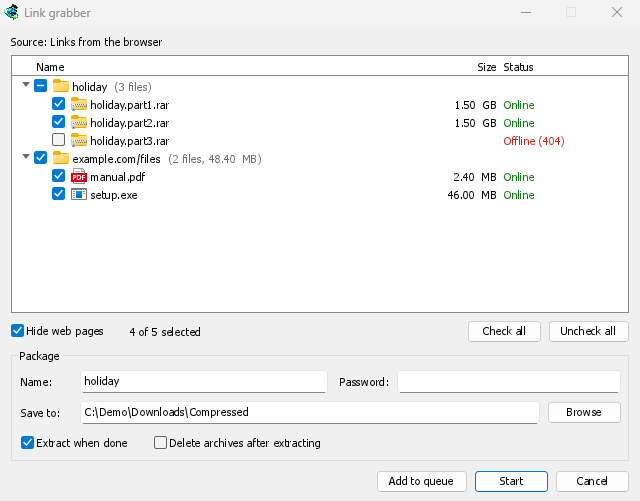
Mỗi gói là một hàng bạn có thể mở và đóng (nhấp vào mũi tên của nó, nhấp đúp vào nó, hoặc nhấn Mũi tên phải và Mũi tên trái). Đánh dấu một gói sẽ đánh dấu tất cả các liên kết của nó; hộp của nó sẽ được điền một nửa khi chỉ một số liên kết được đánh dấu.
- Các phần của một tệp lưu trữ (
movie.part1.rar,movie.part2.rar…, hoặcbackup.7z.001,backup.7z.002…) tạo thành một gói mang tên tệp lưu trữ đó, miễn là chúng đến từ cùng một trang web. - Các liên kết khác của một trang tạo thành một gói được đặt tên theo trang đó.
- Mọi thứ khác sẽ được đưa vào Các tệp khác nhau.
- Các liên kết mà một trang web đóng gói (Click'n'Load) giữ nguyên các gói và tên của trang web đó, cùng với mật khẩu lưu trữ nếu trang web cung cấp.
- Các tệp của một thư mục tạo thành một gói cho mỗi thư mục, được đặt tên theo thư mục đó, trong đó Lưu vào giữ nguyên cấu trúc cây của thư mục (xem Thư mục).
- Các tệp của một mô hình, tập dữ liệu hoặc bản phát hành tạo thành một gói, mà Lưu vào của nó giữ nguyên các thư mục của chúng (xem Mô hình, tập dữ liệu và bản phát hành).
Thư mục
Cung cấp cho Trình lấy liên kết địa chỉ của một thư mục, giống như cách bạn cung cấp địa chỉ của một trang: dán bằng Ctrl+V, sao chép để Tác vụ → Thêm tải xuống hàng loạt từ bảng tạm, đặt vào danh sách để Tác vụ → Nhập, hoặc kéo thả vào danh sách tải xuống.
- An FTP folder: an
ftp://,ftpes://orftps://address that ends in/(ftp://ftp.example.org/pub/). VDM logs in as it does for a download from that address (its user name and password, else your Sites Logins, else as anonymous) and asks the server for the folder's list. Each file comes with the size the server lists, so it isn't looked up again. - A web server's folder listing: the page Apache, nginx, IIS and other servers make of a folder without its own page, titled Index of /pub/ (or Directory listing for /pub/). VDM recognizes it, so it reads the folder instead of listing the page's links.
Trình lấy liên kết sau đó liệt kê mọi tệp trong thư mục và trong các thư mục con của nó. Các tệp của mỗi thư mục là một gói được đặt tên theo thư mục, và Lưu vào của nó là thư mục đó nằm trong thư mục tải xuống của bạn (Tùy chọn → Lưu vào), để giữ nguyên cấu trúc cây: ftp://ftp.example.org/pub/iso/disc.iso đi đến Downloads\pub\iso\disc.iso. Đánh dấu những gì bạn muốn; Ẩn các trang web và các hộp gói hoạt động như đối với bất kỳ liên kết nào.
Options → Archives and Link grabber → Folders: 3 levels deep, types: ... sets how far VDM goes and what it keeps:
- Cấp độ sâu: số cấp độ thư mục con được đọc, mặc định là 3, tối đa là 10. 0 chỉ liệt kê các tệp của thư mục đó.
- Loại: chỉ các tệp thuộc các loại này, được viết như trên trang Loại tệp (
ISO ZIP R0*). Để trống (mặc định) sẽ giữ lại mọi loại.
VDM stays inside the folder you gave. It never goes up to the folder above (../), never onto another site, never through a link the listing makes to somewhere else, and an FTP folder's links to other folders (symbolic links) aren't followed. A name that isn't a plain file or folder name (one with / or \ in it, ..) is left out. One folder lists at most 10,000 files, and VDM reads at most 500 folders for it; past that, the window's Source line says the folder was listed only in part (pub: only its first 10000 files).
Các thư mục chỉ được đọc khi Tra cứu liên kết khi chúng đến được bật (mặc định), giống như các trang web. Một địa chỉ FTP không có / cuối cùng của nó được coi là một tệp.
Mô hình, tập dữ liệu và bản phát hành
Dán một trong các địa chỉ này vào Thêm URL (Ctrl+N), hoặc vào Trình lấy liên kết bằng Ctrl+V (sao chép, nhập hoặc kéo thả cũng được):
- Một mô hình hoặc tập dữ liệu Hugging Face:
https://huggingface.co/<owner>/<name>hoặchttps://huggingface.co/datasets/<owner>/<name>, toàn bộ kho lưu trữ. - Một thư mục của một trong số đó, tại một nhánh, một thẻ hoặc một commit: địa chỉ của trang thư mục,
https://huggingface.co/<owner>/<name>/tree/<revision>/<folder>. - Một bản phát hành GitHub:
https://github.com/<owner>/<repo>/releases/tag/<tag>, hoặc…/releases/latestcho bản mới nhất. Một thẻ không có bản phát hành sẽ liệt kê mã nguồn của nó.
VDM asks the site's public API for the list of files and opens Link grabber with all of them in one package: each file with its size and the folder it is in, unticked, so you tick only what you need (the package's box ticks them all). Its Save to is the address's path under your download folder (Options → Save to), and each file keeps its folder inside it: onnx/model.onnx of huggingface.co/org/tiny goes to Downloads\org\tiny\onnx\model.onnx, a dataset's files under Downloads\datasets\…, a release's under Downloads\<owner>\<repo>\<tag>. A folder of a repository keeps its place in it (org\tiny\onnx\…), so files you take later from another folder land beside it. Start or Add to queue adds them as one group, with one summary when the last is done.
- Checked against the site's digest. Hugging Face publishes a SHA-256 for each large file, GitHub for each release file. VDM checks the finished file against it, as Verify checksum does; a file that doesn't match stays unfinished and says so (the file's SHA-256 checksum doesn't match), and Redownload fetches it again. Small files kept in the repository itself, and a release's source code, have no digest of their own to check.
- Một phiên bản. Các tệp của kho lưu trữ được yêu cầu tại commit mà nhánh hoặc thẻ của nó trỏ tới khi được liệt kê, vì vậy một nhánh di chuyển trong khi chúng đang tải xuống sẽ không bao giờ trộn lẫn hai phiên bản.
- Straight from the sites. Files come from Hugging Face's and GitHub's own servers, never through a mirror, through VDM's own connections, speed limits and proxy, like any download.
- Mô hình có cổng. Một kho lưu trữ mà các tệp của nó cần chấp nhận các điều khoản sẽ tải xuống bằng mã thông báo truy cập Hugging Face của bạn: chấp nhận các điều khoản trên trang của nó, tạo mã thông báo trong cài đặt Hugging Face của bạn và thêm nó vào Tùy chọn → Đăng nhập trang web với trang
huggingface.co, bất kỳ tên người dùng nào và mã thông báo làm mật khẩu. Nó được giữ cùng với các mật khẩu khác của bạn, trong chuỗi khóa của hệ thống và chỉ được gửi đếnhuggingface.co, không bao giờ chuyển tiếp đến các máy chủ mà nó gửi tệp từ đó. Dòng Nguồn cho biết khi một kho lưu trữ có cổng chưa có mã thông báo. - Giới hạn. Cả hai trang web chỉ cho phép một số yêu cầu nhất định từ một máy tính không có tài khoản (GitHub 60 yêu cầu mỗi giờ). Khi đạt đến giới hạn, hàng địa chỉ sẽ hiển thị Thử lại sau, và chú giải công cụ của nó cho biết trong bao lâu.
Những gì danh sách của một trang web nói sẽ được kiểm tra trước khi sử dụng: một tệp có đường dẫn dẫn ra ngoài thư mục của nó (.., một đường dẫn tuyệt đối, một ký tự ổ đĩa, một tên thiết bị như CON) sẽ bị bỏ qua, và dòng Nguồn sẽ đếm chúng. Tối đa 10.000 tệp được liệt kê cho một địa chỉ. Giống như các thư mục, chúng chỉ được đọc khi Tìm kiếm liên kết khi chúng đến được bật (mặc định).
Google Drive folders
Paste a shared folder's link, the one Drive's Share → Copy link gives (https://drive.google.com/drive/folders/…?usp=sharing), in Add URL (Ctrl+N) or in Link grabber with Ctrl+V. VDM reads the folder's page, the one your browser opens, and its subfolders' pages, one after the other, and opens Link grabber with all their files in one package, ticked, each with its name and size and the subfolder it is in. Its Save to is a folder of the Drive folder's name under your download folder (Options → Save to), and each file keeps its subfolders inside it: Day 2/hills.jpg of a folder named Holiday photos goes to Downloads\Holiday photos\Day 2\hills.jpg. Start or Add to queue adds them as one group, with one summary when the last is done.
- Each file as a single Drive file. Every file downloads the way a Drive file's own link does (Google Drive links): from Google's own servers, through VDM's connections, speed limits and proxy, past the can't scan this file for viruses page as Download anyway does. When Drive refuses one (too many downloads lately, a sign-in needed, no access), that file says so in its row, and the others go on.
- Google Docs, Sheets and Slides come as Word (
.docx), Excel (.xlsx) and PowerPoint (.pptx) files, Drawings as.png; their size shows once they are looked up. Forms, shortcuts and Sites aren't files: they are left out, and the Source line says how many. - Folders shared with your account only. Sign in to Google in your browser, right-click the folder's link there and choose Download with Volt Download Manager: the browser add-on passes your Google sign-in with it, and VDM uses it for the folder's pages and its files, on Google Drive only. Pasted without one, the folder's row says Needs a sign-in.
- 50 items a folder. Drive's page lists a folder's first 50 items, so a folder (or a subfolder) with more shows only 50 of them. The Source line says so when a folder shows 50; Drive's own Download on the folder gets all of it, as a zip, which the browser add-on hands to VDM.
- Names. Drive lets a name hold characters a disk doesn't take (
a/b,x:y) or be a Windows device's name (CON); VDM makes them plain names (a_b,x_y,_CON), as for any download. A name that is only dots (..) is left out, and the Source line counts it. A file's address is made from its Drive ID, never taken from the page.
Click'n'Load
Many link sites have a Click'n'Load button that sends their links straight to a download manager on your computer, as JDownloader's documentation for web sites describes. Turn it on in Options → Archives and Link grabber → Accept Click'n'Load from web pages (off by default). VDM then listens on port 9666 of this computer only, and the links a page sends open in Link grabber, with the page's package name and archive password.
Any web page can send links there, not only the link site you are on, so VDM is careful with them:
- The first time a site sends links, VDM asks: Allow (that site's links go to Link grabber from now on), Block (they never do), or Not now (these links are dropped, and the site is asked again next time). The site is the one your browser names, never what the page claims. When the browser names none (a page that hides where it is, or one inside a sandboxed frame), the window says An unknown site: it is asked about every time, and its answer is never kept. Turning Click'n'Load off forgets the answers.
- Các liên kết mà một trang đã gửi không được tra cứu: Trình lấy liên kết hiển thị chúng là Chưa tra cứu, và không có yêu cầu nào được gửi đi cho chúng, có hoặc không có Đăng nhập trang web hoặc tài khoản debrid của bạn, cho đến khi bạn thêm chúng vào hàng đợi. Không có gì được tải xuống trước đó.
- Links to this computer or your network are left out: a link to
localhost, to a private or link-local address (192.168.…,10.…,172.16.…,169.254.…, their IPv6 kin), or to a name without a dot or under.local,.lanor.internalnever reaches Link grabber. A link site's files aren't there, and such an address could be your router or another device. VDM judges the address as written: a public-looking name that points into your network isn't recognized, so look at a package before you add it. - Limits: at most 10 posts a minute from one site, 500 links and 256 KB a post; more is refused, and one site's posts don't use up another's. At most 20 posts wait for an answer. A site brings VDM's window to the front at most once a minute; its links still arrive in Link grabber in between.
- Địa chỉ riêng của trang không được gửi làm referrer của các liên kết: một trang có thể đặt tên bất kỳ.
- VDM doesn't say it is JDownloader. Some sites first ask whether JDownloader is running (a script named
jdcheck.js) and show their button only then. VDM doesn't answer that question, so such a site may say no program was found; a site that simply sends its form works. - Only one program can listen on port 9666. If JDownloader is running, VDM says so: close it, then turn the option off and on again.
- A button that sends a DLC container instead of links isn't taken: reading one needs a key VDM can't use. The site's plain links, or its Click'n'Load button, are the way.
- Some sites hide the key in a script VDM doesn't run (only the plain form the documentation shows is read): then their button reports a failure, and the site's plain links are the way.
Tra cứu liên kết
As links arrive, VDM asks each server about its file, as IDM's Download all links does. A few links are checked at a time, and only a few from any one site. Each link then shows its real name and size, and a status:
- Trực tuyến: máy chủ có tệp.
- Ngoại tuyến (404): máy chủ không có tệp. Liên kết không được đánh dấu.
- Cần đăng nhập: máy chủ yêu cầu tên người dùng và mật khẩu, hoặc cookie của trang.
- Bận, thử lại sau: máy chủ yêu cầu đợi.
Turn the look-ups off in Options → Archives → Look links up when they arrive. Some file hosts count a look-up as a download. With the look-ups off, VDM asks nothing of the network until you start, so a web page's address isn't read for its links either.
Ẩn các trang web (mặc định là bật) sẽ bỏ qua các liên kết đến các trang (.html, .php và những loại tương tự, cũng như bất kỳ liên kết nào mà quá trình tra cứu tìm thấy một trang web): chúng sẽ không được hiển thị cũng như không được tải xuống.
Ẩn hình ảnh trên trang web này bỏ qua các hình ảnh mà trình duyệt tìm thấy được hiển thị trên trang (các hình ảnh của nó, ở kích thước lớn nhất mà trang liệt kê cho mỗi hình ảnh), để danh sách chỉ chứa các liên kết của trang. Nó được đánh dấu lại mỗi khi các liên kết của một trang đi kèm với các hình ảnh như vậy, và không được ghi nhớ: bỏ đánh dấu để xem các hình ảnh và đánh dấu những hình ảnh bạn muốn; khi nó được đánh dấu, chúng không được hiển thị cũng như không được tải xuống. Một liên kết đến một hình ảnh (một hình thu nhỏ liên kết đến kích thước đầy đủ của nó) là một liên kết như bất kỳ liên kết nào khác và luôn hiển thị, ngay cả khi cùng một hình ảnh cũng được hiển thị trên trang.
Khung gói
Khung bên dưới danh sách dùng để chỉnh sửa gói đã chọn:
- Tên: tên của gói, được giữ cùng với các lượt tải xuống của nó.
- Lưu vào: thư mục lưu các tệp trong gói. Nếu gói có nhiều loại tệp, khung sẽ hiển thị Thư mục danh mục của mỗi tệp: mỗi tệp sẽ được lưu trong thư mục danh mục tương ứng (Tùy chọn → Lưu vào), như trước đây với tính năng Nhập.
- Mật khẩu: mật khẩu của các kho lưu trữ, nếu có. Mật khẩu này chỉ được giữ trong bộ nhớ và không bao giờ tự lưu: để giữ mật khẩu cho các gói khác, hãy thêm nó vào mật khẩu lưu trữ của bạn.
- Giải nén khi hoàn tất: tự động được đánh dấu khi gói chứa một tệp lưu trữ.
- Xóa các tệp lưu trữ sau khi giải nén: sau khi giải nén, các tệp lưu trữ sẽ được chuyển vào Thùng rác (Trash trên macOS và Linux).
Thêm liên kết
- Bắt đầu thêm các liên kết đã đánh dấu vào Hàng đợi tải xuống chính và bắt đầu hàng đợi. Nó tải xuống nhiều tệp cùng lúc như hàng đợi cho phép.
- Thêm vào hàng đợi thêm các liên kết vào Hàng đợi tải xuống chính mà không bắt đầu tải xuống, giống như chức năng nhập của IDM.
- Hủy sẽ đóng cửa sổ và không thêm gì cả.
Giải nén tệp lưu trữ
VDM itself extracts zip archives (AES-encrypted and Deflate64 ones too), tar, tar.gz and tar.xz archives, and single .gz and .xz files.
7z and RAR archives need 7-Zip, a free program (7-zip.org). VDM runs it when it is installed, for split and encrypted archives too. RAR's own extraction code can't be part of a free program like VDM, and 7-Zip extracts 7z best.
Options → Archives says whether 7-Zip was found. Without it, a 7z or RAR archive isn't extracted, and the 7-Zip needed window says so, with a Get 7-Zip button. On Linux, install your distribution's 7zip (or p7zip) package: VDM finds 7zz, 7z or 7za on its own.
Another archiver built on 7-Zip does as well, so there is no need for a second copy. On Windows VDM finds the 7-Zip that PeaZip brings with it (PeaZip\res\bin\7z\7z.exe in Program Files) and NanaZip's command line (NanaZipC.exe) by itself, after 7-Zip's own folders. For any other, such as a portable copy or one installed for your user only, press Use another program... in Options → Archives and choose its 7-Zip command line program: 7z.exe, 7za.exe or 7zz, not the archiver's own window. VDM runs it once to see that it answers as 7-Zip, then uses it for 7z and RAR archives, with the same arguments as always. Find 7-Zip automatically goes back to the one VDM finds, which is also used if the chosen program is removed.
Tại chỗ, với HatchZip
HatchZip is another free extractor (MIT or Apache-2.0), optional. VDM uses its command line program, hatchzip, when it is on the PATH (its installers and packages put it there; the desktop app alone isn't enough):
- Options → Archives → Extract in place with HatchZip (off by default): HatchZip removes the archive while its files come out, so a 180 GB download that unpacks to 200 GB needs a little over 200 GB, not 380 GB. It reads zip, 7z, RAR and tar archives, split ones too; single
.gzand.xzfiles are still extracted by VDM. A solid RAR archive can't be extracted in place (HatchZip says so before it changes anything): VDM then extracts it as usual, with 7-Zip, and keeps the archive. HatchZip's own release builds read RAR; a build from crates.io doesn't. - Trước khi thay đổi bất cứ điều gì, HatchZip kiểm tra xem các tệp có vừa không và xác minh mật khẩu. Mật khẩu bị thiếu hoặc sai, hoặc không đủ dung lượng, sẽ không thay đổi gì: nhật ký sẽ thông báo điều đó, và cửa sổ Mật khẩu lưu trữ sẽ hỏi như bình thường. Mật khẩu được chuyển đến HatchZip thông qua môi trường của nó, không bao giờ trên dòng lệnh của nó.
- Các tệp sẽ đi đến nơi Nội dung lưu trữ sẽ đến nói, giống như bất kỳ quá trình giải nén nào khác. Trên đường đi, chúng nằm trong một thư mục có tên
<archive>.hatchzip-outbên cạnh kho lưu trữ. - If it stops partway (VDM closed, the download deleted, the disk filled by something else), the files extracted so far stay in that folder and the rest is still in the archive. Extract continues where it stopped, even with the option off: only HatchZip can finish such an archive. VDM continues only a run it started itself (it keeps a note of it in its own data): a HatchZip progress file (
<archive>.hatchzip) that comes with a download or a torrent starts nothing, and that archive is extracted as usual. - Nothing HatchZip extracted is ever deleted, those files are no longer in the archive. Entries VDM leaves out (links, names leading outside the folder) stay in that folder, and so do the files a failed move couldn't put in place (a file held open by another program); the log says where. So after an extraction in place, a link an archive held that VDM considers unsafe is still in your download folder, inside
<archive>.hatchzip-out: it is never followed or moved, but it isn't removed either, as it is by every other extraction. Look at what is left in that folder before you open it. - Sau đó di chuyển các kho lưu trữ vào Thùng rác không có gì để di chuyển sau đó: kho lưu trữ đã biến mất.
- Các kho lưu trữ 7z và RAR vẫn cần 7-Zip khi tùy chọn tắt.
Tệp lưu trữ được giải nén trong các trường hợp sau:
- khi gói của nó ghi Giải nén khi hoàn tất,
- khi Tùy chọn → Lưu trữ → Giải nén các tệp lưu trữ khi quá trình tải xuống hoàn tất được bật (mặc định là tắt), đối với bất kỳ lượt tải xuống nào khác,
- khi bạn nhấp chuột phải vào một tệp lưu trữ đã hoàn tất và chọn Giải nén.
Tệp lưu trữ được chia thành nhiều phần chỉ được giải nén một lần, sau khi tải xuống phần cuối cùng. Các tệp được giải nén vào cùng thư mục với tệp lưu trữ:
- vào một thư mục được đặt tên theo tệp lưu trữ khi nó chứa nhiều thứ ở cấp cao nhất (hoặc luôn luôn, hoặc không bao giờ: Tùy chọn → Lưu trữ),
- một tệp đã có sẵn sẽ được giữ lại, và tệp mới sẽ được đánh số:
report (1).txt.
Các tệp đã giải nén được đánh dấu là đến từ internet, giống như tệp lưu trữ. Vì vậy, Windows vẫn cảnh báo trước khi chạy chương trình từ các tệp này.
VDM extracts safely. A name that would lead outside the folder is left out, and so is a link to somewhere else on the disk. An archive that would write far more than its size, or more than the disk has room for, stops before it fills it. When something goes wrong, nothing but the archive is left behind.
Nhật ký tải xuống (di chuột qua nó trong danh sách) cho biết điều gì đã xảy ra: Đã giải nén 12 tệp vào…, hoặc tại sao không, ví dụ Không thể giải nén movie.7z.001: thiếu tập 3 của nó. Mọi kho lưu trữ đều được thử không có mật khẩu trước. Một kho lưu trữ hóa ra được mã hóa sẽ được thử với mật khẩu của gói của nó, sau đó với từng mật khẩu đã lưu của bạn (Tùy chọn → Lưu trữ → Mật khẩu lưu trữ...), theo thứ tự của chúng, vì vậy một kho lưu trữ không cần mật khẩu sẽ không bao giờ gặp chúng. Chỉ khi không có mật khẩu nào phù hợp thì cửa sổ Mật khẩu lưu trữ mới mở ra. Nhập mật khẩu và nhấp Giải nén, hoặc Hủy để giữ nguyên kho lưu trữ. Đánh dấu Ghi nhớ cho các kho lưu trữ khác (nó bắt đầu không được đánh dấu) để thêm nó vào các mật khẩu đã lưu. 7-Zip được cung cấp từng mật khẩu trên đầu vào của nó, không bao giờ trên dòng lệnh của nó, nơi các chương trình khác trên máy tính có thể đọc nó.
Mật khẩu lưu trữ
Options → Archives → Archive passwords... keeps the passwords you use again and again (a site's own, say), one per line. The download's log says Trying the saved archive passwords... while VDM tries them. The one that opens an archive moves to the top of the list, so the passwords you need most are tried first. A package's password (one you typed in Link grabber, or one that came with the links) is tried first and never added to the list by itself; when it is one of your saved passwords already, it moves to the top like any other. A password typed in the Archive password window is added only with Remember it for other archives ticked, and only once it fits. The list is kept in the system's keychain, as the other passwords are (see Where the sign-in is kept).
Mỗi lần thử lại bắt đầu quá trình giải nén: với một danh sách dài và một kho lưu trữ lớn mà tên tệp không được mã hóa, có thể mất một lúc trước khi tìm thấy mật khẩu đúng.
Kiểm tra kho lưu trữ
A finished archive can still be broken: a server sent wrong bytes, or a proxy on the way mangled part of the file. It shows only when someone opens it, often much later. So VDM tests ZIP, 7z and RAR archives, split ones too once every volume is in, when their download completes: Options → Archives → Test archives when their download completes is on by default, up to 4 GB. A test reads the whole archive, so a larger one is tested only when you ask: right-click a finished archive and choose Test archive, whatever its size.
- The test is 7-Zip's (
7z t, with the 7-Zip that Options → Archives names): every file in the archive is read back and checked, and nothing is written. Without 7-Zip, VDM tests ZIP archives itself; 7z and RAR archives aren't tested. - Quá trình tải xuống được tính là hoàn tất khi bài kiểm tra kết thúc. Danh sách hiển thị Đang kiểm tra 45% trong khi đó, hàng đợi chờ nó, và cửa sổ Tải xuống hoàn tất, âm thanh và quá trình giải nén của nó sẽ diễn ra sau bài kiểm tra.
- Một kho lưu trữ được bảo vệ bằng mật khẩu không được kiểm tra, vì các tệp của nó không thể đọc được nếu không có mật khẩu: nhật ký hiển thị Không thể kiểm tra photos.zip: cần mật khẩu. Các tệp tar, gz và xz cũng vậy.
- Một kho lưu trữ bị hỏng hiển thị Hỏng trong danh sách, nhật ký của nó nêu tên các tệp bị hỏng, và cửa sổ Kho lưu trữ bị hỏng cung cấp Tải xuống lại: nó tải xuống lại kho lưu trữ (mọi phần của tệp chia nhỏ) từ đầu. Nó không tự giải nén; Giải nén vẫn thử nó.
- A ZIP in one file is repaired instead, when VDM can tell where its damaged files are in it: their bytes alone are downloaded again, from the same server, and the archive is tested once more. The log says Downloading the damaged parts again (1.20 MB), then Tested again: the archive has no errors now. The bytes come only from the same version of the file: VDM asks for them as it resumes any download (with the file's ETag or date,
If-Range), and checks the bytes just before each part against the ones on disk. A file that changed on the server stops the download with the file changed on the server instead of mixing two versions: Redownload downloads the new one. An archive still damaged after that is offered for Redownload. - Các kho lưu trữ 7z và RAR giữ các tệp của chúng trong các khối mà vị trí của chúng trong tệp không được bài kiểm tra của 7-Zip cung cấp, và các phần của kho lưu trữ chia nhỏ là các lượt tải xuống riêng biệt: những tệp này được kiểm tra, và được đề xuất Tải xuống lại khi bị hỏng, không bao giờ được sửa chữa một phần.
- Một kho lưu trữ chia nhỏ (
photos.zip.001,photos.z01,notes.7z.001,movie.part1.rar,movie.r00) được kiểm tra một lần, từ phần đầu tiên của nó, khi mọi phần đã được tải xuống, bất kể phần nào hoàn tất cuối cùng. Các phần của nó thường hoàn tất lần lượt (một hàng đợi tải xuống từng tệp một, một máy chủ khiến bạn phải chờ giữa các tệp), và các phần đã có đọc như một kho lưu trữ bị cắt ngắn, vì vậy chúng không được kiểm tra riêng. Kiểm tra kho lưu trữ trên một kho lưu trữ chia nhỏ chưa hoàn tất sẽ hiển thị: Chưa kiểm tra: photos.zip.001 chưa hoàn tất (phần 3 chưa có). - Closing VDM stops a test; the archive is tested again at the next start.
Các bước tiếp theo
Miễn phí, mã nguồn mở, không quảng cáo, không dùng thử.
Download Volt Download Manager