

With the VDM extension, clicking a download link in your browser hands the download to VDM. VDM gets the address together with the page it came from (the referrer), your cookies for the site and the browser's User-Agent, so downloads that need you to be signed in still work. It also gets the address the browser's own download had reached: when a site refuses VDM the link itself (a one-time link the browser has already used, or a site that lets only browsers ask for its links), VDM goes on from there once, without your cookies if it is another site. When a site's bot check (Cloudflare's, for one) or its refusal of programs (FileHippo's 412 Precondition Failed) turns VDM's own connection away, VDM asks once more connecting the way your browser does (the same handshake, settings and order of headers), with your browser's User-Agent and its cookies for that site only, and downloads on it with as many connections as any download, each asking for its part of the file (on one connection when the site refuses parts there); your proxy, network adapter and speed limits apply as usual. The pieces of a video stream (HLS, DASH) go the same way when the site's check refuses them. Some checks (SourceForge's) refuse anything that calls itself a browser without connecting exactly like one, and let a program that says what it is through: when that connection is refused too, VDM asks once more under its own name (VoltDownloadManager/ and its version, or the User-Agent you typed in Options → Downloads), with the same cookies and referrer, and remembers the site until VDM closes, so its next downloads, and a paused one when it resumes, go that way at once. It solves no challenge: a site that still wants one answered (some Cloudflare checks ask it of every visitor, for the site's pages too) refuses again, and VDM says this site lets only browsers through; Alt+click the link to leave the download to the browser, which opens the link, passes the check and keeps the file.
Tiện ích mở rộng hoạt động trên Google Chrome, Microsoft Edge, Brave, Opera và Vivaldi, trên Firefox 140 trở lên, và trên Safari 17 trở lên trên máy Mac (xem Safari).
Browsers built on them work too: Chromium and Helium take the extension as Chrome does, Brave Origin as Brave does, Zen and LibreWolf as Firefox does. On Windows, Zen has a bug of its own (see The browser and VDM aren't connected).
Thiết lập
Tích hợp trình duyệt gồm 2 phần: một chương trình hỗ trợ nhỏ để trình duyệt giao tiếp và chính tiện ích mở rộng.
- Install VDM with the setup and keep Set up browser integration (Chrome, Edge, Brave, Firefox) ticked. This registers the helper. (The portable copy can't do this; see Portable mode.) On Linux and macOS VDM registers it itself, each time it starts, for the browsers installed then.
- Add the extension to each browser you use, as below: Firefox from its add-ons store, the others from the Chrome Web Store. On the first start this is a step of the setup window. Until a browser's extension has reached VDM, VDM's Add Volt Download Manager to your browser window opens at each later start: it lists the browsers it found, and Add the extension opens the store's page in that browser. Install it by hand opens the steps for loading it without the store; Don't ask again stops the window.
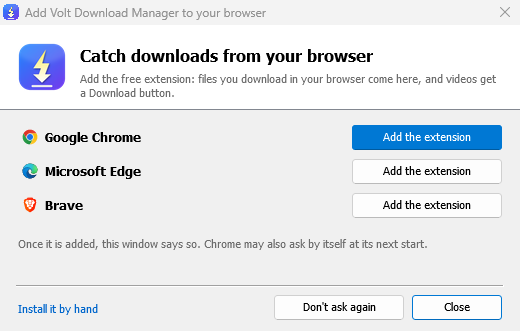
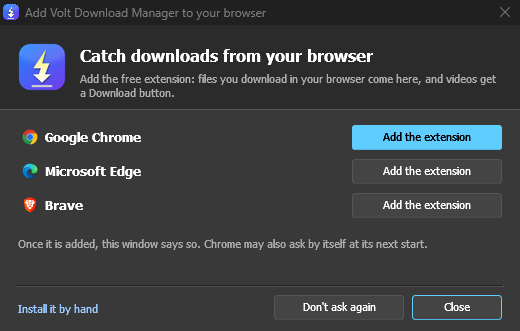
Firefox
Firefox 140 or later is needed. Install the add-on from its page on addons.mozilla.org, Volt Download Manager: click Add to Firefox. Firefox keeps it updated. Zen and LibreWolf install it from the same page. (VDM's Add Volt Download Manager to your browser window opens that page for you.)
For developers, Firefox can also load the add-on by hand: in about:debugging, This Firefox → Load Temporary Add-on..., choose vdm-firefox.xpi, which comes with VDM: in the extension folder where it is installed on Windows (as below), in /usr/share/voltdownloadmanager from the Linux packages. Firefox keeps that copy only until it restarts, and it doesn't update itself; its toolbar button's popup says so. The add-on from addons.mozilla.org is the one to use.
Chrome, Edge, Brave, Opera và Vivaldi
Install the extension from its page in the Chrome Web Store, Volt Download Manager: click Add to Chrome. In Edge the button is Get: Edge first asks to Allow extensions from other stores (click Allow), then Add extension. The browser keeps it updated. VDM's Add Volt Download Manager to your browser window opens that page in each browser for you, and Chrome may offer it by itself at its next start once VDM is installed.
To load it by hand instead (a browser that can't use the store, or a build of your own): its files are in the extension folder where VDM is installed: %LOCALAPPDATA%\Programs\Volt Download Manager\extension if you installed it for yourself, or Program Files\Volt Download Manager\extension if you installed it for everyone. Every release also has them as their own download, ...-extension-chromium.zip (unzip it first).
- Mở trang tiện ích mở rộng:
chrome://extensions,edge://extensionshoặcbrave://extensions. - Bật Chế độ nhà phát triển.
- Nhấp vào Tải tiện ích đã giải nén và chọn thư mục
extension\chromium.
Volt Download Manager appears in the list. Leave it turned on. Pin its button to the toolbar to see at a glance whether the browser reaches VDM.
Helium
Helium cài đặt tiện ích mở rộng từ cùng một trang trong Chrome Web Store: nhấp vào Thêm vào Chrome. Helium tìm nạp tiện ích mở rộng thông qua các dịch vụ riêng của nó, vì vậy điều này chỉ hoạt động khi chúng được phép. Nếu Helium thông báo Đã tắt tải xuống tiện ích mở rộng, hãy mở helium://settings/privacy/services (Cài đặt → Quyền riêng tư và bảo mật → Dịch vụ Helium), bật Cho phép kết nối với dịch vụ Helium và Ủy quyền tải xuống và cập nhật tiện ích mở rộng, sau đó nhấp lại vào Thêm vào Chrome. Nếu tắt các tùy chọn đó, hãy tải tiện ích mở rộng theo cách thủ công, như trên (chrome://extensions cũng hoạt động trong Helium).
VDM's setup registers the helper where Helium looks for it, on Windows, Linux and macOS. On Linux and macOS VDM also offers the extension to Helium, through Helium's own services, so with them allowed it arrives by itself at Helium's next start (on macOS Helium asks first: New extension added in its menu, where you turn it on). The Linux packages (.deb, .rpm) leave that to the window below, writing nothing in your home folder. On Windows Helium can't be offered the extension this way: VDM's Add Volt Download Manager to your browser window opens the store's page in Helium when Helium was installed with its setup; Helium from its zip isn't found there, so open the store's page in it yourself. Helium presents itself as Google Chrome, on purpose, so in Options → General → Capture downloads from the following browsers it is Google Chrome.
Safari (macOS)
Ứng dụng Mac đã bao gồm tiện ích mở rộng Safari: không cần tải xuống thêm. Cần có Safari 17 trở lên và macOS 14 trở lên.
- Drag VDM to Applications and start it once. VDM's Add Volt Download Manager to your browser window lists Safari: How to Add shows the steps below.
- In Safari open Settings → Extensions and tick Volt Download Manager. Click Always Allow on Every Website: the extension needs to read the site to pass your sign-in on.
- Vì ứng dụng chưa được Apple chứng thực (các bản thử nghiệm chưa được), Safari chỉ liệt kê tiện ích mở rộng khi cho phép các tiện ích không có chữ ký: Cài đặt → Nâng cao → Hiển thị tính năng cho nhà phát triển web, sau đó Cài đặt → Nhà phát triển → Cho phép tiện ích không có chữ ký. Safari sẽ quên cài đặt này mỗi khi thoát.
Safari không cho phép tiện ích mở rộng xem hoặc dừng các lượt tải xuống của trình duyệt, vì vậy cách hoạt động khác với các trình duyệt khác:
- Works as in the other browsers: the right-click items, the button over videos, Media on this page, the toolbar button, Alt-click, VDM starting by itself, and every rule in Options.
- A click on a link to a file type VDM takes goes to VDM. A download the page starts by itself (a script, or a link with no file name in its address that the server answers with a file) stays with Safari: use right-click → Download with Volt Download Manager for those.
- Không khả dụng: chia sẻ proxy hoặc VPN của trình duyệt, và tải xuống từ một biểu mẫu.
Từ tệp zip thông thường
The -x64.zip copy has no installer, but you can register the helper yourself. Open a command prompt in VDM's folder and run:
voltdownloadmanager-nmhost.exe --register
Thao tác này chỉ áp dụng cho tài khoản Windows của bạn. --unregister sẽ hủy đăng ký. Sau đó, tải tiện ích mở rộng như hướng dẫn ở trên từ thư mục extension trong tệp zip.
Cách hoạt động
When you click a download, the extension checks VDM's Options:
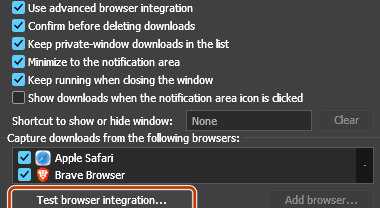
- Options → General → Use advanced browser integration must be on. Turn it off to send nothing to VDM.
- Trong Tùy chọn → Chung → Chụp các lượt tải xuống từ các trình duyệt sau, phải chọn trình duyệt bạn dùng.
- Tùy chọn → Loại tệp → Tự động bắt đầu tải xuống các loại tệp sau phải liệt kê loại tệp. Danh sách bắt đầu với các loại phổ biến: ZIP, RAR, 7Z, EXE, MSI, ISO, DMG, DEB, RPM, APPIMAGE, MP3, MP4, MKV, WEBM, PDF, các mô hình AI như GGUF và SAFETENSORS, các tệp 3D như GLB và STL, và nhiều loại khác. Bất kỳ loại nào khác có thể được thêm vào danh sách.
- Tùy chọn → Loại tệp → Không tự động bắt đầu tải xuống từ các trang web sau không được liệt kê trang web đó. Các tên được phân tách bằng dấu cách; một tên bao gồm các tên miền phụ của nó (
example.combao gồmwww.example.com, như*.update.microsoft.combao gồmdl.update.microsoft.com;*khớp với bất kỳ thứ gì, như trong*.example.*), và các tệp mà các trang của trang web liên kết đến trên một máy chủ khác (CDN), được thông báo bởi trang mà lượt tải xuống đến từ đó (referrer của nó). Sửa danh sách... bên dưới liệt kê toàn bộ địa chỉ cần bỏ qua, mỗi dòng một địa chỉ (https://example.com/private/*). - Tùy chọn → Loại tệp → Không tải xuống các tệp nhỏ hơn sẽ để trình duyệt xử lý các tệp nhỏ (như biên lai hoặc biểu tượng). Giá trị 0 áp dụng cho mọi kích thước.
- A
.torrentfile goes to VDM only while Tasks → Torrent settings → Open magnet links and .torrent files with Volt Download Manager is on. Off, the browser keeps it and opens it in your own torrent program. See Torrents. - Phải cho phép tiện ích mở rộng đọc nội dung trang web. Nếu chỉ cho phép trên một số trang web (hoặc chọn Khi nhấp), tiện ích không thể chuyển thông tin đăng nhập của bạn, nên các lượt tải xuống từ những trang web đó sẽ do trình duyệt xử lý.
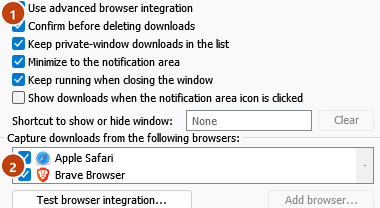
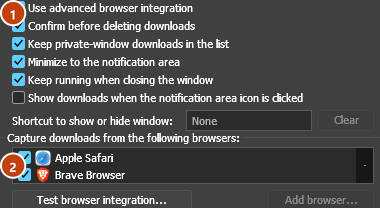
When the browser keeps a download, the extension's button says which of these left it there, with the file's name, and VDM's log has a line for each one (logs\vdm.log in VDM's data folder).
VDM kiểm tra cả địa chỉ bạn nhấp vào lẫn địa chỉ sau khi chuyển hướng. Vì vậy, trang web bạn đã loại trừ vẫn bị loại trừ ngay cả khi chuyển bạn đến máy chủ khác. Các lượt tải xuống khác vẫn do trình duyệt xử lý. Các thay đổi trong Tùy chọn sẽ được áp dụng trong trình duyệt trong vòng một phút; bạn không cần khởi động lại trình duyệt.
When VDM takes a download, it gets the browser's file name, size and type with it, so Download File Info shows them at once without asking the server again. A download from a form (a button that posts and gets a file back) is posted again by VDM with the form's data; a form that sends a file stays with the browser.
When VDM takes a download, the browser's own copy is cancelled and removed from the browser's download list. In Firefox and the browsers built on it (Waterfox, Zen, LibreWolf), VDM takes it as soon as the server answers, before the browser asks What should … do with this file?: for a file VDM takes, that question never shows (Waterfox asks it for every new type of file). Files VDM doesn't take get the question as before. Download File Info opens in VDM (unless you turned it off in Options → Downloads). Cancelling there doesn't hand the download back to the browser.
Click a download link in the browser: Download File Info opens in VDM. 

Bắt đầu tải xuống: cửa sổ tiến trình hiển thị tệp đang được tải xuống. 

Tải xuống hoàn tất: Mở tệp, hoặc Mở thư mục. 

A download takes your cookies with it, as the browser sends them: those of the link's site, and of every site the link sent the browser on to (a sign-in step, a file host's download server), the one the download ended at included, with the page's partitioned cookies. Cookies a site sets along the way are kept for the next step, as a browser keeps them. Each site only ever gets its own cookies, and none go from a secure (https) address down to a plain http one.
Downloads from a private window use that window's cookies, never the normal ones, and are kept in VDM's list like any other, so they are still there after a restart (their cookies are never saved). A small mask before a download's status marks it as a private window's; its tip says whether the list keeps it. To keep them in memory only, as the browser keeps its private history, untick Options → General → Keep private-window downloads in the list: then they are gone from the list when VDM closes.
Files VDM downloads from the browser are marked as coming from the internet, as the browser marks its own: Windows checks a program with SmartScreen before it runs and Office opens a document in Protected View. Like the browser, VDM leaves the mark out when Windows' Group Policy Do not preserve zone information in file attachments is on; Options → Save to can turn it off for VDM alone.
Tệp mà trình duyệt sẽ mở
A PDF, a song or a video that the browser would show or play itself goes to VDM too, when its type is in Options → File types (not on the excluded sites). That's one you open from a link or the address bar, and one a page shows in a frame, as many course and document sites show their PDFs. To turn this off, untick Also take files the browser would open in Options → General → Keys.... This needs a Chromium browser (Chrome, Edge, Brave, Opera, Vivaldi) version 128 or later, or Firefox.
A page with a PDF viewer of its own (its own page numbers, zoom and buttons, while the address bar keeps the page's address) reads the file itself and draws it. VDM leaves that file to the page: if VDM took it, the page would get nothing and say the document failed to load. To download such a file, open its address in a tab of its own, or use the page's own download button if it has one.
Nút thanh công cụ
The extension's button shows whether the browser reaches VDM. A red ! means it doesn't; click the button to see why, and How to fix it opens the matching section of The browser and VDM aren't connected. While VDM downloads, the button shows how many downloads are running, in blue; II means taking downloads is paused. Its popup says under VDM's name whether it is connected, and to which version; the gear opens VDM's Options. It has three tabs:
- Downloads: VDM's newest downloads (see Recent downloads, below).
- This page: Media on this page, what the page has loaded that VDM can download (see below), Images on this page (below), and Never take downloads from the current site, a switch: on, the site goes on VDM's excluded sites and the popup says Downloads from the site stay with the browser, whenever you open it there; off takes it off the list again. A site that a pattern of your own in Options excludes (
*.example.com) shows the switch on, and greyed: Options holds it. - Settings: Take downloads from this browser (off pauses: every download stays with the browser until you turn it on again), the browser's proxy (see below), Hide the download button in full screen, Send downloads to (this computer or another VDM, see Remote control), Options... and Open Volt Download Manager.
Tải xuống gần đây
Downloads lists VDM's newest downloads, newest first, and keeps them up to date while the popup is open: each with your system's own icon for its file type (as Explorer, Finder or your file manager shows it), its size and what it is doing. A running download shows a progress bar, its speed and the time left; a finished one when it finished; a failed one why; a finished one whose file was deleted or moved since says so. The search box finds downloads by any words of their name or address, and All, Running, Done and Failed show only those (each with how many there are). The popup shows the newest 60 that match; VDM's own window lists them all.
Di chuột qua một lượt tải xuống (hoặc dùng bàn phím để chọn) để thấy Hiển thị trong thư mục và Tạm dừng hoặc Tiếp tục. Nhấp vào tên tệp đã hoàn tất để mở nó. Menu ⋯ của nó có các tùy chọn còn lại:
- Open, Show in folder: as in VDM; the program or folder opens in front of the browser.
- Sao chép tệp: chính tệp đó được đưa vào bảng tạm, như chức năng Sao chép của trình quản lý tệp của bạn. Dán nó vào một thư mục, một cuộc trò chuyện, một email hoặc hộp tải lên của một trang web (trình duyệt chấp nhận các tệp được dán).
- Chia sẻ...: bảng chia sẻ của hệ thống của bạn với tệp (Windows 10 và 11, macOS), với bất kỳ kích thước nào. Linux không có bảng chia sẻ tiêu chuẩn, vì vậy Chia sẻ không được cung cấp ở đó: hãy sử dụng Sao chép tệp hoặc Hiển thị trong thư mục.
- Sao chép liên kết: địa chỉ của lượt tải xuống.
- Download again: from the start (a file; videos and torrents have their own way in VDM).
- Xóa khỏi danh sách (tệp vẫn còn) và Xóa tệp..., sẽ hỏi trước: tệp bị xóa khỏi máy tính của bạn, không thể hoàn tác.
Clear finished takes every finished download off the list; their files stay where they are. When VDM isn't running, the tab says so, with a button to start it.
Một cửa sổ bật lên không thể kéo tệp ra khỏi trình duyệt vào một chương trình khác hoặc một trang web (trình duyệt không cho phép cửa sổ bật lên của tiện ích bổ sung mang một tệp thực sự khi kéo), vì vậy Sao chép tệp và Hiển thị trong thư mục thực hiện công việc đó.
When downloads go to another VDM (a server), the list is that server's: Pause, Resume, Remove from list and Copy link work, and the buttons that need the file on this computer (open it, its folder, copy, share, delete) aren't shown; a line at the top says so.
On Linux, Copy file works in X11 sessions and in Wayland sessions with XWayland (GNOME, KDE and most others have it): VDM keeps the file on the clipboard until something else is copied.
Tiện ích VPN hoặc proxy
A VPN or proxy extension is a proxy for the browser only. Switch on Send downloads through this browser's proxy or VPN extension in the extension's toolbar popup (it's off as installed), and VDM downloads what it takes from the browser through the same proxy (with Options → Proxy / Socks → Use proxy/socks from a browser's request, on by default; see Options). Switched off, the extension reads nothing of the browser's proxy.
- Firefox asks you once, at the switch, to allow the extension to read the browser's proxy; switching it off takes that permission back. VDM gets the proxy the browser's own request for the file took, including the ones a VPN extension picks for each request.
- Chrome, Edge, Brave, Opera and Vivaldi can't ask for that permission at the switch, so the
extension has it from the install (Chrome counts it under the access to every site the extension
already asks for, so it adds no line to the install prompt and the update asks for nothing new).
The switch asks nothing. VDM gets the browser's effective proxy, whoever set it (a VPN or proxy
extension, a policy, the command line): a fixed server for the download's scheme (
http,https,socks4,socks5), unless the address is on its bypass list, or its proxy auto-config script (by its address or inline). With no proxy, or the system's, nothing is sent and VDM goes by its own Options. A QUIC proxy can't be shared.
Trong cả hai trường hợp, thông tin đăng nhập của proxy không bao giờ được đọc: một proxy yêu cầu thông tin đăng nhập của tiện ích VPN không thể chia sẻ, và bản tải xuống sẽ thông báo như vậy thay vì tiếp tục mà không có nó.
Nội dung đa phương tiện trên trang này
Một số trang phát video mà không có liên kết đến video đó, và một số trình phát còn ẩn video khỏi nút tải xuống. Nút trên thanh công cụ liệt kê nội dung trang đã tải, vì vậy bạn vẫn có thể lưu video:
- Luồng: HLS (
.m3u8) và DASH (.mpd), cách hầu hết các trang phát video dài. Mỗi luồng chỉ được liệt kê một lần, bất kể trình phát đã chuyển qua bao nhiêu mức chất lượng. Danh sách hiển thị các mức chất lượng (1080p · 720p) và thời lượng nếu tiện ích mở rộng đọc được. Tiện ích cũng tìm thấy luồng có địa chỉ không kết thúc bằng.m3u8hoặc.mpdvà được gửi dưới dạng văn bản thuần. Khi bạn mở danh sách (hoặc nhấn nút tải xuống trên trình phát) trong lúc trình phát phát luồng, tiện ích đọc vài kilobyte đầu tiên mà trình phát tải về để nhận dạng luồng. Tiện ích không đọc gì cho đến khi bạn yêu cầu. - Tệp video và âm thanh mà trang đã phát (MP4, WebM, MP3 và các định dạng tương tự), cùng kích thước tệp và, với video, kích thước hình ảnh.
Start the video first: the list fills as the page loads things, and it's emptied when the tab goes
to another page. Each file is listed under the name it will be saved with. A file the site sends
through a program's address (stream.php, remote_control.php, videoplayback, a bare number)
has no name of its own: it's named after the page (The page.mp4; a title's site name at its end,
as in The page | Example, is left out), or after the file= name in
its address when there is one, with the type its server says it is (MP4, not PHP). With Prefix
media file names with the page title on, a file with a name of its own is named after the page,
then that name (The page - clip.mp4). Click Download beside one: a stream opens VDM's Download video from a page
window, which reads its qualities (yt-dlp does the work); a file goes to VDM's list like any other
download. Your cookies for its server, the page as the referrer and your browser's User-Agent go
with it, as they do for a link you click.
Pieces of a stream (its segments) are never listed. A copy-protected stream (DRM: Widevine, PlayReady, FairPlay, as most paid streaming services use) is listed as Protected, with no Download button: no tool may break that protection, and VDM doesn't try.
Bạn không cần làm gì thêm: tiện ích mở rộng đã theo dõi nội dung trình duyệt tải xuống để chuyển giao các lượt tải xuống. Thông tin được ghi lại chỉ lưu trong bộ nhớ của trình duyệt và sẽ bị xóa khi trình duyệt đóng.
Hình ảnh trên trang này
Để tải xuống một thư viện ảnh, hoặc mọi hình ảnh của một trang, hãy mở tab Trang này của nút trên thanh công cụ và nhấp vào Tìm hình ảnh. Không có gì được tìm kiếm cho đến khi bạn nhấp vào đó. Tiện ích mở rộng tìm thấy:
- mỗi hình ảnh mà trang hiển thị, ở kích thước lớn nhất mà trang liệt kê cho nó: một hình ảnh được cung cấp ở nhiều kích thước (một
srcset, một<picture>với các nguồn của nó,1xvà2x) được tìm thấy một lần, ở kích thước lớn nhất của nó, không phải ở kích thước mà trang đang hiển thị; - hình ảnh mà một trang chỉ tải khi bạn cuộn đến nó (của nó
data-srchoặcdata-srcset), bên cạnh phần giữ chỗ mà nó hiển thị cho đến lúc đó; - các liên kết dẫn thẳng đến một hình ảnh, chẳng hạn như hình thu nhỏ liên kết đến kích thước đầy đủ của nó.
Mỗi địa chỉ được tìm thấy một lần, trong trang và trong các khung của nó, dưới dạng địa chỉ đầy đủ. Các hình ảnh được viết trực tiếp vào trang (data: địa chỉ) và những hình ảnh được tạo bởi một tập lệnh (blob:) không phải là tệp mà máy chủ có, vì vậy chúng bị bỏ qua. Các hình ảnh nền được đặt bởi kiểu của trang không được tìm kiếm.
Sau đó chọn những gì để gửi:
- Ít nhất một chiều rộng và chiều cao, tính bằng pixel, để bỏ qua các biểu tượng và hình thu nhỏ. Một hình ảnh mà trang không cung cấp kích thước (một hình ảnh chưa được tải, một hình ảnh chỉ được liên kết đến) sẽ được giữ lại, và dòng dưới các bộ lọc cho biết có bao nhiêu hình ảnh như vậy.
- Một nút cho mỗi loại được tìm thấy (JPEG, PNG, WEBP, GIF, AVIF, SVG, ..., Khác), với số lượng của mỗi loại: nhấp vào một nút để bỏ qua loại đó, nhấp lại để lấy lại. Loại là những gì địa chỉ nói (phần mở rộng tệp của nó, hoặc định dạng mà dịch vụ hình ảnh đặt tên trong đó).
Send to Link grabber hands the kept ones to VDM's Link grabber, the way Download all links does, with the page as their referrer and your cookies for it. Link grabber looks each one up for its real name and size, and you tick there the ones to download.
Right-click: Download with Volt Download Manager
Right-click a link, a video, a sound or a picture and choose Download with Volt Download Manager. VDM downloads it whatever its type: you asked for it, so the file types list and the excluded sites don't apply here (they only decide which downloads VDM takes over by itself). A video that plays as a stream goes to the Download video window with the stream its player loaded (HLS or DASH), as the button over videos sends it, with your cookies for the stream's server and what the browser sent with the stream (its referrer and origin, else the page as the referrer).
Select part of a page and right-click it for Download selected links with Volt Download Manager, or right-click the page for Download all links with Volt Download Manager: the links open in Link grabber, sorted into packages, where you tick the ones you want. A page with tens of thousands of links works too: the extension sends a long list in parts, and Link grabber shows it once they are all in.
Tải xuống tất cả liên kết cũng gửi các hình ảnh nằm trên trang và trong các khung của nó (các hình ảnh của nó, mỗi hình ảnh ở kích thước lớn nhất mà trang liệt kê cho nó, như Tìm hình ảnh tìm thấy chúng, không có hình ảnh nào bị bỏ qua theo kích thước hoặc loại), và Tải xuống các liên kết đã chọn những hình ảnh trong vùng chọn. Trình lấy liên kết ẩn chúng trong khi Ẩn hình ảnh trên trang web này được đánh dấu, như mỗi khi một danh sách như vậy xuất hiện: bỏ đánh dấu để xem các hình ảnh và đánh dấu những hình ảnh bạn muốn. Một liên kết đến một hình ảnh là một liên kết và luôn hiển thị, ngay cả khi cùng một hình ảnh cũng được hiển thị trên trang. Các hình ảnh nền được đặt bởi kiểu của trang không được gửi.
If VDM can't be reached when you choose one of these, the help page opens at the section that explains why.
Nút tải xuống trên video
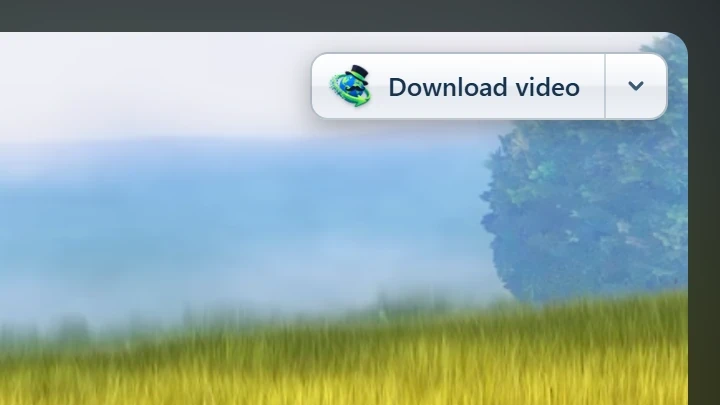
Point at a video on a web page and a small tab appears at its top corner: VDM's logo and a green Download video part, an arrow for its list and ✕ to hide it on this video. It follows Windows' light or dark mode. As it appears, VDM looks the video up (when VDM is running), and the button then names the best quality it found (1080p, 4K). Click it and that quality downloads at once, with only its progress window; VDM's main window stays where it is (with Do not start downloading, only add files to the queue on in Options, it goes in the queue instead). Clicking while VDM is still looking works too: it takes the best quality as soon as it is known. A video that plays a plain file (not a stream) needs no look-up: the button shows its picture size and downloads the file itself. When nothing could be looked up (VDM wasn't running, yt-dlp isn't installed, the page is a playlist, or you send downloads to another VDM), a click opens the Download video from a page window, which says why and offers what to do.
It takes the video you clicked: its own file when it plays one, or the stream the player loaded (HLS or DASH), else the page. A video that hasn't started yet, on a site yt-dlp doesn't read, has loaded no stream: the button then takes the stream address the page wrote for its player (an HLS or DASH playlist in its scripts or the player's attributes; the master playlist, else the best quality it names), on a page with one video, so you don't need to play it first. It only asks for addresses the page names. In a feed it takes the post the video sits in. When VDM finds nothing there (a feed that names no post, a post or a site yt-dlp can't read, such as Douyin's recommended videos), the button offers what the tab played for that video instead: the file or the stream whose length is the video's, never the next video the feed loaded meanwhile. When more than one could be it, it says Can't tell which video this is rather than guess; the toolbar button's Media on this page lists what the page loaded. Embedded players work too, and your sign-in for the site, the page that embeds the player and your browser's User-Agent go with it, so videos for members, or that play only on the site that embeds them, can be downloaded. A stream goes with what the browser sent when the player asked for it, its referrer, its origin and its cookies (a player embedded from another site may have cookies the browser keeps for that page only), and VDM sends them again with each of its playlists and pieces: a site's video server that serves its own pages' players only lets VDM through as well. A video the site names (YouTube, Vimeo and the others yt-dlp reads) keeps its own title; a stream known by no title of its own (its address is only playlist.m3u8) is named after the page you're on, without the site's name at its end: on a page titled A film | Example, it's A film.mp4, even when the player is embedded from another site. Sound players get the button too.
Sau khi nhấp, nó sẽ cho biết điều gì đã xảy ra, với màu sắc riêng:
- Added to VDM (green), with the quality: Show brings VDM's window up with that download selected.
- Mở bài đăng để tải xuống (màu hổ phách): video nằm trong một nguồn cấp dữ liệu và không thể tải xuống từ đó. Mở bài đăng sẽ mở bài đăng trong một tab mới, khi nút biết được; hãy sử dụng nút ở đó.
- VDM didn't answer (red): VDM isn't installed or didn't start. Get VDM opens its download page; Retry tries again.
- Tắt trên trang này (xám): sau khi Không bao giờ trên trang web, hoặc khi Tùy chọn giữ nó tắt ở đó. Bật sẽ hiển thị nó trên trang web một lần nữa.
- Video được bảo vệ · không thể lưu (xám, có khóa): một video được bảo vệ bản quyền (DRM), không công cụ nào có thể lưu.
Nút này không làm vướng víu: nó chỉ hiện ra khi bạn di chuyển con trỏ chuột qua video (hoặc trình phát đang được chọn bằng bàn phím; Tab sau đó di chuyển đến nút), mờ đi 1,5 giây sau khi con trỏ dừng lại, hoặc một lát sau khi rời khỏi video, và biến mất sau 3 giây; khi mờ, nó vẫn ở đó để bạn tìm thấy, và chỉ vào nó sẽ làm nó hiện rõ trở lại. Nó không bao giờ mờ đi khi menu của nó đang mở, và với chế độ giảm chuyển động của hệ thống, nó thay đổi mà không có hiệu ứng mờ. Nó bỏ qua các video nhỏ và các đoạn lặp ngắn không tiếng (ảnh động, hình nền). Nó không che các nút riêng của trang: khi một nút nằm dưới bất kỳ phần nào của góc của nó (nút phản hồi hoặc cài đặt của trình phát, nút xem sau của hình thu nhỏ), nó sẽ chiếm góc trống tiếp theo và giữ nguyên vị trí đó trong khi trình phát hiển thị và ẩn các nút của nó, để nó không di chuyển khi bạn chạm vào. Trên một bản xem trước phát khi con trỏ ở trên hình thu nhỏ (trang chủ YouTube, tìm kiếm, kênh), trang sẽ dừng bản xem trước khi con trỏ chạm vào nút; nút vẫn ở vị trí cũ khi con trỏ ở trên đó, và một cú nhấp chuột sẽ tải xuống video của bản xem trước đó. Phát hoặc tạm dừng video không làm nó hiện lại. Khi cài đặt (Kích thước nút: Tự động trong Tùy chọn, bên dưới), nó chỉ là logo của VDM, mũi tên và ✕ trên video trong nguồn cấp dữ liệu (Facebook, X, LinkedIn, Instagram, Reddit, trang chủ YouTube và tương tự) và trên trình phát nhỏ, và toàn bộ nút, với chữ, trên trình phát lớn như trang xem; trên video rộng dưới 360 pixel, hoặc nơi chữ không vừa, nó luôn là nút tròn đó. Đầy đủ giữ chữ của nó ở bất cứ đâu chúng vừa; Thu gọn biến nó thành nút tròn trên mọi video. Ở chế độ toàn màn hình, nó đi theo video khi trình phát cho phép, và khi vào toàn màn hình, nó không làm vướng víu cho đến khi bạn di chuyển con trỏ lần nữa.
- Its menu (the arrow next to it, or ↓ when the button has the keyboard's focus): the video's title, length and site; its filters, when the qualities differ: All, Video (the picture with its sound) or Audio only, and the file type (MP4, WEBM, M4A, MP3...) or the picture's codec (AV1, VP9, H.264), kept for the site; Download best first (the best of what the filters keep), then one numbered line per quality under VIDEO and AUDIO, with its file type, codec, frame rate or bitrate and size (
1080pMP4 · AV1 · 60 fps, as the Download video window says it), the best one marked, and Most compatible (H.264 + AAC) beside the resolution of the one that plays everywhere (Choose the quality); All qualities and subtitles..., which opens the Download video from a page window; then Put the button back in its corner (once you moved it on the site), Hide on this video (Esc), Hide the download button in full screen, Never on the site (VDM remembers the site), and Button settings..., which opens VDM's Options. The arrow keys move through it, Enter picks, Esc closes it. - Di chuyển nó: kéo nó bằng các chấm của nó đến bất kỳ vị trí nào trên video, đến một góc hoặc cạnh khác, hoặc ra ngoài trình phát, phía trên, phía dưới hoặc bên cạnh nó (đối với một trang web che trình phát của nó hoặc vẽ các điều khiển riêng ở vị trí nút sẽ ở); gần một cạnh hoặc bên ngoài, cạnh và các điểm nó bám vào (các góc và giữa) sẽ hiển thị. Bên ngoài trình phát, nó vẫn ở bên trong trên cạnh đó khi cửa sổ không có chỗ ở đó (trình phát ở đầu cửa sổ, toàn màn hình). Nó vẫn ở vị trí bạn đặt trên trang web đó; Đặt lại nút về vị trí cũ trong menu sẽ đưa nó trở lại, và cửa sổ bật lên của tiện ích bổ sung có Cài đặt → Nút tải xuống trên video → Đặt lại cho mọi trang web (cả bộ lọc của nó).
- Turn it off, make it smaller, or see the sites it stays off: Options → General → Customize VDM Download panels in browsers → Edit.... Button size has a 80%, 100% or 120% scale beside it, and is Automatic as installed (round in a feed and over a small player, its words over a big one), Full (its words wherever they fit) or Compact (only VDM's logo, the arrow and ✕, on every video, as on a small one); after a click it still says what happened in words. Pages already open follow a change within a few seconds, without a reload.
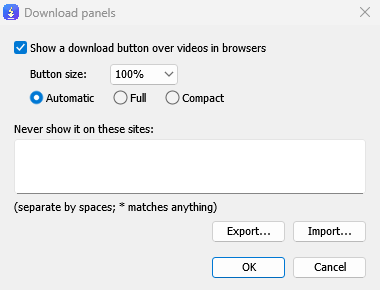
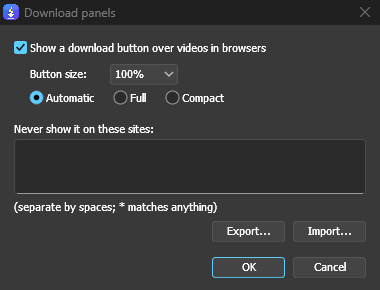
Nút này hoạt động theo cài đặt tích hợp trình duyệt: nút sẽ không hiển thị nếu Sử dụng tích hợp trình duyệt nâng cao bị tắt hoặc trình duyệt không được chọn.
Phím để buộc hoặc ngăn chặn việc bắt tải xuống
Hold Alt (Option on a Mac) while clicking a link to let the browser download it instead of VDM. The extension follows the link as a plain click would, in every browser, and the browser keeps what comes of it: the link opens in the tab, so a site's bot check (Cloudflare's "Just a moment...") runs there first. Without the extension in the way, Chromium browsers and Safari would save the link without opening it, which saves the check's page instead of the file; Firefox would do nothing. When the link redirects, or the page it leads to starts the download by script ("your download starts in 5 seconds"), that download stays with the browser too when it starts within ten seconds; the link's own address, and a download its own page starts (a bot check's page once its check is passed), within a minute. Alt with Ctrl, Shift or Cmd, and the middle button, keep their meaning (a new tab or window). Options → General → Keys... says so, and holds Also take files the browser would open.
Để trình duyệt luôn tải xuống các tệp từ một trang web, hãy dùng tùy chọn Không bao giờ tải xuống từ trong nút trên thanh công cụ hoặc thêm trang web vào danh sách Không tự động bắt đầu tải xuống từ các trang web sau. Để trình duyệt tải xuống một loại tệp, hãy xóa loại đó khỏi danh sách loại tệp.
When VDM isn't running
You don't need to start VDM first. When the browser hands over a download and VDM isn't running, the helper starts it and passes the download on.
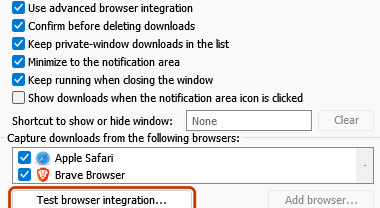
If VDM can't be reached at all (it was uninstalled, or the helper isn't registered), the download stays with the browser, so nothing is lost, and the toolbar button shows a red !. See The browser and VDM aren't connected, or run Options → General → Test browser integration....
Các bước tiếp theo
- Hướng dẫn: bắt tải xuống từ trình duyệt của bạn →
- Change which file types VDM takes →
- Nếu trình duyệt không chuyển giao tệp tải xuống →
Miễn phí, mã nguồn mở, không quảng cáo, không dùng thử.
Download Volt Download Manager