

With the VDM extension, clicking a download link in your browser hands the download to VDM. VDM gets the address together with the page it came from (the referrer), your cookies for the site and the browser's User-Agent, so downloads that need you to be signed in still work. It also gets the address the browser's own download had reached: when a site refuses VDM the link itself (a one-time link the browser has already used, or a site that lets only browsers ask for its links), VDM goes on from there once, without your cookies if it is another site. When a site's bot check (Cloudflare's, for one) or its refusal of programs (FileHippo's 412 Precondition Failed) turns VDM's own connection away, VDM asks once more connecting the way your browser does (the same handshake, settings and order of headers), with your browser's User-Agent and its cookies for that site only, and downloads on it with as many connections as any download, each asking for its part of the file (on one connection when the site refuses parts there); your proxy, network adapter and speed limits apply as usual. The pieces of a video stream (HLS, DASH) go the same way when the site's check refuses them. Some checks (SourceForge's) refuse anything that calls itself a browser without connecting exactly like one, and let a program that says what it is through: when that connection is refused too, VDM asks once more under its own name (VoltDownloadManager/ and its version, or the User-Agent you typed in Options → Downloads), with the same cookies and referrer, and remembers the site until VDM closes, so its next downloads, and a paused one when it resumes, go that way at once. It solves no challenge: a site that still wants one answered (some Cloudflare checks ask it of every visitor, for the site's pages too) refuses again, and VDM says this site lets only browsers through; Alt+click the link to leave the download to the browser, which opens the link, passes the check and keeps the file.
L'estensione funziona con Google Chrome, Microsoft Edge, Brave, Opera e Vivaldi, con Firefox 140 o versioni successive e con Safari 17 o versioni successive su Mac (vedi Safari).
Browsers built on them work too: Chromium and Helium take the extension as Chrome does, Brave Origin as Brave does, Zen and LibreWolf as Firefox does. On Windows, Zen has a bug of its own (see The browser and VDM aren't connected).
Configurazione
L'integrazione con i browser ha due parti: un piccolo programma di supporto con cui il browser comunica e l'estensione stessa.
- Install VDM with the setup and keep Set up browser integration (Chrome, Edge, Brave, Firefox) ticked. This registers the helper. (The portable copy can't do this; see Portable mode.) On Linux and macOS VDM registers it itself, each time it starts, for the browsers installed then.
- Add the extension to each browser you use, as below: Firefox from its add-ons store, the others from the Chrome Web Store. On the first start this is a step of the setup window. Until a browser's extension has reached VDM, VDM's Add Volt Download Manager to your browser window opens at each later start: it lists the browsers it found, and Add the extension opens the store's page in that browser. Install it by hand opens the steps for loading it without the store; Don't ask again stops the window.
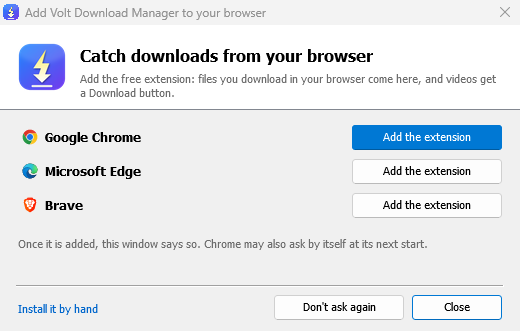
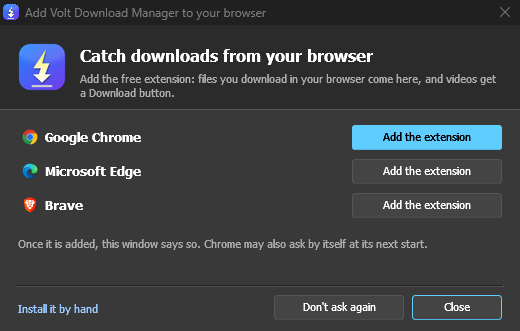
Firefox
Firefox 140 or later is needed. Install the add-on from its page on addons.mozilla.org, Volt Download Manager: click Add to Firefox. Firefox keeps it updated. Zen and LibreWolf install it from the same page. (VDM's Add Volt Download Manager to your browser window opens that page for you.)
For developers, Firefox can also load the add-on by hand: in about:debugging, This Firefox → Load Temporary Add-on..., choose vdm-firefox.xpi, which comes with VDM: in the extension folder where it is installed on Windows (as below), in /usr/share/voltdownloadmanager from the Linux packages. Firefox keeps that copy only until it restarts, and it doesn't update itself; its toolbar button's popup says so. The add-on from addons.mozilla.org is the one to use.
Chrome, Edge, Brave, Opera e Vivaldi
Install the extension from its page in the Chrome Web Store, Volt Download Manager: click Add to Chrome. In Edge the button is Get: Edge first asks to Allow extensions from other stores (click Allow), then Add extension. The browser keeps it updated. VDM's Add Volt Download Manager to your browser window opens that page in each browser for you, and Chrome may offer it by itself at its next start once VDM is installed.
To load it by hand instead (a browser that can't use the store, or a build of your own): its files are in the extension folder where VDM is installed: %LOCALAPPDATA%\Programs\Volt Download Manager\extension if you installed it for yourself, or Program Files\Volt Download Manager\extension if you installed it for everyone. Every release also has them as their own download, ...-extension-chromium.zip (unzip it first).
- Apri la pagina delle estensioni:
chrome://extensions,edge://extensionsobrave://extensions. - Attiva la Modalità sviluppatore.
- Fai clic su Carica estensione non pacchettizzata e scegli la cartella
extension\chromium.
Volt Download Manager appears in the list. Leave it turned on. Pin its button to the toolbar to see at a glance whether the browser reaches VDM.
Helium
Helium installa l'estensione dalla stessa pagina del Chrome Web Store: fai clic su Aggiungi a Chrome. Helium recupera le estensioni tramite i suoi servizi, quindi questo funziona solo se sono consentiti. Se Helium dice Download estensioni disabilitati, apri helium://settings/privacy/services (Impostazioni → Privacy e sicurezza → Servizi Helium), attiva Consenti la connessione ai servizi Helium e Scarica e aggiorna le estensioni tramite proxy, e fai di nuovo clic su Aggiungi a Chrome. Se sono disattivati, carica l'estensione a mano, come sopra (chrome://extensions funziona anche in Helium).
VDM's setup registers the helper where Helium looks for it, on Windows, Linux and macOS. On Linux and macOS VDM also offers the extension to Helium, through Helium's own services, so with them allowed it arrives by itself at Helium's next start (on macOS Helium asks first: New extension added in its menu, where you turn it on). The Linux packages (.deb, .rpm) leave that to the window below, writing nothing in your home folder. On Windows Helium can't be offered the extension this way: VDM's Add Volt Download Manager to your browser window opens the store's page in Helium when Helium was installed with its setup; Helium from its zip isn't found there, so open the store's page in it yourself. Helium presents itself as Google Chrome, on purpose, so in Options → General → Capture downloads from the following browsers it is Google Chrome.
Safari (macOS)
L'app per Mac include l'estensione per Safari: non c'è nulla da scaricare. Sono necessari Safari 17 o versioni successive e macOS 14 o versioni successive.
- Drag VDM to Applications and start it once. VDM's Add Volt Download Manager to your browser window lists Safari: How to Add shows the steps below.
- In Safari open Settings → Extensions and tick Volt Download Manager. Click Always Allow on Every Website: the extension needs to read the site to pass your sign-in on.
- Poiché l'app non è autenticata da Apple (le build sperimentali non lo sono), Safari elenca l'estensione solo se sono consentite le estensioni non firmate: Impostazioni → Avanzate → Mostra funzionalità per sviluppatori web, poi Impostazioni → Sviluppo → Consenti estensioni non firmate. Safari dimentica questa impostazione ogni volta che si chiude.
Safari non consente a un'estensione di vedere né di interrompere i download del browser, quindi il funzionamento differisce dagli altri browser:
- Works as in the other browsers: the right-click items, the button over videos, Media on this page, the toolbar button, Alt-click, VDM starting by itself, and every rule in Options.
- A click on a link to a file type VDM takes goes to VDM. A download the page starts by itself (a script, or a link with no file name in its address that the server answers with a file) stays with Safari: use right-click → Download with Volt Download Manager for those.
- Non disponibile: la condivisione del proxy o della VPN del browser e un download da un modulo.
Dallo zip semplice
The -x64.zip copy has no installer, but you can register the helper yourself. Open a command prompt in VDM's folder and run:
voltdownloadmanager-nmhost.exe --register
Questo è solo per il tuo account Windows. --unregister annulla l'operazione. Poi carica l'estensione come sopra, dalla cartella extension dello zip.
Cosa serve
When you click a download, the extension checks VDM's Options:
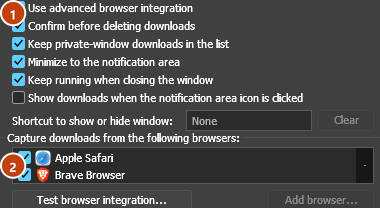
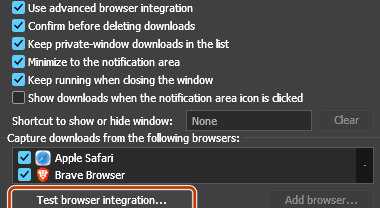
- Options → General → Use advanced browser integration must be on. Turn it off to send nothing to VDM.
- Opzioni → Generale → Acquisisci i download dai seguenti browser deve avere il tuo browser selezionato.
- Opzioni → Tipi di file → Avvia automaticamente il download dei seguenti tipi di file deve elencare il tipo di file. L'elenco inizia con quelli più comuni: ZIP, RAR, 7Z, EXE, MSI, ISO, DMG, DEB, RPM, APPIMAGE, MP3, MP4, MKV, WEBM, PDF, modelli AI come GGUF e SAFETENSORS, file 3D come GLB e STL e molti altri. Tutto il resto può essere aggiunto all'elenco.
- Opzioni → Tipi di file → Non avviare automaticamente il download dai seguenti siti non deve elencare il sito. I nomi sono separati da spazi; un nome copre i suoi sottodomini (
example.comcoprewww.example.com, come*.update.microsoft.comcopredl.update.microsoft.com;*corrisponde a qualsiasi cosa, come in*.example.*), e i file a cui le pagine del sito si collegano su un altro server (una CDN), indicati dalla pagina da cui proviene il download (il suo referrer). Modifica elenco... sotto elenca gli indirizzi completi da lasciare in pace, uno per riga (https://example.com/private/*). - Opzioni → Tipi di file → Non acquisire file più piccoli di lascia i file piccoli (una ricevuta, un'icona) al browser. 0 acquisisce qualsiasi dimensione.
- A
.torrentfile goes to VDM only while Tasks → Torrent settings → Open magnet links and .torrent files with Volt Download Manager is on. Off, the browser keeps it and opens it in your own torrent program. See Torrents. - L'estensione deve essere autorizzata a leggere il sito. Quando la limiti ad alcuni siti (o a Al clic), non può passare il tuo accesso, quindi lascia i download di quei siti al browser.
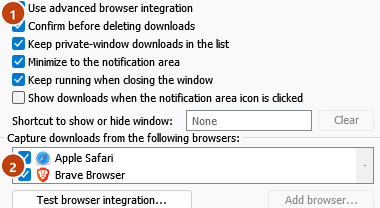
When the browser keeps a download, the extension's button says which of these left it there, with the file's name, and VDM's log has a line for each one (logs\vdm.log in VDM's data folder).
Vengono controllati sia l'indirizzo su cui hai fatto clic sia quello a cui i suoi reindirizzamenti hanno portato, quindi un sito che hai escluso rimane escluso anche quando ti invia a un altro server. Tutto il resto resta al browser. Le modifiche nelle Opzioni raggiungono il browser entro un minuto; non è necessario riavviarlo.
When VDM takes a download, it gets the browser's file name, size and type with it, so Download File Info shows them at once without asking the server again. A download from a form (a button that posts and gets a file back) is posted again by VDM with the form's data; a form that sends a file stays with the browser.
When VDM takes a download, the browser's own copy is cancelled and removed from the browser's download list. In Firefox and the browsers built on it (Waterfox, Zen, LibreWolf), VDM takes it as soon as the server answers, before the browser asks What should … do with this file?: for a file VDM takes, that question never shows (Waterfox asks it for every new type of file). Files VDM doesn't take get the question as before. Download File Info opens in VDM (unless you turned it off in Options → Downloads). Cancelling there doesn't hand the download back to the browser.
Click a download link in the browser: Download File Info opens in VDM. 

Avvia download: la finestra di avanzamento mostra il download in corso. 

Download completato: apri il file o apri la cartella. 

A download takes your cookies with it, as the browser sends them: those of the link's site, and of every site the link sent the browser on to (a sign-in step, a file host's download server), the one the download ended at included, with the page's partitioned cookies. Cookies a site sets along the way are kept for the next step, as a browser keeps them. Each site only ever gets its own cookies, and none go from a secure (https) address down to a plain http one.
Downloads from a private window use that window's cookies, never the normal ones, and are kept in VDM's list like any other, so they are still there after a restart (their cookies are never saved). A small mask before a download's status marks it as a private window's; its tip says whether the list keeps it. To keep them in memory only, as the browser keeps its private history, untick Options → General → Keep private-window downloads in the list: then they are gone from the list when VDM closes.
Files VDM downloads from the browser are marked as coming from the internet, as the browser marks its own: Windows checks a program with SmartScreen before it runs and Office opens a document in Protected View. Like the browser, VDM leaves the mark out when Windows' Group Policy Do not preserve zone information in file attachments is on; Options → Save to can turn it off for VDM alone.
File che il browser aprirebbe
A PDF, a song or a video that the browser would show or play itself goes to VDM too, when its type is in Options → File types (not on the excluded sites). That's one you open from a link or the address bar, and one a page shows in a frame, as many course and document sites show their PDFs. To turn this off, untick Also take files the browser would open in Options → General → Keys.... This needs a Chromium browser (Chrome, Edge, Brave, Opera, Vivaldi) version 128 or later, or Firefox.
A page with a PDF viewer of its own (its own page numbers, zoom and buttons, while the address bar keeps the page's address) reads the file itself and draws it. VDM leaves that file to the page: if VDM took it, the page would get nothing and say the document failed to load. To download such a file, open its address in a tab of its own, or use the page's own download button if it has one.
Il pulsante della barra degli strumenti
The extension's button shows whether the browser reaches VDM. A red ! means it doesn't; click the button to see why, and How to fix it opens the matching section of The browser and VDM aren't connected. While VDM downloads, the button shows how many downloads are running, in blue; II means taking downloads is paused. Its popup says under VDM's name whether it is connected, and to which version; the gear opens VDM's Options. It has three tabs:
- Downloads: VDM's newest downloads (see Recent downloads, below).
- This page: Media on this page, what the page has loaded that VDM can download (see below), Images on this page (below), and Never take downloads from the current site, a switch: on, the site goes on VDM's excluded sites and the popup says Downloads from the site stay with the browser, whenever you open it there; off takes it off the list again. A site that a pattern of your own in Options excludes (
*.example.com) shows the switch on, and greyed: Options holds it. - Settings: Take downloads from this browser (off pauses: every download stays with the browser until you turn it on again), the browser's proxy (see below), Hide the download button in full screen, Send downloads to (this computer or another VDM, see Remote control), Options... and Open Volt Download Manager.
Download recenti
Downloads lists VDM's newest downloads, newest first, and keeps them up to date while the popup is open: each with your system's own icon for its file type (as Explorer, Finder or your file manager shows it), its size and what it is doing. A running download shows a progress bar, its speed and the time left; a finished one when it finished; a failed one why; a finished one whose file was deleted or moved since says so. The search box finds downloads by any words of their name or address, and All, Running, Done and Failed show only those (each with how many there are). The popup shows the newest 60 that match; VDM's own window lists them all.
Punta un download (o raggiungilo con la tastiera) per Mostra nella cartella e Pausa o Riprendi. Fai clic sul nome di un file completato per aprirlo. Il suo menu ⋯ ha il resto:
- Open, Show in folder: as in VDM; the program or folder opens in front of the browser.
- Copia file: il file stesso va negli appunti, come lo mette la funzione Copia del tuo file manager. Incollalo in una cartella, una chat, un'e-mail o una casella di upload di una pagina web (i browser accettano i file incollati).
- Condividi...: la finestra di condivisione del tuo sistema con il file (Windows 10 e 11, macOS), di qualsiasi dimensione. Linux non ha una finestra di condivisione standard, quindi Condividi non è offerto lì: usa Copia file o Mostra nella cartella.
- Copia collegamento: l'indirizzo del download.
- Download again: from the start (a file; videos and torrents have their own way in VDM).
- Rimuovi dall'elenco (il file resta) e Elimina il file..., che chiede prima: il file viene eliminato dal tuo computer, cosa che non può essere annullata.
Clear finished takes every finished download off the list; their files stay where they are. When VDM isn't running, the tab says so, with a button to start it.
Un popup non può trascinare un file fuori dal browser in un altro programma o una pagina web (i browser non permettono al popup di un'estensione di trasportare un file reale con un trascinamento), quindi Copia file e Mostra nella cartella svolgono questo compito.
When downloads go to another VDM (a server), the list is that server's: Pause, Resume, Remove from list and Copy link work, and the buttons that need the file on this computer (open it, its folder, copy, share, delete) aren't shown; a line at the top says so.
On Linux, Copy file works in X11 sessions and in Wayland sessions with XWayland (GNOME, KDE and most others have it): VDM keeps the file on the clipboard until something else is copied.
Un'estensione VPN o proxy
A VPN or proxy extension is a proxy for the browser only. Switch on Send downloads through this browser's proxy or VPN extension in the extension's toolbar popup (it's off as installed), and VDM downloads what it takes from the browser through the same proxy (with Options → Proxy / Socks → Use proxy/socks from a browser's request, on by default; see Options). Switched off, the extension reads nothing of the browser's proxy.
- Firefox asks you once, at the switch, to allow the extension to read the browser's proxy; switching it off takes that permission back. VDM gets the proxy the browser's own request for the file took, including the ones a VPN extension picks for each request.
- Chrome, Edge, Brave, Opera and Vivaldi can't ask for that permission at the switch, so the
extension has it from the install (Chrome counts it under the access to every site the extension
already asks for, so it adds no line to the install prompt and the update asks for nothing new).
The switch asks nothing. VDM gets the browser's effective proxy, whoever set it (a VPN or proxy
extension, a policy, the command line): a fixed server for the download's scheme (
http,https,socks4,socks5), unless the address is on its bypass list, or its proxy auto-config script (by its address or inline). With no proxy, or the system's, nothing is sent and VDM goes by its own Options. A QUIC proxy can't be shared.
In entrambi, le credenziali del proxy non vengono mai lette: un proxy che richiede le credenziali proprie dell'estensione VPN non può essere condiviso, e il download lo indica invece di procedere senza.
Contenuti multimediali in questa pagina
Alcune pagine riproducono un video senza un collegamento al video, e alcuni lettori lo nascondono anche al pulsante di download. Il pulsante della barra degli strumenti elenca ciò che la pagina ha caricato, così puoi comunque salvarlo:
- Stream: HLS (
.m3u8) e DASH (.mpd), i formati usati dalla maggior parte dei siti per riprodurre video lunghi. Ogni stream compare una sola volta, indipendentemente dal numero di qualità tra cui è passato il lettore; vengono mostrate le qualità (1080p · 720p) e la durata, se l'estensione riesce a leggerle. Viene individuato anche uno stream servito come testo semplice, il cui indirizzo non termina in.m3u8o.mpd: quando apri l'elenco (o fai clic sul pulsante di download sopra il lettore) mentre il lettore riproduce uno stream, l'estensione legge i primi kilobyte dei dati scaricati dal lettore per riconoscerlo. L'estensione non legge nulla finché non glielo chiedi. - File video e audio riprodotti dalla pagina (MP4, WebM, MP3 e simili), con la dimensione del file e, per i video, la risoluzione.
Start the video first: the list fills as the page loads things, and it's emptied when the tab goes
to another page. Each file is listed under the name it will be saved with. A file the site sends
through a program's address (stream.php, remote_control.php, videoplayback, a bare number)
has no name of its own: it's named after the page (The page.mp4; a title's site name at its end,
as in The page | Example, is left out), or after the file= name in
its address when there is one, with the type its server says it is (MP4, not PHP). With Prefix
media file names with the page title on, a file with a name of its own is named after the page,
then that name (The page - clip.mp4). Click Download beside one: a stream opens VDM's Download video from a page
window, which reads its qualities (yt-dlp does the work); a file goes to VDM's list like any other
download. Your cookies for its server, the page as the referrer and your browser's User-Agent go
with it, as they do for a link you click.
Pieces of a stream (its segments) are never listed. A copy-protected stream (DRM: Widevine, PlayReady, FairPlay, as most paid streaming services use) is listed as Protected, with no Download button: no tool may break that protection, and VDM doesn't try.
Non devi fare altro: l'estensione vede già ciò che il browser scarica per acquisire i download. Le informazioni che raccoglie restano nella memoria del browser e vengono eliminate quando il browser si chiude.
Immagini in questa pagina
Per scaricare una galleria, o ogni immagine di una pagina, apri la scheda Questa pagina del pulsante della barra degli strumenti e fai clic su Trova immagini. Non viene cercato nulla finché non fai clic. L'estensione trova:
- ogni immagine che la pagina mostra, alla dimensione più grande che la pagina elenca per essa: un'immagine offerta in diverse dimensioni (un
srcset, un<picture>con le sue fonti,1xe2x) viene trovata una volta, alla sua dimensione più grande, non alla dimensione che la pagina mostra; - l'immagine che una pagina carica solo quando scorri fino ad essa (il suo
data-srcodata-srcset), accanto al segnaposto che mostra fino ad allora; - collegamenti che vanno direttamente a un'immagine, come una miniatura che si collega alla sua dimensione intera.
Ogni indirizzo viene trovato una volta, nella pagina e nei suoi fotogrammi, come indirizzo completo. Le immagini scritte nella pagina stessa (indirizzi data:) e quelle create da uno script (blob:) non sono file che un server ha, quindi vengono escluse. Le immagini di sfondo impostate dagli stili di una pagina non vengono cercate.
Poi scegli quali inviare:
- Almeno una larghezza e un'altezza, in pixel, per escludere icone e miniature. Un'immagine di cui la pagina non fornisce la dimensione (una non ancora caricata, una solo collegata) viene mantenuta, e la riga sotto i filtri indica quante ce ne sono.
- Un pulsante per ogni tipo trovato (JPEG, PNG, WEBP, GIF, AVIF, SVG, ..., Altro), con il numero di ciascuno: fai clic su uno per escludere quel tipo, di nuovo per riprenderlo. Il tipo è ciò che l'indirizzo dice (la sua estensione del file, o il formato che un servizio di immagini nomina in esso).
Send to Link grabber hands the kept ones to VDM's Link grabber, the way Download all links does, with the page as their referrer and your cookies for it. Link grabber looks each one up for its real name and size, and you tick there the ones to download.
Right-click: Download with Volt Download Manager
Right-click a link, a video, a sound or a picture and choose Download with Volt Download Manager. VDM downloads it whatever its type: you asked for it, so the file types list and the excluded sites don't apply here (they only decide which downloads VDM takes over by itself). A video that plays as a stream goes to the Download video window with the stream its player loaded (HLS or DASH), as the button over videos sends it, with your cookies for the stream's server and what the browser sent with the stream (its referrer and origin, else the page as the referrer).
Select part of a page and right-click it for Download selected links with Volt Download Manager, or right-click the page for Download all links with Volt Download Manager: the links open in Link grabber, sorted into packages, where you tick the ones you want. A page with tens of thousands of links works too: the extension sends a long list in parts, and Link grabber shows it once they are all in.
Scarica tutti i collegamenti invia anche le immagini presenti nella pagina e nei suoi fotogrammi (le sue immagini, ciascuna alla dimensione più grande che la pagina elenca per essa, come Trova immagini le trova, nessuna esclusa per dimensione o tipo), e Scarica i collegamenti selezionati quelle nella selezione. Link grabber le nasconde mentre la sua opzione Nascondi le immagini presenti in questa pagina web è spuntata, come lo è ogni volta che arriva un tale elenco: deselezionala per vedere le immagini e spunta quelle che desideri. Un collegamento a un'immagine è un collegamento e viene sempre mostrato, anche quando la stessa immagine è anche mostrata nella pagina. Le immagini di sfondo impostate dagli stili della pagina non vengono inviate.
If VDM can't be reached when you choose one of these, the help page opens at the section that explains why.
Il pulsante di download sopra i video
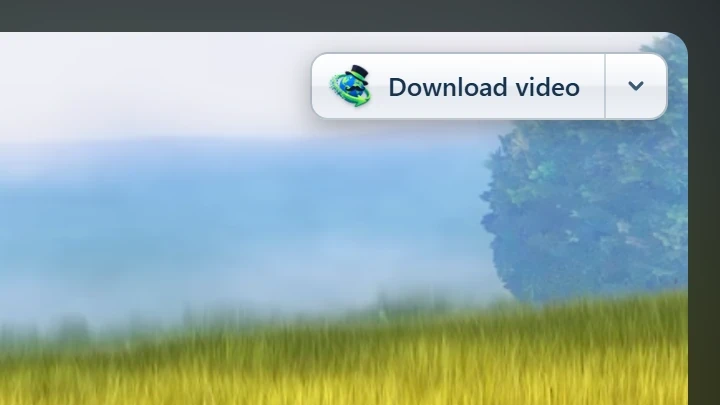
Point at a video on a web page and a small tab appears at its top corner: VDM's logo and a green Download video part, an arrow for its list and ✕ to hide it on this video. It follows Windows' light or dark mode. As it appears, VDM looks the video up (when VDM is running), and the button then names the best quality it found (1080p, 4K). Click it and that quality downloads at once, with only its progress window; VDM's main window stays where it is (with Do not start downloading, only add files to the queue on in Options, it goes in the queue instead). Clicking while VDM is still looking works too: it takes the best quality as soon as it is known. A video that plays a plain file (not a stream) needs no look-up: the button shows its picture size and downloads the file itself. When nothing could be looked up (VDM wasn't running, yt-dlp isn't installed, the page is a playlist, or you send downloads to another VDM), a click opens the Download video from a page window, which says why and offers what to do.
It takes the video you clicked: its own file when it plays one, or the stream the player loaded (HLS or DASH), else the page. A video that hasn't started yet, on a site yt-dlp doesn't read, has loaded no stream: the button then takes the stream address the page wrote for its player (an HLS or DASH playlist in its scripts or the player's attributes; the master playlist, else the best quality it names), on a page with one video, so you don't need to play it first. It only asks for addresses the page names. In a feed it takes the post the video sits in. When VDM finds nothing there (a feed that names no post, a post or a site yt-dlp can't read, such as Douyin's recommended videos), the button offers what the tab played for that video instead: the file or the stream whose length is the video's, never the next video the feed loaded meanwhile. When more than one could be it, it says Can't tell which video this is rather than guess; the toolbar button's Media on this page lists what the page loaded. Embedded players work too, and your sign-in for the site, the page that embeds the player and your browser's User-Agent go with it, so videos for members, or that play only on the site that embeds them, can be downloaded. A stream goes with what the browser sent when the player asked for it, its referrer, its origin and its cookies (a player embedded from another site may have cookies the browser keeps for that page only), and VDM sends them again with each of its playlists and pieces: a site's video server that serves its own pages' players only lets VDM through as well. A video the site names (YouTube, Vimeo and the others yt-dlp reads) keeps its own title; a stream known by no title of its own (its address is only playlist.m3u8) is named after the page you're on, without the site's name at its end: on a page titled A film | Example, it's A film.mp4, even when the player is embedded from another site. Sound players get the button too.
Dopo un clic mostra cosa è successo, nel suo colore:
- Added to VDM (green), with the quality: Show brings VDM's window up with that download selected.
- Apri il post per scaricarlo (ambra): il video si trova in un feed e non può essere scaricato da lì. Apri post apre il post in una nuova scheda, quando il pulsante lo conosce; usa il pulsante lì.
- VDM didn't answer (red): VDM isn't installed or didn't start. Get VDM opens its download page; Retry tries again.
- Disattivato su questo sito (grigio): dopo Mai su il sito, o quando le Opzioni lo tengono disattivato lì. Attiva lo mostra di nuovo sul sito.
- Video protetto · impossibile salvare (grigio, con un lucchetto): un video protetto da copia (DRM), che nessuno strumento può salvare.
Non intralcia: si mostra solo quando sposti il puntatore su un video (o il lettore ha il focus della tastiera; Tab poi si sposta sul pulsante), sbiadisce 1,5 secondi dopo che il puntatore si ferma, o un momento dopo che lascia il video, e scompare 3 secondi dopo; sbiadito, è ancora lì da trovare, e puntandoci sopra lo riporta intero. Non sbiadisce mai mentre il suo menu è aperto, e con il movimento ridotto del sistema cambia senza lo sbiadimento. Lascia fuori i video piccoli e i brevi loop silenziati (immagini animate, sfondi). Non copre i pulsanti della pagina: quando uno si trova sotto una parte del suo angolo (un pulsante di feedback o impostazioni di un lettore, un pulsante "guarda più tardi" di una miniatura), prende l'angolo libero successivo e lo mantiene mentre il lettore mostra e nasconde i suoi pulsanti, così resta fermo mentre lo raggiungi. Su un'anteprima che viene riprodotta mentre il puntatore è su una miniatura (la home page di YouTube, una ricerca, un canale), la pagina ferma l'anteprima quando il puntatore raggiunge il pulsante; il pulsante resta dove era mentre il puntatore è su di esso, e un clic scarica il video di quell'anteprima. Riprodurre o mettere in pausa il video non lo riporta. Come installato (Dimensione pulsante: Automatico in Opzioni, sotto), è solo il suo logo, la sua freccia e ✕ su un video in un feed (Facebook, X, LinkedIn, Instagram, Reddit, la home di YouTube e simili) e su un lettore piccolo, e l'intero pulsante, con le sue parole, su un lettore grande come quello di una pagina di visualizzazione; su un video largo meno di 360 pixel, o dove le sue parole non entrerebbero, è sempre quel pulsante rotondo. Completo mantiene le sue parole ovunque entrino; Compatto lo rende il pulsante rotondo su ogni video. In modalità a schermo intero segue il video quando il lettore lo consente, e l'ingresso a schermo intero lo lascia fuori mano finché non sposti di nuovo il puntatore.
- Its menu (the arrow next to it, or ↓ when the button has the keyboard's focus): the video's title, length and site; its filters, when the qualities differ: All, Video (the picture with its sound) or Audio only, and the file type (MP4, WEBM, M4A, MP3...) or the picture's codec (AV1, VP9, H.264), kept for the site; Download best first (the best of what the filters keep), then one numbered line per quality under VIDEO and AUDIO, with its file type, codec, frame rate or bitrate and size (
1080pMP4 · AV1 · 60 fps, as the Download video window says it), the best one marked, and Most compatible (H.264 + AAC) beside the resolution of the one that plays everywhere (Choose the quality); All qualities and subtitles..., which opens the Download video from a page window; then Put the button back in its corner (once you moved it on the site), Hide on this video (Esc), Hide the download button in full screen, Never on the site (VDM remembers the site), and Button settings..., which opens VDM's Options. The arrow keys move through it, Enter picks, Esc closes it. - Spostalo: trascinalo dai suoi puntini in qualsiasi punto sopra il video, in un altro angolo o bordo, o fuori dal lettore, sopra, sotto o accanto (per un sito che copre il suo lettore o disegna i propri controlli dove sarebbe il pulsante); vicino a un bordo o fuori, il bordo e i punti a cui si aggancia (gli angoli e il centro) si mostrano. Fuori dal lettore resta all'interno su quel bordo quando la finestra non ha spazio lì (un lettore nella parte superiore della finestra, a schermo intero). Resta dove lo hai messo su quel sito; Riporta il pulsante al suo posto nel menu lo riporta indietro, e il popup dell'add-on ha Impostazioni → Pulsante di download sui video → Reimposta per ogni sito (anche i suoi filtri).
- Turn it off, make it smaller, or see the sites it stays off: Options → General → Customize VDM Download panels in browsers → Edit.... Button size has a 80%, 100% or 120% scale beside it, and is Automatic as installed (round in a feed and over a small player, its words over a big one), Full (its words wherever they fit) or Compact (only VDM's logo, the arrow and ✕, on every video, as on a small one); after a click it still says what happened in words. Pages already open follow a change within a few seconds, without a reload.
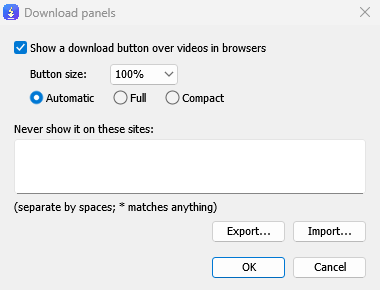
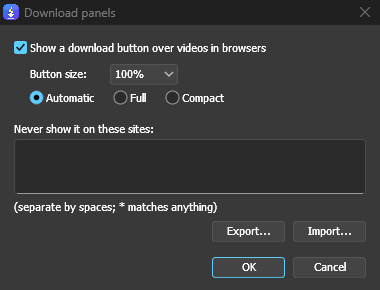
Il pulsante segue il resto dell'integrazione: non appare quando Usa l'integrazione avanzata con i browser è disattivato o il browser non è selezionato.
Tasti per forzare o impedire l'acquisizione
Hold Alt (Option on a Mac) while clicking a link to let the browser download it instead of VDM. The extension follows the link as a plain click would, in every browser, and the browser keeps what comes of it: the link opens in the tab, so a site's bot check (Cloudflare's "Just a moment...") runs there first. Without the extension in the way, Chromium browsers and Safari would save the link without opening it, which saves the check's page instead of the file; Firefox would do nothing. When the link redirects, or the page it leads to starts the download by script ("your download starts in 5 seconds"), that download stays with the browser too when it starts within ten seconds; the link's own address, and a download its own page starts (a bot check's page once its check is passed), within a minute. Alt with Ctrl, Shift or Cmd, and the middle button, keep their meaning (a new tab or window). Options → General → Keys... says so, and holds Also take files the browser would open.
Per lasciare per sempre nel browser i download di un sito, usa Non acquisire mai i download da nel menu del pulsante della barra degli strumenti, oppure aggiungi il sito a Non avviare automaticamente il download dai seguenti siti. Per lasciare nel browser un tipo di file, rimuovilo dall'elenco dei tipi di file.
When VDM isn't running
You don't need to start VDM first. When the browser hands over a download and VDM isn't running, the helper starts it and passes the download on.
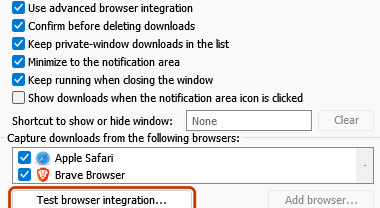
If VDM can't be reached at all (it was uninstalled, or the helper isn't registered), the download stays with the browser, so nothing is lost, and the toolbar button shows a red !. See The browser and VDM aren't connected, or run Options → General → Test browser integration....
Passi successivi
- Tutorial: intercettare i download del browser →
- Change which file types VDM takes →
- Se il browser non passa i download a VDM →
Gratuito, open source, senza pubblicità, senza periodo di prova.
Download Volt Download Manager