

With the VDM extension, clicking a download link in your browser hands the download to VDM. VDM gets the address together with the page it came from (the referrer), your cookies for the site and the browser's User-Agent, so downloads that need you to be signed in still work. It also gets the address the browser's own download had reached: when a site refuses VDM the link itself (a one-time link the browser has already used, or a site that lets only browsers ask for its links), VDM goes on from there once, without your cookies if it is another site. When a site's bot check (Cloudflare's, for one) or its refusal of programs (FileHippo's 412 Precondition Failed) turns VDM's own connection away, VDM asks once more connecting the way your browser does (the same handshake, settings and order of headers), with your browser's User-Agent and its cookies for that site only, and downloads on it with as many connections as any download, each asking for its part of the file (on one connection when the site refuses parts there); your proxy, network adapter and speed limits apply as usual. The pieces of a video stream (HLS, DASH) go the same way when the site's check refuses them. Some checks (SourceForge's) refuse anything that calls itself a browser without connecting exactly like one, and let a program that says what it is through: when that connection is refused too, VDM asks once more under its own name (VoltDownloadManager/ and its version, or the User-Agent you typed in Options → Downloads), with the same cookies and referrer, and remembers the site until VDM closes, so its next downloads, and a paused one when it resumes, go that way at once. It solves no challenge: a site that still wants one answered (some Cloudflare checks ask it of every visitor, for the site's pages too) refuses again, and VDM says this site lets only browsers through; Alt+click the link to leave the download to the browser, which opens the link, passes the check and keeps the file.
La extensión funciona en Google Chrome, Microsoft Edge, Brave, Opera y Vivaldi, en Firefox 140 o posterior, y en Safari 17 o posterior en Mac (consulta Safari).
Browsers built on them work too: Chromium and Helium take the extension as Chrome does, Brave Origin as Brave does, Zen and LibreWolf as Firefox does. On Windows, Zen has a bug of its own (see The browser and VDM aren't connected).
Configurarlo
La integración con el navegador consta de dos partes: un pequeño programa auxiliar con el que se comunica el navegador y la propia extensión.
- Install VDM with the setup and keep Set up browser integration (Chrome, Edge, Brave, Firefox) ticked. This registers the helper. (The portable copy can't do this; see Portable mode.) On Linux and macOS VDM registers it itself, each time it starts, for the browsers installed then.
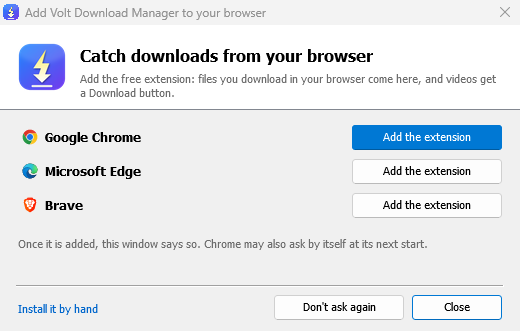
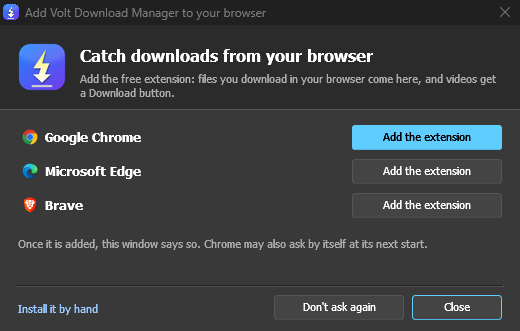
- Add the extension to each browser you use, as below: Firefox from its add-ons store, the others from the Chrome Web Store. On the first start this is a step of the setup window. Until a browser's extension has reached VDM, VDM's Add Volt Download Manager to your browser window opens at each later start: it lists the browsers it found, and Add the extension opens the store's page in that browser. Install it by hand opens the steps for loading it without the store; Don't ask again stops the window.
Firefox
Firefox 140 or later is needed. Install the add-on from its page on addons.mozilla.org, Volt Download Manager: click Add to Firefox. Firefox keeps it updated. Zen and LibreWolf install it from the same page. (VDM's Add Volt Download Manager to your browser window opens that page for you.)
For developers, Firefox can also load the add-on by hand: in about:debugging, This Firefox → Load Temporary Add-on..., choose vdm-firefox.xpi, which comes with VDM: in the extension folder where it is installed on Windows (as below), in /usr/share/voltdownloadmanager from the Linux packages. Firefox keeps that copy only until it restarts, and it doesn't update itself; its toolbar button's popup says so. The add-on from addons.mozilla.org is the one to use.
Chrome, Edge, Brave, Opera y Vivaldi
Install the extension from its page in the Chrome Web Store, Volt Download Manager: click Add to Chrome. In Edge the button is Get: Edge first asks to Allow extensions from other stores (click Allow), then Add extension. The browser keeps it updated. VDM's Add Volt Download Manager to your browser window opens that page in each browser for you, and Chrome may offer it by itself at its next start once VDM is installed.
To load it by hand instead (a browser that can't use the store, or a build of your own): its files are in the extension folder where VDM is installed: %LOCALAPPDATA%\Programs\Volt Download Manager\extension if you installed it for yourself, or Program Files\Volt Download Manager\extension if you installed it for everyone. Every release also has them as their own download, ...-extension-chromium.zip (unzip it first).
- Abra la página de extensiones:
chrome://extensions,edge://extensionsobrave://extensions. - Active el Modo de desarrollador.
- Haga clic en Cargar descomprimida y elija la carpeta
extension\chromium.
Volt Download Manager appears in the list. Leave it turned on. Pin its button to the toolbar to see at a glance whether the browser reaches VDM.
Helium
Helium instala la extensión desde la misma página de Chrome Web Store: haz clic en Añadir a Chrome. Helium obtiene las extensiones a través de sus propios servicios, por lo que esto solo funciona mientras estén permitidos. Si Helium dice Las descargas de extensiones están deshabilitadas, abre helium://settings/privacy/services (Configuración → Privacidad y seguridad → Servicios de Helium), activa Permitir la conexión a los servicios de Helium y Descargas y actualizaciones de extensiones de proxy, y haz clic de nuevo en Añadir a Chrome. Si están desactivados, carga la extensión manualmente, como se indicó anteriormente (chrome://extensions también funciona en Helium).
VDM's setup registers the helper where Helium looks for it, on Windows, Linux and macOS. On Linux and macOS VDM also offers the extension to Helium, through Helium's own services, so with them allowed it arrives by itself at Helium's next start (on macOS Helium asks first: New extension added in its menu, where you turn it on). The Linux packages (.deb, .rpm) leave that to the window below, writing nothing in your home folder. On Windows Helium can't be offered the extension this way: VDM's Add Volt Download Manager to your browser window opens the store's page in Helium when Helium was installed with its setup; Helium from its zip isn't found there, so open the store's page in it yourself. Helium presents itself as Google Chrome, on purpose, so in Options → General → Capture downloads from the following browsers it is Google Chrome.
Safari (macOS)
La aplicación para Mac incluye la extensión de Safari: no hay nada que descargar. Se necesita Safari 17 o posterior y macOS 14 o posterior.
- Drag VDM to Applications and start it once. VDM's Add Volt Download Manager to your browser window lists Safari: How to Add shows the steps below.
- In Safari open Settings → Extensions and tick Volt Download Manager. Click Always Allow on Every Website: the extension needs to read the site to pass your sign-in on.
- Mientras la aplicación no esté certificada por Apple (las versiones experimentales no lo están), Safari solo muestra la extensión si se permiten las extensiones sin firmar: Configuración → Avanzado → Mostrar funciones para desarrolladores web, luego Configuración → Desarrollador → Permitir extensiones sin firmar. Safari olvida esa configuración cada vez que se cierra.
Safari no permite que una extensión vea ni detenga las descargas del navegador, por lo que su funcionamiento difiere del de otros navegadores:
- Works as in the other browsers: the right-click items, the button over videos, Media on this page, the toolbar button, Alt-click, VDM starting by itself, and every rule in Options.
- A click on a link to a file type VDM takes goes to VDM. A download the page starts by itself (a script, or a link with no file name in its address that the server answers with a file) stays with Safari: use right-click → Download with Volt Download Manager for those.
- No disponible: compartir el proxy o VPN del navegador, y una descarga desde un formulario.
Desde el zip simple
The -x64.zip copy has no installer, but you can register the helper yourself. Open a command prompt in VDM's folder and run:
voltdownloadmanager-nmhost.exe --register
Esto es solo para su cuenta de Windows. --unregister lo deshace. Luego cargue la extensión como se indicó anteriormente, desde la carpeta extension del zip.
Lo que se necesita
When you click a download, the extension checks VDM's Options:
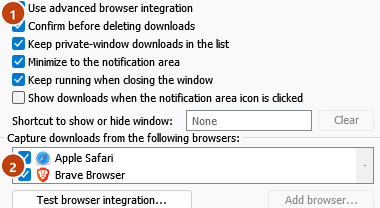
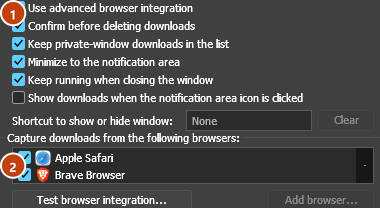
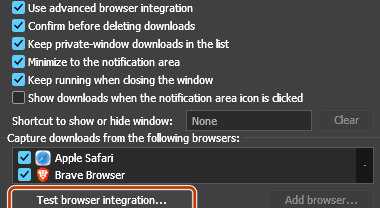
- Options → General → Use advanced browser integration must be on. Turn it off to send nothing to VDM.
- Opciones → General → Capturar descargas de los siguientes navegadores debe tener su navegador marcado.
- Opciones → Tipos de archivo → Iniciar la descarga automáticamente de los siguientes tipos de archivo debe incluir el tipo de archivo. La lista comienza con los habituales: ZIP, RAR, 7Z, EXE, MSI, ISO, DMG, DEB, RPM, APPIMAGE, MP3, MP4, MKV, WEBM, PDF, modelos de IA como GGUF y SAFETENSORS, archivos 3D como GLB y STL, y muchos más. Cualquier otro se puede añadir a la lista.
- Opciones → Tipos de archivo → No iniciar la descarga automáticamente desde los siguientes sitios no debe incluir el sitio. Los nombres se separan con espacios; un nombre cubre sus subdominios (
example.comcubrewww.example.com, como*.update.microsoft.comcubredl.update.microsoft.com;*coincide con cualquier cosa, como en*.example.*), y los archivos a los que enlazan las páginas del sitio en otro servidor (una CDN), indicados por la página de origen de la descarga (su referente). Editar lista... debajo de ella enumera direcciones completas que se deben dejar en paz, una por línea (https://example.com/private/*). - Opciones → Tipos de archivo → No tomar archivos de tamaño inferior a deja los archivos pequeños (un recibo, un icono) al navegador. 0 toma cualquier tamaño.
- A
.torrentfile goes to VDM only while Tasks → Torrent settings → Open magnet links and .torrent files with Volt Download Manager is on. Off, the browser keeps it and opens it in your own torrent program. See Torrents. - La extensión debe tener permiso para leer el sitio. Cuando la limita a algunos sitios (o Al hacer clic), no puede pasar su inicio de sesión, por lo que deja las descargas de esos sitios al navegador.
When the browser keeps a download, the extension's button says which of these left it there, with the file's name, and VDM's log has a line for each one (logs\vdm.log in VDM's data folder).
Se comprueban tanto la dirección en la que hizo clic como aquella a la que llevaron sus redirecciones, por lo que un sitio que excluyó permanece excluido incluso cuando le envía a otro servidor. Todo lo demás se queda con el navegador. Los cambios en Opciones llegan al navegador en un minuto; no necesita reiniciarlo.
When VDM takes a download, it gets the browser's file name, size and type with it, so Download File Info shows them at once without asking the server again. A download from a form (a button that posts and gets a file back) is posted again by VDM with the form's data; a form that sends a file stays with the browser.
When VDM takes a download, the browser's own copy is cancelled and removed from the browser's download list. In Firefox and the browsers built on it (Waterfox, Zen, LibreWolf), VDM takes it as soon as the server answers, before the browser asks What should … do with this file?: for a file VDM takes, that question never shows (Waterfox asks it for every new type of file). Files VDM doesn't take get the question as before. Download File Info opens in VDM (unless you turned it off in Options → Downloads). Cancelling there doesn't hand the download back to the browser.
Click a download link in the browser: Download File Info opens in VDM. 

Iniciar descarga: la ventana de progreso muestra cómo avanza la descarga. 

Descarga completa: Abrir el archivo, o Abrir carpeta. 

A download takes your cookies with it, as the browser sends them: those of the link's site, and of every site the link sent the browser on to (a sign-in step, a file host's download server), the one the download ended at included, with the page's partitioned cookies. Cookies a site sets along the way are kept for the next step, as a browser keeps them. Each site only ever gets its own cookies, and none go from a secure (https) address down to a plain http one.
Downloads from a private window use that window's cookies, never the normal ones, and are kept in VDM's list like any other, so they are still there after a restart (their cookies are never saved). A small mask before a download's status marks it as a private window's; its tip says whether the list keeps it. To keep them in memory only, as the browser keeps its private history, untick Options → General → Keep private-window downloads in the list: then they are gone from the list when VDM closes.
Files VDM downloads from the browser are marked as coming from the internet, as the browser marks its own: Windows checks a program with SmartScreen before it runs and Office opens a document in Protected View. Like the browser, VDM leaves the mark out when Windows' Group Policy Do not preserve zone information in file attachments is on; Options → Save to can turn it off for VDM alone.
Archivos que el navegador abriría
A PDF, a song or a video that the browser would show or play itself goes to VDM too, when its type is in Options → File types (not on the excluded sites). That's one you open from a link or the address bar, and one a page shows in a frame, as many course and document sites show their PDFs. To turn this off, untick Also take files the browser would open in Options → General → Keys.... This needs a Chromium browser (Chrome, Edge, Brave, Opera, Vivaldi) version 128 or later, or Firefox.
A page with a PDF viewer of its own (its own page numbers, zoom and buttons, while the address bar keeps the page's address) reads the file itself and draws it. VDM leaves that file to the page: if VDM took it, the page would get nothing and say the document failed to load. To download such a file, open its address in a tab of its own, or use the page's own download button if it has one.
El botón de la barra de herramientas
The extension's button shows whether the browser reaches VDM. A red ! means it doesn't; click the button to see why, and How to fix it opens the matching section of The browser and VDM aren't connected. While VDM downloads, the button shows how many downloads are running, in blue; II means taking downloads is paused. Its popup says under VDM's name whether it is connected, and to which version; the gear opens VDM's Options. It has three tabs:
- Downloads: VDM's newest downloads (see Recent downloads, below).
- This page: Media on this page, what the page has loaded that VDM can download (see below), Images on this page (below), and Never take downloads from the current site, a switch: on, the site goes on VDM's excluded sites and the popup says Downloads from the site stay with the browser, whenever you open it there; off takes it off the list again. A site that a pattern of your own in Options excludes (
*.example.com) shows the switch on, and greyed: Options holds it. - Settings: Take downloads from this browser (off pauses: every download stays with the browser until you turn it on again), the browser's proxy (see below), Hide the download button in full screen, Send downloads to (this computer or another VDM, see Remote control), Options... and Open Volt Download Manager.
Descargas recientes
Downloads lists VDM's newest downloads, newest first, and keeps them up to date while the popup is open: each with your system's own icon for its file type (as Explorer, Finder or your file manager shows it), its size and what it is doing. A running download shows a progress bar, its speed and the time left; a finished one when it finished; a failed one why; a finished one whose file was deleted or moved since says so. The search box finds downloads by any words of their name or address, and All, Running, Done and Failed show only those (each with how many there are). The popup shows the newest 60 that match; VDM's own window lists them all.
Apuntando a una descarga (o alcanzándola con el teclado) aparecen Mostrar en carpeta y Pausar o Reanudar. Haz clic en el nombre de un archivo finalizado para abrirlo. Su menú ⋯ tiene el resto:
- Open, Show in folder: as in VDM; the program or folder opens in front of the browser.
- Copiar archivo: el archivo en sí va al portapapeles, como lo pone Copiar de tu gestor de archivos. Pégalo en una carpeta, un chat, un correo electrónico o un cuadro de carga de una página web (los navegadores aceptan archivos pegados).
- Compartir...: la hoja de compartir de tu sistema con el archivo (Windows 10 y 11, macOS), de cualquier tamaño. Linux no tiene una hoja de compartir estándar, por lo que Compartir no se ofrece allí: usa Copiar archivo o Mostrar en carpeta.
- Copiar vínculo: la dirección de la descarga.
- Download again: from the start (a file; videos and torrents have their own way in VDM).
- Quitar de la lista (el archivo permanece) y Eliminar archivo..., que pregunta primero: el archivo se elimina de tu equipo, lo cual no se puede deshacer.
Clear finished takes every finished download off the list; their files stay where they are. When VDM isn't running, the tab says so, with a button to start it.
Un mensaje emergente no puede arrastrar un archivo fuera del navegador a otro programa o a una página web (los navegadores no permiten que el mensaje emergente de un complemento lleve un archivo real al arrastrar), por lo que Copiar archivo y Mostrar en carpeta hacen ese trabajo.
When downloads go to another VDM (a server), the list is that server's: Pause, Resume, Remove from list and Copy link work, and the buttons that need the file on this computer (open it, its folder, copy, share, delete) aren't shown; a line at the top says so.
On Linux, Copy file works in X11 sessions and in Wayland sessions with XWayland (GNOME, KDE and most others have it): VDM keeps the file on the clipboard until something else is copied.
Una extensión de VPN o proxy
A VPN or proxy extension is a proxy for the browser only. Switch on Send downloads through this browser's proxy or VPN extension in the extension's toolbar popup (it's off as installed), and VDM downloads what it takes from the browser through the same proxy (with Options → Proxy / Socks → Use proxy/socks from a browser's request, on by default; see Options). Switched off, the extension reads nothing of the browser's proxy.
- Firefox asks you once, at the switch, to allow the extension to read the browser's proxy; switching it off takes that permission back. VDM gets the proxy the browser's own request for the file took, including the ones a VPN extension picks for each request.
- Chrome, Edge, Brave, Opera and Vivaldi can't ask for that permission at the switch, so the
extension has it from the install (Chrome counts it under the access to every site the extension
already asks for, so it adds no line to the install prompt and the update asks for nothing new).
The switch asks nothing. VDM gets the browser's effective proxy, whoever set it (a VPN or proxy
extension, a policy, the command line): a fixed server for the download's scheme (
http,https,socks4,socks5), unless the address is on its bypass list, or its proxy auto-config script (by its address or inline). With no proxy, or the system's, nothing is sent and VDM goes by its own Options. A QUIC proxy can't be shared.
En ambos, el inicio de sesión del proxy nunca se lee: un proxy que pide el propio inicio de sesión de la extensión VPN no se puede compartir, y la descarga lo indica en lugar de continuar sin él.
Contenido multimedia en esta página
Algunas páginas reproducen vídeos sin ofrecer un enlace y algunos reproductores también los ocultan al botón de descarga. El botón de la barra de herramientas muestra lo que ha cargado la página, para que puedas guardarlo:
- Flujos: HLS (
.m3u8) y DASH (.mpd), los formatos que usan la mayoría de los sitios para reproducir vídeos largos. Cada flujo aparece una sola vez, aunque el reproductor haya cambiado entre varias calidades. También se muestran las calidades (1080p · 720p) y la duración, si la extensión puede leerlas. La extensión también detecta los flujos servidos como texto sin formato cuya dirección no termina en.m3u8o.mpd: cuando abres la lista (o pulsas el botón de descarga sobre el reproductor) mientras este reproduce un flujo, la extensión lee los primeros kilobytes de los datos que ha recibido el reproductor para reconocerlo. No se lee nada hasta que lo solicitas. - Archivos de vídeo y audio que ha reproducido la página (MP4, WebM, MP3 y similares), con su tamaño y, si son vídeos, la resolución.
Start the video first: the list fills as the page loads things, and it's emptied when the tab goes
to another page. Each file is listed under the name it will be saved with. A file the site sends
through a program's address (stream.php, remote_control.php, videoplayback, a bare number)
has no name of its own: it's named after the page (The page.mp4; a title's site name at its end,
as in The page | Example, is left out), or after the file= name in
its address when there is one, with the type its server says it is (MP4, not PHP). With Prefix
media file names with the page title on, a file with a name of its own is named after the page,
then that name (The page - clip.mp4). Click Download beside one: a stream opens VDM's Download video from a page
window, which reads its qualities (yt-dlp does the work); a file goes to VDM's list like any other
download. Your cookies for its server, the page as the referrer and your browser's User-Agent go
with it, as they do for a link you click.
Pieces of a stream (its segments) are never listed. A copy-protected stream (DRM: Widevine, PlayReady, FairPlay, as most paid streaming services use) is listed as Protected, with no Download button: no tool may break that protection, and VDM doesn't try.
No tienes que hacer nada más: la extensión ya ve lo que descarga el navegador para poder hacerse cargo de las descargas. La información que registra permanece en la memoria del navegador y se borra al cerrarlo.
Imágenes de esta página
Para descargar una galería o todas las imágenes de una página, abre la pestaña Esta página del botón de la barra de herramientas y haz clic en Buscar imágenes. No se busca nada hasta que haces clic. La extensión encuentra:
- cada imagen que muestra la página, en el tamaño más grande que la página indica para ella: una imagen ofrecida en varios tamaños (un
srcset, un<picture>con sus fuentes,1xy2x) se encuentra una vez, en su tamaño más grande, no en el tamaño que la página muestra en ese momento; - la imagen que una página carga solo cuando te desplazas hasta ella (su
data-srcodata-srcset), junto al marcador de posición que muestra hasta entonces; - enlaces que van directamente a una imagen, como una miniatura que enlaza a su tamaño completo.
Cada dirección se encuentra una vez, en la página y en sus marcos, como una dirección completa. Las imágenes escritas en la propia página (direcciones data:) y las creadas por un script (blob:) no son archivos que tenga un servidor, por lo que se omiten. Las imágenes de fondo establecidas por los estilos de una página no se buscan.
Luego elige cuáles enviar:
- Al menos un ancho y un alto, en píxeles, para excluir iconos y miniaturas. Una imagen cuyo tamaño la página no proporciona (una que aún no se ha cargado, una a la que solo se ha enlazado) se mantiene, y la línea debajo de los filtros indica cuántas hay.
- Un botón para cada tipo encontrado (JPEG, PNG, WEBP, GIF, AVIF, SVG, ..., Otros), con la cantidad de cada uno: haz clic en uno para excluir ese tipo, y de nuevo para volver a incluirlo. El tipo es lo que indica la dirección (su extensión de archivo o el formato que un servicio de imágenes nombra en ella).
Send to Link grabber hands the kept ones to VDM's Link grabber, the way Download all links does, with the page as their referrer and your cookies for it. Link grabber looks each one up for its real name and size, and you tick there the ones to download.
Right-click: Download with Volt Download Manager
Right-click a link, a video, a sound or a picture and choose Download with Volt Download Manager. VDM downloads it whatever its type: you asked for it, so the file types list and the excluded sites don't apply here (they only decide which downloads VDM takes over by itself). A video that plays as a stream goes to the Download video window with the stream its player loaded (HLS or DASH), as the button over videos sends it, with your cookies for the stream's server and what the browser sent with the stream (its referrer and origin, else the page as the referrer).
Select part of a page and right-click it for Download selected links with Volt Download Manager, or right-click the page for Download all links with Volt Download Manager: the links open in Link grabber, sorted into packages, where you tick the ones you want. A page with tens of thousands of links works too: the extension sends a long list in parts, and Link grabber shows it once they are all in.
Descargar todos los enlaces también envía las imágenes ubicadas en la página y en sus marcos (sus imágenes, cada una en el tamaño más grande que la página indica para ella, tal como las encuentra Buscar imágenes, sin que ninguna sea excluida por tamaño o tipo), y Descargar enlaces seleccionados las que están en la selección. El Capturador de enlaces las oculta mientras su opción Ocultar imágenes ubicadas en esta página web está marcada, como lo está cada vez que aparece una lista así: desmárcala para ver las imágenes y marcar las que quieras. Un enlace a una imagen es un enlace y siempre se muestra, incluso cuando la misma imagen también se muestra en la página. Las imágenes de fondo establecidas por los estilos de la página no se envían.
If VDM can't be reached when you choose one of these, the help page opens at the section that explains why.
El botón de descarga sobre los vídeos
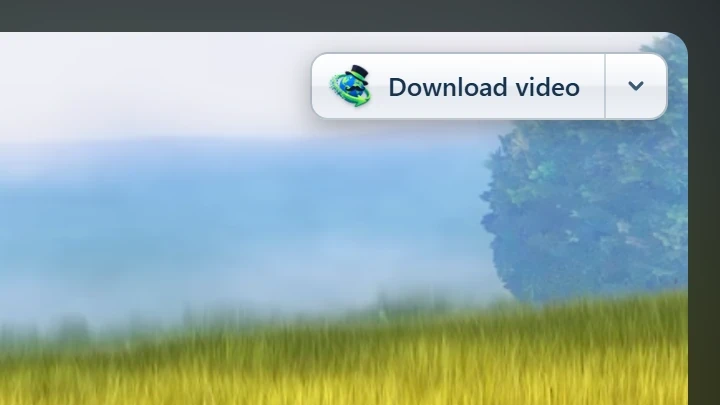
Point at a video on a web page and a small tab appears at its top corner: VDM's logo and a green Download video part, an arrow for its list and ✕ to hide it on this video. It follows Windows' light or dark mode. As it appears, VDM looks the video up (when VDM is running), and the button then names the best quality it found (1080p, 4K). Click it and that quality downloads at once, with only its progress window; VDM's main window stays where it is (with Do not start downloading, only add files to the queue on in Options, it goes in the queue instead). Clicking while VDM is still looking works too: it takes the best quality as soon as it is known. A video that plays a plain file (not a stream) needs no look-up: the button shows its picture size and downloads the file itself. When nothing could be looked up (VDM wasn't running, yt-dlp isn't installed, the page is a playlist, or you send downloads to another VDM), a click opens the Download video from a page window, which says why and offers what to do.
It takes the video you clicked: its own file when it plays one, or the stream the player loaded (HLS or DASH), else the page. A video that hasn't started yet, on a site yt-dlp doesn't read, has loaded no stream: the button then takes the stream address the page wrote for its player (an HLS or DASH playlist in its scripts or the player's attributes; the master playlist, else the best quality it names), on a page with one video, so you don't need to play it first. It only asks for addresses the page names. In a feed it takes the post the video sits in. When VDM finds nothing there (a feed that names no post, a post or a site yt-dlp can't read, such as Douyin's recommended videos), the button offers what the tab played for that video instead: the file or the stream whose length is the video's, never the next video the feed loaded meanwhile. When more than one could be it, it says Can't tell which video this is rather than guess; the toolbar button's Media on this page lists what the page loaded. Embedded players work too, and your sign-in for the site, the page that embeds the player and your browser's User-Agent go with it, so videos for members, or that play only on the site that embeds them, can be downloaded. A stream goes with what the browser sent when the player asked for it, its referrer, its origin and its cookies (a player embedded from another site may have cookies the browser keeps for that page only), and VDM sends them again with each of its playlists and pieces: a site's video server that serves its own pages' players only lets VDM through as well. A video the site names (YouTube, Vimeo and the others yt-dlp reads) keeps its own title; a stream known by no title of its own (its address is only playlist.m3u8) is named after the page you're on, without the site's name at its end: on a page titled A film | Example, it's A film.mp4, even when the player is embedded from another site. Sound players get the button too.
Después de un clic, indica lo que sucedió, en su propio color:
- Added to VDM (green), with the quality: Show brings VDM's window up with that download selected.
- Abre la publicación para descargarlo (ámbar): el vídeo está en un feed y no se puede descargar desde allí. Abrir publicación abre la publicación en una nueva pestaña, cuando el botón lo sabe; usa el botón allí.
- VDM didn't answer (red): VDM isn't installed or didn't start. Get VDM opens its download page; Retry tries again.
- Desactivado en este sitio (gris): después de Nunca en el sitio, o cuando las Opciones lo mantienen desactivado allí. Activar lo muestra de nuevo en el sitio.
- Vídeo protegido · no se puede guardar (gris, con un candado): un vídeo con protección de copia (DRM), que ninguna herramienta puede guardar.
Se mantiene discreto: solo se muestra cuando pasas el puntero sobre un vídeo (o el reproductor tiene el foco del teclado; Tab se mueve entonces al botón), se atenúa 1,5 segundos después de que el puntero se detenga, o un momento después de que abandone el vídeo, y desaparece 3 segundos más tarde; atenuado, sigue ahí para encontrarlo, y al señalarlo vuelve a aparecer por completo. Nunca se atenúa mientras su menú está abierto, y con la reducción de movimiento del sistema cambia sin atenuarse. No aparece en vídeos pequeños ni en bucles cortos silenciados (imágenes animadas, fondos). No cubre los botones propios de la página: cuando uno se encuentra debajo de cualquier parte de su esquina (un botón de comentarios o de configuración de un reproductor, un botón de ver más tarde de una miniatura), ocupa la siguiente esquina libre y la mantiene mientras el reproductor muestra y oculta sus botones, para que permanezca en su sitio cuando vayas a usarlo. Sobre una vista previa que se reproduce mientras el puntero está en una miniatura (la página de inicio de YouTube, una búsqueda, un canal), la página detiene la vista previa cuando el puntero llega al botón; el botón permanece donde estaba mientras el puntero está sobre él, y un clic descarga el vídeo de esa vista previa. Reproducir o pausar el vídeo no lo hace volver. Tal como está instalado (Tamaño del botón: Automático en Opciones, más abajo), es solo su logo, su flecha y ✕ sobre un vídeo en un feed (Facebook, X, LinkedIn, Instagram, Reddit, la página de inicio de YouTube y similares) y sobre un reproductor pequeño, y el botón completo, con sus palabras, sobre un reproductor grande como el de una página de visualización; en un vídeo de menos de 360 píxeles de ancho, o donde sus palabras no cabrían, es siempre ese botón redondo. Completo mantiene sus palabras donde quepan; Compacto lo convierte en el botón redondo en cada vídeo. En pantalla completa sigue al vídeo cuando el reproductor lo permite, y al entrar en pantalla completa lo deja fuera del camino hasta que muevas el puntero de nuevo.
- Its menu (the arrow next to it, or ↓ when the button has the keyboard's focus): the video's title, length and site; its filters, when the qualities differ: All, Video (the picture with its sound) or Audio only, and the file type (MP4, WEBM, M4A, MP3...) or the picture's codec (AV1, VP9, H.264), kept for the site; Download best first (the best of what the filters keep), then one numbered line per quality under VIDEO and AUDIO, with its file type, codec, frame rate or bitrate and size (
1080pMP4 · AV1 · 60 fps, as the Download video window says it), the best one marked, and Most compatible (H.264 + AAC) beside the resolution of the one that plays everywhere (Choose the quality); All qualities and subtitles..., which opens the Download video from a page window; then Put the button back in its corner (once you moved it on the site), Hide on this video (Esc), Hide the download button in full screen, Never on the site (VDM remembers the site), and Button settings..., which opens VDM's Options. The arrow keys move through it, Enter picks, Esc closes it. - Moverlo: arrástralo por sus puntos a cualquier lugar sobre el vídeo, a otra esquina o borde, o fuera del reproductor, encima, debajo o al lado (para un sitio que cubre su reproductor o dibuja sus propios controles donde estaría el botón); cerca de un borde o fuera, se muestran el borde y los puntos a los que se ajusta (las esquinas y el centro). Fuera del reproductor, permanece dentro en ese borde cuando la ventana no tiene espacio allí (un reproductor en la parte superior de la ventana, pantalla completa). Permanece donde lo pusiste en ese sitio; Volver a colocar el botón en su esquina del menú lo devuelve, y el pop-up del complemento tiene Configuración → Botón de descarga sobre vídeos → Restablecer para cada sitio (también sus filtros).
- Turn it off, make it smaller, or see the sites it stays off: Options → General → Customize VDM Download panels in browsers → Edit.... Button size has a 80%, 100% or 120% scale beside it, and is Automatic as installed (round in a feed and over a small player, its words over a big one), Full (its words wherever they fit) or Compact (only VDM's logo, the arrow and ✕, on every video, as on a small one); after a click it still says what happened in words. Pages already open follow a change within a few seconds, without a reload.
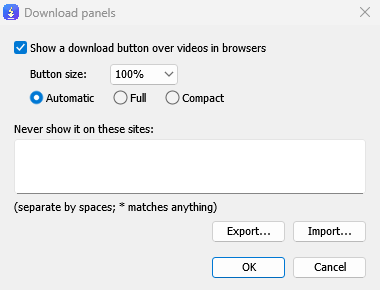
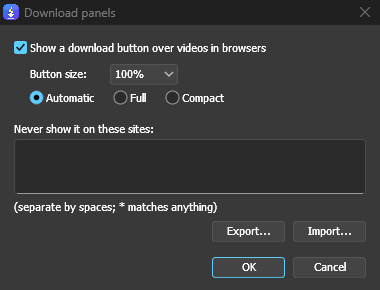
El botón depende del resto de la integración: no aparece si Usar integración avanzada del navegador está desactivado o si el navegador no está seleccionado.
Teclas para forzar o evitar la captura
Hold Alt (Option on a Mac) while clicking a link to let the browser download it instead of VDM. The extension follows the link as a plain click would, in every browser, and the browser keeps what comes of it: the link opens in the tab, so a site's bot check (Cloudflare's "Just a moment...") runs there first. Without the extension in the way, Chromium browsers and Safari would save the link without opening it, which saves the check's page instead of the file; Firefox would do nothing. When the link redirects, or the page it leads to starts the download by script ("your download starts in 5 seconds"), that download stays with the browser too when it starts within ten seconds; the link's own address, and a download its own page starts (a bot check's page once its check is passed), within a minute. Alt with Ctrl, Shift or Cmd, and the middle button, keep their meaning (a new tab or window). Options → General → Keys... says so, and holds Also take files the browser would open.
Para que las descargas de un sitio se queden siempre en el navegador, usa Nunca tomar descargas de en el botón de la barra de herramientas o añade el sitio a No iniciar descargas automáticamente desde los siguientes sitios. Para que un tipo de archivo se quede en el navegador, quítalo de la lista de tipos de archivo.
When VDM isn't running
You don't need to start VDM first. When the browser hands over a download and VDM isn't running, the helper starts it and passes the download on.
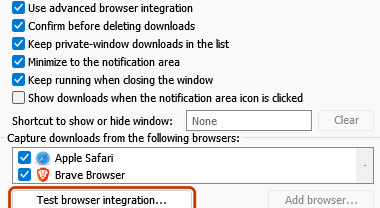
If VDM can't be reached at all (it was uninstalled, or the helper isn't registered), the download stays with the browser, so nothing is lost, and the toolbar button shows a red !. See The browser and VDM aren't connected, or run Options → General → Test browser integration....
Pasos siguientes
- Tutorial: capturar descargas del navegador →
- Change which file types VDM takes →
- Si el navegador no transfiere las descargas →
Gratis, código abierto, sin anuncios, sin prueba.
Download Volt Download Manager