

With the VDM extension, clicking a download link in your browser hands the download to VDM. VDM gets the address together with the page it came from (the referrer), your cookies for the site and the browser's User-Agent, so downloads that need you to be signed in still work. It also gets the address the browser's own download had reached: when a site refuses VDM the link itself (a one-time link the browser has already used, or a site that lets only browsers ask for its links), VDM goes on from there once, without your cookies if it is another site. When a site's bot check (Cloudflare's, for one) or its refusal of programs (FileHippo's 412 Precondition Failed) turns VDM's own connection away, VDM asks once more connecting the way your browser does (the same handshake, settings and order of headers), with your browser's User-Agent and its cookies for that site only, and downloads on it with as many connections as any download, each asking for its part of the file (on one connection when the site refuses parts there); your proxy, network adapter and speed limits apply as usual. The pieces of a video stream (HLS, DASH) go the same way when the site's check refuses them. Some checks (SourceForge's) refuse anything that calls itself a browser without connecting exactly like one, and let a program that says what it is through: when that connection is refused too, VDM asks once more under its own name (VoltDownloadManager/ and its version, or the User-Agent you typed in Options → Downloads), with the same cookies and referrer, and remembers the site until VDM closes, so its next downloads, and a paused one when it resumes, go that way at once. It solves no challenge: a site that still wants one answered (some Cloudflare checks ask it of every visitor, for the site's pages too) refuses again, and VDM says this site lets only browsers through; Alt+click the link to leave the download to the browser, which opens the link, passes the check and keeps the file.
Rozszerzenie działa w przeglądarkach Google Chrome, Microsoft Edge, Brave, Opera i Vivaldi, w Firefox 140 lub nowszym oraz w Safari 17 lub nowszym na Macu (zobacz Safari).
Browsers built on them work too: Chromium and Helium take the extension as Chrome does, Brave Origin as Brave does, Zen and LibreWolf as Firefox does. On Windows, Zen has a bug of its own (see The browser and VDM aren't connected).
Skonfiguruj
Integracja z przeglądarką składa się z dwóch części: małego programu pomocniczego, z którym komunikuje się przeglądarka, oraz samego rozszerzenia.
- Install VDM with the setup and keep Set up browser integration (Chrome, Edge, Brave, Firefox) ticked. This registers the helper. (The portable copy can't do this; see Portable mode.) On Linux and macOS VDM registers it itself, each time it starts, for the browsers installed then.
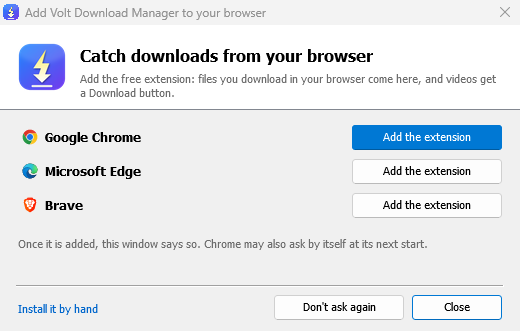
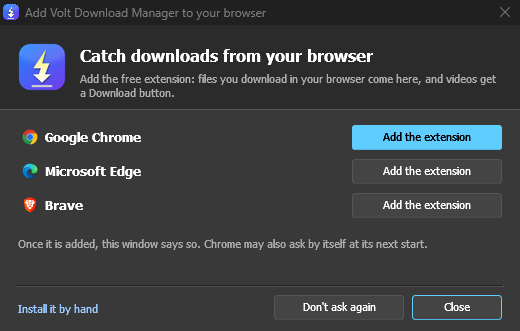
- Add the extension to each browser you use, as below: Firefox from its add-ons store, the others from the Chrome Web Store. On the first start this is a step of the setup window. Until a browser's extension has reached VDM, VDM's Add Volt Download Manager to your browser window opens at each later start: it lists the browsers it found, and Add the extension opens the store's page in that browser. Install it by hand opens the steps for loading it without the store; Don't ask again stops the window.
Firefox
Firefox 140 or later is needed. Install the add-on from its page on addons.mozilla.org, Volt Download Manager: click Add to Firefox. Firefox keeps it updated. Zen and LibreWolf install it from the same page. (VDM's Add Volt Download Manager to your browser window opens that page for you.)
For developers, Firefox can also load the add-on by hand: in about:debugging, This Firefox → Load Temporary Add-on..., choose vdm-firefox.xpi, which comes with VDM: in the extension folder where it is installed on Windows (as below), in /usr/share/voltdownloadmanager from the Linux packages. Firefox keeps that copy only until it restarts, and it doesn't update itself; its toolbar button's popup says so. The add-on from addons.mozilla.org is the one to use.
Chrome, Edge, Brave, Opera i Vivaldi
Install the extension from its page in the Chrome Web Store, Volt Download Manager: click Add to Chrome. In Edge the button is Get: Edge first asks to Allow extensions from other stores (click Allow), then Add extension. The browser keeps it updated. VDM's Add Volt Download Manager to your browser window opens that page in each browser for you, and Chrome may offer it by itself at its next start once VDM is installed.
To load it by hand instead (a browser that can't use the store, or a build of your own): its files are in the extension folder where VDM is installed: %LOCALAPPDATA%\Programs\Volt Download Manager\extension if you installed it for yourself, or Program Files\Volt Download Manager\extension if you installed it for everyone. Every release also has them as their own download, ...-extension-chromium.zip (unzip it first).
- Otwórz stronę rozszerzeń:
chrome://extensions,edge://extensionslubbrave://extensions. - Włącz Tryb programisty.
- Kliknij Załaduj rozpakowane i wybierz folder
extension\chromium.
Volt Download Manager appears in the list. Leave it turned on. Pin its button to the toolbar to see at a glance whether the browser reaches VDM.
Helium
Helium instaluje rozszerzenie z tej samej strony w Chrome Web Store: kliknij Dodaj do Chrome. Helium pobiera rozszerzenia za pośrednictwem własnych usług, więc działa to tylko wtedy, gdy są one dozwolone. Jeśli Helium wyświetla komunikat Pobieranie rozszerzeń jest wyłączone, otwórz helium://settings/privacy/services (Ustawienia → Prywatność i bezpieczeństwo → Usługi Helium), włącz Zezwalaj na łączenie się z usługami Helium i Pobieranie i aktualizowanie rozszerzeń przez proxy, a następnie kliknij ponownie Dodaj do Chrome. Jeśli te opcje są wyłączone, załaduj rozszerzenie ręcznie, jak powyżej (chrome://extensions działa również w Helium).
VDM's setup registers the helper where Helium looks for it, on Windows, Linux and macOS. On Linux and macOS VDM also offers the extension to Helium, through Helium's own services, so with them allowed it arrives by itself at Helium's next start (on macOS Helium asks first: New extension added in its menu, where you turn it on). The Linux packages (.deb, .rpm) leave that to the window below, writing nothing in your home folder. On Windows Helium can't be offered the extension this way: VDM's Add Volt Download Manager to your browser window opens the store's page in Helium when Helium was installed with its setup; Helium from its zip isn't found there, so open the store's page in it yourself. Helium presents itself as Google Chrome, on purpose, so in Options → General → Capture downloads from the following browsers it is Google Chrome.
Safari (macOS)
Aplikacja na Maca zawiera rozszerzenie Safari: nie ma nic do pobrania. Wymagane jest Safari 17 lub nowsze oraz macOS 14 lub nowsze.
- Drag VDM to Applications and start it once. VDM's Add Volt Download Manager to your browser window lists Safari: How to Add shows the steps below.
- In Safari open Settings → Extensions and tick Volt Download Manager. Click Always Allow on Every Website: the extension needs to read the site to pass your sign-in on.
- Ponieważ aplikacja nie jest notaryzowana przez Apple (wersje eksperymentalne nie są), Safari wyświetla rozszerzenie tylko wtedy, gdy dozwolone są niepodpisane rozszerzenia: Ustawienia → Zaawansowane → Pokaż funkcje dla programistów stron internetowych, a następnie Ustawienia → Deweloper → Zezwalaj na niepodpisane rozszerzenia. Safari zapomina to ustawienie za każdym razem, gdy zostanie zamknięte.
Safari nie pozwala rozszerzeniu ani widzieć, ani zatrzymywać pobierania przez przeglądarkę, więc działanie różni się od innych przeglądarek:
- Works as in the other browsers: the right-click items, the button over videos, Media on this page, the toolbar button, Alt-click, VDM starting by itself, and every rule in Options.
- A click on a link to a file type VDM takes goes to VDM. A download the page starts by itself (a script, or a link with no file name in its address that the server answers with a file) stays with Safari: use right-click → Download with Volt Download Manager for those.
- Niedostępne: udostępnianie proxy lub VPN przeglądarki oraz pobieranie z formularza.
Z archiwum zip
The -x64.zip copy has no installer, but you can register the helper yourself. Open a command prompt in VDM's folder and run:
voltdownloadmanager-nmhost.exe --register
Dotyczy to tylko Twojego konta Windows. --unregister cofa tę operację. Następnie załaduj rozszerzenie jak powyżej, z folderu extension w archiwum zip.
Co jest potrzebne
When you click a download, the extension checks VDM's Options:
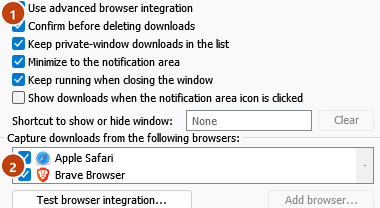
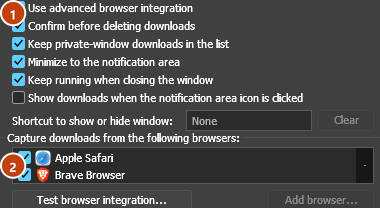
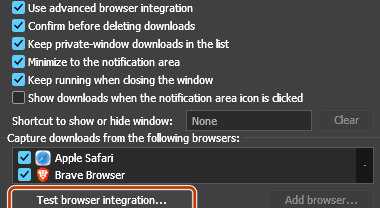
- Options → General → Use advanced browser integration must be on. Turn it off to send nothing to VDM.
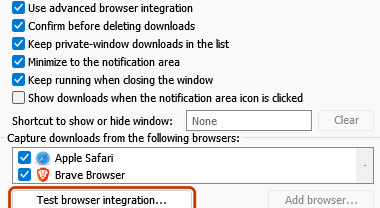
- Opcje → Ogólne → Przechwytuj pobieranie z następujących przeglądarek musi mieć zaznaczoną używaną przeglądarkę.
- Opcje → Typy plików → Automatycznie rozpoczynaj pobieranie następujących typów plików musi zawierać typ pliku. Lista zaczyna się od typowych: ZIP, RAR, 7Z, EXE, MSI, ISO, DMG, DEB, RPM, APPIMAGE, MP3, MP4, MKV, WEBM, PDF, modele AI takie jak GGUF i SAFETENSORS, pliki 3D takie jak GLB i STL i wiele innych. Wszystko inne można dodać do listy.
- Opcje → Typy plików → Nie rozpoczynaj automatycznego pobierania z następujących witryn nie może zawierać tej witryny. Nazwy są oddzielone spacjami; nazwa obejmuje jej subdomeny (
example.comobejmujewww.example.com, tak jak*.update.microsoft.comobejmujedl.update.microsoft.com;*pasuje do wszystkiego, jak w*.example.*), oraz pliki, do których strony witryny prowadzą na innym serwerze (CDN), wskazane przez stronę, z której pochodzi pobieranie (jej referrer). Edytuj listę... poniżej zawiera listę pełnych adresów do pominięcia, jeden na wiersz (https://example.com/private/*). - Opcje → Typy plików → Nie pobieraj plików mniejszych niż pozostawia małe pliki (paragon, ikonę) przeglądarce. 0 oznacza dowolny rozmiar.
- A
.torrentfile goes to VDM only while Tasks → Torrent settings → Open magnet links and .torrent files with Volt Download Manager is on. Off, the browser keeps it and opens it in your own torrent program. See Torrents. - Rozszerzenie musi mieć dostęp do odczytu witryny. Jeśli ograniczysz jego działanie do wybranych witryn (lub ustawisz opcję Po kliknięciu), rozszerzenie nie będzie mogło przekazać danych logowania, więc pobieranie z tych witryn pozostanie w przeglądarce.
When the browser keeps a download, the extension's button says which of these left it there, with the file's name, and VDM's log has a line for each one (logs\vdm.log in VDM's data folder).
Sprawdzany jest zarówno kliknięty adres, jak i adres docelowy po przekierowaniach. Dzięki temu wykluczona witryna pozostaje wykluczona, nawet jeśli przekieruje Cię na inny serwer. Pozostałe pobierania obsługuje przeglądarka. Zmiany w opcjach są widoczne w przeglądarce w ciągu minuty; nie trzeba jej ponownie uruchamiać.
When VDM takes a download, it gets the browser's file name, size and type with it, so Download File Info shows them at once without asking the server again. A download from a form (a button that posts and gets a file back) is posted again by VDM with the form's data; a form that sends a file stays with the browser.
When VDM takes a download, the browser's own copy is cancelled and removed from the browser's download list. In Firefox and the browsers built on it (Waterfox, Zen, LibreWolf), VDM takes it as soon as the server answers, before the browser asks What should … do with this file?: for a file VDM takes, that question never shows (Waterfox asks it for every new type of file). Files VDM doesn't take get the question as before. Download File Info opens in VDM (unless you turned it off in Options → Downloads). Cancelling there doesn't hand the download back to the browser.
Click a download link in the browser: Download File Info opens in VDM. 

Rozpocznij pobieranie: okno postępu pokazuje, jak plik jest pobierany. 

Pobieranie zakończone: Otwórz plik lub Otwórz folder. 

A download takes your cookies with it, as the browser sends them: those of the link's site, and of every site the link sent the browser on to (a sign-in step, a file host's download server), the one the download ended at included, with the page's partitioned cookies. Cookies a site sets along the way are kept for the next step, as a browser keeps them. Each site only ever gets its own cookies, and none go from a secure (https) address down to a plain http one.
Downloads from a private window use that window's cookies, never the normal ones, and are kept in VDM's list like any other, so they are still there after a restart (their cookies are never saved). A small mask before a download's status marks it as a private window's; its tip says whether the list keeps it. To keep them in memory only, as the browser keeps its private history, untick Options → General → Keep private-window downloads in the list: then they are gone from the list when VDM closes.
Files VDM downloads from the browser are marked as coming from the internet, as the browser marks its own: Windows checks a program with SmartScreen before it runs and Office opens a document in Protected View. Like the browser, VDM leaves the mark out when Windows' Group Policy Do not preserve zone information in file attachments is on; Options → Save to can turn it off for VDM alone.
Pliki, które przeglądarka otworzyłaby
A PDF, a song or a video that the browser would show or play itself goes to VDM too, when its type is in Options → File types (not on the excluded sites). That's one you open from a link or the address bar, and one a page shows in a frame, as many course and document sites show their PDFs. To turn this off, untick Also take files the browser would open in Options → General → Keys.... This needs a Chromium browser (Chrome, Edge, Brave, Opera, Vivaldi) version 128 or later, or Firefox.
A page with a PDF viewer of its own (its own page numbers, zoom and buttons, while the address bar keeps the page's address) reads the file itself and draws it. VDM leaves that file to the page: if VDM took it, the page would get nothing and say the document failed to load. To download such a file, open its address in a tab of its own, or use the page's own download button if it has one.
Przycisk na pasku narzędzi
The extension's button shows whether the browser reaches VDM. A red ! means it doesn't; click the button to see why, and How to fix it opens the matching section of The browser and VDM aren't connected. While VDM downloads, the button shows how many downloads are running, in blue; II means taking downloads is paused. Its popup says under VDM's name whether it is connected, and to which version; the gear opens VDM's Options. It has three tabs:
- Downloads: VDM's newest downloads (see Recent downloads, below).
- This page: Media on this page, what the page has loaded that VDM can download (see below), Images on this page (below), and Never take downloads from the current site, a switch: on, the site goes on VDM's excluded sites and the popup says Downloads from the site stay with the browser, whenever you open it there; off takes it off the list again. A site that a pattern of your own in Options excludes (
*.example.com) shows the switch on, and greyed: Options holds it. - Settings: Take downloads from this browser (off pauses: every download stays with the browser until you turn it on again), the browser's proxy (see below), Hide the download button in full screen, Send downloads to (this computer or another VDM, see Remote control), Options... and Open Volt Download Manager.
Ostatnie pobrania
Downloads lists VDM's newest downloads, newest first, and keeps them up to date while the popup is open: each with your system's own icon for its file type (as Explorer, Finder or your file manager shows it), its size and what it is doing. A running download shows a progress bar, its speed and the time left; a finished one when it finished; a failed one why; a finished one whose file was deleted or moved since says so. The search box finds downloads by any words of their name or address, and All, Running, Done and Failed show only those (each with how many there are). The popup shows the newest 60 that match; VDM's own window lists them all.
Wskaż pobieranie (lub dotrzyj do niego za pomocą klawiatury), aby wyświetlić Pokaż w folderze i Wstrzymaj lub Wznów. Kliknij nazwę ukończonego pliku, aby go otworzyć. Jego menu ⋯ zawiera resztę:
- Open, Show in folder: as in VDM; the program or folder opens in front of the browser.
- Kopiuj plik: sam plik trafia do schowka, tak jak kopiuje go menedżer plików. Wklej go do folderu, czatu, wiadomości e-mail lub pola przesyłania na stronie internetowej (przeglądarki przyjmują wklejone pliki).
- Udostępnij...: arkusz udostępniania systemu z plikiem (Windows 10 i 11, macOS), w dowolnym rozmiarze. Linux nie ma standardowego arkusza udostępniania, więc opcja Udostępnij nie jest tam oferowana: użyj Kopiuj plik lub Pokaż w folderze.
- Kopiuj link: adres pobierania.
- Download again: from the start (a file; videos and torrents have their own way in VDM).
- Usuń z listy (plik pozostaje) i Usuń plik..., które najpierw pyta: plik jest usuwany z komputera, czego nie można cofnąć.
Clear finished takes every finished download off the list; their files stay where they are. When VDM isn't running, the tab says so, with a button to start it.
Wyskakujące okienko nie może przeciągnąć pliku z przeglądarki do innego programu lub strony internetowej (przeglądarki nie pozwalają wyskakującemu okienku dodatku przenosić prawdziwego pliku podczas przeciągania), więc Kopiuj plik i Pokaż w folderze wykonują to zadanie.
When downloads go to another VDM (a server), the list is that server's: Pause, Resume, Remove from list and Copy link work, and the buttons that need the file on this computer (open it, its folder, copy, share, delete) aren't shown; a line at the top says so.
On Linux, Copy file works in X11 sessions and in Wayland sessions with XWayland (GNOME, KDE and most others have it): VDM keeps the file on the clipboard until something else is copied.
Rozszerzenie VPN lub serwera proxy
A VPN or proxy extension is a proxy for the browser only. Switch on Send downloads through this browser's proxy or VPN extension in the extension's toolbar popup (it's off as installed), and VDM downloads what it takes from the browser through the same proxy (with Options → Proxy / Socks → Use proxy/socks from a browser's request, on by default; see Options). Switched off, the extension reads nothing of the browser's proxy.
- Firefox asks you once, at the switch, to allow the extension to read the browser's proxy; switching it off takes that permission back. VDM gets the proxy the browser's own request for the file took, including the ones a VPN extension picks for each request.
- Chrome, Edge, Brave, Opera and Vivaldi can't ask for that permission at the switch, so the
extension has it from the install (Chrome counts it under the access to every site the extension
already asks for, so it adds no line to the install prompt and the update asks for nothing new).
The switch asks nothing. VDM gets the browser's effective proxy, whoever set it (a VPN or proxy
extension, a policy, the command line): a fixed server for the download's scheme (
http,https,socks4,socks5), unless the address is on its bypass list, or its proxy auto-config script (by its address or inline). With no proxy, or the system's, nothing is sent and VDM goes by its own Options. A QUIC proxy can't be shared.
W obu przypadkach dane logowania do serwera proxy nigdy nie są odczytywane: serwer proxy, który wymaga własnych danych logowania rozszerzenia VPN, nie może być współdzielony, a pobieranie informuje o tym, zamiast odbywać się bez nich.
Multimedia na tej stronie
Niektóre strony odtwarzają wideo bez linku do niego, a niektóre odtwarzacze ukrywają je również przed przyciskiem pobierania. Przycisk na pasku narzędzi wyświetla listę tego, co strona załadowała, dzięki czemu nadal możesz to zapisać:
- Strumienie: HLS (
.m3u8) i DASH (.mpd), czyli sposób, w jaki większość witryn odtwarza długie filmy. Każdy strumień jest wymieniony tylko raz, niezależnie od tego, ile razy jego odtwarzacz przełączał jakość, wraz z jego jakościami (1080p · 720p) i długością, jeśli rozszerzenie może je odczytać. Strumień, którego adres nie kończy się na.m3u8lub.mpd, serwowany jako zwykły tekst, również jest wykrywany: gdy otworzysz listę (lub naciśniesz przycisk pobierania nad jego odtwarzaczem), a odtwarzacz odtwarza strumień, rozszerzenie odczytuje pierwsze kilka kilobajtów tego, co pobrał odtwarzacz, aby go rozpoznać. Nic nie jest odczytywane, dopóki nie poprosisz. - Pliki wideo i dźwiękowe odtwarzane przez stronę (MP4, WebM, MP3 i tym podobne), z ich rozmiarem i, dla wideo, rozmiarem obrazu.
Start the video first: the list fills as the page loads things, and it's emptied when the tab goes
to another page. Each file is listed under the name it will be saved with. A file the site sends
through a program's address (stream.php, remote_control.php, videoplayback, a bare number)
has no name of its own: it's named after the page (The page.mp4; a title's site name at its end,
as in The page | Example, is left out), or after the file= name in
its address when there is one, with the type its server says it is (MP4, not PHP). With Prefix
media file names with the page title on, a file with a name of its own is named after the page,
then that name (The page - clip.mp4). Click Download beside one: a stream opens VDM's Download video from a page
window, which reads its qualities (yt-dlp does the work); a file goes to VDM's list like any other
download. Your cookies for its server, the page as the referrer and your browser's User-Agent go
with it, as they do for a link you click.
Pieces of a stream (its segments) are never listed. A copy-protected stream (DRM: Widevine, PlayReady, FairPlay, as most paid streaming services use) is listed as Protected, with no Download button: no tool may break that protection, and VDM doesn't try.
To nie wymaga od Ciebie niczego więcej: rozszerzenie już widzi, co przeglądarka pobiera, aby przekazać pobieranie. To, co notuje, pozostaje w pamięci przeglądarki i jest zapominane po zamknięciu przeglądarki.
Obrazy na tej stronie
Aby pobrać galerię lub wszystkie zdjęcia ze strony, otwórz zakładkę Ta strona przycisku paska narzędzi i kliknij Znajdź obrazy. Wyszukiwanie rozpocznie się dopiero po kliknięciu. Rozszerzenie znajduje:
- każde zdjęcie wyświetlane na stronie, w największym rozmiarze, jaki strona dla niego podaje: zdjęcie oferowane w kilku rozmiarach (
srcset,<picture>z jego źródłami,1xi2x) jest znajdowane raz, w największym rozmiarze, a nie w rozmiarze, w jakim strona je akurat wyświetla; - zdjęcie, które strona ładuje tylko po przewinięciu do niego (jego
data-srclubdata-srcset), obok symbolu zastępczego, który wyświetla do tego czasu; - linki prowadzące bezpośrednio do zdjęcia, takie jak miniatura linkująca do pełnego rozmiaru.
Każdy adres jest znajdowany raz, na stronie i w jej ramkach, jako pełny adres. Obrazy zapisane bezpośrednio na stronie (data: adresy) oraz te utworzone przez skrypt (blob:) nie są plikami serwera, więc są pomijane. Obrazy tła ustawione przez style strony nie są wyszukiwane.
Następnie wybierz, które wysłać:
- Co najmniej szerokość i wysokość w pikselach, aby pominąć ikony i miniatury. Obraz, którego rozmiaru strona nie podaje (niezaładowany jeszcze, tylko linkowany), jest zachowywany, a linia pod filtrami wskazuje, ile ich jest.
- Przycisk dla każdego znalezionego typu (JPEG, PNG, WEBP, GIF, AVIF, SVG, ..., Inne), z liczbą każdego z nich: kliknij jeden, aby pominąć ten typ, ponownie, aby go przywrócić. Typ jest określany przez adres (rozszerzenie pliku lub format nazwany przez usługę obrazów).
Send to Link grabber hands the kept ones to VDM's Link grabber, the way Download all links does, with the page as their referrer and your cookies for it. Link grabber looks each one up for its real name and size, and you tick there the ones to download.
Right-click: Download with Volt Download Manager
Right-click a link, a video, a sound or a picture and choose Download with Volt Download Manager. VDM downloads it whatever its type: you asked for it, so the file types list and the excluded sites don't apply here (they only decide which downloads VDM takes over by itself). A video that plays as a stream goes to the Download video window with the stream its player loaded (HLS or DASH), as the button over videos sends it, with your cookies for the stream's server and what the browser sent with the stream (its referrer and origin, else the page as the referrer).
Select part of a page and right-click it for Download selected links with Volt Download Manager, or right-click the page for Download all links with Volt Download Manager: the links open in Link grabber, sorted into packages, where you tick the ones you want. A page with tens of thousands of links works too: the extension sends a long list in parts, and Link grabber shows it once they are all in.
Pobierz wszystkie linki wysyła również obrazy znajdujące się na stronie i w jej ramkach (jej obrazy, każdy w największym rozmiarze, jaki strona dla niego podaje, tak jak Znajdź obrazy je znajduje, żadne nie są pomijane ze względu na rozmiar lub typ), a Pobierz zaznaczone linki te w zaznaczeniu. Link grabber ukrywa je, gdy zaznaczona jest opcja Ukryj obrazy znajdujące się na tej stronie internetowej, tak jak dzieje się to za każdym razem, gdy pojawia się taka lista: odznacz ją, aby zobaczyć obrazy i zaznaczyć te, które chcesz. Link do obrazu jest linkiem i zawsze się wyświetla, nawet jeśli ten sam obraz jest również wyświetlany na stronie. Obrazy tła ustawione przez style strony nie są wysyłane.
If VDM can't be reached when you choose one of these, the help page opens at the section that explains why.
Przycisk pobierania nad filmami
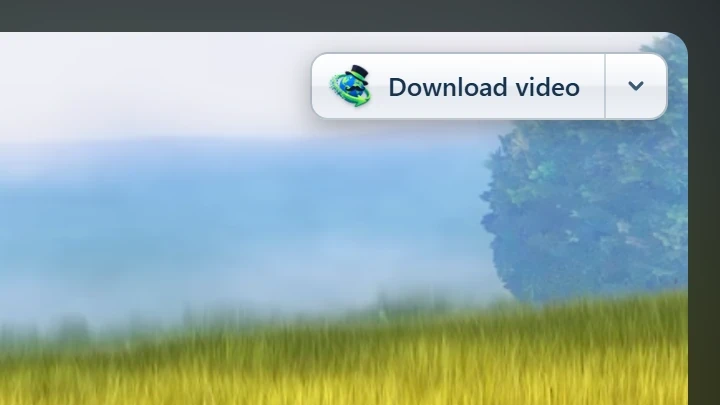
Point at a video on a web page and a small tab appears at its top corner: VDM's logo and a green Download video part, an arrow for its list and ✕ to hide it on this video. It follows Windows' light or dark mode. As it appears, VDM looks the video up (when VDM is running), and the button then names the best quality it found (1080p, 4K). Click it and that quality downloads at once, with only its progress window; VDM's main window stays where it is (with Do not start downloading, only add files to the queue on in Options, it goes in the queue instead). Clicking while VDM is still looking works too: it takes the best quality as soon as it is known. A video that plays a plain file (not a stream) needs no look-up: the button shows its picture size and downloads the file itself. When nothing could be looked up (VDM wasn't running, yt-dlp isn't installed, the page is a playlist, or you send downloads to another VDM), a click opens the Download video from a page window, which says why and offers what to do.
It takes the video you clicked: its own file when it plays one, or the stream the player loaded (HLS or DASH), else the page. A video that hasn't started yet, on a site yt-dlp doesn't read, has loaded no stream: the button then takes the stream address the page wrote for its player (an HLS or DASH playlist in its scripts or the player's attributes; the master playlist, else the best quality it names), on a page with one video, so you don't need to play it first. It only asks for addresses the page names. In a feed it takes the post the video sits in. When VDM finds nothing there (a feed that names no post, a post or a site yt-dlp can't read, such as Douyin's recommended videos), the button offers what the tab played for that video instead: the file or the stream whose length is the video's, never the next video the feed loaded meanwhile. When more than one could be it, it says Can't tell which video this is rather than guess; the toolbar button's Media on this page lists what the page loaded. Embedded players work too, and your sign-in for the site, the page that embeds the player and your browser's User-Agent go with it, so videos for members, or that play only on the site that embeds them, can be downloaded. A stream goes with what the browser sent when the player asked for it, its referrer, its origin and its cookies (a player embedded from another site may have cookies the browser keeps for that page only), and VDM sends them again with each of its playlists and pieces: a site's video server that serves its own pages' players only lets VDM through as well. A video the site names (YouTube, Vimeo and the others yt-dlp reads) keeps its own title; a stream known by no title of its own (its address is only playlist.m3u8) is named after the page you're on, without the site's name at its end: on a page titled A film | Example, it's A film.mp4, even when the player is embedded from another site. Sound players get the button too.
Po kliknięciu przycisk informuje o tym, co się stało, w swoim własnym kolorze:
- Added to VDM (green), with the quality: Show brings VDM's window up with that download selected.
- Otwórz post, aby pobrać wideo (bursztynowy): wideo znajduje się w kanale i nie można go pobrać bezpośrednio stamtąd. Otwórz post otwiera post w nowej karcie, jeśli przycisk zna jego adres; użyj przycisku tam.
- VDM didn't answer (red): VDM isn't installed or didn't start. Get VDM opens its download page; Retry tries again.
- Wyłączone na tej stronie (szary): po wybraniu Nigdy na tej stronie lub gdy Opcje wyłączają go tam. Włącz ponownie wyświetla go na stronie.
- Wideo chronione · nie można zapisać (szary, z kłódką): wideo chronione przed kopiowaniem (DRM), którego żadne narzędzie nie może zapisać.
Nie przeszkadza: pokazuje się tylko, gdy przesuniesz wskaźnik nad filmem (lub odtwarzacz ma fokus klawiatury; Tab przenosi wtedy do przycisku), blednie 1,5 sekundy po zatrzymaniu wskaźnika lub chwilę po opuszczeniu filmu, a znika 3 sekundy później; blady, nadal jest tam, by go znaleźć, a wskazanie na niego przywraca go w całości. Nigdy nie blednie, gdy jego menu jest otwarte, a przy zmniejszonym ruchu systemu zmienia się bez blaknięcia. Pomija małe filmy i krótkie wyciszone pętle (animowane obrazy, tła). Nie zakrywa własnych przycisków strony: gdy jeden leży pod jakąkolwiek częścią jego rogu (przycisk opinii lub ustawień odtwarzacza, przycisk „obejrzyj później” miniatury), zajmuje następny wolny róg i utrzymuje go, gdy odtwarzacz pokazuje i ukrywa swoje przyciski, więc pozostaje na miejscu, gdy po niego sięgasz. Nad podglądem, który odtwarza się, gdy wskaźnik znajduje się na miniaturze (strona główna YouTube, wyszukiwanie, kanał), strona zatrzymuje podgląd, gdy wskaźnik dotrze do przycisku; przycisk pozostaje tam, gdzie był, gdy wskaźnik jest na nim, a kliknięcie pobiera film z tego podglądu. Odtwarzanie lub pauzowanie filmu nie przywraca go. Po zainstalowaniu (Rozmiar przycisku: Automatyczne w Opcjach, poniżej) jest to tylko jego logo, strzałka i ✕ nad filmem w kanale (Facebook, X, LinkedIn, Instagram, Reddit, strona główna YouTube i tym podobne) oraz nad małym odtwarzaczem, a cały przycisk, ze słowami, nad dużym odtwarzaczem, takim jak na stronie oglądania; na filmie o szerokości poniżej 360 pikseli lub tam, gdzie jego słowa by się nie zmieściły, zawsze jest to ten okrągły przycisk. Pełny zachowuje swoje słowa wszędzie tam, gdzie się mieszczą; Kompaktowy sprawia, że jest to okrągły przycisk na każdym filmie. W trybie pełnoekranowym podąża za filmem, gdy odtwarzacz na to pozwala, a wejście w tryb pełnoekranowy pozostawia go z dala, dopóki ponownie nie przesuniesz wskaźnika.
- Its menu (the arrow next to it, or ↓ when the button has the keyboard's focus): the video's title, length and site; its filters, when the qualities differ: All, Video (the picture with its sound) or Audio only, and the file type (MP4, WEBM, M4A, MP3...) or the picture's codec (AV1, VP9, H.264), kept for the site; Download best first (the best of what the filters keep), then one numbered line per quality under VIDEO and AUDIO, with its file type, codec, frame rate or bitrate and size (
1080pMP4 · AV1 · 60 fps, as the Download video window says it), the best one marked, and Most compatible (H.264 + AAC) beside the resolution of the one that plays everywhere (Choose the quality); All qualities and subtitles..., which opens the Download video from a page window; then Put the button back in its corner (once you moved it on the site), Hide on this video (Esc), Hide the download button in full screen, Never on the site (VDM remembers the site), and Button settings..., which opens VDM's Options. The arrow keys move through it, Enter picks, Esc closes it. - Przenieś: przeciągnij go za kropki w dowolne miejsce nad wideo, do innego rogu lub krawędzi, lub poza odtwarzacz, nad, pod lub obok niego (dla witryny, która zakrywa swój odtwarzacz lub rysuje własne elementy sterujące tam, gdzie byłby przycisk); w pobliżu krawędzi lub poza nią, krawędź i miejsca, do których się przyciąga (rogi i środek), są widoczne. Poza odtwarzaczem pozostaje wewnątrz na tej krawędzi, gdy okno nie ma tam miejsca (odtwarzacz u góry okna, pełny ekran). Pozostaje tam, gdzie go umieścisz na tej witrynie; Umieść przycisk z powrotem w rogu w menu przywraca go, a wyskakujące okienko dodatku ma Ustawienia → Przycisk pobierania nad filmami → Resetuj dla każdej witryny (również jej filtry).
- Turn it off, make it smaller, or see the sites it stays off: Options → General → Customize VDM Download panels in browsers → Edit.... Button size has a 80%, 100% or 120% scale beside it, and is Automatic as installed (round in a feed and over a small player, its words over a big one), Full (its words wherever they fit) or Compact (only VDM's logo, the arrow and ✕, on every video, as on a small one); after a click it still says what happened in words. Pages already open follow a change within a few seconds, without a reload.
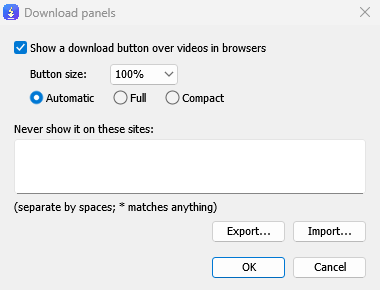
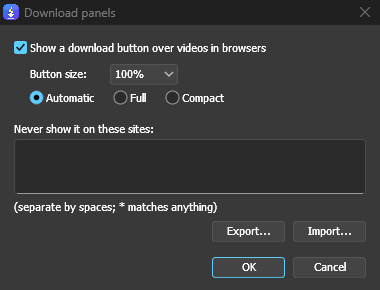
Przycisk podąża za resztą integracji: nie pokazuje się, gdy Użyj zaawansowanej integracji z przeglądarką jest wyłączone lub przeglądarka jest odznaczona.
Klawisze do wymuszania lub zapobiegania przechwytywaniu
Hold Alt (Option on a Mac) while clicking a link to let the browser download it instead of VDM. The extension follows the link as a plain click would, in every browser, and the browser keeps what comes of it: the link opens in the tab, so a site's bot check (Cloudflare's "Just a moment...") runs there first. Without the extension in the way, Chromium browsers and Safari would save the link without opening it, which saves the check's page instead of the file; Firefox would do nothing. When the link redirects, or the page it leads to starts the download by script ("your download starts in 5 seconds"), that download stays with the browser too when it starts within ten seconds; the link's own address, and a download its own page starts (a bot check's page once its check is passed), within a minute. Alt with Ctrl, Shift or Cmd, and the middle button, keep their meaning (a new tab or window). Options → General → Keys... says so, and holds Also take files the browser would open.
Aby na stałe zachować pobierane pliki z witryny w przeglądarce, użyj przycisku paska narzędzi Nigdy nie pobieraj plików z lub dodaj witrynę do Nie rozpoczynaj automatycznego pobierania z następujących witryn. Aby zachować typ pliku w przeglądarce, usuń go z listy typów plików.
When VDM isn't running
You don't need to start VDM first. When the browser hands over a download and VDM isn't running, the helper starts it and passes the download on.
If VDM can't be reached at all (it was uninstalled, or the helper isn't registered), the download stays with the browser, so nothing is lost, and the toolbar button shows a red !. See The browser and VDM aren't connected, or run Options → General → Test browser integration....
Następne kroki
- Samouczek: przechwytywanie pobieranych plików z przeglądarki →
- Change which file types VDM takes →
- Jeśli przeglądarka nie przekazuje pobieranych plików →
Darmowy, open source, bez reklam, bez wersji próbnej.
Download Volt Download Manager