

With the VDM extension, clicking a download link in your browser hands the download to VDM. VDM gets the address together with the page it came from (the referrer), your cookies for the site and the browser's User-Agent, so downloads that need you to be signed in still work. It also gets the address the browser's own download had reached: when a site refuses VDM the link itself (a one-time link the browser has already used, or a site that lets only browsers ask for its links), VDM goes on from there once, without your cookies if it is another site. When a site's bot check (Cloudflare's, for one) or its refusal of programs (FileHippo's 412 Precondition Failed) turns VDM's own connection away, VDM asks once more connecting the way your browser does (the same handshake, settings and order of headers), with your browser's User-Agent and its cookies for that site only, and downloads on it with as many connections as any download, each asking for its part of the file (on one connection when the site refuses parts there); your proxy, network adapter and speed limits apply as usual. The pieces of a video stream (HLS, DASH) go the same way when the site's check refuses them. Some checks (SourceForge's) refuse anything that calls itself a browser without connecting exactly like one, and let a program that says what it is through: when that connection is refused too, VDM asks once more under its own name (VoltDownloadManager/ and its version, or the User-Agent you typed in Options → Downloads), with the same cookies and referrer, and remembers the site until VDM closes, so its next downloads, and a paused one when it resumes, go that way at once. It solves no challenge: a site that still wants one answered (some Cloudflare checks ask it of every visitor, for the site's pages too) refuses again, and VDM says this site lets only browsers through; Alt+click the link to leave the download to the browser, which opens the link, passes the check and keeps the file.
此扩展程序适用于 Google Chrome、Microsoft Edge、Brave、Opera 和 Vivaldi,以及 Firefox 140 或更高版本,和 Mac 上的 Safari 17 或更高版本(请参阅 Safari)。
Browsers built on them work too: Chromium and Helium take the extension as Chrome does, Brave Origin as Brave does, Zen and LibreWolf as Firefox does. On Windows, Zen has a bug of its own (see The browser and VDM aren't connected).
设置
浏览器集成包含两部分:一个与浏览器通信的小型辅助程序,以及扩展程序本身。
- Install VDM with the setup and keep Set up browser integration (Chrome, Edge, Brave, Firefox) ticked. This registers the helper. (The portable copy can't do this; see Portable mode.) On Linux and macOS VDM registers it itself, each time it starts, for the browsers installed then.
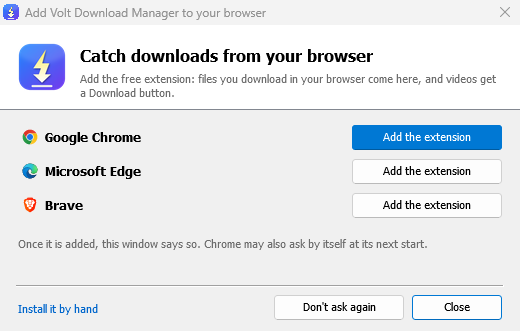
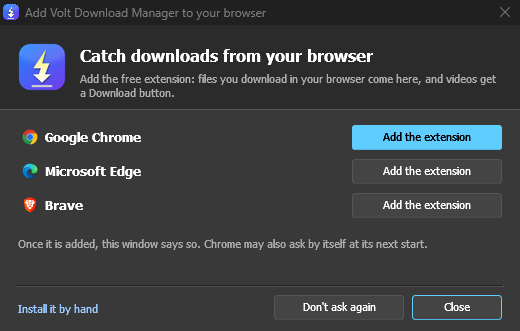
- Add the extension to each browser you use, as below: Firefox from its add-ons store, the others from the Chrome Web Store. On the first start this is a step of the setup window. Until a browser's extension has reached VDM, VDM's Add Volt Download Manager to your browser window opens at each later start: it lists the browsers it found, and Add the extension opens the store's page in that browser. Install it by hand opens the steps for loading it without the store; Don't ask again stops the window.
Firefox
Firefox 140 or later is needed. Install the add-on from its page on addons.mozilla.org, Volt Download Manager: click Add to Firefox. Firefox keeps it updated. Zen and LibreWolf install it from the same page. (VDM's Add Volt Download Manager to your browser window opens that page for you.)
For developers, Firefox can also load the add-on by hand: in about:debugging, This Firefox → Load Temporary Add-on..., choose vdm-firefox.xpi, which comes with VDM: in the extension folder where it is installed on Windows (as below), in /usr/share/voltdownloadmanager from the Linux packages. Firefox keeps that copy only until it restarts, and it doesn't update itself; its toolbar button's popup says so. The add-on from addons.mozilla.org is the one to use.
Chrome、Edge、Brave、Opera 和 Vivaldi
Install the extension from its page in the Chrome Web Store, Volt Download Manager: click Add to Chrome. In Edge the button is Get: Edge first asks to Allow extensions from other stores (click Allow), then Add extension. The browser keeps it updated. VDM's Add Volt Download Manager to your browser window opens that page in each browser for you, and Chrome may offer it by itself at its next start once VDM is installed.
To load it by hand instead (a browser that can't use the store, or a build of your own): its files are in the extension folder where VDM is installed: %LOCALAPPDATA%\Programs\Volt Download Manager\extension if you installed it for yourself, or Program Files\Volt Download Manager\extension if you installed it for everyone. Every release also has them as their own download, ...-extension-chromium.zip (unzip it first).
- 打开扩展程序页面:
chrome://extensions、edge://extensions或brave://extensions。 - 开启开发者模式。
- 点击加载已解压的扩展,然后选择
extension\chromium文件夹。
Volt Download Manager appears in the list. Leave it turned on. Pin its button to the toolbar to see at a glance whether the browser reaches VDM.
Helium
Helium 从 Chrome 网上应用店的同一页面安装扩展程序:点击添加到 Chrome。Helium 通过其自身服务获取扩展程序,因此这仅在其服务被允许时有效。如果 Helium 提示扩展程序下载已禁用,请打开helium://settings/privacy/services(设置 → 隐私和安全 → Helium 服务),开启允许连接到 Helium 服务和代理扩展程序下载和更新,然后再次点击添加到 Chrome。如果这些选项关闭,请如上所述手动加载扩展程序(chrome://extensions在 Helium 中也适用)。
VDM's setup registers the helper where Helium looks for it, on Windows, Linux and macOS. On Linux and macOS VDM also offers the extension to Helium, through Helium's own services, so with them allowed it arrives by itself at Helium's next start (on macOS Helium asks first: New extension added in its menu, where you turn it on). The Linux packages (.deb, .rpm) leave that to the window below, writing nothing in your home folder. On Windows Helium can't be offered the extension this way: VDM's Add Volt Download Manager to your browser window opens the store's page in Helium when Helium was installed with its setup; Helium from its zip isn't found there, so open the store's page in it yourself. Helium presents itself as Google Chrome, on purpose, so in Options → General → Capture downloads from the following browsers it is Google Chrome.
Safari (macOS)
Mac 应用程序自带 Safari 扩展程序:无需下载。需要 Safari 17 或更高版本以及 macOS 14 或更高版本。
- Drag VDM to Applications and start it once. VDM's Add Volt Download Manager to your browser window lists Safari: How to Add shows the steps below.
- In Safari open Settings → Extensions and tick Volt Download Manager. Click Always Allow on Every Website: the extension needs to read the site to pass your sign-in on.
- 由于此应用程序未经 Apple 公证(实验版本未经公证),Safari 仅在允许未签名扩展程序时才列出此扩展程序:设置 → 高级 → 显示网页开发者功能,然后设置 → 开发者 → 允许未签名扩展程序。Safari 每次退出时都会忘记此设置。
Safari 不允许扩展程序查看或停止浏览器的下载,因此其工作方式与其他浏览器不同:
- Works as in the other browsers: the right-click items, the button over videos, Media on this page, the toolbar button, Alt-click, VDM starting by itself, and every rule in Options.
- A click on a link to a file type VDM takes goes to VDM. A download the page starts by itself (a script, or a link with no file name in its address that the server answers with a file) stays with Safari: use right-click → Download with Volt Download Manager for those.
- 不可用:共享浏览器的代理或 VPN,以及表单下载。
从普通 zip 文件安装
The -x64.zip copy has no installer, but you can register the helper yourself. Open a command prompt in VDM's folder and run:
voltdownloadmanager-nmhost.exe --register
此操作仅适用于您的 Windows 账户。--unregister 可撤销此操作。然后按照上述说明,从 zip 文件的 extension 文件夹中加载扩展。
所需条件
When you click a download, the extension checks VDM's Options:
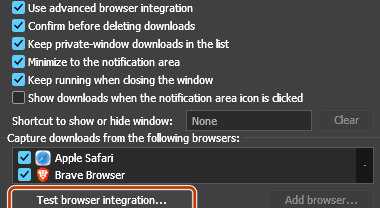
- Options → General → Use advanced browser integration must be on. Turn it off to send nothing to VDM.
- 选项 → 常规 → 从以下浏览器捕获下载中必须勾选您使用的浏览器。
- 选项 → 文件类型 → 自动开始下载以下文件类型必须列出文件类型。列表以常用类型开头:ZIP、RAR、7Z、EXE、MSI、ISO、DMG、DEB、RPM、APPIMAGE、MP3、MP4、MKV、WEBM、PDF、GGUF 和 SAFETENSORS 等 AI 模型、GLB 和 STL 等 3D 文件,以及更多。其他任何类型都可以添加到列表中。
- 选项 → 文件类型 → 不自动从以下网站开始下载中不得列出该网站。名称之间用空格分隔;一个名称涵盖其子域名(
example.com涵盖www.example.com,如同*.update.microsoft.com涵盖dl.update.microsoft.com;*匹配任何内容,如*.example.*),以及该网站页面链接到其他服务器(CDN)上的文件,由下载来源页面(其 referrer)告知。编辑列表... 列出了要忽略的完整地址,每行一个(https://example.com/private/*)。 - 选项 → 文件类型 → 不下载小于以下大小的文件会将小文件(如收据、图标)留给浏览器处理。设置为 0 表示任何大小的文件都可下载。
- A
.torrentfile goes to VDM only while Tasks → Torrent settings → Open magnet links and .torrent files with Volt Download Manager is on. Off, the browser keeps it and opens it in your own torrent program. See Torrents. - 必须允许扩展读取该网站。当您将扩展的访问权限限制为部分网站(或设置为点击时)时,它无法传递您的登录信息,因此会将这些网站上的下载留给浏览器处理。
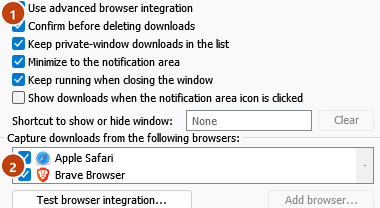
When the browser keeps a download, the extension's button says which of these left it there, with the file's name, and VDM's log has a line for each one (logs\vdm.log in VDM's data folder).
系统会检查您点击的地址以及重定向后的地址,因此即使被排除的网站将您重定向到另一台服务器,该网站仍会被排除。其他所有下载仍由浏览器处理。选项中的更改会在一分钟内同步到浏览器,无需重启浏览器。
When VDM takes a download, it gets the browser's file name, size and type with it, so Download File Info shows them at once without asking the server again. A download from a form (a button that posts and gets a file back) is posted again by VDM with the form's data; a form that sends a file stays with the browser.
When VDM takes a download, the browser's own copy is cancelled and removed from the browser's download list. In Firefox and the browsers built on it (Waterfox, Zen, LibreWolf), VDM takes it as soon as the server answers, before the browser asks What should … do with this file?: for a file VDM takes, that question never shows (Waterfox asks it for every new type of file). Files VDM doesn't take get the question as before. Download File Info opens in VDM (unless you turned it off in Options → Downloads). Cancelling there doesn't hand the download back to the browser.
Click a download link in the browser: Download File Info opens in VDM. 

开始下载:进度窗口显示文件正在下载。 

下载完成:打开文件,或打开文件夹。 

A download takes your cookies with it, as the browser sends them: those of the link's site, and of every site the link sent the browser on to (a sign-in step, a file host's download server), the one the download ended at included, with the page's partitioned cookies. Cookies a site sets along the way are kept for the next step, as a browser keeps them. Each site only ever gets its own cookies, and none go from a secure (https) address down to a plain http one.
Downloads from a private window use that window's cookies, never the normal ones, and are kept in VDM's list like any other, so they are still there after a restart (their cookies are never saved). A small mask before a download's status marks it as a private window's; its tip says whether the list keeps it. To keep them in memory only, as the browser keeps its private history, untick Options → General → Keep private-window downloads in the list: then they are gone from the list when VDM closes.
Files VDM downloads from the browser are marked as coming from the internet, as the browser marks its own: Windows checks a program with SmartScreen before it runs and Office opens a document in Protected View. Like the browser, VDM leaves the mark out when Windows' Group Policy Do not preserve zone information in file attachments is on; Options → Save to can turn it off for VDM alone.
浏览器会打开的文件
A PDF, a song or a video that the browser would show or play itself goes to VDM too, when its type is in Options → File types (not on the excluded sites). That's one you open from a link or the address bar, and one a page shows in a frame, as many course and document sites show their PDFs. To turn this off, untick Also take files the browser would open in Options → General → Keys.... This needs a Chromium browser (Chrome, Edge, Brave, Opera, Vivaldi) version 128 or later, or Firefox.
A page with a PDF viewer of its own (its own page numbers, zoom and buttons, while the address bar keeps the page's address) reads the file itself and draws it. VDM leaves that file to the page: if VDM took it, the page would get nothing and say the document failed to load. To download such a file, open its address in a tab of its own, or use the page's own download button if it has one.
工具栏按钮
The extension's button shows whether the browser reaches VDM. A red ! means it doesn't; click the button to see why, and How to fix it opens the matching section of The browser and VDM aren't connected. While VDM downloads, the button shows how many downloads are running, in blue; II means taking downloads is paused. Its popup says under VDM's name whether it is connected, and to which version; the gear opens VDM's Options. It has three tabs:
- Downloads: VDM's newest downloads (see Recent downloads, below).
- This page: Media on this page, what the page has loaded that VDM can download (see below), Images on this page (below), and Never take downloads from the current site, a switch: on, the site goes on VDM's excluded sites and the popup says Downloads from the site stay with the browser, whenever you open it there; off takes it off the list again. A site that a pattern of your own in Options excludes (
*.example.com) shows the switch on, and greyed: Options holds it. - Settings: Take downloads from this browser (off pauses: every download stays with the browser until you turn it on again), the browser's proxy (see below), Hide the download button in full screen, Send downloads to (this computer or another VDM, see Remote control), Options... and Open Volt Download Manager.
最近下载
Downloads lists VDM's newest downloads, newest first, and keeps them up to date while the popup is open: each with your system's own icon for its file type (as Explorer, Finder or your file manager shows it), its size and what it is doing. A running download shows a progress bar, its speed and the time left; a finished one when it finished; a failed one why; a finished one whose file was deleted or moved since says so. The search box finds downloads by any words of their name or address, and All, Running, Done and Failed show only those (each with how many there are). The popup shows the newest 60 that match; VDM's own window lists them all.
将鼠标指向下载任务(或通过键盘选中)可显示在文件夹中显示和暂停或续传。点击已完成文件的名称可打开它。其⋯菜单包含其余选项:
- Open, Show in folder: as in VDM; the program or folder opens in front of the browser.
- 复制文件:文件本身会复制到剪贴板,就像文件管理器的复制操作一样。将其粘贴到文件夹、聊天、电子邮件或网页的上传框中(浏览器接受粘贴的文件)。
- 共享…:使用您系统的共享面板共享文件(Windows 10 和 11,macOS),任何大小均可。Linux 没有标准的共享面板,因此不提供共享功能:请使用复制文件或在文件夹中显示。
- 复制链接:下载任务的地址。
- Download again: from the start (a file; videos and torrents have their own way in VDM).
- 从列表中移除(文件保留)和删除文件…,后者会先询问:文件将从您的计算机中删除,此操作无法撤销。
Clear finished takes every finished download off the list; their files stay where they are. When VDM isn't running, the tab says so, with a button to start it.
弹出窗口无法将文件从浏览器拖到另一个程序或网页中(浏览器不允许附加组件的弹出窗口在拖动时携带真实文件),因此复制文件和在文件夹中显示完成此任务。
When downloads go to another VDM (a server), the list is that server's: Pause, Resume, Remove from list and Copy link work, and the buttons that need the file on this computer (open it, its folder, copy, share, delete) aren't shown; a line at the top says so.
On Linux, Copy file works in X11 sessions and in Wayland sessions with XWayland (GNOME, KDE and most others have it): VDM keeps the file on the clipboard until something else is copied.
VPN 或代理扩展
A VPN or proxy extension is a proxy for the browser only. Switch on Send downloads through this browser's proxy or VPN extension in the extension's toolbar popup (it's off as installed), and VDM downloads what it takes from the browser through the same proxy (with Options → Proxy / Socks → Use proxy/socks from a browser's request, on by default; see Options). Switched off, the extension reads nothing of the browser's proxy.
- Firefox asks you once, at the switch, to allow the extension to read the browser's proxy; switching it off takes that permission back. VDM gets the proxy the browser's own request for the file took, including the ones a VPN extension picks for each request.
- Chrome, Edge, Brave, Opera and Vivaldi can't ask for that permission at the switch, so the
extension has it from the install (Chrome counts it under the access to every site the extension
already asks for, so it adds no line to the install prompt and the update asks for nothing new).
The switch asks nothing. VDM gets the browser's effective proxy, whoever set it (a VPN or proxy
extension, a policy, the command line): a fixed server for the download's scheme (
http,https,socks4,socks5), unless the address is on its bypass list, or its proxy auto-config script (by its address or inline). With no proxy, or the system's, nothing is sent and VDM goes by its own Options. A QUIC proxy can't be shared.
在这两种情况下,代理的登录信息都不会被读取:需要 VPN 扩展自身登录信息的代理无法共享,下载会因此显示错误,而不是在没有登录信息的情况下继续。
此页面上的媒体
有些页面播放的视频没有链接,有些播放器也会隐藏视频,不让下载按钮检测到。工具栏按钮会列出页面已加载的内容,因此您仍然可以保存这些内容:
- 流媒体:HLS (
.m3u8) 和 DASH (.mpd),这是大多数网站播放长视频的方式。无论播放器切换过多少种画质,每个流媒体只列出一次,并显示其画质 (1080p · 720p),以及扩展程序能够读取的时长。如果流媒体地址不以.m3u8或.mpd结尾,且以纯文本形式提供,也能检测到:打开列表(或在播放器上方点击下载按钮)时,如果播放器正在播放流媒体,扩展程序会读取播放器获取的前几千字节来识别流媒体。在您请求之前,不会读取任何内容。 - 页面播放的视频和音频文件(MP4、WebM、MP3 等),显示文件大小;如果是视频,还会显示画面尺寸。
Start the video first: the list fills as the page loads things, and it's emptied when the tab goes
to another page. Each file is listed under the name it will be saved with. A file the site sends
through a program's address (stream.php, remote_control.php, videoplayback, a bare number)
has no name of its own: it's named after the page (The page.mp4; a title's site name at its end,
as in The page | Example, is left out), or after the file= name in
its address when there is one, with the type its server says it is (MP4, not PHP). With Prefix
media file names with the page title on, a file with a name of its own is named after the page,
then that name (The page - clip.mp4). Click Download beside one: a stream opens VDM's Download video from a page
window, which reads its qualities (yt-dlp does the work); a file goes to VDM's list like any other
download. Your cookies for its server, the page as the referrer and your browser's User-Agent go
with it, as they do for a link you click.
Pieces of a stream (its segments) are never listed. A copy-protected stream (DRM: Widevine, PlayReady, FairPlay, as most paid streaming services use) is listed as Protected, with no Download button: no tool may break that protection, and VDM doesn't try.
无需您进行其他操作:扩展程序为了接管下载,已经能查看浏览器下载的内容。它记录的信息只保存在浏览器内存中,关闭浏览器后就会清除。
此页面上的图片
要下载图库或页面上的所有图片,请打开工具栏按钮的此页面选项卡,然后点击查找图片。在您点击之前,不会进行任何查找。扩展程序会查找:
- 页面显示的每张图片,以页面列出的最大尺寸为准:如果一张图片提供多种尺寸(
srcset、带有其来源的<picture>、1x和2x),则只查找一次,以最大尺寸为准,而不是页面恰好显示的尺寸; - 页面仅在您滚动到它时才加载的图片(其
data-src或data-srcset),以及在此之前显示的占位符; - 直接指向图片的链接,例如缩略图链接到其完整尺寸。
每个地址都会在页面及其框架中作为完整地址被查找一次。直接写入页面本身的图片(data:地址)和脚本生成的图片(blob:)不是服务器上的文件,因此会被排除。页面样式设置的背景图片不会被查找。
然后选择要发送的图片:
- 至少指定宽度和高度(以像素为单位),以排除图标和缩略图。如果图片的尺寸页面未提供(尚未加载的图片、仅链接的图片),则会保留,并且筛选器下方的行会显示有多少此类图片。
- 为每种找到的类型(JPEG、PNG、WEBP、GIF、AVIF、SVG、...、其他)提供一个按钮,并显示每种类型的数量:点击一次可排除该类型,再次点击可恢复。类型由地址决定(其文件扩展名,或图片服务在其中命名的格式)。
Send to Link grabber hands the kept ones to VDM's Link grabber, the way Download all links does, with the page as their referrer and your cookies for it. Link grabber looks each one up for its real name and size, and you tick there the ones to download.
Right-click: Download with Volt Download Manager
Right-click a link, a video, a sound or a picture and choose Download with Volt Download Manager. VDM downloads it whatever its type: you asked for it, so the file types list and the excluded sites don't apply here (they only decide which downloads VDM takes over by itself). A video that plays as a stream goes to the Download video window with the stream its player loaded (HLS or DASH), as the button over videos sends it, with your cookies for the stream's server and what the browser sent with the stream (its referrer and origin, else the page as the referrer).
Select part of a page and right-click it for Download selected links with Volt Download Manager, or right-click the page for Download all links with Volt Download Manager: the links open in Link grabber, sorted into packages, where you tick the ones you want. A page with tens of thousands of links works too: the extension sends a long list in parts, and Link grabber shows it once they are all in.
下载所有链接还会发送页面及其框架中找到的图片(其图片,每张图片都以页面列出的最大尺寸为准,就像查找图片找到的那样,不因尺寸或类型而遗漏),而下载选定链接则发送选定内容中的图片。当隐藏此网页上的图片被勾选时,链接抓取器会隐藏它们,每次出现此类列表时都是如此:取消勾选即可查看图片并勾选您想要的图片。指向图片的链接是链接,始终显示,即使同一张图片也显示在页面上。页面样式设置的背景图片不会被发送。
If VDM can't be reached when you choose one of these, the help page opens at the section that explains why.
视频上方的下载按钮
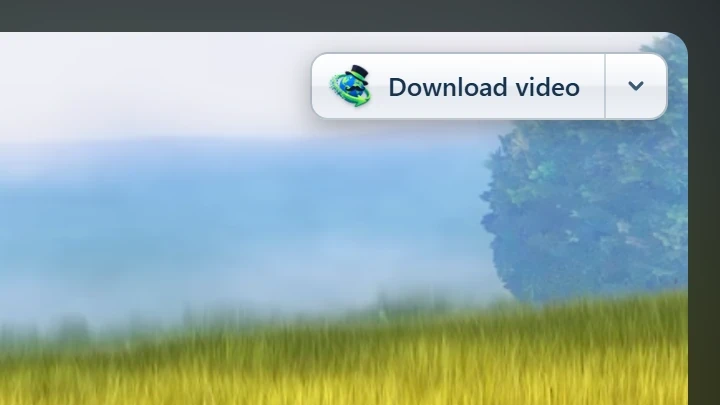
Point at a video on a web page and a small tab appears at its top corner: VDM's logo and a green Download video part, an arrow for its list and ✕ to hide it on this video. It follows Windows' light or dark mode. As it appears, VDM looks the video up (when VDM is running), and the button then names the best quality it found (1080p, 4K). Click it and that quality downloads at once, with only its progress window; VDM's main window stays where it is (with Do not start downloading, only add files to the queue on in Options, it goes in the queue instead). Clicking while VDM is still looking works too: it takes the best quality as soon as it is known. A video that plays a plain file (not a stream) needs no look-up: the button shows its picture size and downloads the file itself. When nothing could be looked up (VDM wasn't running, yt-dlp isn't installed, the page is a playlist, or you send downloads to another VDM), a click opens the Download video from a page window, which says why and offers what to do.
It takes the video you clicked: its own file when it plays one, or the stream the player loaded (HLS or DASH), else the page. A video that hasn't started yet, on a site yt-dlp doesn't read, has loaded no stream: the button then takes the stream address the page wrote for its player (an HLS or DASH playlist in its scripts or the player's attributes; the master playlist, else the best quality it names), on a page with one video, so you don't need to play it first. It only asks for addresses the page names. In a feed it takes the post the video sits in. When VDM finds nothing there (a feed that names no post, a post or a site yt-dlp can't read, such as Douyin's recommended videos), the button offers what the tab played for that video instead: the file or the stream whose length is the video's, never the next video the feed loaded meanwhile. When more than one could be it, it says Can't tell which video this is rather than guess; the toolbar button's Media on this page lists what the page loaded. Embedded players work too, and your sign-in for the site, the page that embeds the player and your browser's User-Agent go with it, so videos for members, or that play only on the site that embeds them, can be downloaded. A stream goes with what the browser sent when the player asked for it, its referrer, its origin and its cookies (a player embedded from another site may have cookies the browser keeps for that page only), and VDM sends them again with each of its playlists and pieces: a site's video server that serves its own pages' players only lets VDM through as well. A video the site names (YouTube, Vimeo and the others yt-dlp reads) keeps its own title; a stream known by no title of its own (its address is only playlist.m3u8) is named after the page you're on, without the site's name at its end: on a page titled A film | Example, it's A film.mp4, even when the player is embedded from another site. Sound players get the button too.
点击后,它会用自己的颜色显示发生的情况:
- Added to VDM (green), with the quality: Show brings VDM's window up with that download selected.
- 打开帖子以下载(琥珀色):视频位于信息流中,无法从此处下载。打开帖子会在新标签页中打开帖子(如果按钮知道的话);请在那里使用该按钮。
- VDM didn't answer (red): VDM isn't installed or didn't start. Get VDM opens its download page; Retry tries again.
- 此站点已关闭(灰色):在网站上选择从不在此站点显示后,或者当“选项”中将其关闭时。开启会再次在该站点上显示它。
- 受保护视频 · 无法保存(灰色,带锁):受版权保护的视频 (DRM),任何工具都无法保存。
它不会碍事:只有当您将鼠标指针移到视频上方(或播放器获得键盘焦点时;Tab 键可将焦点移到按钮上)才会显示;指针停止移动 1.5 秒后,或指针离开视频片刻后,它会变淡,3 秒后消失;变淡时,它仍然在那里,指向它会使其完全恢复。当其菜单打开时,它不会褪色;如果系统启用了减少动态效果,它会直接改变而不会褪色。它会忽略小视频和短的静音循环(动画图片、背景)。它不会遮挡页面本身的按钮:当页面按钮的任何部分位于其角落下方时(播放器的反馈或设置按钮,缩略图的稍后观看按钮),它会占用下一个空闲角落,并在播放器显示和隐藏其按钮时保持在那里,这样您在操作时它会保持不动。当鼠标指针在缩略图上时(YouTube 主页、搜索、频道),页面会播放预览,当指针到达按钮时,页面会停止预览;当指针在按钮上时,按钮会保持在原位,点击即可下载该预览视频。播放或暂停视频不会使其恢复。默认安装时(如下面的“选项”中按钮大小: 自动),它在信息流中的视频上方(Facebook、X、LinkedIn、Instagram、Reddit、YouTube 主页等)和小型播放器上方仅显示其徽标、箭头和 ✕;在大型播放器(如观看页面)上方则显示完整的按钮及文字;在宽度小于 360 像素的视频上,或文字无法容纳时,它始终是那个圆形按钮。完整 模式下,只要能容纳,就会显示其文字;紧凑 模式下,所有视频上都显示圆形按钮。在全屏模式下,如果播放器允许,它会跟随视频,进入全屏后它会保持不碍事,直到您再次移动指针。
- Its menu (the arrow next to it, or ↓ when the button has the keyboard's focus): the video's title, length and site; its filters, when the qualities differ: All, Video (the picture with its sound) or Audio only, and the file type (MP4, WEBM, M4A, MP3...) or the picture's codec (AV1, VP9, H.264), kept for the site; Download best first (the best of what the filters keep), then one numbered line per quality under VIDEO and AUDIO, with its file type, codec, frame rate or bitrate and size (
1080pMP4 · AV1 · 60 fps, as the Download video window says it), the best one marked, and Most compatible (H.264 + AAC) beside the resolution of the one that plays everywhere (Choose the quality); All qualities and subtitles..., which opens the Download video from a page window; then Put the button back in its corner (once you moved it on the site), Hide on this video (Esc), Hide the download button in full screen, Never on the site (VDM remembers the site), and Button settings..., which opens VDM's Options. The arrow keys move through it, Enter picks, Esc closes it. - 移动它:通过其圆点将其拖动到视频上的任意位置,拖到另一个角落或边缘,或播放器外部,上方、下方或旁边(适用于覆盖其播放器或在按钮位置绘制自己控件的网站);靠近边缘或外部时,边缘及其吸附点(角落和中间)会显示出来。当窗口在该位置没有空间时(窗口顶部的播放器,全屏),它会停留在该边缘的播放器内部。它会停留在您在该网站上放置的位置;菜单中的将按钮放回原位会将其恢复,附加组件的弹出窗口中有设置 → 视频上的下载按钮 → 重置,适用于所有网站(包括其过滤器)。
- Turn it off, make it smaller, or see the sites it stays off: Options → General → Customize VDM Download panels in browsers → Edit.... Button size has a 80%, 100% or 120% scale beside it, and is Automatic as installed (round in a feed and over a small player, its words over a big one), Full (its words wherever they fit) or Compact (only VDM's logo, the arrow and ✕, on every video, as on a small one); after a click it still says what happened in words. Pages already open follow a change within a few seconds, without a reload.
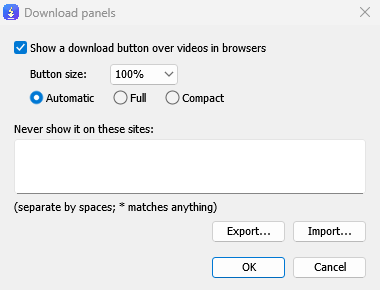
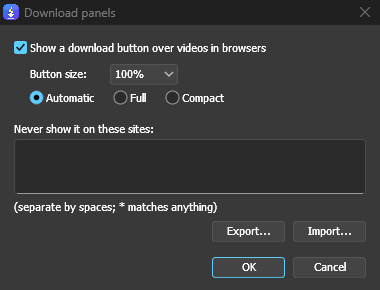
该按钮遵循其余的集成:当使用高级浏览器集成关闭或浏览器未勾选时,它不会显示。
强制或阻止捕获的按键
Hold Alt (Option on a Mac) while clicking a link to let the browser download it instead of VDM. The extension follows the link as a plain click would, in every browser, and the browser keeps what comes of it: the link opens in the tab, so a site's bot check (Cloudflare's "Just a moment...") runs there first. Without the extension in the way, Chromium browsers and Safari would save the link without opening it, which saves the check's page instead of the file; Firefox would do nothing. When the link redirects, or the page it leads to starts the download by script ("your download starts in 5 seconds"), that download stays with the browser too when it starts within ten seconds; the link's own address, and a download its own page starts (a bot check's page once its check is passed), within a minute. Alt with Ctrl, Shift or Cmd, and the middle button, keep their meaning (a new tab or window). Options → General → Keys... says so, and holds Also take files the browser would open.
要永久将某个网站的下载保留在浏览器中,请使用工具栏按钮的 从不接管来自,或将该网站添加到 不自动从以下网站开始下载。要将某种文件类型保留在浏览器中,请将其从文件类型列表中删除。
When VDM isn't running
You don't need to start VDM first. When the browser hands over a download and VDM isn't running, the helper starts it and passes the download on.
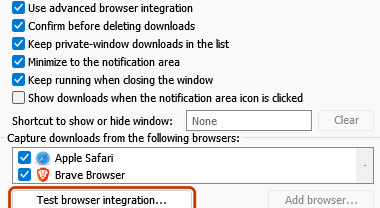
If VDM can't be reached at all (it was uninstalled, or the helper isn't registered), the download stays with the browser, so nothing is lost, and the toolbar button shows a red !. See The browser and VDM aren't connected, or run Options → General → Test browser integration....
下一步
免费、开源、无广告、无试用版。
Download Volt Download Manager