

进度窗口
每个正在进行的下载都有自己的进度窗口。它会在下载开始时打开(除非您在选项 → 下载 → 自定义“下载进度”对话框 → 编辑...中关闭了此功能,或选择了最小化显示);要再次打开它,请双击列表中的下载任务。
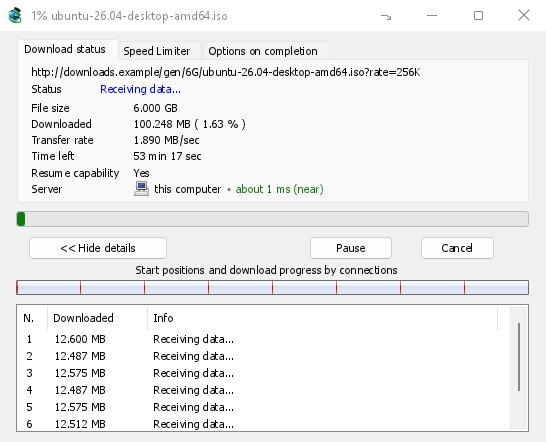
“下载状态”选项卡显示:
- 状态 — 正在连接...、正在接收数据...、已暂停、完成或错误信息。
- 文件大小、已下载和传输速率。
- 剩余时间。
- Resume capability — Yes if the server lets VDM continue the download later, No if it doesn't.
- 服务器 — 服务器的位置和距离。请参阅服务器位置。
显示详情 >>(默认打开)会添加连接视图:
- 显示整个文件的进度条,显示每个连接的起始位置和已完成的进度(连接的起始位置和下载进度)。
- 一个表格,每行显示一个连接:连接编号、已下载量以及当前正在执行的操作。
按钮:
- 暂停会停止下载并保留已下载的部分;恢复会继续下载。
- 对于可能永远不会自行结束的下载(例如网络电台、摄像头馈送,或任何不发送大小且无法续传的服务器,即“续传能力:无”),“停止并保留”取代了“暂停”功能。暂停此类下载会丢弃已接收的数据;“停止并保留”则会在此处结束下载,并将已接收的数据作为已完成文件保留在其文件夹中,并在列表中显示为“已完成”。详见“永不结束的下载”。
- 取消会停止下载并关闭窗口。下载仍保留在列表中,可以恢复。
- 通过关闭按钮关闭窗口会使下载继续运行。
- 隐藏到通知区域(在 Windows 标题栏中,最小化按钮左侧,一个带向下箭头的短横线图标)会将窗口最小化到通知区域;通过托盘图标菜单中的正在进行的下载可将其恢复。请参阅托盘图标。
服务器位置
下载文件信息、进度窗口和属性会显示下载文件的服务器位置:服务器所在国家的旗帜和名称,然后是往返所需的时间,例如约 24 毫秒(近)。
- 近(绿色):低于 60 毫秒,通常是同一国家或邻国。
- 中(琥珀色):60 到 150 毫秒,通常是同一大陆。
- 远(红色):超过 150 毫秒,通常是另一个大陆。远距离服务器通常较慢,增加连接数帮助最大。
将鼠标悬停在该行上,可查看服务器地址以及时间测量方式。
How VDM knows:
- The country comes from a table of address ranges that comes with VDM (IP to Country Lite by DB-IP, CC BY 4.0), looked up on your computer. VDM never sends the address anywhere to ask where it is. The table is updated with each release; an address that has moved since may show its old country.
- The time is measured from the download's own connections, as each one opens: VDM sends nothing extra to the server. It is an estimate (the time to open a connection, divided by its round trips: one for http, two for https), so it says about. The quickest connection counts.
- 您计算机或本地网络上的服务器会显示为本地服务器,不带旗帜。
- Through a proxy, VDM only sees the proxy, so it says through a proxy (with the proxy's country when it knows it) instead of guessing the server's. A VPN that works at the system level can't be seen: the country is then the server's, but the time includes the VPN's detour.
- 内容分发网络(Cloudflare、Amazon CloudFront、Fastly、Akamai 等)从离您较近的服务器提供文件,而不是从网站所有者的服务器提供。工具提示会说明这一点:位置是网络服务器的位置,而不是网站的位置。
- Torrents and galleries have no single server of VDM's own (peers, or the many a gallery's pictures come from), so their windows don't show one. A video in one file shows the server it comes from.
属性保留了上次运行所看到的信息,因此已完成的下载仍会显示其来源。
另外两个选项卡:
- 速度限制器 — 仅用于此下载的限制。请参见下文。
- 完成时选项 — 显示文件将保存的位置。取消勾选显示下载完成对话框可跳过此文件的下载完成框。
隐藏选项卡会将当前选项卡从下载窗口中移除,并返回到下载状态。要恢复选项卡,请右键点击选项卡行并选择显示隐藏的选项卡;关闭窗口再重新打开也能恢复。
下载完成时
下载完成窗口会显示文件大小、地址和保存位置。您可以选择打开、打开方式…、打开文件夹或关闭。在 Windows 上,您还可以将右下角的小框拖到资源管理器、电子邮件或聊天窗口中以放置文件。与在资源管理器中拖动文件类似,如果目标文件夹在同一驱动器上,文件会被移动;如果目标文件夹在不同驱动器上,文件会被复制(按住Shift键移动,按住Ctrl键复制)。下载记录会跟随移动后的文件:列表和打开功能会在新位置找到它。此窗口会显示在其他程序上方,直到您点击它,但不会抢占您正在输入的程序的键盘焦点。
勾选不再显示此对话框以停止显示它。可以在选项 → 下载 → 显示下载完成对话框中重新开启。
How VDM uses connections
VDM splits a file into parts and downloads them over several connections at once:
- VDM 默认使用 8 个连接。您可以在选项 → 连接 → 默认最大连接数中设置 1 到 32 个连接,或者勾选允许超过 32 个连接后最多设置 128 个。只有当服务器以有限的速度发送每个连接并允许来自一个地址的多个连接时,更多的连接才会有帮助;大多数服务器允许的连接数要少得多。
- 一个连接完成负责的部分后,会接手剩余部分中最大的一半。这样,只要还有其他连接在工作,就不会有连接闲置。
- 比其他连接慢得多的连接会被断开并重新打开。
- Some servers allow only a few connections. VDM notices this and stops asking that server for more. What it has learned shows in Options → Connection under Exceptions, marked (auto).
- 您可以自行设置服务器的连接数:“选项 → 连接 → 新建”,然后输入服务器名称和连接数。
*代表任意文本:*.example.com代表 example.com 的所有子域名(不包括 example.com 本身),files*.example.net代表所有以此开头的服务器。当多个例外规则指定同一服务器时,列表中第一个规则生效。
Each connection writes straight into the file's place on disk, in a part file named <name>.vdm.part next to the final file. When every part is done, VDM checks the size and renames it. There is no temporary folder and no joining step at the end.
站点规则
有些网站要求特定的用户代理、额外的请求头或更少的连接数,只允许浏览器访问,或者在其他网站不需要代理时,它们需要(或不需要)代理。选项 → 连接 → 站点规则... 可以为来自某个网站的每次下载设置这些规则:
- 站点 — 站点的名称,与例外规则相同:
example.com、*.example.com(其子域名)、files*.example.net。前面的方案(https://example.com)将规则限制在该方案内。 - User-Agent — the name VDM gives itself to that site, instead of your browser's or the one set in Options → Downloads. Empty: as usual.
- 请求标头 — 每行一个,
Name: value(Accept-Language: de、X-Api-Key: ...)。下载已有的标头(例如浏览器的 Referer)将被替换。名为 Cookie 和 Authorization 的标头在站点将下载重定向到其他位置时仍会保留在该站点;其他标头则会跟随重定向,与其他下载程序一样。 - 连接数 — 站点自身的连接数。它与上面的例外规则相同:规则的连接数显示在“例外”下,例外规则也显示为规则。
- Always connect the way a browser does — VDM asks the site the way a browser connects from the first request, instead of only after the site turned it away ("this site lets only browsers through").
- Proxy — As in Options (the default: Options → Proxy / Socks decides), No proxy (straight to the site, whatever Options says), or This proxy: one of its own, typed as a download's own proxy is,
host:port,http://host:port,https://host:port,socks5://host:port(socks5h://to have the proxy look the site's name up). Proxy user and Password are its login, if it needs one; the password is kept with VDM's other passwords (in the system's keychain), never in the settings file as it is. This replaces switching Options back and forth, or writing a proxy auto-config script, when only some sites need a proxy.
Each setting comes from the first rule in the list that names the site and sets it, so put a narrower rule (dl.example.com) above a wider one (*.example.com) with Move up and Move down. Rules apply to downloads VDM's engine makes, as they start or resume. The command line's get and resume use them too, unless you give the same thing on the command line.
下载任务通过哪个代理:首先是它自己的代理(如下),然后是第一个指定该网站并设置了代理的规则,然后是选项 → 代理/SOCKS(当使用浏览器请求中的代理/SOCKS开启时,也包括浏览器的代理)。规则中的代理也用于“下载文件信息”的查找,以及对于规则中指定的视频或图库页面,yt-dlp 和 gallery-dl 的查找和视频下载,这样它们获取的链接都来自同一个地址。选项 → 代理/SOCKS中选择的网络适配器及其断路开关仍然适用于所有连接:一旦选择了适配器,所有连接都将通过它。
单个下载的设置
已停止下载的“属性 → 连接...”可以更改该下载在继续时如何连接:其 用户代理、请求标头、代理(如“选项”中所示,无,或您输入的 host:port 或 socks5://host:port)和 连接数。这些设置优先于站点规则和“选项”,并随列表一起保存。下载运行时,此按钮呈灰色:请先暂停下载。
When it resumes, VDM checks it is still the same file (its size, and the ETag and date the server gives) before it writes anything. If the new settings lead to another version of the file, the download stops with the file changed on the server and keeps what it had: start it again from the beginning only if you want the new one. Changed settings never mix two files.
恢复下载
A download resumes where it stopped: after you stop it, after the connection drops, or after Windows or VDM crashes. VDM saves how far each part has got as it goes.
- 连接失败时会自动重试。进度窗口的表格会显示正在重试和重试原因。
- 要继续已停止的下载,请选择该下载,然后点击工具栏上的恢复(或选择文件 → 立即下载)。
- Before continuing, VDM checks that the file on the server is still the same. If it changed, the download stops with the file changed on the server. Use Redownload to start again from the beginning.
- If Resume capability is No, the server can't send a file in parts. VDM then downloads it over one connection, and a download that stops has to start over.
恢复中断的下载也适用于过期链接。
永不结束的下载
有些地址永远不会自行完成:例如网络电台、摄像头的实时画面、持续发送数据的服务器。它们的服务器不报告大小且无法发送分段,因此进度窗口显示“续传能力:无”,“已下载”会增长但没有百分比,并且其“暂停”按钮显示为“停止并保留”。
- “停止并保留”会在当前位置结束下载,并将所有已接收的数据作为已完成文件保留:文件已命名,位于其文件夹中,在列表中显示为“已完成”,并像其他文件一样显示“下载完成”窗口。
- “停止并保留”是唯一保留此类下载的方式。工具栏上的“停止”、“全部停止”、队列停止(手动或在停止时间)、托盘面板的“暂停”、手机页面的暂停和“取消”都会停止下载而不保留任何内容,就像任何服务器无法续传的下载一样:稍后“续传”会重新开始下载。
- 您为下载提供的校验和不会与以这种方式保留的文件进行检查:它只能用于完整文件。
- Closing VDM while such a download runs, and the command line, don't keep it.
对于任何服务器不发送大小且不接受范围请求的下载,包括站点根据您的请求生成的文件,情况也是如此:“停止并保留”会将目前已接收的数据作为文件保留,而不是整个文件。要获取完整文件,请让它完成下载。
仅通过您的 VPN:网络适配器及其终止开关
Options → Proxy / Socks → Network adapter holds every connection VDM opens to one network adapter, usually your VPN's: downloads, FTP, torrents, video pages and galleries, VDM's own downloads and the update check. It works as a kill switch: when the adapter disconnects, or the VPN is switched off, nothing goes out through your normal connection. Running downloads stop with … is not connected, and start again by themselves when the adapter is back. The line under the list shows the adapter's address, or that it isn't connected. Details in Options → Proxy / Socks and, for torrents, in Torrents and your security.
DNS
Options → Connection → DNS chooses who turns the servers' names into addresses: the system's DNS (the default), or an encrypted one (DNS over HTTPS or TLS) such as Cloudflare, Google, Quad9, AdGuard, NextDNS or your own. With a network adapter chosen, VDM asks it through the adapter, so the names stay inside your VPN too. See Options → Connection.
速度限制器
The Speed Limiter keeps VDM from using all of your connection.
对每个下载
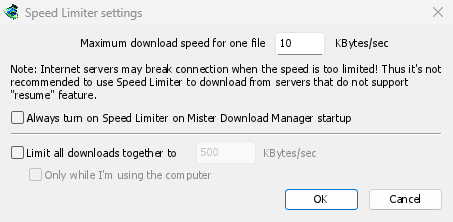
- 选择下载 → 速度限制器 → 设置...。
- 以千字节/秒为单位设置单个文件的最大下载速度。默认值为 10,因此请在开启速度限制器前设置。
- 点击确定。
- 选择下载 → 速度限制器 → 开启。选择关闭即可恢复全速下载。
Always turn on Speed Limiter on Volt Download Manager startup turns it on each time VDM starts.
一个种子文件在此算作一个文件:每个种子文件都有自己的限制。视频和图片库(视频)也是如此。有自己限制的下载(请参阅针对单个下载)将保持该限制。
限制所有下载的总速度
In the same window, tick Limit all downloads together to and set the speed. This caps VDM as a whole, however many files are downloading, torrents included. When torrents and other downloads run at the same time, each side gets at least half of the speed, and more when the other side needs less: a torrent going slowly leaves the rest to the other downloads, and the other way round. It applies whenever it is ticked, whether the per-file limiter is on or off.
Tick Only while I'm using the computer to apply it only while you use the mouse or keyboard. After a minute without input, VDM goes back to full speed.
针对单个下载
在下载的进度窗口中,打开速度限制器选项卡:
- 勾选使用限速器。
- 以千字节/秒为单位设置最大下载速度。新限制会立即生效。
- Tick Remember Speed Limiter settings for this file on download stop/resume to keep this limit for the file: it applies again when you resume it later, even after restarting VDM.
视频或图片库同样有自己的限制。对于种子文件,限制仅适用于该种子文件;其他文件保持其各自的限制。种子文件的速度不能低于 16 千字节/秒:如果设置了更低的限制,它将自动调整为 16 千字节/秒。
速度过低时,某些服务器会断开连接。对于无法恢复下载的服务器(恢复功能:否),请避免设置过低的限速。
下一步
免费、开源、无广告、无试用版。
Download Volt Download Manager