

There are several ways to give VDM something to download. Most of them end in the same window, Download File Info, where you choose where the file goes.
添加 URL
- 复制文件地址(在浏览器中:右键点击链接 → 复制链接)。
- 点击工具栏上的添加 URL,选择任务 → 添加新下载,或按Ctrl+N。
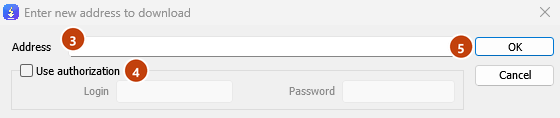
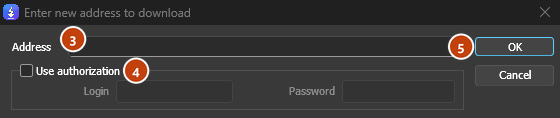
- 输入要下载的新地址窗口随即打开。如果剪贴板中有网址,地址会自动填入。地址末尾的箭头会列出最近输入的 20 个地址;选择一个即可再次使用。右键点击输入框,可选择剪切、复制、粘贴、删除和全选。
- 如果服务器需要用户名和密码,请勾选使用授权并输入用户名和密码。
- 点击确定。
VDM takes http://, https://, ftp://, ftps://, ftpes:// and magnet: addresses. Anything else gets Invalid address.
A thunder://, flashget:// or qqdl:// link is one of those addresses wrapped in base64, as download pages made for Thunder (Xunlei), FlashGet and QQ's downloader write them. VDM unwraps it and downloads from the address inside, here, from the clipboard and in Link grabber; the download is listed under that address. A link that wraps anything else, or that can't be read, gets Invalid address too.
如果地址是视频页面(YouTube、Vimeo、TikTok 等),会打开视频窗口。请参阅视频下载。磁力链接会打开添加种子窗口。请参阅种子。
FTP 和 FTPS
FTP 下载与网页下载类似:可以同时建立多个连接、暂停和恢复下载,并使用相同的进度窗口。
ftp://— 普通 FTP。ftpes://— 在会话开始时使用 TLS 加密的 FTP(显式 FTPS,AUTH TLS,通常使用端口 21)。服务器表示支持 TLS 时,请使用此方式。ftps://— 隐式 FTPS,默认使用端口 990,地址另有指定时除外。
服务器证书会根据 Windows(或系统)的受信任证书(如 https://)以及 Mozilla 的证书(Firefox 携带的证书)进行检查,以防系统缺少服务器证书的根证书(例如尚未获取该证书的旧版 Windows)。没有这些证书的 Linux 系统(未安装 ca-certificates 软件包的最小化安装)仍然可以通过纯 HTTP 和 FTP 下载;但每次安全下载都会立即失败,并提示安装该软件包。
An https:// site whose certificate is refused (expired, self-signed or from an issuer the system doesn't
trust, made for another site name) isn't downloaded from: Download File Info, the progress window
and the list say which of these it is, as a browser warns about the same site. VDM has no way
around it.
Logging in. Write the login in the address (ftp://user:password@server/folder/file.iso),
tick Use authorization, or save it in Options → Sites Logins. Without one, VDM logs in as
anonymous. The path is relative to the folder the login starts in; to start from the server's
root, write %2F after the server (ftp://server/%2Fpub/file.iso).
Resuming. VDM keeps the file's size and modification time. If either has changed when you resume, it says the file changed on the server instead of mixing two versions (Options → Downloads → Ignore file modification time changes skips the time check). The password is not written to the resume file next to the download: VDM gives it again when it resumes.
连接。 默认使用被动模式。选项 → 代理/SOCKS → 在 PASV 模式下使用 FTP 可将其关闭,以用于只接受主动连接的服务器。FTP 通过在选项 → 代理/SOCKS中设置的 SOCKS 代理(此时始终是被动模式;ftps:// 尚不能通过代理),当代理是 HTTP 代理时,则直接连接到服务器。
Browsers no longer download ftp:// links themselves. Right-click one and choose Download with
Volt Download Manager, or copy it and use Add URL.
Google Drive 链接
直接粘贴 Google Drive 链接,即分享 → 复制链接生成的链接:
https://drive.google.com/file/d/…/view?usp=sharing带或不带/view;https://drive.google.com/uc?id=…&export=download以及https://drive.google.com/open?id=…;https://docs.google.com/document/d/…/edit(以及 Sheets、Slides 和 Drawings)。
VDM downloads the file itself, as it was uploaded (a video comes in its own format, not the player's copy), with its real name and size, over several connections, and it can resume. For a large file, Drive shows a page that says it can't scan this file for viruses; VDM goes past it as Download anyway does.
Google Docs、Sheets 和 Slides会以 Word(.docx)、Excel(.xlsx)和 PowerPoint(.pptx)文件的形式下载,Drawings 则会以 .png 格式下载。这些文件会在请求时生成,因此下载完成前无法知道文件大小,也无法恢复下载:下载中断后会从头开始。
Files that aren't shared with everyone. Right-click the link in the browser and choose Download with Volt Download Manager, or use Drive's own Download button: the extension passes your browser's Google sign-in with the download. VDM never asks for or keeps your password. Without a sign-in, VDM says the file needs you to sign in.
When Drive won't give a file. Drive limits how often a file can be downloaded: after many downloads in a day it answers "too many users have viewed or downloaded this file recently". VDM shows Drive's own words and writes nothing. Try again later (it can take up to a day), or sign in to Google in your browser and download from there, which often gets past the limit. VDM doesn't try to get around it. A file whose owner turned off downloading, or that your account can't open, gets no access.
云端硬盘视频上方的视频按钮会下载原始文件,而不是播放器较小的副本之一。
Folders: paste a shared folder's link (https://drive.google.com/drive/folders/…) in Add
URL, or right-click it in the browser and choose Download with Volt Download Manager, and
Link grabber lists its files and its subfolders' to download into the same folders. See
Google Drive folders.
下载文件信息
VDM asks the server for the file's name and size, and shows them in Download File Info:
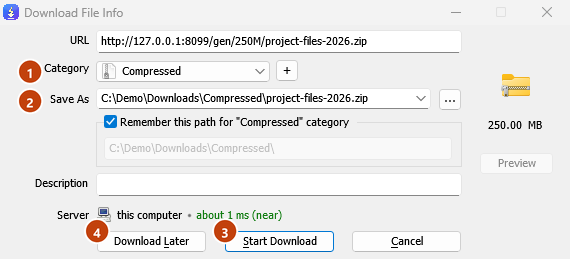
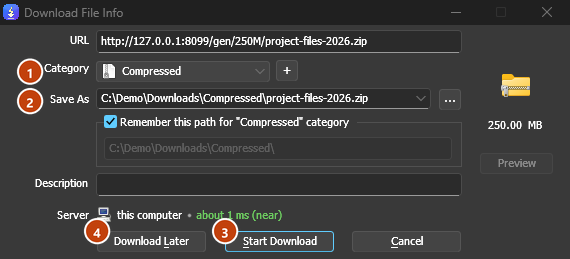
- URL — 地址。
- 类别 — 根据文件类型(压缩文件、文档、音乐、程序、视频或常规)选择。每个类别都有自己的文件夹。+ 旁边可创建新类别。
- Save As — the folder and file name. You can type another, pick one of the last 20 folders you saved to from the arrow at its end, or choose the folder and the file name in the system's Save dialog with ... (a name typed there without an extension keeps the download's). If you choose a file that is already there and answer Yes when the dialog asks whether to replace it, the download replaces it once it is complete; until then the old file stays as it was, so it is kept if the download fails or you cancel it. A name of a file that is already there that you type in Save As itself is asked about as you press Start Download or Download Later: Add the duplicate with a numbered file name takes the next free name, such as
name (1).zip; Add the duplicate and overwrite the existing file replaces it once the download is complete, as above; Cancel goes back to the dialog. A name VDM gave that is taken by the time the download starts is numbered without asking. - 记住此路径用于“…”类别 — 勾选此项,您输入的文件夹将成为该类别的默认文件夹。如果在选项 → 保存到中勾选了将所有下载保存到“常规”类别的文件夹,则所有下载都将开始于常规文件夹,此时此框将命名常规类别:您输入的文件夹将成为所有下载的默认文件夹。
- 描述 — 您自己的备注。它会显示在列表的描述列中,并且“查找”可以搜索它。
- Server — where the server is: its country's flag and name, and how long a round trip to it takes. See Where the server is. It stays blank when the browser handed the download over with its name and size, since VDM didn't need to ask the server.
然后选择:
- 开始下载(或Enter) — 立即下载。进度窗口打开。
- 稍后下载 — 将其添加到队列而不开始。请参阅下文。
- 取消(或Esc) — 不添加任何内容。
By default VDM starts downloading while this window is open, so no time is lost while you decide. Cancel drops what it fetched. You can turn this off in Options → Downloads → Start downloading immediately while displaying "Download File Info" dialog.
If the folder doesn't exist yet, VDM asks Do you want to create it? before it starts.
仅下载 ZIP 中的部分文件
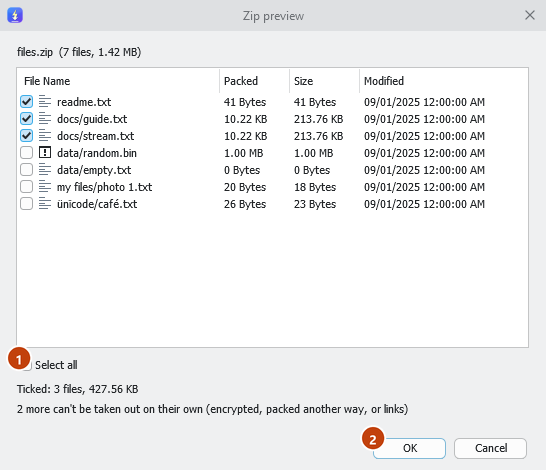
对于网页服务器上的 .zip 文件,预览(文件大小下方)会列出其内部内容,这样您就可以只下载所需的文件,而不是整个压缩包:从 20 GB 的压缩包中下载两个文件只需两次小型下载。
As the window opens, VDM asks the server for the archive's last bytes, where a ZIP keeps its list of files. Only a server that sends parts of a file can give files one by one, so Preview works only there; elsewhere it stays grey, and its tooltip says why (the server can't send parts of the ZIP...). The whole archive still downloads as usual.
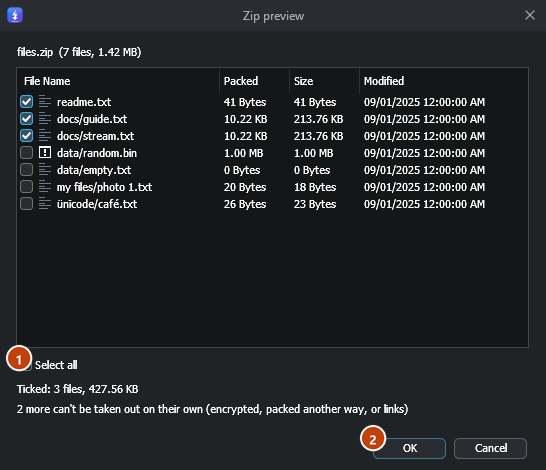
预览会打开ZIP 预览窗口:其中列出了压缩包中的每个文件,包括其文件名(在 ZIP 中的路径)、压缩大小(在 ZIP 中的大小)、大小和修改日期。勾选您想要的文件(全选会勾选所有文件),然后点击确定。已选文件的数量会显示在预览下方;将鼠标悬停在其上方可查看文件保存位置。然后点击开始下载或稍后下载,它们将作为单个下载任务添加,取代整个压缩包:
- 这些文件将保存在另存为所示文件夹中以压缩包命名的子文件夹内(
Downloads\Compressed\photos\代表photos.zip),每个文件都保留其在 ZIP 中的路径(photos\2025\beach.jpg)。如果目标位置已有同名文件,则保留原文件,新文件会进行编号。 - VDM fetches only each file's own bytes, unpacks it, and checks it against the checksum (CRC-32) and size the archive gives for it. A file that doesn't match is not kept, and the download says so.
- 已停止的下载任务会继续下载尚未获取的文件;已部分停止的文件会重新获取。
- 勾选同时从磁盘删除文件后点击删除,会保留文件夹及其文件,就像删除图片库一样。
Some files can't be taken out on their own and aren't listed (the window counts them under the list): encrypted files, files packed with a method other than the two most ZIPs use (stored and Deflate), links, and names that would put a file outside its folder (../, a drive letter, an absolute path). A ZIP split over several files, or one whose list of files doesn't add up (files over each other, a list larger than VDM reads from a server), can't be previewed. For any of these, download the whole archive.
Each link opens a Download File Info of its own, so several can be open side by side, to compare their sizes before you choose. Each new one opens a little below and beside the one before and comes to the front; from the second on, its title carries its number: Download File Info (2), (3) and so on. Esc closes only the window you're in. Up to six are open at once: more links handed over together (a browser passing on several downloads) wait, and open one by one as you close windows; Cancel asks whether to cancel the ones still waiting. The same link handed over again brings its open window to the front. If you quit VDM with some still open, their downloads go to the Main download queue, as with Download Later.
稍后下载
Download Later puts the download in a queue instead of starting it. By default VDM asks which one: pick the queue under Add to queue, and tick Start the queue now if you want it to run straight away. Cancel leaves the download in the list, in no queue.
要跳过此问题并始终使用主下载队列,请关闭选项 → 下载 → 按“稍后下载”按钮时显示队列选择面板。
有关队列的更多信息,请参1阅队列和计划程序。
从剪贴板
With Options → General → Offer to download links copied to the clipboard ticked (it is, unless you turned it off), when you copy a link to a file type in Options → File types (ZIP, EXE, MP4, PDF and many more), Download File Info opens with it filled in, ready for Start Download. Links to other pages are left alone. With Options → Downloads → Show start download dialog off, the download starts at once instead. Only links copied while VDM runs are taken, never one that was already there.
Copied several links at once, a list or a whole forum post? Choose Tasks → Add batch download from clipboard (Ctrl+B, also in the tray icon's menu). VDM reads the clipboard then, and only then, and finds every download link in the text: http, https, ftp and magnet links, one per line or among other words, in Markdown ([name](https://github.com/mikailhossenimran/voltdownloadmanager/blob/main/docs/link)) or between < and >. Each one is listed once in Link grabber, ticked and sorted into packages: pick a folder for each package, then Start or Add to queue. Downloads added together end with one Downloads complete summary. Magnet links are added as torrents with all their files once their files are known. thunder://, flashget:// and qqdl:// links count as the address wrapped in them, here and for a single copied link. A copied address with a number in its name, such as https://example.com/show/ep01.mp4, opens Batch download instead (below). If the clipboard holds no text, or no link, VDM says so.
拖放
- Choose Tasks → Show drop target. A small box with the VDM icon appears and stays on top of other windows.
- Drag a link from your browser onto it. VDM adds it as if you had used Add URL.
You can also drop magnet links and .torrent files on it. Drag the box to move it, and double-click it to bring the main window back. Right-click it for Show Volt Download Manager, Add new download and Hide drop target.
批量下载:许多带编号的文件
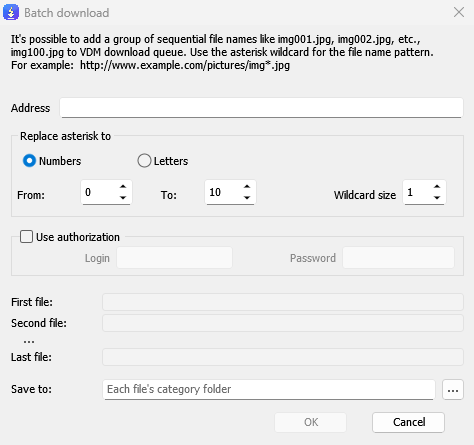
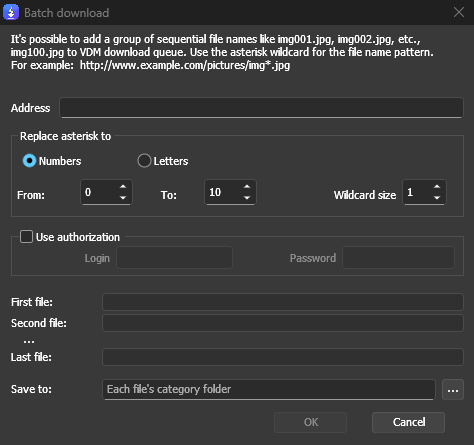
对于名称仅因数字或字母而异的文件,例如photo001.jpg到photo150.jpg:
- 选择任务 → 添加批量下载。复制了一个文件名中包含数字的地址,例如
https://example.com/show/ep01.mp4?任务 → 从剪贴板批量添加下载(Ctrl+B)会将星号放在数字所在的位置,根据它设置从和通配符大小(ep*.mp4,从 1 开始,大小为 2),并在到中等待最后一个数字。 - 在地址中,在数字或字母变化的位置写入一个星号:
https://example.com/photo*.jpg。 - 在将星号替换为下,选择数字或字母,然后选择从和到。
- 对于数字,将通配符大小设置为位数。如果设置为 3,文件将是
photo001.jpg、photo002.jpg等等。 - 如果服务器需要登录,请勾选使用授权。
- 勾选第一个文件、第二个文件和最后一个文件。
- 如果保存到留空,每个文件将保存到其类别文件夹(选项 → 保存到)中,或者,如果所有下载都保存到同一个文件夹,则保存到常规文件夹中。要将批处理中的所有文件保存到同一个文件夹,请在此处输入路径或使用...选择。然后点击确定。
The downloads go to a queue. As with Download Later, VDM asks which queue unless you turn off Options → Downloads → Show queue selection panel on closing batch download dialogs.
链接列表
要添加文本文件中的所有链接:
- 选择任务 → 导入 → 从文本文件。
- Pick the file. Link grabber lists every web address VDM found in it, in packages. While VDM reads a long file, the strip under the list of downloads says Reading and the file's name; you can go on using VDM meanwhile. Import reads files of up to 64 MB, far more than any list of links holds: a larger file (a video, an archive, a backup picked by mistake) is refused with a message.
- 取消勾选不需要的地址(可使用全选和取消全选),然后点击添加到队列。
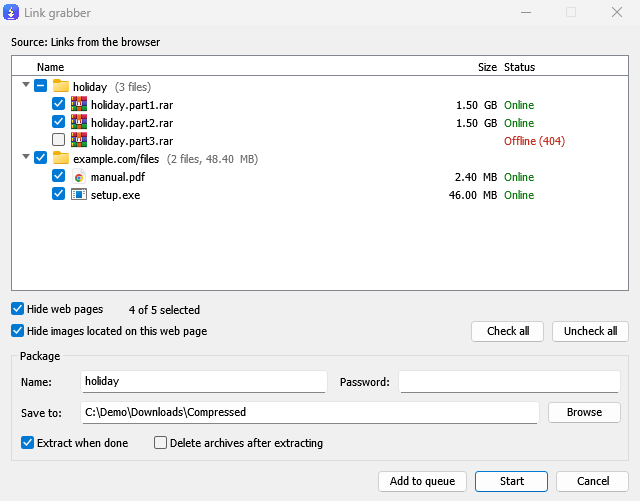
下载任务会加入主下载队列,等待开始(点击开始也可启动)。任务 → 导入 → 从 IDM 导出文件可读取 .ef2 文件,其中包含每个下载的引用页和 Cookie,以及列表中 filename: 行给出的文件名。
任务 → 链接抓取器...会打开一个空白的同一窗口:粘贴包含链接的文本(Ctrl+V)。有关下载包、压缩包密码以及下载完成后解压压缩包的信息,请参阅链接抓取器和压缩包。
要保存您自己的列表,请使用任务 → 导出 → 导出到文本文件(每行一个地址)或导出到 IDM 文件。
当地址已在列表中时
By default VDM asks what to do when you add an address it already has. You can choose a fixed answer in Options → Downloads → If a duplicate download link is added:
- 显示对话框并询问如何操作。
- 添加带编号文件名的重复项
- 添加重复项并覆盖现有文件
- 如果现有文件已下载完成,则显示下载完成对话框;否则继续下载。
下一步
免费、开源、无广告、无试用版。
Download Volt Download Manager