

There are several ways to give VDM something to download. Most of them end in the same window, Download File Info, where you choose where the file goes.
Adicionar URL
- Copie o endereço do ficheiro (num navegador: clique com o botão direito na ligação → Copiar ligação).
- Clique em Adicionar URL na barra de ferramentas, escolha Tarefas → Adicionar novo download ou prima Ctrl+N.
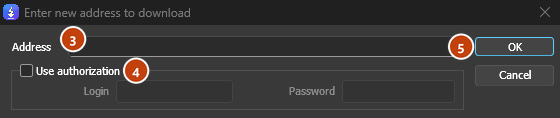
- Abre-se a janela Introduzir novo endereço para transferir. Se a área de transferência contiver um endereço Web, este já estará preenchido. A seta no final de Endereço apresenta os últimos 20 endereços que introduziu; escolha um para o voltar a utilizar. Clique com o botão direito na caixa para Cortar, Copiar, Colar, Eliminar ou Selecionar tudo.
- Se o servidor exigir um nome de utilizador e uma palavra-passe, selecione Utilizar autorização e introduza-os.
- Clique em OK.
VDM takes http://, https://, ftp://, ftps://, ftpes:// and magnet: addresses. Anything else gets Invalid address.
A thunder://, flashget:// or qqdl:// link is one of those addresses wrapped in base64, as download pages made for Thunder (Xunlei), FlashGet and QQ's downloader write them. VDM unwraps it and downloads from the address inside, here, from the clipboard and in Link grabber; the download is listed under that address. A link that wraps anything else, or that can't be read, gets Invalid address too.
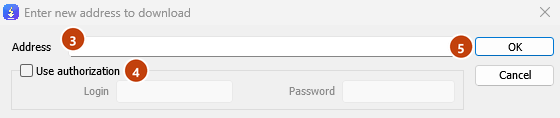
Se o endereço for de uma página de vídeo (YouTube, Vimeo, TikTok e outros), abre-se a janela de vídeo. Consulte Downloads de vídeo. Uma ligação magnética abre a janela Adicionar torrent; consulte Torrents.
FTP e FTPS
As transferências por FTP funcionam como as transferências pela Web: permitem várias ligações em simultâneo, pausar e retomar, e apresentam a mesma janela de progresso.
ftp://— FTP sem encriptação.ftpes://— FTP seguro com TLS desde o início da sessão (FTPS explícito,AUTH TLS, geralmente porta 21). Utilize-o quando o servidor indicar que suporta TLS.ftps://— FTPS implícito, normalmente na porta 990, salvo indicação de outra porta no endereço.
O certificado do servidor é verificado em relação aos certificados fidedignos do Windows (ou do sistema), como para https://, e aos da Mozilla, os que o Firefox utiliza, quando o sistema não tem a raiz de onde o certificado do servidor provém (um Windows mais antigo que ainda não a obteve). Um sistema Linux sem eles (uma instalação mínima sem o pacote ca-certificates) continua a transferir por HTTP e FTP simples; cada transferência segura falha imediatamente, indicando para instalar esse pacote.
An https:// site whose certificate is refused (expired, self-signed or from an issuer the system doesn't
trust, made for another site name) isn't downloaded from: Download File Info, the progress window
and the list say which of these it is, as a browser warns about the same site. VDM has no way
around it.
Logging in. Write the login in the address (ftp://user:password@server/folder/file.iso),
tick Use authorization, or save it in Options → Sites Logins. Without one, VDM logs in as
anonymous. The path is relative to the folder the login starts in; to start from the server's
root, write %2F after the server (ftp://server/%2Fpub/file.iso).
Resuming. VDM keeps the file's size and modification time. If either has changed when you resume, it says the file changed on the server instead of mixing two versions (Options → Downloads → Ignore file modification time changes skips the time check). The password is not written to the resume file next to the download: VDM gives it again when it resumes.
Ligações. O modo passivo é usado por predefinição. Opções → Proxy / Socks → Utilizar FTP em modo PASV desativa-o para servidores que só aceitam ligações ativas. O FTP passa por um proxy SOCKS definido em Opções → Proxy / Socks (passivo, sempre; ftps:// ainda não pode passar por um), e liga-se diretamente ao servidor quando o proxy é HTTP.
Browsers no longer download ftp:// links themselves. Right-click one and choose Download with
Volt Download Manager, or copy it and use Add URL.
Ligações do Google Drive
Cole uma ligação do Google Drive tal como está, como a que obtém em Partilhar → Copiar ligação:
https://drive.google.com/file/d/…/view?usp=sharing, com ou sem/view;https://drive.google.com/uc?id=…&export=downloadehttps://drive.google.com/open?id=…;https://docs.google.com/document/d/…/edit(e Sheets, Slides e Drawings).
VDM downloads the file itself, as it was uploaded (a video comes in its own format, not the player's copy), with its real name and size, over several connections, and it can resume. For a large file, Drive shows a page that says it can't scan this file for viruses; VDM goes past it as Download anyway does.
Os Google Docs, Sheets e Slides são transferidos como ficheiros Word (.docx), Excel (.xlsx) e PowerPoint (.pptx), e os Drawings como .png. Estes ficheiros são criados quando são solicitados, por isso o tamanho só é conhecido quando chegam e não é possível retomar a transferência: se for interrompida, terá de recomeçar.
Files that aren't shared with everyone. Right-click the link in the browser and choose Download with Volt Download Manager, or use Drive's own Download button: the extension passes your browser's Google sign-in with the download. VDM never asks for or keeps your password. Without a sign-in, VDM says the file needs you to sign in.
When Drive won't give a file. Drive limits how often a file can be downloaded: after many downloads in a day it answers "too many users have viewed or downloaded this file recently". VDM shows Drive's own words and writes nothing. Try again later (it can take up to a day), or sign in to Google in your browser and download from there, which often gets past the limit. VDM doesn't try to get around it. A file whose owner turned off downloading, or that your account can't open, gets no access.
O botão de vídeo sobre um vídeo do Drive transfere o ficheiro original, não uma das cópias mais pequenas do leitor.
Folders: paste a shared folder's link (https://drive.google.com/drive/folders/…) in Add
URL, or right-click it in the browser and choose Download with Volt Download Manager, and
Link grabber lists its files and its subfolders' to download into the same folders. See
Google Drive folders.
Informações do Ficheiro de Transferência
VDM asks the server for the file's name and size, and shows them in Download File Info:
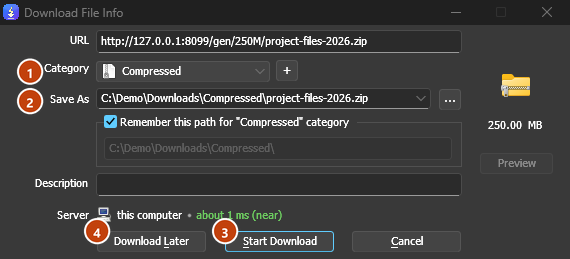
- URL — o endereço.
- Categoria — escolhida com base no tipo de ficheiro (Comprimidos, Documentos, Música, Programas, Vídeo ou Geral). Cada categoria tem a sua própria pasta. + ao lado permite criar uma nova categoria.
- Save As — the folder and file name. You can type another, pick one of the last 20 folders you saved to from the arrow at its end, or choose the folder and the file name in the system's Save dialog with ... (a name typed there without an extension keeps the download's). If you choose a file that is already there and answer Yes when the dialog asks whether to replace it, the download replaces it once it is complete; until then the old file stays as it was, so it is kept if the download fails or you cancel it. A name of a file that is already there that you type in Save As itself is asked about as you press Start Download or Download Later: Add the duplicate with a numbered file name takes the next free name, such as
name (1).zip; Add the duplicate and overwrite the existing file replaces it once the download is complete, as above; Cancel goes back to the dialog. A name VDM gave that is taken by the time the download starts is numbered without asking. - Memorizar este caminho para a categoria «…» — selecione esta opção para que a pasta que introduziu seja a pasta da categoria a partir de agora. Com a opção Guardar todas as transferências na pasta da categoria «Geral» selecionada em Opções → Guardar em, todas as transferências são iniciadas na pasta Geral, e esta caixa nomeia Geral: a pasta que introduziu torna-se a pasta para todas as transferências.
- Descrição — uma nota sua. É apresentada na coluna Descrição da lista e pode ser encontrada com a opção Localizar.
- Server — where the server is: its country's flag and name, and how long a round trip to it takes. See Where the server is. It stays blank when the browser handed the download over with its name and size, since VDM didn't need to ask the server.
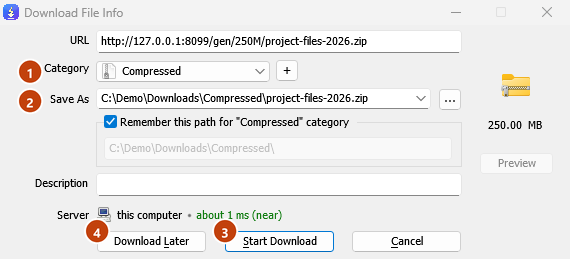
Depois, escolha:
- Iniciar Transferência (ou Enter) — transferir agora. A janela de progresso abre-se.
- Transferir Mais Tarde — adicionar a uma fila sem iniciar a transferência. Consulte abaixo.
- Cancelar (ou Esc) — não adicionar nada.
By default VDM starts downloading while this window is open, so no time is lost while you decide. Cancel drops what it fetched. You can turn this off in Options → Downloads → Start downloading immediately while displaying "Download File Info" dialog.
If the folder doesn't exist yet, VDM asks Do you want to create it? before it starts.
Apenas alguns ficheiros de dentro de um ZIP
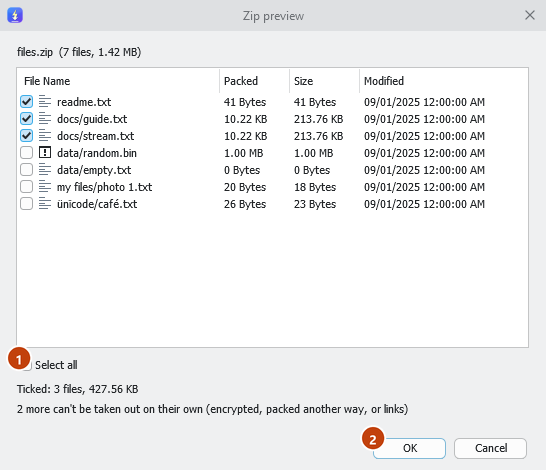
Para um .zip num servidor web, Pré-visualizar (abaixo do tamanho do ficheiro) lista o que está dentro, para que possa transferir apenas os ficheiros de que precisa em vez do arquivo inteiro: dois ficheiros de um arquivo de 20 GB levam duas pequenas transferências.
As the window opens, VDM asks the server for the archive's last bytes, where a ZIP keeps its list of files. Only a server that sends parts of a file can give files one by one, so Preview works only there; elsewhere it stays grey, and its tooltip says why (the server can't send parts of the ZIP...). The whole archive still downloads as usual.
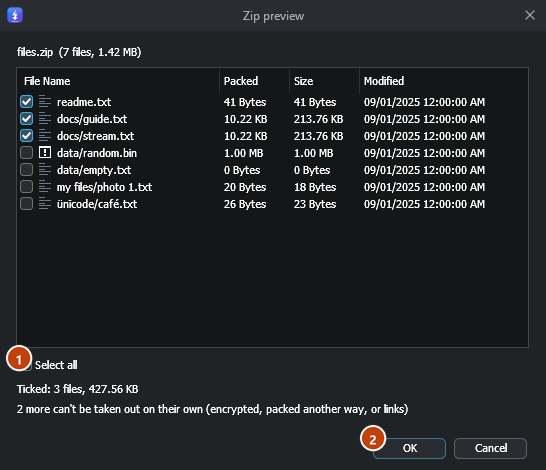
Pré-visualizar abre Pré-visualização de ZIP: cada ficheiro no arquivo com o seu Nome do ficheiro (o seu caminho dentro do ZIP), Comprimido (o seu tamanho dentro do ZIP), Tamanho e Modificado. Marque os que deseja (Selecionar tudo marca todos) e clique em OK. O número de ficheiros escolhidos aparece abaixo de Pré-visualizar; passe o rato por cima para ver para onde vão. Depois Iniciar transferência ou Transferir Mais Tarde adiciona-os como uma transferência, em vez do arquivo:
- Vão para uma pasta com o nome do arquivo, na pasta que Guardar como mostra (
Downloads\Compressed\photos\paraphotos.zip), cada um mantendo o seu caminho de dentro do ZIP (photos\2025\beach.jpg). Um ficheiro com o mesmo nome já existente é mantido, e o novo é numerado. - VDM fetches only each file's own bytes, unpacks it, and checks it against the checksum (CRC-32) and size the archive gives for it. A file that doesn't match is not kept, and the download says so.
- Uma transferência interrompida continua com os ficheiros ainda não obtidos; um ficheiro interrompido a meio é obtido novamente.
- Eliminar com Eliminar também os ficheiros do disco deixa a pasta e os seus ficheiros, como para uma galeria de imagens.
Some files can't be taken out on their own and aren't listed (the window counts them under the list): encrypted files, files packed with a method other than the two most ZIPs use (stored and Deflate), links, and names that would put a file outside its folder (../, a drive letter, an absolute path). A ZIP split over several files, or one whose list of files doesn't add up (files over each other, a list larger than VDM reads from a server), can't be previewed. For any of these, download the whole archive.
Each link opens a Download File Info of its own, so several can be open side by side, to compare their sizes before you choose. Each new one opens a little below and beside the one before and comes to the front; from the second on, its title carries its number: Download File Info (2), (3) and so on. Esc closes only the window you're in. Up to six are open at once: more links handed over together (a browser passing on several downloads) wait, and open one by one as you close windows; Cancel asks whether to cancel the ones still waiting. The same link handed over again brings its open window to the front. If you quit VDM with some still open, their downloads go to the Main download queue, as with Download Later.
Transferir Mais Tarde
Download Later puts the download in a queue instead of starting it. By default VDM asks which one: pick the queue under Add to queue, and tick Start the queue now if you want it to run straight away. Cancel leaves the download in the list, in no queue.
Para ignorar essa pergunta e usar sempre a Fila de transferência principal, desative Opções → Transferências → Mostrar painel de seleção de fila ao premir o botão "Transferir Mais Tarde".
Saiba mais sobre as filas em Filas e agendador.
Da área de transferência
With Options → General → Offer to download links copied to the clipboard ticked (it is, unless you turned it off), when you copy a link to a file type in Options → File types (ZIP, EXE, MP4, PDF and many more), Download File Info opens with it filled in, ready for Start Download. Links to other pages are left alone. With Options → Downloads → Show start download dialog off, the download starts at once instead. Only links copied while VDM runs are taken, never one that was already there.
Copied several links at once, a list or a whole forum post? Choose Tasks → Add batch download from clipboard (Ctrl+B, also in the tray icon's menu). VDM reads the clipboard then, and only then, and finds every download link in the text: http, https, ftp and magnet links, one per line or among other words, in Markdown ([name](https://github.com/mikailhossenimran/voltdownloadmanager/blob/main/docs/link)) or between < and >. Each one is listed once in Link grabber, ticked and sorted into packages: pick a folder for each package, then Start or Add to queue. Downloads added together end with one Downloads complete summary. Magnet links are added as torrents with all their files once their files are known. thunder://, flashget:// and qqdl:// links count as the address wrapped in them, here and for a single copied link. A copied address with a number in its name, such as https://example.com/show/ep01.mp4, opens Batch download instead (below). If the clipboard holds no text, or no link, VDM says so.
Arrastar e largar
- Choose Tasks → Show drop target. A small box with the VDM icon appears and stays on top of other windows.
- Drag a link from your browser onto it. VDM adds it as if you had used Add URL.
You can also drop magnet links and .torrent files on it. Drag the box to move it, and double-click it to bring the main window back. Right-click it for Show Volt Download Manager, Add new download and Hide drop target.
Transferência em lote: vários ficheiros numerados
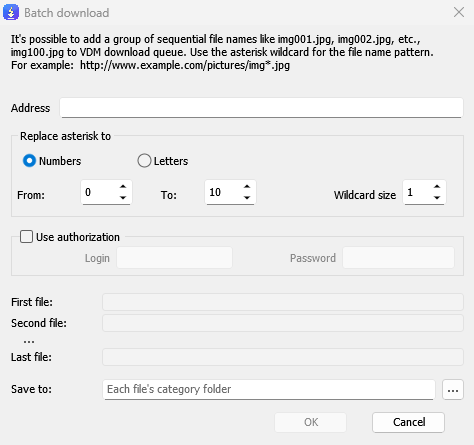
Para ficheiros cujos nomes diferem apenas num número ou numa letra, como photo001.jpg a photo150.jpg:
- Escolha Tarefas → Adicionar transferência em lote. Copiou um endereço com um número no nome do ficheiro, como
https://example.com/show/ep01.mp4? Tarefas → Adicionar transferência em lote da área de transferência (Ctrl+B) coloca o asterisco onde estava o número, define De e Tamanho do caráter universal a partir dele (ep*.mp4, de 1, tamanho 2) e aguarda em Para o último número. - Em Endereço, escreva o endereço com um asterisco onde o número ou a letra muda:
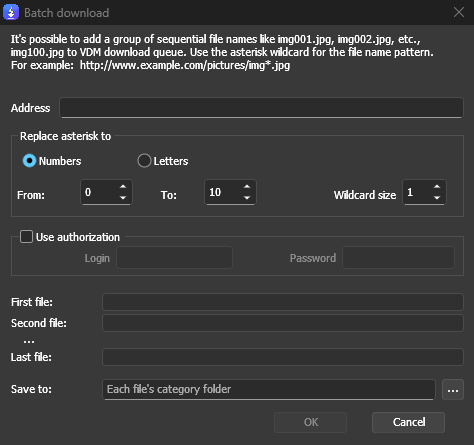
https://example.com/photo*.jpg. - Em Substituir asterisco por, escolha Números ou Letras, depois De e Para.
- Para números, defina Tamanho do caráter universal como o número de dígitos. Com 3, os ficheiros são
photo001.jpg,photo002.jpge assim por diante. - Se o servidor exigir um início de sessão, selecione Utilizar autorização.
- Selecione Primeiro ficheiro, Segundo ficheiro e Último ficheiro.
- Se deixado vazio, Guardar em coloca cada ficheiro na pasta da sua categoria (Opções → Guardar em), ou na pasta Geral quando todas as transferências vão para uma única pasta. Para colocar todos os ficheiros do lote numa única pasta, digite-a ou escolha-a com .... Depois clique em OK.
The downloads go to a queue. As with Download Later, VDM asks which queue unless you turn off Options → Downloads → Show queue selection panel on closing batch download dialogs.
Uma lista de ligações
Para adicionar todas as ligações num ficheiro de texto:
- Escolha Tarefas → Importar → De ficheiro de texto.
- Pick the file. Link grabber lists every web address VDM found in it, in packages. While VDM reads a long file, the strip under the list of downloads says Reading and the file's name; you can go on using VDM meanwhile. Import reads files of up to 64 MB, far more than any list of links holds: a larger file (a video, an archive, a backup picked by mistake) is refused with a message.
- Desmarque os endereços que não quer (as opções Selecionar tudo e Desmarcar tudo ajudam), depois clique em Adicionar à fila.
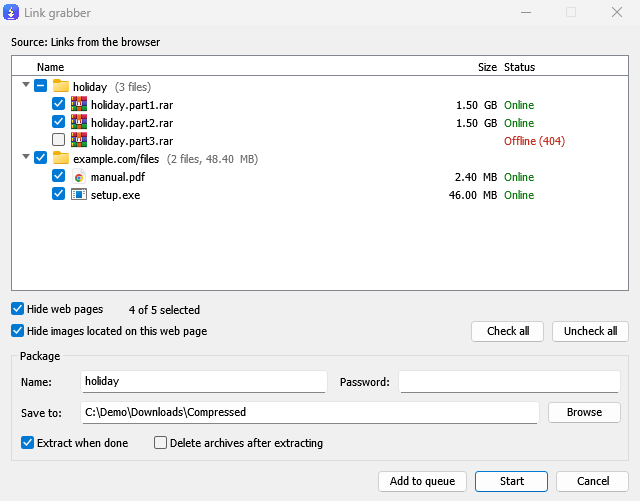
As transferências juntam-se à Fila de transferência principal, prontas para iniciar (o botão Iniciar também a inicia). Tarefas → Importar → De ficheiro de exportação do IDM lê um ficheiro .ef2, com o referenciador e os cookies de cada transferência, e o nome do ficheiro que uma lista lhe atribui numa linha filename:.
Tarefas → Link grabber... abre a mesma janela vazia: cole texto com ligações (Ctrl+V). Consulte Link grabber e arquivos para obter informações sobre os pacotes, a palavra-passe do arquivo e a extração de arquivos após a transferência.
Para guardar a sua própria lista, use Tarefas → Exportar → Para ficheiro de texto (um endereço por linha) ou Para ficheiro de exportação do IDM.
Quando o endereço já está na lista
By default VDM asks what to do when you add an address it already has. You can choose a fixed answer in Options → Downloads → If a duplicate download link is added:
- Mostrar uma caixa de diálogo e perguntar o que fazer.
- Adicionar o duplicado com um nome de ficheiro numerado
- Adicionar o duplicado e substituir o ficheiro existente
- Se o ficheiro existente estiver completo, mostrar a caixa de diálogo de transferência concluída; caso contrário, retomar a transferência.
Próximos passos
- Send browser downloads to VDM →
- Ver uma transferência na janela de progresso →
- Colocar transferências em fila para mais tarde →
Gratuito, de código aberto, sem anúncios, sem período de avaliação.
Download Volt Download Manager