

There are several ways to give VDM something to download. Most of them end in the same window, Download File Info, where you choose where the file goes.
URL を追加
- ファイルのURLをコピーします(ブラウザの場合:リンクを右クリック → リンクをコピー)。
- ツールバーのURL を追加をクリックするか、タスク → 新しいダウンロードを追加を選択するか、Ctrl+Nを押します。
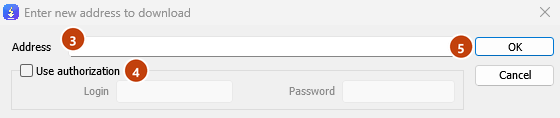
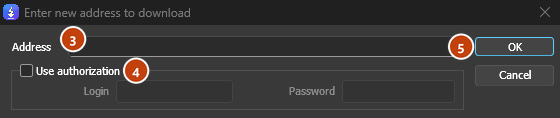
- ダウンロードする新しいアドレスを入力してくださいが開きます。クリップボードにウェブアドレスがある場合は、すでに入力されています。アドレスの末尾にある矢印をクリックすると、過去20件のアドレスが表示され、そこから選択して再利用できます。ボックスを右クリックすると、切り取り、コピー、貼り付け、削除、すべて選択ができます。
- サーバーにユーザー名とパスワードが必要な場合は、認証を使用するにチェックを入れて入力します。
- OKをクリックします。
VDM takes http://, https://, ftp://, ftps://, ftpes:// and magnet: addresses. Anything else gets Invalid address.
A thunder://, flashget:// or qqdl:// link is one of those addresses wrapped in base64, as download pages made for Thunder (Xunlei), FlashGet and QQ's downloader write them. VDM unwraps it and downloads from the address inside, here, from the clipboard and in Link grabber; the download is listed under that address. A link that wraps anything else, or that can't be read, gets Invalid address too.
アドレスが動画ページ(YouTube、Vimeo、TikTokなど)の場合、代わりに動画ウィンドウが開きます。ビデオのダウンロードをご覧ください。マグネットリンクはトレントを追加を開きます。トレントをご覧ください。
FTPとFTPS
FTPダウンロードはウェブダウンロードと同様に機能します。複数の接続を同時に行い、一時停止と再開が可能で、同じ進行状況ウィンドウが表示されます。
ftp://— 通常のFTP。ftpes://— セッション開始時からTLSで保護されたFTP(明示的FTPS、AUTH TLS、通常ポート21)。サーバーがTLSをサポートしていると表示されている場合に使用します。ftps://— 暗黙的FTPS、アドレスで指定されていない限りポート990。
サーバーの証明書は、https:// の場合と同様に Windows (またはシステム) の信頼された証明書に対して、また、システムにサーバーの証明書のルートがない場合 (まだ取得していない古い Windows など) は Firefox が持つ Mozilla の証明書に対してチェックされます。それらがない Linux システム (パッケージ ca-certificates がない最小限のインストール) でも、プレーンな HTTP および FTP 経由でダウンロードされます。その場合、セキュアなダウンロードはすぐに失敗し、そのパッケージをインストールするよう求められます。
An https:// site whose certificate is refused (expired, self-signed or from an issuer the system doesn't
trust, made for another site name) isn't downloaded from: Download File Info, the progress window
and the list say which of these it is, as a browser warns about the same site. VDM has no way
around it.
Logging in. Write the login in the address (ftp://user:password@server/folder/file.iso),
tick Use authorization, or save it in Options → Sites Logins. Without one, VDM logs in as
anonymous. The path is relative to the folder the login starts in; to start from the server's
root, write %2F after the server (ftp://server/%2Fpub/file.iso).
Resuming. VDM keeps the file's size and modification time. If either has changed when you resume, it says the file changed on the server instead of mixing two versions (Options → Downloads → Ignore file modification time changes skips the time check). The password is not written to the resume file next to the download: VDM gives it again when it resumes.
接続。パッシブ モードが既定で使用されます。オプション → プロキシ / SOCKS → PASV モードで FTP を使用する をオフにすると、アクティブ接続のみを受け入れるサーバーに対してパッシブ モードが無効になります。FTP は オプション → プロキシ / SOCKS で設定された SOCKS プロキシを介して行われます (この場合、常にパッシブです。ftps:// はまだプロキシを介して行うことはできません)。プロキシが HTTP の場合は、サーバーに直接接続します。
Browsers no longer download ftp:// links themselves. Right-click one and choose Download with
Volt Download Manager, or copy it and use Add URL.
Google ドライブのリンク
Google ドライブのリンクは、共有 → リンクをコピーで取得したものをそのまま貼り付けてください。
https://drive.google.com/file/d/…/view?usp=sharing(/viewの有無にかかわらず)https://drive.google.com/uc?id=…&export=downloadおよびhttps://drive.google.com/open?id=…https://docs.google.com/document/d/…/edit(スプレッドシート、スライド、図形描画も同様です)。
VDM downloads the file itself, as it was uploaded (a video comes in its own format, not the player's copy), with its real name and size, over several connections, and it can resume. For a large file, Drive shows a page that says it can't scan this file for viruses; VDM goes past it as Download anyway does.
Google ドキュメント、スプレッドシート、スライドは、Word(.docx)、Excel(.xlsx)、PowerPoint(.pptx)ファイルとして、図形描画は.pngとしてダウンロードされます。これらのファイルは要求されたときに作成されるため、到着するまでサイズが不明であり、再開できません。途中で中断されたダウンロードは最初からやり直されます。
Files that aren't shared with everyone. Right-click the link in the browser and choose Download with Volt Download Manager, or use Drive's own Download button: the extension passes your browser's Google sign-in with the download. VDM never asks for or keeps your password. Without a sign-in, VDM says the file needs you to sign in.
When Drive won't give a file. Drive limits how often a file can be downloaded: after many downloads in a day it answers "too many users have viewed or downloaded this file recently". VDM shows Drive's own words and writes nothing. Try again later (it can take up to a day), or sign in to Google in your browser and download from there, which often gets past the limit. VDM doesn't try to get around it. A file whose owner turned off downloading, or that your account can't open, gets no access.
Drive の動画上に表示される動画ボタンを使うと、プレーヤー用の小さなコピーではなく、元のファイルをダウンロードします。
Folders: paste a shared folder's link (https://drive.google.com/drive/folders/…) in Add
URL, or right-click it in the browser and choose Download with Volt Download Manager, and
Link grabber lists its files and its subfolders' to download into the same folders. See
Google Drive folders.
ダウンロード ファイル情報
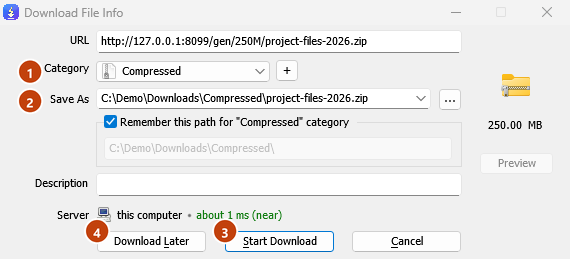
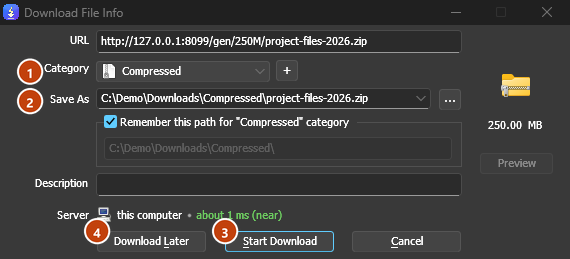
VDM asks the server for the file's name and size, and shows them in Download File Info:
- URL — アドレス。
- カテゴリ — ファイルの種類(圧縮、ドキュメント、音楽、プログラム、ビデオ、一般)に基づいて選択されます。カテゴリごとに専用のフォルダーがあります。横の+をクリックすると、新しいカテゴリを作成できます。
- Save As — the folder and file name. You can type another, pick one of the last 20 folders you saved to from the arrow at its end, or choose the folder and the file name in the system's Save dialog with ... (a name typed there without an extension keeps the download's). If you choose a file that is already there and answer Yes when the dialog asks whether to replace it, the download replaces it once it is complete; until then the old file stays as it was, so it is kept if the download fails or you cancel it. A name of a file that is already there that you type in Save As itself is asked about as you press Start Download or Download Later: Add the duplicate with a numbered file name takes the next free name, such as
name (1).zip; Add the duplicate and overwrite the existing file replaces it once the download is complete, as above; Cancel goes back to the dialog. A name VDM gave that is taken by the time the download starts is numbered without asking. - 「…」カテゴリにこのパスを記憶する — これをオンにすると、入力したフォルダーが今後そのカテゴリのフォルダーになります。オプション → 保存先ですべてのダウンロードを「一般」カテゴリのフォルダーに保存するがオンになっている場合、すべてのダウンロードは一般のフォルダーで開始され、このボックスは一般の名前になります。入力したフォルダーがすべてのダウンロードのフォルダーになります。
- 説明 — 任意のメモです。リストの説明列に表示され、検索で検索できます。
- Server — where the server is: its country's flag and name, and how long a round trip to it takes. See Where the server is. It stays blank when the browser handed the download over with its name and size, since VDM didn't need to ask the server.
次のいずれかを選択します。
- ダウンロード開始(またはEnter) — 今すぐダウンロードします。進行状況ウィンドウが開きます。
- 後でダウンロード — ダウンロードを開始せずにキューに追加します。詳しくは以下を参照してください。
- キャンセル(またはEsc) — 何も追加しません。
By default VDM starts downloading while this window is open, so no time is lost while you decide. Cancel drops what it fetched. You can turn this off in Options → Downloads → Start downloading immediately while displaying "Download File Info" dialog.
If the folder doesn't exist yet, VDM asks Do you want to create it? before it starts.
ZIP 内の一部のファイルのみ
Web サーバー上の.zipの場合、プレビュー (ファイルのサイズの下) には内部にあるものがリストされるため、アーカイブ全体ではなく必要なファイルのみをダウンロードできます。20 GB のアーカイブから 2 つのファイルをダウンロードするには、2 つの小さなダウンロードが必要です。
As the window opens, VDM asks the server for the archive's last bytes, where a ZIP keeps its list of files. Only a server that sends parts of a file can give files one by one, so Preview works only there; elsewhere it stays grey, and its tooltip says why (the server can't send parts of the ZIP...). The whole archive still downloads as usual.
プレビューをクリックするとZIP プレビューが開きます。アーカイブ内のすべてのファイルが、ファイル名 (ZIP 内のパス)、圧縮サイズ (ZIP 内のサイズ)、サイズ、更新日時とともに表示されます。必要なものを選択し (すべて選択をクリックするとすべて選択されます)、OKをクリックします。選択されたファイルの数はプレビューの下に表示されます。カーソルを合わせると、ファイルの保存先が表示されます。その後、ダウンロード開始または後でダウンロードをクリックすると、アーカイブの代わりにそれらが 1 つのダウンロードとして追加されます。
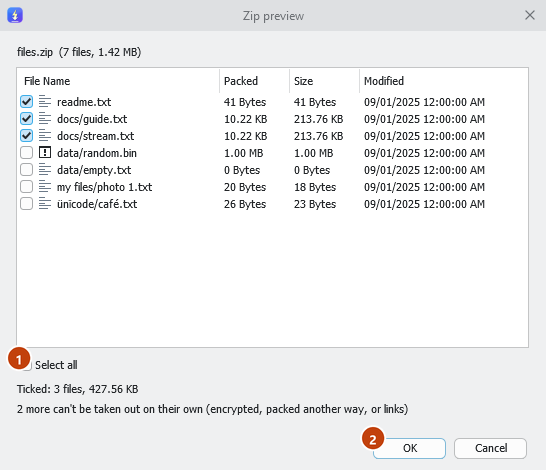
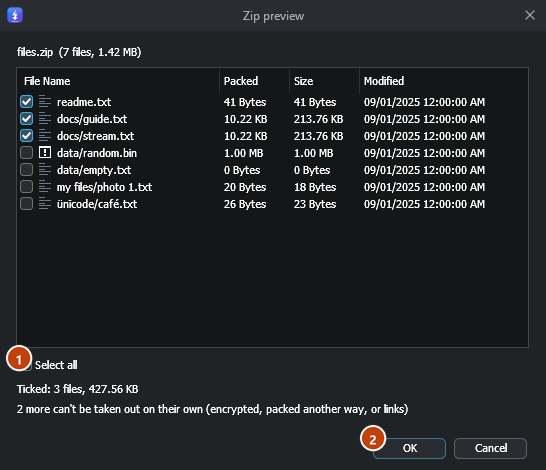
- それらは、名前を付けて保存に表示されるフォルダー (
Downloads\Compressed\photos\の場合はphotos.zip) 内の、アーカイブと同じ名前のフォルダーに保存され、それぞれが ZIP 内のパスを保持します (photos\2025\beach.jpg)。同じ名前のファイルが既に存在する場合は保持され、新しいファイルには番号が付けられます。 - VDM fetches only each file's own bytes, unpacks it, and checks it against the checksum (CRC-32) and size the archive gives for it. A file that doesn't match is not kept, and the download says so.
- 停止したダウンロードは、まだ取得されていないファイルから続行されます。途中で停止したファイルは再度取得されます。
- 削除とディスクからファイルも削除を選択すると、画像ギャラリーのようにフォルダーとそのファイルが残ります。
Some files can't be taken out on their own and aren't listed (the window counts them under the list): encrypted files, files packed with a method other than the two most ZIPs use (stored and Deflate), links, and names that would put a file outside its folder (../, a drive letter, an absolute path). A ZIP split over several files, or one whose list of files doesn't add up (files over each other, a list larger than VDM reads from a server), can't be previewed. For any of these, download the whole archive.
Each link opens a Download File Info of its own, so several can be open side by side, to compare their sizes before you choose. Each new one opens a little below and beside the one before and comes to the front; from the second on, its title carries its number: Download File Info (2), (3) and so on. Esc closes only the window you're in. Up to six are open at once: more links handed over together (a browser passing on several downloads) wait, and open one by one as you close windows; Cancel asks whether to cancel the ones still waiting. The same link handed over again brings its open window to the front. If you quit VDM with some still open, their downloads go to the Main download queue, as with Download Later.
後でダウンロード
Download Later puts the download in a queue instead of starting it. By default VDM asks which one: pick the queue under Add to queue, and tick Start the queue now if you want it to run straight away. Cancel leaves the download in the list, in no queue.
確認画面を表示せず、常にメインダウンロードキューを使うには、オプション → ダウンロード → 「後でダウンロード」ボタンを押したときにキュー選択パネルを表示をオフにします。
キューについて詳しくは、キューとスケジューラを参照してください。
クリップボードから
With Options → General → Offer to download links copied to the clipboard ticked (it is, unless you turned it off), when you copy a link to a file type in Options → File types (ZIP, EXE, MP4, PDF and many more), Download File Info opens with it filled in, ready for Start Download. Links to other pages are left alone. With Options → Downloads → Show start download dialog off, the download starts at once instead. Only links copied while VDM runs are taken, never one that was already there.
Copied several links at once, a list or a whole forum post? Choose Tasks → Add batch download from clipboard (Ctrl+B, also in the tray icon's menu). VDM reads the clipboard then, and only then, and finds every download link in the text: http, https, ftp and magnet links, one per line or among other words, in Markdown ([name](https://github.com/mikailhossenimran/voltdownloadmanager/blob/main/docs/link)) or between < and >. Each one is listed once in Link grabber, ticked and sorted into packages: pick a folder for each package, then Start or Add to queue. Downloads added together end with one Downloads complete summary. Magnet links are added as torrents with all their files once their files are known. thunder://, flashget:// and qqdl:// links count as the address wrapped in them, here and for a single copied link. A copied address with a number in its name, such as https://example.com/show/ep01.mp4, opens Batch download instead (below). If the clipboard holds no text, or no link, VDM says so.
ドラッグ&ドロップ
- Choose Tasks → Show drop target. A small box with the VDM icon appears and stays on top of other windows.
- Drag a link from your browser onto it. VDM adds it as if you had used Add URL.
You can also drop magnet links and .torrent files on it. Drag the box to move it, and double-click it to bring the main window back. Right-click it for Show Volt Download Manager, Add new download and Hide drop target.
バッチダウンロード:多数の番号付きファイル
ファイル名が数字または文字だけ異なるファイル(photo001.jpgからphoto150.jpgなど)の場合:
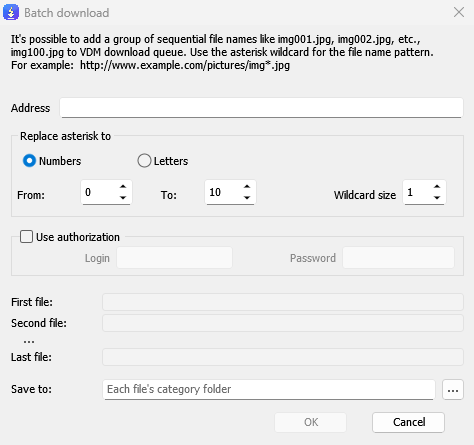
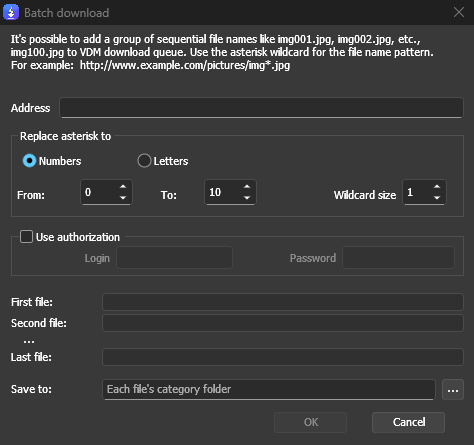
- タスク → バッチ ダウンロードを追加 を選択します。「
https://example.com/show/ep01.mp4」のようにファイル名に数字を含むアドレスを 1 つコピーしましたか? タスク → クリップボードからバッチ ダウンロードを追加 (Ctrl+B) を選択すると、数字があった場所にアスタリスクが配置され、そこから 開始 と ワイルドカード サイズ が設定され (ep*.mp4、1 から、サイズ 2)、終了 で最後の数字を待ちます。 - アドレスに、数字または文字が変わる場所にアスタリスクを1つ付けてアドレスを記述します。
https://example.com/photo*.jpg。 - アスタリスクを置き換えるの下で、数字または文字を選択し、次に開始と終了を選択します。
- 数字の場合、ワイルドカード サイズを桁数に設定します。3の場合、ファイルは
photo001.jpg、photo002.jpgなどになります。 - サーバーへのログインが必要な場合は、認証を使用するにチェックを入れます。
- 最初のファイル、2 番目のファイル、最後のファイルを確認します。
- 保存先が空の場合、各ファイルはカテゴリのフォルダー(オプション → 保存先)に保存されます。または、すべてのダウンロードが 1 つのフォルダーに保存される場合は、一般のフォルダーに保存されます。バッチ内のすべてのファイルを 1 つのフォルダーに保存するには、そこにフォルダーを入力するか、...で選択します。次にOKをクリックします。
The downloads go to a queue. As with Download Later, VDM asks which queue unless you turn off Options → Downloads → Show queue selection panel on closing batch download dialogs.
リンクのリスト
テキストファイル内のすべてのリンクを追加するには:
- タスク → インポート → テキスト ファイルからを選択します。
- Pick the file. Link grabber lists every web address VDM found in it, in packages. While VDM reads a long file, the strip under the list of downloads says Reading and the file's name; you can go on using VDM meanwhile. Import reads files of up to 64 MB, far more than any list of links holds: a larger file (a video, an archive, a backup picked by mistake) is refused with a message.
- 不要なアドレスのチェックを外してから(すべてチェックとすべて選択解除が役立ちます)、キューに追加をクリックします。
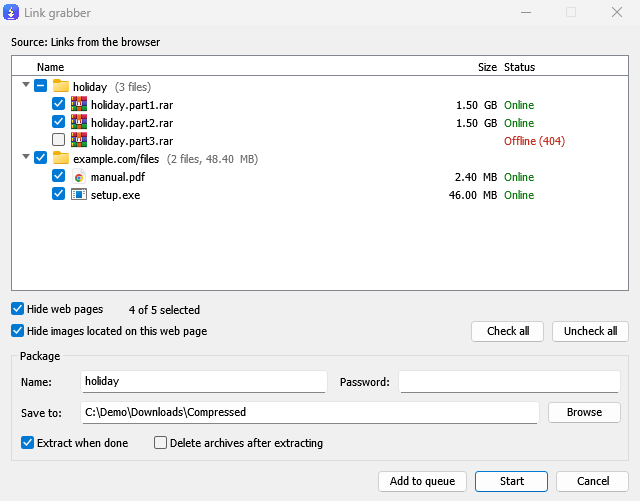
ダウンロードはメインのダウンロード キューに追加され、開始準備が整います(開始でも開始できます)。タスク → インポート → IDM エクスポート ファイルからは、各ダウンロードのリファラーと Cookie、およびリストで指定されたファイル名を含む .ef2 ファイルを filename: 行で読み取ります。
タスク → リンク グラバー...は同じウィンドウを空で開きます。リンクを含むテキストを貼り付けます(Ctrl+V)。パッケージ、アーカイブパスワード、ダウンロード後のアーカイブの展開については、リンクグラバーとアーカイブを参照してください。
独自のリストを保存するには、タスク → エクスポート → テキスト ファイルへ(1行に1アドレス)またはIDM エクスポート ファイルへを使用します。
アドレスがすでにリストにある場合
By default VDM asks what to do when you add an address it already has. You can choose a fixed answer in Options → Downloads → If a duplicate download link is added:
- ダイアログを表示して、実行する内容を尋ねます。
- 重複を番号付きファイル名で追加する
- 重複を追加し、既存のファイルを上書きする
- 既存のファイルが完全な場合は、ダウンロード完了ダイアログを表示します。そうでない場合は、ダウンロードを再開します。
次のステップ
無料、オープンソース、広告なし、試用期間なし。
Download Volt Download Manager