

VDM downloads BitTorrent files from magnet links and .torrent files. Torrents appear in the same list as other downloads, marked Torrent in the Source column, and can be queued and scheduled like them.
トレントを追加する
- ツールバーのTorrent を追加をクリックして
.torrentファイルを選択します。または、その横の矢印をクリックしてtorrent ファイルを開く...またはマグネット リンクの追加...を選択します(タスクの下にもあります)。 - Torrent を追加が開きます。「トレント」にマグネットリンクを貼り付けるか、「...」をクリックして
.torrentファイルを選択し、「検索」をクリックします。 - VDM reads the torrent and shows its files as a folder tree. A
.torrentfile is read at once. A magnet link first has to get the file list from other peers, usually within seconds. While it waits, Add torrent shows how many peers it found, from the trackers, the DHT or your local network, and how many answered. After 30 seconds without an answer, it says what may be in the way: a link with no trackers while the DHT is off, or a firewall, a VPN or a network that blocks BitTorrent. - 不要なフォルダーやファイルのチェックを外します。すべて選択と選択解除は、大きなトレントに役立ちます。選択済みは、選択したファイルの数とデータ量を示します。
- 保存先を確認してください。ファイルの保存先に正確なフォルダーが表示されます。トレントには独自のカテゴリがあるため、既定では
Downloads\Torrentsです。BitTorrent 経由で直接ダウンロードされる複数ファイル トレントの場合、このトレントのフォルダーを作成するが既定でオンになっています。これをオフにすると、内部フォルダーを維持したまま、ファイルが直接保存先に配置されます。ファイル ツリーとファイルの保存先はそれに応じて更新されます。外側のフォルダーに名前を付けるものがない間は、名前の変更は無効になります。 - ダウンロード中に動画を視聴するには、順番にダウンロードにチェックを入れます(順番にダウンロードを参照)。
- 今すぐダウンロードをクリックするか、開始せずにリストに追加するには後でをクリックします。
後でで待機中のダウンロードを含め、他のダウンロードがすでに使用している保存先は、トレントを追加する前に変更する必要があります。これには、重複するピースが書き込まれる可能性があるため、選択されていないパスも含まれます。保存されたファイル要求リストがない古いトレントは、保守的にその保存先全体を予約します。ディレクトリを共有する前に、別の保存先を選択するか、ファイルを削除せずにそのリスト エントリを削除してください。
Also delete the file from disk removes the files VDM made for the torrent, each recognised by its file index and the time it was created, so a file that took the same name later is never taken for the torrent's. Files that were already there, files another download claims and files you agreed to use stay. VDM creates every ticked file of a torrent itself, empty, before it starts, so they are removed with it. Unticked files aren't made in the folder: the parts of the pieces they share with ticked files are kept in VDM's own torrent data, and go with the torrent; a file ticked later is made then, and gets them. Only empty folders VDM created are removed; existing folders and a shared Save to folder stay. A torrent with its own outer folder, added before this version, is deleted the way it always was. An older one-file torrent is deleted by name, from its own folder. Another older torrent (saved without an outer folder) has no record of its files: VDM keeps them and says why, so check and remove them yourself. A filesystem that gives no reliable creation time (FAT and exFAT, some network and Linux filesystems) keeps its files: VDM never deletes what it cannot recognise. Whenever Also delete the file from disk leaves files on the disk, VDM lists them. A Save to folder that does not exist yet is made, with its parents, when the torrent starts. A torrent added before this version, with its own folder or one file, takes the files already there as its own once, so resuming it or sharing it again does not ask about files VDM itself downloaded.
The torrent can only write into files VDM has checked, however it starts (Download Now, Resume, the Files tab, Recheck, or when VDM opens). If a file is at one of its paths and VDM did not make it (saved there after the torrent was added, replaced while the torrent was stopped, or moved to another drive by something other than VDM), VDM asks before using it. Yes lets the torrent use the file and write into it, and VDM never deletes it; No leaves it as it is and the torrent does not start. Starting it again asks again. An empty file is asked about too (a .gitkeep, or a file another program has just made and is about to write). If you replace a file while its torrent is stopped, starting the torrent adds it again on the file that is there now, so what you agreed to is what it writes to. When VDM opens, finished torrents are shared again only if their files are as VDM left them; one with a file that would need your permission is left stopped, and VDM asks nothing then.
An older VDM can open a list that holds a torrent saved without its own folder, but it does not know that its folder is shared: do not Move, Rename or Delete that torrent there. Its Delete with files removes every file of the torrent in Save to, those you agreed to use included, and Save to itself if that is then empty. This version recognises such a torrent again from its address, which an older VDM keeps.
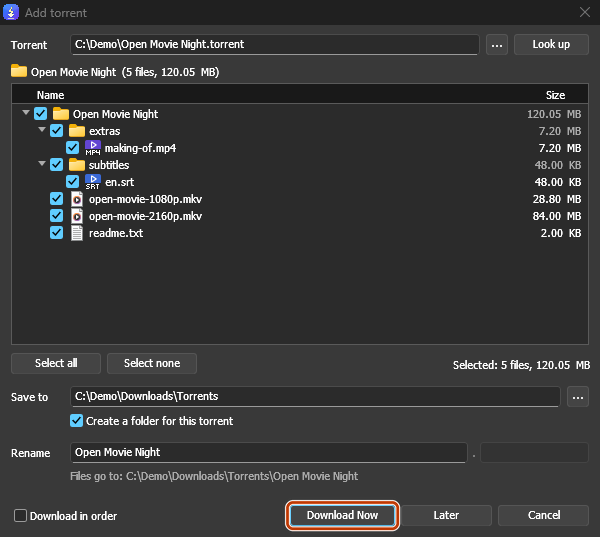
不要なもののチェックを外してから、「今すぐダウンロード」をクリックします。 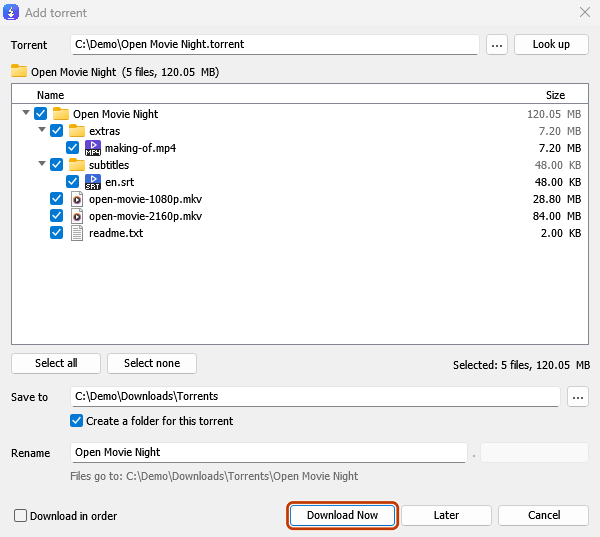
その進捗ウィンドウ:各ファイルと、そのうちどれだけがここにあるか。 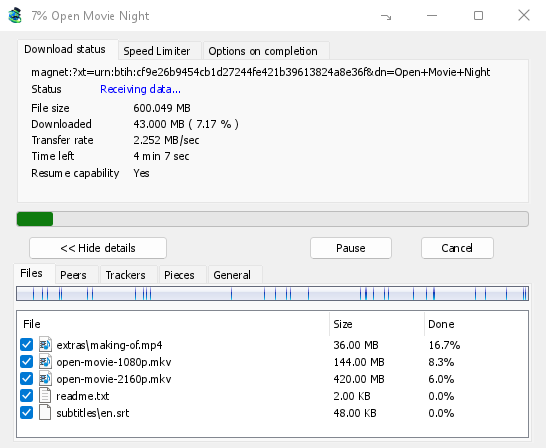
ピース:トレントのマップが埋まっていく様子。 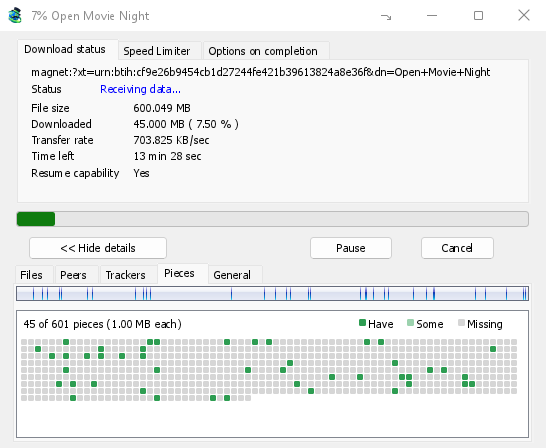
You can also paste a magnet link into Add URL, or drop a magnet link or a .torrent file on the drop target (Tasks → Show drop target). If a torrent is already in the list, VDM says so instead of adding it twice.
A .torrent file's web address works too: paste it into Add URL or Torrent, or let the browser hand the download over. VDM fetches the file, with the browser's cookies when the browser sent it, and Add torrent shows what it holds. The browser hands .torrent downloads over when TORRENT is in Options → File types and Open magnet links and .torrent files with Volt Download Manager is on in Torrent settings. TORRENT is in the list by default; a list you had before it came keeps what it had, so add TORRENT to it yourself. While that setting is off, the browser keeps .torrent downloads and opens them in your own torrent program, and the extension's button says why. Download with Volt Download Manager on a link always hands it over. A command line with /n (silent) saves the .torrent file itself, like any file. VDM fetches at most 10 MB: anything bigger isn't a .torrent file.
If some of the torrent's files are already in the folder, VDM asks before using them. Yes keeps them for the torrent: VDM checks them, keeps what matches the torrent and downloads the rest, which is how you continue a download started elsewhere or share files you already have. No (the default) goes back, so you can choose another folder and nothing of yours is overwritten.
The chosen layout is kept when the torrent is paused or VDM restarts. A multi-file torrent saved directly in Save to shares that directory: Move/Rename and folder renaming on completion are disabled for it so they cannot move unrelated files. Deleting the torrent's files leaves unrelated files and the shared destination folder in place. The layout option applies to direct BitTorrent downloads; torrents downloaded through a debrid account keep their existing layout.
Some programs (BitComet, for one) write a torrent's names in another encoding and add a UTF-8 copy of them (name.utf-8, path.utf-8); VDM shows and saves the files under the UTF-8 names. A torrent like that which was downloading in an earlier version starts those files again under their correct names, and leaves the files with the old names in the folder.
VDM refuses a torrent with file names your system can't write safely, says which name, and writes nothing. What others can see, the network switches in Torrent settings, blocklists and proxies: Torrents and your security.
ダウンロード中
リスト内のトレントをダブルクリックして、その進行状況ウィンドウを開きます。通常のステータスに加えて、トレントのウィンドウには5つのタブがあります。
- ファイル — 各ファイル、そのサイズ、完了した割合。チェックを外したファイルはスキップ済みと表示されます。トレントの実行中でも、ファイルのボックスにチェックを入れたり外したりして、ダウンロードする内容を変更できます。少なくとも1つのファイルはチェックされたままになります。まだ不足しているすべてのファイルのチェックを外すと、トレントは完了します。実行中でない完了したトレントにファイルが戻された場合、再開するまで停止したままになり、何も見えないままダウンロードされることはありません。
- ピア — ダウンロード元のコンピューターと、それぞれから受信および送信した量。
- トラッカー — トレントのトラッカー。トラッカーがない場合、ピアは DHT および他のピアから取得されます。
- ピース — トレントのピースのマップ:そこにある、部分的にそこにある、または不足している。
- General — the info hash, pieces, peers, how much was sent, the share ratio, how long it has been shared and the folder. What was sent and the time shared add up over all of the torrent's runs: they don't start again at 0 after a pause or a restart of VDM.
トレントが完了した後も、共有されている間はタブが残ります。
A file is made when its first byte is downloaded, and only a ticked one is made in the folder: what an unticked file shares with a ticked one waits in VDM's own torrent data. A running torrent keeps only the files it is reading or writing open, a few hundred at most for all of VDM's torrents together (fewer where the system allows fewer, as macOS does), so a torrent of thousands of files runs where it used to fail with "Too many open files".
A stopped torrent keeps none of its files open: you can move, rename or delete them, or open them in another program, while it waits. When you start it again, VDM opens them where they are; a file that was moved away or deleted meanwhile is made again and its pieces downloaded again. A finished torrent that is shared (Keep sharing torrents after they finish, in Torrent settings) keeps its files open only to read them: other programs can open, copy, run, move or rename them meanwhile.
トレントのウィンドウの速度制限タブには、ダウンロード制限の他に、選択した速度にアップロードを制限する設定があります。この制限はトレントと共に保持され、トレントが実行または共有されるたびに再び適用されます。いずれの場合も、トレントを16 KB/秒未満に制限することはできません。
トレントコマンド
リスト内のトレントを右クリックし、トレントを開きます。
- ファイルの再確認 — トレントのファイルのすべてのピースを読み取り、チェックします。例えば、ファイルを移動した後やディスクにエラーがあった場合などです。実行中のトレントはその後も続行し、不足しているものをフェッチします。停止中のトレントは停止したままです。イベントログには見つかった量が示されます。破損したピースを持つ完了したトレントは停止状態になり、再開するとそのピースが再度フェッチされます。
- 再アナウンス — 次のラウンドを待つ代わりに、今すぐトレントのトラッカーにピアを再度要求します。トレントが実行中または共有中に機能します。
- Add trackers... — adds trackers, one address a line (
http,httpsorudp). They are kept with the torrent, after the ones it has, and the Trackers tab shows them. A tracker on your computer or your local network is refused: VDM never contacts those (why). - 順番にダウンロード — トレントのファイルを最初からダウンロードします(下記参照)。もう一度クリックすると、最も希少なピースを優先する設定に戻ります。
- 最初と最後のピースを優先 — 順番にダウンロードが有効な場合、各ファイルの最初と最後のピースが他のピースより先にダウンロードされます。これはデフォルトでオンになっています。
- マグネットリンクをコピー — トレントのマグネットリンクを、そのトラッカーと共にコピーします。
各コマンドの結果はトレントのイベントログに入ります。リストの状態セルにカーソルを合わせると読むことができます。
順番にダウンロード
By default VDM downloads the pieces that the fewest peers have first, as BitTorrent programs usually do. That way a piece only one peer has is fetched before that peer leaves, and VDM can pass it on to others sooner. On VDM's test swarms it finished just as fast as downloading in order, and it was the only order that finished when a scarce piece's only holder left.
順番にダウンロードは、代わりにファイルの先頭を最初に取得するため、ダウンロード中に動画を視聴できます。最初の部分がダウンロードされたら、プレーヤーで開いてください。トレントを追加でチェックを入れるか、リストの右クリックメニューでトレント → 順番にダウンロードをいつでも、実行中でも選択できます。次に要求されるピースは新しい順序に従います。
- 最初と最後のピースを優先(デフォルトでオン)を有効にすると、各ファイルの最後のピースも早くダウンロードされます。ほとんどの動画ファイルはインデックスを最後に保持しており、プレーヤーは再生する前にそれを読み取ります。
- 複数のファイルは、名前順に1つずつダウンロードされます。
- 遅いピアは少し先のピースを取得するため、先頭がそれらを待つことはありません。
順番にダウンロードするトレントは、完了が速くなるわけではなく、スワームへの貢献も少なくなります。今すぐ視聴したいものにのみ使用してください。
RSS フィード
Many sites publish their new torrents as an RSS or Atom feed. VDM can watch feeds, list what they hold, and add the new torrents you want by itself. Choose Tasks → RSS feeds..., or click the arrow next to Add Torrent.
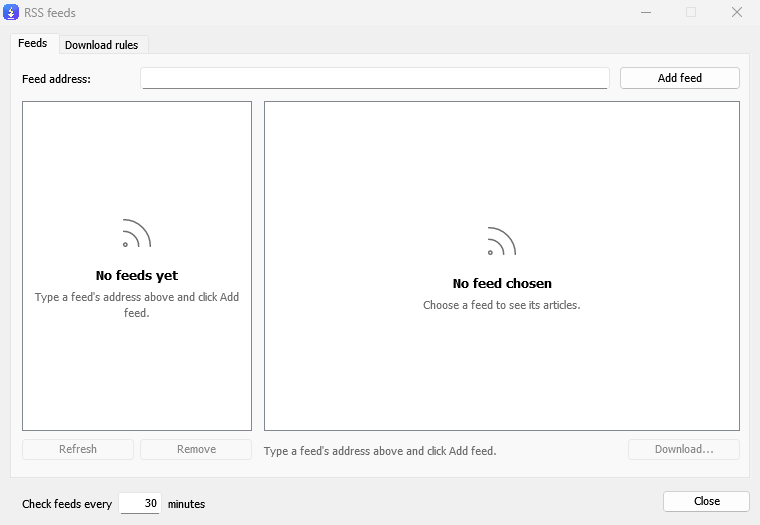
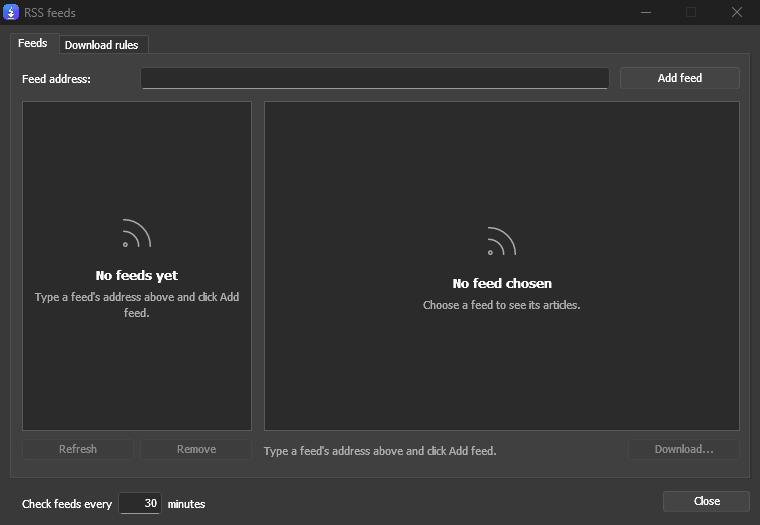
フィード タブ:
- Type a feed's address into Feed address and click Add feed. VDM fetches it at once, then every 30 minutes; change that under Check feeds every ... minutes, 5 at the least.
- 左側でフィードを選択すると、その記事が表示されます。トレントを含む記事は、フィードが提供する場合、トレントアイコンとそのサイズを表示します。記事をダブルクリックするか、選択して ダウンロード... をクリックすると、他のマグネットリンクや
.torrentアドレスと同様に、トレントを追加 が開きます。 - 更新 は選択したフィードを今すぐ取得します。削除 はその監視を停止します。読み取れないフィードは赤色で表示され、下部の行にその理由が表示されます。
ダウンロード ルール タブ: ルールは、タイトルが一致する新しい記事のトレントを、確認なしで追加します。
- 含む必要がある: タイトルに含まれる必要がある単語で、すべてが任意の順序で含まれている必要があります。
|は選択肢 (1080p|2160p) を区切り、*と?はワイルドカードです。大文字と小文字は区別されません。 - 含んではならない: ルールが記事をスキップする原因となる単語で、同じ方法で記述します。
- 正規表現: 2 つのボックスに正規表現を代わりに保持します。
- エピソード: タイトル内の
S01E05または1x05から読み取られる、取得するエピソード。1x2はシーズン 1 エピソード 2、1x5-8はエピソード 5 から 8、2x1-はシーズン 2 エピソード 1 以降のすべて、3はシーズン 3 のすべてで、;で区切られます。空の場合: 任意のエピソード。ルールは各エピソードを一度だけ取得します。既に追加されたエピソードの 2 回目のリリースはスキップされます。 - 保存先: トレントが保存されるフォルダー。空の場合、トレントカテゴリのフォルダー。開始せずにそれらを追加する は、後でダウンロード と同じように追加します。
- フィード: 監視するフィード。何もチェックされていない場合、すべてのフィード。
Rules only look at articles that are new since the feed was last fetched, and a feed's first fetch only lists what is there. So adding a feed or a rule never downloads a whole backlog. Matches ... articles now shows which of the articles the feeds hold now the rule matches, to check it; download those by hand. A torrent the list already has isn't added again, and neither is one whose files are already in the folder: VDM never writes into files it didn't make without asking. The bottom line of the tab says what the rules did last, and a torrent a rule added says so in its event log.
Feeds and rules are kept in rss.json in VDM's data folder. VDM reads at most 5 MB of a feed.
トレント設定
タスク → トレント設定...(またはTorrent を追加の横の矢印)を選択します。
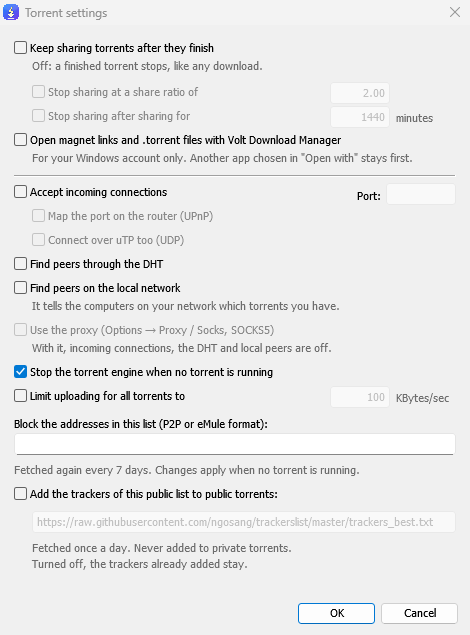
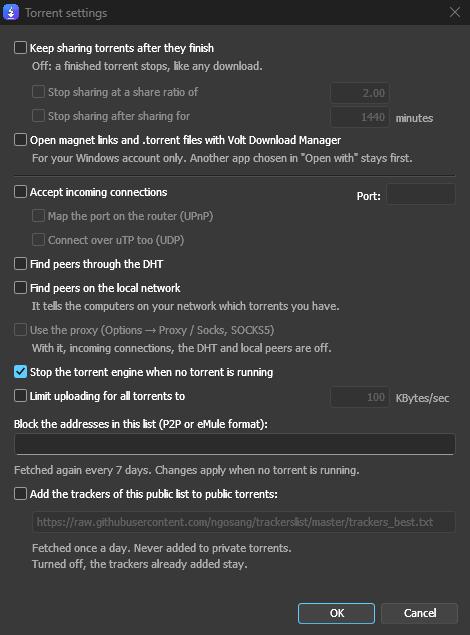
- 完了後もトレントを共有し続ける — デフォルトではオフです。完了したトレントは、他のダウンロードと同様に停止します。ダウンロード完了後も他のピアへのアップロードを続けるには、オンにします。
- 共有比率が次の値で共有を停止する — 完了したトレントは、ダウンロードした量の何倍かを送信し終えると共有を停止します(2.00: 2倍)。デフォルトではオフです。
- 共有後に共有を停止する … 分 — または、すべての実行を通じてその時間共有された後に停止します。デフォルトではオフです。
A torrent stopped by one of these says so in its event log, and isn't shared again when VDM starts. Raise or turn off the limit to share it again.
- Limit uploading for all torrents to — off by default. Caps what all your torrents together send to other peers, while they download and while they share. A torrent's own upload limit, in its progress window, applies on top of it.
- Open magnet links and .torrent files with Volt Download Manager — Windows then opens magnet links in your browser and .torrent files in Explorer with VDM. This is for your Windows account only. It also lists VDM in Windows' Settings → Apps → Default apps for MAGNET and .torrent. A program already chosen there (or in Open with) stays first, because Windows lets only you change that choice: when you turn the setting on and Windows still opens them with another program, VDM says which and opens its own Default apps page, where you set MAGNET and .torrent to Volt Download Manager. Firefox can keep a choice of its own for magnet links: when magnet is listed in its Settings → General → Applications, set its action to Volt Download Manager (shown as the default once Windows has it) or to Always ask. The setup can turn it on for you. It also decides whether the browser hands .torrent downloads to VDM: off, they stay with the browser for your own torrent program, even with TORRENT in Options → File types. It starts as you chose in the setup; a portable copy, or an VDM updated from an earlier version, starts with it on when your system already opens .torrent files with this VDM (or you had ticked it), off otherwise. From then on it stays as you leave it. On Linux it makes VDM your desktop's default app for them; on macOS, their default app (Finder offers VDM in Open With for .torrent files either way, and a double-click opens them in VDM when no other app is their default).
-
Connect over uTP too (UDP) — on by default. uTP is BitTorrent over UDP. Many peers (qBittorrent's, µTorrent's, Transmission's and others) take uTP, and some take nothing else: without it, VDM can't reach those, and a torrent with few peers may find almost none. VDM tries TCP first and uTP when TCP doesn't answer within a second, on the same port it listens on, so uTP needs Accept incoming connections on. A SOCKS5 proxy carries only TCP, so with Use the proxy on, uTP is off. A chosen network adapter holds uTP's socket too.
-
Add the trackers of this public list to public torrents — off by default. While it is on, every public torrent also asks the trackers of a public tracker list, so it finds peers sooner, above all an old torrent whose own trackers have gone quiet: the ones you add from then on, and those already in your list (once, when you turn it on). The list is ngosang/trackerslist's best trackers unless you type another address in the box (one tracker per line). VDM fetches it with its own downloader, through your proxy and network adapter, once a day (an hour later when a fetch failed), and keeps the last good copy: a new torrent never waits for it, and takes the list as last fetched. When a newer list brings new trackers, each torrent gets those too. A private torrent (one from a private tracker, marked so inside the torrent) never gets them: it may only ask its own trackers. Turning it off doesn't take away the trackers already added. Each torrent's Trackers tab shows them, and its event log says how many were added.
voltdownloadmanager-cli torrent-getfollows the same switch.
同じウィンドウに、ネットワーク スイッチ (受信接続、ポート、UPnP、uTP、DHT、SOCKS5 プロキシ)、ブロックリスト、公開トラッカー リストがあります。トレントとセキュリティを参照してください。
VDM starts its torrent engine the first time you add a torrent. If you never use torrents, it never listens for peers.
When the network comes back after a drop (Wi-Fi reconnecting, the computer waking from sleep, a VPN connecting or switching), VDM notices within a few seconds and calls the torrents' peers again at once, and asks their trackers and the DHT again, so a download picks up where it was instead of waiting minutes for each peer's next try. Each peer is called once for it; a tracker is still never asked sooner than its minimum interval. Behind a SOCKS5 proxy, a drop the computer itself doesn't see (the router losing its line while Wi-Fi stays up) is noticed only through the DHT, which is off there, so those torrents come back on their own, as before.
To find peers without trackers, VDM joins the DHT through four public routers (dht.libtorrent.org, dht.transmissionbt.com, router.bittorrent.com and router.utorrent.com); any one that answers is enough. It keeps the DHT nodes it found for the next start, so later starts don't depend on those routers.
VDM's log (logs\vdm.log in VDM's data folder) says where it listens, for example torrents: listening for peers on TCP and uTP (UDP) port 51413 (every address, IPv4 and IPv6: [::]:51413). That is one socket for IPv4 and IPv6 (and one UDP socket for uTP), so on Windows netstat -ano -p tcp (IPv4 only) doesn't list it; netstat -ano or Get-NetTCPConnection -State Listen does, under [::] or :: (and Get-NetUDPEndpoint the uTP one).
On a Linux system without CA certificates (a minimal install without the ca-certificates package), torrents still work: peers, the DHT and http:// trackers. An https:// tracker can't be checked there, so VDM skips it; install that package to use those too.
With a debrid account, torrents and magnet links can go to the service instead of to peers, and VDM downloads the files from it over HTTP: see Torrents through the service.
次のステップ
無料、オープンソース、広告なし、試用期間なし。
Download Volt Download Manager