

VDM downloads BitTorrent files from magnet links and .torrent files. Torrents appear in the same list as other downloads, marked Torrent in the Source column, and can be queued and scheduled like them.
افزودن تورنت
- برای انتخاب فایل
.torrent، روی افزودن تورنت در نوار ابزار کلیک کنید. یا روی پیکان کنار آن کلیک کنید و باز کردن فایل تورنت... یا افزودن پیوند مگنت... را انتخاب کنید (این گزینهها در بخش وظایف هم هستند). - پنجره افزودن تورنت باز میشود. پیوند مگنت را در تورنت جایگذاری کنید، یا برای انتخاب فایل
.torrentروی ... کلیک کنید و سپس روی جستجو کلیک کنید. - VDM reads the torrent and shows its files as a folder tree. A
.torrentfile is read at once. A magnet link first has to get the file list from other peers, usually within seconds. While it waits, Add torrent shows how many peers it found, from the trackers, the DHT or your local network, and how many answered. After 30 seconds without an answer, it says what may be in the way: a link with no trackers while the DHT is off, or a firewall, a VPN or a network that blocks BitTorrent. - تیک پوشهها یا فایلهایی را که نمیخواهید بردارید. گزینههای انتخاب همه و هیچکدام را انتخاب نکن برای تورنتهای بزرگ مفید هستند. انتخابشده تعداد فایلها و حجم دادههای انتخابشده را نشان میدهد.
- گزینه ذخیره در را بررسی کنید. فایلها به پوشه دقیق را نشان میدهد. تورنتها دستهبندی خاص خود را دارند، بنابراین بهطور پیشفرض این
Downloads\Torrentsاست. برای یک تورنت چندفایلی که مستقیما از طریق BitTorrent بارگیری میشود، ایجاد یک پوشه برای این تورنت بهطور پیشفرض انتخاب شده است. برای قرار دادن فایلها مستقیما در ذخیره در، و حفظ پوشههای داخلی آنها، این گزینه را از حالت انتخاب خارج کنید. درخت فایل و فایلها به برای مطابقت بهروزرسانی میشوند. تغییر نام تا زمانی که پوشه بیرونی برای نامگذاری وجود نداشته باشد، غیرفعال است. - برای تماشای ویدئو هنگام بارگیری، گزینه به ترتیب بارگیری شود را علامت بزنید (به به ترتیب بارگیری شود مراجعه کنید).
- روی اکنون بارگیری کن کلیک کنید، یا بعدا را انتخاب کنید تا گالری بدون شروع بارگیری به فهرست اضافه شود.
مقصد از قبل توسط بارگیری دیگری، از جمله بارگیریای که با بعدا منتظر است، اشغال شده باشد، باید قبل از افزودن تورنت تغییر کند. این شامل مسیرهای انتخابنشده نیز میشود، زیرا یک قطعه همپوشان میتواند در آنها بنویسد. یک تورنت قدیمیتر بدون لیست ادعای فایل ذخیرهشده، بهطور محافظهکارانه کل مقصد خود را رزرو میکند؛ مقصد دیگری را انتخاب کنید یا آن ورودی لیست را بدون حذف فایلهایش قبل از اشتراکگذاری دایرکتوری حذف کنید.
Also delete the file from disk removes the files VDM made for the torrent, each recognised by its file index and the time it was created, so a file that took the same name later is never taken for the torrent's. Files that were already there, files another download claims and files you agreed to use stay. VDM creates every ticked file of a torrent itself, empty, before it starts, so they are removed with it. Unticked files aren't made in the folder: the parts of the pieces they share with ticked files are kept in VDM's own torrent data, and go with the torrent; a file ticked later is made then, and gets them. Only empty folders VDM created are removed; existing folders and a shared Save to folder stay. A torrent with its own outer folder, added before this version, is deleted the way it always was. An older one-file torrent is deleted by name, from its own folder. Another older torrent (saved without an outer folder) has no record of its files: VDM keeps them and says why, so check and remove them yourself. A filesystem that gives no reliable creation time (FAT and exFAT, some network and Linux filesystems) keeps its files: VDM never deletes what it cannot recognise. Whenever Also delete the file from disk leaves files on the disk, VDM lists them. A Save to folder that does not exist yet is made, with its parents, when the torrent starts. A torrent added before this version, with its own folder or one file, takes the files already there as its own once, so resuming it or sharing it again does not ask about files VDM itself downloaded.
The torrent can only write into files VDM has checked, however it starts (Download Now, Resume, the Files tab, Recheck, or when VDM opens). If a file is at one of its paths and VDM did not make it (saved there after the torrent was added, replaced while the torrent was stopped, or moved to another drive by something other than VDM), VDM asks before using it. Yes lets the torrent use the file and write into it, and VDM never deletes it; No leaves it as it is and the torrent does not start. Starting it again asks again. An empty file is asked about too (a .gitkeep, or a file another program has just made and is about to write). If you replace a file while its torrent is stopped, starting the torrent adds it again on the file that is there now, so what you agreed to is what it writes to. When VDM opens, finished torrents are shared again only if their files are as VDM left them; one with a file that would need your permission is left stopped, and VDM asks nothing then.
An older VDM can open a list that holds a torrent saved without its own folder, but it does not know that its folder is shared: do not Move, Rename or Delete that torrent there. Its Delete with files removes every file of the torrent in Save to, those you agreed to use included, and Save to itself if that is then empty. This version recognises such a torrent again from its address, which an older VDM keeps.
تیک مواردی را که نمیخواهید بردارید، سپس اکنون بارگیری کن. 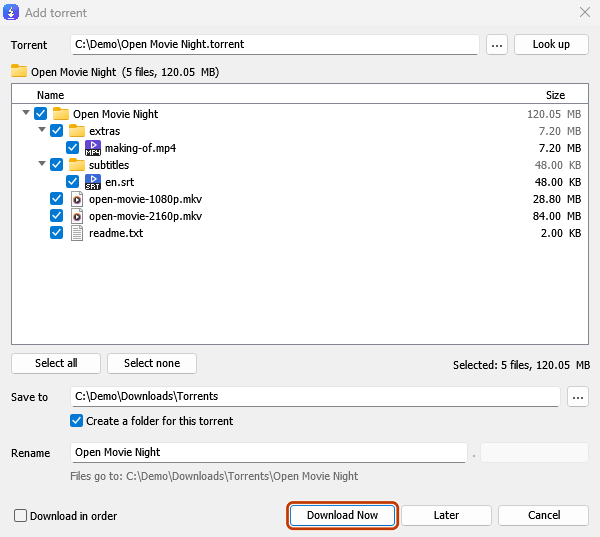
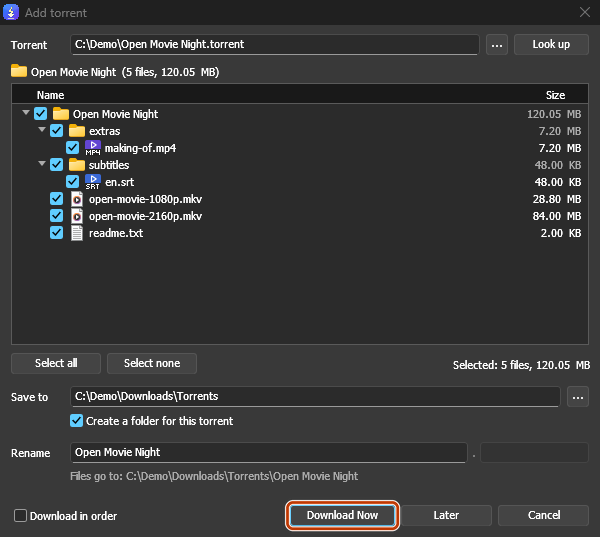
پنجره پیشرفت آن: هر فایل و مقدار بارگیریشده آن. 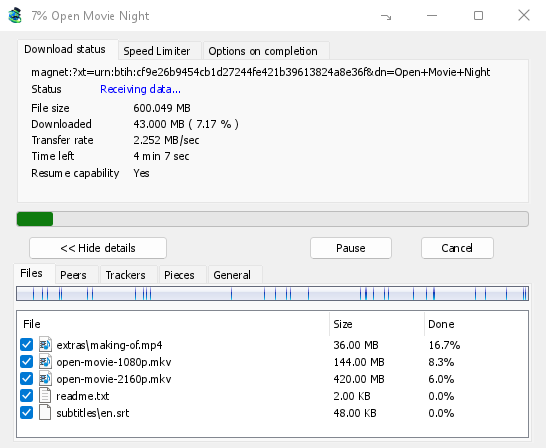
قطعات: نقشه تورنت که در حال پر شدن است. 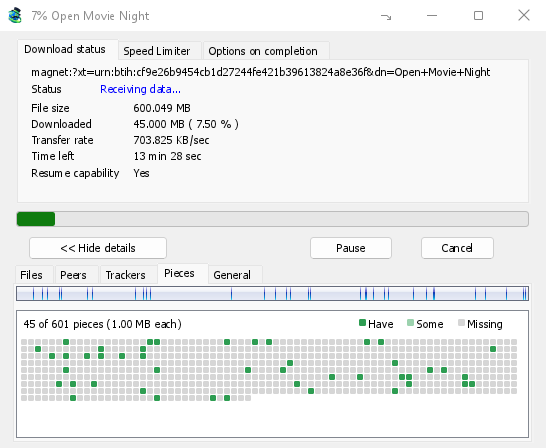
You can also paste a magnet link into Add URL, or drop a magnet link or a .torrent file on the drop target (Tasks → Show drop target). If a torrent is already in the list, VDM says so instead of adding it twice.
A .torrent file's web address works too: paste it into Add URL or Torrent, or let the browser hand the download over. VDM fetches the file, with the browser's cookies when the browser sent it, and Add torrent shows what it holds. The browser hands .torrent downloads over when TORRENT is in Options → File types and Open magnet links and .torrent files with Volt Download Manager is on in Torrent settings. TORRENT is in the list by default; a list you had before it came keeps what it had, so add TORRENT to it yourself. While that setting is off, the browser keeps .torrent downloads and opens them in your own torrent program, and the extension's button says why. Download with Volt Download Manager on a link always hands it over. A command line with /n (silent) saves the .torrent file itself, like any file. VDM fetches at most 10 MB: anything bigger isn't a .torrent file.
If some of the torrent's files are already in the folder, VDM asks before using them. Yes keeps them for the torrent: VDM checks them, keeps what matches the torrent and downloads the rest, which is how you continue a download started elsewhere or share files you already have. No (the default) goes back, so you can choose another folder and nothing of yours is overwritten.
The chosen layout is kept when the torrent is paused or VDM restarts. A multi-file torrent saved directly in Save to shares that directory: Move/Rename and folder renaming on completion are disabled for it so they cannot move unrelated files. Deleting the torrent's files leaves unrelated files and the shared destination folder in place. The layout option applies to direct BitTorrent downloads; torrents downloaded through a debrid account keep their existing layout.
Some programs (BitComet, for one) write a torrent's names in another encoding and add a UTF-8 copy of them (name.utf-8, path.utf-8); VDM shows and saves the files under the UTF-8 names. A torrent like that which was downloading in an earlier version starts those files again under their correct names, and leaves the files with the old names in the folder.
VDM refuses a torrent with file names your system can't write safely, says which name, and writes nothing. What others can see, the network switches in Torrent settings, blocklists and proxies: Torrents and your security.
هنگام بارگیری
برای باز کردن پنجره پیشرفت، روی تورنت در فهرست دوبار کلیک کنید. پنجره تورنت، علاوه بر وضعیت معمول، پنج زبانه دارد:
- فایلها — هر فایل، اندازه آن و مقدار بارگیریشدهاش. برای فایلهایی که تیکشان را برداشتهاید، وضعیت رد شده نمایش داده میشود. برای تغییر فایلهایی که بارگیری میشوند، حتی هنگام فعال بودن تورنت، تیک کادر کنار فایل را بزنید یا بردارید. دستکم یک فایل باید انتخابشده بماند. اگر تیک همه فایلهای باقیمانده را بردارید، بارگیری تورنت پایان مییابد. اگر فایلی به تورنتی که بارگیریاش کامل شده و فعال نیست اضافه شود، تورنت تا زمان ازسرگیری متوقف میماند تا چیزی بدون اطلاع شما بارگیری نشود.
- همتایان — رایانههایی که از آنها بارگیری میکنید، همراه با مقدار دادهای که از هرکدام دریافت کردهاید و برایشان فرستادهاید.
- ردیابها — ردیابهای تورنت. اگر ردیابی نباشد، همتاها از طریق DHT و همتاهای دیگر پیدا میشوند.
- قطعات — نقشه قطعات تورنت که نشان میدهد هر قطعه موجود، تا حدی موجود یا ناموجود است.
- General — the info hash, pieces, peers, how much was sent, the share ratio, how long it has been shared and the folder. What was sent and the time shared add up over all of the torrent's runs: they don't start again at 0 after a pause or a restart of VDM.
زبانهها پس از پایان بارگیری تورنت، تا زمانی که تورنت به اشتراک گذاشته میشود، باقی میمانند.
A file is made when its first byte is downloaded, and only a ticked one is made in the folder: what an unticked file shares with a ticked one waits in VDM's own torrent data. A running torrent keeps only the files it is reading or writing open, a few hundred at most for all of VDM's torrents together (fewer where the system allows fewer, as macOS does), so a torrent of thousands of files runs where it used to fail with "Too many open files".
A stopped torrent keeps none of its files open: you can move, rename or delete them, or open them in another program, while it waits. When you start it again, VDM opens them where they are; a file that was moved away or deleted meanwhile is made again and its pieces downloaded again. A finished torrent that is shared (Keep sharing torrents after they finish, in Torrent settings) keeps its files open only to read them: other programs can open, copy, run, move or rename them meanwhile.
زبانه محدودکننده سرعت در پنجره تورنت، علاوه بر محدودیت سرعت بارگیری، گزینه محدود کردن بارگذاری را هم دارد تا سرعت بارگذاری را به مقدار دلخواه محدود کنید. این محدودیت همراه تورنت ذخیره میشود و هر بار که تورنت اجرا شود یا به اشتراک گذاشته شود، دوباره اعمال میشود. در هر صورت، سرعت تورنت را نمیتوان به کمتر از 16 کیلوبایت/ثانیه محدود کرد.
دستورات تورنت
روی تورنت در فهرست راستکلیک کنید و تورنت را باز کنید:
- بررسی مجدد فایلها — همه قطعات فایلهای تورنت را میخواند و بررسی میکند؛ برای مثال، پس از جابهجایی فایلها یا بروز خطا در دیسک. تورنتی که در حال اجراست، پس از بررسی ادامه مییابد و فایلهای گمشده را دریافت میکند. تورنت متوقفشده متوقف میماند. گزارش رویداد آن مقدار داده پیداشده را نشان میدهد. اگر قطعهای از تورنتی که بارگیریاش کامل شده آسیب دیده باشد، تورنت متوقف میشود و با ازسرگیری آن، قطعه دوباره دریافت میشود.
- اعلام مجدد — بهجای انتظار برای نوبت بعدی، همین حالا دوباره از ردیابهای تورنت میخواهد همتاها را اعلام کنند. این گزینه هنگام اجرا یا اشتراکگذاری تورنت کار میکند.
- Add trackers... — adds trackers, one address a line (
http,httpsorudp). They are kept with the torrent, after the ones it has, and the Trackers tab shows them. A tracker on your computer or your local network is refused: VDM never contacts those (why). - به ترتیب بارگیری شود — فایلهای تورنت را از ابتدا بارگیری میکند (بخش زیر را ببینید). دوباره روی آن کلیک کنید تا بارگیری دوباره از کمیابترین قطعات شروع شود.
- اولین و آخرین قطعات، اول — با فعال بودن به ترتیب بارگیری شود، قطعات اول و آخر هر فایل پیش از بقیه بارگیری میشوند. این گزینه بهطور پیشفرض فعال است.
- کپی پیوند مگنت — پیوند مگنت تورنت را همراه با ردیابهای آن کپی میکند.
نتیجه هر فرمان در گزارش رویداد تورنت ثبت میشود؛ برای دیدن آن، نشانگر ماوس را روی خانه وضعیت تورنت در فهرست نگه دارید.
به ترتیب بارگیری شود
By default VDM downloads the pieces that the fewest peers have first, as BitTorrent programs usually do. That way a piece only one peer has is fetched before that peer leaves, and VDM can pass it on to others sooner. On VDM's test swarms it finished just as fast as downloading in order, and it was the only order that finished when a scarce piece's only holder left.
به ترتیب بارگیری شود ابتدا ابتدای فایل را بارگیری میکند تا بتوانید هنگام بارگیری، ویدئو را تماشا کنید: پس از دریافت بخش اول، آن را در پخشکننده باز کنید. این گزینه را در افزودن تورنت فعال کنید یا هر زمان، حتی هنگام بارگیری، از منوی راستکلیک فهرست گزینه تورنت → به ترتیب بارگیری شود را انتخاب کنید. از آن پس، قطعاتی که درخواست میشوند از ترتیب جدید پیروی میکنند.
- با فعال بودن اولین و آخرین قطعات، اول (که بهطور پیشفرض فعال است)، قطعات آخر هر فایل نیز زودتر بارگیری میشوند. بیشتر فایلهای ویدئویی فهرست خود را در انتهای فایل نگه میدارند و پخشکننده پیش از پخش هر چیزی آن را میخواند.
- اگر چند فایل وجود داشته باشد، فایلها بهترتیب نام و یکی پس از دیگری بارگیری میشوند.
- همتاهای کندتر قطعاتی را کمی جلوتر از ابتدای فایل دریافت میکنند تا بارگیری ابتدای فایل منتظر آنها نماند.
بارگیری تورنت بهترتیب سریعتر تمام نمیشود و کمک کمتری به گروه میکند؛ از این گزینه برای فایلهایی استفاده کنید که میخواهید همین حالا تماشا کنید.
فیدهای RSS
Many sites publish their new torrents as an RSS or Atom feed. VDM can watch feeds, list what they hold, and add the new torrents you want by itself. Choose Tasks → RSS feeds..., or click the arrow next to Add Torrent.
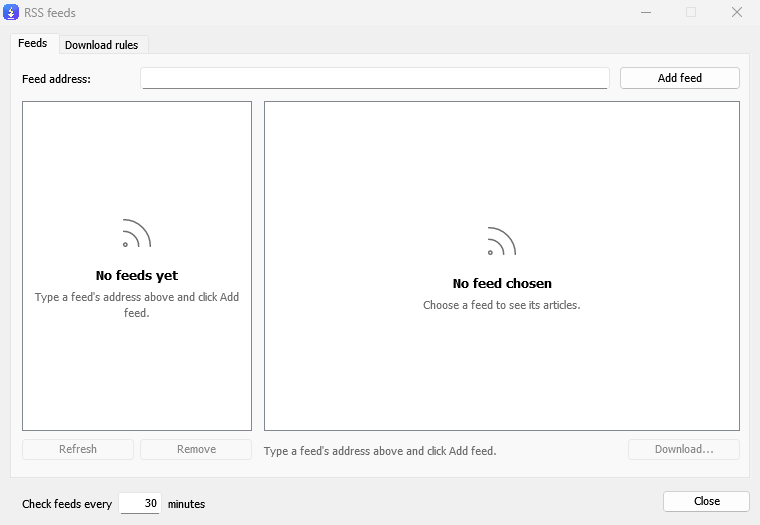
برگه فیدها:
- Type a feed's address into Feed address and click Add feed. VDM fetches it at once, then every 30 minutes; change that under Check feeds every ... minutes, 5 at the least.
- برای دیدن مطالب یک فید، آن را در سمت چپ انتخاب کنید. اگر فید اطلاعاتی درباره اندازه مطلبی که تورنت دارد ارائه دهد، نماد تورنت و اندازه آن نمایش داده میشود. برای باز کردن افزودن تورنت با آن مطلب، روی آن دوبار کلیک کنید یا آن را انتخاب و روی بارگیری... کلیک کنید؛ مانند هر پیوند مگنت یا نشانی
.torrentدیگر. - تازهسازی فید انتخابشده را همین حالا دریافت میکند. حذف پیگیری فید را متوقف میکند. فیدی که خوانده نمیشود با رنگ قرمز نمایش داده میشود و در سطر پایین دلیل آن آمده است.
برگه قوانین دانلود: قانون، بدون پرسش، تورنتهای مطالب جدیدی را اضافه میکند که عنوانشان با قانون مطابقت دارد.
- باید شامل باشد: واژههایی که عنوان باید همه آنها را، با هر ترتیبی، داشته باشد.
|گزینهها را از هم جدا میکند (1080p|2160p) و*و?نقش نویسههای جایگزین را دارند. بزرگی یا کوچکی حروف اهمیتی ندارد. - نباید شامل باشد: واژههایی که در صورت وجودشان، قانون از آن مطلب میگذرد؛ آنها را به همان شکل بنویسید.
- عبارات باقاعده: دو کادر به جای آن حاوی عبارات باقاعده هستند.
- قسمتها: مشخص میکند کدام قسمتها دریافت شوند؛ شمارهها از
S01E05یا1x05در عنوان خوانده میشوند.1x2یعنی فصل 1، قسمت 2؛1x5-8یعنی قسمتهای 5 تا 8؛2x1-یعنی همه قسمتها از فصل 2، قسمت 1 به بعد؛ و3یعنی همه قسمتهای فصل 3. موارد را با;از هم جدا کنید. خالی: هر مطلبی. قانون هر قسمت را فقط یک بار دریافت میکند؛ انتشار دوباره قسمتی که قبلا اضافه شده باشد نادیده گرفته میشود. - ذخیره در: پوشهای که تورنتها در آن ذخیره میشوند؛ اگر خالی باشد، پوشه دسته تورنتها استفاده میشود. گزینه آنها را بدون شروع بارگیری اضافه کنید تورنتها را مانند بارگیری بعدا اضافه میکند.
- فیدها: فیدهایی که قانون بررسی میکند؛ اگر هیچکدام علامت نخورده باشند، همه فیدها بررسی میشوند.
Rules only look at articles that are new since the feed was last fetched, and a feed's first fetch only lists what is there. So adding a feed or a rule never downloads a whole backlog. Matches ... articles now shows which of the articles the feeds hold now the rule matches, to check it; download those by hand. A torrent the list already has isn't added again, and neither is one whose files are already in the folder: VDM never writes into files it didn't make without asking. The bottom line of the tab says what the rules did last, and a torrent a rule added says so in its event log.
Feeds and rules are kept in rss.json in VDM's data folder. VDM reads at most 5 MB of a feed.
تنظیمات تورنت
گزینه وظایف → تنظیمات تورنت... را انتخاب کنید (یا روی پیکان کنار افزودن تورنت کلیک کنید):
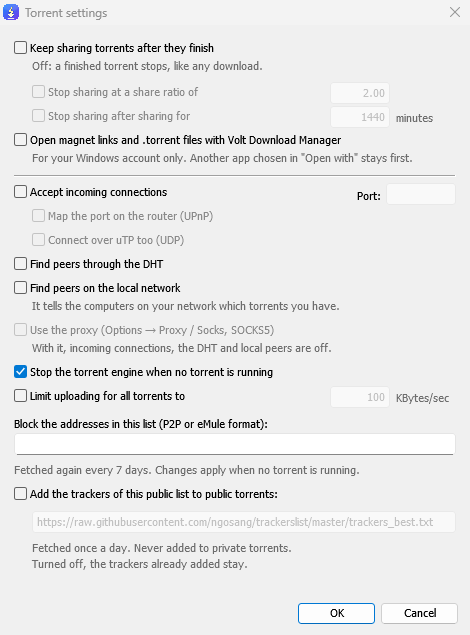
- پس از اتمام، تورنتها را به اشتراکگذاری ادامه بده — بهطور پیشفرض خاموش است: تورنتی که بارگیریاش تمام شده، مانند هر بارگیری دیگری متوقف میشود. برای ادامه بارگذاری برای همتاهای دیگر پس از پایان بارگیری، این گزینه را روشن کنید.
- توقف اشتراکگذاری در نسبت اشتراک — اشتراکگذاری تورنتی که بارگیریاش تمام شده، وقتی متوقف میشود که بهاندازه این نسبت داده ارسال کرده باشد (2.00: دو برابر دادهای که دریافت کرده است). بهطور پیشفرض خاموش است.
- توقف اشتراکگذاری پس از اشتراکگذاری به مدت … دقیقه — یا وقتی این مدت در مجموع اجراهایش سپری شود. بهطور پیشفرض خاموش است.
A torrent stopped by one of these says so in its event log, and isn't shared again when VDM starts. Raise or turn off the limit to share it again.
- Limit uploading for all torrents to — off by default. Caps what all your torrents together send to other peers, while they download and while they share. A torrent's own upload limit, in its progress window, applies on top of it.
- Open magnet links and .torrent files with Volt Download Manager — Windows then opens magnet links in your browser and .torrent files in Explorer with VDM. This is for your Windows account only. It also lists VDM in Windows' Settings → Apps → Default apps for MAGNET and .torrent. A program already chosen there (or in Open with) stays first, because Windows lets only you change that choice: when you turn the setting on and Windows still opens them with another program, VDM says which and opens its own Default apps page, where you set MAGNET and .torrent to Volt Download Manager. Firefox can keep a choice of its own for magnet links: when magnet is listed in its Settings → General → Applications, set its action to Volt Download Manager (shown as the default once Windows has it) or to Always ask. The setup can turn it on for you. It also decides whether the browser hands .torrent downloads to VDM: off, they stay with the browser for your own torrent program, even with TORRENT in Options → File types. It starts as you chose in the setup; a portable copy, or an VDM updated from an earlier version, starts with it on when your system already opens .torrent files with this VDM (or you had ticked it), off otherwise. From then on it stays as you leave it. On Linux it makes VDM your desktop's default app for them; on macOS, their default app (Finder offers VDM in Open With for .torrent files either way, and a double-click opens them in VDM when no other app is their default).
-
Connect over uTP too (UDP) — on by default. uTP is BitTorrent over UDP. Many peers (qBittorrent's, µTorrent's, Transmission's and others) take uTP, and some take nothing else: without it, VDM can't reach those, and a torrent with few peers may find almost none. VDM tries TCP first and uTP when TCP doesn't answer within a second, on the same port it listens on, so uTP needs Accept incoming connections on. A SOCKS5 proxy carries only TCP, so with Use the proxy on, uTP is off. A chosen network adapter holds uTP's socket too.
-
Add the trackers of this public list to public torrents — off by default. While it is on, every public torrent also asks the trackers of a public tracker list, so it finds peers sooner, above all an old torrent whose own trackers have gone quiet: the ones you add from then on, and those already in your list (once, when you turn it on). The list is ngosang/trackerslist's best trackers unless you type another address in the box (one tracker per line). VDM fetches it with its own downloader, through your proxy and network adapter, once a day (an hour later when a fetch failed), and keeps the last good copy: a new torrent never waits for it, and takes the list as last fetched. When a newer list brings new trackers, each torrent gets those too. A private torrent (one from a private tracker, marked so inside the torrent) never gets them: it may only ask its own trackers. Turning it off doesn't take away the trackers already added. Each torrent's Trackers tab shows them, and its event log says how many were added.
voltdownloadmanager-cli torrent-getfollows the same switch.
همین پنجره دارای سوئیچهای شبکه (اتصالات ورودی، پورت، UPnP، uTP، DHT، پروکسی SOCKS5)، فهرست مسدودسازی و فهرست ردیاب عمومی است: به تورنتها و امنیت شما مراجعه کنید.
VDM starts its torrent engine the first time you add a torrent. If you never use torrents, it never listens for peers.
When the network comes back after a drop (Wi-Fi reconnecting, the computer waking from sleep, a VPN connecting or switching), VDM notices within a few seconds and calls the torrents' peers again at once, and asks their trackers and the DHT again, so a download picks up where it was instead of waiting minutes for each peer's next try. Each peer is called once for it; a tracker is still never asked sooner than its minimum interval. Behind a SOCKS5 proxy, a drop the computer itself doesn't see (the router losing its line while Wi-Fi stays up) is noticed only through the DHT, which is off there, so those torrents come back on their own, as before.
To find peers without trackers, VDM joins the DHT through four public routers (dht.libtorrent.org, dht.transmissionbt.com, router.bittorrent.com and router.utorrent.com); any one that answers is enough. It keeps the DHT nodes it found for the next start, so later starts don't depend on those routers.
VDM's log (logs\vdm.log in VDM's data folder) says where it listens, for example torrents: listening for peers on TCP and uTP (UDP) port 51413 (every address, IPv4 and IPv6: [::]:51413). That is one socket for IPv4 and IPv6 (and one UDP socket for uTP), so on Windows netstat -ano -p tcp (IPv4 only) doesn't list it; netstat -ano or Get-NetTCPConnection -State Listen does, under [::] or :: (and Get-NetUDPEndpoint the uTP one).
On a Linux system without CA certificates (a minimal install without the ca-certificates package), torrents still work: peers, the DHT and http:// trackers. An https:// tracker can't be checked there, so VDM skips it; install that package to use those too.
With a debrid account, torrents and magnet links can go to the service instead of to peers, and VDM downloads the files from it over HTTP: see Torrents through the service.
مراحل بعدی
رایگان، متنباز، بدون تبلیغات، بدون دوره آزمایشی.
Download Volt Download Manager