

VDM downloads videos from their web pages: YouTube, Vimeo, Dailymotion, Twitch, TikTok, X, Instagram, Facebook, Reddit, SoundCloud and well over a thousand other sites. yt-dlp, an open-source program whose community keeps it working as sites change, finds the video on the page; VDM's own downloader then brings it in, the way it downloads any file.
شروع دانلود ویدئو
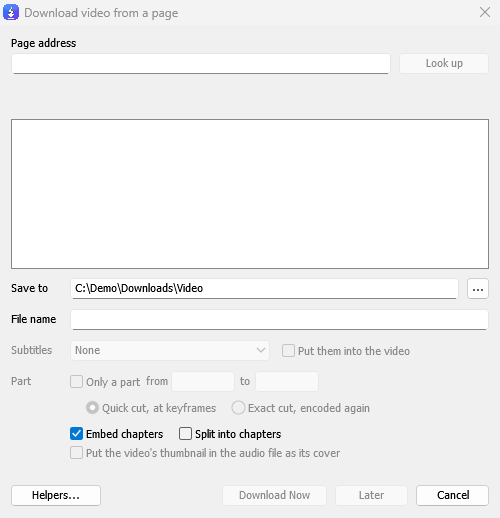
- Give the video's page address to Add URL (Ctrl+N). VDM recognises video pages and opens the video window, already looking the page up.
- یا وظایف → بارگیری ویدئو از یک صفحه... را انتخاب کنید، نشانی را در نشانی صفحه بچسبانید و روی جستجو کلیک کنید.
هر نشانی صفحه دیگری که یک صفحه وب باشد، نه یک فایل، نیز به پنجره ویدئو پیشنهاد میشود. در سایتی که yt-dlp خواننده مخصوص به خود را برای آن ندارد، ویدئو همان است که صفحه میگوید درباره آن است، وقتی نامی از آن میبرد (در آنچه به موتورهای جستجو و پیشنمایش پیوندها میگوید: JSON-LD آن، og:video یا twitter:player)، نه اولین پخشکننده نوشتهشده در HTML آن، و فایل با نامی که صفحه برایش انتخاب کرده، نامگذاری میشود.
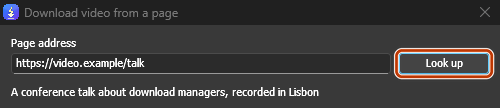
نشانی صفحه را بچسبانید و روی جستجو کلیک کنید. 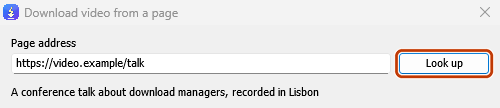
یک کیفیت را انتخاب کنید، سپس اکنون بارگیری کن را بزنید. 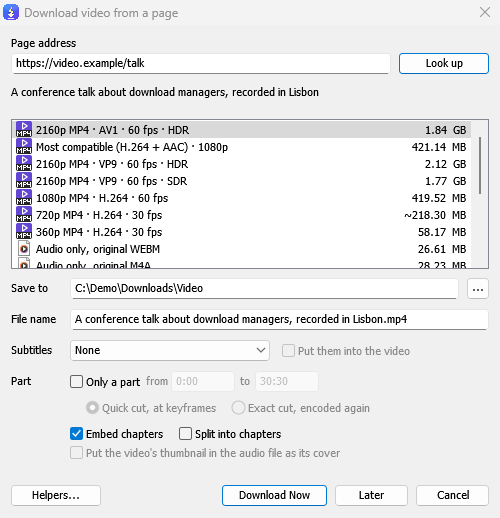
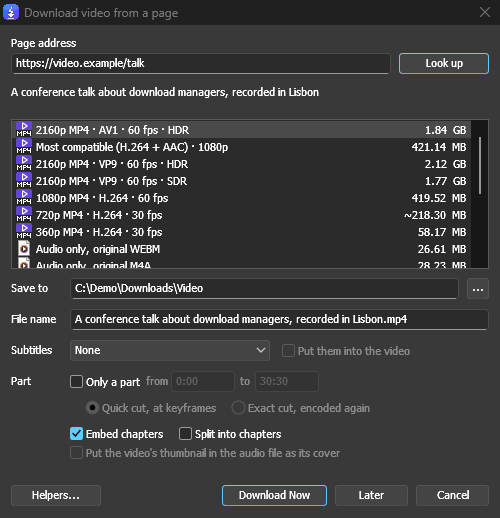
مانند هر فایل دیگری، در ردیف و پنجره خودش بارگیری میشود. 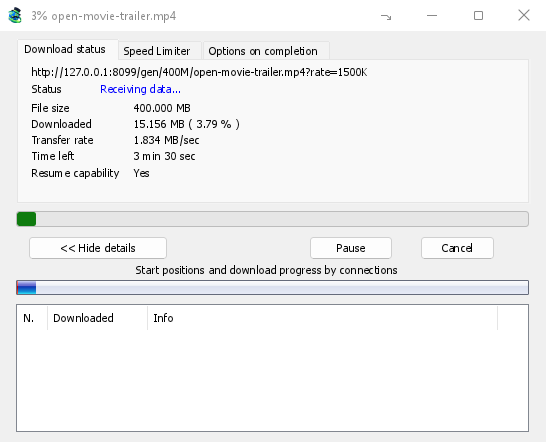
yt-dlp و ffmpeg
VDM offers its two helpers on its first start, and again the first time they are needed. It downloads them from their official releases with its own downloader, so a cut connection resumes, and uses your proxy settings:
- yt-dlp (about 23 MB) looks the page up and finds where the video and its sound come from; VDM downloads them (How a video comes down). The first time, click Install yt-dlp. VDM checks the download against the signature yt-dlp's developers publish before it uses it.
- ffmpeg (about 80 MB) joins a video and its sound when a site keeps them apart, which most sites do for the higher qualities, and turns the sound into an MP3, Opus or FLAC file. Click Install ffmpeg when VDM offers it. VDM installs only a build its maintainers checked: the download must match the SHA-256 in VDM's own list of builds, which carries VDM's signature. When that list can't be downloaded or checked, VDM says so and installs nothing; you can still choose your own ffmpeg in Helpers....
- Each processor gets its own build: yt-dlp's for x64, ARM64 and 32-bit Windows and for Linux on ARM, and ffmpeg's for x64 and ARM64 Windows. No ffmpeg is built for 32-bit Windows that VDM can check, so there VDM offers none: choose your own in Helpers... (below), or download the qualities that come with their sound.
You can install them ahead of time too: in Helpers..., a helper that isn't there yet says Not installed yet, and Install yt-dlp, Install ffmpeg or Install gallery-dl in its row downloads VDM's own copy, checked the same way, and keeps it up to date from then on. Where VDM has no copy for your system, the button is greyed out and the row says what to do instead.
Both are kept in a tools folder in VDM's data folder. For YouTube, yt-dlp also needs a JavaScript runtime, which VDM can download too: see A JavaScript runtime for YouTube.
بهروز نگه داشتن آنها
Sites change all the time, and a newer yt-dlp is usually what makes a page that stopped working download again. So VDM keeps its own copies of yt-dlp, gallery-dl, ffmpeg and Node.js up to date by itself:
- When: a few seconds after VDM starts, then again while it runs: yt-dlp and gallery-dl at most every 6 hours, Node.js once a day, ffmpeg once a week (a newer ffmpeg comes when VDM's list of checked builds names one, usually with a new version of VDM). VDM remembers when it last asked, so starting it many times doesn't ask again.
- How: each new version is downloaded and checked exactly as the first install was (yt-dlp's, gallery-dl's and Node.js's signed checksum lists, VDM's signed list of ffmpeg builds), never an older one, and installed beside the one in use.
- زمان تغییر: فقط زمانی که هیچ بارگیری، جستجو یا اجرای دیگری از آن کمککننده استفاده نمیکند. ویدیویی که هنگام رسیدن yt-dlp جدید در حال بارگیری است، با همان نسخهای که شروع شده بود به پایان میرسد؛ نسخه جدید از لحظهای که آخرین بارگیری با استفاده از آن به پایان میرسد، استفاده میشود.
- نسخه قبلی باقی میماند تا بتوانید به آن بازگردید. نسخههای قدیمیتر حذف میشوند.
- A video that fails with an error that usually means yt-dlp is out of date for the site (Unable to extract, Unsupported URL, YouTube's Sign in to confirm you're not a bot, HTTP Error 403, a failed signature or n challenge, Requested format is not available), or a gallery whose gallery-dl reports an unexpected error: VDM looks for a newer version at once, installs it if there is one, and tries that download again with it, once. Its log says so. If there is none, the error stands as before.
- A check that fails (no connection, GitHub busy) is tried again an hour later. It is written in VDM's log, never shown as an error.
In Helpers..., each of VDM's own copies says how it stands: Up to date, Version X available, Updated to X, or Version X is ready: used once its downloads end. Update gets the newest version of that one now, Go back to X uses the previous version again (automatic updates then wait for a version newer than the one you left; Update brings it back), and Check for updates checks them all. Untick Keep VDM's helpers up to date automatically to update only when you ask. Programs you chose with Use another program..., and your system's copies, say Updated by you: VDM leaves them to you.
در خط فرمان، update-helpers همه آنها را بررسی و بهروزرسانی میکند و نسخههایشان را چاپ میکند (خط فرمان).
استفاده از نسخههای خودتان
On Linux and macOS, VDM finds yt-dlp, ffmpeg and gallery-dl on your PATH and in the usual package-manager folders, including Homebrew's. A program you selected yourself takes priority, followed by VDM's own installed copy. The system copy is used when neither is present, and your package manager keeps it up to date: VDM never downloads over it on its own. If your distribution's yt-dlp is old, Use VDM's own copy in Helpers downloads VDM's, which keeps itself current and is used from then on.
Already have yt-dlp or ffmpeg for another program? Use those instead of a second copy: in Download video from a page, click Helpers..., then Use another program... beside yt-dlp or ffmpeg, and choose the program. VDM runs it once to check that it is that program, and uses it from then on, the command line too. VDM doesn't update a program you chose: keep it up to date yourself (yt-dlp: yt-dlp -U, or your package manager). Use VDM's own copy goes back to the one VDM downloads and checks.
یک محیط زمان اجرای جاوااسکریپت برای YouTube
YouTube hides most of a video's qualities behind small puzzles that yt-dlp solves with a JavaScript runtime: Node.js, Deno, QuickJS or Bun. Without one, a look-up is slow, the list is short (sometimes only the sound and a low quality) or it fails with Requested format is not available, and VDM says so: YouTube needs a JavaScript runtime to list its video qualities. Other sites don't need one.
The quickest way is VDM's own copy of Node.js: click Install Node.js beside that message, or, in Helpers..., Install Node.js in the JavaScript runtime (for YouTube) row. The first start's setup offers it too, in its Video helpers step, when your computer has no runtime. VDM downloads Node.js's newest long-term support (LTS) build for your system and processor from nodejs.org with its own downloader (about 40 MB on Windows, 60 MB on Linux and macOS; Windows x64, ARM64 and 32-bit, Linux x64 and ARM64, macOS), checks the release's checksum list against the signing keys of Node.js's releasers and the download against that list before it uses it, keeps only the node program in the tools folder beside yt-dlp and ffmpeg, and from then on tells yt-dlp to use it. It keeps it up to date the way it keeps yt-dlp's (Keeping them up to date), never with an older version. 32-bit Windows gets the newest LTS line Node.js still builds for it, 22, which Node.js supports until April 2027; after that VDM has no Node.js for 32-bit Windows, and a runtime of your own (Use another program...) is needed there. VDM never installs a Node.js older than the LTS line current when that VDM was made, whatever nodejs.org's list says. The video is looked up again by itself once Node.js is in.
Already have one? Then nothing needs downloading: a runtime on your computer comes first. VDM finds Deno, Node.js (22 or newer, also one installed with nvm), QuickJS and Bun by itself, in the order yt-dlp prefers them, and passes over one too old for yt-dlp (Node.js 20, say) or a Node.js whose line has reached its end of life on nodejs.org's schedule (then VDM's own is used, which it keeps on a supported release). A supported Node.js of your computer's is used as it is: you or your package manager keep it up to date. Helpers says which one yt-dlp uses and where it is: Node.js 24.11.0, your system's, nothing to download. To use another one, a portable copy or one that isn't on the PATH, click Use another program... in that row and choose its program (node.exe, deno.exe, qjs.exe, bun.exe): VDM asks it for its version first and refuses one yt-dlp can't use. Use VDM's own copy goes back to the one VDM finds or downloads. (Choosing your own runtime was YairDies' idea.)
Earlier versions of VDM installed Deno. That copy keeps working until VDM's Node.js is in place (the next update check brings it, or Use VDM's own copy); then yt-dlp switches to Node.js and VDM removes its own Deno, once no download is using it. A Deno you installed yourself is never touched, nor VDM's own once you chose it with Use another program.... While VDM asks the runtimes on your computer for their versions, Helpers says Looking for a JavaScript runtime on this computer....
If you'd rather install one yourself, any of them works; then look the video up again. If VDM still says so, the new program's folder isn't on the PATH VDM started with (Windows' installers add it for programs started after them): quit VDM (Tasks → Exit) and start it again.
- Windows:
winget install DenoLand.Deno، یاwinget install OpenJS.NodeJS.LTS. نصبکنندههای موجود در deno.com و nodejs.org نیز کار میکنند. - اوبونتو و دبیان:
sudo apt install nodejs - فدورا:
sudo dnf install nodejs - آرچ:
sudo pacman -S nodejs، یاsudo pacman -S deno - macOS:
brew install deno، یاbrew install node - هر سیستمی، Deno فقط برای کاربر شما:
curl -fsSL https://deno.land/install.sh | sh(در Windows، در PowerShell:irm https://deno.land/install.ps1 | iex)
A distribution's yt-dlp can also be too old for YouTube: if the list stays short, click Use VDM's own copy beside yt-dlp in Helpers.... A yt-dlp older than 2025.11.12 can't be told of a runtime at all; VDM then leaves the runtime out rather than stop the look-up.
انتخاب کیفیت
- Wait for the list. It shows each quality with its size, best first, then the sound alone:
- A video's line says its resolution, the file it makes, its picture's codec, its frame rate and whether it is HDR:
2160p MP4 · AV1 · 60 fps · HDR. MP4 is only the file: what's inside it can be AV1, VP9 or H.264, and the codec says which, the very one that downloads (should the site no longer offer that stream, VDM takes the nearest of the same codec and resolution first). A resolution that comes in several (AV1, VP9 and H.264, HDR and SDR) has a line for each: AV1 makes the smallest file, H.264 plays on the most devices, and an HDR video looks washed out on a screen without HDR.SDRis said only beside an HDR line of the same resolution. - Most compatible (H.264 + AAC), second in the list: the best H.264 video the site has (YouTube's usually go up to 1080p) with AAC sound (in stereo when the site has it beside surround), in an MP4 that Premiere Pro and other editors, older TVs and most phones open as it is. YouTube's best qualities are AV1 or VP9 with Opus sound, which some of them can't read. The line says its resolution:Most compatible (H.264 + AAC) · 1080p. VDM picks those streams, it doesn't convert anything: when the site has no H.264 video with AAC sound the line isn't there, and when the best line already is that, it isn't listed twice. - The size is that of exactly what downloads, the video and its sound. A size with~before it (~532 MB) is only an estimate: the site didn't say the size, so it comes from the stream's bitrate and length. - Audio only, original: the site's own file, not converted, once for each type the site has it in (WebM with Opus inside, M4A), the best first. The best sound there is, in the smallest file. - Audio only MP3 at its best variable bitrate (VBR) and at 320, 256, 192 and 128 kbps, for players that only take MP3. - Audio only OPUS: an.opusfile. When the site's sound is Opus already (YouTube's usually is), it's only moved into that file, not converted, so nothing is lost. - Audio only FLAC: a lossless.flacfile, for a library or a program that wants FLAC. It can't add quality: the site's sound is already compressed with losses, and FLAC keeps it exactly as it came, in a file several times bigger. The window says so when you choose it. - یکی را انتخاب کنید. بدون ffmpeg، فقط کیفیتهایی که همراه با صدایشان هستند لیست میشوند، و هیچ MP3، Opus یا FLAC (ffmpeg آنها را میسازد) وجود ندارد.
- ذخیره در (بهطور پیشفرض پوشه دسته ویدئو) و نام فایل را بررسی کنید که از عنوان ویدئو گرفته شده است. عنوان طولانی در انتهای یک کلمه کوتاه میشود تا فایلهای ذخیرهشده در کنار ویدئو در حین بارگیری، با محدودیت سیستم برای طول مسیر سازگار باشند؛ نامی که شما تایپ میکنید، همانطور که تایپ کردهاید، حفظ میشود.
- When the video's sound comes in several languages, choose one in Sound (see The sound's language). Choose Subtitles if you want them (see below). Embed chapters is ticked: see Chapters. To keep only a stretch of it, tick Only a part: see Download only a part. For a sound alone, Put the video's thumbnail in the audio file as its cover is ticked: see A cover for the sound.
- روی اکنون بارگیری کن کلیک کنید، یا بعدا را انتخاب کنید تا گالری بدون شروع بارگیری به فهرست اضافه شود.
سپس ویدیو مانند هر فایل دیگری، با ردیف مخصوص خود در لیست و پنجره پیشرفت خود، بارگیری میشود.
نحوه بارگیری ویدیو
yt-dlp looks the page up and picks the quality's video and sound. VDM's own downloader then brings each of them in, one after the other, the way it downloads any file:
- از طریق چندین اتصال: به تعداد اتصالی که گزینهها ← اتصال برای یک فایل تعیین میکند. جدول اتصالات پنجره پیشرفت هر یک را نشان میدهد و نقشه قطعات، ویدیو و سپس صدای آن را نمایش میدهد.
- A stream sent in many small pieces (HLS, DASH, as most sites other than YouTube send theirs) comes down that many pieces at once, each kept on disk as it arrives, then joined in order into one file, as yt-dlp joins them. Pieces encrypted with AES-128 are decrypted with the key the stream's playlist names. When their addresses expire, VDM asks yt-dlp for the stream's new list and carries on with the pieces still missing.
- تحت محدودیتهای سرعت شما: محدودیتهای محدودکننده سرعت، محدودیت مخصوص ویدیو (برگه محدودکننده سرعت در پنجره پیشرفت آن)، و محدودیت برای همه بارگیریها با هم. هر تغییری بلافاصله اعمال میشود.
- Paused and resumed like a file, also after quitting VDM: it carries on from the bytes already saved.
- When an address stops working: a video's addresses are signed and expire after a few hours (YouTube's after six). VDM asks yt-dlp for a fresh one for the same quality and carries on from where it stopped.
سپس yt-dlp کاری را که پس از بارگیری انجام میدهد، انجام میدهد: ویدیو و صدای آن را با ffmpeg در یک MP4 ادغام میکند، زیرنویسها را ذخیره یا تعبیه میکند، فصلها را در فایل قرار میدهد و صدا را برای انتخاب MP3، Opus یا FLAC تبدیل میکند.
YouTube serves each connection's long requests slowly, so VDM asks for the video in pieces of 10 MB at most, as yt-dlp does, and several at once.
برخی از ویدیوها را yt-dlp هنوز خودش، از طریق اتصال خود، بارگیری میکند و پنجره پیشرفت این را نشان میدهد:
- یک پخش زنده که هنوز در حال ضبط است (در حال ضبط پخش زنده)؛
- جریانی که از طریق RTMP، RTSP، MMS یا FTP ارسال میشود؛
- جریانهای نادر در قطعاتی از انواع دیگر (HDS ادوبی، Smooth Streaming مایکروسافت) و جریانی که کلید آن را سایت مستقیما به yt-dlp میدهد.
برای این موارد، یک محدودیت سرعت جدید، بارگیری را از همان جایی که بود دوباره آغاز میکند (محدودیتهای سرعت)؛ یک پخش زنده که در حال ضبط است، در دفعه بعدی که شروع میشود، آن را میپذیرد.
در حال ضبط پخش زنده
A live stream, a broadcast still going on, is recorded by yt-dlp with ffmpeg into an unfinished file, so VDM can't know its length. While it records, the progress window says Recording..., and Downloaded and Transfer rate follow the size of what has been recorded so far.
- در حال ضبط… از لحظهای که ضبطکننده فایل خود را باز میکند نشان داده میشود، پس از اتصال به جریان (چند ثانیه پس از شروع بارگیری؛ تا آن زمان پنجره در حال اتصال… را نشان میدهد؛ جریانی که قابل دسترسی نیست هرگز به آنجا نمیرسد). بارگیری شده آنچه به دیسک رسیده را نشان میدهد و ضبطکننده آن را در بلوکهای 256 کیلوبایتی مینویسد، بنابراین تا زمانی که اولین بلوک نوشته شود (که ممکن است برای جریانی با نرخ بیت پایین کمی طول بکشد) روی 0 کیلوبایت باقی میماند، سپس بلوک به بلوک رشد میکند. توقف و ذخیره قبل از اولین بلوک هنوز چیزی را نگه نمیدارد: بارگیری متوقف میماند، با فایل خالی آن، تا ادامه دوباره ضبط کند. یک فایل ناتمام خالی که اجرای قبلی باقی گذاشته است، هنگام شروع مجدد ضبط حذف میشود (چیزی در خود ندارد)، بنابراین یک ضبط از سر گرفته شده از همان لحظه در حال ضبط… را نشان میدهد.
- Stop and save is what the progress window's pause button reads for a live stream that is recording. It, Stop and Stop All in the list (toolbar and menus), a queue's stop (by hand, at its scheduled stop time, or through the API) and the phone page's pause all end the recording and keep it. VDM makes the recording an MP4 itself, as yt-dlp does when a live stream ends: the streams are copied as they are, nothing is converted. The window says Saving... meanwhile, and the download is then Complete, as when a live stream ends by itself: the queue goes on and the completion notice and actions run.
- ممکن است لحظات پایانی از دست رفته باشند: حداکثر آخرین 1 مگابایت که ضبطکننده هنوز ننوشته بود. این چند ثانیه ویدئو و تا حدود یک دقیقه برای جریانی فقط با صدا است.
- اگر MP4 ساخته نشود، ضبط به صورت فایل MPEG-TS (
.ts) نگهداری میشود که بیشتر پخشکنندهها آن را باز میکنند. اگر این کار هم امکانپذیر نباشد، بارگیری این را اعلام میکند و فایل ناتمام همانطور که هست باقی میماند. - ضبط فقط زمانی حذف میشود که MP4 تمام آن را در خود داشته باشد: تا زمانی که ضبط تا یک ثانیه، تصویر و صدای آن نیز (مدت زمانهای ffprobe؛ بدون آنها، حداقل 90٪ از اندازه ضبط) کامل باشد. یک MP4 کوتاهتر با ضبط در کنار آن، به صورت
My stream (recording 1).ts، نگهداری میشود و گزارش بارگیری دلیل آن را میگوید (اگر ضبط قابل تغییر نام نباشد، گزارش این را میگوید: به صورت فایل ناتمام باقی میماند). - A live stream that ends by itself while VDM records it is made an MP4 the same way, with the same check: yt-dlp is told to leave its recording as it is, and VDM makes the MP4 of it (when it has ffmpeg and the recording is the MPEG-TS yt-dlp made). From the moment yt-dlp says the recording is finished, the window says Saving... (only a moment when there is no MP4 to make), and a Stop waits for it: the download is then Complete. The recording goes only when the MP4 holds all of it, it is kept beside a shorter one, and if no MP4 can be made it is the download's
.tsfile (My stream (recording 1).tswhenMy stream.tsis taken). Subtitles asked to go inside the video are saved beside it instead, and no chapters are added: the recording isn't changed once it is made. - MP3، Opus یا FLAC از یک پخش زنده: صدا همانطور که درخواست شده ذخیره میشود، و ضبطی که از آن ساخته شده در کنار آن، به صورت
My stream (recording 1).ts، باقی میماند. - یک تصویر و یک صدا که yt-dlp خودش آنها را به هم چسبانده است پس از پایان پخش، در کنار ویدیو، همانطور که yt-dlp آنها را رها کرده بود، باقی میمانند، وقتی ویدیو تمام هر دو را در خود جای نداده باشد؛ در غیر این صورت حذف میشوند.
- A recording yt-dlp finished but VDM didn't make an MP4 of (a try that failed just after, or VDM closed meanwhile) is still MPEG-TS under the MP4's name. Before the download starts again, VDM makes it an MP4 with the same check (the list says Merging meanwhile, and a Stop waits for it, then stops the download before anything else runs): when the MP4 holds all of it, it is the download. Otherwise the recording is kept as
My stream (recording 1).tsand the download starts over. Without VDM's ffmpeg it is set aside the same way. The same goes for a normal video in pieces (HLS) VDM's engine left as MPEG-TS inMy video.mp4when yt-dlp failed or was stopped while it fixed it up. - یک ضبط چندبخشی (یک بخش تصویر و یک بخش صدا که yt-dlp جداگذاشته بود) به یک MP4 واحد با همه آنها تبدیل میشود. اگر نتوانند به هم متصل شوند، بارگیری این را اعلام میکند و هر بخش همانطور که هست باقی میماند.
- Cancel in the progress window only stops the download: the recording stays in its unfinished file. So does reaching a download limit, which counts a recording as it grows and stops it as it stops other downloads. Resume, or VDM starting the download again by itself (after a network adapter change or the download limit, or a queue that starts when VDM opens), records the stream anew. It first sets the earlier recording aside, next to it, as
My stream (recording 1).ts(then(recording 2), and so on), so nothing is recorded over; so it does when the stream has ended meanwhile and the download goes on as a normal video. (An unfinished MPEG-TS file yt-dlp downloads directly, without its resume state, is taken for a recording the same way: it starts over, what it had kept aside.) If that file can't be set aside, VDM doesn't record over it and says so. - این ضبطهای نگهداری شده، فایلهای اصلی بارگیری نیستند: حذف با فایلهای آن، آنها را باقی میگذارد.
- Closing VDM while a live stream records, or while it saves one, stops it without saving: the recording stays in its unfinished file (a half-made MP4 is left as
<name>.temp.mp4, which Delete with its files removes), and it is set aside when the download starts again. The command line (voltdownloadmanager-cli) doesn't save a live stream this way. - یک پخش زنده که توسط توقف یک صف ذخیره شده باشد، کامل محسوب میشود، بنابراین یک صف روزانه آن را روز بعد دوباره شروع نمیکند.
The sound's language
More and more videos come with their sound in several languages: the one they were made in, the original, and others dubbed (YouTube's dubbed and automatically dubbed tracks, for one). When the site names each track's language, Download video has a Sound list under File name, the original first and marked: English, original, then Deutsch · German, Español · Spanish... (each language in its own words, and in English when that differs). A video in one language has no such list and looks as before.
- The qualities follow it. Every line in the list is then in that language: a video line joins its picture with that language's sound and its size is theirs, and Audio only (as the site has it), MP3, Opus and FLAC take that language's sound. A video line whose file carries another language's sound (YouTube's 360p in one file) isn't offered for a dubbed language; without ffmpeg, which joins a picture and a sound, only the sound in that language is.
- One sound track per file. The file has the language chosen, never two.
- For every video and playlist: Options → Regional → Videos' sound chooses one language, which every video looked up starts on when it has it (in Download video, where you can still choose another, and in the button over a video) and which every video of a playlist downloads with. A video without that language comes with its original sound. Each video's original, the default, keeps every video in the language it was made in.
- The button over a video says the language of each line's sound in its menu, and its Audio tab has each other language's sound as the site has it too.
- If the site no longer offers that language when the download starts, the video comes with its original sound.
A cover for the sound
A sound saved alone has no picture, so music players show an empty square. With Put the video's thumbnail in the audio file as its cover ticked in Download video (under Embed chapters), the picture the site shows for that video becomes the file's cover once it is saved.
- It is ticked to begin with, and stays as you leave it for the next video. It applies to a playlist's sound too.
- Which files: an M4A as the site has it (Audio only, original M4A), and an MP3, Opus or FLAC. A WebM (Audio only, original WEBM, YouTube's Opus as it comes) can't hold a cover: choose M4A or Opus instead. Videos are saved as they are.
- How: VDM brings the picture in with its own connections (your proxy and network adapter, as every download), from where the site says that video's picture is, nothing from anywhere else. ffmpeg puts it into the file as its cover (Opus files as the picture comment music players read in them), copying the sound as it is: nothing is encoded again. A WebP picture is made a JPEG first.
- It needs ffmpeg. Without it, or when the picture can't be had, the file is saved as before, without a cover, and the download's log says why.
زیرنویسها
وقتی ویدیو زیرنویس دارد، فهرست زیرنویسها آنها را ارائه میدهد: ابتدا زبانهای خود بارگذاریکننده (و همه موارد بارگذاریکننده وقتی چندین مورد وجود دارد)، سپس زیرنویسهای خودکار سایت که با خودکار مشخص شدهاند. از اینها، فقط آنهایی که به زبان گفتاری هستند و ترجمههای آنها به انگلیسی و زبان رابط کاربری شما فهرست میشوند؛ سایتهایی مانند YouTube ترجمه ماشینی را به هر زبانی که میشناسند ارائه میدهند.
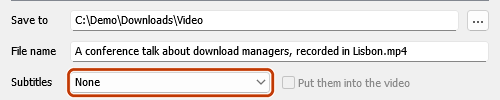
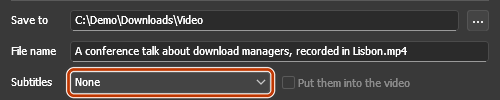
- آنها در کنار ویدیو ذخیره میشوند و نام ویدیو و زبان آن را میگیرند:
My video.fr.srt. پخشکنندههایی مانند VLC و MPV آنها را به طور خودکار تشخیص میدهند. با ffmpeg همیشه SRT هستند؛ بدون آن، فرمت خود سایت (اغلب WebVTT،.vtt). - آنها را درون ویدیو قرار دهید به جای آن، آنها را به عنوان ترکهایی که در پخشکننده روشن میکنید، درون فایل قرار میدهد. این کار به ffmpeg و یک ویدیوی MP4 یا MKV نیاز دارد. ضبط یک پخش زنده آنها را در کنار خود نگه میدارد (در حال ضبط).
- انتخاب فقط صدا (فقط صدا، MP3، Opus، FLAC) زیرنویس ندارد.
VDM offers the same choice again for the next video when it has that language.
A site may refuse subtitles when it's asked too often: YouTube does, most of all for its translated captions. The video is saved all the same. VDM asks for the subtitles once more after 20 seconds, and if they still don't come, the Download complete window and the download's log say which ones are missing and why. Try them again later. When subtitles meant to go inside the video only come on that second try, they're saved beside it instead.
فصلها
بسیاری از ویدیوها در صفحه خود به فصلها تقسیم شدهاند: فهرست YouTube زیر پخشکننده، با یک عنوان و زمان شروع برای هر بخش. با علامتگذاری تعبیه فصلها، زیر زیرنویسها، آنها وارد فایل ویدیویی میشوند، بنابراین پخشکنندههایی مانند VLC، MPV، MPC-HC و Windows Media Player آنها را فهرست میکنند و از یکی به دیگری میپرند.
- در ابتدا علامت خورده است و برای ویدیوی بعدی همانطور که آن را ترک میکنید، باقی میماند.
- به ffmpeg نیاز دارد که آنها را مینویسد. ویدیوی بدون فصل همانطور که هست ذخیره میشود.
- آنها به یک ویدیو (MP4، MKV، WebM) و به صدا همانطور که سایت دارد (فقط صدای اصلی) میروند، نه به یک فایل MP3، Opus یا FLAC، و نه به ضبط یک پخش زنده.
- خط فرمان (
video-get) نیز آنها را وارد میکند، هر زمان که ffmpeg وجود داشته باشد.
با علامت زدن ذخیره هر فصل در فایلی جداگانه (کنار تعبیه فصلها، یا زیر آن در یک زبان طولانی)، ویدیو نیز به فایلهای فصل جداگانه تقسیم میشود (<filename> - <NN> - <chapter name>.<ext>، یا <filename> - <NN>.<ext> وقتی بدون عنوان باشد). کل ویدیو نیز نگهداری میشود.
- این کار به ffmpeg نیاز دارد و همانطور که برای ویدیوی بعدی رها میکنید، باقی میماند.
- Splitting uses stream copy without re-encoding, so it runs losslessly and near-instantly. Each cut lands on a keyframe, so a chapter can start a second or a few early (yt-dlp's
--force-keyframes-at-cutsmakes it exact, but re-encodes, so VDM does not turn it on by default). - ویدیویی بدون فصل یا با یک فصل واحد، به عنوان یک فایل واحد بدون تقسیمبندی ذخیره میشود.
- عنوان یک فصل برای مطابقت با محدودیتهای سیستم در نام فایلها و مسیرها کوتاه میشود؛ در یک پوشه بسیار عمیق، یک فصل فقط با شمارهاش نامگذاری میشود.
- این گزینه با فقط یک بخش ارائه نمیشود: یک بخش فصلی ندارد.
video-getوplaylist-getخط فرمان از طریق--split-chaptersاز آن پشتیبانی میکنند.- حذف بارگیری همراه با فایلهایش، فایلهای فصل تقسیمشده آن را نیز پاک میکند، در حالی که فایلهای نامرتبط در همان پوشه را حفظ میکند.
فقط بارگیری یک بخش
برای ذخیره فقط بخشی از یک ویدئو یا صدا (یک صحنه، یک آهنگ از یک میکس طولانی، چند دقیقه از یک پادکست)، فقط یک بخش را در ردیف بخش، زیر زیرنویسها، تیک بزنید و زمان شروع و پایان آن را تایپ کنید.
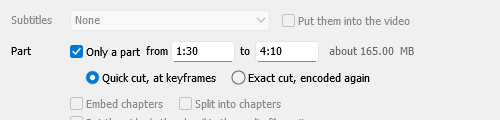
- زمانها به صورت
1:30(یک دقیقه و نیم)،1:02:03(یک ساعت، دو دقیقه و سه ثانیه) یا بر حسب ثانیه (90) تایپ میشوند. کادرها از ابتدای کل ویدئو، از 0:00 تا پایان آن شروع میشوند؛ بالا و پایین یک زمان را یک ثانیه جابهجا میکنند، Page Up و Page Down ده ثانیه. یک کادر در حالی که زمان آن نمیتواند معتبر باشد (زمان نیست، پایان قبل از شروع است، از پایان ویدئو گذشته است، یا بخش کل ویدئو است) قرمز میشود و اکنون بارگیری کن دلیل آن را میگوید. - برش سریع، در فریمهای کلیدی، انتخاب اول: تصویر و صدا همانطور که هستند کپی میشوند، چیزی دوباره رمزگذاری نمیشود، بنابراین سریع است و چیزی از دست نمیرود. یک تصویر فقط میتواند بهطور تمیز از یک فریم کلیدی شروع شود، بنابراین بخش در آخرین فریم قبل از شروع شما آغاز میشود: حداکثر چند ثانیه زودتر، هرگز دیرتر. یک صدای تنها در M4A از جایی که شما میگویید شروع میشود؛ در WebM (Opus) از آخرین نقطه جستجو قبل از آن، که میتواند ده ثانیه زودتر باشد.
- برش دقیق، با رمزگذاری مجدد: بخش دقیقا از جایی که شما گفتید شروع و پایان مییابد. ffmpeg آن را دوباره رمزگذاری میکند (H.264 و AAC در MP4، VP9 و Opus در WebM، صدای تنها در فرمت خودش)، که تقریبا به اندازه رمزگذاری آن تعداد دقیقه روی رایانه شما زمان میبرد و ممکن است تصویر کمی کیفیت خود را از دست بدهد.
- اندازه کنار زمانها یک تخمین است: سهم بخش از کل.
- نام فایل بخش را نشان میدهد:
My video (1m30s-4m10s).mp4. نامی که شما تایپ میکنید، همانطور که تایپ کردهاید، حفظ میشود. - زیرنویس و فصل با یک بخش همراه نمیشوند: آنها متعلق به کل ویدئو و زمانهای کل ویدئو خواهند بود. زیرنویسها و تعبیه فصلها در حالی که فقط یک بخش انتخاب شده باشد، غیرفعال هستند.
- این قابلیت به ffmpeg نیاز دارد که بخش را برش میدهد، و به ویدیویی که سایت طول آن را اعلام کرده باشد (نه یک پخش زنده). ویدئوهای لیست پخش بهطور کامل بارگیری میشوند.
- از مرورگر: منوی دکمه دانلود ویدیو روی یک ویدئو، گزینه بارگیری یک بخش از اینجا... را دارد. این گزینه این پنجره را با انتخاب فقط یک بخش و شروع آن از جایی که ویدئو در حال پخش است، باز میکند.
How a part comes down: yt-dlp's ffmpeg finds the part in each stream by the stream's own index (an MP4's or a WebM's, an HLS stream's playlist) and reads only that part, never the whole file. What it reads comes in through VDM's own connections, in requests of a MB at most, several at once: a part comes about as fast as a whole video would (YouTube sends one long request at about the video's own pace), under your speed limits (a change applies at once), and through your proxy or network adapter. The progress window shows what has come against the part's estimated size. Paused and resumed, a part starts again from its beginning: ffmpeg can't go on from the middle of a cut. A stream sent another way (a DASH manifest, RTMP) is read by ffmpeg itself.
فهرستهای پخش و کانالها
نشانی یک فهرست پخش (youtube.com/playlist?list=…) یا ویدیوهای یک کانال (youtube.com/@name/videos) را بچسبانید و روی جستجو کلیک کنید. بهجای کیفیتهای یک ویدیو، پنجره ویدیوهای فهرست را همراه با مدتزمان هرکدام نشان میدهد.
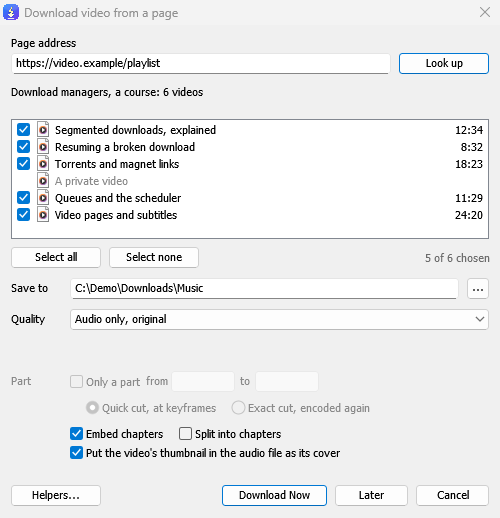
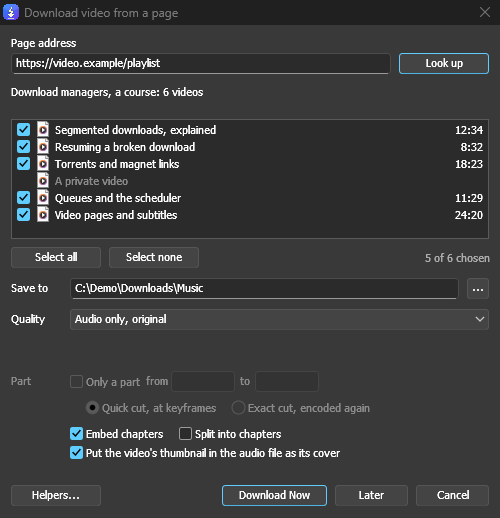
- فهرست پخش بهطور کامل و همزمان با دریافت ویدیوهایش فهرست میشود. خط بالای فهرست میزان پیشرفت را نشان میدهد («فهرست کردن ویدیوها: 1,200 از 6,000»). توقف لیست کردن ویدیوهایی را که تا آن زمان فهرست شدهاند نگه میدارد و List the rest فهرستکردن را از همانجا ادامه میدهد. اگر سایت در میانه کار پاسخ ندهد (مثلا YouTube در صورت درخواست مکرر)، پنجره تعداد ویدیوهای فهرستشده و دلیل توقف را نشان میدهد و List the rest دوباره از همانجا تلاش میکند.
- ویدیوهای یک کانال در دستههای 50تایی و از جدیدترین به قدیمیترین فهرست میشوند. بارگذاری بیشتر، 50 ویدیوی بعدی را فهرست میکند.
- همه ویدیوها در ابتدا انتخابشدهاند. تیک ویدیوهایی را که نمیخواهید بردارید، یا از انتخاب همه و هیچکدام را انتخاب نکن استفاده کنید. ویدیوهای خصوصی و حذفشده خاکستری هستند و نمیتوان آنها را انتخاب کرد.
- The sound's language: every video of the list downloads with Options → Regional → Videos' sound's language when it has it, else its original (The sound's language).
- کیفیت برای هر ویدئو اعمال میشود: بهترین کیفیت، سازگارترین (H.264 + AAC) (بهترین تصویر H.264 هر ویدئو با صدای AAC؛ ویدئویی که هیچکدام را ندارد بارگیری نمیشود)، تا یک ارتفاع (هر ویدئو در آن ارتفاع، یا نزدیکترین ارتفاع پایینتر از آن)، فقط صدای اصلی، فقط صدای MP3، فقط صدای OPUS یا فقط صدای FLAC. بدون ffmpeg، فقط کیفیتهایی ارائه میشوند که همراه با صدای خود هستند، و MP3، Opus یا FLAC ارائه نمیشوند.
- ویدیوها هرکدام با عنوان خود، در پوشهای به نام فهرست و در مسیر ذخیره در قرار میگیرند.
اکنون بارگیری کن هر ویدیو را بهعنوان بارگیری جداگانه اضافه میکند و صف اصلی را راه میاندازد. تعداد بارگیریهای همزمان صف را در زمانبند (بارگیری N فایل بهطور همزمان) تنظیم میکنید. Later ویدیوها را بدون راهاندازی صف اضافه میکند. اگر بیش از 500 مورد را همزمان اضافه کنید، ابتدا از شما تأیید میخواهد.
VDM lists at most 20,000 videos of one list.
نشانی صفحهای که به یک ویدیو در فهرست پخش یا ترکیبی از ویدیوها اشاره دارد (مثلا watch?v=…&list=…)، فقط همان ویدیو را بارگیری میکند، نه کل فهرست را.
محدودیتهای سرعت
Videos keep to the Speed Limiter: the limit for one file, a video's own limit (the Speed Limiter tab of its progress window), and the limit for all downloads together, which they share with every other download. VDM's own downloader brings them in, so a change applies at once, as for a file.
A video yt-dlp downloads by itself (How a video comes down) takes a limit only as it starts: when you turn the limiter on or off, change its settings or the video's own limit, VDM stops it and starts it again with the new limit, and it goes on from where it was (the log says "Stopped: the speed limit changed; starting again with it"). A live stream that is recording is the exception: restarting it would cut the recording, so it keeps recording and takes the limit the next time it starts. Under the limit for all downloads, such videos share it evenly: when another starts, the ones running with more than their share start again with it; when one ends, the others keep theirs. A gallery's pictures that VDM brings in follow a change at once; what gallery-dl still fetches itself starts again with the new limit, skipping the files already saved. Other changes (torrents taking more or less of the limit for all downloads, Only while I'm using the computer) apply to the next one that starts.
از طریق آداپتور VPN
With Options → Proxy / Socks → Network adapter set, video downloads go through that adapter too, with the same kill switch as other downloads. VDM's own downloader opens its connections through the adapter as for any file; for yt-dlp's look-ups (and what it downloads itself, with the ffmpeg it starts) VDM hands it a proxy of its own on this computer, and opens every connection through the adapter, looking the names up with the DNS you chose in Options → Connection (without an adapter, yt-dlp uses the system's DNS). When the adapter disconnects, the video download stops, and it starts again when the adapter is back. Formats sent over RTMP, RTSP, MMS or FTP can't go through it and are refused.
سایتهایی که نیاز به ورود دارند
برخی از ویدیوها فقط برای بینندهای که وارد سیستم شده است پخش میشوند: ویدیوی یک عضو یا ویدیوی خصوصی، ویدیوی دارای محدودیت سنی. و YouTube گاهی از هر بینندهای از شبکهای که به آن شک دارد (یک VPN، یک آدرس مشترک یا ابری) میخواهد که «برای تأیید اینکه ربات نیستید، وارد سیستم شوید». yt-dlp سپس به کوکیهای مرورگر شما نیاز دارد، فایلهای کوچکی که شما را وارد سیستم نگه میدارند.
- دکمه دانلود ویدیو بالای ویدیو کوکیهای آن صفحه را، از پنجره و پروفایلی که در آن هستید (یک پنجره خصوصی، یک کانتینر Firefox)، برای جستجو و بارگیری ارسال میکند، بنابراین شما همانطور که در مرورگر وارد سیستم شدهاید، وارد سیستم میشوید. نیازی به تنظیمات نیست. هر کوکی با دامنهای که مرورگر آن را برای آن نگه میدارد، همراه است، بنابراین ورود به سیستم در YouTube Music (music.youtube.com) یا سایت موبایل YouTube به www.youtube.com نیز میرسد.
- یک آدرس چسباندهشده (افزودن URL، بارگیری ویدئو از یک صفحه، یک لیست پخش): مرورگر خود را در گزینهها ← ورود به سایتها ← کوکیها برای سایتهای ویدیویی انتخاب کنید. سپس yt-dlp کوکیهای آن مرورگر را در این رایانه برای هر ویدئویی که جستجو یا بارگیری میکند، میخواند. وقتی افزونه کوکیهای خود صفحه را ارسال کرده باشد، از آنها استفاده میشود: آنها متعلق به آن صفحه و آن نشست هستند.
- یک حساب کاربری اضافی، در پروفایل خودش: لازم نیست حساب اصلی خود را به yt-dlp قرض دهید. یک پروفایل دوم در مرورگر خود ایجاد کنید، با یک حساب کاربری اضافی در آنجا وارد سایت شوید و آن پروفایل را در پروفایل (نام آن، یا پوشه آن با ...) قرار دهید. yt-dlp فقط کوکیهای آن پروفایل را میخواند. توسعهدهندگان yt-dlp نیز این را توصیه میکنند: یک سایت ممکن است حسابی را که توسط یک برنامه استفاده میشود، محدود کند.
Signed in, YouTube sometimes refuses what it gives a visitor: its servers answer the video with HTTP Error 403: Forbidden, or the look-up with its bot check, where a private window plays it. When YouTube refuses a video anyone may watch that way, VDM looks it up once more without your cookies, as a private window would, and the download's log says so. A private, members' or age-restricted video keeps them.


Sign in to the site in that browser first. VDM never logs or shows the cookies; the download's log names only the browser they came from.
کدام مرورگرها
از مرورگر مرورگرهایی را فهرست میکند که yt-dlp میخواند: Firefox، Chrome، Edge، Brave، Opera، Vivaldi، Chromium و Whale، و Safari در macOS. پروفایل اختیاری است: نام یک پروفایل (Profile 1) یا پوشه آن؛ اگر خالی باشد، آخرین پروفایل استفادهشده.
- Firefox روی هر سیستمی کار میکند. اگر فقط لحظاتی پیش با Firefox باز وارد شدید، یک بار آن را ببندید تا اطلاعات ورود را در فایلهای خود بنویسد.
- Chrome، Edge و Brave در Windows کوکیهای خود را برای خودشان قفل میکنند (Chrome 127 و بالاتر، «رمزگذاری محدود به برنامه»)، و yt-dlp نمیتواند آنها را در حالی که مرورگر باز است بخواند. پنجره این را میگوید؛ Firefox را انتخاب کنید، یا از دکمه روی ویدئو استفاده کنید که با هر مرورگری کار میکند.
- در Linux، مرورگرهای خانواده Chrome کلید کوکیهای خود را در keyring سیستم (GNOME Keyring, KWallet) نگه میدارند؛ yt-dlp از آن درخواست میکند، بنابراین باید قفل آن باز باشد.
- مرورگر دیگری بر پایه Chromium (Helium، Thorium، ungoogled-chromium و غیره): Chromium و پوشه پروفایل آن مرورگر را انتخاب کنید (پوشه
Defaultآن، یاProfile 1...؛ در~/.configدر Linux،%LOCALAPPDATA%در Windows). yt-dlp پوشه را میخواند، اما مرورگری که کلید خود را با نام خودش در keyring نگه میدارد، یا کوکیهای خود را مانند Chrome قفل میکند، نمیتواند به این روش خوانده شود: از دکمه افزونه آن استفاده کنید.
دسترسینداشتن به سرور ویدیو
Some sites, YouTube among them, send each viewer to a nearby video server, sometimes one inside the internet provider's own network. If that server can't be reached from your connection, a browser quietly switches to another one, but yt-dlp on its own would give up. Before each video download VDM checks the servers in the video's links and, if one doesn't answer, switches to the next one the site lists. The download's log says when this happens.
اگر بارگیری ویدیو انجام نشد
- نشانگر وضعیت بارگیری را نگه دارید یا پنجره پیشرفت آن را باز کنید تا پیام yt-dlp را بخوانید.
- ویدیویی برای دانلود در این صفحه وجود ندارد یعنی yt-dlp چیزی در صفحه پیدا نکرده است. بررسی کنید که نشانی مربوط به صفحه خود ویدیو باشد.
- این ویدئو نیاز دارد که شما وارد شده باشید، یا سایت میخواهد که شما وارد شده باشید: به سایتهایی که نیاز به ورود دارند مراجعه کنید.
- Sites change often, and a newer yt-dlp usually fixes it. VDM keeps its own yt-dlp up to date by itself, and when a download fails in a way that usually means yt-dlp is out of date, it looks for a newer one at once and tries again (Keeping them up to date). To check right now: Helpers... → Check for updates. If you chose your own yt-dlp in Helpers, update it yourself (
yt-dlp -U, or your package manager). - The path is too long for Windows (or the file name is too long) means the folder and the file name together, with the files saved beside the video while it downloads, are longer than the system allows: 259 characters on Windows unless long paths are turned on there, 255 a name (255 bytes on Linux and macOS). VDM shortens a title by itself, so this comes from a name you typed or a very deep Save to folder: add the video again with a shorter name, or a folder nearer the top of the drive.
- Videos protected with DRM (most paid streaming services) can't be downloaded, and VDM doesn't try. The browser extension's Media on this page shows such a stream as Protected and doesn't send it.
- اگر پنجره ویدیوی صفحه را پیدا نمیکند، ویدیو را در مرورگر پخش کنید و سپس با گزینه رسانههای این صفحه در افزونه، جریان بارگیریشده در صفحه را ارسال کنید.
- بارگیری ممکن است با شرایط برخی سایتها مغایرت داشته باشد. بررسی این موضوع به عهده شماست.
- هنوز مشکل دارید؟ از راهنما → گزارش یک مشکل استفاده کنید و نشانی صفحه را هم وارد کنید.
مراحل بعدی
رایگان، متنباز، بدون تبلیغات، بدون دوره آزمایشی.
Download Volt Download Manager