

VDM downloads videos from their web pages: YouTube, Vimeo, Dailymotion, Twitch, TikTok, X, Instagram, Facebook, Reddit, SoundCloud and well over a thousand other sites. yt-dlp, an open-source program whose community keeps it working as sites change, finds the video on the page; VDM's own downloader then brings it in, the way it downloads any file.
Video indirme başlatma
- Give the video's page address to Add URL (Ctrl+N). VDM recognises video pages and opens the video window, already looking the page up.
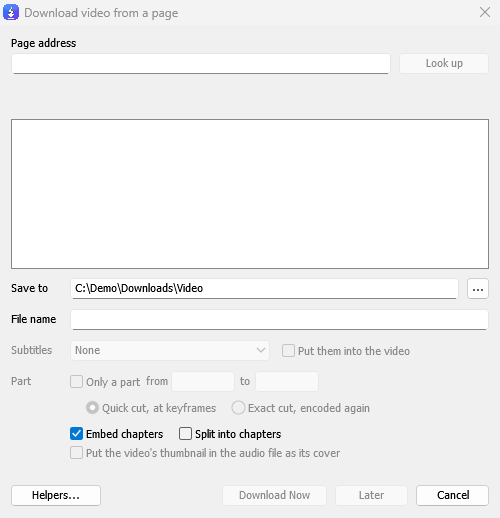
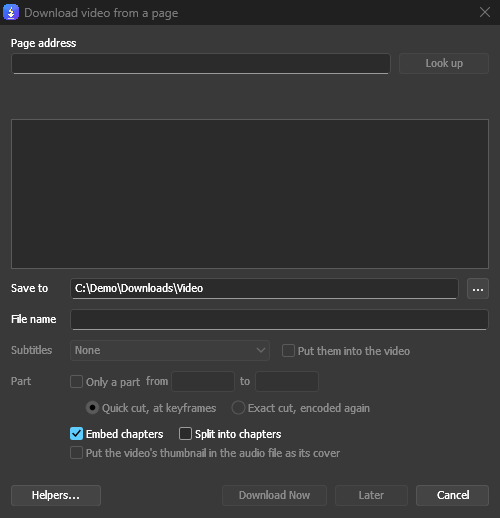
- Veya Görevler → Bir sayfadan video indir... seçeneğini seçin, adresi Sayfa adresi alanına yapıştırın ve Ara'ya tıklayın.
Bir dosya değil de bir web sayfası olduğu anlaşılan diğer tüm sayfa adresleri de video penceresine sunulur. yt-dlp'nin kendi okuyucusu olmayan bir sitede, video, sayfanın hakkında olduğunu söylediği videodur (arama motorlarına ve bağlantı önizlemelerine söylediklerinde: JSON-LD'si, og:video veya twitter:player), HTML'sinde yazılan ilk oynatıcı yerine; dosya ise sayfanın adlandırdığı gibi adlandırılır.
Sayfa adresini yapıştırın ve Ara'ya tıklayın. 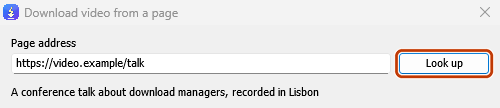
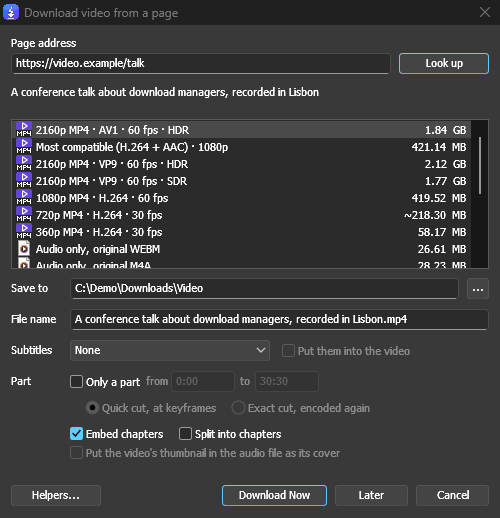
Bir kalite seçin, sonra Şimdi İndir'e tıklayın. 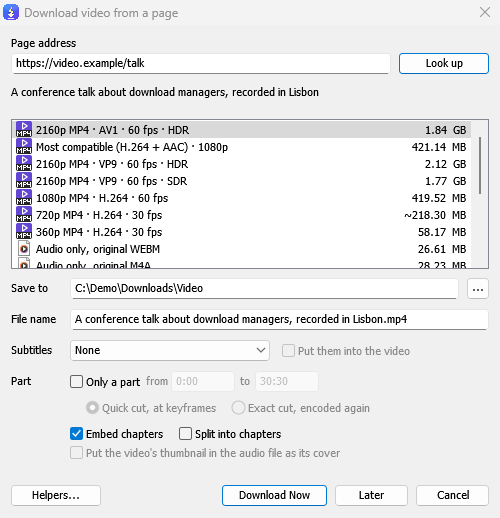
Video, diğer dosyalar gibi, kendine ait satırında ve penceresinde indirilir. 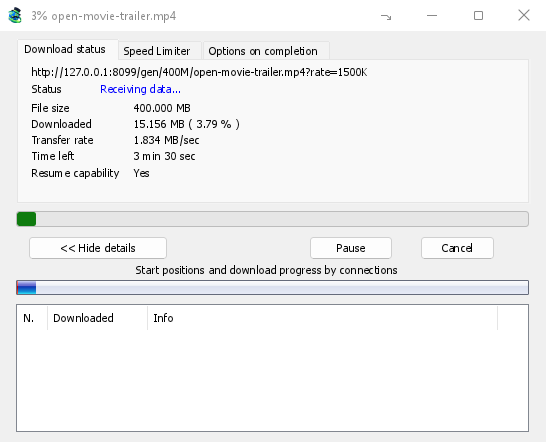
yt-dlp ve ffmpeg
VDM offers its two helpers on its first start, and again the first time they are needed. It downloads them from their official releases with its own downloader, so a cut connection resumes, and uses your proxy settings:
- yt-dlp (about 23 MB) looks the page up and finds where the video and its sound come from; VDM downloads them (How a video comes down). The first time, click Install yt-dlp. VDM checks the download against the signature yt-dlp's developers publish before it uses it.
- ffmpeg (about 80 MB) joins a video and its sound when a site keeps them apart, which most sites do for the higher qualities, and turns the sound into an MP3, Opus or FLAC file. Click Install ffmpeg when VDM offers it. VDM installs only a build its maintainers checked: the download must match the SHA-256 in VDM's own list of builds, which carries VDM's signature. When that list can't be downloaded or checked, VDM says so and installs nothing; you can still choose your own ffmpeg in Helpers....
- Each processor gets its own build: yt-dlp's for x64, ARM64 and 32-bit Windows and for Linux on ARM, and ffmpeg's for x64 and ARM64 Windows. No ffmpeg is built for 32-bit Windows that VDM can check, so there VDM offers none: choose your own in Helpers... (below), or download the qualities that come with their sound.
You can install them ahead of time too: in Helpers..., a helper that isn't there yet says Not installed yet, and Install yt-dlp, Install ffmpeg or Install gallery-dl in its row downloads VDM's own copy, checked the same way, and keeps it up to date from then on. Where VDM has no copy for your system, the button is greyed out and the row says what to do instead.
Both are kept in a tools folder in VDM's data folder. For YouTube, yt-dlp also needs a JavaScript runtime, which VDM can download too: see A JavaScript runtime for YouTube.
Güncel tutma
Sites change all the time, and a newer yt-dlp is usually what makes a page that stopped working download again. So VDM keeps its own copies of yt-dlp, gallery-dl, ffmpeg and Node.js up to date by itself:
- When: a few seconds after VDM starts, then again while it runs: yt-dlp and gallery-dl at most every 6 hours, Node.js once a day, ffmpeg once a week (a newer ffmpeg comes when VDM's list of checked builds names one, usually with a new version of VDM). VDM remembers when it last asked, so starting it many times doesn't ask again.
- How: each new version is downloaded and checked exactly as the first install was (yt-dlp's, gallery-dl's and Node.js's signed checksum lists, VDM's signed list of ffmpeg builds), never an older one, and installed beside the one in use.
- Ne zaman değişir: yalnızca hiçbir indirme, arama veya başka bir çalıştırma bu yardımcıyı kullanmıyorken. Yeni yt-dlp geldiğinde indirilmekte olan bir video, başladığı sürümle biter; yeni sürüm, onu kullanan son indirme sona erdiği andan itibaren kullanılır.
- Önceki sürüm kalır, böylece ona geri dönebilirsiniz. Daha eski sürümler kaldırılır.
- A video that fails with an error that usually means yt-dlp is out of date for the site (Unable to extract, Unsupported URL, YouTube's Sign in to confirm you're not a bot, HTTP Error 403, a failed signature or n challenge, Requested format is not available), or a gallery whose gallery-dl reports an unexpected error: VDM looks for a newer version at once, installs it if there is one, and tries that download again with it, once. Its log says so. If there is none, the error stands as before.
- A check that fails (no connection, GitHub busy) is tried again an hour later. It is written in VDM's log, never shown as an error.
In Helpers..., each of VDM's own copies says how it stands: Up to date, Version X available, Updated to X, or Version X is ready: used once its downloads end. Update gets the newest version of that one now, Go back to X uses the previous version again (automatic updates then wait for a version newer than the one you left; Update brings it back), and Check for updates checks them all. Untick Keep VDM's helpers up to date automatically to update only when you ask. Programs you chose with Use another program..., and your system's copies, say Updated by you: VDM leaves them to you.
Komut satırında, update-helpers hepsini denetler ve günceller, sürümlerini yazdırır (Komut satırı).
Kendi kopyalarınızı kullanın
On Linux and macOS, VDM finds yt-dlp, ffmpeg and gallery-dl on your PATH and in the usual package-manager folders, including Homebrew's. A program you selected yourself takes priority, followed by VDM's own installed copy. The system copy is used when neither is present, and your package manager keeps it up to date: VDM never downloads over it on its own. If your distribution's yt-dlp is old, Use VDM's own copy in Helpers downloads VDM's, which keeps itself current and is used from then on.
Already have yt-dlp or ffmpeg for another program? Use those instead of a second copy: in Download video from a page, click Helpers..., then Use another program... beside yt-dlp or ffmpeg, and choose the program. VDM runs it once to check that it is that program, and uses it from then on, the command line too. VDM doesn't update a program you chose: keep it up to date yourself (yt-dlp: yt-dlp -U, or your package manager). Use VDM's own copy goes back to the one VDM downloads and checks.
YouTube için bir JavaScript çalışma zamanı
YouTube hides most of a video's qualities behind small puzzles that yt-dlp solves with a JavaScript runtime: Node.js, Deno, QuickJS or Bun. Without one, a look-up is slow, the list is short (sometimes only the sound and a low quality) or it fails with Requested format is not available, and VDM says so: YouTube needs a JavaScript runtime to list its video qualities. Other sites don't need one.
The quickest way is VDM's own copy of Node.js: click Install Node.js beside that message, or, in Helpers..., Install Node.js in the JavaScript runtime (for YouTube) row. The first start's setup offers it too, in its Video helpers step, when your computer has no runtime. VDM downloads Node.js's newest long-term support (LTS) build for your system and processor from nodejs.org with its own downloader (about 40 MB on Windows, 60 MB on Linux and macOS; Windows x64, ARM64 and 32-bit, Linux x64 and ARM64, macOS), checks the release's checksum list against the signing keys of Node.js's releasers and the download against that list before it uses it, keeps only the node program in the tools folder beside yt-dlp and ffmpeg, and from then on tells yt-dlp to use it. It keeps it up to date the way it keeps yt-dlp's (Keeping them up to date), never with an older version. 32-bit Windows gets the newest LTS line Node.js still builds for it, 22, which Node.js supports until April 2027; after that VDM has no Node.js for 32-bit Windows, and a runtime of your own (Use another program...) is needed there. VDM never installs a Node.js older than the LTS line current when that VDM was made, whatever nodejs.org's list says. The video is looked up again by itself once Node.js is in.
Already have one? Then nothing needs downloading: a runtime on your computer comes first. VDM finds Deno, Node.js (22 or newer, also one installed with nvm), QuickJS and Bun by itself, in the order yt-dlp prefers them, and passes over one too old for yt-dlp (Node.js 20, say) or a Node.js whose line has reached its end of life on nodejs.org's schedule (then VDM's own is used, which it keeps on a supported release). A supported Node.js of your computer's is used as it is: you or your package manager keep it up to date. Helpers says which one yt-dlp uses and where it is: Node.js 24.11.0, your system's, nothing to download. To use another one, a portable copy or one that isn't on the PATH, click Use another program... in that row and choose its program (node.exe, deno.exe, qjs.exe, bun.exe): VDM asks it for its version first and refuses one yt-dlp can't use. Use VDM's own copy goes back to the one VDM finds or downloads. (Choosing your own runtime was YairDies' idea.)
Earlier versions of VDM installed Deno. That copy keeps working until VDM's Node.js is in place (the next update check brings it, or Use VDM's own copy); then yt-dlp switches to Node.js and VDM removes its own Deno, once no download is using it. A Deno you installed yourself is never touched, nor VDM's own once you chose it with Use another program.... While VDM asks the runtimes on your computer for their versions, Helpers says Looking for a JavaScript runtime on this computer....
If you'd rather install one yourself, any of them works; then look the video up again. If VDM still says so, the new program's folder isn't on the PATH VDM started with (Windows' installers add it for programs started after them): quit VDM (Tasks → Exit) and start it again.
- Windows:
winget install DenoLand.Denoveyawinget install OpenJS.NodeJS.LTS. deno.com ve nodejs.org adreslerindeki yükleyiciler de çalışır. - Ubuntu ve Debian:
sudo apt install nodejs - Fedora:
sudo dnf install nodejs - Arch:
sudo pacman -S nodejsveyasudo pacman -S deno - macOS:
brew install denoveyabrew install node - Herhangi bir sistem, yalnızca kullanıcınız için Deno:
curl -fsSL https://deno.land/install.sh | sh(Windows'ta, PowerShell'de:irm https://deno.land/install.ps1 | iex)
A distribution's yt-dlp can also be too old for YouTube: if the list stays short, click Use VDM's own copy beside yt-dlp in Helpers.... A yt-dlp older than 2025.11.12 can't be told of a runtime at all; VDM then leaves the runtime out rather than stop the look-up.
Kaliteyi seçin
- Wait for the list. It shows each quality with its size, best first, then the sound alone:
- A video's line says its resolution, the file it makes, its picture's codec, its frame rate and whether it is HDR:
2160p MP4 · AV1 · 60 fps · HDR. MP4 is only the file: what's inside it can be AV1, VP9 or H.264, and the codec says which, the very one that downloads (should the site no longer offer that stream, VDM takes the nearest of the same codec and resolution first). A resolution that comes in several (AV1, VP9 and H.264, HDR and SDR) has a line for each: AV1 makes the smallest file, H.264 plays on the most devices, and an HDR video looks washed out on a screen without HDR.SDRis said only beside an HDR line of the same resolution. - Most compatible (H.264 + AAC), second in the list: the best H.264 video the site has (YouTube's usually go up to 1080p) with AAC sound (in stereo when the site has it beside surround), in an MP4 that Premiere Pro and other editors, older TVs and most phones open as it is. YouTube's best qualities are AV1 or VP9 with Opus sound, which some of them can't read. The line says its resolution:Most compatible (H.264 + AAC) · 1080p. VDM picks those streams, it doesn't convert anything: when the site has no H.264 video with AAC sound the line isn't there, and when the best line already is that, it isn't listed twice. - The size is that of exactly what downloads, the video and its sound. A size with~before it (~532 MB) is only an estimate: the site didn't say the size, so it comes from the stream's bitrate and length. - Audio only, original: the site's own file, not converted, once for each type the site has it in (WebM with Opus inside, M4A), the best first. The best sound there is, in the smallest file. - Audio only MP3 at its best variable bitrate (VBR) and at 320, 256, 192 and 128 kbps, for players that only take MP3. - Audio only OPUS: an.opusfile. When the site's sound is Opus already (YouTube's usually is), it's only moved into that file, not converted, so nothing is lost. - Audio only FLAC: a lossless.flacfile, for a library or a program that wants FLAC. It can't add quality: the site's sound is already compressed with losses, and FLAC keeps it exactly as it came, in a file several times bigger. The window says so when you choose it. - Birini seçin. ffmpeg yoksa yalnızca sesiyle birlikte sunulan kaliteler listelenir; MP3, Opus veya FLAC seçenekleri gösterilmez (bunları ffmpeg oluşturur).
- Kaydedileceği yer (varsayılan olarak Video kategorisinin klasörü) ve videonun başlığından gelen Dosya adı seçeneklerini denetleyin. Uzun bir başlık, bir kelimenin sonunda kısaltılır, böylece video indirilirken yanına kaydedilen dosyalar sistemin yol uzunluğu sınırına uyar; sizin yazdığınız bir ad, yazdığınız gibi kalır.
- When the video's sound comes in several languages, choose one in Sound (see The sound's language). Choose Subtitles if you want them (see below). Embed chapters is ticked: see Chapters. To keep only a stretch of it, tick Only a part: see Download only a part. For a sound alone, Put the video's thumbnail in the audio file as its cover is ticked: see A cover for the sound.
- Şimdi İndir'e tıklayın veya başlatmadan listeye eklemek için Sonra'ya tıklayın.
Video daha sonra diğer dosyalar gibi, listede kendi satırı ve ilerleme penceresiyle indirilir.
Video nasıl indirilir
yt-dlp looks the page up and picks the quality's video and sound. VDM's own downloader then brings each of them in, one after the other, the way it downloads any file:
- Birden fazla bağlantı üzerinden: Seçenekler → Bağlantı seçeneğinin bir dosyaya verdiği kadar. İlerleme penceresinin bağlantılar tablosu her birini gösterir ve segment haritası önce videoyu, sonra sesini gösterir.
- A stream sent in many small pieces (HLS, DASH, as most sites other than YouTube send theirs) comes down that many pieces at once, each kept on disk as it arrives, then joined in order into one file, as yt-dlp joins them. Pieces encrypted with AES-128 are decrypted with the key the stream's playlist names. When their addresses expire, VDM asks yt-dlp for the stream's new list and carries on with the pieces still missing.
- Hız sınırlarınız dahilinde: Hız Sınırlayıcı'nın, videonun kendi hız sınırının (ilerleme penceresinin Hız Sınırlayıcı sekmesi) ve tüm indirmelerin toplam hız sınırının. Bir değişiklik hemen uygulanır.
- Paused and resumed like a file, also after quitting VDM: it carries on from the bytes already saved.
- When an address stops working: a video's addresses are signed and expire after a few hours (YouTube's after six). VDM asks yt-dlp for a fresh one for the same quality and carries on from where it stopped.
Ardından yt-dlp, indirme işleminden sonra yaptığı şeyi yapar: videoyu ve sesini ffmpeg ile tek bir MP4'te birleştirir, altyazıları kaydeder veya dosyaya ekler, bölümleri dosyaya yerleştirir ve MP3, Opus veya FLAC seçimi için sesi dönüştürür.
YouTube serves each connection's long requests slowly, so VDM asks for the video in pieces of 10 MB at most, as yt-dlp does, and several at once.
Bazı videoları yt-dlp hala kendi başına, kendi bağlantısı üzerinden indirir ve ilerleme penceresi bunu belirtir:
- hala kaydedilmekte olan bir canlı yayın (Canlı yayın kaydetme);
- RTMP, RTSP, MMS veya FTP üzerinden gönderilen bir akış;
- diğer türden parçalar halinde nadir akışlar (Adobe'un HDS'si, Microsoft'un Smooth Streaming'i) ve anahtarını sitenin doğrudan yt-dlp'ye verdiği bir akış.
Bunlar için, yeni bir hız sınırı indirmeyi kaldığı yerden yeniden başlatır (Hız sınırları); kaydedilmekte olan bir canlı yayın, bir sonraki başlatıldığında bunu alır.
Canlı yayın kaydetme
A live stream, a broadcast still going on, is recorded by yt-dlp with ffmpeg into an unfinished file, so VDM can't know its length. While it records, the progress window says Recording..., and Downloaded and Transfer rate follow the size of what has been recorded so far.
- Kaydediliyor... kaydedici akışa bağlandıktan sonra dosyasını açtığı andan itibaren gösterilir (indirme başladıktan birkaç saniye sonra; o zamana kadar pencere Bağlanılıyor... der; ulaşılamayan bir akış asla oraya ulaşamaz). İndirilen diske ulaşan miktarı gösterir ve kaydedici bunu 256 KB'lık bloklar halinde yazar, bu nedenle ilk blok yazılana kadar 0 KB'ta kalır (düşük bit hızlı bir akışta bu biraz zaman alabilir), sonra blok blok büyür. İlk bloktan önce Durdur ve kaydet hiçbir şeyi kaydetmez: indirme, boş dosyasıyla birlikte durdurulmuş olarak kalır, böylece Sürdür yeniden kaydedebilir. Önceki bir çalıştırmanın bıraktığı boş, tamamlanmamış bir dosya, kayıt yeniden başladığında kaldırılır (içinde hiçbir şey tutmaz), bu nedenle devam eden bir kayıt aynı andan itibaren Kaydediliyor... gösterir.
- Stop and save is what the progress window's pause button reads for a live stream that is recording. It, Stop and Stop All in the list (toolbar and menus), a queue's stop (by hand, at its scheduled stop time, or through the API) and the phone page's pause all end the recording and keep it. VDM makes the recording an MP4 itself, as yt-dlp does when a live stream ends: the streams are copied as they are, nothing is converted. The window says Saving... meanwhile, and the download is then Complete, as when a live stream ends by itself: the queue goes on and the completion notice and actions run.
- Son anlar eksik olabilir: kaydedicinin henüz yazmadığı en fazla son 1 MiB. Bu, birkaç saniyelik video ve yalnızca ses içeren bir akış için yaklaşık bir dakikaya kadar olabilir.
- MP4 oluşturulamazsa, kayıt çoğu oynatıcının açtığı bir MPEG-TS dosyası (
.ts) olarak saklanır. Bu da yapılamazsa, indirme bunu belirtir ve tamamlanmamış dosya olduğu gibi kalır. - Kayıt yalnızca MP4'ün tamamını içerdiğinde kaldırılır: kaydın bir saniye içinde, resminin ve sesinin her birinin de (ffprobe'un süreleri; bunlar olmadan, kaydın boyutunun en az %90'ı) tamamı. Daha kısa bir MP4, kaydın yanında
My stream (recording 1).tsolarak tutulur ve indirme günlüğü nedenini belirtir (kayıt yeniden adlandırılamazsa, günlük bunu belirtir: tamamlanmamış dosya olarak kalır). - A live stream that ends by itself while VDM records it is made an MP4 the same way, with the same check: yt-dlp is told to leave its recording as it is, and VDM makes the MP4 of it (when it has ffmpeg and the recording is the MPEG-TS yt-dlp made). From the moment yt-dlp says the recording is finished, the window says Saving... (only a moment when there is no MP4 to make), and a Stop waits for it: the download is then Complete. The recording goes only when the MP4 holds all of it, it is kept beside a shorter one, and if no MP4 can be made it is the download's
.tsfile (My stream (recording 1).tswhenMy stream.tsis taken). Subtitles asked to go inside the video are saved beside it instead, and no chapters are added: the recording isn't changed once it is made. - Canlı yayının MP3, Opus veya FLAC'ı: ses istendiği gibi kaydedilir ve yapıldığı kayıt,
My stream (recording 1).tsolarak yanında kalır. - Akış bittikten sonra yt-dlp'nin kendisinin birleştirdiği bir resim ve ses, video ikisinin de tamamını içermediğinde, yt-dlp'nin bıraktığı gibi videonun yanında kalır; aksi takdirde giderler.
- A recording yt-dlp finished but VDM didn't make an MP4 of (a try that failed just after, or VDM closed meanwhile) is still MPEG-TS under the MP4's name. Before the download starts again, VDM makes it an MP4 with the same check (the list says Merging meanwhile, and a Stop waits for it, then stops the download before anything else runs): when the MP4 holds all of it, it is the download. Otherwise the recording is kept as
My stream (recording 1).tsand the download starts over. Without VDM's ffmpeg it is set aside the same way. The same goes for a normal video in pieces (HLS) VDM's engine left as MPEG-TS inMy video.mp4when yt-dlp failed or was stopped while it fixed it up. - Birden fazla parçadan oluşan bir kayıt (yt-dlp'nin ayrı bıraktığı bir resim ve bir ses parçası) hepsiyle birlikte tek bir MP4 yapılır. Birleştirilemezlerse, indirme bunu belirtir ve her parça olduğu gibi kalır.
- Cancel in the progress window only stops the download: the recording stays in its unfinished file. So does reaching a download limit, which counts a recording as it grows and stops it as it stops other downloads. Resume, or VDM starting the download again by itself (after a network adapter change or the download limit, or a queue that starts when VDM opens), records the stream anew. It first sets the earlier recording aside, next to it, as
My stream (recording 1).ts(then(recording 2), and so on), so nothing is recorded over; so it does when the stream has ended meanwhile and the download goes on as a normal video. (An unfinished MPEG-TS file yt-dlp downloads directly, without its resume state, is taken for a recording the same way: it starts over, what it had kept aside.) If that file can't be set aside, VDM doesn't record over it and says so. - Bu saklanan kayıtlar, indirmenin kendi dosyaları değildir: dosyalarıyla birlikte Sil bunları bırakır.
- Closing VDM while a live stream records, or while it saves one, stops it without saving: the recording stays in its unfinished file (a half-made MP4 is left as
<name>.temp.mp4, which Delete with its files removes), and it is set aside when the download starts again. The command line (voltdownloadmanager-cli) doesn't save a live stream this way. - Bir sıranın durdurulmasıyla kaydedilen bir canlı yayın tamamlanmış sayılır, bu nedenle günlük bir sıra ertesi gün onu yeniden başlatmaz.
The sound's language
More and more videos come with their sound in several languages: the one they were made in, the original, and others dubbed (YouTube's dubbed and automatically dubbed tracks, for one). When the site names each track's language, Download video has a Sound list under File name, the original first and marked: English, original, then Deutsch · German, Español · Spanish... (each language in its own words, and in English when that differs). A video in one language has no such list and looks as before.
- The qualities follow it. Every line in the list is then in that language: a video line joins its picture with that language's sound and its size is theirs, and Audio only (as the site has it), MP3, Opus and FLAC take that language's sound. A video line whose file carries another language's sound (YouTube's 360p in one file) isn't offered for a dubbed language; without ffmpeg, which joins a picture and a sound, only the sound in that language is.
- One sound track per file. The file has the language chosen, never two.
- For every video and playlist: Options → Regional → Videos' sound chooses one language, which every video looked up starts on when it has it (in Download video, where you can still choose another, and in the button over a video) and which every video of a playlist downloads with. A video without that language comes with its original sound. Each video's original, the default, keeps every video in the language it was made in.
- The button over a video says the language of each line's sound in its menu, and its Audio tab has each other language's sound as the site has it too.
- If the site no longer offers that language when the download starts, the video comes with its original sound.
A cover for the sound
A sound saved alone has no picture, so music players show an empty square. With Put the video's thumbnail in the audio file as its cover ticked in Download video (under Embed chapters), the picture the site shows for that video becomes the file's cover once it is saved.
- It is ticked to begin with, and stays as you leave it for the next video. It applies to a playlist's sound too.
- Which files: an M4A as the site has it (Audio only, original M4A), and an MP3, Opus or FLAC. A WebM (Audio only, original WEBM, YouTube's Opus as it comes) can't hold a cover: choose M4A or Opus instead. Videos are saved as they are.
- How: VDM brings the picture in with its own connections (your proxy and network adapter, as every download), from where the site says that video's picture is, nothing from anywhere else. ffmpeg puts it into the file as its cover (Opus files as the picture comment music players read in them), copying the sound as it is: nothing is encoded again. A WebP picture is made a JPEG first.
- It needs ffmpeg. Without it, or when the picture can't be had, the file is saved as before, without a cover, and the download's log says why.
Altyazılar
Videoda altyazı varsa Altyazılar listesinde görünür: önce yükleyicinin eklediği diller (birden fazla varsa Yükleyicinin tümü seçeneği), ardından otomatik olarak işaretlenmiş sitenin otomatik altyazıları. Otomatik altyazılardan yalnızca konuşulan dildeki altyazılar ile bunların İngilizceye ve arayüz dilinize çevirileri listelenir. YouTube gibi siteler, bildikleri her dile makine çevirisi sunar.
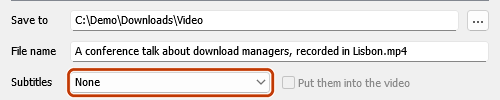
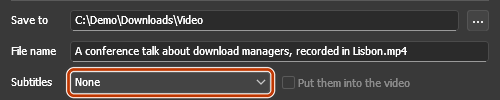
- Altyazılar videonun yanına kaydedilir; dosya adında videonun adı ve dil yer alır:
My video.fr.srt. VLC ve MPV gibi oynatıcılar altyazıları kendiliğinden bulur. ffmpeg varsa altyazılar her zaman SRT biçiminde kaydedilir; yoksa sitenin kendi biçimi kullanılır (genellikle WebVTT,.vtt). - Videoya yerleştir seçeneği, bunları oynatıcıda açıp kapatabileceğiniz parçalar olarak dosyanın içine yerleştirir. ffmpeg ve bir MP4 veya MKV video gerektirir. Canlı yayının kaydı bunları yanında tutar (Canlı yayın kaydediliyor).
- Yalnızca ses seçeneklerinde (Yalnızca ses, MP3, Opus, FLAC) altyazı bulunmaz.
VDM offers the same choice again for the next video when it has that language.
A site may refuse subtitles when it's asked too often: YouTube does, most of all for its translated captions. The video is saved all the same. VDM asks for the subtitles once more after 20 seconds, and if they still don't come, the Download complete window and the download's log say which ones are missing and why. Try them again later. When subtitles meant to go inside the video only come on that second try, they're saved beside it instead.
Bölümler
Birçok video, sayfalarında bölümlere ayrılmıştır: YouTube'un oynatıcının altındaki listesi, her bölüm için bir başlık ve başlangıç zamanı içerir. Altyazılar altında Bölümleri dosyaya ekle işaretliyken, bunlar video dosyasına eklenir, böylece VLC, MPV, MPC-HC ve Windows Media Player gibi oynatıcılar bunları listeler ve birinden diğerine atlar.
- Başlangıçta işaretlidir ve bir sonraki video için bıraktığınız gibi kalır.
- Bunları yazan ffmpeg'e ihtiyaç duyar. Bölümleri olmayan bir video olduğu gibi kaydedilir.
- Bunlar bir videoya (MP4, MKV, WebM) ve sitenin sahip olduğu sese (Yalnızca ses, orijinal) gider, ancak bir MP3, Opus veya FLAC dosyasına ya da canlı yayının kaydına gitmez.
- Komut satırı (
video-get) da, ffmpeg mevcut olduğunda bunları ekler.
Bölümlere ayır seçeneği işaretlendiğinde (Bölümleri dosyaya ekle seçeneğinin yanında veya uzun bir dilde altında), video ayrıca ayrı bölüm dosyalarına bölünür (<filename> - <NN> - <chapter name>.<ext> veya başlıksız olduğunda <filename> - <NN>.<ext>). Videonun tamamı da saklanır.
- ffmpeg gerektirir ve bir sonraki video için bıraktığınız gibi kalır.
- Splitting uses stream copy without re-encoding, so it runs losslessly and near-instantly. Each cut lands on a keyframe, so a chapter can start a second or a few early (yt-dlp's
--force-keyframes-at-cutsmakes it exact, but re-encodes, so VDM does not turn it on by default). - Bölümleri olmayan veya tek bir bölümü olan bir video, bölünmeden tek bir dosya olarak kaydedilir.
- Bir bölümün başlığı, sistemin dosya adları ve yolları üzerindeki sınırlamalara uyacak şekilde kısaltılır; çok derin bir klasörde bir bölüm yalnızca numarasıyla adlandırılır.
- Yalnızca bir bölüm ile sunulmaz: bir bölümün bölümleri yoktur.
- Komut satırının
video-getveplaylist-getseçenekleri--split-chaptersaracılığıyla bunu destekler. - İndirmeyi dosyalarıyla birlikte silmek, aynı klasördeki ilgisiz dosyaları korurken, bölünmüş bölüm dosyalarını da temizler.
Yalnızca bir bölümünü indir
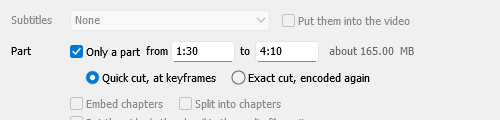
Bir videonun veya sesin yalnızca bir bölümünü (bir sahne, uzun bir karışımdan bir şarkı, bir podcast'in birkaç dakikası) kaydetmek için, Altyazılar altındaki Bölüm satırında Yalnızca bir bölüm'ü işaretleyin ve başlangıç ile bitiş zamanlarını yazın.
- Zamanlar
1:30(bir buçuk dakika),1:02:03(bir saat, iki dakika ve üç saniye) veya saniye cinsinden (90) yazılır. Kutular tüm videodan, 0:00'dan sonuna kadar başlar; Yukarı ve Aşağı bir zamanı bir saniye, Sayfa Yukarı ve Sayfa Aşağı on saniye hareket ettirir. Bir kutu, zamanı geçersiz olduğunda (bir zaman değil, bitiş başlangıçtan önce, videonun sonunu geçmiş veya bölüm tüm video) kırmızıya döner ve Şimdi İndir nedenini belirtir. - İlk seçenek olan Hızlı kesim, anahtar karelerde: görüntü ve ses olduğu gibi kopyalanır, hiçbir şey yeniden kodlanmaz, bu yüzden hızlıdır ve hiçbir şey kaybolmaz. Bir görüntü yalnızca anahtar karede düzgün bir şekilde başlayabilir, bu nedenle bölüm başlangıcınızdan önceki son anahtar kareden başlar: en fazla birkaç saniye erken, asla geç kalmaz. M4A'daki tek başına bir ses belirttiğiniz yerden başlar; WebM'de (Opus) ise on saniye kadar erken olabilen, ondan önceki son arama noktasından başlar.
- Tam kesim, yeniden kodlandı: bölüm belirttiğiniz yerden başlar ve biter. ffmpeg onu yeniden kodlar (MP4'te H.264 ve AAC, WebM'de VP9 ve Opus, ses kendi biçiminde tek başına), bu da bilgisayarınızda o kadar dakikayı kodlamak kadar sürer ve görüntü biraz kalite kaybedebilir.
- Sürelerin yanındaki boyut bir tahmindir: bölümün tamamdaki payı.
- Dosya adı bölümü belirtir:
My video (1m30s-4m10s).mp4. Yazdığınız bir ad, yazdığınız gibi kalır. - Bir bölümle altyazı ve bölüm gelmez: bunlar tüm videonun, tüm videonun zamanlarında olurdu. Altyazılar ve Bölümleri dosyaya ekle seçenekleri, Yalnızca bir bölüm işaretliyken grileşir.
- Bölümü kesen ffmpeg'e ve sitenin uzunluğunu belirttiği bir videoya (canlı yayın değil) ihtiyaç duyar. Oynatma listesindeki videoların tamamı indirilir.
- Tarayıcıdan: bir videonun üzerindeki Videoyu indir düğmesinin menüsünde Buradan bir bölüm indir... seçeneği bulunur. Bu, Yalnızca bir bölüm işaretli ve başlangıcı videonun oynadığı yerde olan bu pencereyi açar.
How a part comes down: yt-dlp's ffmpeg finds the part in each stream by the stream's own index (an MP4's or a WebM's, an HLS stream's playlist) and reads only that part, never the whole file. What it reads comes in through VDM's own connections, in requests of a MB at most, several at once: a part comes about as fast as a whole video would (YouTube sends one long request at about the video's own pace), under your speed limits (a change applies at once), and through your proxy or network adapter. The progress window shows what has come against the part's estimated size. Paused and resumed, a part starts again from its beginning: ffmpeg can't go on from the middle of a cut. A stream sent another way (a DASH manifest, RTMP) is read by ffmpeg itself.
Oynatma listeleri ve kanallar
Bir oynatma listesinin (youtube.com/playlist?list=…) veya bir kanalın videolarının (youtube.com/@name/videos) adresini yapıştırın ve Ara'ya tıklayın. Pencerede tek bir videonun kalite seçenekleri yerine, listedeki videolar ve her birinin süresi gösterilir.
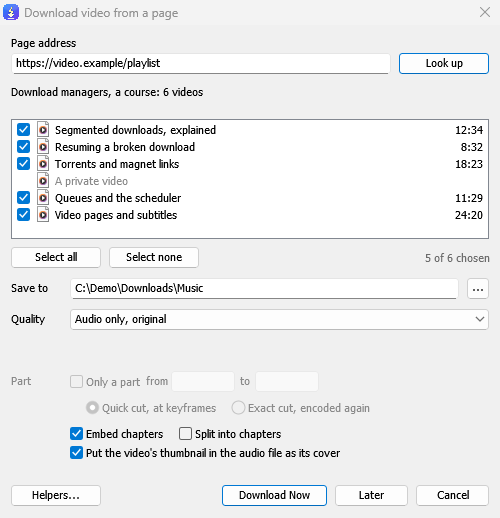
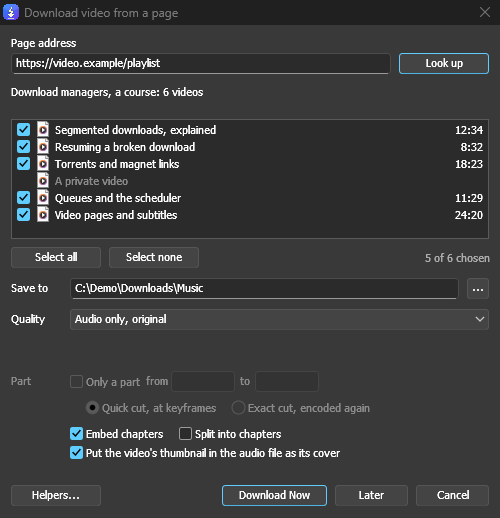
- Bir oynatma listesindeki videolar geldikçe tüm liste gösterilir. Listenin üzerindeki satır, listenin ne kadarının yüklendiğini belirtir ("Videolar listeleniyor: 6.000 videodan 1.200'ü"). Listelemeyi durdur, o ana kadar listelenen videoları tutar. Kalanı listele ise kaldığı yerden devam eder. Site listeleme sırasında yanıt vermeyi keserse (YouTube'a çok sık istek gönderildiğinde bu olabilir), pencere kaç videodan sonra ve neden durduğunu belirtir. Kalanı listele kaldığı yerden yeniden dener.
- Bir kanaldaki videolar en yeniden başlayarak 50'şer tane listelenir. Daha fazla yükle, sonraki 50 videoyu listeler.
- Her video başlangıçta işaretlidir. İstenmeyen videoların işaretini kaldırın veya Tümünü seç ve Hiçbirini seçme seçeneklerini kullanın. Özel ve silinmiş videolar gri gösterilir ve işaretlenemez.
- The sound's language: every video of the list downloads with Options → Regional → Videos' sound's language when it has it, else its original (The sound's language).
- Kalite her video için geçerlidir: En iyi kalite, En uyumlu (H.264 + AAC) (her videonun AAC sesli en iyi H.264 görüntüsü; hiçbiri olmayan bir video indirilmez), Şu yüksekliğe kadar (her video o yükseklikte veya en yakın altındaki), Yalnızca ses, orijinal, Yalnızca ses MP3, Yalnızca ses OPUS veya Yalnızca ses FLAC. ffmpeg olmadan, yalnızca sesleriyle birlikte gelen kaliteler sunulur ve MP3, Opus veya FLAC sunulmaz.
- Videolar, Kaydedileceği yer konumunda listenin adını taşıyan bir klasöre kaydedilir. Her videonun dosya adı kendi başlığı olur.
Şimdi İndir, her videoyu ayrı bir indirme olarak ekler ve ana kuyruğu başlatır. Kuyrukta aynı anda kaç indirme çalışacağını Zamanlayıcı bölümünde (Aynı anda N dosya indir) ayarlayabilirsiniz. Sonra, videoları indirmeyi başlatmadan ekler. Aynı anda 500'den fazla video eklemek için önce onay istenir.
VDM lists at most 20,000 videos of one list.
Bir oynatma listesi veya miks içindeki tek bir videoya yönlendiren sayfa adresi (örneğin watch?v=…&list=…), yalnızca o videoyu indirir; listenin tamamını indirmez.
Hız sınırları
Videos keep to the Speed Limiter: the limit for one file, a video's own limit (the Speed Limiter tab of its progress window), and the limit for all downloads together, which they share with every other download. VDM's own downloader brings them in, so a change applies at once, as for a file.
A video yt-dlp downloads by itself (How a video comes down) takes a limit only as it starts: when you turn the limiter on or off, change its settings or the video's own limit, VDM stops it and starts it again with the new limit, and it goes on from where it was (the log says "Stopped: the speed limit changed; starting again with it"). A live stream that is recording is the exception: restarting it would cut the recording, so it keeps recording and takes the limit the next time it starts. Under the limit for all downloads, such videos share it evenly: when another starts, the ones running with more than their share start again with it; when one ends, the others keep theirs. A gallery's pictures that VDM brings in follow a change at once; what gallery-dl still fetches itself starts again with the new limit, skipping the files already saved. Other changes (torrents taking more or less of the limit for all downloads, Only while I'm using the computer) apply to the next one that starts.
VPN bağdaştırıcısı üzerinden
With Options → Proxy / Socks → Network adapter set, video downloads go through that adapter too, with the same kill switch as other downloads. VDM's own downloader opens its connections through the adapter as for any file; for yt-dlp's look-ups (and what it downloads itself, with the ffmpeg it starts) VDM hands it a proxy of its own on this computer, and opens every connection through the adapter, looking the names up with the DNS you chose in Options → Connection (without an adapter, yt-dlp uses the system's DNS). When the adapter disconnects, the video download stops, and it starts again when the adapter is back. Formats sent over RTMP, RTSP, MMS or FTP can't go through it and are refused.
Oturum açmanızı isteyen siteler
Bazı videolar yalnızca oturum açmış bir izleyici için oynatılır: bir üyenin veya özel bir video, yaş kısıtlamalı bir video. Ve YouTube bazen şüphelendiği bir ağdan (bir VPN, paylaşılan veya bulut adresi) herhangi bir izleyiciden "Bot olmadığınızı onaylamak için oturum açın" diye sorar. yt-dlp'nin o zaman tarayıcınızın çerezlerine, sizi oturumda tutan küçük dosyalara ihtiyacı vardır.
- Videonun üzerindeki Videoyu indir düğmesi, içinde bulunduğunuz pencere ve profilden (özel bir pencere, bir Firefox kapsayıcısı) o sayfanın çerezlerini, arama ve indirme için geçirir, böylece tarayıcıda olduğunuz gibi oturum açmış olursunuz. Kurulacak hiçbir şey yok. Her çerez, tarayıcının onu sakladığı alan adıyla birlikte gider, bu nedenle YouTube Music (music.youtube.com) veya YouTube'un mobil sitesinde oturum açma, www.youtube.com'a da ulaşır.
- Yapıştırılan bir adres (URL Ekle, Bir sayfadan video indir, bir oynatma listesi): Seçenekler → Site oturum açma bilgileri → Video siteleri için çerezler bölümünde tarayıcınızı seçin. yt-dlp daha sonra aradığı veya indirdiği her video için bu bilgisayardaki o tarayıcının çerezlerini okur. Uzantı sayfanın kendi çerezlerini ilettiğinde, bunlar yerine kullanılır: onlar o sayfanın ve o oturumun çerezleridir.
- Kendi profiline sahip yedek bir hesap: yt-dlp'ye ana hesabınızı ödünç vermek zorunda değilsiniz. Tarayıcınızda ikinci bir profil oluşturun, orada yedek bir hesapla siteye giriş yapın ve o profili Profil'e (adını veya ... ile klasörünü) koyun. yt-dlp yalnızca o profilin çerezlerini okur. yt-dlp geliştiricileri de bunu tavsiye eder: bir site, bir program tarafından kullanılan bir hesabı sınırlayabilir.
Signed in, YouTube sometimes refuses what it gives a visitor: its servers answer the video with HTTP Error 403: Forbidden, or the look-up with its bot check, where a private window plays it. When YouTube refuses a video anyone may watch that way, VDM looks it up once more without your cookies, as a private window would, and the download's log says so. A private, members' or age-restricted video keeps them.


Sign in to the site in that browser first. VDM never logs or shows the cookies; the download's log names only the browser they came from.
Hangi tarayıcılar
Tarayıcıdan yt-dlp'nin okuduğu tarayıcıları listeler: Firefox, Chrome, Edge, Brave, Opera, Vivaldi, Chromium ve Whale ve macOS'ta Safari. Profil isteğe bağlıdır: bir profilin adı (Profile 1) veya klasörü; boş bırakılırsa, en son kullanılan profil.
- Firefox her sistemde çalışır. Firefox açıkken birkaç dakika önce oturum açtıysanız, oturum açma bilgilerini dosyalarına yazması için bir kez kapatın.
- Windows'ta Chrome, Edge ve Brave çerezlerini kendilerine kilitler (Chrome 127 ve sonrası, "uygulamaya bağlı şifreleme") ve tarayıcı açıkken yt-dlp bunları okuyamaz. Pencere bunu belirtir; Firefox'u seçin veya herhangi bir tarayıcıyla çalışan videonun üzerindeki düğmeyi kullanın.
- Linux'ta, Chrome ailesi tarayıcılar çerezlerinin anahtarını sistemin anahtar zincirinde (GNOME Keyring, KWallet) tutar; yt-dlp bunu ister, bu yüzden kilidinin açık olması gerekir.
- Chromium üzerine kurulu başka bir tarayıcı (Helium, Thorium, ungoogled-chromium...): Chromium ve o tarayıcının profil klasörünü seçin (onun
Defaultklasörü veyaProfile 1...; Linux'ta~/.configaltında, Windows'ta%LOCALAPPDATA%altında). yt-dlp klasörü okur, ancak anahtarını anahtar zincirinde kendi adıyla tutan veya çerezlerini Chrome gibi kilitleyen bir tarayıcı bu şekilde okunamayabilir: uzantısının düğmesini kullanın.
Video sunucusuna ulaşılamadığında
Some sites, YouTube among them, send each viewer to a nearby video server, sometimes one inside the internet provider's own network. If that server can't be reached from your connection, a browser quietly switches to another one, but yt-dlp on its own would give up. Before each video download VDM checks the servers in the video's links and, if one doesn't answer, switches to the next one the site lists. The download's log says when this happens.
Video indirilemiyorsa
- yt-dlp'nin iletisini okumak için indirme Durum bilgisinin üzerine gelin veya ilerleme penceresini açın.
- Bu sayfada indirilebilecek video yok iletisi, yt-dlp'nin sayfada video bulamadığı anlamına gelir. Adresin videonun kendi sayfasına ait olduğunu denetleyin.
- Bu video oturum açmanızı gerektiriyor veya site oturum açmanızı istiyor: Oturum açmanızı isteyen siteler bölümüne bakın.
- Sites change often, and a newer yt-dlp usually fixes it. VDM keeps its own yt-dlp up to date by itself, and when a download fails in a way that usually means yt-dlp is out of date, it looks for a newer one at once and tries again (Keeping them up to date). To check right now: Helpers... → Check for updates. If you chose your own yt-dlp in Helpers, update it yourself (
yt-dlp -U, or your package manager). - The path is too long for Windows (or the file name is too long) means the folder and the file name together, with the files saved beside the video while it downloads, are longer than the system allows: 259 characters on Windows unless long paths are turned on there, 255 a name (255 bytes on Linux and macOS). VDM shortens a title by itself, so this comes from a name you typed or a very deep Save to folder: add the video again with a shorter name, or a folder nearer the top of the drive.
- Videos protected with DRM (most paid streaming services) can't be downloaded, and VDM doesn't try. The browser extension's Media on this page shows such a stream as Protected and doesn't send it.
- Pencerenin videosunu bulamadığı bir sayfada, videoyu tarayıcıda oynatın. Ardından sayfanın yüklediği yayını göndermek için eklentideki Bu sayfadaki medya seçeneğini kullanın.
- İndirme, bazı sitelerin kullanım koşullarına aykırı olabilir. Buna uyup uymadığınızı denetlemek size kalmıştır.
- Sorun devam ediyor mu? Yardım → Bir sorun bildir seçeneğini kullanın ve sayfa adresini ekleyin.
Sonraki adımlar
Ücretsiz, açık kaynak, reklamsız, deneme sürümü yok.
Download Volt Download Manager