

Link grabber gathers many links at once, sorts them into packages, and lets you tick the ones to download. VDM can then extract the archives it downloaded (zip, 7z, rar and more), by itself or when you ask.
Bağlantılar nereden gelir
- The browser. Right-click a page for Download all links with Volt Download Manager, or select part of it for Download selected links with Volt Download Manager. The page's referrer and cookies go with each link. Both also send the pictures located on the page (or in the selection), hidden at first (see Hide images located on this web page below).
- Bir sayfanın görselleri. Tarayıcı eklentisinin araç çubuğu düğmesi, Bu sayfa → Görselleri bul, bir sayfanın görsellerini listelediği en büyük boyutta, boyut ve türe göre sakladığınız görselleri (Bu sayfadaki görseller) gönderir.
- Görevler → İçe aktar → Metin dosyasından ve IDM dışa aktarma dosyasından. Bir
.ef2dosyası, her indirmenin yönlendirenini ve çerezlerini, ayrıca listede belirtildiğinde dosya adını (birfilename:satırı; yalnızca ad, asla klasör değil) getirir. - İndirme listesine bırakılan birkaç bağlantı veya bir
.txtya da.ef2listesi. - Pano. Görevler → Panodan toplu indirme ekle (Ctrl+B, ayrıca tepsi simgesi menüsünde de bulunur) seçildiğinde kopyalanan metni okur ve içindeki her indirme bağlantısını listeler:
http,https,ftpve magnet bağlantıları, bir listede, bir forum gönderisinde, Markdown veya HTML'de, her biri bir kez. Birthunder://,flashget://veyaqqdl://bağlantısı, içinde sarılı adres olarak listelenir, bu nedenle sarılı ve düz olarak bağlantı verilen aynı dosya tek bir satır olur; bu, yapıştırılan metin ve içe aktarılan listeler için de geçerlidir. - Yapıştırma. Görevler → Bağlantı yakalayıcı... seçeneğini belirleyin ve Ctrl+V tuşuna basın: kopyalanan metindeki her indirme bağlantısı eklenir.
- A web page's address. Paste or copy the address of a page (
https://example.com/downloads) and VDM reads the page and lists the links on it, as the browser's Download all links does, in a package named after the page. The page itself is left unticked. This works for addresses that came on their own (pasted, copied, typed, in a list), not for the links found on a page, so VDM never wanders off through a site. VDM reads only what the page itself holds: links a page's scripts add after it loads come only through the browser. - A folder. Paste or copy the address of an
ftp://folder (ftp://ftp.example.org/pub/) or of the page a web server makes of a folder ("Index of /pub/"), and VDM lists every file in it and in its subfolders, each folder's files in a package of their own. See Folders. - A Hugging Face model or dataset, a GitHub release. Paste the address of a model or dataset on Hugging Face, of a folder in one, or of a release on GitHub, in Add URL or here, and VDM lists every file in it, with its size and folder. See Models, datasets and releases.
- A Google Drive folder. Paste a shared folder's link (
https://drive.google.com/drive/folders/…) in Add URL or here, or right-click it in the browser and choose Download with Volt Download Manager, and VDM lists every file in it and in its subfolders. See Google Drive folders. - Açtığınızda, bağlantı sitelerindeki Click'n'Load düğmeleri. Bkz. Click'n'Load.
A magnet link shows as Magnet link and isn't looked up: once you click Start or Add to queue, VDM finds the torrent's files and adds it with all of them, in the package's folder (or the Torrents folder when the package has none).
Pencere açıkken gelen bağlantılar, zaten orada olanlara katılır. Pencerede zaten bulunan bir bağlantı iki kez eklenmez. İndirme listenizde zaten bulunan bir bağlantı, işaretlenmemiş olarak Zaten listede altında yer alır.
Paketler
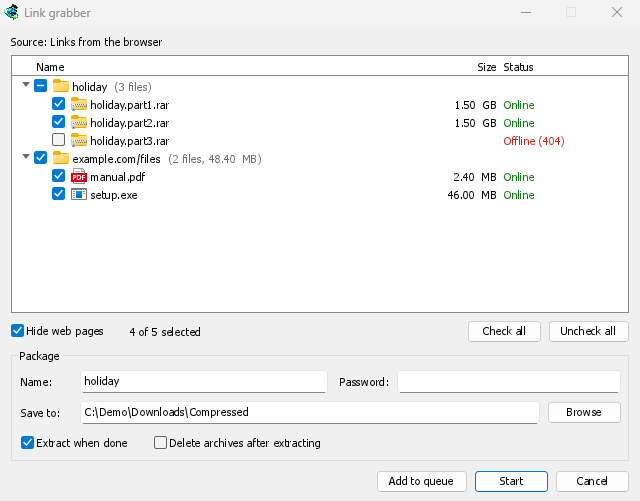
Her paket, açıp kapatabileceğiniz bir satırdır (okuna tıklayın, çift tıklayın veya Sağ ve Sol tuşlarına basın). Bir paketi işaretlediğinizde tüm bağlantıları da işaretlenir. Yalnızca bazı bağlantılar işaretliyse paket kutusu yarı dolu görünür.
- Bir arşivin birimleri (
movie.part1.rar,movie.part2.rar… veyabackup.7z.001,backup.7z.002…), aynı siteden geldikleri sürece arşivin adını taşıyan tek bir paket oluşturur. - Bir sayfanın diğer bağlantıları, sayfanın adını taşıyan bir paket oluşturur.
- Diğer her şey Çeşitli dosyalar paketine eklenir.
- Bir sitenin paketlediği bağlantılar (Click'n'Load), sitenin paketlerini ve adlarını, site bir parola verdiyse arşiv parolasıyla birlikte tutar.
- Bir klasörün dosyaları, klasörün adını taşıyan bir paket oluşturur ve bu paketin Kaydedileceği yer ayarı, klasörün ağacını korur (bkz. Klasörler).
- Bir modelin, veri kümesinin veya sürümün dosyaları tek bir paket oluşturur ve Kaydedileceği yer ayarı bunların klasörlerini korur (bkz. Modeller, veri kümeleri ve sürümler).
Klasörler
Bağlantı yakalayıcıya bir klasörün adresini, bir sayfanın adresini verdiğiniz gibi verin: Ctrl+V ile yapıştırın, Görevler → Panodan toplu indirme ekle için kopyalayın, Görevler → İçe aktar için bir listeye koyun veya indirme listesine sürükleyip bırakın.
- An FTP folder: an
ftp://,ftpes://orftps://address that ends in/(ftp://ftp.example.org/pub/). VDM logs in as it does for a download from that address (its user name and password, else your Sites Logins, else as anonymous) and asks the server for the folder's list. Each file comes with the size the server lists, so it isn't looked up again. - A web server's folder listing: the page Apache, nginx, IIS and other servers make of a folder without its own page, titled Index of /pub/ (or Directory listing for /pub/). VDM recognizes it, so it reads the folder instead of listing the page's links.
Bağlantı yakalayıcı daha sonra klasördeki ve alt klasörlerindeki her dosyayı listeler. Her klasörün dosyaları, klasörün adını taşıyan bir pakettir ve Kaydedileceği yer ayarı, indirme klasörünüzün altındaki o klasördür (Seçenekler → Kaydedileceği yer), böylece ağaç korunur: ftp://ftp.example.org/pub/iso/disc.iso, Downloads\pub\iso\disc.iso konumuna gider. İstediğinizi işaretleyin; Web sayfalarını gizle ve paket kutuları, diğer bağlantılar için olduğu gibi çalışır.
Options → Archives and Link grabber → Folders: 3 levels deep, types: ... sets how far VDM goes and what it keeps:
- Derinlik seviyeleri: kaç seviye alt klasörün okunacağı, varsayılan olarak 3, en fazla 10. 0, yalnızca klasörün kendi dosyalarını listeler.
- Türler: yalnızca Dosya türleri sayfasında (
ISO ZIP R0*) yazıldığı gibi bu türdeki dosyalar. Boş (varsayılan), her türü saklar.
VDM stays inside the folder you gave. It never goes up to the folder above (../), never onto another site, never through a link the listing makes to somewhere else, and an FTP folder's links to other folders (symbolic links) aren't followed. A name that isn't a plain file or folder name (one with / or \ in it, ..) is left out. One folder lists at most 10,000 files, and VDM reads at most 500 folders for it; past that, the window's Source line says the folder was listed only in part (pub: only its first 10000 files).
Klasörler, web sayfaları gibi, yalnızca Bağlantılar geldiğinde ara açıkken (varsayılan) okunur. Son / işareti olmayan bir FTP adresi bir dosya olarak kabul edilir.
Modeller, veri kümeleri ve sürümler
Bu adreslerden birini URL Ekle (Ctrl+N) veya Bağlantı yakalayıcı'ya Ctrl+V ile yapıştırın (kopyalanan, içe aktarılan veya sürüklenen de çalışır):
- Bir Hugging Face modeli veya veri kümesi:
https://huggingface.co/<owner>/<name>veyahttps://huggingface.co/datasets/<owner>/<name>, tüm depo. - Bir klasörün bir dalda, etikette veya taahhütteki adresi: klasör sayfasının adresi,
https://huggingface.co/<owner>/<name>/tree/<revision>/<folder>. - Bir GitHub sürümü:
https://github.com/<owner>/<repo>/releases/tag/<tag>veya en yenisi için…/releases/latest. Sürümü olmayan bir etiket, kaynak kodunu listeler.
VDM asks the site's public API for the list of files and opens Link grabber with all of them in one package: each file with its size and the folder it is in, unticked, so you tick only what you need (the package's box ticks them all). Its Save to is the address's path under your download folder (Options → Save to), and each file keeps its folder inside it: onnx/model.onnx of huggingface.co/org/tiny goes to Downloads\org\tiny\onnx\model.onnx, a dataset's files under Downloads\datasets\…, a release's under Downloads\<owner>\<repo>\<tag>. A folder of a repository keeps its place in it (org\tiny\onnx\…), so files you take later from another folder land beside it. Start or Add to queue adds them as one group, with one summary when the last is done.
- Checked against the site's digest. Hugging Face publishes a SHA-256 for each large file, GitHub for each release file. VDM checks the finished file against it, as Verify checksum does; a file that doesn't match stays unfinished and says so (the file's SHA-256 checksum doesn't match), and Redownload fetches it again. Small files kept in the repository itself, and a release's source code, have no digest of their own to check.
- Tek sürüm. Bir deponun dosyaları, listelendiğinde dalının veya etiketinin işaret ettiği taahhütte istenir, böylece indirilirken ilerleyen bir dal asla iki sürümü karıştırmaz.
- Straight from the sites. Files come from Hugging Face's and GitHub's own servers, never through a mirror, through VDM's own connections, speed limits and proxy, like any download.
- Erişim kontrollü modeller. Dosyaları için şartların kabul edilmesi gereken bir depo, Hugging Face erişim belirtecinizle indirilir: sayfasındaki şartları kabul edin, Hugging Face ayarlarınızda bir belirteç oluşturun ve Seçenekler → Site oturum açma bilgileri bölümüne
huggingface.cositesi, herhangi bir kullanıcı adı ve belirteci parola olarak ekleyin. Diğer parolalarınızla birlikte sistemin anahtar zincirinde saklanır ve yalnızcahuggingface.coadresine gönderilir, dosyaları gönderdiği sunuculara asla iletilmez. Kaynak satırı, erişim kontrollü bir deponun henüz bir belirteci olmadığında bunu belirtir. - Limitler. Her iki site de bir hesabı olmayan bir bilgisayardan yalnızca belirli sayıda isteğe izin verir (GitHub saatte 60). Limit aşıldığında, adresin satırı Daha sonra tekrar deneyin der ve ipucu ne kadar süreyle olduğunu belirtir.
Bir sitenin listesinin söyledikleri kullanılmadan önce kontrol edilir: yolu klasöründen dışarı çıkacak bir dosya (.., mutlak bir yol, bir sürücü harfi, CON gibi bir cihaz adı) dışarıda bırakılır ve Kaynak satırı bunları sayar. Bir adres için en fazla 10.000 dosya listelenir. Klasörler gibi, yalnızca Bağlantılar geldiğinde ara açıkken okunurlar (varsayılan).
Google Drive folders
Paste a shared folder's link, the one Drive's Share → Copy link gives (https://drive.google.com/drive/folders/…?usp=sharing), in Add URL (Ctrl+N) or in Link grabber with Ctrl+V. VDM reads the folder's page, the one your browser opens, and its subfolders' pages, one after the other, and opens Link grabber with all their files in one package, ticked, each with its name and size and the subfolder it is in. Its Save to is a folder of the Drive folder's name under your download folder (Options → Save to), and each file keeps its subfolders inside it: Day 2/hills.jpg of a folder named Holiday photos goes to Downloads\Holiday photos\Day 2\hills.jpg. Start or Add to queue adds them as one group, with one summary when the last is done.
- Each file as a single Drive file. Every file downloads the way a Drive file's own link does (Google Drive links): from Google's own servers, through VDM's connections, speed limits and proxy, past the can't scan this file for viruses page as Download anyway does. When Drive refuses one (too many downloads lately, a sign-in needed, no access), that file says so in its row, and the others go on.
- Google Docs, Sheets and Slides come as Word (
.docx), Excel (.xlsx) and PowerPoint (.pptx) files, Drawings as.png; their size shows once they are looked up. Forms, shortcuts and Sites aren't files: they are left out, and the Source line says how many. - Folders shared with your account only. Sign in to Google in your browser, right-click the folder's link there and choose Download with Volt Download Manager: the browser add-on passes your Google sign-in with it, and VDM uses it for the folder's pages and its files, on Google Drive only. Pasted without one, the folder's row says Needs a sign-in.
- 50 items a folder. Drive's page lists a folder's first 50 items, so a folder (or a subfolder) with more shows only 50 of them. The Source line says so when a folder shows 50; Drive's own Download on the folder gets all of it, as a zip, which the browser add-on hands to VDM.
- Names. Drive lets a name hold characters a disk doesn't take (
a/b,x:y) or be a Windows device's name (CON); VDM makes them plain names (a_b,x_y,_CON), as for any download. A name that is only dots (..) is left out, and the Source line counts it. A file's address is made from its Drive ID, never taken from the page.
Click'n'Load
Many link sites have a Click'n'Load button that sends their links straight to a download manager on your computer, as JDownloader's documentation for web sites describes. Turn it on in Options → Archives and Link grabber → Accept Click'n'Load from web pages (off by default). VDM then listens on port 9666 of this computer only, and the links a page sends open in Link grabber, with the page's package name and archive password.
Any web page can send links there, not only the link site you are on, so VDM is careful with them:
- The first time a site sends links, VDM asks: Allow (that site's links go to Link grabber from now on), Block (they never do), or Not now (these links are dropped, and the site is asked again next time). The site is the one your browser names, never what the page claims. When the browser names none (a page that hides where it is, or one inside a sandboxed frame), the window says An unknown site: it is asked about every time, and its answer is never kept. Turning Click'n'Load off forgets the answers.
- Bir sayfanın gönderdiği bağlantılar aranmaz: Bağlantı yakalayıcı onları Aranmadı olarak gösterir ve siz onları kuyruğa ekleyene kadar, Site Oturum Açma Bilgileriniz veya debrid hesaplarınızla olsun ya da olmasın, onlar için hiçbir istek gönderilmez. Bundan önce hiçbir şey indirilmez.
- Links to this computer or your network are left out: a link to
localhost, to a private or link-local address (192.168.…,10.…,172.16.…,169.254.…, their IPv6 kin), or to a name without a dot or under.local,.lanor.internalnever reaches Link grabber. A link site's files aren't there, and such an address could be your router or another device. VDM judges the address as written: a public-looking name that points into your network isn't recognized, so look at a package before you add it. - Limits: at most 10 posts a minute from one site, 500 links and 256 KB a post; more is refused, and one site's posts don't use up another's. At most 20 posts wait for an answer. A site brings VDM's window to the front at most once a minute; its links still arrive in Link grabber in between.
- Sayfanın kendi adresi, bağlantıların yönlendireni olarak gönderilmez: bir sayfa herhangi birini adlandırabilir.
- VDM doesn't say it is JDownloader. Some sites first ask whether JDownloader is running (a script named
jdcheck.js) and show their button only then. VDM doesn't answer that question, so such a site may say no program was found; a site that simply sends its form works. - Only one program can listen on port 9666. If JDownloader is running, VDM says so: close it, then turn the option off and on again.
- A button that sends a DLC container instead of links isn't taken: reading one needs a key VDM can't use. The site's plain links, or its Click'n'Load button, are the way.
- Some sites hide the key in a script VDM doesn't run (only the plain form the documentation shows is read): then their button reports a failure, and the site's plain links are the way.
Bağlantıları denetleme
As links arrive, VDM asks each server about its file, as IDM's Download all links does. A few links are checked at a time, and only a few from any one site. Each link then shows its real name and size, and a status:
- Çevrimiçi: dosya sunucuda mevcut.
- Çevrimdışı (404): dosya sunucuda yok. Bağlantının işareti kaldırılır.
- Oturum açma gerekiyor: sunucu bir kullanıcı adı ve parola veya sayfanın çerezlerini istiyor.
- Meşgul, daha sonra deneyin: sunucu beklenmesini istedi.
Turn the look-ups off in Options → Archives → Look links up when they arrive. Some file hosts count a look-up as a download. With the look-ups off, VDM asks nothing of the network until you start, so a web page's address isn't read for its links either.
Web sayfalarını gizle (varsayılan olarak açık), sayfalara olan bağlantıları (.html, .php ve benzerleri ile araması bir web sayfası bulan tüm bağlantıları) dışarıda bırakır: bunlar ne gösterilir ne de indirilir.
Bu web sayfasında bulunan resimleri gizle, tarayıcının sayfada gösterilen resimlerini (sayfanın resimleri, sayfanın her biri için listelediği en büyük boyutta) dışarıda bırakır, böylece liste sayfanın bağlantılarını tutar. Bir sayfanın bağlantıları bu tür resimlerle geldiğinde her seferinde tekrar işaretlenir ve hatırlanmaz: resimleri görmek ve istediğiniz resimleri işaretlemek için işaretini kaldırın; işaretli olduğu sürece ne gösterilir ne de indirilir. Bir resme bağlantı (tam boyutuna bağlanan bir küçük resim) diğer bağlantılar gibi bir bağlantıdır ve aynı resim sayfada gösterilse bile her zaman görünür.
Paket kutusu
Listenin altındaki kutudan seçili paketi düzenleyebilirsiniz:
- Ad: paketin adı, indirmeleriyle birlikte saklanır.
- Kaydedileceği yer: dosyaların kaydedileceği klasör. Paket birden fazla türde dosya içeriyorsa kutuda Her dosyanın kategori klasörü yazar. Bu durumda her dosya, İçeri Aktar işleminde olduğu gibi kendi kategorisinin klasörüne (Seçenekler → Kaydedileceği yer) kaydedilir.
- Parola: arşivlerin parolası, varsa. Yalnızca bellekte tutulur ve asla kendi kendine kaydedilmez: diğer paketler için bir tane saklamak isterseniz, arşiv parolalarınıza ekleyin.
- Bittiğinde çıkar: pakette arşiv varsa otomatik olarak işaretlenir.
- Çıkardıktan sonra arşivleri sil: çıkarma işlemi tamamlandığında arşivler Geri Dönüşüm Kutusu'na (macOS ve Linux'ta Çöp Kutusu'na) taşınır.
Bağlantıları ekleme
- Başlat, işaretli bağlantıları Ana indirme kuyruğuna ekler ve kuyruğu başlatır. Kuyruğun izin verdiği sayıda dosyayı aynı anda indirir.
- Sıraya ekle, IDM'nin içe aktarma işlemi gibi, bunları başlatmadan Ana indirme kuyruğuna ekler.
- İptal pencereyi kapatır ve hiçbir şey eklemez.
Arşivleri çıkarma
VDM itself extracts zip archives (AES-encrypted and Deflate64 ones too), tar, tar.gz and tar.xz archives, and single .gz and .xz files.
7z and RAR archives need 7-Zip, a free program (7-zip.org). VDM runs it when it is installed, for split and encrypted archives too. RAR's own extraction code can't be part of a free program like VDM, and 7-Zip extracts 7z best.
Options → Archives says whether 7-Zip was found. Without it, a 7z or RAR archive isn't extracted, and the 7-Zip needed window says so, with a Get 7-Zip button. On Linux, install your distribution's 7zip (or p7zip) package: VDM finds 7zz, 7z or 7za on its own.
Another archiver built on 7-Zip does as well, so there is no need for a second copy. On Windows VDM finds the 7-Zip that PeaZip brings with it (PeaZip\res\bin\7z\7z.exe in Program Files) and NanaZip's command line (NanaZipC.exe) by itself, after 7-Zip's own folders. For any other, such as a portable copy or one installed for your user only, press Use another program... in Options → Archives and choose its 7-Zip command line program: 7z.exe, 7za.exe or 7zz, not the archiver's own window. VDM runs it once to see that it answers as 7-Zip, then uses it for 7z and RAR archives, with the same arguments as always. Find 7-Zip automatically goes back to the one VDM finds, which is also used if the chosen program is removed.
Yerinde, HatchZip ile
HatchZip is another free extractor (MIT or Apache-2.0), optional. VDM uses its command line program, hatchzip, when it is on the PATH (its installers and packages put it there; the desktop app alone isn't enough):
- Options → Archives → Extract in place with HatchZip (off by default): HatchZip removes the archive while its files come out, so a 180 GB download that unpacks to 200 GB needs a little over 200 GB, not 380 GB. It reads zip, 7z, RAR and tar archives, split ones too; single
.gzand.xzfiles are still extracted by VDM. A solid RAR archive can't be extracted in place (HatchZip says so before it changes anything): VDM then extracts it as usual, with 7-Zip, and keeps the archive. HatchZip's own release builds read RAR; a build from crates.io doesn't. - Herhangi bir şeyi değiştirmeden önce, HatchZip dosyaların sığdığını kontrol eder ve parolayı doğrular. Eksik veya yanlış bir parola ya da çok az yer, hiçbir şeyi değiştirmez: günlük bunu belirtir ve Arşiv parolası penceresi her zamanki gibi sorar. Parola, HatchZip'e komut satırında değil, ortam değişkenleri aracılığıyla gönderilir.
- Dosyalar, diğer tüm çıkarmalarda olduğu gibi Arşiv içeriği nereye gider seçeneğinin belirttiği yere gider. Yolda, arşivin yanında
<archive>.hatchzip-outadlı bir klasörde bulunurlar. - If it stops partway (VDM closed, the download deleted, the disk filled by something else), the files extracted so far stay in that folder and the rest is still in the archive. Extract continues where it stopped, even with the option off: only HatchZip can finish such an archive. VDM continues only a run it started itself (it keeps a note of it in its own data): a HatchZip progress file (
<archive>.hatchzip) that comes with a download or a torrent starts nothing, and that archive is extracted as usual. - Nothing HatchZip extracted is ever deleted, those files are no longer in the archive. Entries VDM leaves out (links, names leading outside the folder) stay in that folder, and so do the files a failed move couldn't put in place (a file held open by another program); the log says where. So after an extraction in place, a link an archive held that VDM considers unsafe is still in your download folder, inside
<archive>.hatchzip-out: it is never followed or moved, but it isn't removed either, as it is by every other extraction. Look at what is left in that folder before you open it. - Ardından arşivleri Geri Dönüşüm Kutusu'na taşı seçeneğinin sonrasında taşınacak hiçbir şeyi yoktur: arşiv zaten gitmiştir.
- Seçenek kapalıyken bile 7z ve RAR arşivleri hala 7-Zip'e ihtiyaç duyar.
Bir arşiv şu durumlarda çıkarılır:
- paketinde Bittiğinde çıkar seçiliyse,
- Seçenekler → Arşivler → İndirme tamamlandığında arşivleri çıkar açıksa (varsayılan olarak kapalıdır), diğer indirmeler için,
- tamamlanmış bir arşive sağ tıklayıp Çıkar'ı seçtiğinizde.
Bölünmüş bir arşiv, son parçası indirildiğinde bir kez çıkarılır. Dosyalar arşivin yanına çıkarılır:
- üst düzeyinde birden fazla öğe barındırdığında (veya her zaman, veya asla: Seçenekler → Arşivler) arşivin adını taşıyan bir klasöre,
- zaten var olan dosya korunur, yenisine numara eklenir:
report (1).txt.
Çıkarılan dosyalar da arşiv gibi internetten gelmiş olarak işaretlenir. Bu nedenle Windows, içindeki bir programı çalıştırmadan önce yine de uyarır.
VDM extracts safely. A name that would lead outside the folder is left out, and so is a link to somewhere else on the disk. An archive that would write far more than its size, or more than the disk has room for, stops before it fills it. When something goes wrong, nothing but the archive is left behind.
İndirmenin günlüğü (listede üzerine gelin) ne olduğunu söyler: 12 dosya şuraya çıkarıldı… veya neden çıkarılmadığını, örneğin movie.7z.001 çıkarılamadı: 3. birimi eksik. Her arşiv önce parolasız denenir. Şifreli olduğu ortaya çıkan bir arşiv, paketinin parolasıyla, ardından kaydedilmiş parolalarınızın her biriyle (Seçenekler → Arşivler → Arşiv parolaları...), sıralarına göre denenir, böylece parola gerektirmeyen bir arşiv onlarla asla karşılaşmaz. Yalnızca hiçbiri uymadığında Arşiv parolası penceresi açılır. Parolayı yazın ve Çıkar'a tıklayın veya arşivi olduğu gibi bırakmak için İptal'e tıklayın. Kaydedilmiş parolalara eklemek için Diğer arşivler için hatırla (işaretli değildir) seçeneğini işaretleyin. 7-Zip'e her parola, bilgisayardaki diğer programların okuyabileceği komut satırında değil, girişinde verilir.
Arşiv parolaları
Options → Archives → Archive passwords... keeps the passwords you use again and again (a site's own, say), one per line. The download's log says Trying the saved archive passwords... while VDM tries them. The one that opens an archive moves to the top of the list, so the passwords you need most are tried first. A package's password (one you typed in Link grabber, or one that came with the links) is tried first and never added to the list by itself; when it is one of your saved passwords already, it moves to the top like any other. A password typed in the Archive password window is added only with Remember it for other archives ticked, and only once it fits. The list is kept in the system's keychain, as the other passwords are (see Where the sign-in is kept).
Her deneme çıkarmayı yeniden başlatır: uzun bir liste ve dosya adları şifrelenmemiş büyük bir arşivle, doğru olanın bulunması biraz zaman alabilir.
Arşivleri test etme
A finished archive can still be broken: a server sent wrong bytes, or a proxy on the way mangled part of the file. It shows only when someone opens it, often much later. So VDM tests ZIP, 7z and RAR archives, split ones too once every volume is in, when their download completes: Options → Archives → Test archives when their download completes is on by default, up to 4 GB. A test reads the whole archive, so a larger one is tested only when you ask: right-click a finished archive and choose Test archive, whatever its size.
- The test is 7-Zip's (
7z t, with the 7-Zip that Options → Archives names): every file in the archive is read back and checked, and nothing is written. Without 7-Zip, VDM tests ZIP archives itself; 7z and RAR archives aren't tested. - İndirme, testi bittikten sonra tamamlanmış sayılır. Bu arada listede Denetleniyor %45 yazar, sırası onu bekler ve İndirme tamamlandı penceresi, sesi ve çıkarılması testten sonra gelir.
- Parolasız okunamadığı için parolayla korunan bir arşiv test edilmez: günlükte photos.zip test edilemedi: parola gerekiyor yazar. Tar, gz ve xz dosyaları da test edilmez.
- Hasarlı bir arşiv listede Hasarlı olarak görünür, günlüğü hasarlı dosyaları adlandırır ve Hasarlı arşiv penceresi Yeniden indir seçeneğini sunar: arşivi (bölünmüş bir arşivin her birimini) baştan tekrar indirir. Kendiliğinden çıkarılmaz; Çıkar yine de denemeye devam eder.
- A ZIP in one file is repaired instead, when VDM can tell where its damaged files are in it: their bytes alone are downloaded again, from the same server, and the archive is tested once more. The log says Downloading the damaged parts again (1.20 MB), then Tested again: the archive has no errors now. The bytes come only from the same version of the file: VDM asks for them as it resumes any download (with the file's ETag or date,
If-Range), and checks the bytes just before each part against the ones on disk. A file that changed on the server stops the download with the file changed on the server instead of mixing two versions: Redownload downloads the new one. An archive still damaged after that is offered for Redownload. - 7z ve RAR arşivleri, dosyalarını 7-Zip'in testinin dosyadaki yerini vermediği bloklarda tutar ve bölünmüş bir arşivin birimleri ayrı indirmelerdir: bunlar test edilir ve hasarlı olduğunda Yeniden indir için sunulur, asla kısmen onarılmaz.
- Bölünmüş bir arşiv (
photos.zip.001,photos.z01,notes.7z.001,movie.part1.rar,movie.r00), her birim indirildiğinde, hangisi en son biterse bitsin, ilk biriminden itibaren bir kez test edilir. Birimleri genellikle birbiri ardına biter (aynı anda bir tane indiren bir sıra, dosyalar arasında beklemenizi sağlayan bir ana bilgisayar) ve şimdiye kadar olanlar kesilmiş bir arşiv olarak okunur, bu yüzden kendi başlarına test edilmezler. Henüz tamamlanmamış bölünmüş bir arşivde Arşivi test et seçeneği bunu belirtir: Henüz test edilmedi: photos.zip.001 tamamlanmadı (3. birim henüz yok). - Closing VDM stops a test; the archive is tested again at the next start.
Sonraki adımlar
Ücretsiz, açık kaynak, reklamsız, deneme sürümü yok.
Download Volt Download Manager