

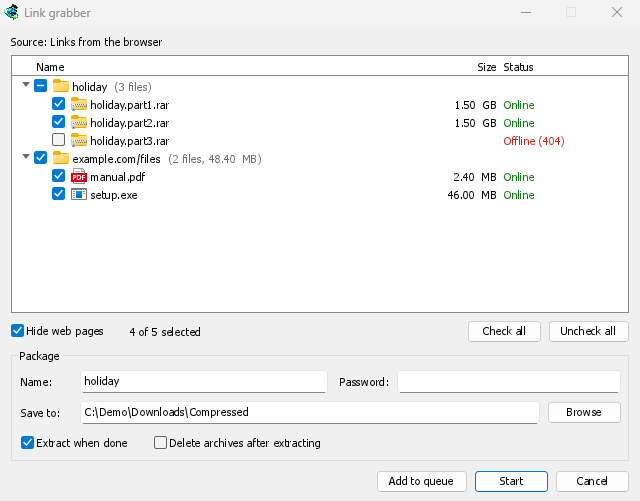
Link grabber gathers many links at once, sorts them into packages, and lets you tick the ones to download. VDM can then extract the archives it downloaded (zip, 7z, rar and more), by itself or when you ask.
Откуда берутся ссылки
- The browser. Right-click a page for Download all links with Volt Download Manager, or select part of it for Download selected links with Volt Download Manager. The page's referrer and cookies go with each link. Both also send the pictures located on the page (or in the selection), hidden at first (see Hide images located on this web page below).
- Изображения страницы. Кнопка на панели инструментов дополнения браузера Эта страница → Найти изображения отправляет изображения страницы в самом большом размере, который она перечисляет, те, которые вы сохранили по размеру и типу (Изображения на этой странице).
- Задачи → Импорт → Из текстового файла и Из файла экспорта IDM. Файл
.ef2содержит реферер и файлы cookie для каждой загрузки, а также имя файла, если оно указано в списке (строкаfilename:; только имя, без папки). - Несколько ссылок, или список
.txtили.ef2, перетащенные в список загрузок. - Буфер обмена. Задачи → Добавить пакетную загрузку из буфера обмена (Ctrl+B, также в меню значка в трее) считывает скопированный текст, когда вы его выбираете, и перечисляет все ссылки для загрузки в нём:
http,https,ftpи magnet-ссылки, в списке, сообщении на форуме, Markdown или HTML, каждая по одному разу. Ссылкаthunder://,flashget://илиqqdl://отображается как адрес, заключённый в неё, поэтому один и тот же файл, связанный как обёрнутой, так и обычной ссылкой, занимает одну строку; это относится и к вставленному тексту, и к импортированным спискам. - Вставка. Выберите Задачи → Перехват ссылок... и нажмите Ctrl+V: все ссылки для загрузки из скопированного текста будут добавлены.
- A web page's address. Paste or copy the address of a page (
https://example.com/downloads) and VDM reads the page and lists the links on it, as the browser's Download all links does, in a package named after the page. The page itself is left unticked. This works for addresses that came on their own (pasted, copied, typed, in a list), not for the links found on a page, so VDM never wanders off through a site. VDM reads only what the page itself holds: links a page's scripts add after it loads come only through the browser. - A folder. Paste or copy the address of an
ftp://folder (ftp://ftp.example.org/pub/) or of the page a web server makes of a folder ("Index of /pub/"), and VDM lists every file in it and in its subfolders, each folder's files in a package of their own. See Folders. - A Hugging Face model or dataset, a GitHub release. Paste the address of a model or dataset on Hugging Face, of a folder in one, or of a release on GitHub, in Add URL or here, and VDM lists every file in it, with its size and folder. See Models, datasets and releases.
- A Google Drive folder. Paste a shared folder's link (
https://drive.google.com/drive/folders/…) in Add URL or here, or right-click it in the browser and choose Download with Volt Download Manager, and VDM lists every file in it and in its subfolders. See Google Drive folders. - Кнопки Click'n'Load на сайтах со ссылками, после того как вы их включите. См. Click'n'Load.
A magnet link shows as Magnet link and isn't looked up: once you click Start or Add to queue, VDM finds the torrent's files and adds it with all of them, in the package's folder (or the Torrents folder when the package has none).
Ссылки, которые появляются, пока окно открыто, присоединяются к уже имеющимся. Ссылка, которая уже есть в окне, не добавляется дважды. Ссылка, которая уже есть в вашем списке загрузок, отображается в разделе Уже в списке и не отмечена.
Пакеты
Каждый пакет представляет собой строку, которую можно открывать и закрывать (щелкните стрелку, дважды щелкните или нажмите Вправо и Влево). Отметка пакета отмечает все его ссылки; его поле заполнено наполовину, если отмечены только некоторые из них.
- Тома одного архива (
movie.part1.rar,movie.part2.rar… илиbackup.7z.001,backup.7z.002…) образуют один пакет, названный по имени архива, при условии, что они поступают с одного и того же сайта. - Остальные ссылки одной страницы образуют пакет, названный по имени страницы.
- Все остальные файлы попадают в категорию Разные файлы.
- Ссылки, упакованные сайтом (Click'n'Load), сохраняют пакеты и имена сайта, а также пароль архива, если сайт его предоставил.
- Файлы папки образуют пакет для каждой папки, названный в её честь, чьё поле Сохранить в сохраняет дерево папки (см. Папки).
- Файлы модели, набора данных или релиза образуют один пакет, Сохранить в которого сохраняет их папки (см. Модели, наборы данных и релизы).
Папки
Передайте перехватчику ссылок адрес папки так же, как вы передаёте ему адрес страницы: вставьте его с помощью Ctrl+V, скопируйте для Задачи → Добавить пакетную загрузку из буфера обмена, поместите его в список для Задачи → Импорт или перетащите его в список загрузок.
- An FTP folder: an
ftp://,ftpes://orftps://address that ends in/(ftp://ftp.example.org/pub/). VDM logs in as it does for a download from that address (its user name and password, else your Sites Logins, else as anonymous) and asks the server for the folder's list. Each file comes with the size the server lists, so it isn't looked up again. - A web server's folder listing: the page Apache, nginx, IIS and other servers make of a folder without its own page, titled Index of /pub/ (or Directory listing for /pub/). VDM recognizes it, so it reads the folder instead of listing the page's links.
Затем перехватчик ссылок перечисляет каждый файл в папке и в её подпапках. Файлы каждой папки представляют собой пакет, названный в честь папки, и его Сохранить в — это папка внутри вашей папки загрузок (Параметры → Сохранить в), поэтому дерево сохраняется: ftp://ftp.example.org/pub/iso/disc.iso переходит в Downloads\pub\iso\disc.iso. Отметьте то, что вы хотите; Скрыть веб-страницы и поля пакетов работают так же, как для любых ссылок.
Options → Archives and Link grabber → Folders: 3 levels deep, types: ... sets how far VDM goes and what it keeps:
- Уровни в глубину: сколько уровней подпапок считывается, по умолчанию 3, максимум 10. 0 перечисляет только файлы самой папки.
- Типы: только файлы этих типов, записанные как на странице Типы файлов (
ISO ZIP R0*). Пустое значение (по умолчанию) сохраняет все типы.
VDM stays inside the folder you gave. It never goes up to the folder above (../), never onto another site, never through a link the listing makes to somewhere else, and an FTP folder's links to other folders (symbolic links) aren't followed. A name that isn't a plain file or folder name (one with / or \ in it, ..) is left out. One folder lists at most 10,000 files, and VDM reads at most 500 folders for it; past that, the window's Source line says the folder was listed only in part (pub: only its first 10000 files).
Папки считываются только при включённой опции Искать ссылки при их поступлении (по умолчанию), как и веб-страницы. FTP-адрес без конечного / считается файлом.
Модели, наборы данных и релизы
Вставьте один из этих адресов в Добавить URL (Ctrl+N) или в «Перехват ссылок» с помощью Ctrl+V (скопированный, импортированный или перетащенный также работает):
- Модель или набор данных Hugging Face:
https://huggingface.co/<owner>/<name>илиhttps://huggingface.co/datasets/<owner>/<name>, весь репозиторий. - Папка в нём, в ветке, теге или коммите: адрес страницы папки,
https://huggingface.co/<owner>/<name>/tree/<revision>/<folder>. - Релиз GitHub:
https://github.com/<owner>/<repo>/releases/tag/<tag>или…/releases/latestдля самого нового. Тег без релиза показывает его исходный код.
VDM asks the site's public API for the list of files and opens Link grabber with all of them in one package: each file with its size and the folder it is in, unticked, so you tick only what you need (the package's box ticks them all). Its Save to is the address's path under your download folder (Options → Save to), and each file keeps its folder inside it: onnx/model.onnx of huggingface.co/org/tiny goes to Downloads\org\tiny\onnx\model.onnx, a dataset's files under Downloads\datasets\…, a release's under Downloads\<owner>\<repo>\<tag>. A folder of a repository keeps its place in it (org\tiny\onnx\…), so files you take later from another folder land beside it. Start or Add to queue adds them as one group, with one summary when the last is done.
- Checked against the site's digest. Hugging Face publishes a SHA-256 for each large file, GitHub for each release file. VDM checks the finished file against it, as Verify checksum does; a file that doesn't match stays unfinished and says so (the file's SHA-256 checksum doesn't match), and Redownload fetches it again. Small files kept in the repository itself, and a release's source code, have no digest of their own to check.
- Одна версия. Файлы репозитория запрашиваются по коммиту, на который указывала его ветка или тег при их перечислении, поэтому ветка, которая движется вперёд во время их загрузки, никогда не смешивает две версии.
- Straight from the sites. Files come from Hugging Face's and GitHub's own servers, never through a mirror, through VDM's own connections, speed limits and proxy, like any download.
- Закрытые модели. Репозиторий, файлы которого требуют принятия его условий, загружается с вашим токеном доступа Hugging Face: примите условия на его странице, создайте токен в настройках Hugging Face и добавьте его в Параметры → Логины сайтов с сайтом
huggingface.co, любым именем пользователя и токеном в качестве пароля. Он хранится вместе с другими вашими паролями в системной связке ключей и отправляется только наhuggingface.co, никогда не на серверы, с которых он отправляет файлы. Строка «Источник» сообщает, когда у закрытого репозитория ещё нет токена. - Ограничения. Оба сайта пропускают только определённое количество запросов с компьютера без учётной записи (GitHub — 60 в час). Когда лимит достигнут, в строке адреса появляется сообщение Повторите попытку позже, а во всплывающей подсказке указывается, на какой срок.
Список, предоставляемый сайтом, проверяется перед использованием: файл, путь которого выходил бы за пределы его папки (.., абсолютный путь, буква диска, имя устройства, такое как CON), исключается, и строка «Источник» подсчитывает их. Для одного адреса отображается не более 10 000 файлов. Как и папки, они читаются только при включённой опции Искать ссылки при их поступлении (по умолчанию).
Google Drive folders
Paste a shared folder's link, the one Drive's Share → Copy link gives (https://drive.google.com/drive/folders/…?usp=sharing), in Add URL (Ctrl+N) or in Link grabber with Ctrl+V. VDM reads the folder's page, the one your browser opens, and its subfolders' pages, one after the other, and opens Link grabber with all their files in one package, ticked, each with its name and size and the subfolder it is in. Its Save to is a folder of the Drive folder's name under your download folder (Options → Save to), and each file keeps its subfolders inside it: Day 2/hills.jpg of a folder named Holiday photos goes to Downloads\Holiday photos\Day 2\hills.jpg. Start or Add to queue adds them as one group, with one summary when the last is done.
- Each file as a single Drive file. Every file downloads the way a Drive file's own link does (Google Drive links): from Google's own servers, through VDM's connections, speed limits and proxy, past the can't scan this file for viruses page as Download anyway does. When Drive refuses one (too many downloads lately, a sign-in needed, no access), that file says so in its row, and the others go on.
- Google Docs, Sheets and Slides come as Word (
.docx), Excel (.xlsx) and PowerPoint (.pptx) files, Drawings as.png; their size shows once they are looked up. Forms, shortcuts and Sites aren't files: they are left out, and the Source line says how many. - Folders shared with your account only. Sign in to Google in your browser, right-click the folder's link there and choose Download with Volt Download Manager: the browser add-on passes your Google sign-in with it, and VDM uses it for the folder's pages and its files, on Google Drive only. Pasted without one, the folder's row says Needs a sign-in.
- 50 items a folder. Drive's page lists a folder's first 50 items, so a folder (or a subfolder) with more shows only 50 of them. The Source line says so when a folder shows 50; Drive's own Download on the folder gets all of it, as a zip, which the browser add-on hands to VDM.
- Names. Drive lets a name hold characters a disk doesn't take (
a/b,x:y) or be a Windows device's name (CON); VDM makes them plain names (a_b,x_y,_CON), as for any download. A name that is only dots (..) is left out, and the Source line counts it. A file's address is made from its Drive ID, never taken from the page.
Click'n'Load
Many link sites have a Click'n'Load button that sends their links straight to a download manager on your computer, as JDownloader's documentation for web sites describes. Turn it on in Options → Archives and Link grabber → Accept Click'n'Load from web pages (off by default). VDM then listens on port 9666 of this computer only, and the links a page sends open in Link grabber, with the page's package name and archive password.
Any web page can send links there, not only the link site you are on, so VDM is careful with them:
- The first time a site sends links, VDM asks: Allow (that site's links go to Link grabber from now on), Block (they never do), or Not now (these links are dropped, and the site is asked again next time). The site is the one your browser names, never what the page claims. When the browser names none (a page that hides where it is, or one inside a sandboxed frame), the window says An unknown site: it is asked about every time, and its answer is never kept. Turning Click'n'Load off forgets the answers.
- Ссылки, отправленные страницей, не проверяются: перехватчик ссылок показывает их как Не проверено, и никаких запросов для них не отправляется, с вашими логинами сайтов или учетными записями debrid или без них, пока вы не добавите их в очередь. До этого ничего не загружается.
- Links to this computer or your network are left out: a link to
localhost, to a private or link-local address (192.168.…,10.…,172.16.…,169.254.…, their IPv6 kin), or to a name without a dot or under.local,.lanor.internalnever reaches Link grabber. A link site's files aren't there, and such an address could be your router or another device. VDM judges the address as written: a public-looking name that points into your network isn't recognized, so look at a package before you add it. - Limits: at most 10 posts a minute from one site, 500 links and 256 KB a post; more is refused, and one site's posts don't use up another's. At most 20 posts wait for an answer. A site brings VDM's window to the front at most once a minute; its links still arrive in Link grabber in between.
- Собственный адрес страницы не отправляется как реферер ссылок: страница может назвать любой.
- VDM doesn't say it is JDownloader. Some sites first ask whether JDownloader is running (a script named
jdcheck.js) and show their button only then. VDM doesn't answer that question, so such a site may say no program was found; a site that simply sends its form works. - Only one program can listen on port 9666. If JDownloader is running, VDM says so: close it, then turn the option off and on again.
- A button that sends a DLC container instead of links isn't taken: reading one needs a key VDM can't use. The site's plain links, or its Click'n'Load button, are the way.
- Some sites hide the key in a script VDM doesn't run (only the plain form the documentation shows is read): then their button reports a failure, and the site's plain links are the way.
Поиск ссылок
As links arrive, VDM asks each server about its file, as IDM's Download all links does. A few links are checked at a time, and only a few from any one site. Each link then shows its real name and size, and a status:
- В сети: файл есть на сервере.
- Не в сети (404): файла нет. Ссылка не отмечена.
- Требуется вход: сервер запрашивает имя пользователя и пароль или файлы cookie страницы.
- Занято, попробуйте позже: сервер попросил подождать.
Turn the look-ups off in Options → Archives → Look links up when they arrive. Some file hosts count a look-up as a download. With the look-ups off, VDM asks nothing of the network until you start, so a web page's address isn't read for its links either.
Скрыть веб-страницы (включено по умолчанию) исключает ссылки на страницы (.html, .php и тому подобные, а также любые ссылки, поиск которых привёл к веб-странице): они не отображаются и не загружаются.
Скрыть изображения, расположенные на этой веб-странице исключает изображения, найденные браузером и отображённые на странице (её изображения, в самом большом размере, который страница перечисляет для каждого), так что список содержит ссылки страницы. Она снова отмечается каждый раз, когда ссылки страницы приходят с такими изображениями, и не запоминается: снимите отметку, чтобы увидеть изображения и отметить те, которые вы хотите; пока она отмечена, они не отображаются и не загружаются. Ссылка на изображение (миниатюра, ссылающаяся на её полный размер) является ссылкой, как и любая другая, и всегда отображается, даже если то же изображение также отображается на странице.
Параметры пакета
Поле под списком редактирует выбранный вами пакет:
- Имя: имя пакета, сохраняемое вместе с его загрузками.
- Сохранить в: папка, в которую помещаются его файлы. Если пакет содержит несколько типов файлов, в поле отображается Папка категории каждого файла: каждый файл помещается в папку своей категории (Параметры → Сохранить в), как это всегда делал Импорт.
- Пароль: пароль архива, если он есть. Он хранится только в памяти и никогда не сохраняется сам по себе: чтобы сохранить его для других пакетов, добавьте его в пароли архивов.
- Извлечь после завершения: отмечается автоматически, когда пакет содержит архив.
- Удалять архивы после извлечения: после извлечения архивы отправляются в Корзину (на macOS и Linux — в Trash).
Добавление ссылок
- Начать добавляет отмеченные ссылки в Основная очередь загрузки и запускает очередь. Он загружает столько файлов одновременно, сколько позволяет очередь.
- Кнопка Добавить в очередь добавляет их в Основную очередь загрузки, не запуская загрузку, как при импорте в IDM.
- Отмена закрывает окно и ничего не добавляет.
Извлечение архивов
VDM itself extracts zip archives (AES-encrypted and Deflate64 ones too), tar, tar.gz and tar.xz archives, and single .gz and .xz files.
7z and RAR archives need 7-Zip, a free program (7-zip.org). VDM runs it when it is installed, for split and encrypted archives too. RAR's own extraction code can't be part of a free program like VDM, and 7-Zip extracts 7z best.
Options → Archives says whether 7-Zip was found. Without it, a 7z or RAR archive isn't extracted, and the 7-Zip needed window says so, with a Get 7-Zip button. On Linux, install your distribution's 7zip (or p7zip) package: VDM finds 7zz, 7z or 7za on its own.
Another archiver built on 7-Zip does as well, so there is no need for a second copy. On Windows VDM finds the 7-Zip that PeaZip brings with it (PeaZip\res\bin\7z\7z.exe in Program Files) and NanaZip's command line (NanaZipC.exe) by itself, after 7-Zip's own folders. For any other, such as a portable copy or one installed for your user only, press Use another program... in Options → Archives and choose its 7-Zip command line program: 7z.exe, 7za.exe or 7zz, not the archiver's own window. VDM runs it once to see that it answers as 7-Zip, then uses it for 7z and RAR archives, with the same arguments as always. Find 7-Zip automatically goes back to the one VDM finds, which is also used if the chosen program is removed.
На месте, с HatchZip
HatchZip is another free extractor (MIT or Apache-2.0), optional. VDM uses its command line program, hatchzip, when it is on the PATH (its installers and packages put it there; the desktop app alone isn't enough):
- Options → Archives → Extract in place with HatchZip (off by default): HatchZip removes the archive while its files come out, so a 180 GB download that unpacks to 200 GB needs a little over 200 GB, not 380 GB. It reads zip, 7z, RAR and tar archives, split ones too; single
.gzand.xzfiles are still extracted by VDM. A solid RAR archive can't be extracted in place (HatchZip says so before it changes anything): VDM then extracts it as usual, with 7-Zip, and keeps the archive. HatchZip's own release builds read RAR; a build from crates.io doesn't. - Прежде чем что-либо изменить, HatchZip проверяет, подходят ли файлы, и подтверждает пароль. Отсутствующий или неверный пароль, или слишком мало места, ничего не меняет: об этом сообщает журнал, и окно Пароль архива запрашивает его как обычно. Пароль передаётся HatchZip через его окружение, никогда не через командную строку.
- Файлы помещаются туда, куда указывает Куда помещается содержимое архива, как и при любом другом извлечении. По пути они находятся в папке с именем
<archive>.hatchzip-outрядом с архивом. - If it stops partway (VDM closed, the download deleted, the disk filled by something else), the files extracted so far stay in that folder and the rest is still in the archive. Extract continues where it stopped, even with the option off: only HatchZip can finish such an archive. VDM continues only a run it started itself (it keeps a note of it in its own data): a HatchZip progress file (
<archive>.hatchzip) that comes with a download or a torrent starts nothing, and that archive is extracted as usual. - Nothing HatchZip extracted is ever deleted, those files are no longer in the archive. Entries VDM leaves out (links, names leading outside the folder) stay in that folder, and so do the files a failed move couldn't put in place (a file held open by another program); the log says where. So after an extraction in place, a link an archive held that VDM considers unsafe is still in your download folder, inside
<archive>.hatchzip-out: it is never followed or moved, but it isn't removed either, as it is by every other extraction. Look at what is left in that folder before you open it. - Затем переместить архивы в корзину нечего перемещать после: архив уже удалён.
- Архивы 7z и RAR по-прежнему требуют 7-Zip, когда опция отключена.
Архив распаковывается:
- если в его пакете указано Извлечь после завершения,
- если включен параметр Параметры → Архивы → Извлекать архивы после завершения загрузки (по умолчанию выключен), для любой другой загрузки,
- если щелкнуть правой кнопкой мыши по загруженному архиву и выбрать Извлечь.
Разделённый архив распаковывается один раз после загрузки последнего тома. Файлы помещаются рядом с архивом:
- в папку с именем архива, если в нём несколько элементов верхнего уровня (или всегда, или никогда: Параметры → Архивы),
- уже существующий файл сохраняется, а новый получает номер:
report (1).txt.
Извлечённые файлы помечаются как полученные из интернета, как и сам архив. Поэтому Windows по-прежнему предупреждает перед запуском содержащейся в них программы.
VDM extracts safely. A name that would lead outside the folder is left out, and so is a link to somewhere else on the disk. An archive that would write far more than its size, or more than the disk has room for, stops before it fills it. When something goes wrong, nothing but the archive is left behind.
Журнал загрузки (наведите на неё курсор в списке) сообщает, что произошло: Извлечено 12 файлов в…, или почему нет, например, Не удалось извлечь movie.7z.001: отсутствует том 3. Каждый архив сначала проверяется без пароля. Зашифрованный архив проверяется с паролем его пакета, затем с каждым из ваших сохранённых паролей (Параметры → Архивы → Пароли архивов...) в их порядке, так что архив, которому не нужен пароль, никогда с ними не встречается. Только когда ни один не подходит, открывается окно Пароль архива. Введите пароль и нажмите Извлечь, или Отмена, чтобы оставить архив как есть. Установите флажок Запомнить для других архивов (он изначально не установлен), чтобы добавить его в сохранённые пароли. 7-Zip получает каждый пароль на свой ввод, никогда не через командную строку, где другие программы на компьютере могли бы его прочитать.
Пароли архивов
Options → Archives → Archive passwords... keeps the passwords you use again and again (a site's own, say), one per line. The download's log says Trying the saved archive passwords... while VDM tries them. The one that opens an archive moves to the top of the list, so the passwords you need most are tried first. A package's password (one you typed in Link grabber, or one that came with the links) is tried first and never added to the list by itself; when it is one of your saved passwords already, it moves to the top like any other. A password typed in the Archive password window is added only with Remember it for other archives ticked, and only once it fits. The list is kept in the system's keychain, as the other passwords are (see Where the sign-in is kept).
Каждая попытка снова запускает извлечение: при длинном списке и большом архиве, имена файлов которого не зашифрованы, может потребоваться некоторое время, прежде чем будет найден правильный.
Проверка архивов
A finished archive can still be broken: a server sent wrong bytes, or a proxy on the way mangled part of the file. It shows only when someone opens it, often much later. So VDM tests ZIP, 7z and RAR archives, split ones too once every volume is in, when their download completes: Options → Archives → Test archives when their download completes is on by default, up to 4 GB. A test reads the whole archive, so a larger one is tested only when you ask: right-click a finished archive and choose Test archive, whatever its size.
- The test is 7-Zip's (
7z t, with the 7-Zip that Options → Archives names): every file in the archive is read back and checked, and nothing is written. Without 7-Zip, VDM tests ZIP archives itself; 7z and RAR archives aren't tested. - Загрузка считается завершённой после окончания проверки. В это время в списке отображается Проверка 45%, очередь ожидает её завершения, а окно Загрузка завершена, звук и извлечение происходят после проверки.
- Архив, защищённый паролем, не проверяется, так как его файлы нельзя прочитать без него: в журнале отображается Не удалось проверить photos.zip: требуется пароль. Также не проверяются файлы tar, gz и xz.
- Повреждённый архив отображается в списке как Повреждён, в журнале указываются повреждённые файлы, а окно Повреждённый архив предлагает Скачать заново: архив (все тома разделённого) загружается снова с самого начала. Он не извлекается автоматически; Извлечь всё равно пытается это сделать.
- A ZIP in one file is repaired instead, when VDM can tell where its damaged files are in it: their bytes alone are downloaded again, from the same server, and the archive is tested once more. The log says Downloading the damaged parts again (1.20 MB), then Tested again: the archive has no errors now. The bytes come only from the same version of the file: VDM asks for them as it resumes any download (with the file's ETag or date,
If-Range), and checks the bytes just before each part against the ones on disk. A file that changed on the server stops the download with the file changed on the server instead of mixing two versions: Redownload downloads the new one. An archive still damaged after that is offered for Redownload. - Архивы 7z и RAR хранят свои файлы в блоках, местоположение которых в файле тест 7-Zip не предоставляет, а тома разделённого архива являются отдельными загрузками: они проверяются и предлагаются для Скачать заново в случае повреждения, но никогда не восстанавливаются частично.
- Разделённый архив (
photos.zip.001,photos.z01,notes.7z.001,movie.part1.rar,movie.r00) проверяется один раз, начиная с первого тома, когда все тома загружены, независимо от того, какой из них завершился последним. Его тома часто завершаются один за другим (очередь, которая загружает по одному файлу за раз, хост, который заставляет ждать между файлами), а уже загруженные части читаются как обрезанный архив, поэтому они не проверяются по отдельности. Протестировать архив для ещё не завершённого разделённого архива сообщает об этом: Ещё не проверено: photos.zip.001 не завершён (том 3 ещё не загружен). - Closing VDM stops a test; the archive is tested again at the next start.
Дальнейшие действия
Бесплатно, с открытым исходным кодом, без рекламы, без пробного периода.
Download Volt Download Manager