

Link grabber gathers many links at once, sorts them into packages, and lets you tick the ones to download. VDM can then extract the archives it downloaded (zip, 7z, rar and more), by itself or when you ask.
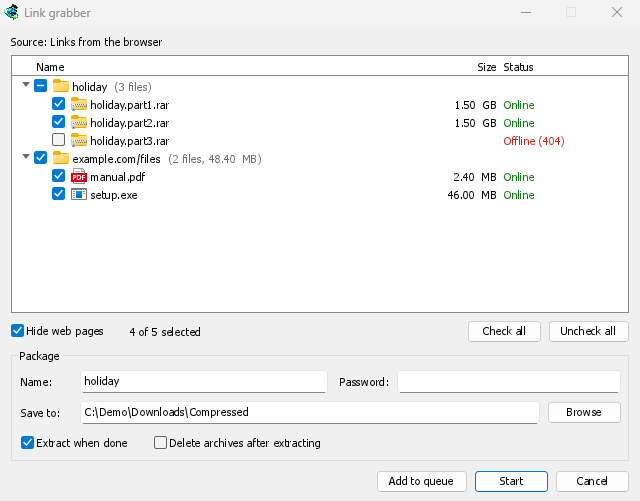
リンクの取得元
- The browser. Right-click a page for Download all links with Volt Download Manager, or select part of it for Download selected links with Volt Download Manager. The page's referrer and cookies go with each link. Both also send the pictures located on the page (or in the selection), hidden at first (see Hide images located on this web page below).
- ページの画像。ブラウザー アドオンのツールバー ボタンこのページ → 画像を検索は、ページにある画像を、リストされている最大サイズで送信します。これは、サイズと種類で保持した画像です (このページの画像)。
- タスク → インポート → テキスト ファイルから、およびIDM エクスポート ファイルから。
.ef2ファイルには、各ダウンロードのリファラーと Cookie、およびリストで指定されているファイル名 (filename:行。ファイル名のみでフォルダーは含まれません) が含まれます。 - ダウンロードリストにドロップされた、複数のリンク、または
.txtや.ef2のリスト。 - クリップボード。タスク → クリップボードからバッチ ダウンロードを追加 (Ctrl+B、トレイ アイコンのメニューにもあります) を選択すると、コピーされたテキストが読み取られ、その中のすべてのダウンロード リンクがリストされます。
http、https、ftp、およびマグネット リンクが、リスト、フォーラム投稿、Markdown、または HTML で、それぞれ 1 回ずつ表示されます。thunder://、flashget://、またはqqdl://リンクは、その中にラップされたアドレスとしてリストされるため、ラップされたリンクとプレーンなリンクで同じファイルが 1 行になります。これは、貼り付けられたテキストやインポートされたリストにも当てはまります。 - 貼り付け。 タスク → リンク グラバー... を選択して Ctrl+V を押すと、コピーされたテキスト内のすべてのダウンロード リンクが追加されます。
- A web page's address. Paste or copy the address of a page (
https://example.com/downloads) and VDM reads the page and lists the links on it, as the browser's Download all links does, in a package named after the page. The page itself is left unticked. This works for addresses that came on their own (pasted, copied, typed, in a list), not for the links found on a page, so VDM never wanders off through a site. VDM reads only what the page itself holds: links a page's scripts add after it loads come only through the browser. - A folder. Paste or copy the address of an
ftp://folder (ftp://ftp.example.org/pub/) or of the page a web server makes of a folder ("Index of /pub/"), and VDM lists every file in it and in its subfolders, each folder's files in a package of their own. See Folders. - A Hugging Face model or dataset, a GitHub release. Paste the address of a model or dataset on Hugging Face, of a folder in one, or of a release on GitHub, in Add URL or here, and VDM lists every file in it, with its size and folder. See Models, datasets and releases.
- A Google Drive folder. Paste a shared folder's link (
https://drive.google.com/drive/folders/…) in Add URL or here, or right-click it in the browser and choose Download with Volt Download Manager, and VDM lists every file in it and in its subfolders. See Google Drive folders. - 有効にすると、リンク サイトの Click'n'Load ボタンが使えるようになります。Click'n'Load を参照してください。
A magnet link shows as Magnet link and isn't looked up: once you click Start or Add to queue, VDM finds the torrent's files and adds it with all of them, in the package's folder (or the Torrents folder when the package has none).
ウィンドウを開いている間に届いたリンクは、既存のリンクに追加されます。ウィンドウにすでにあるリンクが重複して追加されることはありません。ダウンロードリストにすでにあるリンクは、チェックされていない状態で既にリストにありますの下に表示されます。
パッケージ
各パッケージは、開閉できる行です(矢印をクリックするか、ダブルクリックするか、RightまたはLeftを押します)。パッケージにチェックを入れると、すべてのリンクにもチェックが入ります。一部のリンクだけにチェックが入っている場合、パッケージのチェックボックスは半分塗りつぶされます。
- 1つのアーカイブを構成する分割ファイル(
movie.part1.rar、movie.part2.rar…、またはbackup.7z.001、backup.7z.002…)は、同じサイトから取得したものであれば、アーカイブ名のパッケージにまとめられます。 - 1つのページの他のリンクは、そのページの名前でパッケージを形成します。
- それ以外のリンクはその他のファイルにまとめられます。
- サイトがパックしたリンク (Click'n'Load) は、サイトのパッケージと名前を保持し、サイトが提供した場合はアーカイブ パスワードも保持します。
- フォルダーのファイルは、フォルダーごとに名前が付けられたパッケージを形成し、その保存先はフォルダーのツリーを保持します (フォルダーを参照)。
- モデル、データセット、またはリリースのファイルは 1 つのパッケージを形成し、その保存先はフォルダーを保持します (モデル、データセット、リリースを参照)。
フォルダー
リンク グラバーにフォルダーのアドレスを、ページのアドレスを与えるのと同じ方法で与えます。Ctrl+Vで貼り付けるか、タスク → クリップボードからバッチ ダウンロードを追加のためにコピーするか、タスク → インポートのためにリストに入れるか、ダウンロード リストにドラッグ アンド ドロップします。
- An FTP folder: an
ftp://,ftpes://orftps://address that ends in/(ftp://ftp.example.org/pub/). VDM logs in as it does for a download from that address (its user name and password, else your Sites Logins, else as anonymous) and asks the server for the folder's list. Each file comes with the size the server lists, so it isn't looked up again. - A web server's folder listing: the page Apache, nginx, IIS and other servers make of a folder without its own page, titled Index of /pub/ (or Directory listing for /pub/). VDM recognizes it, so it reads the folder instead of listing the page's links.
リンク グラバーは、フォルダーとそのサブフォルダー内のすべてのファイルをリストします。各フォルダーのファイルは、フォルダーにちなんで名付けられたパッケージであり、その保存先はダウンロード フォルダー (オプション → 保存先) の下のそのフォルダーであるため、ツリーは保持されます。ftp://ftp.example.org/pub/iso/disc.isoはDownloads\pub\iso\disc.isoに移動します。必要なものをチェックします。Web ページを非表示にするとパッケージ ボックスは、他のリンクと同じように機能します。
Options → Archives and Link grabber → Folders: 3 levels deep, types: ... sets how far VDM goes and what it keeps:
- 階層: 読み取られるサブフォルダーのレベル数。既定では 3、最大で 10 です。0 はフォルダー自身のファイルのみをリストします。
- 種類: ファイルの種類ページ (
ISO ZIP R0*) に書かれているこれらの種類のファイルのみ。空 (既定) はすべての種類を保持します。
VDM stays inside the folder you gave. It never goes up to the folder above (../), never onto another site, never through a link the listing makes to somewhere else, and an FTP folder's links to other folders (symbolic links) aren't followed. A name that isn't a plain file or folder name (one with / or \ in it, ..) is left out. One folder lists at most 10,000 files, and VDM reads at most 500 folders for it; past that, the window's Source line says the folder was listed only in part (pub: only its first 10000 files).
フォルダーは、Web ページと同様に、リンクが到着したら検索するがオン (既定) の場合にのみ読み取られます。末尾の/がない FTP アドレスはファイルと見なされます。
モデル、データセット、リリース
URL を追加 (Ctrl+N) またはリンク グラバーに Ctrl+V で、次のいずれかのアドレスを貼り付けます (コピー、インポート、またはドラッグ & ドロップでも機能します)。
- Hugging Face のモデルまたはデータセット:
https://huggingface.co/<owner>/<name>またはhttps://huggingface.co/datasets/<owner>/<name>、リポジトリ全体。 - その中のフォルダー (ブランチ、タグ、またはコミット): フォルダーのページのアドレス、
https://huggingface.co/<owner>/<name>/tree/<revision>/<folder>。 - GitHub のリリース:
https://github.com/<owner>/<repo>/releases/tag/<tag>、または最新のものは…/releases/latest。リリースなしのタグは、そのソース コードを一覧表示します。
VDM asks the site's public API for the list of files and opens Link grabber with all of them in one package: each file with its size and the folder it is in, unticked, so you tick only what you need (the package's box ticks them all). Its Save to is the address's path under your download folder (Options → Save to), and each file keeps its folder inside it: onnx/model.onnx of huggingface.co/org/tiny goes to Downloads\org\tiny\onnx\model.onnx, a dataset's files under Downloads\datasets\…, a release's under Downloads\<owner>\<repo>\<tag>. A folder of a repository keeps its place in it (org\tiny\onnx\…), so files you take later from another folder land beside it. Start or Add to queue adds them as one group, with one summary when the last is done.
- Checked against the site's digest. Hugging Face publishes a SHA-256 for each large file, GitHub for each release file. VDM checks the finished file against it, as Verify checksum does; a file that doesn't match stays unfinished and says so (the file's SHA-256 checksum doesn't match), and Redownload fetches it again. Small files kept in the repository itself, and a release's source code, have no digest of their own to check.
- 1 つのバージョン。 リポジトリのファイルは、リストされたときにブランチまたはタグが指していたコミットで要求されるため、ダウンロード中に移動するブランチが 2 つのバージョンを混在させることはありません。
- Straight from the sites. Files come from Hugging Face's and GitHub's own servers, never through a mirror, through VDM's own connections, speed limits and proxy, like any download.
- ゲート付きモデル。 ファイルに利用規約の同意が必要なリポジトリは、Hugging Face アクセス トークンを使用してダウンロードされます。そのページで利用規約に同意し、Hugging Face の設定でトークンを作成し、オプション → サイトのログインでサイト
huggingface.co、任意のユーザー名、およびパスワードとしてトークンを追加します。これは他のパスワードとともにシステム キーチェーンに保持され、huggingface.coにのみ送信され、ファイルを送信するサーバーには送信されません。ゲート付きリポジトリにまだトークンがない場合、ソース行にその旨が表示されます。 - 制限。 両方のサイトでは、アカウントなしのコンピューターからのリクエスト数が制限されています (GitHub は 1 時間あたり 60 件)。制限に達すると、アドレスの行に後でもう一度お試しくださいと表示され、そのヒントに期間が表示されます。
サイトのリストに表示される内容は、使用される前にチェックされます。パスがそのフォルダーの外に出るファイル (..、絶対パス、ドライブ文字、CON などのデバイス名) は除外され、ソース行にその数が表示されます。1 つのアドレスに対して最大 10,000 個のファイルがリストされます。フォルダーと同様に、リンクが到着したときに検索がオンになっている場合 (既定) にのみ読み取られます。
Google Drive folders
Paste a shared folder's link, the one Drive's Share → Copy link gives (https://drive.google.com/drive/folders/…?usp=sharing), in Add URL (Ctrl+N) or in Link grabber with Ctrl+V. VDM reads the folder's page, the one your browser opens, and its subfolders' pages, one after the other, and opens Link grabber with all their files in one package, ticked, each with its name and size and the subfolder it is in. Its Save to is a folder of the Drive folder's name under your download folder (Options → Save to), and each file keeps its subfolders inside it: Day 2/hills.jpg of a folder named Holiday photos goes to Downloads\Holiday photos\Day 2\hills.jpg. Start or Add to queue adds them as one group, with one summary when the last is done.
- Each file as a single Drive file. Every file downloads the way a Drive file's own link does (Google Drive links): from Google's own servers, through VDM's connections, speed limits and proxy, past the can't scan this file for viruses page as Download anyway does. When Drive refuses one (too many downloads lately, a sign-in needed, no access), that file says so in its row, and the others go on.
- Google Docs, Sheets and Slides come as Word (
.docx), Excel (.xlsx) and PowerPoint (.pptx) files, Drawings as.png; their size shows once they are looked up. Forms, shortcuts and Sites aren't files: they are left out, and the Source line says how many. - Folders shared with your account only. Sign in to Google in your browser, right-click the folder's link there and choose Download with Volt Download Manager: the browser add-on passes your Google sign-in with it, and VDM uses it for the folder's pages and its files, on Google Drive only. Pasted without one, the folder's row says Needs a sign-in.
- 50 items a folder. Drive's page lists a folder's first 50 items, so a folder (or a subfolder) with more shows only 50 of them. The Source line says so when a folder shows 50; Drive's own Download on the folder gets all of it, as a zip, which the browser add-on hands to VDM.
- Names. Drive lets a name hold characters a disk doesn't take (
a/b,x:y) or be a Windows device's name (CON); VDM makes them plain names (a_b,x_y,_CON), as for any download. A name that is only dots (..) is left out, and the Source line counts it. A file's address is made from its Drive ID, never taken from the page.
Click'n'Load
Many link sites have a Click'n'Load button that sends their links straight to a download manager on your computer, as JDownloader's documentation for web sites describes. Turn it on in Options → Archives and Link grabber → Accept Click'n'Load from web pages (off by default). VDM then listens on port 9666 of this computer only, and the links a page sends open in Link grabber, with the page's package name and archive password.
Any web page can send links there, not only the link site you are on, so VDM is careful with them:
- The first time a site sends links, VDM asks: Allow (that site's links go to Link grabber from now on), Block (they never do), or Not now (these links are dropped, and the site is asked again next time). The site is the one your browser names, never what the page claims. When the browser names none (a page that hides where it is, or one inside a sandboxed frame), the window says An unknown site: it is asked about every time, and its answer is never kept. Turning Click'n'Load off forgets the answers.
- ページが送信したリンクは検索されません。リンク グラバーには 未検索 と表示され、キューに追加するまで、サイトのログインやデブリッド アカウントの有無にかかわらず、それらに対するリクエストは送信されません。それまでは何もダウンロードされません。
- Links to this computer or your network are left out: a link to
localhost, to a private or link-local address (192.168.…,10.…,172.16.…,169.254.…, their IPv6 kin), or to a name without a dot or under.local,.lanor.internalnever reaches Link grabber. A link site's files aren't there, and such an address could be your router or another device. VDM judges the address as written: a public-looking name that points into your network isn't recognized, so look at a package before you add it. - Limits: at most 10 posts a minute from one site, 500 links and 256 KB a post; more is refused, and one site's posts don't use up another's. At most 20 posts wait for an answer. A site brings VDM's window to the front at most once a minute; its links still arrive in Link grabber in between.
- ページの独自のアドレスは、リンクのリファラーとして送信されません。ページは任意のアドレスを指定できます。
- VDM doesn't say it is JDownloader. Some sites first ask whether JDownloader is running (a script named
jdcheck.js) and show their button only then. VDM doesn't answer that question, so such a site may say no program was found; a site that simply sends its form works. - Only one program can listen on port 9666. If JDownloader is running, VDM says so: close it, then turn the option off and on again.
- A button that sends a DLC container instead of links isn't taken: reading one needs a key VDM can't use. The site's plain links, or its Click'n'Load button, are the way.
- Some sites hide the key in a script VDM doesn't run (only the plain form the documentation shows is read): then their button reports a failure, and the site's plain links are the way.
リンク情報の確認
As links arrive, VDM asks each server about its file, as IDM's Download all links does. A few links are checked at a time, and only a few from any one site. Each link then shows its real name and size, and a status:
- オンライン:サーバーにファイルがあります。
- オフライン (404):ファイルがありません。リンクにはチェックが入りません。
- ログインが必要です:サーバーがユーザー名とパスワード、またはページの Cookie を要求しています。
- ビジー状態です。後で再試行してください:サーバーから待機するよう求められています。
Turn the look-ups off in Options → Archives → Look links up when they arrive. Some file hosts count a look-up as a download. With the look-ups off, VDM asks nothing of the network until you start, so a web page's address isn't read for its links either.
Web ページを非表示にする (既定でオン) は、ページへのリンク (.html、.php など、および検索で Web ページが見つかったリンク) を除外します。これらは表示もダウンロードもされません。
この Web ページにある画像を非表示にするは、ブラウザーがページに表示されていると判断した画像 (ページの画像、各画像についてページがリストする最大サイズ) を除外するため、リストにはページのリンクが含まれます。このような画像を含むページのリンクが到着するたびに再度チェックされ、記憶されません。画像を表示して必要なものをチェックするにはチェックを外します。チェックされている間は、表示もダウンロードもされません。画像へのリンク (サムネイルがフルサイズにリンクしているもの) は他のリンクと同様にリンクであり、同じ画像がページに表示されている場合でも常に表示されます。
パッケージの設定
リストの下にあるボックスで、選択したパッケージを編集できます。
- 名前:パッケージの名前です。ダウンロードとともに保存されます。
- 保存先:ファイルの保存先フォルダーです。パッケージに複数の種類のファイルが含まれている場合、ボックスには各ファイルのカテゴリ フォルダーと表示されます。この場合、Import と同様に、各ファイルはそのカテゴリのフォルダー(オプション → 保存先)に保存されます。
- パスワード: アーカイブにパスワードがある場合、そのパスワードです。これはメモリにのみ保持され、それ自体で保存されることはありません。他のパッケージのためにパスワードを保持するには、アーカイブのパスワードに追加してください。
- 完了時に抽出する:パッケージにアーカイブが含まれている場合、自動的にチェックが入ります。
- 抽出後にアーカイブを削除する:抽出後、アーカイブはごみ箱(macOS と Linux ではゴミ箱)に移動します。
リンクの追加
- 開始を選択すると、チェックしたリンクがメインダウンロードキューに追加され、キューが開始します。キューで設定されている数のファイルを同時にダウンロードします。
- キューに追加すると、IDMのインポートと同様に、ダウンロードを開始せずにメインダウンロードキューに追加されます。
- キャンセルすると、ウィンドウが閉じ、何も追加されません。
アーカイブの展開
VDM itself extracts zip archives (AES-encrypted and Deflate64 ones too), tar, tar.gz and tar.xz archives, and single .gz and .xz files.
7z and RAR archives need 7-Zip, a free program (7-zip.org). VDM runs it when it is installed, for split and encrypted archives too. RAR's own extraction code can't be part of a free program like VDM, and 7-Zip extracts 7z best.
Options → Archives says whether 7-Zip was found. Without it, a 7z or RAR archive isn't extracted, and the 7-Zip needed window says so, with a Get 7-Zip button. On Linux, install your distribution's 7zip (or p7zip) package: VDM finds 7zz, 7z or 7za on its own.
Another archiver built on 7-Zip does as well, so there is no need for a second copy. On Windows VDM finds the 7-Zip that PeaZip brings with it (PeaZip\res\bin\7z\7z.exe in Program Files) and NanaZip's command line (NanaZipC.exe) by itself, after 7-Zip's own folders. For any other, such as a portable copy or one installed for your user only, press Use another program... in Options → Archives and choose its 7-Zip command line program: 7z.exe, 7za.exe or 7zz, not the archiver's own window. VDM runs it once to see that it answers as 7-Zip, then uses it for 7z and RAR archives, with the same arguments as always. Find 7-Zip automatically goes back to the one VDM finds, which is also used if the chosen program is removed.
HatchZip を使用してその場で展開
HatchZip is another free extractor (MIT or Apache-2.0), optional. VDM uses its command line program, hatchzip, when it is on the PATH (its installers and packages put it there; the desktop app alone isn't enough):
- Options → Archives → Extract in place with HatchZip (off by default): HatchZip removes the archive while its files come out, so a 180 GB download that unpacks to 200 GB needs a little over 200 GB, not 380 GB. It reads zip, 7z, RAR and tar archives, split ones too; single
.gzand.xzfiles are still extracted by VDM. A solid RAR archive can't be extracted in place (HatchZip says so before it changes anything): VDM then extracts it as usual, with 7-Zip, and keeps the archive. HatchZip's own release builds read RAR; a build from crates.io doesn't. - HatchZip は、変更する前に、ファイルが収まることとパスワードが正しいことを確認します。パスワードがないか間違っている場合、または容量が少なすぎる場合、何も変更されません。ログにその旨が記録され、アーカイブのパスワードウィンドウが通常どおり尋ねます。パスワードは、コマンドラインではなく、環境変数を通じて HatchZip に渡されます。
- ファイルは、他の展開と同様に、アーカイブの内容の保存先で指定された場所に保存されます。その途中、アーカイブの横にある
<archive>.hatchzip-outという名前のフォルダーに保存されます。 - If it stops partway (VDM closed, the download deleted, the disk filled by something else), the files extracted so far stay in that folder and the rest is still in the archive. Extract continues where it stopped, even with the option off: only HatchZip can finish such an archive. VDM continues only a run it started itself (it keeps a note of it in its own data): a HatchZip progress file (
<archive>.hatchzip) that comes with a download or a torrent starts nothing, and that archive is extracted as usual. - Nothing HatchZip extracted is ever deleted, those files are no longer in the archive. Entries VDM leaves out (links, names leading outside the folder) stay in that folder, and so do the files a failed move couldn't put in place (a file held open by another program); the log says where. So after an extraction in place, a link an archive held that VDM considers unsafe is still in your download folder, inside
<archive>.hatchzip-out: it is never followed or moved, but it isn't removed either, as it is by every other extraction. Look at what is left in that folder before you open it. - 次にアーカイブをゴミ箱に移動するは、後で移動するものがありません。アーカイブはすでに削除されています。
- オプションがオフの場合でも、7z および RAR アーカイブには 7-Zip が必要です。
アーカイブは以下の場合に展開されます。
- そのパッケージが完了時に展開と指定している場合。
- オプション → アーカイブ → ダウンロード完了時にアーカイブを展開するがオンになっている場合(デフォルトではオフ)、その他のダウンロードの場合。
- 完了したアーカイブを右クリックして展開を選択した場合。
分割アーカイブは、最後のボリュームのダウンロード完了時に1回だけ展開されます。ファイルはアーカイブと同じ場所に保存されます。
- アーカイブのルートに複数の項目がある場合は、アーカイブ名のフォルダーに保存されます(常に、または保存しないように設定することもできます: オプション → アーカイブ)。
- すでに存在するファイルは保持され、新しいファイルには番号が付けられます。
report (1).txt
展開されたファイルにも、アーカイブと同様にインターネットから取得したことを示すマークが付きます。そのため、Windowsではファイル内のプログラムを実行する前に警告が表示されます。
VDM extracts safely. A name that would lead outside the folder is left out, and so is a link to somewhere else on the disk. An archive that would write far more than its size, or more than the disk has room for, stops before it fills it. When something goes wrong, nothing but the archive is left behind.
ダウンロードのログ (リストでダウンロードにカーソルを合わせる) に、何が起こったかが表示されます。12 個のファイルを…に展開しました、または、たとえばmovie.7z.001 を展開できませんでした: ボリューム 3 が見つかりませんのように、なぜ展開できなかったかが表示されます。すべてのアーカイブは、まずパスワードなしで試行されます。暗号化されていることが判明したアーカイブは、そのパッケージのパスワードで試行され、次に保存されている各パスワード (オプション → アーカイブ → アーカイブのパスワード...) が順番に試行されるため、パスワードを必要としないアーカイブはそれらと出会うことはありません。どれも適合しない場合にのみ、アーカイブのパスワードウィンドウが開きます。パスワードを入力して展開をクリックするか、キャンセルをクリックしてアーカイブをそのままにします。他のアーカイブのために記憶する (最初はオフ) をオンにすると、保存されているパスワードに追加されます。7-Zip には、パスワードはコマンドラインではなく入力で与えられ、コンピューター上の他のプログラムが読み取ることはできません。
アーカイブのパスワード
Options → Archives → Archive passwords... keeps the passwords you use again and again (a site's own, say), one per line. The download's log says Trying the saved archive passwords... while VDM tries them. The one that opens an archive moves to the top of the list, so the passwords you need most are tried first. A package's password (one you typed in Link grabber, or one that came with the links) is tried first and never added to the list by itself; when it is one of your saved passwords already, it moves to the top like any other. A password typed in the Archive password window is added only with Remember it for other archives ticked, and only once it fits. The list is kept in the system's keychain, as the other passwords are (see Where the sign-in is kept).
各試行で展開が再開されます。長いリストとファイル名が暗号化されていない大きなアーカイブの場合、正しいパスワードが見つかるまでに時間がかかることがあります。
アーカイブのテスト
A finished archive can still be broken: a server sent wrong bytes, or a proxy on the way mangled part of the file. It shows only when someone opens it, often much later. So VDM tests ZIP, 7z and RAR archives, split ones too once every volume is in, when their download completes: Options → Archives → Test archives when their download completes is on by default, up to 4 GB. A test reads the whole archive, so a larger one is tested only when you ask: right-click a finished archive and choose Test archive, whatever its size.
- The test is 7-Zip's (
7z t, with the 7-Zip that Options → Archives names): every file in the archive is read back and checked, and nothing is written. Without 7-Zip, VDM tests ZIP archives itself; 7z and RAR archives aren't tested. - テストが完了すると、ダウンロードは完了と見なされます。その間、リストには 確認中 45% と表示され、キューはテストの完了を待ちます。テストが完了した後に、ダウンロード完了 ウィンドウが表示され、サウンドが鳴り、ファイルの展開が行われます。
- パスワードで保護されたアーカイブは、パスワードなしではファイルを読み取れないためテストされません。ログには photos.zip をテストできませんでした: パスワードが必要です と表示されます。tar、gz、xz ファイルもテストされません。
- 破損したアーカイブは、リストに 破損 と表示され、ログに破損したファイル名が記録されます。破損したアーカイブ ウィンドウには 再ダウンロード が表示され、アーカイブ (分割されたものはすべてのボリューム) を最初から再度ダウンロードします。自動的には展開されません。展開 を選択すると、展開が試行されます。
- A ZIP in one file is repaired instead, when VDM can tell where its damaged files are in it: their bytes alone are downloaded again, from the same server, and the archive is tested once more. The log says Downloading the damaged parts again (1.20 MB), then Tested again: the archive has no errors now. The bytes come only from the same version of the file: VDM asks for them as it resumes any download (with the file's ETag or date,
If-Range), and checks the bytes just before each part against the ones on disk. A file that changed on the server stops the download with the file changed on the server instead of mixing two versions: Redownload downloads the new one. An archive still damaged after that is offered for Redownload. - 7z および RAR アーカイブは、7-Zip のテストではファイル内の場所が示されないブロックにファイルを保持し、分割アーカイブのボリュームは個別のダウンロードです。これらはテストされ、破損している場合は 再ダウンロード が提案されますが、部分的に修復されることはありません。
- 分割アーカイブ (
photos.zip.001、photos.z01、notes.7z.001、movie.part1.rar、movie.r00) は、すべてのボリュームがダウンロードされた後、最後に完了したボリュームに関係なく、最初のボリュームから一度だけテストされます。ボリュームはしばしば次々と完了し (一度に 1 つずつダウンロードするキュー、ファイル間に待機時間があるホスト)、これまでにダウンロードされたものは途中で切れたアーカイブとして読み取られるため、単独ではテストされません。まだ完了していない分割アーカイブで アーカイブをテスト を選択すると、まだテストされていません: photos.zip.001 は完了していません (ボリューム 3 がまだありません) と表示されます。 - Closing VDM stops a test; the archive is tested again at the next start.
次のステップ
無料、オープンソース、広告なし、試用期間なし。
Download Volt Download Manager