

Link grabber gathers many links at once, sorts them into packages, and lets you tick the ones to download. VDM can then extract the archives it downloaded (zip, 7z, rar and more), by itself or when you ask.
Звідки беруться посилання
- The browser. Right-click a page for Download all links with Volt Download Manager, or select part of it for Download selected links with Volt Download Manager. The page's referrer and cookies go with each link. Both also send the pictures located on the page (or in the selection), hidden at first (see Hide images located on this web page below).
- Зображення сторінки. Кнопка панелі інструментів розширення браузера, Ця сторінка → Знайти зображення, надсилає зображення сторінки у найбільшому розмірі, який вона вказує, ті, що ви зберегли за розміром і типом (Зображення на цій сторінці).
- Завдання → Імпорт → З текстового файлу та З файлу експорту IDM. Файл
.ef2містить реферер і файли cookie для кожного завантаження, а також ім’я файлу, якщо воно вказано у списку (рядокfilename:; лише ім’я, без папки). - Кілька посилань або список
.txtчи.ef2, перетягнуті до списку завантажень. - Буфер обміну. Завдання → Додати пакетне завантаження з буфера обміну (Ctrl+B, також у меню значка в треї) читає скопійований текст, коли ви його вибираєте, і перераховує всі посилання для завантаження в ньому:
http,https,ftpта магніт-посилання, у списку, дописі на форумі, Markdown або HTML, кожне один раз. Посиланняthunder://,flashget://абоqqdl://відображається як адреса, в яку воно обгорнуте, тому той самий файл, пов'язаний обгорнутим і звичайним способом, є одним рядком; це стосується також вставленого тексту та імпортованих списків. - Вставлення. Виберіть Завдання → Захоплення посилань... і натисніть Ctrl+V: усі посилання для завантаження зі скопійованого тексту буде додано.
- A web page's address. Paste or copy the address of a page (
https://example.com/downloads) and VDM reads the page and lists the links on it, as the browser's Download all links does, in a package named after the page. The page itself is left unticked. This works for addresses that came on their own (pasted, copied, typed, in a list), not for the links found on a page, so VDM never wanders off through a site. VDM reads only what the page itself holds: links a page's scripts add after it loads come only through the browser. - A folder. Paste or copy the address of an
ftp://folder (ftp://ftp.example.org/pub/) or of the page a web server makes of a folder ("Index of /pub/"), and VDM lists every file in it and in its subfolders, each folder's files in a package of their own. See Folders. - A Hugging Face model or dataset, a GitHub release. Paste the address of a model or dataset on Hugging Face, of a folder in one, or of a release on GitHub, in Add URL or here, and VDM lists every file in it, with its size and folder. See Models, datasets and releases.
- A Google Drive folder. Paste a shared folder's link (
https://drive.google.com/drive/folders/…) in Add URL or here, or right-click it in the browser and choose Download with Volt Download Manager, and VDM lists every file in it and in its subfolders. See Google Drive folders. - Кнопки Click'n'Load на сайтах із посиланнями, після того як ви їх увімкнете. Дивіться Click'n'Load.
A magnet link shows as Magnet link and isn't looked up: once you click Start or Add to queue, VDM finds the torrent's files and adds it with all of them, in the package's folder (or the Torrents folder when the package has none).
Посилання, які надходять, поки вікно відкрите, приєднуються до вже наявних. Посилання, яке вже є у вікні, не додається двічі. Посилання, яке вже є у вашому списку завантажень, відображається під Вже у списку, без позначки.
Пакети
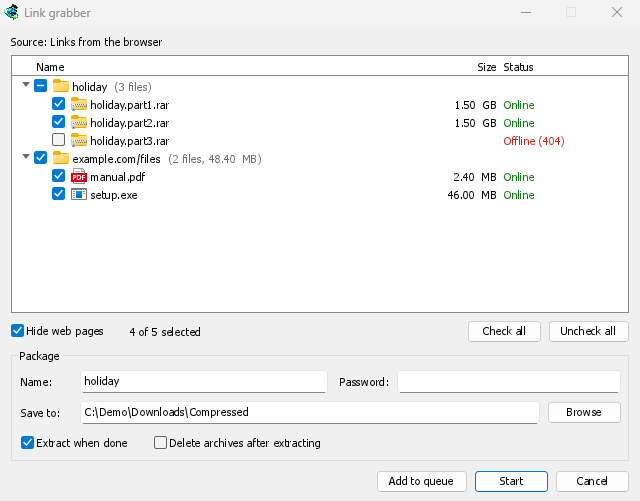
Кожен пакет — це рядок, який можна розгорнути й згорнути (клацніть стрілку, двічі клацніть рядок або натисніть Right чи Left). Якщо позначити пакет, позначаться всі його посилання. Якщо позначено лише деякі посилання, прапорець пакета буде заповнений наполовину.
- Томи одного архіву (
movie.part1.rar,movie.part2.rar… абоbackup.7z.001,backup.7z.002…) утворюють один пакет, названий на честь архіву, якщо вони походять з одного сайту. - Інші посилання однієї сторінки утворюють пакет, названий на честь сторінки.
- Все інше потрапляє до Різні файли.
- Посилання, запаковані сайтом (Click'n'Load), зберігають пакети та назви сайту, а також пароль архіву, якщо сайт його надав.
- Файли папки утворюють пакет для кожної папки, названий на її честь, чиє Зберегти до зберігає дерево папки (див. Папки).
- Файли моделі, набору даних або релізу утворюють один пакет, чия Зберегти до зберігає їхні папки (див. Моделі, набори даних та релізи).
Папки
Надайте Захопленню посилань адресу папки так само, як ви надаєте йому адресу сторінки: вставте її за допомогою Ctrl+V, скопіюйте її для Завдання → Додати пакетне завантаження з буфера обміну, додайте її до списку для Завдання → Імпорт або перетягніть її до списку завантажень.
- An FTP folder: an
ftp://,ftpes://orftps://address that ends in/(ftp://ftp.example.org/pub/). VDM logs in as it does for a download from that address (its user name and password, else your Sites Logins, else as anonymous) and asks the server for the folder's list. Each file comes with the size the server lists, so it isn't looked up again. - A web server's folder listing: the page Apache, nginx, IIS and other servers make of a folder without its own page, titled Index of /pub/ (or Directory listing for /pub/). VDM recognizes it, so it reads the folder instead of listing the page's links.
Захоплення посилань потім перераховує кожен файл у папці та в її підпапках. Файли кожної папки є пакетом, названим на честь папки, і його Зберегти до — це ця папка у вашій папці завантажень (Параметри → Зберегти до), тому дерево зберігається: ftp://ftp.example.org/pub/iso/disc.iso переходить до Downloads\pub\iso\disc.iso. Позначте те, що ви хочете; Приховати вебсторінки та поля пакетів працюють так само, як і для будь-яких посилань.
Options → Archives and Link grabber → Folders: 3 levels deep, types: ... sets how far VDM goes and what it keeps:
- Рівні глибини: скільки рівнів підпапок читається, за замовчуванням 3, максимум 10. 0 перераховує лише власні файли папки.
- Типи: лише файли цих типів, написані так, як на сторінці Типи файлів (
ISO ZIP R0*). Порожнє (за замовчуванням) зберігає кожен тип.
VDM stays inside the folder you gave. It never goes up to the folder above (../), never onto another site, never through a link the listing makes to somewhere else, and an FTP folder's links to other folders (symbolic links) aren't followed. A name that isn't a plain file or folder name (one with / or \ in it, ..) is left out. One folder lists at most 10,000 files, and VDM reads at most 500 folders for it; past that, the window's Source line says the folder was listed only in part (pub: only its first 10000 files).
Папки читаються лише з увімкненим Шукати посилання, коли вони надходять (за замовчуванням), як і вебсторінки. FTP-адреса без кінцевого / вважається файлом.
Моделі, набори даних і випуски
Вставте одну з цих адрес у Додати URL (Ctrl+N) або в Захоплення посилань за допомогою Ctrl+V (скопійовані, імпортовані або перетягнуті також працюють):
- Модель або набір даних Hugging Face:
https://huggingface.co/<owner>/<name>абоhttps://huggingface.co/datasets/<owner>/<name>, весь репозиторій. - Папка одного з них, у гілці, тезі або коміті: адреса сторінки папки,
https://huggingface.co/<owner>/<name>/tree/<revision>/<folder>. - Реліз GitHub:
https://github.com/<owner>/<repo>/releases/tag/<tag>або…/releases/latestдля найновішого. Тег без релізу перераховує його вихідний код.
VDM asks the site's public API for the list of files and opens Link grabber with all of them in one package: each file with its size and the folder it is in, unticked, so you tick only what you need (the package's box ticks them all). Its Save to is the address's path under your download folder (Options → Save to), and each file keeps its folder inside it: onnx/model.onnx of huggingface.co/org/tiny goes to Downloads\org\tiny\onnx\model.onnx, a dataset's files under Downloads\datasets\…, a release's under Downloads\<owner>\<repo>\<tag>. A folder of a repository keeps its place in it (org\tiny\onnx\…), so files you take later from another folder land beside it. Start or Add to queue adds them as one group, with one summary when the last is done.
- Checked against the site's digest. Hugging Face publishes a SHA-256 for each large file, GitHub for each release file. VDM checks the finished file against it, as Verify checksum does; a file that doesn't match stays unfinished and says so (the file's SHA-256 checksum doesn't match), and Redownload fetches it again. Small files kept in the repository itself, and a release's source code, have no digest of their own to check.
- Одна версія. Файли репозиторію запитуються за комітом, на який вказувала його гілка або тег під час їхнього переліку, тому гілка, яка рухається далі під час їхнього завантаження, ніколи не змішує дві версії.
- Straight from the sites. Files come from Hugging Face's and GitHub's own servers, never through a mirror, through VDM's own connections, speed limits and proxy, like any download.
- Моделі з обмеженим доступом. Репозиторій, файли якого вимагають прийняття його умов, завантажується за допомогою вашого токена доступу Hugging Face: прийміть умови на його сторінці, створіть токен у своїх налаштуваннях Hugging Face та додайте його в Параметри → Входи на сайти з сайтом
huggingface.co, будь-яким ім'ям користувача та токеном як паролем. Він зберігається разом з іншими вашими паролями в системному сховищі ключів і надсилається лише наhuggingface.co, ніколи на сервери, з яких він надсилає файли. Рядок Джерело повідомляє, коли репозиторій з обмеженим доступом ще не має токена. - Обмеження. Обидва сайти дозволяють лише певну кількість запитів з комп'ютера без облікового запису (GitHub 60 на годину). Коли ліміт досягнуто, рядок адреси повідомляє Спробуйте пізніше, а його підказка вказує, на який час.
Те, що вказує список сайту, перевіряється перед використанням: файл, шлях якого вивів би за межі його папки (.., абсолютний шлях, літера диска, ім'я пристрою, таке як CON), виключається, і рядок Джерело підраховує їх. Для однієї адреси перераховується не більше 10 000 файлів. Як і папки, вони читаються лише з увімкненим Шукати посилання, коли вони надходять (за замовчуванням).
Google Drive folders
Paste a shared folder's link, the one Drive's Share → Copy link gives (https://drive.google.com/drive/folders/…?usp=sharing), in Add URL (Ctrl+N) or in Link grabber with Ctrl+V. VDM reads the folder's page, the one your browser opens, and its subfolders' pages, one after the other, and opens Link grabber with all their files in one package, ticked, each with its name and size and the subfolder it is in. Its Save to is a folder of the Drive folder's name under your download folder (Options → Save to), and each file keeps its subfolders inside it: Day 2/hills.jpg of a folder named Holiday photos goes to Downloads\Holiday photos\Day 2\hills.jpg. Start or Add to queue adds them as one group, with one summary when the last is done.
- Each file as a single Drive file. Every file downloads the way a Drive file's own link does (Google Drive links): from Google's own servers, through VDM's connections, speed limits and proxy, past the can't scan this file for viruses page as Download anyway does. When Drive refuses one (too many downloads lately, a sign-in needed, no access), that file says so in its row, and the others go on.
- Google Docs, Sheets and Slides come as Word (
.docx), Excel (.xlsx) and PowerPoint (.pptx) files, Drawings as.png; their size shows once they are looked up. Forms, shortcuts and Sites aren't files: they are left out, and the Source line says how many. - Folders shared with your account only. Sign in to Google in your browser, right-click the folder's link there and choose Download with Volt Download Manager: the browser add-on passes your Google sign-in with it, and VDM uses it for the folder's pages and its files, on Google Drive only. Pasted without one, the folder's row says Needs a sign-in.
- 50 items a folder. Drive's page lists a folder's first 50 items, so a folder (or a subfolder) with more shows only 50 of them. The Source line says so when a folder shows 50; Drive's own Download on the folder gets all of it, as a zip, which the browser add-on hands to VDM.
- Names. Drive lets a name hold characters a disk doesn't take (
a/b,x:y) or be a Windows device's name (CON); VDM makes them plain names (a_b,x_y,_CON), as for any download. A name that is only dots (..) is left out, and the Source line counts it. A file's address is made from its Drive ID, never taken from the page.
Click'n'Load
Many link sites have a Click'n'Load button that sends their links straight to a download manager on your computer, as JDownloader's documentation for web sites describes. Turn it on in Options → Archives and Link grabber → Accept Click'n'Load from web pages (off by default). VDM then listens on port 9666 of this computer only, and the links a page sends open in Link grabber, with the page's package name and archive password.
Any web page can send links there, not only the link site you are on, so VDM is careful with them:
- The first time a site sends links, VDM asks: Allow (that site's links go to Link grabber from now on), Block (they never do), or Not now (these links are dropped, and the site is asked again next time). The site is the one your browser names, never what the page claims. When the browser names none (a page that hides where it is, or one inside a sandboxed frame), the window says An unknown site: it is asked about every time, and its answer is never kept. Turning Click'n'Load off forgets the answers.
- Посилання, надіслані сторінкою, не перевіряються: Захоплення посилань показує їх як Не перевірено, і жоден запит на них не надсилається, з вашими входами на сайти або обліковими записами дебрид чи без них, доки ви не додасте їх до черги. До цього нічого не завантажується.
- Links to this computer or your network are left out: a link to
localhost, to a private or link-local address (192.168.…,10.…,172.16.…,169.254.…, their IPv6 kin), or to a name without a dot or under.local,.lanor.internalnever reaches Link grabber. A link site's files aren't there, and such an address could be your router or another device. VDM judges the address as written: a public-looking name that points into your network isn't recognized, so look at a package before you add it. - Limits: at most 10 posts a minute from one site, 500 links and 256 KB a post; more is refused, and one site's posts don't use up another's. At most 20 posts wait for an answer. A site brings VDM's window to the front at most once a minute; its links still arrive in Link grabber in between.
- Власна адреса сторінки не надсилається як реферер посилань: сторінка може назвати будь-яку.
- VDM doesn't say it is JDownloader. Some sites first ask whether JDownloader is running (a script named
jdcheck.js) and show their button only then. VDM doesn't answer that question, so such a site may say no program was found; a site that simply sends its form works. - Only one program can listen on port 9666. If JDownloader is running, VDM says so: close it, then turn the option off and on again.
- A button that sends a DLC container instead of links isn't taken: reading one needs a key VDM can't use. The site's plain links, or its Click'n'Load button, are the way.
- Some sites hide the key in a script VDM doesn't run (only the plain form the documentation shows is read): then their button reports a failure, and the site's plain links are the way.
Пошук посилань
As links arrive, VDM asks each server about its file, as IDM's Download all links does. A few links are checked at a time, and only a few from any one site. Each link then shows its real name and size, and a status:
- Онлайн: сервер має файл.
- Офлайн (404): його немає. Посилання не позначено.
- Потрібен вхід: сервер вимагає ім'я користувача та пароль або файли cookie сторінки.
- Зайнято, спробуйте пізніше: сервер попросив зачекати.
Turn the look-ups off in Options → Archives → Look links up when they arrive. Some file hosts count a look-up as a download. With the look-ups off, VDM asks nothing of the network until you start, so a web page's address isn't read for its links either.
Приховати вебсторінки (увімкнено за замовчуванням) виключає посилання на сторінки (.html, .php тощо, а також будь-яке посилання, пошук якого знайшов вебсторінку): вони не відображаються і не завантажуються.
Приховати зображення, розташовані на цій вебсторінці виключає зображення, які браузер знайшов на сторінці (її зображення, у найбільшому розмірі, який сторінка вказує для кожного), тому список містить посилання сторінки. Вона знову позначається щоразу, коли посилання сторінки надходять з такими зображеннями, і не запам'ятовується: зніміть позначку, щоб побачити зображення та позначити ті, які ви хочете; поки вона позначена, вони не відображаються і не завантажуються. Посилання на зображення (мініатюра, що посилається на її повний розмір) є посиланням, як і будь-яке інше, і завжди відображається, навіть якщо те саме зображення також відображається на сторінці.
Поле пакета
Поле під списком редагує вибраний вами пакет:
- Ім’я: назва пакета, що зберігається разом із його завантаженнями.
- Зберегти до: папка, куди потрапляють його файли. Коли пакет містить кілька типів файлів, у полі відображається Папка категорії кожного файлу: кожен файл потрапляє до папки своєї категорії (Параметри → Зберегти до), як це завжди було при імпорті.
- Пароль: пароль архіву, якщо він є. Він зберігається лише в пам’яті та ніколи не зберігається сам по собі: щоб зберегти його для інших пакетів, додайте його до паролів архівів.
- Видобути після завершення: позначається автоматично, коли пакет містить архів.
- Видалити архіви після видобування: після видобування архіви переміщуються до Кошика (Trash на macOS та Linux).
Додавання посилань
- Почати додає позначені посилання до Основна черга завантажень та запускає чергу. Він завантажує стільки файлів одночасно, скільки дозволяє черга.
- Додати до черги додає їх до Основна черга завантажень без запуску, як це робить імпорт IDM.
- Скасувати закриває вікно і нічого не додає.
Видобування архівів
VDM itself extracts zip archives (AES-encrypted and Deflate64 ones too), tar, tar.gz and tar.xz archives, and single .gz and .xz files.
7z and RAR archives need 7-Zip, a free program (7-zip.org). VDM runs it when it is installed, for split and encrypted archives too. RAR's own extraction code can't be part of a free program like VDM, and 7-Zip extracts 7z best.
Options → Archives says whether 7-Zip was found. Without it, a 7z or RAR archive isn't extracted, and the 7-Zip needed window says so, with a Get 7-Zip button. On Linux, install your distribution's 7zip (or p7zip) package: VDM finds 7zz, 7z or 7za on its own.
Another archiver built on 7-Zip does as well, so there is no need for a second copy. On Windows VDM finds the 7-Zip that PeaZip brings with it (PeaZip\res\bin\7z\7z.exe in Program Files) and NanaZip's command line (NanaZipC.exe) by itself, after 7-Zip's own folders. For any other, such as a portable copy or one installed for your user only, press Use another program... in Options → Archives and choose its 7-Zip command line program: 7z.exe, 7za.exe or 7zz, not the archiver's own window. VDM runs it once to see that it answers as 7-Zip, then uses it for 7z and RAR archives, with the same arguments as always. Find 7-Zip automatically goes back to the one VDM finds, which is also used if the chosen program is removed.
На місці, за допомогою HatchZip
HatchZip is another free extractor (MIT or Apache-2.0), optional. VDM uses its command line program, hatchzip, when it is on the PATH (its installers and packages put it there; the desktop app alone isn't enough):
- Options → Archives → Extract in place with HatchZip (off by default): HatchZip removes the archive while its files come out, so a 180 GB download that unpacks to 200 GB needs a little over 200 GB, not 380 GB. It reads zip, 7z, RAR and tar archives, split ones too; single
.gzand.xzfiles are still extracted by VDM. A solid RAR archive can't be extracted in place (HatchZip says so before it changes anything): VDM then extracts it as usual, with 7-Zip, and keeps the archive. HatchZip's own release builds read RAR; a build from crates.io doesn't. - Перш ніж щось змінити, HatchZip перевіряє, чи файли підходять, і підтверджує пароль. Відсутній або неправильний пароль, або замало місця нічого не змінює: журнал повідомляє про це, і вікно Пароль архіву запитує як зазвичай. Пароль передається HatchZip через його середовище, ніколи не через командний рядок.
- Файли переходять туди, куди вказує Куди йде вміст архіву, як і при будь-якому іншому видобуванні. По дорозі вони знаходяться в папці з назвою
<archive>.hatchzip-outпоруч з архівом. - If it stops partway (VDM closed, the download deleted, the disk filled by something else), the files extracted so far stay in that folder and the rest is still in the archive. Extract continues where it stopped, even with the option off: only HatchZip can finish such an archive. VDM continues only a run it started itself (it keeps a note of it in its own data): a HatchZip progress file (
<archive>.hatchzip) that comes with a download or a torrent starts nothing, and that archive is extracted as usual. - Nothing HatchZip extracted is ever deleted, those files are no longer in the archive. Entries VDM leaves out (links, names leading outside the folder) stay in that folder, and so do the files a failed move couldn't put in place (a file held open by another program); the log says where. So after an extraction in place, a link an archive held that VDM considers unsafe is still in your download folder, inside
<archive>.hatchzip-out: it is never followed or moved, but it isn't removed either, as it is by every other extraction. Look at what is left in that folder before you open it. - Потім перемістити архіви до Кошика не має чого переміщувати після: архів вже зник.
- Архіви 7z і RAR все ще потребують 7-Zip, коли опція вимкнена.
Архів видобувається:
- коли його пакет вказує Видобути після завершення,
- коли увімкнено Параметри → Архіви → Видобувати архіви після завершення завантаження (вимкнено за замовчуванням) для будь-якого іншого завантаження,
- коли ви клацаєте правою кнопкою миші на завершеному архіві та вибираєте Видобути.
Розділений архів видобувається один раз, коли завантажено його останній том. Файли розміщуються поруч з архівом:
- у папку, названу на честь архіву, коли він містить кілька елементів на верхньому рівні (або завжди, або ніколи: Параметри → Архіви),
- файл, який вже існує, зберігається, а новий нумерується:
report (1).txt.
Видобуті файли позначаються як такі, що походять з інтернету, як і сам архів, тому Windows все ще попереджає перед запуском програми з нього.
VDM extracts safely. A name that would lead outside the folder is left out, and so is a link to somewhere else on the disk. An archive that would write far more than its size, or more than the disk has room for, stops before it fills it. When something goes wrong, nothing but the archive is left behind.
Журнал завантаження (наведіть курсор на нього в списку) показує, що сталося: Видобуто 12 файлів до…, або чому ні, наприклад Не вдалося видобути movie.7z.001: відсутній том 3. Кожен архів спочатку намагаються відкрити без пароля. Той, що виявляється зашифрованим, намагаються відкрити паролем свого пакета, потім кожним із ваших збережених паролів (Параметри → Архіви → Паролі архівів...), у їхньому порядку, тому архів, який не потребує пароля, ніколи їх не зустрічає. Лише коли жоден не підходить, відкривається вікно Пароль архіву. Введіть пароль і натисніть Видобути, або Скасувати, щоб залишити архів як є. Поставте прапорець Запам’ятати для інших архівів (він спочатку не відмічений), щоб додати його до збережених паролів. 7-Zip отримує кожен пароль на свій вхід, ніколи не через командний рядок, де інші програми на комп’ютері могли б його прочитати.
Паролі архівів
Options → Archives → Archive passwords... keeps the passwords you use again and again (a site's own, say), one per line. The download's log says Trying the saved archive passwords... while VDM tries them. The one that opens an archive moves to the top of the list, so the passwords you need most are tried first. A package's password (one you typed in Link grabber, or one that came with the links) is tried first and never added to the list by itself; when it is one of your saved passwords already, it moves to the top like any other. A password typed in the Archive password window is added only with Remember it for other archives ticked, and only once it fits. The list is kept in the system's keychain, as the other passwords are (see Where the sign-in is kept).
Кожна спроба починає видобування знову: з довгим списком і великим архівом, імена файлів якого не зашифровані, може знадобитися деякий час, перш ніж буде знайдено правильний.
Перевірка архівів
A finished archive can still be broken: a server sent wrong bytes, or a proxy on the way mangled part of the file. It shows only when someone opens it, often much later. So VDM tests ZIP, 7z and RAR archives, split ones too once every volume is in, when their download completes: Options → Archives → Test archives when their download completes is on by default, up to 4 GB. A test reads the whole archive, so a larger one is tested only when you ask: right-click a finished archive and choose Test archive, whatever its size.
- The test is 7-Zip's (
7z t, with the 7-Zip that Options → Archives names): every file in the archive is read back and checked, and nothing is written. Without 7-Zip, VDM tests ZIP archives itself; 7z and RAR archives aren't tested. - Завантаження вважається завершеним після закінчення перевірки. Тим часом у списку відображається Перевірка 45%, черга чекає на неї, а вікно Завантаження завершено, звук і видобування відбуваються після перевірки.
- Захищений паролем архів не перевіряється, оскільки його файли не можуть бути прочитані без нього: у журналі відображається Не вдалося перевірити photos.zip: потрібен пароль. Також не перевіряються файли tar, gz та xz.
- Пошкоджений архів відображається як Пошкоджено у списку, у його журналі вказані пошкоджені файли, а вікно Пошкоджений архів пропонує Перезавантажити: воно завантажує архів (кожен том розділеного архіву) знову з початку. Він не видобувається автоматично; Видобути все ще намагається це зробити.
- A ZIP in one file is repaired instead, when VDM can tell where its damaged files are in it: their bytes alone are downloaded again, from the same server, and the archive is tested once more. The log says Downloading the damaged parts again (1.20 MB), then Tested again: the archive has no errors now. The bytes come only from the same version of the file: VDM asks for them as it resumes any download (with the file's ETag or date,
If-Range), and checks the bytes just before each part against the ones on disk. A file that changed on the server stops the download with the file changed on the server instead of mixing two versions: Redownload downloads the new one. An archive still damaged after that is offered for Redownload. - Архіви 7z і RAR зберігають свої файли в блоках, місце яких у файлі тест 7-Zip не надає, а томи розділеного архіву є окремими завантаженнями: вони перевіряються і пропонуються для Перезавантажити у разі пошкодження, ніколи не відновлюються частково.
- Розділений архів (
photos.zip.001,photos.z01,notes.7z.001,movie.part1.rar,movie.r00) перевіряється один раз, починаючи з першого тому, коли завантажено всі томи, незалежно від того, який з них завершився останнім. Його томи часто завершуються один за одним (черга, яка завантажує по одному файлу за раз, хост, який змушує чекати між файлами), і ті, що вже є, читаються як скорочений архів, тому вони не перевіряються окремо. Перевірити архів для ще не завершеного розділеного архіву повідомляє про це: Ще не перевірено: photos.zip.001 не завершено (тому 3 ще немає). - Closing VDM stops a test; the archive is tested again at the next start.
Наступні кроки
Безкоштовно, з відкритим кодом, без реклами, без пробного періоду.
Download Volt Download Manager