

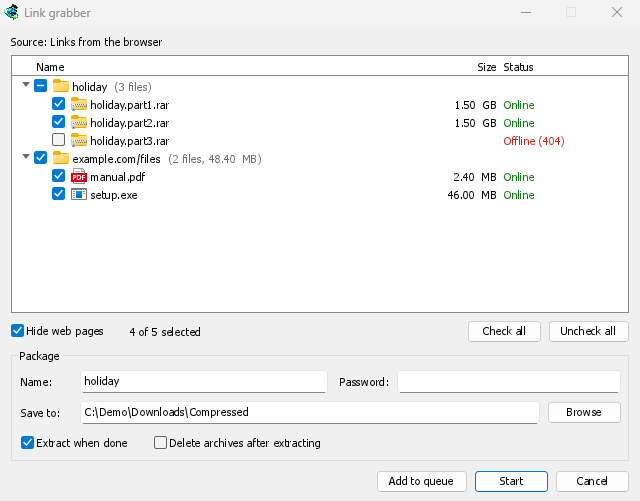
Link grabber gathers many links at once, sorts them into packages, and lets you tick the ones to download. VDM can then extract the archives it downloaded (zip, 7z, rar and more), by itself or when you ask.
ที่มาของลิงก์
- The browser. Right-click a page for Download all links with Volt Download Manager, or select part of it for Download selected links with Volt Download Manager. The page's referrer and cookies go with each link. Both also send the pictures located on the page (or in the selection), hidden at first (see Hide images located on this web page below).
- รูปภาพในหน้าเว็บ ปุ่มบนแถบเครื่องมือของส่วนเสริมเบราว์เซอร์ หน้านี้ → ค้นหารูปภาพ จะส่งรูปภาพของหน้าเว็บในขนาดที่ใหญ่ที่สุดที่ระบุไว้ ซึ่งเป็นรูปภาพที่คุณเก็บไว้ตามขนาดและชนิด (รูปภาพในหน้านี้)
- งาน → นำเข้า → จากไฟล์ข้อความ และ นำเข้าจากไฟล์ส่งออกของ IDM ไฟล์
.ef2จะนำเข้า Referrer และคุกกี้ของการดาวน์โหลดแต่ละรายการ รวมถึงชื่อไฟล์เมื่อรายการระบุไว้ (บรรทัดfilename:; เฉพาะชื่อเท่านั้น ไม่ใช่โฟลเดอร์) - หลายลิงก์ หรือรายการ
.txtหรือ.ef2ที่ลากมาวางบนรายการดาวน์โหลด - คลิปบอร์ด งาน → เพิ่มการดาวน์โหลดแบบกลุ่มจากคลิปบอร์ด (Ctrl+B ซึ่งอยู่ในเมนูไอคอนถาดด้วย) จะอ่านข้อความที่คัดลอกเมื่อคุณเลือก และแสดงรายการลิงก์ดาวน์โหลดทั้งหมดในนั้น:
http,https,ftpและลิงก์แม่เหล็ก ในรายการ โพสต์ฟอรัม Markdown หรือ HTML โดยแต่ละลิงก์จะแสดงเพียงครั้งเดียว ลิงก์thunder://,flashget://หรือqqdl://จะแสดงเป็นที่อยู่ซึ่งถูกห่อหุ้มอยู่ ดังนั้นไฟล์เดียวกันที่ลิงก์แบบห่อหุ้มและแบบธรรมดาจะเป็นแถวเดียวกัน; ซึ่งใช้ได้กับข้อความที่วางและรายการที่นำเข้าด้วย - การวาง เลือก งาน → ตัวดึงลิงก์... แล้วกด Ctrl+V: ลิงก์ดาวน์โหลดทั้งหมดในข้อความที่คัดลอกจะถูกเพิ่มเข้ามา
- A web page's address. Paste or copy the address of a page (
https://example.com/downloads) and VDM reads the page and lists the links on it, as the browser's Download all links does, in a package named after the page. The page itself is left unticked. This works for addresses that came on their own (pasted, copied, typed, in a list), not for the links found on a page, so VDM never wanders off through a site. VDM reads only what the page itself holds: links a page's scripts add after it loads come only through the browser. - A folder. Paste or copy the address of an
ftp://folder (ftp://ftp.example.org/pub/) or of the page a web server makes of a folder ("Index of /pub/"), and VDM lists every file in it and in its subfolders, each folder's files in a package of their own. See Folders. - A Hugging Face model or dataset, a GitHub release. Paste the address of a model or dataset on Hugging Face, of a folder in one, or of a release on GitHub, in Add URL or here, and VDM lists every file in it, with its size and folder. See Models, datasets and releases.
- A Google Drive folder. Paste a shared folder's link (
https://drive.google.com/drive/folders/…) in Add URL or here, or right-click it in the browser and choose Download with Volt Download Manager, and VDM lists every file in it and in its subfolders. See Google Drive folders. - ปุ่ม Click'n'Load บนเว็บไซต์ลิงก์ เมื่อคุณเปิดใช้งานแล้ว ดู Click'n'Load
A magnet link shows as Magnet link and isn't looked up: once you click Start or Add to queue, VDM finds the torrent's files and adds it with all of them, in the package's folder (or the Torrents folder when the package has none).
ลิงก์ที่เข้ามาในขณะที่หน้าต่างเปิดอยู่จะเข้าร่วมกับลิงก์ที่มีอยู่แล้ว ลิงก์ที่มีอยู่ในหน้าต่างอยู่แล้วจะไม่ถูกเพิ่มซ้ำ ลิงก์ที่มีอยู่ในรายการดาวน์โหลดของคุณอยู่แล้วจะไปอยู่ใต้ มีอยู่ในรายการแล้ว โดยไม่มีเครื่องหมายถูก
แพ็กเกจ
แต่ละแพ็กเกจคือแถวที่คุณสามารถเปิดและปิดได้ (คลิกลูกศร ดับเบิลคลิก หรือกด ลูกศรขวา และ ลูกศรซ้าย) การเลือกแพ็กเกจจะเลือกทุกลิงก์ในแพ็กเกจนั้น กล่องจะถูกเติมครึ่งหนึ่งเมื่อเลือกเพียงบางส่วน
- วอลุ่มของไฟล์เก็บถาวรหนึ่งไฟล์ (
movie.part1.rar,movie.part2.rar... หรือbackup.7z.001,backup.7z.002...) จะรวมกันเป็นหนึ่งแพ็กเกจที่ตั้งชื่อตามไฟล์เก็บถาวร ตราบใดที่มาจากไซต์เดียวกัน - ลิงก์อื่น ๆ ของหน้าเว็บหนึ่งหน้า จะรวมกันเป็นแพ็กเกจที่ตั้งชื่อตามหน้าเว็บ
- ทุกอย่างอื่น จะไปอยู่ใน ไฟล์เบ็ดเตล็ด
- ลิงก์ที่เว็บไซต์จัดชุดไว้ (Click'n'Load) จะเก็บชุดข้อมูลและชื่อของเว็บไซต์ พร้อมรหัสผ่านไฟล์เก็บถาวร หากเว็บไซต์ให้มา
- ไฟล์ในโฟลเดอร์ จะรวมกันเป็นแพ็กเกจสำหรับแต่ละโฟลเดอร์ โดยตั้งชื่อตามโฟลเดอร์นั้น และ บันทึกไปที่ จะคงโครงสร้างโฟลเดอร์ไว้ (ดู โฟลเดอร์)
- ไฟล์ของโมเดล, ชุดข้อมูล หรือการเผยแพร่ รวมกันเป็นหนึ่งแพ็กเกจ ซึ่ง บันทึกไปที่ จะเก็บโฟลเดอร์ของไฟล์เหล่านั้นไว้ (ดู โมเดล, ชุดข้อมูล และการเผยแพร่)
โฟลเดอร์
ป้อนที่อยู่ของโฟลเดอร์ให้ตัวดึงลิงก์ เช่นเดียวกับการป้อนที่อยู่ของหน้าเว็บ: วางด้วย Ctrl+V, คัดลอกเพื่อ งาน → เพิ่มการดาวน์โหลดแบบกลุ่มจากคลิปบอร์ด, ใส่ในรายการเพื่อ งาน → นำเข้า หรือลากไปวางบนรายการดาวน์โหลด
- An FTP folder: an
ftp://,ftpes://orftps://address that ends in/(ftp://ftp.example.org/pub/). VDM logs in as it does for a download from that address (its user name and password, else your Sites Logins, else as anonymous) and asks the server for the folder's list. Each file comes with the size the server lists, so it isn't looked up again. - A web server's folder listing: the page Apache, nginx, IIS and other servers make of a folder without its own page, titled Index of /pub/ (or Directory listing for /pub/). VDM recognizes it, so it reads the folder instead of listing the page's links.
จากนั้นตัวดึงลิงก์จะแสดงรายการไฟล์ทั้งหมดในโฟลเดอร์และในโฟลเดอร์ย่อย ไฟล์ของแต่ละโฟลเดอร์จะรวมกันเป็นแพ็กเกจที่ตั้งชื่อตามโฟลเดอร์นั้น และ บันทึกไปที่ คือโฟลเดอร์นั้นภายใต้โฟลเดอร์ดาวน์โหลดของคุณ (ตัวเลือก → บันทึกไปที่) เพื่อให้โครงสร้างยังคงอยู่: ftp://ftp.example.org/pub/iso/disc.iso ไปที่ Downloads\pub\iso\disc.iso เลือกสิ่งที่คุณต้องการ; ซ่อนหน้าเว็บ และกล่องแพ็กเกจทำงานเหมือนกับลิงก์อื่น ๆ
Options → Archives and Link grabber → Folders: 3 levels deep, types: ... sets how far VDM goes and what it keeps:
- ระดับความลึก: จำนวนระดับของโฟลเดอร์ย่อยที่จะอ่าน ค่าเริ่มต้นคือ 3 สูงสุด 10 หากเป็น 0 จะแสดงเฉพาะไฟล์ในโฟลเดอร์นั้นเท่านั้น
- ชนิด: เฉพาะไฟล์ของชนิดเหล่านี้ ซึ่งเขียนเหมือนกับในหน้า ชนิดไฟล์ (
ISO ZIP R0*) หากว่างเปล่า (ค่าเริ่มต้น) จะเก็บทุกชนิด
VDM stays inside the folder you gave. It never goes up to the folder above (../), never onto another site, never through a link the listing makes to somewhere else, and an FTP folder's links to other folders (symbolic links) aren't followed. A name that isn't a plain file or folder name (one with / or \ in it, ..) is left out. One folder lists at most 10,000 files, and VDM reads at most 500 folders for it; past that, the window's Source line says the folder was listed only in part (pub: only its first 10000 files).
โฟลเดอร์จะถูกอ่านเฉพาะเมื่อ ค้นหาลิงก์เมื่อมาถึง เปิดอยู่ (ค่าเริ่มต้น) เช่นเดียวกับหน้าเว็บ ที่อยู่ FTP ที่ไม่มี / สุดท้ายจะถือว่าเป็นไฟล์
โมเดล, ชุดข้อมูล และรุ่น
วางที่อยู่เหล่านี้ใน เพิ่ม URL (Ctrl+N) หรือใน ตัวดึงลิงก์ ด้วย Ctrl+V (การคัดลอก, นำเข้า หรือลากวางก็ใช้ได้เช่นกัน):
- โมเดลหรือชุดข้อมูลของ Hugging Face:
https://huggingface.co/<owner>/<name>หรือhttps://huggingface.co/datasets/<owner>/<name>ทั้งที่เก็บ - โฟลเดอร์หนึ่ง ที่สาขา, แท็ก หรือคอมมิต: ที่อยู่ของหน้าโฟลเดอร์,
https://huggingface.co/<owner>/<name>/tree/<revision>/<folder> - การเผยแพร่ของ GitHub:
https://github.com/<owner>/<repo>/releases/tag/<tag>หรือ…/releases/latestสำหรับเวอร์ชันล่าสุด แท็กที่ไม่มีการเผยแพร่จะแสดงรายการซอร์สโค้ด
VDM asks the site's public API for the list of files and opens Link grabber with all of them in one package: each file with its size and the folder it is in, unticked, so you tick only what you need (the package's box ticks them all). Its Save to is the address's path under your download folder (Options → Save to), and each file keeps its folder inside it: onnx/model.onnx of huggingface.co/org/tiny goes to Downloads\org\tiny\onnx\model.onnx, a dataset's files under Downloads\datasets\…, a release's under Downloads\<owner>\<repo>\<tag>. A folder of a repository keeps its place in it (org\tiny\onnx\…), so files you take later from another folder land beside it. Start or Add to queue adds them as one group, with one summary when the last is done.
- Checked against the site's digest. Hugging Face publishes a SHA-256 for each large file, GitHub for each release file. VDM checks the finished file against it, as Verify checksum does; a file that doesn't match stays unfinished and says so (the file's SHA-256 checksum doesn't match), and Redownload fetches it again. Small files kept in the repository itself, and a release's source code, have no digest of their own to check.
- หนึ่งเวอร์ชัน ไฟล์ของที่เก็บจะถูกเรียกตามคอมมิตที่สาขาหรือแท็กชี้ไปเมื่อมีการแสดงรายการ ดังนั้นสาขาที่เคลื่อนไปข้างหน้าในขณะที่ดาวน์โหลดจะไม่ปะปนสองเวอร์ชัน
- Straight from the sites. Files come from Hugging Face's and GitHub's own servers, never through a mirror, through VDM's own connections, speed limits and proxy, like any download.
- โมเดลที่มีการควบคุม ที่เก็บที่ไฟล์ต้องการการยอมรับเงื่อนไขจะดาวน์โหลดด้วยโทเค็นการเข้าถึง Hugging Face ของคุณ: ยอมรับเงื่อนไขบนหน้าของมัน, สร้างโทเค็นในการตั้งค่า Hugging Face ของคุณ, และเพิ่มใน ตัวเลือก → การเข้าสู่ระบบไซต์ ด้วยไซต์
huggingface.co, ชื่อผู้ใช้ใดๆ และโทเค็นเป็นรหัสผ่าน โทเค็นจะถูกเก็บไว้กับรหัสผ่านอื่นๆ ของคุณในพวงกุญแจของระบบ และส่งไปยังhuggingface.coเท่านั้น ไม่เคยส่งต่อไปยังเซิร์ฟเวอร์ที่ส่งไฟล์มา บรรทัด แหล่งที่มา จะแจ้งเมื่อที่เก็บที่มีการควบคุมยังไม่มีโทเค็น - ข้อจำกัด ทั้งสองไซต์อนุญาตให้มีการร้องขอจากคอมพิวเตอร์ที่ไม่มีบัญชีได้จำกัด (GitHub 60 ครั้งต่อชั่วโมง) เมื่อถึงขีดจำกัด แถวของที่อยู่จะแจ้งว่า ลองอีกครั้งในภายหลัง และคำแนะนำจะแจ้งว่านานแค่ไหน
สิ่งที่รายการของไซต์แจ้งจะถูกตรวจสอบก่อนนำไปใช้: ไฟล์ที่พาธจะนำออกนอกโฟลเดอร์ (.., พาธสัมบูรณ์, อักษรระบุไดรฟ์, ชื่ออุปกรณ์ เช่น CON) จะถูกละทิ้ง และบรรทัด แหล่งที่มา จะนับจำนวนไฟล์เหล่านั้น มีการแสดงรายการไฟล์สูงสุด 10,000 ไฟล์สำหรับหนึ่งที่อยู่ เช่นเดียวกับโฟลเดอร์ ไฟล์จะถูกอ่านเฉพาะเมื่อเปิด ค้นหาลิงก์เมื่อมาถึง (ค่าเริ่มต้น)
Google Drive folders
Paste a shared folder's link, the one Drive's Share → Copy link gives (https://drive.google.com/drive/folders/…?usp=sharing), in Add URL (Ctrl+N) or in Link grabber with Ctrl+V. VDM reads the folder's page, the one your browser opens, and its subfolders' pages, one after the other, and opens Link grabber with all their files in one package, ticked, each with its name and size and the subfolder it is in. Its Save to is a folder of the Drive folder's name under your download folder (Options → Save to), and each file keeps its subfolders inside it: Day 2/hills.jpg of a folder named Holiday photos goes to Downloads\Holiday photos\Day 2\hills.jpg. Start or Add to queue adds them as one group, with one summary when the last is done.
- Each file as a single Drive file. Every file downloads the way a Drive file's own link does (Google Drive links): from Google's own servers, through VDM's connections, speed limits and proxy, past the can't scan this file for viruses page as Download anyway does. When Drive refuses one (too many downloads lately, a sign-in needed, no access), that file says so in its row, and the others go on.
- Google Docs, Sheets and Slides come as Word (
.docx), Excel (.xlsx) and PowerPoint (.pptx) files, Drawings as.png; their size shows once they are looked up. Forms, shortcuts and Sites aren't files: they are left out, and the Source line says how many. - Folders shared with your account only. Sign in to Google in your browser, right-click the folder's link there and choose Download with Volt Download Manager: the browser add-on passes your Google sign-in with it, and VDM uses it for the folder's pages and its files, on Google Drive only. Pasted without one, the folder's row says Needs a sign-in.
- 50 items a folder. Drive's page lists a folder's first 50 items, so a folder (or a subfolder) with more shows only 50 of them. The Source line says so when a folder shows 50; Drive's own Download on the folder gets all of it, as a zip, which the browser add-on hands to VDM.
- Names. Drive lets a name hold characters a disk doesn't take (
a/b,x:y) or be a Windows device's name (CON); VDM makes them plain names (a_b,x_y,_CON), as for any download. A name that is only dots (..) is left out, and the Source line counts it. A file's address is made from its Drive ID, never taken from the page.
Click'n'Load
Many link sites have a Click'n'Load button that sends their links straight to a download manager on your computer, as JDownloader's documentation for web sites describes. Turn it on in Options → Archives and Link grabber → Accept Click'n'Load from web pages (off by default). VDM then listens on port 9666 of this computer only, and the links a page sends open in Link grabber, with the page's package name and archive password.
Any web page can send links there, not only the link site you are on, so VDM is careful with them:
- The first time a site sends links, VDM asks: Allow (that site's links go to Link grabber from now on), Block (they never do), or Not now (these links are dropped, and the site is asked again next time). The site is the one your browser names, never what the page claims. When the browser names none (a page that hides where it is, or one inside a sandboxed frame), the window says An unknown site: it is asked about every time, and its answer is never kept. Turning Click'n'Load off forgets the answers.
- ลิงก์ที่หน้าเว็บส่งมาจะไม่ถูกค้นหา: ตัวดึงลิงก์จะแสดงเป็น ไม่ได้ค้นหา และจะไม่มีการส่งคำขอใด ๆ ออกไปสำหรับลิงก์เหล่านั้น ไม่ว่าจะใช้หรือไม่ใช้การเข้าสู่ระบบไซต์หรือบัญชี debrid ของคุณ จนกว่าคุณจะเพิ่มลงในคิว จะไม่มีการดาวน์โหลดใด ๆ ก่อนหน้านั้น
- Links to this computer or your network are left out: a link to
localhost, to a private or link-local address (192.168.…,10.…,172.16.…,169.254.…, their IPv6 kin), or to a name without a dot or under.local,.lanor.internalnever reaches Link grabber. A link site's files aren't there, and such an address could be your router or another device. VDM judges the address as written: a public-looking name that points into your network isn't recognized, so look at a package before you add it. - Limits: at most 10 posts a minute from one site, 500 links and 256 KB a post; more is refused, and one site's posts don't use up another's. At most 20 posts wait for an answer. A site brings VDM's window to the front at most once a minute; its links still arrive in Link grabber in between.
- ที่อยู่ของหน้าเว็บเองจะไม่ถูกส่งเป็นตัวอ้างอิงของลิงก์: หน้าเว็บสามารถระบุชื่อใดก็ได้
- VDM doesn't say it is JDownloader. Some sites first ask whether JDownloader is running (a script named
jdcheck.js) and show their button only then. VDM doesn't answer that question, so such a site may say no program was found; a site that simply sends its form works. - Only one program can listen on port 9666. If JDownloader is running, VDM says so: close it, then turn the option off and on again.
- A button that sends a DLC container instead of links isn't taken: reading one needs a key VDM can't use. The site's plain links, or its Click'n'Load button, are the way.
- Some sites hide the key in a script VDM doesn't run (only the plain form the documentation shows is read): then their button reports a failure, and the site's plain links are the way.
การค้นหาลิงก์
As links arrive, VDM asks each server about its file, as IDM's Download all links does. A few links are checked at a time, and only a few from any one site. Each link then shows its real name and size, and a status:
- ออนไลน์: เซิร์ฟเวอร์มีไฟล์
- ออฟไลน์ (404): ไม่มีไฟล์ ลิงก์จะถูกยกเลิกการเลือก
- ต้องเข้าสู่ระบบ: เซิร์ฟเวอร์ต้องการชื่อผู้ใช้และรหัสผ่าน หรือคุกกี้ของหน้าเว็บ
- ไม่ว่าง โปรดลองอีกครั้งในภายหลัง: เซิร์ฟเวอร์ขอให้รอ
Turn the look-ups off in Options → Archives → Look links up when they arrive. Some file hosts count a look-up as a download. With the look-ups off, VDM asks nothing of the network until you start, so a web page's address isn't read for its links either.
ซ่อนหน้าเว็บ (เปิดใช้งานโดยค่าเริ่มต้น) จะไม่รวมลิงก์ไปยังหน้าเว็บ (.html, .php และอื่น ๆ รวมถึงลิงก์ใด ๆ ที่การค้นหาพบว่าเป็นหน้าเว็บ): จะไม่แสดงและไม่ดาวน์โหลด
ซ่อนรูปภาพที่อยู่ในหน้าเว็บนี้ จะละทิ้งรูปภาพที่เบราว์เซอร์พบว่าแสดงบนหน้าเว็บ (รูปภาพของหน้าเว็บ ในขนาดที่ใหญ่ที่สุดที่หน้าระบุไว้สำหรับแต่ละรูป) ดังนั้นรายการจะเก็บลิงก์ของหน้าเว็บ จะถูกเลือกอีกครั้งทุกครั้งที่ลิงก์ของหน้าเว็บมาพร้อมกับรูปภาพดังกล่าว และจะไม่ถูกจดจำ: ยกเลิกการเลือกเพื่อดูรูปภาพและเลือกรูปภาพที่คุณต้องการ; ในขณะที่ถูกเลือก รูปภาพจะไม่แสดงและไม่ถูกดาวน์โหลด ลิงก์ไปยังรูปภาพ (ภาพขนาดย่อที่ลิงก์ไปยังขนาดเต็ม) เป็นลิงก์เหมือนลิงก์อื่น ๆ และจะแสดงเสมอ แม้ว่ารูปภาพเดียวกันจะแสดงบนหน้าเว็บด้วยก็ตาม
กล่องแพ็กเกจ
กล่องใต้รายการจะแก้ไขแพ็กเกจที่คุณเลือก:
- ชื่อ: ชื่อของแพ็กเกจ ซึ่งเก็บไว้พร้อมกับการดาวน์โหลด
- บันทึกไปที่: โฟลเดอร์ที่ไฟล์จะถูกบันทึก เมื่อแพ็กเกจมีไฟล์หลายประเภท กล่องจะแสดง โฟลเดอร์หมวดหมู่ของแต่ละไฟล์: ไฟล์แต่ละไฟล์จะไปที่โฟลเดอร์หมวดหมู่ของมัน (ตัวเลือก → บันทึกไปที่) เช่นเดียวกับการนำเข้าเสมอมา
- รหัสผ่าน: รหัสผ่านของไฟล์เก็บถาวร หากมี รหัสผ่านจะถูกเก็บไว้ในหน่วยความจำเท่านั้นและไม่เคยถูกบันทึกด้วยตัวเอง หากต้องการเก็บรหัสผ่านไว้สำหรับแพ็กเกจอื่น ให้เพิ่มลงใน รหัสผ่านของไฟล์เก็บถาวร ของคุณ
- แตกไฟล์เมื่อเสร็จสิ้น: ถูกเลือกเองเมื่อแพ็กเกจมีไฟล์เก็บถาวร
- ลบไฟล์เก็บถาวรหลังจากแตกไฟล์: เมื่อแตกไฟล์แล้ว ไฟล์เก็บถาวรจะถูกย้ายไปที่ถังรีไซเคิล (Trash บน macOS และ Linux)
การเพิ่มลิงก์
- เริ่ม จะเพิ่มลิงก์ที่เลือกไปยัง คิวการดาวน์โหลดหลัก และเริ่มคิว จะดาวน์โหลดไฟล์พร้อมกันตามจำนวนที่คิวอนุญาต
- เพิ่มลงในคิว จะเพิ่มลิงก์ไปยัง คิวการดาวน์โหลดหลัก โดยไม่เริ่มดาวน์โหลด เช่นเดียวกับการนำเข้าของ IDM
- ยกเลิก จะปิดหน้าต่างและไม่เพิ่มอะไร
การแตกไฟล์เก็บถาวร
VDM itself extracts zip archives (AES-encrypted and Deflate64 ones too), tar, tar.gz and tar.xz archives, and single .gz and .xz files.
7z and RAR archives need 7-Zip, a free program (7-zip.org). VDM runs it when it is installed, for split and encrypted archives too. RAR's own extraction code can't be part of a free program like VDM, and 7-Zip extracts 7z best.
Options → Archives says whether 7-Zip was found. Without it, a 7z or RAR archive isn't extracted, and the 7-Zip needed window says so, with a Get 7-Zip button. On Linux, install your distribution's 7zip (or p7zip) package: VDM finds 7zz, 7z or 7za on its own.
Another archiver built on 7-Zip does as well, so there is no need for a second copy. On Windows VDM finds the 7-Zip that PeaZip brings with it (PeaZip\res\bin\7z\7z.exe in Program Files) and NanaZip's command line (NanaZipC.exe) by itself, after 7-Zip's own folders. For any other, such as a portable copy or one installed for your user only, press Use another program... in Options → Archives and choose its 7-Zip command line program: 7z.exe, 7za.exe or 7zz, not the archiver's own window. VDM runs it once to see that it answers as 7-Zip, then uses it for 7z and RAR archives, with the same arguments as always. Find 7-Zip automatically goes back to the one VDM finds, which is also used if the chosen program is removed.
ในตำแหน่งเดิมด้วย HatchZip
HatchZip is another free extractor (MIT or Apache-2.0), optional. VDM uses its command line program, hatchzip, when it is on the PATH (its installers and packages put it there; the desktop app alone isn't enough):
- Options → Archives → Extract in place with HatchZip (off by default): HatchZip removes the archive while its files come out, so a 180 GB download that unpacks to 200 GB needs a little over 200 GB, not 380 GB. It reads zip, 7z, RAR and tar archives, split ones too; single
.gzand.xzfiles are still extracted by VDM. A solid RAR archive can't be extracted in place (HatchZip says so before it changes anything): VDM then extracts it as usual, with 7-Zip, and keeps the archive. HatchZip's own release builds read RAR; a build from crates.io doesn't. - ก่อนที่จะเปลี่ยนแปลงสิ่งใด HatchZip จะตรวจสอบว่าไฟล์มีขนาดพอดีและยืนยันรหัสผ่าน รหัสผ่านที่หายไปหรือผิด หรือพื้นที่ไม่เพียงพอ จะไม่เปลี่ยนแปลงสิ่งใด: บันทึกจะแจ้งให้ทราบ และหน้าต่าง รหัสผ่านของไฟล์เก็บถาวร จะถามตามปกติ รหัสผ่านจะถูกส่งไปยัง HatchZip ผ่านสภาพแวดล้อม ไม่ใช่ผ่านบรรทัดคำสั่ง
- ไฟล์จะถูกเก็บไว้ในตำแหน่งที่ สิ่งที่ไฟล์เก็บถาวรบรรจุอยู่จะไป ระบุไว้ เช่นเดียวกับการแตกไฟล์อื่น ๆ ระหว่างทางไฟล์จะอยู่ในโฟลเดอร์ชื่อ
<archive>.hatchzip-outถัดจากไฟล์เก็บถาวร - If it stops partway (VDM closed, the download deleted, the disk filled by something else), the files extracted so far stay in that folder and the rest is still in the archive. Extract continues where it stopped, even with the option off: only HatchZip can finish such an archive. VDM continues only a run it started itself (it keeps a note of it in its own data): a HatchZip progress file (
<archive>.hatchzip) that comes with a download or a torrent starts nothing, and that archive is extracted as usual. - Nothing HatchZip extracted is ever deleted, those files are no longer in the archive. Entries VDM leaves out (links, names leading outside the folder) stay in that folder, and so do the files a failed move couldn't put in place (a file held open by another program); the log says where. So after an extraction in place, a link an archive held that VDM considers unsafe is still in your download folder, inside
<archive>.hatchzip-out: it is never followed or moved, but it isn't removed either, as it is by every other extraction. Look at what is left in that folder before you open it. - จากนั้นย้ายไฟล์เก็บถาวรไปยังถังรีไซเคิล จะไม่มีอะไรให้ย้ายหลังจากนั้น: ไฟล์เก็บถาวรได้หายไปแล้ว
- ไฟล์เก็บถาวร 7z และ RAR ยังคงต้องใช้ 7-Zip เมื่อปิดตัวเลือก
ไฟล์เก็บถาวรจะถูกแตก:
- เมื่อแพ็กเกจระบุว่า แตกไฟล์เมื่อเสร็จสิ้น
- เมื่อเปิด ตัวเลือก → ไฟล์เก็บถาวร → แตกไฟล์เก็บถาวรเมื่อดาวน์โหลดเสร็จสมบูรณ์ (ปิดอยู่โดยค่าเริ่มต้น) สำหรับการดาวน์โหลดอื่น ๆ
- เมื่อคุณคลิกขวาที่ไฟล์เก็บถาวรที่เสร็จสมบูรณ์แล้วเลือก แตกไฟล์
ไฟล์เก็บถาวรที่ถูกแบ่งจะถูกแตกเพียงครั้งเดียวเมื่อดาวน์โหลดวอลุ่มสุดท้ายเสร็จสิ้น ไฟล์จะไปอยู่ข้างไฟล์เก็บถาวร:
- ในโฟลเดอร์ที่ตั้งชื่อตามไฟล์เก็บถาวรเมื่อมีหลายสิ่งอยู่ในระดับบนสุด (หรือเสมอ หรือไม่เคย: ตัวเลือก → ไฟล์เก็บถาวร)
- ไฟล์ที่มีอยู่แล้วจะถูกเก็บไว้ และไฟล์ใหม่จะถูกกำหนดหมายเลข:
report (1).txt
ไฟล์ที่แตกออกมาจะถูกทำเครื่องหมายว่ามาจากอินเทอร์เน็ต เช่นเดียวกับไฟล์เก็บถาวร ดังนั้น Windows จึงยังคงเตือนก่อนที่จะรันโปรแกรมจากไฟล์นั้น
VDM extracts safely. A name that would lead outside the folder is left out, and so is a link to somewhere else on the disk. An archive that would write far more than its size, or more than the disk has room for, stops before it fills it. When something goes wrong, nothing but the archive is left behind.
บันทึกการดาวน์โหลด (วางเมาส์เหนือรายการในรายการ) จะบอกสิ่งที่เกิดขึ้น: แตกไฟล์ 12 ไฟล์ไปยัง … หรือเหตุผลที่ไม่สามารถแตกไฟล์ได้ เช่น ไม่สามารถแตกไฟล์ movie.7z.001: ไม่มีวอลุ่ม 3 ไฟล์เก็บถาวรทุกไฟล์จะถูกลองโดยไม่มีรหัสผ่านก่อน ไฟล์ที่เข้ารหัสจะถูกลองด้วยรหัสผ่านของแพ็กเกจ จากนั้นด้วยรหัสผ่านที่บันทึกไว้แต่ละรายการของคุณ (ตัวเลือก → ไฟล์เก็บถาวร → รหัสผ่านของไฟล์เก็บถาวร...) ตามลำดับ ดังนั้นไฟล์เก็บถาวรที่ไม่ต้องใช้รหัสผ่านจะไม่ถูกลองด้วยรหัสผ่านเหล่านั้น เฉพาะเมื่อไม่มีรหัสผ่านใดที่ใช้ได้ หน้าต่าง รหัสผ่านของไฟล์เก็บถาวร จะเปิดขึ้น พิมพ์รหัสผ่านแล้วคลิก แตกไฟล์ หรือ ยกเลิก เพื่อปล่อยไฟล์เก็บถาวรไว้ตามเดิม ทำเครื่องหมาย จดจำไว้สำหรับไฟล์เก็บถาวรอื่น ๆ (เริ่มต้นโดยไม่มีเครื่องหมาย) เพื่อเพิ่มลงในรหัสผ่านที่บันทึกไว้ 7-Zip จะได้รับรหัสผ่านแต่ละรายการผ่านอินพุต ไม่ใช่ผ่านบรรทัดคำสั่ง ซึ่งโปรแกรมอื่น ๆ บนคอมพิวเตอร์สามารถอ่านได้
รหัสผ่านของไฟล์เก็บถาวร
Options → Archives → Archive passwords... keeps the passwords you use again and again (a site's own, say), one per line. The download's log says Trying the saved archive passwords... while VDM tries them. The one that opens an archive moves to the top of the list, so the passwords you need most are tried first. A package's password (one you typed in Link grabber, or one that came with the links) is tried first and never added to the list by itself; when it is one of your saved passwords already, it moves to the top like any other. A password typed in the Archive password window is added only with Remember it for other archives ticked, and only once it fits. The list is kept in the system's keychain, as the other passwords are (see Where the sign-in is kept).
การลองแต่ละครั้งจะเริ่มต้นการแตกไฟล์ใหม่: ด้วยรายการที่ยาวและไฟล์เก็บถาวรขนาดใหญ่ที่ชื่อไฟล์ไม่ได้เข้ารหัส อาจใช้เวลาสักครู่ก่อนที่จะพบไฟล์ที่ถูกต้อง
การทดสอบไฟล์เก็บถาวร
A finished archive can still be broken: a server sent wrong bytes, or a proxy on the way mangled part of the file. It shows only when someone opens it, often much later. So VDM tests ZIP, 7z and RAR archives, split ones too once every volume is in, when their download completes: Options → Archives → Test archives when their download completes is on by default, up to 4 GB. A test reads the whole archive, so a larger one is tested only when you ask: right-click a finished archive and choose Test archive, whatever its size.
- The test is 7-Zip's (
7z t, with the 7-Zip that Options → Archives names): every file in the archive is read back and checked, and nothing is written. Without 7-Zip, VDM tests ZIP archives itself; 7z and RAR archives aren't tested. - การดาวน์โหลดจะถือว่าเสร็จสิ้นเมื่อการทดสอบเสร็จสมบูรณ์ ในระหว่างนั้นรายการจะแสดง กำลังตรวจสอบ 45% คิวจะรอ และหน้าต่าง ดาวน์โหลดเสร็จสมบูรณ์ เสียง และการแตกไฟล์จะเกิดขึ้นหลังจากการทดสอบ
- ไฟล์เก็บถาวรที่ป้องกันด้วยรหัสผ่านจะไม่ถูกทดสอบ เนื่องจากไม่สามารถอ่านไฟล์ได้หากไม่มีรหัสผ่าน: บันทึกจะแสดง ไม่สามารถทดสอบ photos.zip: ต้องใช้รหัสผ่าน ไฟล์ tar, gz และ xz ก็เช่นกัน
- ไฟล์เก็บถาวรที่เสียหายจะแสดง เสียหาย ในรายการ บันทึกจะระบุชื่อไฟล์ที่เสียหาย และหน้าต่าง ไฟล์เก็บถาวรเสียหาย จะเสนอ ดาวน์โหลดใหม่: ซึ่งจะดาวน์โหลดไฟล์เก็บถาวร (ทุกส่วนของไฟล์ที่แยกส่วน) อีกครั้งตั้งแต่ต้น จะไม่ถูกแตกไฟล์ด้วยตัวเอง; แตกไฟล์ ยังคงพยายามแตกไฟล์
- A ZIP in one file is repaired instead, when VDM can tell where its damaged files are in it: their bytes alone are downloaded again, from the same server, and the archive is tested once more. The log says Downloading the damaged parts again (1.20 MB), then Tested again: the archive has no errors now. The bytes come only from the same version of the file: VDM asks for them as it resumes any download (with the file's ETag or date,
If-Range), and checks the bytes just before each part against the ones on disk. A file that changed on the server stops the download with the file changed on the server instead of mixing two versions: Redownload downloads the new one. An archive still damaged after that is offered for Redownload. - ไฟล์เก็บถาวร 7z และ RAR เก็บไฟล์ไว้ในบล็อกที่ตำแหน่งในไฟล์ที่การทดสอบของ 7-Zip ไม่ได้ให้มา และส่วนของไฟล์เก็บถาวรที่แยกส่วนเป็นการดาวน์โหลดแยกกัน: ไฟล์เหล่านั้นจะถูกทดสอบ และเสนอให้ ดาวน์โหลดใหม่ เมื่อเสียหาย จะไม่ถูกซ่อมแซมบางส่วน
- ไฟล์เก็บถาวรที่แยกส่วน (
photos.zip.001,photos.z01,notes.7z.001,movie.part1.rar,movie.r00) จะถูกทดสอบหนึ่งครั้งจากส่วนแรก เมื่อดาวน์โหลดครบทุกส่วน ไม่ว่าส่วนใดจะเสร็จสิ้นเป็นอันดับสุดท้าย ส่วนของไฟล์มักจะเสร็จสิ้นทีละส่วน (คิวที่ดาวน์โหลดทีละไฟล์ โฮสต์ที่ทำให้คุณต้องรอระหว่างไฟล์) และส่วนที่ดาวน์โหลดไปแล้วจะอ่านเป็นไฟล์เก็บถาวรที่ถูกตัดสั้น ดังนั้นจึงไม่ถูกทดสอบด้วยตัวเอง ทดสอบไฟล์เก็บถาวร บนไฟล์เก็บถาวรที่แยกส่วนที่ยังไม่สมบูรณ์จะระบุว่า: ยังไม่ได้ทดสอบ: photos.zip.001 ยังไม่สมบูรณ์ (ส่วนที่ 3 ยังไม่มา) - Closing VDM stops a test; the archive is tested again at the next start.
ขั้นตอนถัดไป
ฟรี, โอเพนซอร์ส, ไม่มีโฆษณา, ไม่มีช่วงทดลองใช้
Download Volt Download Manager