

Set up the extension once, and every download link you click in Firefox, Chrome, Edge, Brave, Opera, Vivaldi or Helium goes to VDM.
ก่อนเริ่มต้น
On Windows, VDM must be installed with the setup, with Set up browser integration (Chrome, Edge, Brave, Firefox) ticked. It is ticked by default. If you're not sure, run the setup again. A portable copy can't do this. On Linux and macOS, start VDM once: it sets browser integration up itself.
VDM's Add Volt Download Manager to your browser window, which opens at each start until a browser's extension has reached VDM, does the steps below for you: Add the extension opens the store's page in that browser.
เมื่อตั้งค่าแล้ว ลิงก์ดาวน์โหลดจะเป็นดังนี้:
Click a download link in the browser: Download File Info opens in VDM. 

เริ่มการดาวน์โหลด: หน้าต่างความคืบหน้าแสดงการดาวน์โหลด 

ดาวน์โหลดเสร็จสมบูรณ์: เปิดไฟล์ หรือ เปิดโฟลเดอร์ 

ใน Firefox
- Open the add-on's page on addons.mozilla.org, Volt Download Manager, and click Add to Firefox. Zen and LibreWolf use the same page.
- Firefox จะขอการยืนยัน: คลิก เพิ่ม Firefox จะอัปเดตส่วนเสริมให้เป็นปัจจุบันอยู่เสมอ
- Go to a web page and click a download link, for example a ZIP or an EXE: VDM opens Download File Info. Click Start Download.
ใน Chrome, Edge, Brave, Opera หรือ Vivaldi
- Open the extension's page in the Chrome Web Store, Volt Download Manager, and click Add to Chrome. In Edge the button is Get, and Edge first asks to Allow extensions from other stores: click Allow.
- เบราว์เซอร์จะขอให้ยืนยัน: คลิก เพิ่มส่วนขยาย ซึ่งจะทำให้ส่วนขยายเป็นปัจจุบันอยู่เสมอ
- Go to a web page and click a download link, for example a ZIP or an EXE: VDM opens Download File Info. Click Start Download.
Helium จะติดตั้งจากหน้าเดียวกัน ตราบใดที่ Helium อนุญาตให้ดาวน์โหลดส่วนขยาย: ดู Helium
โดยไม่ต้องใช้ Store
เมื่อเบราว์เซอร์ไม่สามารถใช้ Store ได้ (คอมพิวเตอร์ที่จัดการโดยองค์กร หรือเป็นเวอร์ชันที่คุณสร้างเอง) ให้เพิ่มส่วนขยายด้วยตนเอง:
- เปิดหน้าส่วนขยายของเบราว์เซอร์ของคุณ: พิมพ์
chrome://extensions,edge://extensionsหรือbrave://extensionsในแถบที่อยู่ - เปิด โหมดนักพัฒนาซอฟต์แวร์
- คลิก โหลดที่ไม่ได้แพ็ค
- Choose the
extension\chromiumfolder inside VDM's folder. If you installed VDM for yourself, that is%LOCALAPPDATA%\Programs\Volt Download Manager\extension\chromium; you can paste that path into the folder box. - Volt Download Manager appears. Make sure it is turned on.
- ไปที่หน้าเว็บแล้วคลิกลิงก์ดาวน์โหลด เช่น ไฟล์ ZIP หรือ EXE
- VDM opens Download File Info instead of the browser downloading the file. Click Start Download.
You don't need to start VDM first: if it isn't running, it starts by itself.
Choose what VDM takes
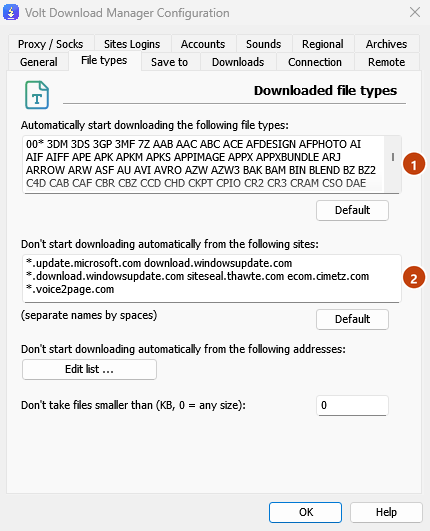
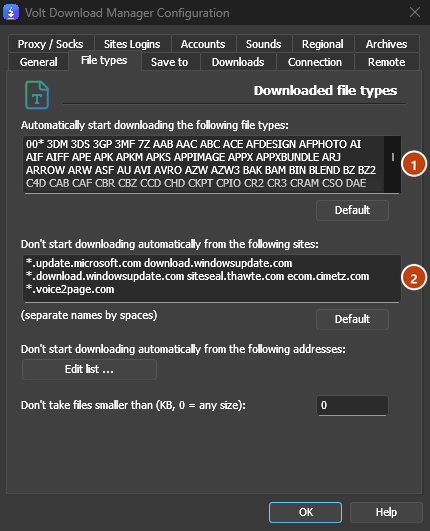
- ชนิดไฟล์ใด: ตัวเลือก → ชนิดไฟล์ → เริ่มดาวน์โหลดชนิดไฟล์ต่อไปนี้โดยอัตโนมัติ เพิ่มหรือลบชนิดไฟล์ โดยคั่นด้วยช่องว่าง
- เว็บไซต์ที่จะไม่ดาวน์โหลด: ตัวเลือก → ชนิดไฟล์ → ไม่เริ่มดาวน์โหลดอัตโนมัติจากเว็บไซต์ต่อไปนี้ เพิ่มชื่อเว็บไซต์ เช่น
example.com: ซึ่งจะครอบคลุมwww.example.comและโดเมนย่อยอื่น ๆ ของเว็บไซต์ รวมถึงไฟล์ที่หน้าเว็บลิงก์ไปยังเซิร์ฟเวอร์อื่น - One browser only: Options → General → Capture downloads from the following browsers. Untick the ones VDM should leave alone.
Everything VDM doesn't take stays with the browser.
ดาวน์โหลดลิงก์ที่เบราว์เซอร์จะเปิด
Links to a PDF or a video file, which the browser would open itself, go to VDM too when their type is listed. To leave one to the browser, hold Alt while clicking it: the browser opens it as a plain click would. Any other link: right-click it and choose Download with Volt Download Manager, which takes any type.
ขั้นตอนถัดไป
- รายละเอียดการรวมเบราว์เซอร์ (Firefox, หน้าต่างส่วนตัว, สิ่งที่ถูกส่ง) →
- หากเบราว์เซอร์ไม่ส่งรายการดาวน์โหลดให้ →
- ดาวน์โหลดข้ามคืน →
ฟรี, โอเพนซอร์ส, ไม่มีโฆษณา, ไม่มีช่วงทดลองใช้
Download Volt Download Manager