

Set up the extension once, and every download link you click in Firefox, Chrome, Edge, Brave, Opera, Vivaldi or Helium goes to VDM.
Voordat u begint
On Windows, VDM must be installed with the setup, with Set up browser integration (Chrome, Edge, Brave, Firefox) ticked. It is ticked by default. If you're not sure, run the setup again. A portable copy can't do this. On Linux and macOS, start VDM once: it sets browser integration up itself.
VDM's Add Volt Download Manager to your browser window, which opens at each start until a browser's extension has reached VDM, does the steps below for you: Add the extension opens the store's page in that browser.
Na de installatie werkt een downloadlink als volgt:
Click a download link in the browser: Download File Info opens in VDM. 

Download starten: het voortgangsvenster toont de binnenkomende download. 

Download voltooid: Open het bestand, of Map openen. 

In Firefox
- Open the add-on's page on addons.mozilla.org, Volt Download Manager, and click Add to Firefox. Zen and LibreWolf use the same page.
- Firefox vraagt om bevestiging: klik op Toevoegen. Firefox houdt de add-on up-to-date.
- Go to a web page and click a download link, for example a ZIP or an EXE: VDM opens Download File Info. Click Start Download.
In Chrome, Edge, Brave, Opera of Vivaldi
- Open the extension's page in the Chrome Web Store, Volt Download Manager, and click Add to Chrome. In Edge the button is Get, and Edge first asks to Allow extensions from other stores: click Allow.
- De browser vraagt om bevestiging: klik op Extensie toevoegen. De extensie wordt automatisch bijgewerkt.
- Go to a web page and click a download link, for example a ZIP or an EXE: VDM opens Download File Info. Click Start Download.
Helium installeert de extensie vanaf dezelfde pagina, zolang Helium extensies mag downloaden: zie Helium.
Zonder de winkel
Als een browser de winkel niet kan gebruiken (bijvoorbeeld op een computer die door een organisatie wordt beheerd of met een zelf samengestelde versie), voegt u de extensie handmatig toe:
- Open de pagina met extensies in uw browser: typ
chrome://extensions,edge://extensionsofbrave://extensionsin de adresbalk. - Schakel Ontwikkelaarsmodus in.
- Klik op Uitgepakte extensie laden.
- Choose the
extension\chromiumfolder inside VDM's folder. If you installed VDM for yourself, that is%LOCALAPPDATA%\Programs\Volt Download Manager\extension\chromium; you can paste that path into the folder box. - Volt Download Manager appears. Make sure it is turned on.
- Ga naar een webpagina en klik op een downloadlink, bijvoorbeeld een ZIP- of EXE-bestand.
- VDM opens Download File Info instead of the browser downloading the file. Click Start Download.
You don't need to start VDM first: if it isn't running, it starts by itself.
Choose what VDM takes
- Bestandstypen: Opties → Bestandstypen → Volgende bestandstypen automatisch downloaden. Voeg bestandstypen toe of verwijder ze. Scheid ze met spaties.
- Sites om te negeren: Opties → Bestandstypen → Niet automatisch downloaden van de volgende sites. Voeg de naam van de site toe, bijvoorbeeld
example.com: dit geldt voorwww.example.comen de andere subdomeinen van de site, en de bestanden waarnaar de pagina's linken op een andere server. - One browser only: Options → General → Capture downloads from the following browsers. Untick the ones VDM should leave alone.
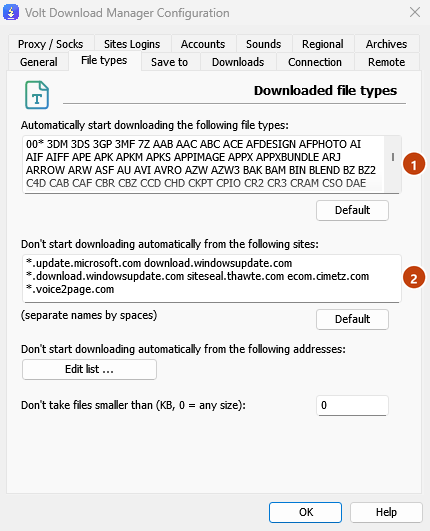
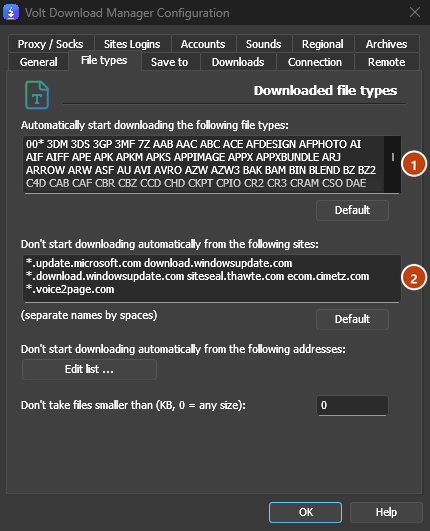
Everything VDM doesn't take stays with the browser.
Een link downloaden die de browser zelf zou openen
Links to a PDF or a video file, which the browser would open itself, go to VDM too when their type is listed. To leave one to the browser, hold Alt while clicking it: the browser opens it as a plain click would. Any other link: right-click it and choose Download with Volt Download Manager, which takes any type.
Volgende stappen
- Browserintegratie in detail (Firefox, privévensters, wat er wordt verzonden) →
- Als de browser downloads niet overdraagt →
- 's Nachts downloaden →
Gratis, open source, geen advertenties, geen proefversie.
Download Volt Download Manager