

VDM runs on Windows 10 and Windows 11 (x64, ARM64 and 32-bit), and on 64-bit Linux (x86-64 and ARM64): see On Linux. Builds for macOS are new and still experimental: see On a Mac.
Een download kiezen
Elke versie staat op de Releases-pagina. Voor Windows zijn er drie bestanden:
| Bestand | Beschrijving |
|---|---|
VoltDownloadManager-<version>-setup.exe |
The installer. Pick this one unless you have a reason not to. It can set up browser integration and open .torrent files and magnet links with VDM. |
VoltDownloadManager-<version>-portable.zip |
Een draagbare kopie. De downloadlijst en instellingen blijven in een data-map naast het programma en er wordt niets naar het register geschreven. Voor browserintegratie is het installatieprogramma nodig. Zie Draagbare modus. |
VoltDownloadManager-<version>-x64.zip |
Dezelfde programma's zonder installatieprogramma. Het bewaart zijn gegevens in %APPDATA%\voltdownloadmanager, net als een geïnstalleerde kopie. |
Deze drie zijn voor 64-bit Windows op een Intel- of AMD-processor (x64), de gebruikelijke pc. Vanaf versie 0.6.0 is elke versie ook beschikbaar voor twee andere soorten pc's, met de processor in de naam:
| Bestanden | Voor |
|---|---|
...-setup-arm64.exe, ...-portable-arm64.zip,...-arm64.zip |
Windows op ARM (pc's met een Snapdragon- of andere ARM-processor). Op Windows 11 draaien de x64-bestanden daar ook, vertaald door Windows, maar langzamer. De ARM64-installatie over de x64-versie vervangt deze; uw lijst en instellingen blijven behouden, aangezien deze in uw profiel worden opgeslagen, niet bij het programma. |
...-setup-x86.exe, ...-portable-x86.zip,...-x86.zip |
32-bit Windows 10. Not sure which you have? Settings → System → About → System type says it. VDM can't download ffmpeg for you there (none is built for 32-bit Windows that VDM can check): to get the best video qualities, choose an ffmpeg of your own in Helpers... (Video). |
Help → Controleren op updates werkt elke kopie bij naar de bestanden voor de eigen processor.
Met WinGet
VDM is also in WinGet, Windows' package manager. In a terminal, the first line installs VDM and the second updates it to the latest version:
winget install MikaiL.VoltDownloadManager
winget upgrade MikaiL.VoltDownloadManager
WinGet downloads the setup and installs VDM without the setup's questions.
Op Linux
VDM runs on 64-bit Linux with a desktop session. It is tested on Ubuntu 24.04, Debian 12 and
Fedora, with GNOME, KDE Plasma, Xfce and Cinnamon, on X11 and in Wayland sessions. Pick one
of these files (up to version 0.2.4, their names end in -experimental, as in
...-linux-x86_64-experimental.deb). From version 0.6.0, each also comes for 64-bit
ARM computers, with arm64 in place of x86_64 (...-linux-arm64.deb); they are built and
tested on GitHub's ARM machines. On ARM, VDM doesn't download gallery-dl itself (its author
builds none for it): install it with your system's packages or pip.
| Bestand | Beschrijving |
|---|---|
...-linux-x86_64.deb |
For Ubuntu, Debian, Mint and Pop!_OS: sudo apt install ./<file>.deb. It brings the libraries VDM needs. |
...-linux-x86_64.rpm |
For Fedora, openSUSE and RHEL: sudo dnf install ./<file>.rpm. It brings the libraries VDM needs. |
...-linux-x86_64.AppImage |
Werkt op de meeste distributies: maak het uitvoerbaar (chmod +x) en voer het uit. Het werkt zichzelf ter plekke bij (Help → Controleren op updates). |
...-linux-x86_64.tar.gz |
De gewone programma's, voor elke distributie. |
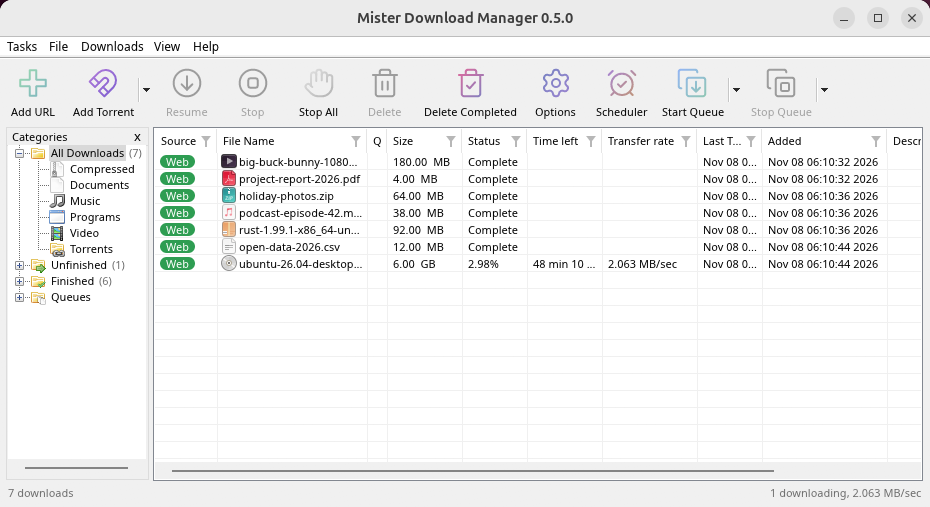
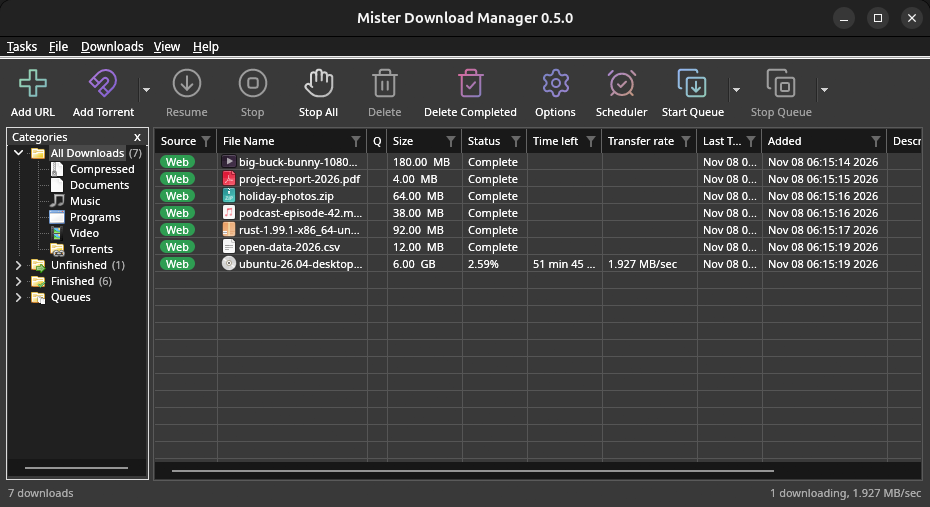
Browser integration is set up by VDM itself at each start (the browsers installed then are found); add the extension as in Browser integration. Firefox installed as a Snap (Ubuntu's) reaches VDM once you allow it; other Snap and Flatpak browsers can't (see Flatpak and Snap browsers). The tray icon, Dark Mode support and Launch on startup work on GNOME (Ubuntu's), KDE Plasma, Xfce and Cinnamon. Running downloads show their progress on VDM's icon in docks that can show it, such as Ubuntu Dock and KDE Plasma's task manager, as on the Windows taskbar (more).
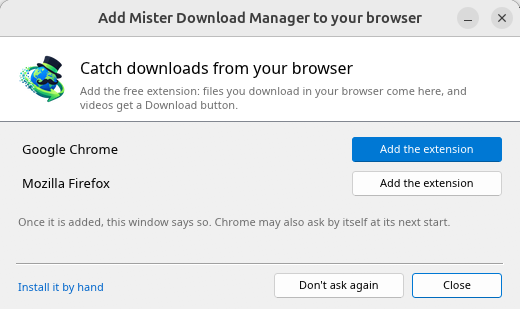
In a Wayland session the windows go through XWayland or Wayland (below). Not there yet on Linux: screen readers (Orca) don't read VDM's windows; browsers installed as a Flatpak can't reach VDM (Firefox from Flathub may, through the desktop as the Snap does, but that isn't checked yet); and View → Draw with → Vulkan is a choice, OpenGL stays the default.
In a Wayland session, VDM chooses its windows' system as it starts, the same way however it was started (its menu entry, the browser's helper, the session's autostart). Its windows run through XWayland where X11 programs look right: only X11 lets VDM open its menus and drop-down lists right under what you clicked (on Wayland they open where the compositor puts new windows, often the middle of the screen) and hide its window in the notification area. That is GNOME and KDE Plasma, which tell X11 programs the screen's scale, and any desktop whose screens aren't scaled. On a scaled screen where nothing tells X11 programs the scale (Hyprland, labwc, sway and other wlroots compositors), the compositor would scale VDM's windows up, blurry, so VDM uses Wayland's own windows there. View → Window system picks X11 (XWayland) or Wayland instead, from the next start, for every way VDM starts (Automatic goes back to VDM's choice); VDM_WAYLAND=1 or VDM_WAYLAND=0 decides for one start. If the system lacks a library X11 windows need (such as libxkbcommon-x11, which the .deb and .rpm bring but the AppImage and the tar.gz can't), VDM opens on Wayland instead; with no window system it can use, it names what's missing and the command that installs it.
De vensters zijn de vensters die in deze help worden beschreven, met de lettertypen, bestandsiconen en titelbalken van de desktop:
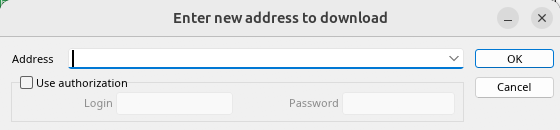
URL toevoegen. 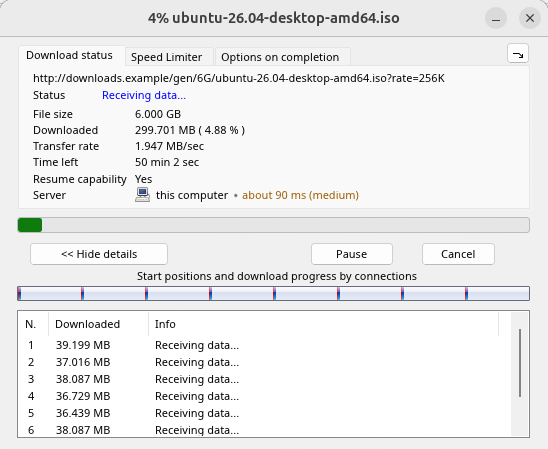
De voortgang van een download. 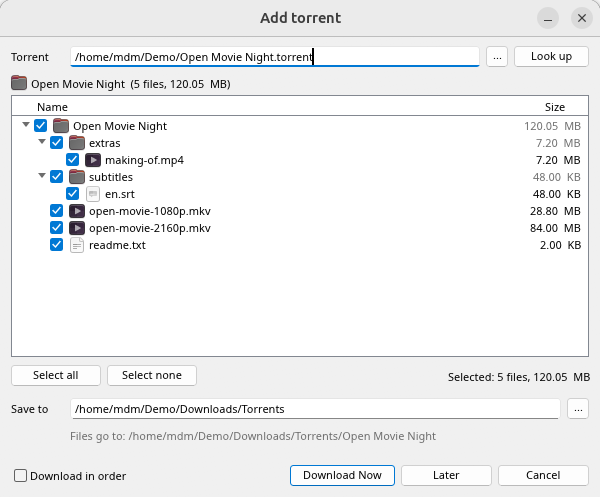
Torrent toevoegen. 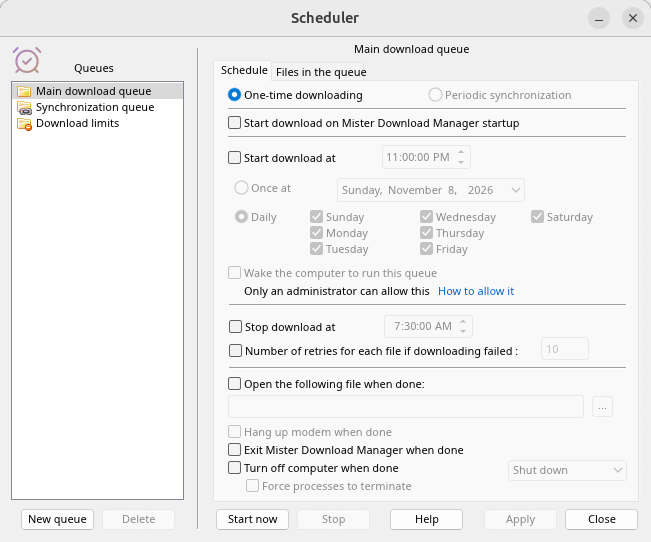
De Planner. 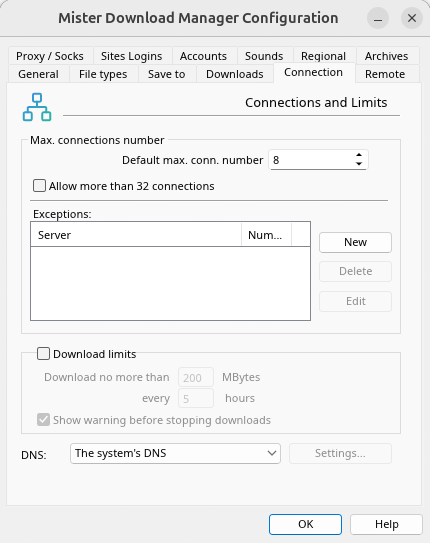
Opties.
En op de andere desktops waarop het is gecontroleerd:
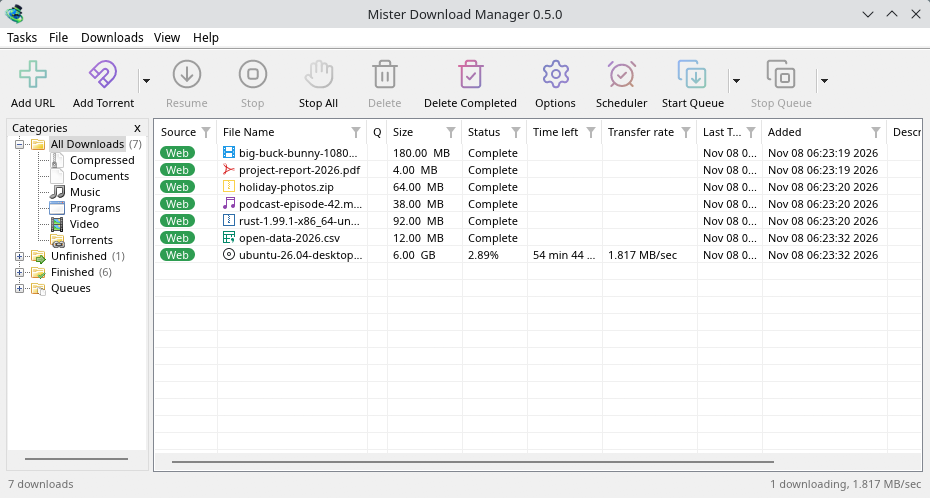
KDE Plasma. 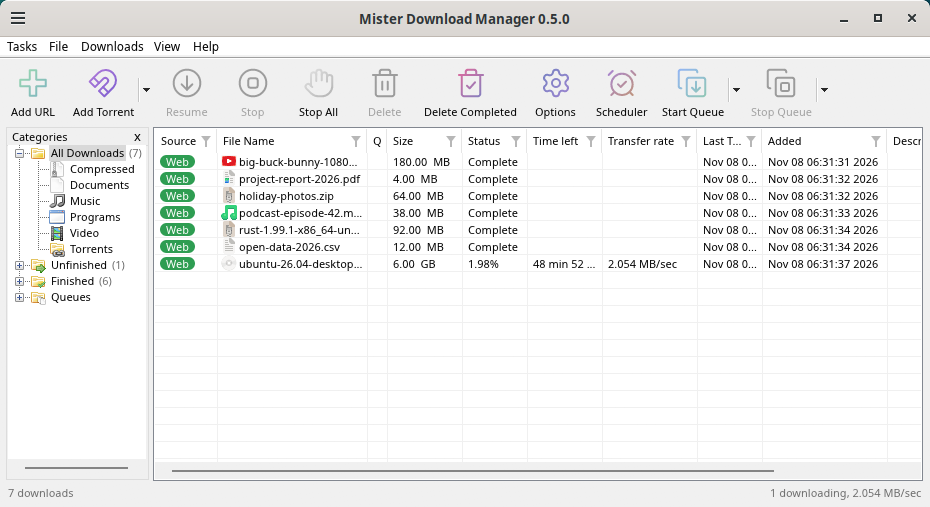
Cinnamon. 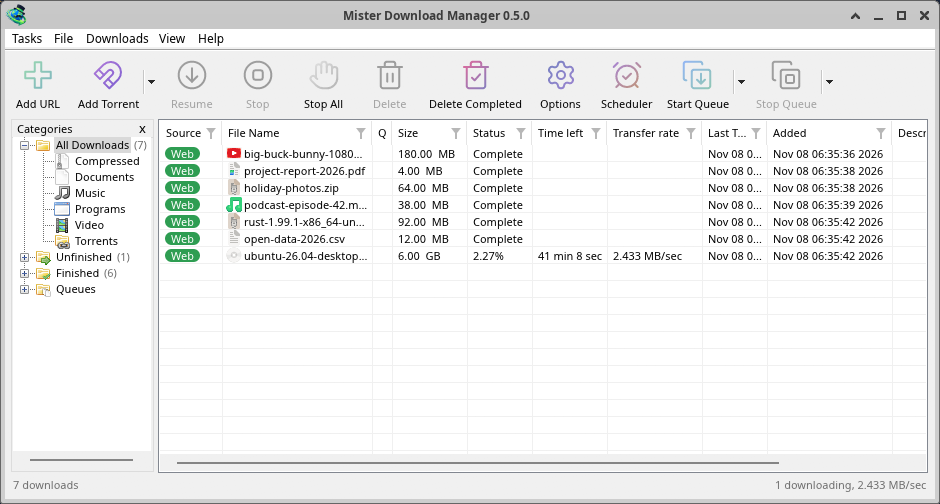
Xfce.
Verwijderen op Linux
sudo apt remove voltdownloadmanager (or sudo dnf remove voltdownloadmanager) removes the
programs, and the small files that tell your browsers where VDM's helper is: the .deb and .rpm
install those for everyone (in /etc and /usr/lib), for Chrome, Chromium, Edge, Brave, Vivaldi,
Helium and Firefox (the Snap too), so VDM doesn't write them in your home folder. For the AppImage
or the tar.gz, delete the file or the folder.
What VDM keeps in your home folder stays, as with any package: your list and settings
(~/.local/share/voltdownloadmanager), the AppImage's and the tar.gz's browser files, and
those of the browsers that read them only there (Opera, Helium, Thorium, and Firefox's forks:
Zen, LibreWolf, Floorp, Waterfox). A package can't remove those: it never touches
home folders. Without VDM they lead nowhere, so the extension says it can't reach VDM. To remove
them as well, run this as each user who used VDM, before uninstalling:
voltdownloadmanager-nmhost --unregister
(Van de AppImage: ~/.local/share/voltdownloadmanager/browser-host/voltdownloadmanager-nmhost --unregister.) Al verwijderd? Dit verwijdert dezelfde bestanden:
find ~/.mozilla ~/.librewolf ~/.config -name com.voltdownloadmanager.host.json -delete 2>/dev/null
Op een Mac
De macOS-builds zijn nieuw en nog experimenteel: we hebben ze zelf nog niet op een Mac geprobeerd, dus u zou een van de eersten zijn. Vertel ons alstublieft hoe het ging, goed of slecht.
| Bestand | Beschrijving |
|---|---|
...-macos-arm64-experimental.dmg |
For a Mac with Apple Silicon (M1 or later: Apple menu → About This Mac shows a Chip). Open it and drag Volt Download Manager to Applications. macOS asks before its first start, because the app isn't notarized by Apple: right-click it and choose Open (on macOS 15 and later: System Settings → Privacy & Security → Open Anyway). |
...-macos-x86_64-experimental.dmg |
Hetzelfde, voor een Mac met een Intel-processor (Over deze Mac toont een Processor). |
Browser integration is set up by VDM itself at each start (the browsers installed then are found); add the extension as in Browser integration.
Installeren met het installatieprogramma
- Voer
VoltDownloadManager-<version>-setup.exeuit. - Choose the language. Windows' display language is already selected. The setup offers every language VDM has, and VDM starts in the one you pick.
- Kies of u alleen voor uzelf of voor iedereen op de computer wilt installeren. Alleen voor uzelf vereist geen beheerdersrechten en gaat naar
%LOCALAPPDATA%\Programs\Volt Download Manager. Voor iedereen gaat naarProgram Files. - Pick what the setup should do: - Set up browser integration (Chrome, Edge, Brave, Firefox) - Open .torrent files and magnet links with Volt Download Manager - Start Volt Download Manager when Windows starts - Create a desktop shortcut (off unless you tick it)
- Click Install, then Finish to start VDM.
If VDM is already running, the setup asks it to save and close first. To update, use Help → Check for updates → Update now, or run the setup of the new version (or update with WinGet); your list and settings stay.
Browserintegratie vereist nog één stap in elke browser: het toevoegen van de extensie. Klik in Firefox op Toevoegen aan Firefox op de pagina op addons.mozilla.org; in Chrome, Edge, Brave, Opera en Vivaldi op Toevoegen aan Chrome op de pagina in de Chrome Web Store. Browserintegratie laat zien hoe.
Verwijderen
Uninstall VDM from Windows Settings → Apps. The uninstaller asks whether to delete your download list and settings too. Your downloaded files are never touched.
Een zip-kopie gebruiken
- Pak het bestand uit in een map waar u naar kunt schrijven (niet rechtstreeks in
Program Files). - Voer
voltdownloadmanager.exeuit.
De zip-bestanden bevatten dezelfde programma's als de setup: de app, voltdownloadmanager-cli.exe (downloads via de opdrachtregel; zie Opdrachtregel en automatisering) en de extension-map.
Eerste keer starten en de taal
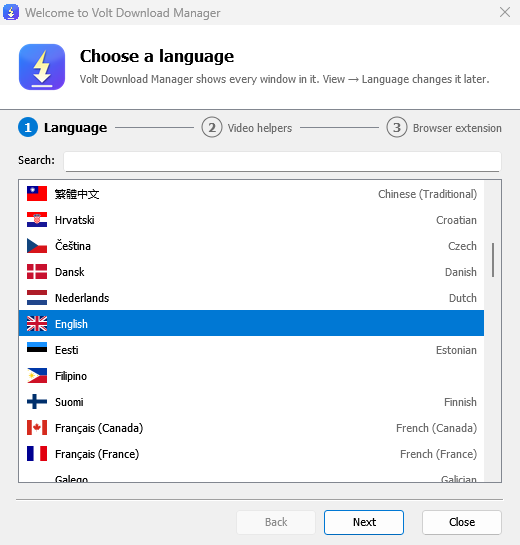
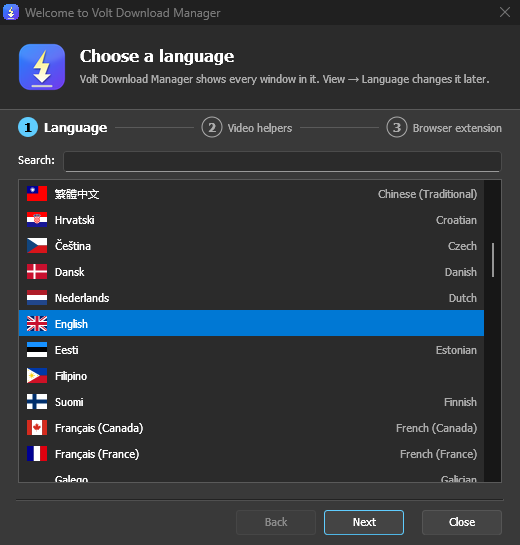
On its first start VDM opens one Welcome to Volt Download Manager window that walks you through what it needs, a step at a time: the steps are named on top, Back and Next move between them, and Finish on the last one closes it. Each step can be passed with Next without doing anything, Close or the window's × ends the setup at any step, and once it is finished or closed it doesn't come back: everything in it stays in the menus. Steps that aren't needed are left out.
- Language. - Installed with the setup: VDM starts in the language you chose in the setup, and this step is left out. - Otherwise: the list of languages, each with its flag and its own name. Click yours: the window switches to it at once, right to left for Arabic, Hebrew, Persian and Urdu.
U kunt dit op elk moment wijzigen via Beeld → Taal. Meer hierover in Talen.
- Videohelpers (zie hieronder).
- Browser extension: each browser VDM found, with Add the extension for it, as in Browser integration. Left out when a browser's extension already reached VDM, or in a portable copy.
De videohelpers
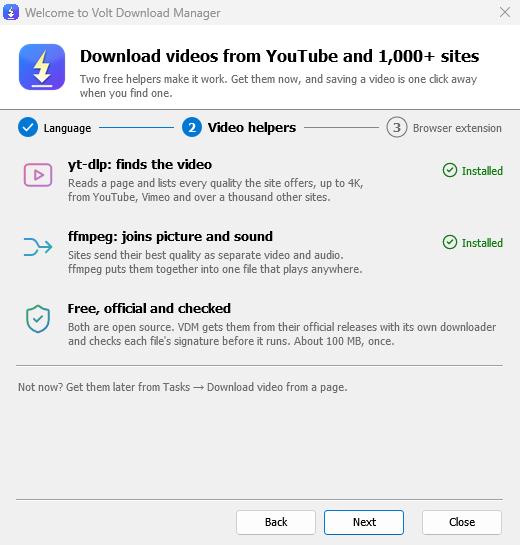
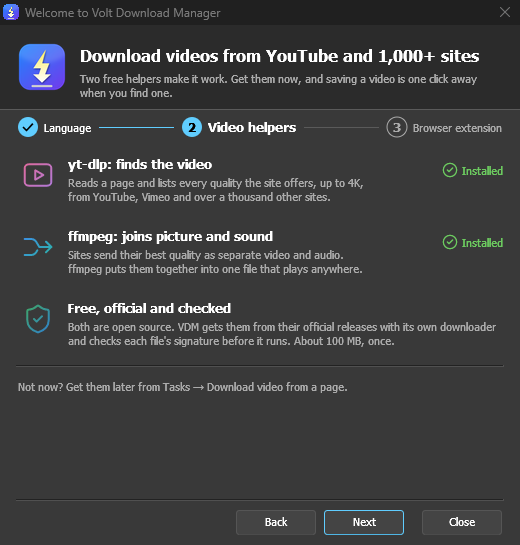
The setup's second step offers VDM's free video helpers: yt-dlp, which finds the video on a page, ffmpeg, which joins its picture and sound (on Windows; elsewhere VDM uses your system's), and Node.js, which YouTube needs, when your computer has no JavaScript runtime. Each says whether it is already there; one that isn't has its own Install button, and Yes, download them (recommended) gets every one that is missing. They download in the background, about 100 MB, once, each with its progress in its row, and go on if you close the window. Nothing is downloaded until you press one. Next leaves them for later: the video window offers them when you first need them. The step is left out when they are all there. More in Videos.
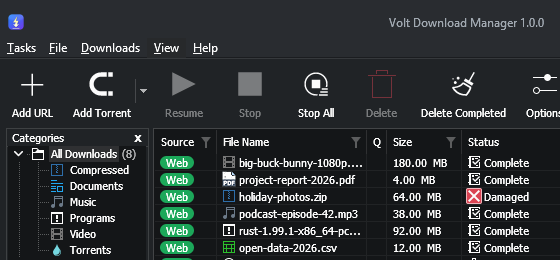
Het hoofdvenster
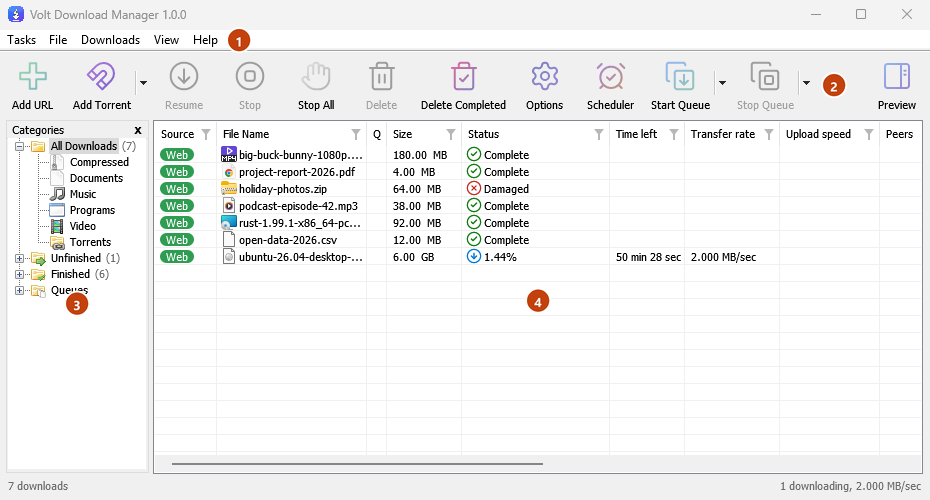
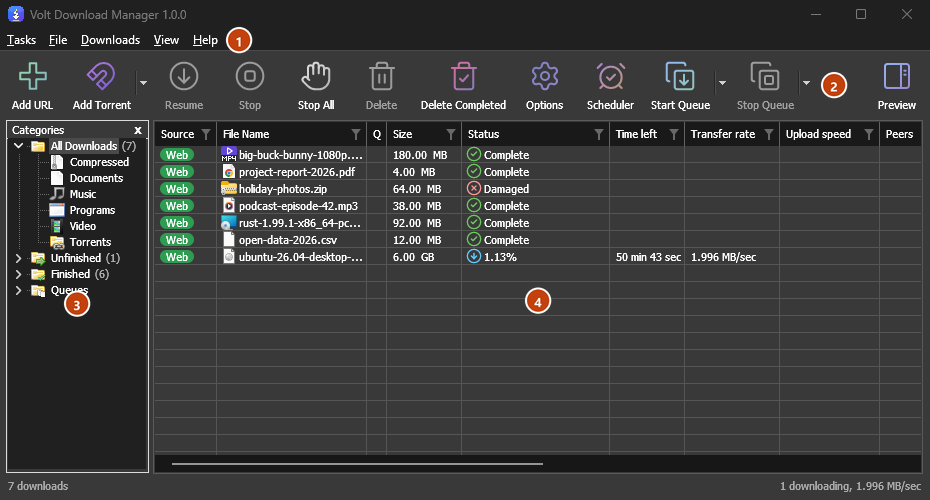
Van boven naar beneden:
- Menubalk.
- Taken — downloads, torrents, magneetlinks, batchdownloads en video's van een pagina toevoegen; Torrent-instellingen; Link grabber; RSS-feeds; het drop-doel weergeven; de lijst importeren en exporteren; afsluiten.
- Bestand — de geselecteerde download: Download stoppen, Verwijderen, Nu downloaden, Opnieuw downloaden.
- Downloads — Alles pauzeren, Alles stoppen, Alle voltooide downloads verwijderen, Zoeken, de Planner, wachtrijen, de Snelheidsbegrenzer en Opties.
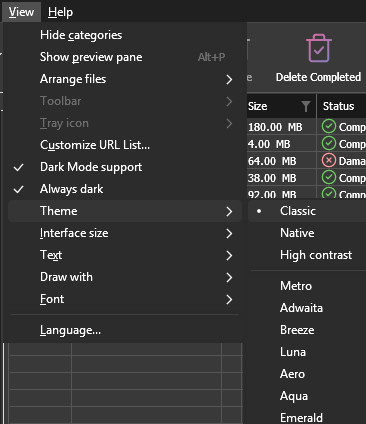
- Beeld — categorieën weergeven of verbergen, de lijst sorteren (Bestanden rangschikken), Ondersteuning voor donkere modus, Altijd donker, Thema, Interfasegrootte (elk venster groter, 100% tot 200%; ook met Ctrl +, Ctrl − en Ctrl 0), Lettertype (het eigen lettertypebestand en de tekstgrootte van de interface, los van Interfasegrootte), Tekst (Windows: vloeiende of klassieke letters), Tekenen met (OpenGL, of Direct3D op Windows, Vulkan op Linux, Metal op macOS) en Taal.
- Help — help pages and tutorials (on the website, in your language when it has it), Keyboard shortcuts, Report a problem, Check for updates, About, Tell a friend and Support VDM (its creator's GitHub Sponsors page: optional, nothing in VDM changes).
- Werkbalk. URL toevoegen, Torrent toevoegen, Hervatten, Stoppen, Alles stoppen, Verwijderen, Voltooide verwijderen, Opties, Planner, Wachtrij starten, Wachtrij stoppen. De kleine pijl naast Torrent toevoegen, Wachtrij starten en Wachtrij stoppen opent meer keuzes.
- Categorieën (links). Kies wat de lijst toont: Alle downloads, Onvoltooid, Gedownload en Wachtrijen, elk met zijn categorieën. Sleep de ruimte tussen het paneel en de lijst om deze breder te maken.
- Downloadlijst (rechts). Eén rij per download. Zie De downloadlijst.
Donkere modus
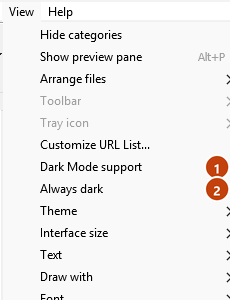
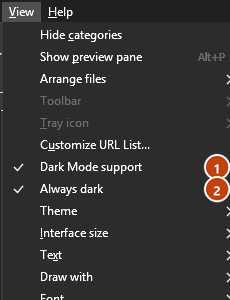
VDM follows your system: when Windows (or your desktop's light/dark preference on Linux and macOS) is set to dark mode, so is VDM. To keep VDM light whatever the system does, turn off View → Dark Mode support. To keep it dark whatever the system does, for example on a desktop that reports no preference, turn on View → Always dark.
Thema's
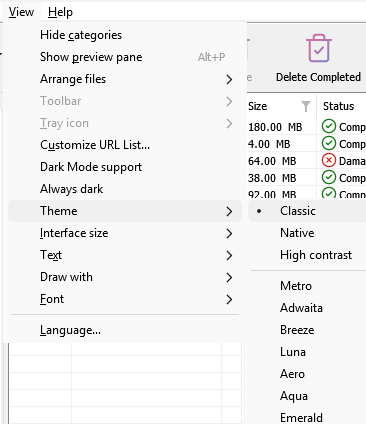
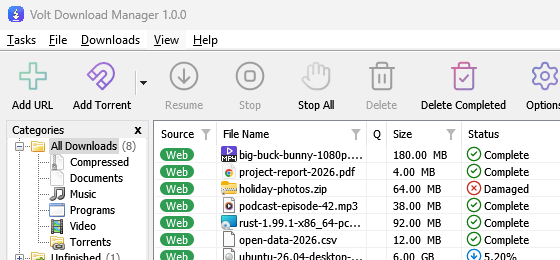
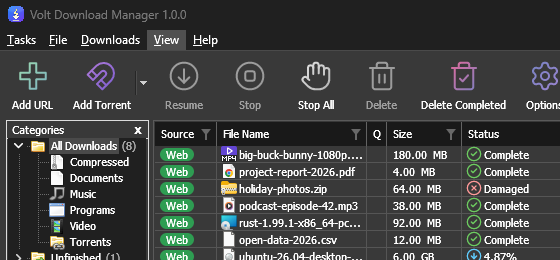
View → Theme changes VDM's look at once, keeping its layout:
- Classic: VDM's own look, the default.
- Systeemeigen: de kleuren van uw systeem. De accentkleur van Windows (Instellingen → Persoonlijke instellingen → Kleuren) en, indien ingeschakeld, het contrastthema; de accentkleur van het bureaublad en de hogere contrastinstelling op Linux (GNOME 47 en later, KDE Plasma); de accentkleur op macOS. VDM volgt deze wanneer u ze wijzigt.
- Hoog contrast: zwart-wit, een helder accent, elke rand getekend, tekst met een contrastverhouding van 7:1 of meer.
- Metro: Windows 8's flat look: square corners, flat buttons and boxes, a coloured title bar with the title centred (on Windows, where VDM draws it), and one-colour icons (Microsoft's Fluent UI System Icons).
- Adwaita: GNOME's look: round corners, flat grey buttons, a rounded focus ring, GNOME's check boxes, a header bar with the title in bold and round buttons (on Windows, where VDM draws it), and GNOME's Adwaita icons, in colour for files and categories, one colour in the toolbar.
- Breeze: KDE Plasma's look: rounded corners, buttons and boxes that take the accent's edge under the pointer or when focused, KDE's check boxes and focus frame, KDE's title bar with the title centred and round buttons (on Windows, where VDM draws it), and KDE's Breeze icons.
- Luna: Windows XP's look: buttons shaded from white with an orange glow under the pointer, green ticks, square text boxes, progress in green blocks, a deep blue title bar with the title in bold (on Windows, where VDM draws it), and colourful icons drawn for VDM in that manner.
- Aero: Windows 7's look: glossy buttons that turn light blue under the pointer, quiet check boxes, a glossy green progress bar, a glassy title bar with the title on a soft glow (on Windows), and glossy icons drawn for VDM in that manner.
- Aqua: Mac OS X's look: gel buttons round at the ends (the default one blue), glossy check boxes, a blue focus ring, a blue gel progress bar, a grey title bar with small round buttons (on Windows), and icons drawn for VDM in that manner.
- Emerald: een wit canvas met één bijna-zwarte inkt en een reeks neutrale grijstinten voor de structuur, smaragdgroene vullingen die altijd bijna-zwarte tekst dragen in plaats van wit, hoeken van 6 punten op elk besturingselement en de eenkleurige pictogrammen van Metro.
Klassiek 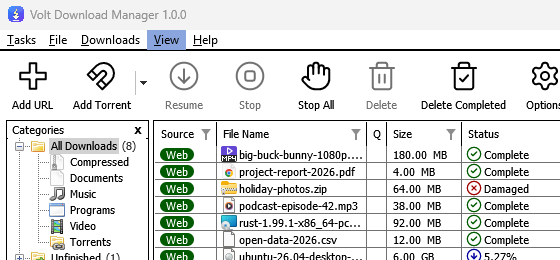
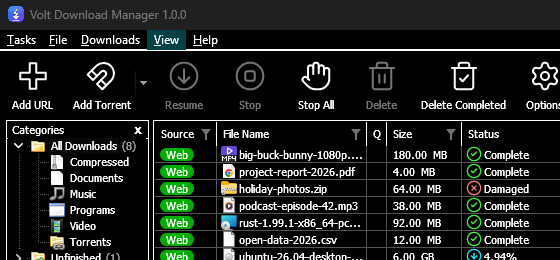
Hoog contrast 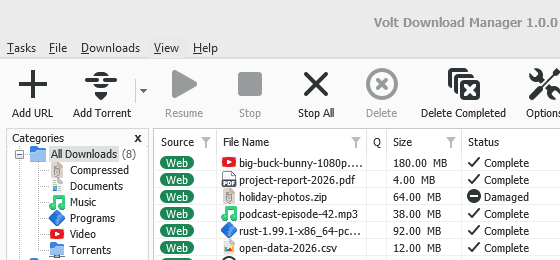
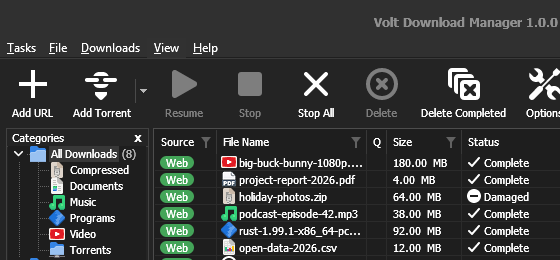
Adwaita 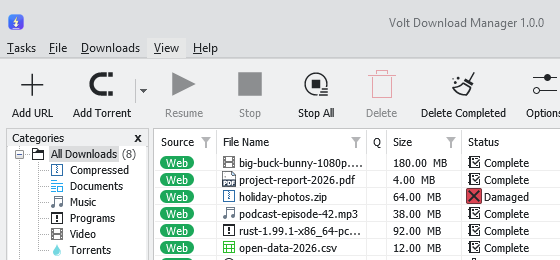
Breeze
Elk heeft een lichte en een donkere kant: Ondersteuning voor donkere modus en Altijd donker kiezen daartussen zoals voorheen. Themabestanden die u in de themamap plaatst (Beeld → Thema → Map met thema's openen) worden daar ook vermeld, evenals Base16- en pywal-kleurenschema's (Beeld → Thema → Themabestand toevoegen…; pywal volgt wal terwijl het draait): Thema's vertelt waar die map is, wat een themabestand bevat (inherits, kleuren, groottes, besturingsvormen, pictogrammen), hoe de kleuren van een schema worden gebruikt, en hoe u er een maakt en deelt.
Het pictogram in het systeemvak
Closing the main window doesn't quit VDM. It hides in the notification area, and downloads, queues and schedules carry on. To make closing quit (a portable copy's folder can then be deleted), untick Options → General → Keep running when closing the window. If there is no icon for VDM at all — not in the notification area, nor behind the ^ hidden icons — the window minimizes to the taskbar instead, so downloads continue and there is a way back. An icon behind ^ can be clicked to bring the window back, and starting VDM again always does. On macOS the window closes into the Dock, as Mac apps' windows do: click VDM's icon in the Dock (or in the menu bar) to bring it back, and quit with Cmd+Q or Volt Download Manager → Quit.
On Linux this needs a tray, which most desktops have (KDE Plasma, Xfce, Cinnamon, Ubuntu's GNOME or GNOME with the AppIndicator extension, waybar's tray). On a desktop without one (some tiling window managers), closing the window quits VDM, since there would be nowhere to bring it back from.
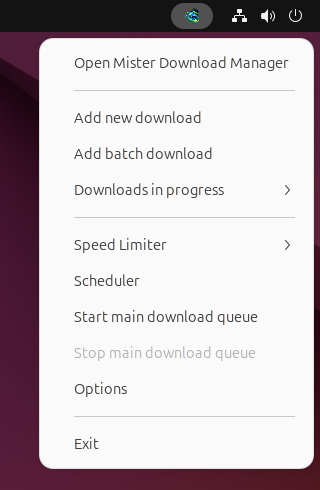
- Click the tray icon to see what is downloading: a small panel over the icon lists each running download with its progress bar, how much has come of how much, its speed and the time left, and the progress window's Pause (then Resume; Stop and save for a live stream being recorded) and Cancel beside it. Open Volt Download Manager at its bottom brings the window back. Its ×, Esc, a click elsewhere or another click on the icon closes it.
- Dubbelklik op het pictogram in het systeemvak om het venster direct terug te brengen (Windows).
- Klik met de rechtermuisknop op het pictogram voor Nieuwe download toevoegen, Batchdownload toevoegen, Actieve downloads, Snelheidsbegrenzer, Planner, de hoofdwachtrij met downloads, Opties en Afsluiten.
- Actieve downloads toont de downloads die bezig zijn. Kies er een om het voortgangsvenster te bekijken.
- Options → General → Show downloads when the notification area icon is clicked is ticked in a new copy of VDM. Untick it and a click on the icon brings the window back (or hides it there while it is in front), as it did before the panel. An VDM that was set up before the panel keeps that click: tick it to have the panel.
- On Linux the panel depends on the desktop's tray. KDE Plasma and Xfce send VDM the click, so the panel opens beside the icon. GNOME's AppIndicator extension may open the icon's menu on a left click instead, or send no place for the click: the panel then opens at the top right of the screen, under GNOME's top bar. In a native Wayland session the compositor decides where the panel goes and may not give it the focus, so a click elsewhere doesn't close it there: use its × or click the icon again. If the panel doesn't suit your desktop, untick the option above.
Minimaliseren verbergt het hoofdvenster daar ook, terwijl Minimaliseren naar het systeemvak is ingeschakeld in Opties → Algemeen. Dit is standaard ingeschakeld; als er geen pictogram in het systeemvak is, stuurt Minimaliseren het venster naar de taakbalk.
Ook het voortgangsvenster van een download kan naar het systeemvak worden verborgen, met de knop Minimaliseren of de knop Verbergen in het systeemvak: een kort streepje met een pijl naar beneden in de hoek.
Op Windows staat die knop in de titelbalk van het venster, links van Minimaliseren, en in het menu van de titelbalk (Alt+Space). Op Linux en macOS staat de knop aan het einde van de tabbalk.
Om het venster weer te openen, kiest u de download in Actieve downloads of dubbelklikt u op de download in de lijst.
Kies Taken → Afsluiten of Afsluiten in het menu van het systeemvak om VDM af te sluiten.
Where VDM keeps its data
De downloadlijst en instellingen bevinden zich in %APPDATA%\voltdownloadmanager (downloads.json); op Linux in ~/.local/share/voltdownloadmanager, op een Mac in ~/Library/Application Support/voltdownloadmanager. Een draagbare kopie bewaart ze in plaats daarvan in de map data. Gedownloade bestanden gaan naar uw map Downloads, gesorteerd in een map per categorie; u kunt dit wijzigen in Opties → Opslaan in.
Volgende stappen
- Uw eerste bestand downloaden →
- Send browser downloads to VDM →
- Meer informatie over de downloadlijst →
Gratis, open source, geen advertenties, geen proefversie.
Download Volt Download Manager