
VDM runs on Windows 10 and Windows 11 (x64, ARM64 and 32-bit), and on 64-bit Linux (x86-64 and ARM64): see On Linux. Builds for macOS are new and still experimental: see On a Mac.
Выберите загрузку
Все версии находятся на странице Выпуски. Для Windows есть три файла:
| Файл | Что это |
|---|---|
VoltDownloadManager-<version>-setup.exe |
The installer. Pick this one unless you have a reason not to. It can set up browser integration and open .torrent files and magnet links with VDM. |
VoltDownloadManager-<version>-portable.zip |
Портативная копия. Список загрузок и настройки остаются в папке data рядом с программой, и ничего не записывается в реестр. Для интеграции с браузером требуется установщик. См. Портативный режим. |
VoltDownloadManager-<version>-x64.zip |
Те же программы без установщика. Он хранит свои данные в %APPDATA%\voltdownloadmanager, как установленная копия. |
Эти три предназначены для 64-разрядной Windows на процессоре Intel или AMD (x64), то есть для обычного ПК. Начиная с версии 0.6.0, каждая из них также доступна для двух других типов ПК, с указанием процессора в названии:
| Файлы | Для |
|---|---|
...-setup-arm64.exe, ...-portable-arm64.zip,...-arm64.zip |
Windows на ARM (ПК с процессором Snapdragon или другим ARM). На Windows 11 файлы x64 также работают там, транслируемые Windows, но медленнее. Установка ARM64 поверх x64 заменяет ее; ваш список и настройки остаются, так как они хранятся в вашем профиле, а не вместе с программой. |
...-setup-x86.exe, ...-portable-x86.zip,...-x86.zip |
32-bit Windows 10. Not sure which you have? Settings → System → About → System type says it. VDM can't download ffmpeg for you there (none is built for 32-bit Windows that VDM can check): to get the best video qualities, choose an ffmpeg of your own in Helpers... (Video). |
Справка → Проверить обновления обновляет каждую копию до файлов для ее собственного процессора.
Через WinGet
VDM is also in WinGet, Windows' package manager. In a terminal, the first line installs VDM and the second updates it to the latest version:
winget install MikaiL.VoltDownloadManager
winget upgrade MikaiL.VoltDownloadManager
WinGet downloads the setup and installs VDM without the setup's questions.
В Linux
VDM runs on 64-bit Linux with a desktop session. It is tested on Ubuntu 24.04, Debian 12 and
Fedora, with GNOME, KDE Plasma, Xfce and Cinnamon, on X11 and in Wayland sessions. Pick one
of these files (up to version 0.2.4, their names end in -experimental, as in
...-linux-x86_64-experimental.deb). From version 0.6.0, each also comes for 64-bit
ARM computers, with arm64 in place of x86_64 (...-linux-arm64.deb); they are built and
tested on GitHub's ARM machines. On ARM, VDM doesn't download gallery-dl itself (its author
builds none for it): install it with your system's packages or pip.
| Файл | Что это |
|---|---|
...-linux-x86_64.deb |
For Ubuntu, Debian, Mint and Pop!_OS: sudo apt install ./<file>.deb. It brings the libraries VDM needs. |
...-linux-x86_64.rpm |
For Fedora, openSUSE and RHEL: sudo dnf install ./<file>.rpm. It brings the libraries VDM needs. |
...-linux-x86_64.AppImage |
Работает на большинстве дистрибутивов: сделайте его исполняемым (chmod +x) и запустите. Он обновляется на месте (Справка → Проверить обновления). |
...-linux-x86_64.tar.gz |
Обычные программы для любого дистрибутива. |
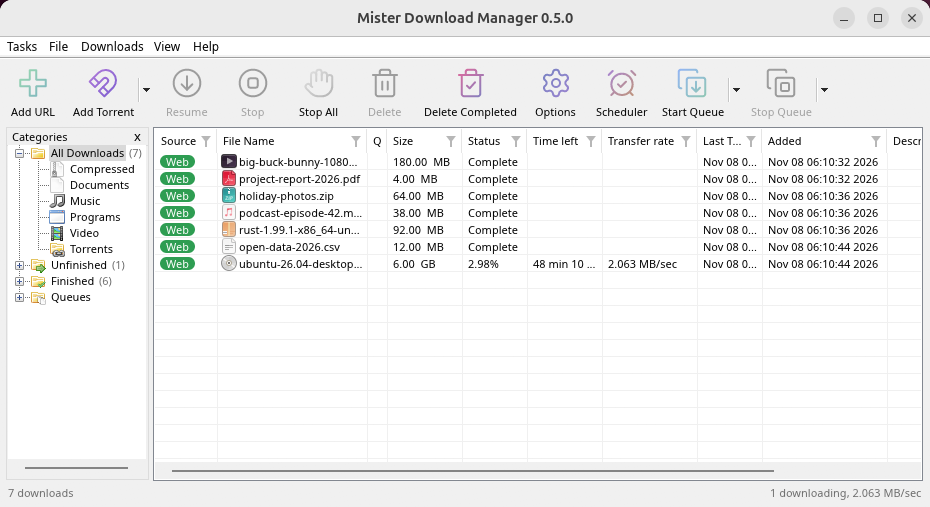
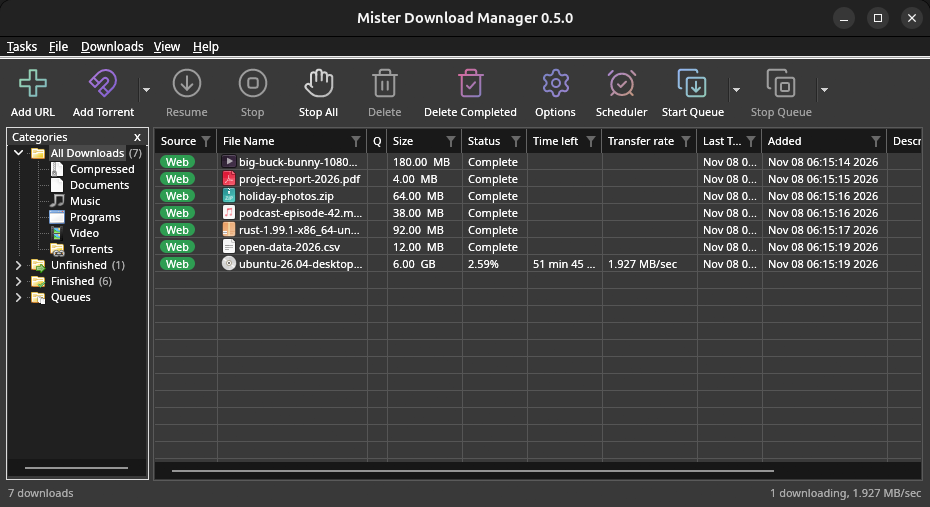
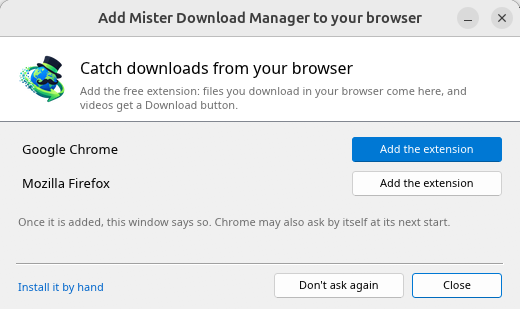
Browser integration is set up by VDM itself at each start (the browsers installed then are found); add the extension as in Browser integration. Firefox installed as a Snap (Ubuntu's) reaches VDM once you allow it; other Snap and Flatpak browsers can't (see Flatpak and Snap browsers). The tray icon, Dark Mode support and Launch on startup work on GNOME (Ubuntu's), KDE Plasma, Xfce and Cinnamon. Running downloads show their progress on VDM's icon in docks that can show it, such as Ubuntu Dock and KDE Plasma's task manager, as on the Windows taskbar (more).
In a Wayland session the windows go through XWayland or Wayland (below). Not there yet on Linux: screen readers (Orca) don't read VDM's windows; browsers installed as a Flatpak can't reach VDM (Firefox from Flathub may, through the desktop as the Snap does, but that isn't checked yet); and View → Draw with → Vulkan is a choice, OpenGL stays the default.
In a Wayland session, VDM chooses its windows' system as it starts, the same way however it was started (its menu entry, the browser's helper, the session's autostart). Its windows run through XWayland where X11 programs look right: only X11 lets VDM open its menus and drop-down lists right under what you clicked (on Wayland they open where the compositor puts new windows, often the middle of the screen) and hide its window in the notification area. That is GNOME and KDE Plasma, which tell X11 programs the screen's scale, and any desktop whose screens aren't scaled. On a scaled screen where nothing tells X11 programs the scale (Hyprland, labwc, sway and other wlroots compositors), the compositor would scale VDM's windows up, blurry, so VDM uses Wayland's own windows there. View → Window system picks X11 (XWayland) or Wayland instead, from the next start, for every way VDM starts (Automatic goes back to VDM's choice); VDM_WAYLAND=1 or VDM_WAYLAND=0 decides for one start. If the system lacks a library X11 windows need (such as libxkbcommon-x11, which the .deb and .rpm bring but the AppImage and the tar.gz can't), VDM opens on Wayland instead; with no window system it can use, it names what's missing and the command that installs it.
Окна такие, как описано в этой справке, со шрифтами, значками файлов и заголовками окон рабочего стола:
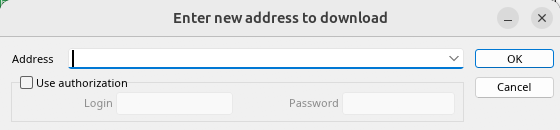
Добавить URL. 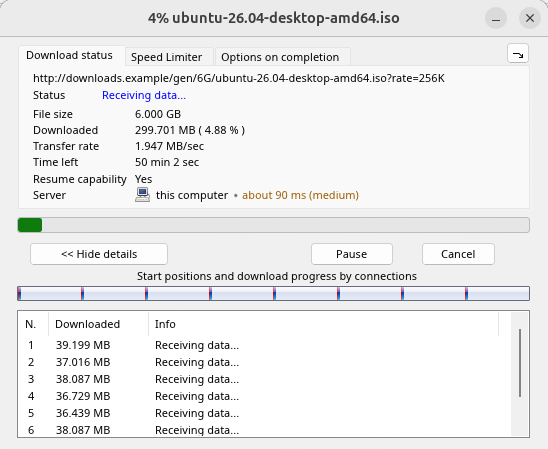
Ход загрузки. 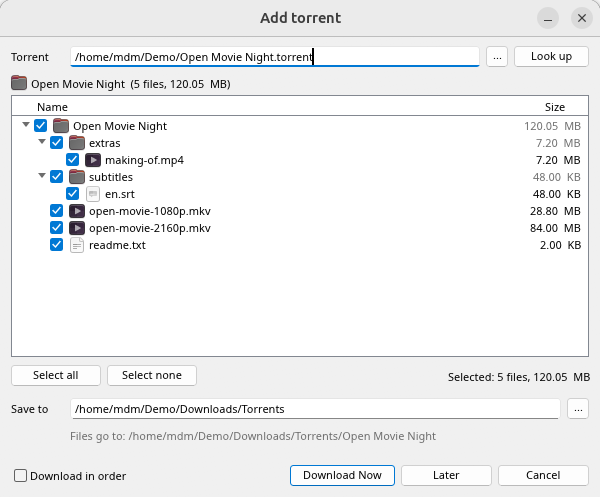
Добавить торрент. 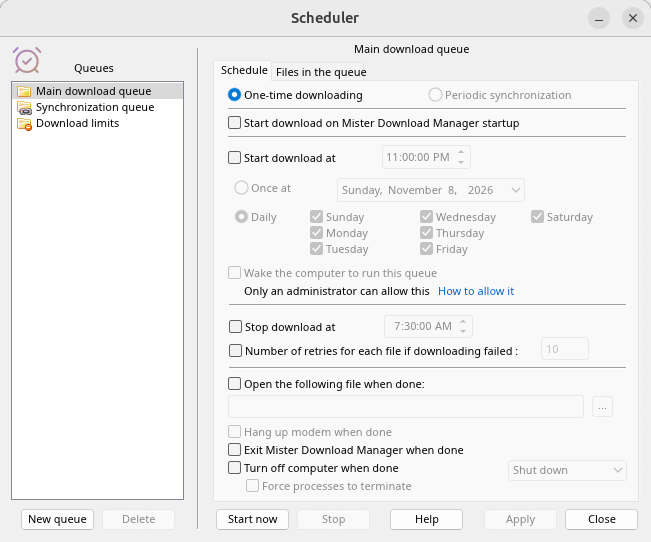
Планировщик. 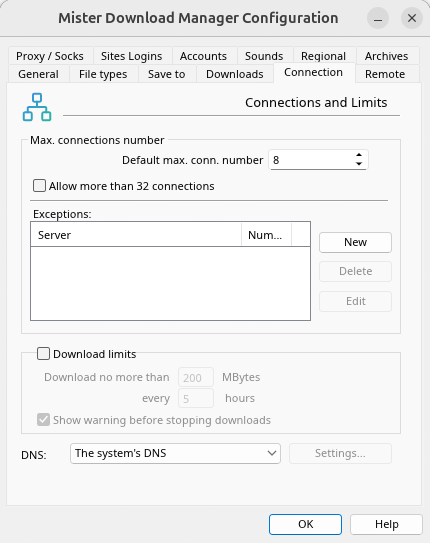
Параметры.
И на других рабочих столах, на которых он был проверен:
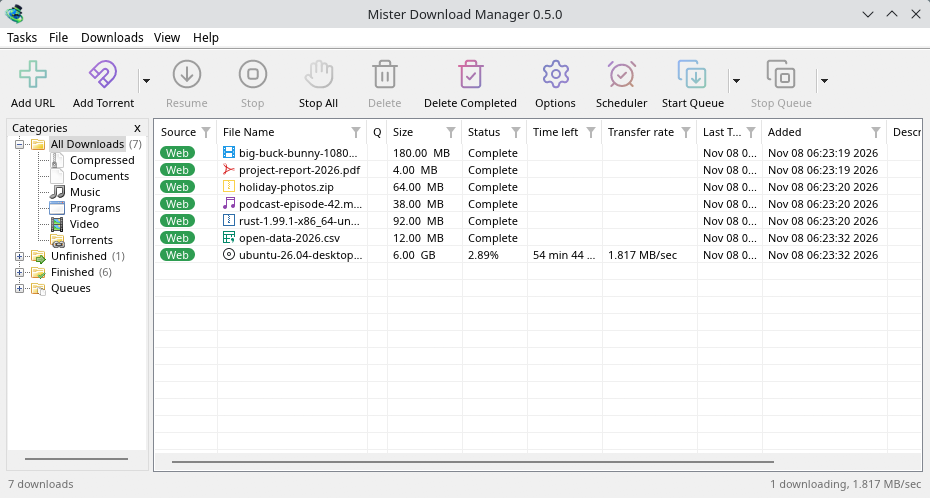
KDE Plasma. 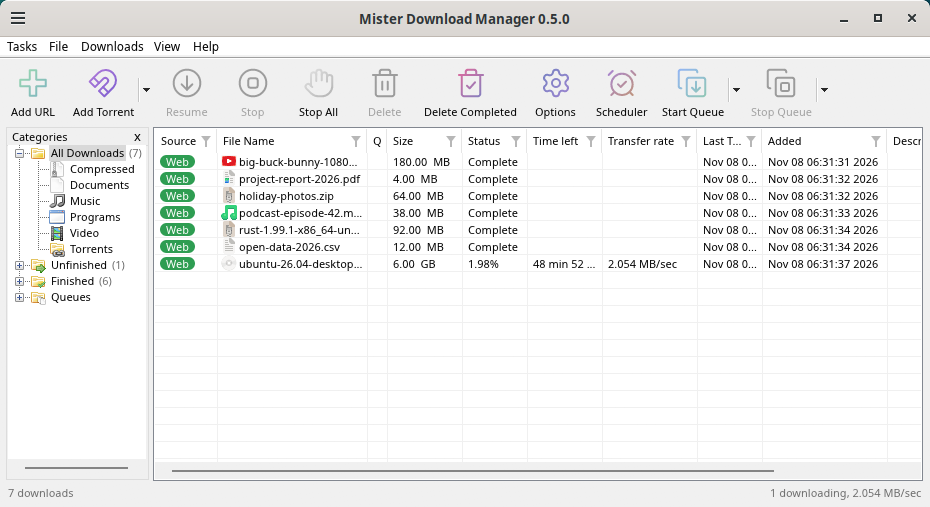
Cinnamon. 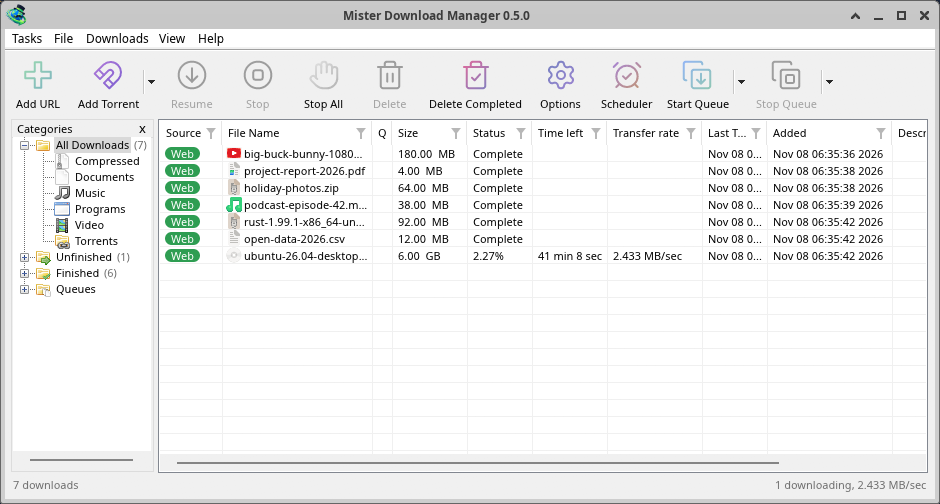
Xfce.
Удаление в Linux
sudo apt remove voltdownloadmanager (or sudo dnf remove voltdownloadmanager) removes the
programs, and the small files that tell your browsers where VDM's helper is: the .deb and .rpm
install those for everyone (in /etc and /usr/lib), for Chrome, Chromium, Edge, Brave, Vivaldi,
Helium and Firefox (the Snap too), so VDM doesn't write them in your home folder. For the AppImage
or the tar.gz, delete the file or the folder.
What VDM keeps in your home folder stays, as with any package: your list and settings
(~/.local/share/voltdownloadmanager), the AppImage's and the tar.gz's browser files, and
those of the browsers that read them only there (Opera, Helium, Thorium, and Firefox's forks:
Zen, LibreWolf, Floorp, Waterfox). A package can't remove those: it never touches
home folders. Without VDM they lead nowhere, so the extension says it can't reach VDM. To remove
them as well, run this as each user who used VDM, before uninstalling:
voltdownloadmanager-nmhost --unregister
(Из AppImage: ~/.local/share/voltdownloadmanager/browser-host/voltdownloadmanager-nmhost --unregister.) Уже удалено? Это удаляет те же файлы:
find ~/.mozilla ~/.librewolf ~/.config -name com.voltdownloadmanager.host.json -delete 2>/dev/null
На Mac
Сборки для macOS новые и пока экспериментальные: мы еще не пробовали их на Mac сами, так что вы будете одними из первых. Пожалуйста, сообщите нам, как все прошло, хорошо или плохо.
| Файл | Что это |
|---|---|
...-macos-arm64-experimental.dmg |
For a Mac with Apple Silicon (M1 or later: Apple menu → About This Mac shows a Chip). Open it and drag Volt Download Manager to Applications. macOS asks before its first start, because the app isn't notarized by Apple: right-click it and choose Open (on macOS 15 and later: System Settings → Privacy & Security → Open Anyway). |
...-macos-x86_64-experimental.dmg |
То же самое для Mac с процессором Intel (Об этом Mac показывает Процессор). |
Browser integration is set up by VDM itself at each start (the browsers installed then are found); add the extension as in Browser integration.
Установка с помощью программы установки
- Запустите
VoltDownloadManager-<version>-setup.exe. - Choose the language. Windows' display language is already selected. The setup offers every language VDM has, and VDM starts in the one you pick.
- Выберите, устанавливать только для вас или для всех на компьютере. Только для вас не требует прав администратора и устанавливается в
%LOCALAPPDATA%\Programs\Volt Download Manager. Для всех устанавливается вProgram Files. - Pick what the setup should do: - Set up browser integration (Chrome, Edge, Brave, Firefox) - Open .torrent files and magnet links with Volt Download Manager - Start Volt Download Manager when Windows starts - Create a desktop shortcut (off unless you tick it)
- Click Install, then Finish to start VDM.
If VDM is already running, the setup asks it to save and close first. To update, use Help → Check for updates → Update now, or run the setup of the new version (or update with WinGet); your list and settings stay.
Интеграция с браузером требует ещё одного шага в каждом браузере: добавления расширения. В Firefox нажмите Добавить в Firefox на его странице на addons.mozilla.org; в Chrome, Edge, Brave, Opera и Vivaldi нажмите Добавить в Chrome на его странице в Chrome Web Store. Подробнее см. в разделе Интеграция с браузером.
Удаление
Uninstall VDM from Windows Settings → Apps. The uninstaller asks whether to delete your download list and settings too. Your downloaded files are never touched.
Использование zip-копии
- Распакуйте архив в папку, в которую можно записывать файлы (не прямо в
Program Files). - Запустите
voltdownloadmanager.exe.
В архивах — те же программы, что и в установщике: приложение, voltdownloadmanager-cli.exe (загрузка из командной строки; см. Командная строка и автоматизация) и папка extension.
Первый запуск и язык
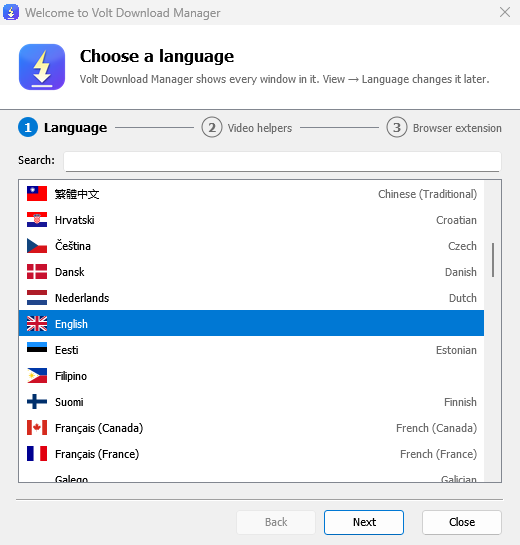
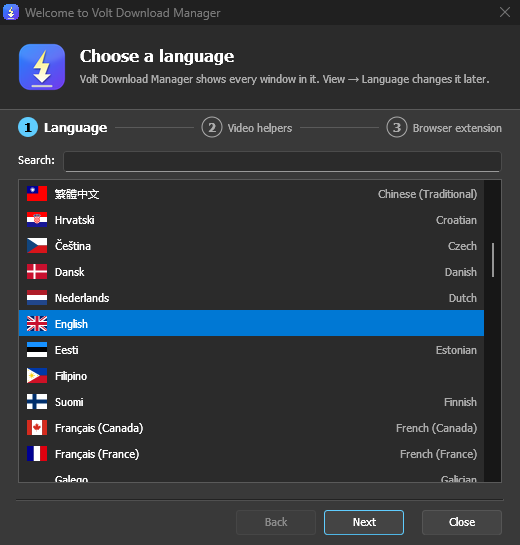
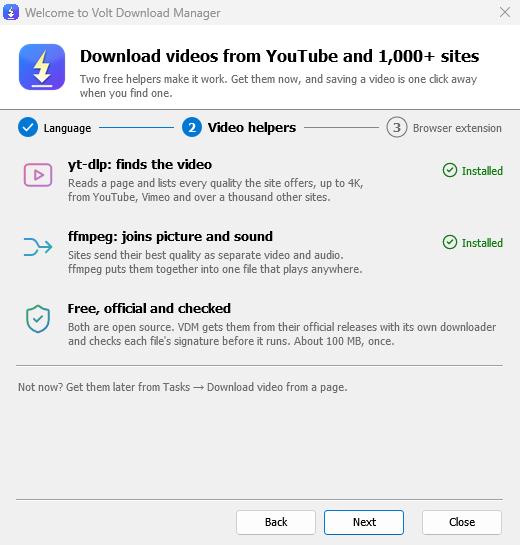
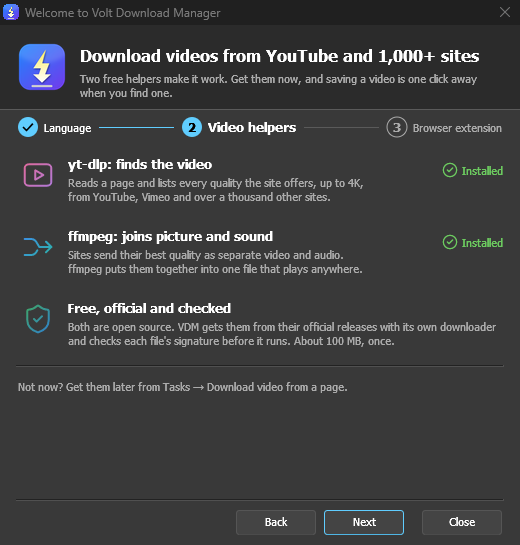
On its first start VDM opens one Welcome to Volt Download Manager window that walks you through what it needs, a step at a time: the steps are named on top, Back and Next move between them, and Finish on the last one closes it. Each step can be passed with Next without doing anything, Close or the window's × ends the setup at any step, and once it is finished or closed it doesn't come back: everything in it stays in the menus. Steps that aren't needed are left out.
- Language. - Installed with the setup: VDM starts in the language you chose in the setup, and this step is left out. - Otherwise: the list of languages, each with its flag and its own name. Click yours: the window switches to it at once, right to left for Arabic, Hebrew, Persian and Urdu.
Вы можете изменить язык в любое время в меню Вид → Язык. Подробнее — в разделе Языки.
- Вспомогательные программы для видео (ниже).
- Browser extension: each browser VDM found, with Add the extension for it, as in Browser integration. Left out when a browser's extension already reached VDM, or in a portable copy.
Видеопомощники
The setup's second step offers VDM's free video helpers: yt-dlp, which finds the video on a page, ffmpeg, which joins its picture and sound (on Windows; elsewhere VDM uses your system's), and Node.js, which YouTube needs, when your computer has no JavaScript runtime. Each says whether it is already there; one that isn't has its own Install button, and Yes, download them (recommended) gets every one that is missing. They download in the background, about 100 MB, once, each with its progress in its row, and go on if you close the window. Nothing is downloaded until you press one. Next leaves them for later: the video window offers them when you first need them. The step is left out when they are all there. More in Videos.
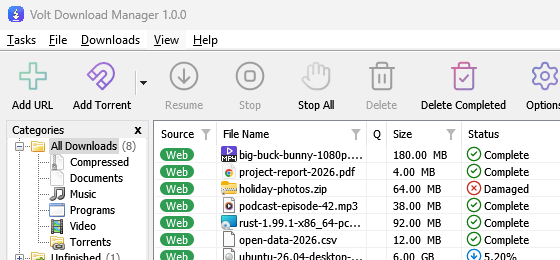
Главное окно
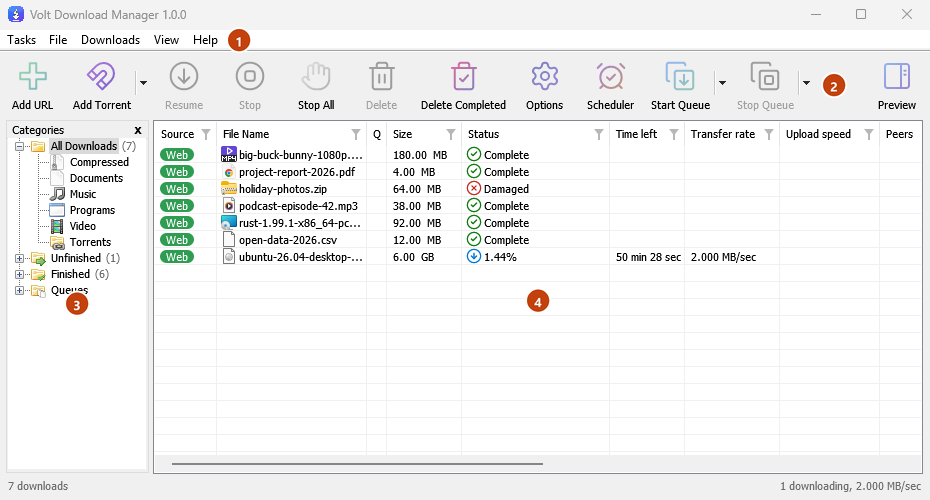
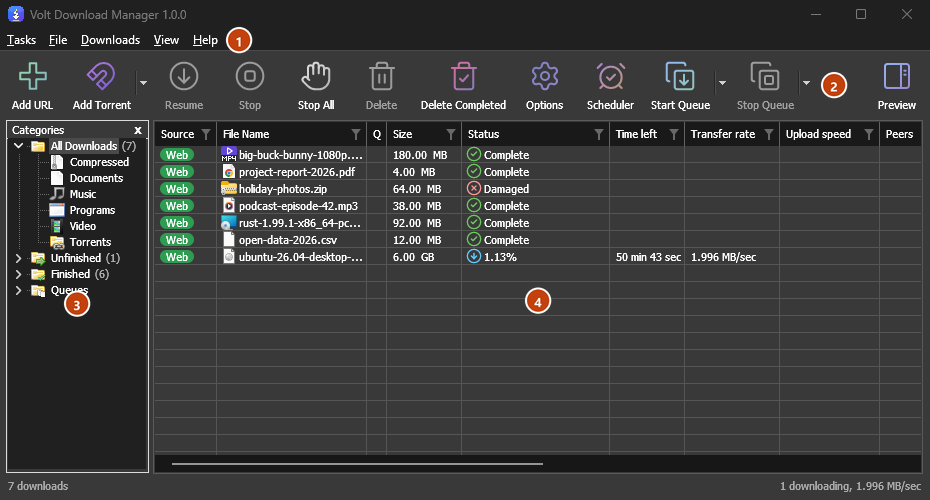
Сверху вниз:
- Строка меню.
- Задачи — добавить загрузки, торренты, magnet-ссылки, пакетные загрузки и видео со страницы; Настройки торрента; Перехват ссылок; Ленты RSS; показать цель перетаскивания; импортировать и экспортировать список; выйти.
- Файл — выбранная загрузка: Остановить загрузку, Удалить, Загрузить сейчас, Перезагрузить.
- Загрузки — Приостановить все, Остановить все, Удалить все завершенные, Найти, Планировщик, очереди, Ограничитель скорости и Параметры.
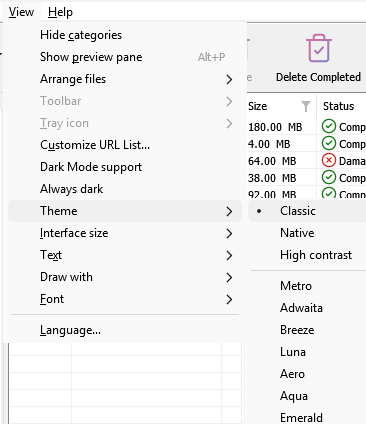
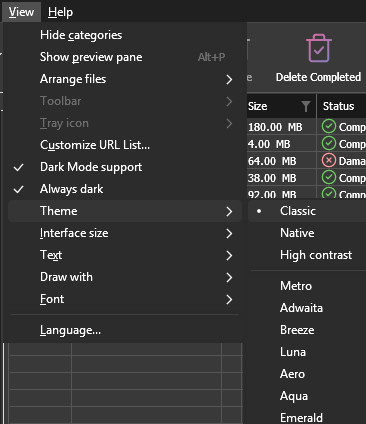
- Вид — показать или скрыть категории, отсортировать список (Упорядочить файлы), Поддержка темного режима, Всегда темная, Тема, Размер интерфейса (все окна крупнее, от 100 % до 200 %; также Ctrl +, Ctrl − и Ctrl 0), Шрифт (собственный файл шрифта интерфейса и размер текста, отдельно от Размер интерфейса), Текст (Windows: сглаженные или классические буквы), Отрисовка с помощью (OpenGL, или Direct3D в Windows, Vulkan в Linux, Metal в macOS) и Язык.
- Help — help pages and tutorials (on the website, in your language when it has it), Keyboard shortcuts, Report a problem, Check for updates, About, Tell a friend and Support VDM (its creator's GitHub Sponsors page: optional, nothing in VDM changes).
- Панель инструментов. Добавить URL, Добавить торрент, Продолжить, Остановить, Остановить все, Удалить, Удалить завершенные, Параметры, Планировщик, Запустить очередь, Остановить очередь. Маленькая стрелка рядом с Добавить торрент, Запустить очередь и Остановить очередь открывает дополнительные параметры.
- Категории (слева). Выберите, что отображать в списке: Все загрузки, Незавершенные, Завершено и Очереди, у каждой — свои категории. Перетащите границу между панелью и списком, чтобы расширить панель.
- Список загрузок (справа). Каждая загрузка занимает отдельную строку. См. Список загрузок.
Темный режим
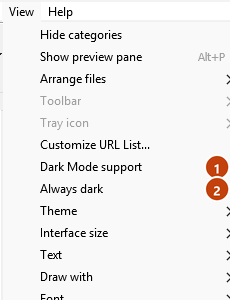
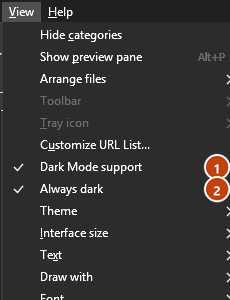
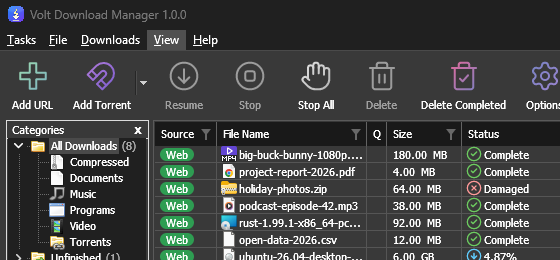
VDM follows your system: when Windows (or your desktop's light/dark preference on Linux and macOS) is set to dark mode, so is VDM. To keep VDM light whatever the system does, turn off View → Dark Mode support. To keep it dark whatever the system does, for example on a desktop that reports no preference, turn on View → Always dark.
Темы
View → Theme changes VDM's look at once, keeping its layout:
- Classic: VDM's own look, the default.
- Системная: цвета вашей системы. Акцентный цвет Windows («Параметры» → «Персонализация» → «Цвета») и, если она включена, контрастная тема; акцентный цвет рабочего стола и повышенная контрастность в Linux (GNOME 47 и новее, KDE Plasma); акцентный цвет в macOS. VDM учитывает изменения этих параметров.
- Высокий контраст: черно-белая тема с ярким акцентом, обведенными границами и контрастностью текста 7:1 или выше.
- Metro: Windows 8's flat look: square corners, flat buttons and boxes, a coloured title bar with the title centred (on Windows, where VDM draws it), and one-colour icons (Microsoft's Fluent UI System Icons).
- Adwaita: GNOME's look: round corners, flat grey buttons, a rounded focus ring, GNOME's check boxes, a header bar with the title in bold and round buttons (on Windows, where VDM draws it), and GNOME's Adwaita icons, in colour for files and categories, one colour in the toolbar.
- Breeze: KDE Plasma's look: rounded corners, buttons and boxes that take the accent's edge under the pointer or when focused, KDE's check boxes and focus frame, KDE's title bar with the title centred and round buttons (on Windows, where VDM draws it), and KDE's Breeze icons.
- Luna: Windows XP's look: buttons shaded from white with an orange glow under the pointer, green ticks, square text boxes, progress in green blocks, a deep blue title bar with the title in bold (on Windows, where VDM draws it), and colourful icons drawn for VDM in that manner.
- Aero: Windows 7's look: glossy buttons that turn light blue under the pointer, quiet check boxes, a glossy green progress bar, a glassy title bar with the title on a soft glow (on Windows), and glossy icons drawn for VDM in that manner.
- Aqua: Mac OS X's look: gel buttons round at the ends (the default one blue), glossy check boxes, a blue focus ring, a blue gel progress bar, a grey title bar with small round buttons (on Windows), and icons drawn for VDM in that manner.
- Изумрудный: белый холст с почти черными чернилами и лестницей нейтральных серых оттенков для структуры, изумрудные заливки, которые всегда содержат почти черный текст вместо белого, 6-точечные углы на каждом элементе управления и одноцветные значки Metro.
Классическая 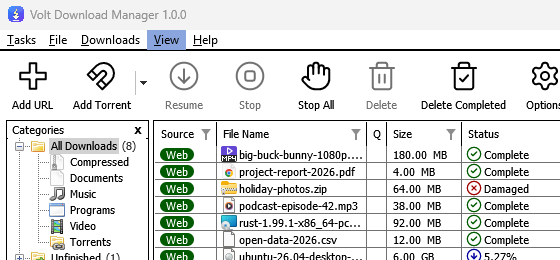
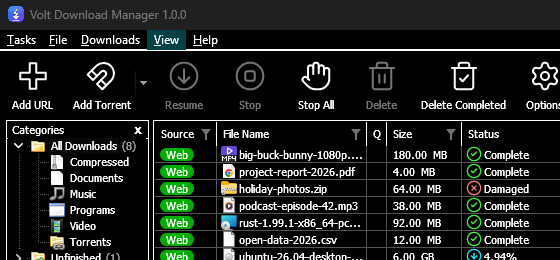
Высокий контраст 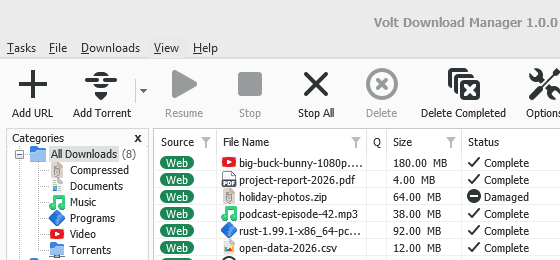
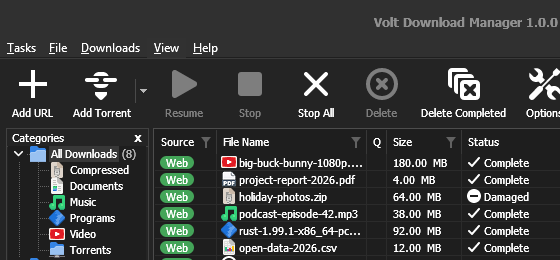
Adwaita 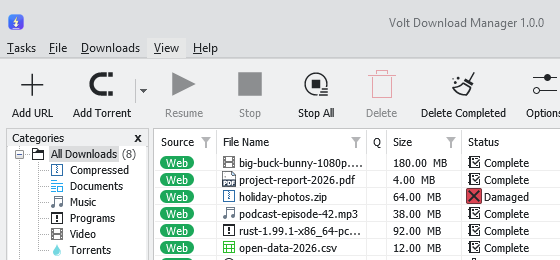
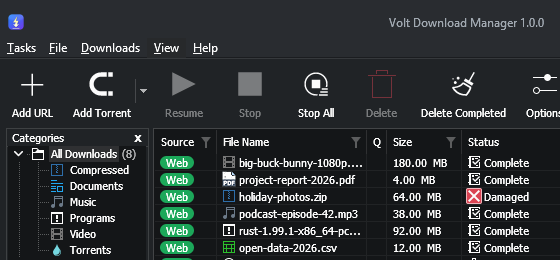
Breeze
У каждой темы есть светлая и темная сторона: Поддержка темного режима и Всегда темная позволяют выбирать между ними, как и раньше. Файлы тем, которые вы помещаете в папку тем (Вид → Тема → Открыть папку с темами), также отображаются там, как и цветовые схемы Base16 и pywal (Вид → Тема → Добавить файл темы…; pywal следует wal во время выполнения): в разделе Темы указано, где находится эта папка, что содержит файл темы (inherits, цвета, размеры, формы элементов управления, значки), как используются цвета схемы, а также как создать и поделиться ею.
Значок в трее
Closing the main window doesn't quit VDM. It hides in the notification area, and downloads, queues and schedules carry on. To make closing quit (a portable copy's folder can then be deleted), untick Options → General → Keep running when closing the window. If there is no icon for VDM at all — not in the notification area, nor behind the ^ hidden icons — the window minimizes to the taskbar instead, so downloads continue and there is a way back. An icon behind ^ can be clicked to bring the window back, and starting VDM again always does. On macOS the window closes into the Dock, as Mac apps' windows do: click VDM's icon in the Dock (or in the menu bar) to bring it back, and quit with Cmd+Q or Volt Download Manager → Quit.
On Linux this needs a tray, which most desktops have (KDE Plasma, Xfce, Cinnamon, Ubuntu's GNOME or GNOME with the AppIndicator extension, waybar's tray). On a desktop without one (some tiling window managers), closing the window quits VDM, since there would be nowhere to bring it back from.
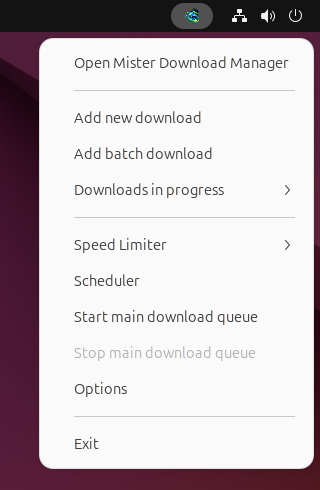
- Click the tray icon to see what is downloading: a small panel over the icon lists each running download with its progress bar, how much has come of how much, its speed and the time left, and the progress window's Pause (then Resume; Stop and save for a live stream being recorded) and Cancel beside it. Open Volt Download Manager at its bottom brings the window back. Its ×, Esc, a click elsewhere or another click on the icon closes it.
- Дважды щелкните значок в трее, чтобы сразу вернуть окно (Windows).
- Нажмите на него правой кнопкой мыши, чтобы открыть Добавить новую загрузку, Добавить пакетную загрузку, Загрузки в процессе, Ограничитель скорости, Планировщик, основную очередь загрузок, Параметры и Выход.
- Загрузки в процессе показывает список текущих загрузок. Выберите одну, чтобы увидеть окно её прогресса.
- Options → General → Show downloads when the notification area icon is clicked is ticked in a new copy of VDM. Untick it and a click on the icon brings the window back (or hides it there while it is in front), as it did before the panel. An VDM that was set up before the panel keeps that click: tick it to have the panel.
- On Linux the panel depends on the desktop's tray. KDE Plasma and Xfce send VDM the click, so the panel opens beside the icon. GNOME's AppIndicator extension may open the icon's menu on a left click instead, or send no place for the click: the panel then opens at the top right of the screen, under GNOME's top bar. In a native Wayland session the compositor decides where the panel goes and may not give it the focus, so a click elsewhere doesn't close it there: use its × or click the icon again. If the panel doesn't suit your desktop, untick the option above.
Кнопка «Свернуть» также скрывает главное окно, если в Параметры → Общие включена опция Сворачивать в область уведомлений. Она включена по умолчанию; если в трее нет значка, кнопка «Свернуть» отправляет окно на панель задач.
Окно хода загрузки также может быть скрыто туда с помощью кнопки «Свернуть» или «Скрыть в область уведомлений»: короткий дефис со стрелкой вниз в угол.
В Windows эта кнопка находится в строке заголовка окна, слева от кнопки «Свернуть», а также в меню строки заголовка (Alt+Space). В Linux и macOS она находится в конце ряда вкладок.
Чтобы вернуть окно, выберите его в «Загрузки в процессе» или дважды щелкните загрузку в списке.
Для выхода выберите Задачи → Выход или Выход в меню трея.
Where VDM keeps its data
Список загрузок и параметры находятся в %APPDATA%\voltdownloadmanager (downloads.json); в Linux в ~/.local/share/voltdownloadmanager, на Mac в ~/Library/Application Support/voltdownloadmanager. Портативная копия хранит их в своей папке data. Загруженные файлы попадают в вашу папку Загрузки, отсортированные по папкам для каждой категории; вы можете изменить это в Параметры → Сохранить в.
Дальнейшие действия
Бесплатно, с открытым исходным кодом, без рекламы, без пробного периода.
Download Volt Download Manager