

VDM runs on Windows 10 and Windows 11 (x64, ARM64 and 32-bit), and on 64-bit Linux (x86-64 and ARM64): see On Linux. Builds for macOS are new and still experimental: see On a Mac.
اختيار تنزيل
توجد جميع الإصدارات في صفحة الإصدارات. بالنسبة لنظام Windows، توجد ثلاثة ملفات:
| الملف | ما هو |
|---|---|
VoltDownloadManager-<version>-setup.exe |
The installer. Pick this one unless you have a reason not to. It can set up browser integration and open .torrent files and magnet links with VDM. |
VoltDownloadManager-<version>-portable.zip |
نسخة محمولة. تبقى قائمة التنزيلات والإعدادات في مجلد data بجوار البرنامج، ولا يتم كتابة أي شيء في السجل. يتطلب دمج المتصفح برنامج التثبيت. راجع الوضع المحمول. |
VoltDownloadManager-<version>-x64.zip |
نفس البرامج بدون برنامج تثبيت. يحتفظ ببياناته في %APPDATA%\voltdownloadmanager، مثل النسخة المثبتة. |
هذه الإصدارات الثلاثة مخصصة لنظام Windows 64 بت على معالج Intel أو AMD (x64)، وهو الكمبيوتر الشخصي المعتاد. بدءا من الإصدار 0.6.0، يأتي كل منها لنوعين إضافيين من أجهزة الكمبيوتر، مع اسم المعالج في اسمه:
| الملفات | لـ |
|---|---|
...-setup-arm64.exe، ...-portable-arm64.zip،...-arm64.zip |
Windows على ARM (أجهزة الكمبيوتر المزودة بمعالج Snapdragon أو معالج ARM آخر). على نظام Windows 11، تعمل ملفات x64 هناك أيضا، مترجمة بواسطة Windows، ولكن ببطء أكبر. يقوم إعداد ARM64 المثبت فوق إعداد x64 باستبداله؛ وتبقى قائمة التنزيلات والإعدادات الخاصة بك كما هي، حيث يتم الاحتفاظ بها في ملفك الشخصي، وليس مع البرنامج. |
...-setup-x86.exe، ...-portable-x86.zip،...-x86.zip |
32-bit Windows 10. Not sure which you have? Settings → System → About → System type says it. VDM can't download ffmpeg for you there (none is built for 32-bit Windows that VDM can check): to get the best video qualities, choose an ffmpeg of your own in Helpers... (Video). |
يقوم تعليمات ← التحقق من وجود تحديثات بتحديث كل نسخة إلى الملفات الخاصة بمعالجها.
باستخدام WinGet
VDM is also in WinGet, Windows' package manager. In a terminal, the first line installs VDM and the second updates it to the latest version:
winget install MikaiL.VoltDownloadManager
winget upgrade MikaiL.VoltDownloadManager
WinGet downloads the setup and installs VDM without the setup's questions.
على Linux
VDM runs on 64-bit Linux with a desktop session. It is tested on Ubuntu 24.04, Debian 12 and
Fedora, with GNOME, KDE Plasma, Xfce and Cinnamon, on X11 and in Wayland sessions. Pick one
of these files (up to version 0.2.4, their names end in -experimental, as in
...-linux-x86_64-experimental.deb). From version 0.6.0, each also comes for 64-bit
ARM computers, with arm64 in place of x86_64 (...-linux-arm64.deb); they are built and
tested on GitHub's ARM machines. On ARM, VDM doesn't download gallery-dl itself (its author
builds none for it): install it with your system's packages or pip.
| الملف | ما هو |
|---|---|
...-linux-x86_64.deb |
For Ubuntu, Debian, Mint and Pop!_OS: sudo apt install ./<file>.deb. It brings the libraries VDM needs. |
...-linux-x86_64.rpm |
For Fedora, openSUSE and RHEL: sudo dnf install ./<file>.rpm. It brings the libraries VDM needs. |
...-linux-x86_64.AppImage |
يعمل على معظم التوزيعات: اجعله قابلا للتنفيذ (chmod +x) وقم بتشغيله. يقوم بتحديث نفسه في مكانه (تعليمات ← التحقق من وجود تحديثات). |
...-linux-x86_64.tar.gz |
البرامج العادية، لأي توزيعة. |
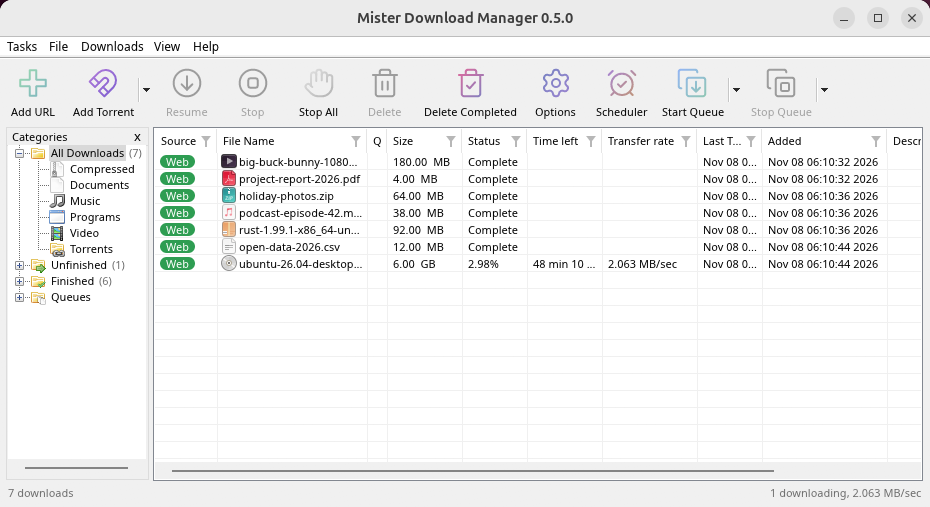
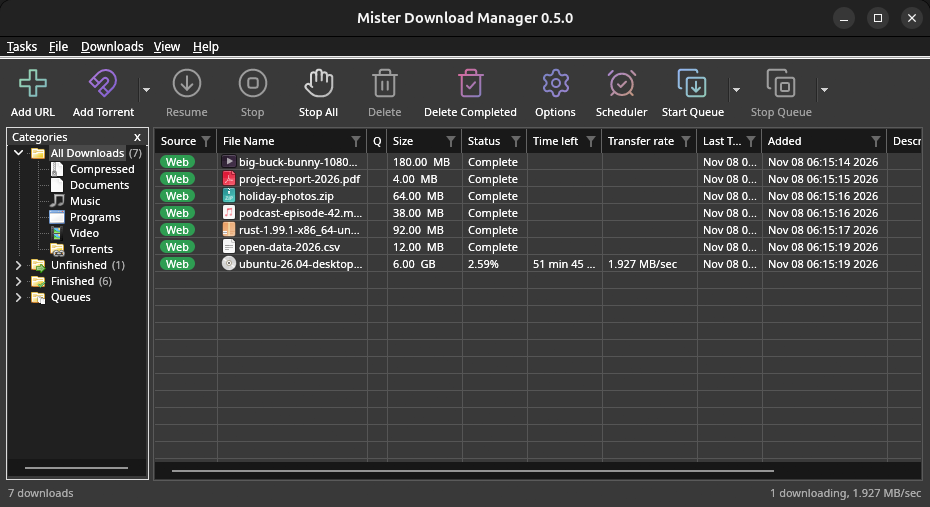
Browser integration is set up by VDM itself at each start (the browsers installed then are found); add the extension as in Browser integration. Firefox installed as a Snap (Ubuntu's) reaches VDM once you allow it; other Snap and Flatpak browsers can't (see Flatpak and Snap browsers). The tray icon, Dark Mode support and Launch on startup work on GNOME (Ubuntu's), KDE Plasma, Xfce and Cinnamon. Running downloads show their progress on VDM's icon in docks that can show it, such as Ubuntu Dock and KDE Plasma's task manager, as on the Windows taskbar (more).
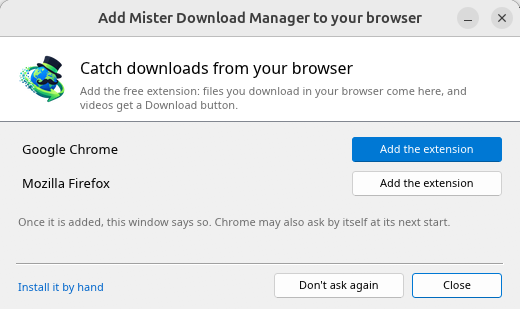
In a Wayland session the windows go through XWayland or Wayland (below). Not there yet on Linux: screen readers (Orca) don't read VDM's windows; browsers installed as a Flatpak can't reach VDM (Firefox from Flathub may, through the desktop as the Snap does, but that isn't checked yet); and View → Draw with → Vulkan is a choice, OpenGL stays the default.
In a Wayland session, VDM chooses its windows' system as it starts, the same way however it was started (its menu entry, the browser's helper, the session's autostart). Its windows run through XWayland where X11 programs look right: only X11 lets VDM open its menus and drop-down lists right under what you clicked (on Wayland they open where the compositor puts new windows, often the middle of the screen) and hide its window in the notification area. That is GNOME and KDE Plasma, which tell X11 programs the screen's scale, and any desktop whose screens aren't scaled. On a scaled screen where nothing tells X11 programs the scale (Hyprland, labwc, sway and other wlroots compositors), the compositor would scale VDM's windows up, blurry, so VDM uses Wayland's own windows there. View → Window system picks X11 (XWayland) or Wayland instead, from the next start, for every way VDM starts (Automatic goes back to VDM's choice); VDM_WAYLAND=1 or VDM_WAYLAND=0 decides for one start. If the system lacks a library X11 windows need (such as libxkbcommon-x11, which the .deb and .rpm bring but the AppImage and the tar.gz can't), VDM opens on Wayland instead; with no window system it can use, it names what's missing and the command that installs it.
النوافذ هي تلك الموصوفة في هذه التعليمات، مع خطوط سطح المكتب وأيقونات الملفات وأشرطة العناوين:
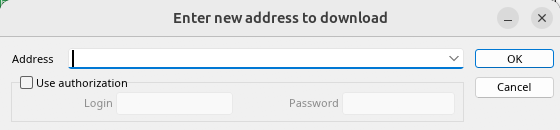
إضافة URL. 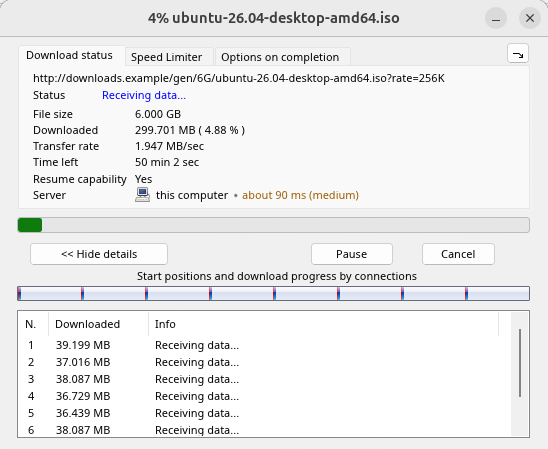
تقدم التنزيل. 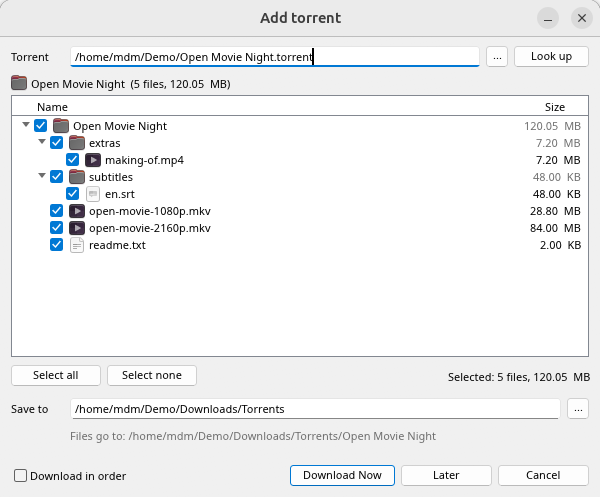
إضافة تورنت. 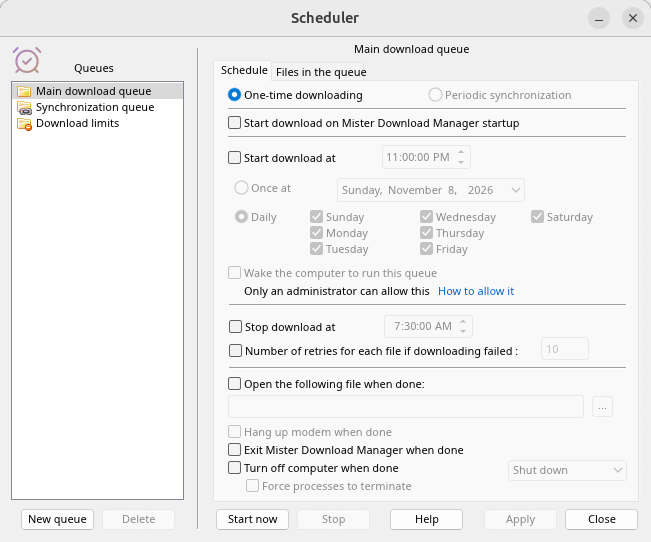
المجدول. 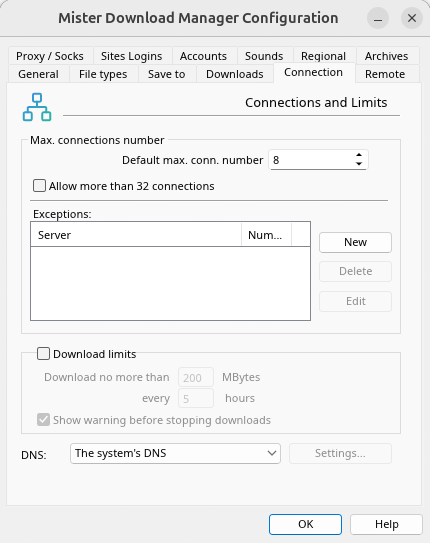
الخيارات.
وعلى أسطح المكتب الأخرى التي تم التحقق منها:
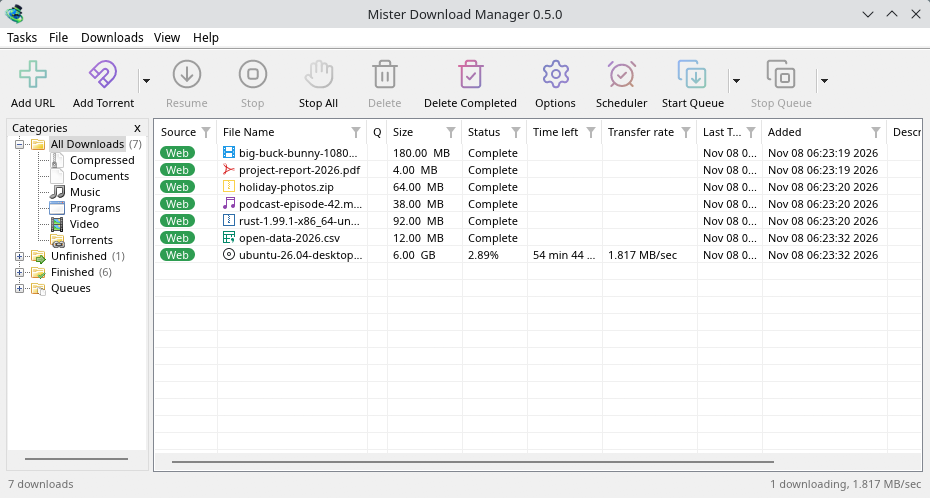
KDE Plasma. 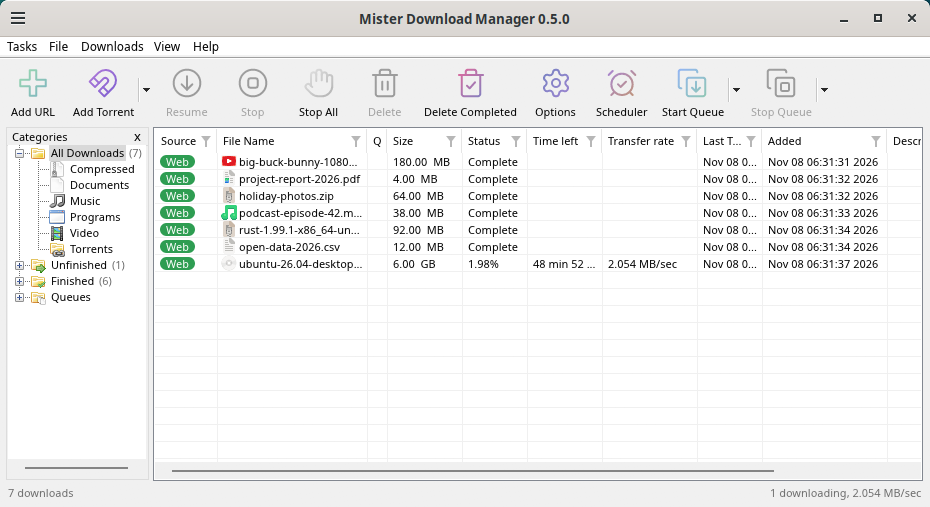
Cinnamon. 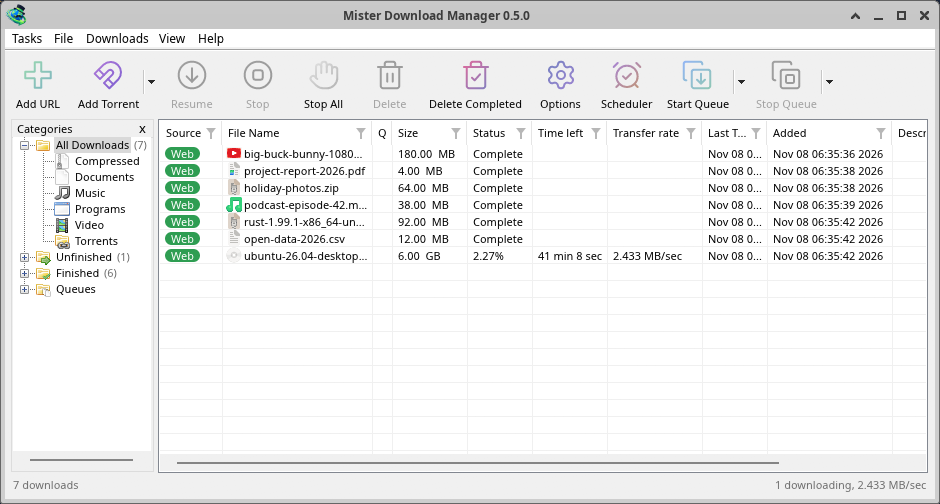
Xfce.
إلغاء التثبيت على Linux
sudo apt remove voltdownloadmanager (or sudo dnf remove voltdownloadmanager) removes the
programs, and the small files that tell your browsers where VDM's helper is: the .deb and .rpm
install those for everyone (in /etc and /usr/lib), for Chrome, Chromium, Edge, Brave, Vivaldi,
Helium and Firefox (the Snap too), so VDM doesn't write them in your home folder. For the AppImage
or the tar.gz, delete the file or the folder.
What VDM keeps in your home folder stays, as with any package: your list and settings
(~/.local/share/voltdownloadmanager), the AppImage's and the tar.gz's browser files, and
those of the browsers that read them only there (Opera, Helium, Thorium, and Firefox's forks:
Zen, LibreWolf, Floorp, Waterfox). A package can't remove those: it never touches
home folders. Without VDM they lead nowhere, so the extension says it can't reach VDM. To remove
them as well, run this as each user who used VDM, before uninstalling:
voltdownloadmanager-nmhost --unregister
(من AppImage: ~/.local/share/voltdownloadmanager/browser-host/voltdownloadmanager-nmhost --unregister.) هل تم إلغاء التثبيت بالفعل؟ هذا يزيل نفس الملفات:
find ~/.mozilla ~/.librewolf ~/.config -name com.voltdownloadmanager.host.json -delete 2>/dev/null
على Mac
إصدارات macOS جديدة ولا تزال تجريبية: لم نجربها على Mac بأنفسنا بعد، لذا ستكون من بين الأوائل. يرجى إخبارنا كيف سارت الأمور، سواء كانت جيدة أو سيئة.
| الملف | ما هو |
|---|---|
...-macos-arm64-experimental.dmg |
For a Mac with Apple Silicon (M1 or later: Apple menu → About This Mac shows a Chip). Open it and drag Volt Download Manager to Applications. macOS asks before its first start, because the app isn't notarized by Apple: right-click it and choose Open (on macOS 15 and later: System Settings → Privacy & Security → Open Anyway). |
...-macos-x86_64-experimental.dmg |
نفس الشيء، لأجهزة Mac المزودة بمعالج Intel (حول هذا الـ Mac يعرض المعالج). |
Browser integration is set up by VDM itself at each start (the browsers installed then are found); add the extension as in Browser integration.
التثبيت باستخدام الإعداد
- شغل
VoltDownloadManager-<version>-setup.exe. - Choose the language. Windows' display language is already selected. The setup offers every language VDM has, and VDM starts in the one you pick.
- اختر ما إذا كنت تريد التثبيت لك فقط أو للجميع على الكمبيوتر. لك فقط لا يتطلب حقوق المسؤول ويذهب إلى
%LOCALAPPDATA%\Programs\Volt Download Manager. للجميع يذهب إلىProgram Files. - Pick what the setup should do: - Set up browser integration (Chrome, Edge, Brave, Firefox) - Open .torrent files and magnet links with Volt Download Manager - Start Volt Download Manager when Windows starts - Create a desktop shortcut (off unless you tick it)
- Click Install, then Finish to start VDM.
If VDM is already running, the setup asks it to save and close first. To update, use Help → Check for updates → Update now, or run the setup of the new version (or update with WinGet); your list and settings stay.
يتطلب دمج المتصفح خطوة إضافية في كل متصفح: إضافة الملحق. في Firefox، انقر على أضف إلى Firefox في صفحته على addons.mozilla.org؛ وفي Chrome وEdge وBrave وOpera وVivaldi، انقر على أضف إلى Chrome في صفحته في سوق Chrome الإلكتروني. يوضح دمج المتصفح كيفية القيام بذلك.
إلغاء التثبيت
Uninstall VDM from Windows Settings → Apps. The uninstaller asks whether to delete your download list and settings too. Your downloaded files are never touched.
استخدام نسخة مضغوطة
- فك ضغط الملف إلى مجلد يمكنك الكتابة فيه (ليس مباشرة في
Program Files). - شغل
voltdownloadmanager.exe.
تحتوي الملفات المضغوطة على نفس البرامج الموجودة في برنامج التثبيت: التطبيق، voltdownloadmanager-cli.exe (للتنزيل من سطر الأوامر؛ انظر سطر الأوامر والأتمتة) ومجلد extension.
التشغيل الأول واللغة
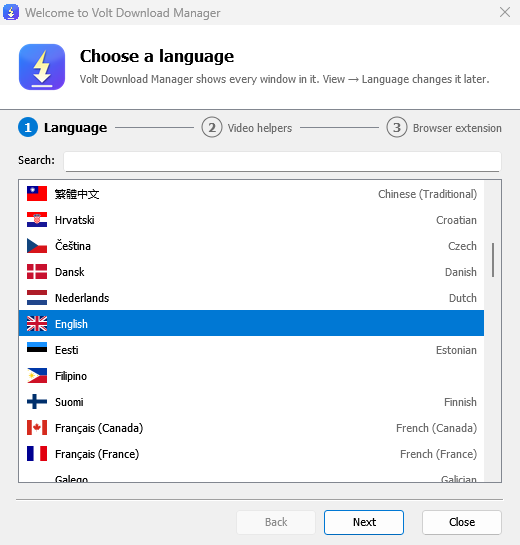
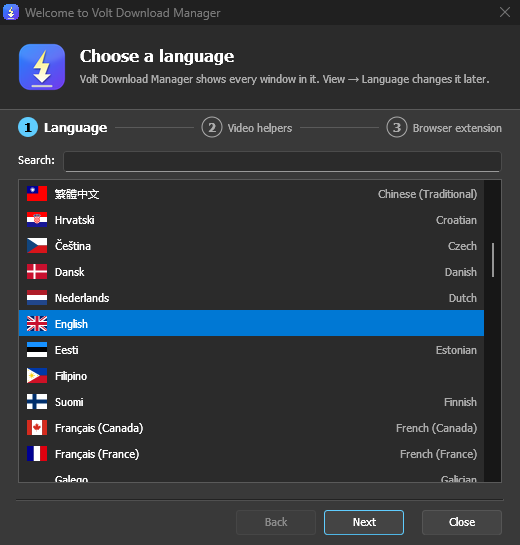
On its first start VDM opens one Welcome to Volt Download Manager window that walks you through what it needs, a step at a time: the steps are named on top, Back and Next move between them, and Finish on the last one closes it. Each step can be passed with Next without doing anything, Close or the window's × ends the setup at any step, and once it is finished or closed it doesn't come back: everything in it stays in the menus. Steps that aren't needed are left out.
- Language. - Installed with the setup: VDM starts in the language you chose in the setup, and this step is left out. - Otherwise: the list of languages, each with its flag and its own name. Click yours: the window switches to it at once, right to left for Arabic, Hebrew, Persian and Urdu.
يمكنك تغييرها في أي وقت من عرض ← اللغة. المزيد في اللغات.
- البرامج المساعدة للفيديو (أدناه).
- Browser extension: each browser VDM found, with Add the extension for it, as in Browser integration. Left out when a browser's extension already reached VDM, or in a portable copy.
مساعدات الفيديو
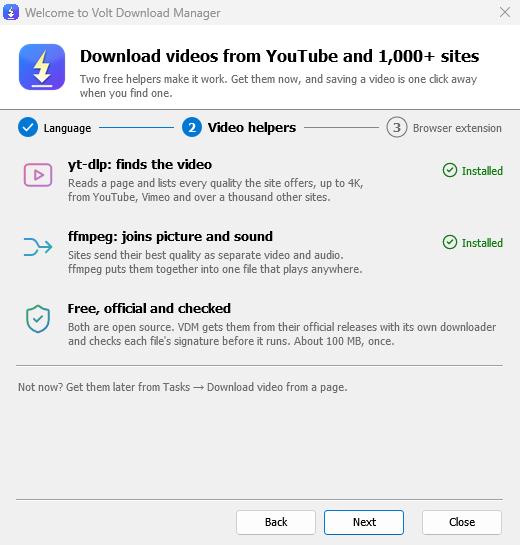
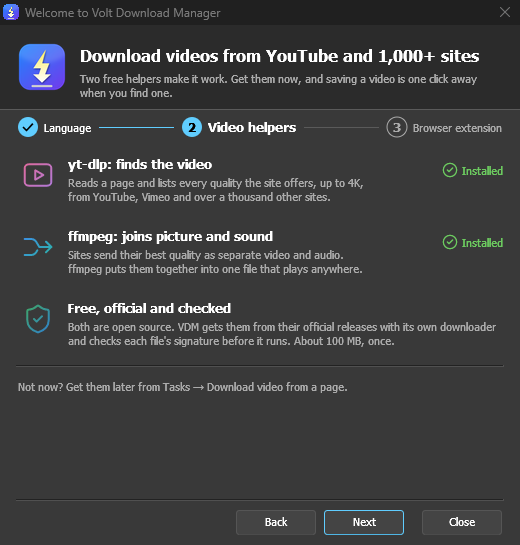
The setup's second step offers VDM's free video helpers: yt-dlp, which finds the video on a page, ffmpeg, which joins its picture and sound (on Windows; elsewhere VDM uses your system's), and Node.js, which YouTube needs, when your computer has no JavaScript runtime. Each says whether it is already there; one that isn't has its own Install button, and Yes, download them (recommended) gets every one that is missing. They download in the background, about 100 MB, once, each with its progress in its row, and go on if you close the window. Nothing is downloaded until you press one. Next leaves them for later: the video window offers them when you first need them. The step is left out when they are all there. More in Videos.
النافذة الرئيسية
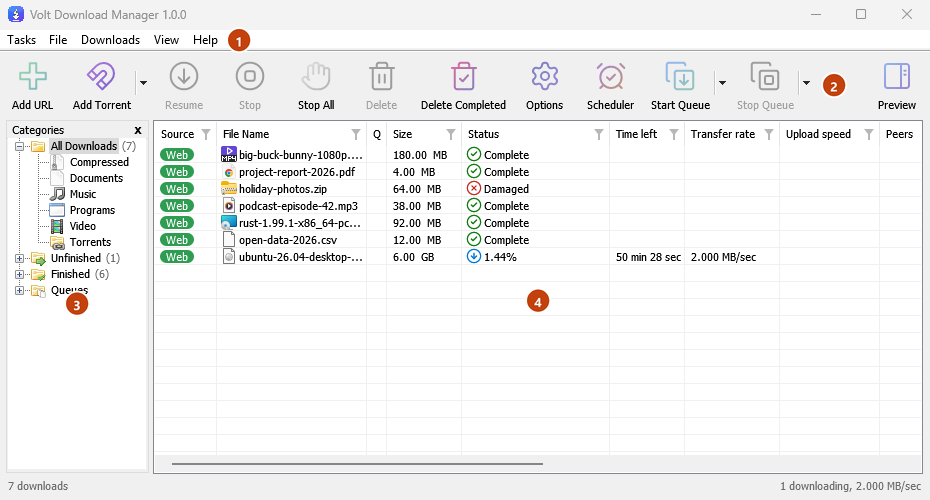
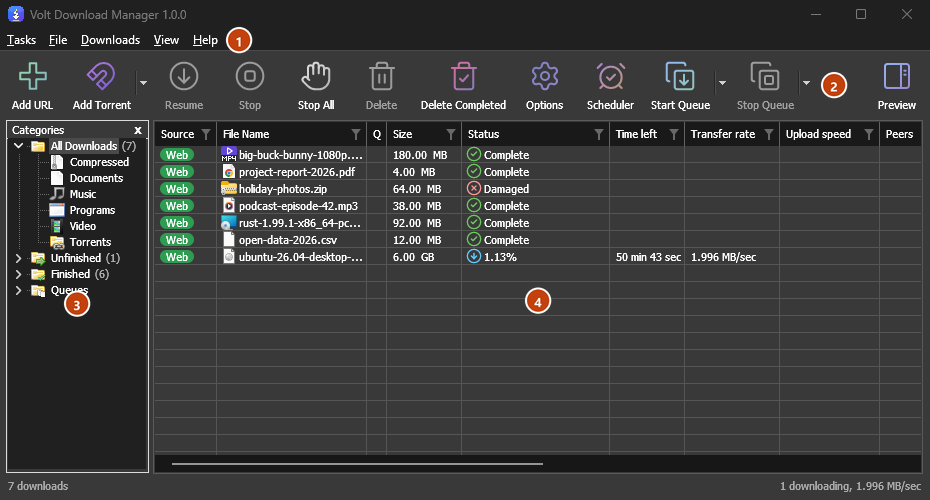
من الأعلى إلى الأسفل:
- شريط القوائم.
- المهام — إضافة تنزيلات، تورنت، روابط مغناطيسية، تنزيلات جماعية ومقاطع فيديو من صفحة؛ إعدادات التورنت؛ ملتقط الروابط؛ موجزات RSS؛ إظهار هدف الإفلات؛ استيراد وتصدير القائمة؛ خروج.
- ملف — التنزيل المحدد: إيقاف التنزيل، إزالة، تنزيل الآن، إعادة التنزيل.
- التنزيلات — إيقاف مؤقت للكل، إيقاف الكل، حذف كل المكتملة، بحث، الجدولة، قوائم الانتظار، محدد السرعة والخيارات.
- عرض — إظهار الفئات أو إخفاؤها، فرز القائمة (ترتيب الملفات)، دعم الوضع الداكن، داكن دائما، السمة، حجم الواجهة (كل نافذة أكبر، من 100% إلى 200%؛ Ctrl + وCtrl − وCtrl 0 أيضا)، الخط (ملف خط الواجهة وحجم النص الخاص بها، بخلاف حجم الواجهة)، نص (Windows: أحرف ناعمة أو كلاسيكية)، الرسم باستخدام (OpenGL، أو Direct3D على Windows، أو Vulkan على Linux، أو Metal على macOS) واللغة.
- Help — help pages and tutorials (on the website, in your language when it has it), Keyboard shortcuts, Report a problem, Check for updates, About, Tell a friend and Support VDM (its creator's GitHub Sponsors page: optional, nothing in VDM changes).
- شريط الأدوات. إضافة URL، إضافة تورنت، استئناف، إيقاف، إيقاف الكل، حذف، حذف المكتملة، الخيارات، الجدولة، بدء قائمة الانتظار، إيقاف قائمة الانتظار. السهم الصغير بجانب إضافة تورنت، بدء قائمة الانتظار وإيقاف قائمة الانتظار يفتح المزيد من الخيارات.
- الفئات (يسار). اختر ما تعرضه القائمة: جميع التنزيلات، غير مكتمل، مكتمل وقوائم الانتظار، كل منها بفئاته. اسحب الفجوة بين الجزء والقائمة لتوسيعها.
- قائمة التنزيلات (يمين). صف واحد لكل تنزيل. انظر قائمة التنزيلات.
الوضع الداكن
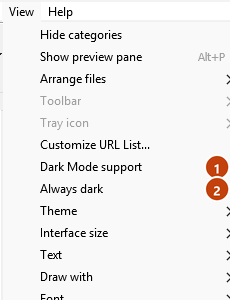
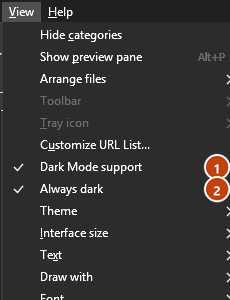
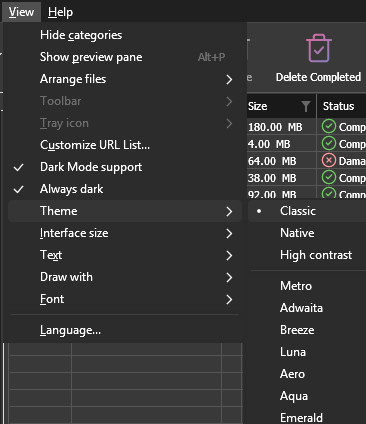
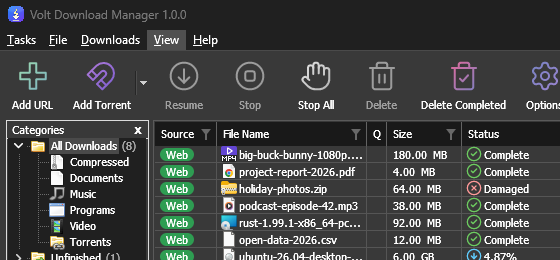
VDM follows your system: when Windows (or your desktop's light/dark preference on Linux and macOS) is set to dark mode, so is VDM. To keep VDM light whatever the system does, turn off View → Dark Mode support. To keep it dark whatever the system does, for example on a desktop that reports no preference, turn on View → Always dark.
السمات
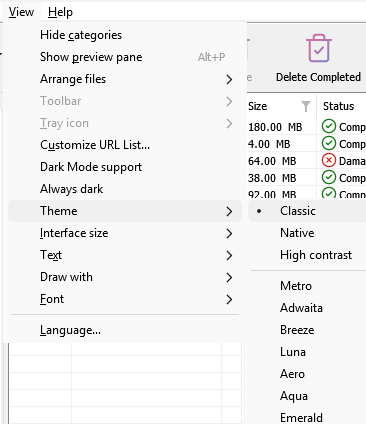
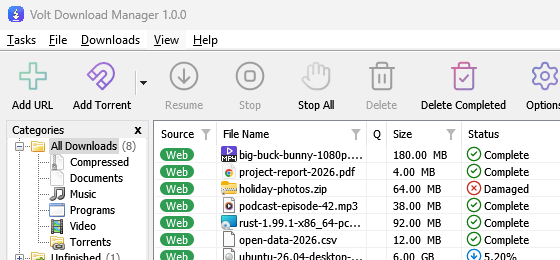
View → Theme changes VDM's look at once, keeping its layout:
- Classic: VDM's own look, the default.
- أصلي: ألوان نظامك. لون التمييز في Windows (الإعدادات ← التخصيص ← الألوان) وعند تشغيله، نسق التباين الخاص به؛ لون التمييز في سطح المكتب وإعداد التباين الأعلى الخاص به على Linux (GNOME 47 والإصدارات الأحدث، KDE Plasma)؛ لون التمييز على macOS. يتبعها عند تغييرها.
- تباين عال: أبيض وأسود، تمييز ساطع، كل حافة مرسومة، نص بنسبة 7:1 أو أكثر.
- Metro: Windows 8's flat look: square corners, flat buttons and boxes, a coloured title bar with the title centred (on Windows, where VDM draws it), and one-colour icons (Microsoft's Fluent UI System Icons).
- Adwaita: GNOME's look: round corners, flat grey buttons, a rounded focus ring, GNOME's check boxes, a header bar with the title in bold and round buttons (on Windows, where VDM draws it), and GNOME's Adwaita icons, in colour for files and categories, one colour in the toolbar.
- Breeze: KDE Plasma's look: rounded corners, buttons and boxes that take the accent's edge under the pointer or when focused, KDE's check boxes and focus frame, KDE's title bar with the title centred and round buttons (on Windows, where VDM draws it), and KDE's Breeze icons.
- Luna: Windows XP's look: buttons shaded from white with an orange glow under the pointer, green ticks, square text boxes, progress in green blocks, a deep blue title bar with the title in bold (on Windows, where VDM draws it), and colourful icons drawn for VDM in that manner.
- Aero: Windows 7's look: glossy buttons that turn light blue under the pointer, quiet check boxes, a glossy green progress bar, a glassy title bar with the title on a soft glow (on Windows), and glossy icons drawn for VDM in that manner.
- Aqua: Mac OS X's look: gel buttons round at the ends (the default one blue), glossy check boxes, a blue focus ring, a blue gel progress bar, a grey title bar with small round buttons (on Windows), and icons drawn for VDM in that manner.
- زمردي: لوحة بيضاء بحبر شبه أسود واحد وتدرج من الرماديات المحايدة للهيكل، وحشوات زمردية تحمل دائما نصا شبه أسود بدلا من الأبيض، وزوايا 6 نقاط على كل عنصر تحكم، وأيقونات Metro أحادية اللون.
كلاسيكي 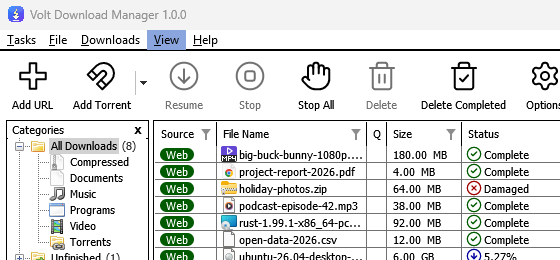
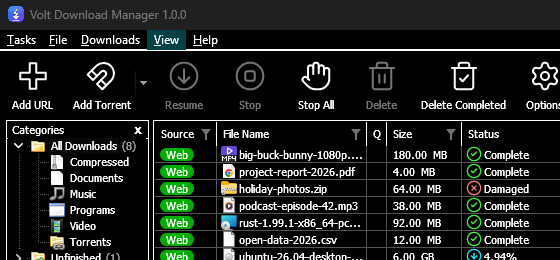
تباين عال 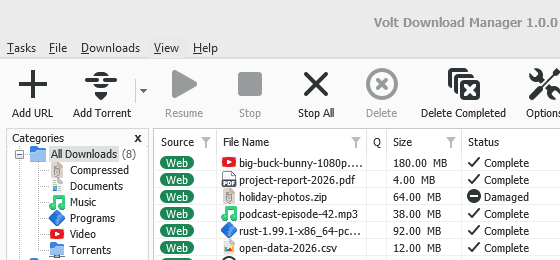
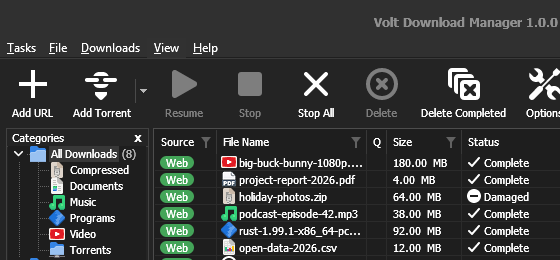
Adwaita 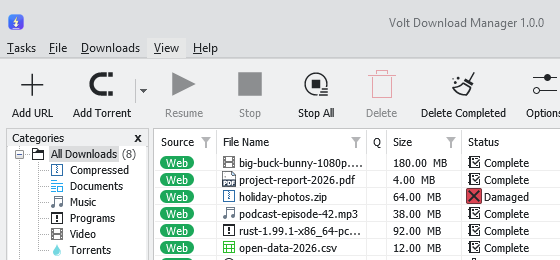
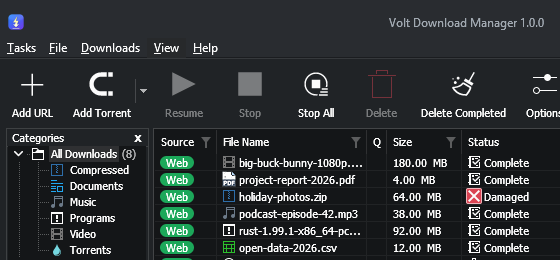
Breeze
لكل منها جانب فاتح وجانب داكن: يختار دعم الوضع الداكن وداكن دائما بينهما كما كان من قبل. ملفات السمات التي تضعها في مجلد السمات (عرض ← السمة ← فتح مجلد السمات) مدرجة هناك أيضا، وكذلك مخططات ألوان Base16 و pywal (عرض ← السمة ← إضافة ملف نسق...؛ يتبع pywal wal أثناء تشغيله): توضح السمات مكان هذا المجلد، وما يحتويه ملف السمة (inherits، الألوان، الأحجام، أشكال عناصر التحكم، الأيقونات)، وكيفية استخدام ألوان المخطط، وكيفية إنشاء واحد ومشاركته.
أيقونة منطقة الإشعارات
Closing the main window doesn't quit VDM. It hides in the notification area, and downloads, queues and schedules carry on. To make closing quit (a portable copy's folder can then be deleted), untick Options → General → Keep running when closing the window. If there is no icon for VDM at all — not in the notification area, nor behind the ^ hidden icons — the window minimizes to the taskbar instead, so downloads continue and there is a way back. An icon behind ^ can be clicked to bring the window back, and starting VDM again always does. On macOS the window closes into the Dock, as Mac apps' windows do: click VDM's icon in the Dock (or in the menu bar) to bring it back, and quit with Cmd+Q or Volt Download Manager → Quit.
On Linux this needs a tray, which most desktops have (KDE Plasma, Xfce, Cinnamon, Ubuntu's GNOME or GNOME with the AppIndicator extension, waybar's tray). On a desktop without one (some tiling window managers), closing the window quits VDM, since there would be nowhere to bring it back from.
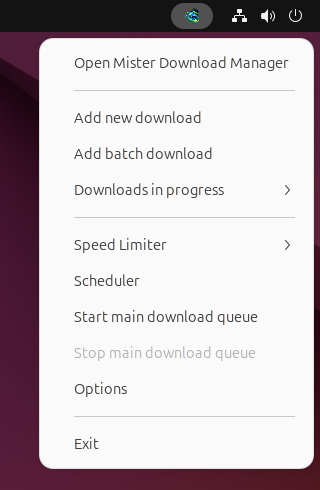
- Click the tray icon to see what is downloading: a small panel over the icon lists each running download with its progress bar, how much has come of how much, its speed and the time left, and the progress window's Pause (then Resume; Stop and save for a live stream being recorded) and Cancel beside it. Open Volt Download Manager at its bottom brings the window back. Its ×, Esc, a click elsewhere or another click on the icon closes it.
- انقر نقرا مزدوجا على أيقونة علبة النظام لإعادة النافذة على الفور (Windows).
- انقر عليها بزر الفأرة الأيمن لعرض إضافة تنزيل جديد، وإضافة تنزيل جماعي، والتنزيلات الجارية، ومحدد السرعة، والمجدول، وقائمة انتظار التنزيلات الرئيسية، والخيارات وإنهاء.
- تعرض التنزيلات الجارية التنزيلات قيد التنفيذ. اختر أحدها لعرض نافذة تقدمه.
- Options → General → Show downloads when the notification area icon is clicked is ticked in a new copy of VDM. Untick it and a click on the icon brings the window back (or hides it there while it is in front), as it did before the panel. An VDM that was set up before the panel keeps that click: tick it to have the panel.
- On Linux the panel depends on the desktop's tray. KDE Plasma and Xfce send VDM the click, so the panel opens beside the icon. GNOME's AppIndicator extension may open the icon's menu on a left click instead, or send no place for the click: the panel then opens at the top right of the screen, under GNOME's top bar. In a native Wayland session the compositor decides where the panel goes and may not give it the focus, so a click elsewhere doesn't close it there: use its × or click the icon again. If the panel doesn't suit your desktop, untick the option above.
يؤدي «تصغير» إلى إخفاء النافذة الرئيسية هناك أيضا، بينما يكون خيار تصغير إلى منطقة الإشعارات قيد التشغيل في الخيارات ← عام. وهو قيد التشغيل افتراضيا؛ وحيث لا تحتوي منطقة الإشعارات على أيقونة، يرسل «تصغير» النافذة إلى شريط المهام بدلا من ذلك.
يمكن أيضا إخفاء نافذة تقدم التنزيل في منطقة الإشعارات، باستخدام زر التصغير أو زر إخفاء إلى منطقة الإشعارات: شرطة قصيرة يتبعها سهم نحو الزاوية.
في Windows، يوجد هذا الزر في شريط عنوان النافذة، إلى يسار زر التصغير، وفي قائمة شريط العنوان (Alt+Space). أما في Linux وmacOS، فيوجد في نهاية صف علامات التبويب.
لإعادة فتح النافذة، اختر التنزيل من التنزيلات الجارية، أو انقر نقرا مزدوجا على التنزيل في القائمة.
للخروج، اختر المهام → إنهاء أو إنهاء من قائمة منطقة الإشعارات.
Where VDM keeps its data
توجد قائمة التنزيلات والإعدادات في %APPDATA%\voltdownloadmanager (downloads.json)؛ على نظام Linux في ~/.local/share/voltdownloadmanager، وعلى نظام Mac في ~/Library/Application Support/voltdownloadmanager. تحتفظ النسخة المحمولة بها في مجلد data الخاص بها بدلا من ذلك. تذهب الملفات التي تم تنزيلها إلى مجلد التنزيلات الخاص بك، مرتبة في مجلد لكل فئة؛ يمكنك تغيير ذلك في الخيارات ← حفظ في.
الخطوات التالية
مجاني، مفتوح المصدر، بدون إعلانات، بدون فترة تجريبية.
Download Volt Download Manager