

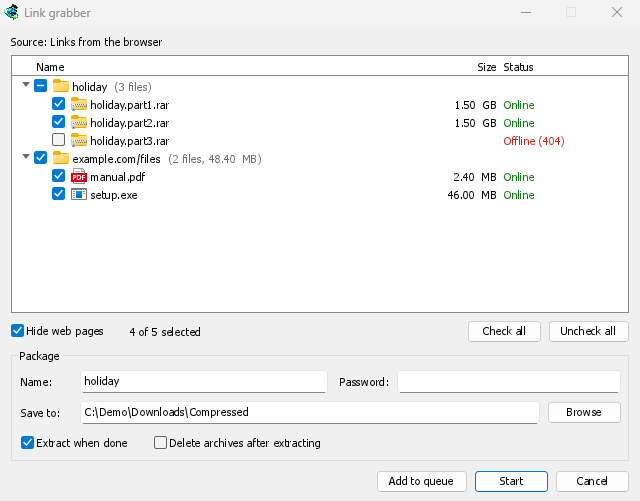
Link grabber gathers many links at once, sorts them into packages, and lets you tick the ones to download. VDM can then extract the archives it downloaded (zip, 7z, rar and more), by itself or when you ask.
مصادر الروابط
- The browser. Right-click a page for Download all links with Volt Download Manager, or select part of it for Download selected links with Volt Download Manager. The page's referrer and cookies go with each link. Both also send the pictures located on the page (or in the selection), hidden at first (see Hide images located on this web page below).
- صور الصفحة. زر شريط أدوات الوظيفة الإضافية للمستعرض، هذه الصفحة ← البحث عن الصور، يرسل صور الصفحة بأكبر حجم مدرج، تلك التي احتفظت بها حسب الحجم والنوع (الصور في هذه الصفحة).
- المهام → استيراد → من ملف نصي ومن ملف تصدير IDM. يجلب ملف
.ef2مرجع كل تنزيل وملفات تعريف الارتباط الخاصة به، واسم ملفه عندما تقدم القائمة واحدا (سطرfilename:؛ الاسم فقط، وليس مجلدا أبدا). - عدة روابط، أو قائمة
.txtأو.ef2، تسقط على قائمة التنزيلات. - الحافظة. المهام ← إضافة تنزيل جماعي من الحافظة (Ctrl+B، موجود أيضا في قائمة أيقونة علبة النظام) يقرأ النص المنسوخ عند تحديده ويسرد كل رابط تنزيل فيه:
http،https،ftpوالروابط المغناطيسية، في قائمة، أو منشور منتدى، أو Markdown أو HTML، كل منها مرة واحدة. يدرج رابطthunder://،flashget://أوqqdl://كعنوان ملفوف فيه، لذا فإن نفس الملف المرتبط ملفوفا وعاديا هو صف واحد؛ وينطبق هذا على النص الملصق والقوائم المستوردة أيضا. - اللصق. اختر المهام ← ملتقط الروابط... واضغط Ctrl+V: ستضاف كل روابط التنزيل الموجودة في النص المنسوخ.
- A web page's address. Paste or copy the address of a page (
https://example.com/downloads) and VDM reads the page and lists the links on it, as the browser's Download all links does, in a package named after the page. The page itself is left unticked. This works for addresses that came on their own (pasted, copied, typed, in a list), not for the links found on a page, so VDM never wanders off through a site. VDM reads only what the page itself holds: links a page's scripts add after it loads come only through the browser. - A folder. Paste or copy the address of an
ftp://folder (ftp://ftp.example.org/pub/) or of the page a web server makes of a folder ("Index of /pub/"), and VDM lists every file in it and in its subfolders, each folder's files in a package of their own. See Folders. - A Hugging Face model or dataset, a GitHub release. Paste the address of a model or dataset on Hugging Face, of a folder in one, or of a release on GitHub, in Add URL or here, and VDM lists every file in it, with its size and folder. See Models, datasets and releases.
- A Google Drive folder. Paste a shared folder's link (
https://drive.google.com/drive/folders/…) in Add URL or here, or right-click it in the browser and choose Download with Volt Download Manager, and VDM lists every file in it and in its subfolders. See Google Drive folders. - أزرار Click'n'Load في مواقع الروابط، بمجرد تشغيلها. انظر Click'n'Load.
A magnet link shows as Magnet link and isn't looked up: once you click Start or Add to queue, VDM finds the torrent's files and adds it with all of them, in the package's folder (or the Torrents folder when the package has none).
تضاف الروابط التي تصل أثناء فتح النافذة إلى الروابط الموجودة فيها بالفعل. لا يضاف الرابط الموجود في النافذة مرتين. ويظهر الرابط الموجود بالفعل في قائمة التنزيلات تحت موجود بالفعل في القائمة، من دون تحديده.
الحزم
كل حزمة صف يمكنك فتحه وإغلاقه (انقر على سهمه، أو انقر عليه نقرا مزدوجا، أو اضغط Right وLeft). يؤدي تحديد الحزمة إلى تحديد جميع روابطها؛ ويكون مربعها نصف ممتلئ عندما يكون بعض روابطها فقط محددا.
- أجزاء الأرشيف الواحد (
movie.part1.rarوmovie.part2.rar…، أوbackup.7z.001وbackup.7z.002…) تشكل حزمة واحدة تحمل اسم الأرشيف، ما دامت من الموقع نفسه. - الروابط الأخرى لصفحة واحدة تشكل حزمة تحمل اسم الصفحة.
- كل شيء آخر يذهب إلى ملفات متنوعة.
- تحافظ الروابط التي حزمها موقع (Click'n'Load) على حزم الموقع وأسمائه، مع كلمة مرور الأرشيف الخاصة بها إذا قدمها الموقع.
- ملفات المجلد تشكل حزمة لكل مجلد، مسماة باسمه، والتي يحافظ حفظ في الخاصة بها على شجرة المجلد (انظر المجلدات).
- ملفات النموذج أو مجموعة البيانات أو الإصدار تشكل حزمة واحدة، يحافظ حفظ في الخاص بها على مجلداتها (انظر النماذج ومجموعات البيانات والإصدارات).
المجلدات
أعط ملتقط الروابط عنوان مجلد، بالطريقة التي تعطيه بها عنوان صفحة: الصقه بـCtrl+V، انسخه لـالمهام ← إضافة تنزيل جماعي من الحافظة، ضعه في قائمة لـالمهام ← استيراد، أو أفلته في قائمة التنزيل.
- An FTP folder: an
ftp://,ftpes://orftps://address that ends in/(ftp://ftp.example.org/pub/). VDM logs in as it does for a download from that address (its user name and password, else your Sites Logins, else as anonymous) and asks the server for the folder's list. Each file comes with the size the server lists, so it isn't looked up again. - A web server's folder listing: the page Apache, nginx, IIS and other servers make of a folder without its own page, titled Index of /pub/ (or Directory listing for /pub/). VDM recognizes it, so it reads the folder instead of listing the page's links.
يسرد ملتقط الروابط بعد ذلك كل ملف في المجلد وفي مجلداته الفرعية. ملفات كل مجلد هي حزمة مسماة باسم المجلد، وحفظ في الخاصة بها هي هذا المجلد ضمن مجلد التنزيل الخاص بك (الخيارات ← حفظ في)، لذلك يتم الاحتفاظ بالشجرة: ftp://ftp.example.org/pub/iso/disc.iso يذهب إلى Downloads\pub\iso\disc.iso. حدد ما تريده؛ إخفاء صفحات الويب ومربعات الحزم تعمل كما هو الحال مع أي روابط.
Options → Archives and Link grabber → Folders: 3 levels deep, types: ... sets how far VDM goes and what it keeps:
- مستويات العمق: عدد مستويات المجلدات الفرعية التي يتم قراءتها، 3 افتراضيا، بحد أقصى 10. 0 يسرد ملفات المجلد نفسه فقط.
- الأنواع: فقط ملفات هذه الأنواع، مكتوبة كما في صفحة أنواع الملفات (
ISO ZIP R0*). فارغ (الافتراضي) يحتفظ بكل نوع.
VDM stays inside the folder you gave. It never goes up to the folder above (../), never onto another site, never through a link the listing makes to somewhere else, and an FTP folder's links to other folders (symbolic links) aren't followed. A name that isn't a plain file or folder name (one with / or \ in it, ..) is left out. One folder lists at most 10,000 files, and VDM reads at most 500 folders for it; past that, the window's Source line says the folder was listed only in part (pub: only its first 10000 files).
تتم قراءة المجلدات فقط مع تشغيل البحث عن الروابط عند وصولها (الافتراضي)، كما هو الحال مع صفحات الويب. يتم اعتبار عنوان FTP بدون / النهائي ملفا.
النماذج ومجموعات البيانات والإصدارات
الصق أحد هذه العناوين في إضافة URL (Ctrl+N)، أو في ملتقط الروابط باستخدام Ctrl+V (يعمل أيضا المنسوخ أو المستورد أو المسقط):
- نموذج أو مجموعة بيانات من Hugging Face:
https://huggingface.co/<owner>/<name>أوhttps://huggingface.co/datasets/<owner>/<name>، المستودع بأكمله. - مجلد من أحدهما، في فرع أو علامة أو التزام: عنوان صفحة المجلد،
https://huggingface.co/<owner>/<name>/tree/<revision>/<folder>. - إصدار من GitHub:
https://github.com/<owner>/<repo>/releases/tag/<tag>، أو…/releases/latestلأحدث إصدار. العلامة بدون إصدار تسرد رمز المصدر الخاص بها.
VDM asks the site's public API for the list of files and opens Link grabber with all of them in one package: each file with its size and the folder it is in, unticked, so you tick only what you need (the package's box ticks them all). Its Save to is the address's path under your download folder (Options → Save to), and each file keeps its folder inside it: onnx/model.onnx of huggingface.co/org/tiny goes to Downloads\org\tiny\onnx\model.onnx, a dataset's files under Downloads\datasets\…, a release's under Downloads\<owner>\<repo>\<tag>. A folder of a repository keeps its place in it (org\tiny\onnx\…), so files you take later from another folder land beside it. Start or Add to queue adds them as one group, with one summary when the last is done.
- Checked against the site's digest. Hugging Face publishes a SHA-256 for each large file, GitHub for each release file. VDM checks the finished file against it, as Verify checksum does; a file that doesn't match stays unfinished and says so (the file's SHA-256 checksum doesn't match), and Redownload fetches it again. Small files kept in the repository itself, and a release's source code, have no digest of their own to check.
- إصدار واحد. يتم طلب ملفات المستودع عند الالتزام الذي أشار إليه فرعه أو علامته عند إدراجه، لذلك لا يخلط الفرع الذي ينتقل أثناء تنزيلها بين إصدارين.
- Straight from the sites. Files come from Hugging Face's and GitHub's own servers, never through a mirror, through VDM's own connections, speed limits and proxy, like any download.
- النماذج المقيدة. المستودع الذي تتطلب ملفاته قبول شروطه يتم تنزيله باستخدام رمز الوصول الخاص بك إلى Hugging Face: اقبل الشروط في صفحته، أنشئ رمزا في إعدادات Hugging Face الخاصة بك، وأضفه في الخيارات ← تسجيلات دخول المواقع مع الموقع
huggingface.co، وأي اسم مستخدم والرمز ككلمة مرور. يتم الاحتفاظ به مع كلمات المرور الأخرى الخاصة بك، في سلسلة مفاتيح النظام، ويتم إرساله فقط إلىhuggingface.co، ولا يتم إرساله أبدا إلى الخوادم التي يرسل منها الملفات. يذكر سطر المصدر متى لا يوجد رمز لمستودع مقيد بعد. - الحدود. يسمح كلا الموقعين بعدد معين فقط من الطلبات من جهاز كمبيوتر بدون حساب (GitHub 60 في الساعة). عند الوصول إلى الحد، يذكر سطر العنوان حاول مرة أخرى لاحقا، ويذكر تلميحه المدة.
يتم التحقق مما يذكره قائمة الموقع قبل استخدامه: الملف الذي يؤدي مساره إلى خارج مجلده (..، مسار مطلق، حرف قرص، اسم جهاز مثل CON) يتم استبعاده، ويعد سطر المصدر هذه الملفات. يتم إدراج 10,000 ملف كحد أقصى لعنوان واحد. كما هو الحال مع المجلدات، يتم قراءتها فقط مع تشغيل البحث عن الروابط عند وصولها (الافتراضي).
Google Drive folders
Paste a shared folder's link, the one Drive's Share → Copy link gives (https://drive.google.com/drive/folders/…?usp=sharing), in Add URL (Ctrl+N) or in Link grabber with Ctrl+V. VDM reads the folder's page, the one your browser opens, and its subfolders' pages, one after the other, and opens Link grabber with all their files in one package, ticked, each with its name and size and the subfolder it is in. Its Save to is a folder of the Drive folder's name under your download folder (Options → Save to), and each file keeps its subfolders inside it: Day 2/hills.jpg of a folder named Holiday photos goes to Downloads\Holiday photos\Day 2\hills.jpg. Start or Add to queue adds them as one group, with one summary when the last is done.
- Each file as a single Drive file. Every file downloads the way a Drive file's own link does (Google Drive links): from Google's own servers, through VDM's connections, speed limits and proxy, past the can't scan this file for viruses page as Download anyway does. When Drive refuses one (too many downloads lately, a sign-in needed, no access), that file says so in its row, and the others go on.
- Google Docs, Sheets and Slides come as Word (
.docx), Excel (.xlsx) and PowerPoint (.pptx) files, Drawings as.png; their size shows once they are looked up. Forms, shortcuts and Sites aren't files: they are left out, and the Source line says how many. - Folders shared with your account only. Sign in to Google in your browser, right-click the folder's link there and choose Download with Volt Download Manager: the browser add-on passes your Google sign-in with it, and VDM uses it for the folder's pages and its files, on Google Drive only. Pasted without one, the folder's row says Needs a sign-in.
- 50 items a folder. Drive's page lists a folder's first 50 items, so a folder (or a subfolder) with more shows only 50 of them. The Source line says so when a folder shows 50; Drive's own Download on the folder gets all of it, as a zip, which the browser add-on hands to VDM.
- Names. Drive lets a name hold characters a disk doesn't take (
a/b,x:y) or be a Windows device's name (CON); VDM makes them plain names (a_b,x_y,_CON), as for any download. A name that is only dots (..) is left out, and the Source line counts it. A file's address is made from its Drive ID, never taken from the page.
Click'n'Load
Many link sites have a Click'n'Load button that sends their links straight to a download manager on your computer, as JDownloader's documentation for web sites describes. Turn it on in Options → Archives and Link grabber → Accept Click'n'Load from web pages (off by default). VDM then listens on port 9666 of this computer only, and the links a page sends open in Link grabber, with the page's package name and archive password.
Any web page can send links there, not only the link site you are on, so VDM is careful with them:
- The first time a site sends links, VDM asks: Allow (that site's links go to Link grabber from now on), Block (they never do), or Not now (these links are dropped, and the site is asked again next time). The site is the one your browser names, never what the page claims. When the browser names none (a page that hides where it is, or one inside a sandboxed frame), the window says An unknown site: it is asked about every time, and its answer is never kept. Turning Click'n'Load off forgets the answers.
- لا يتم البحث عن الروابط التي أرسلتها صفحة: يعرضها ملتقط الروابط على أنها لم يبحث عنه، ولا يغادر أي طلب لها، سواء بحسابات تسجيلات دخول المواقع الخاصة بك أو بدونها، حتى تضيفها إلى قائمة الانتظار. لا يتم تنزيل أي شيء قبل ذلك.
- Links to this computer or your network are left out: a link to
localhost, to a private or link-local address (192.168.…,10.…,172.16.…,169.254.…, their IPv6 kin), or to a name without a dot or under.local,.lanor.internalnever reaches Link grabber. A link site's files aren't there, and such an address could be your router or another device. VDM judges the address as written: a public-looking name that points into your network isn't recognized, so look at a package before you add it. - Limits: at most 10 posts a minute from one site, 500 links and 256 KB a post; more is refused, and one site's posts don't use up another's. At most 20 posts wait for an answer. A site brings VDM's window to the front at most once a minute; its links still arrive in Link grabber in between.
- لا يتم إرسال عنوان الصفحة الخاص كمرجع للروابط: يمكن للصفحة تسمية أي شيء.
- VDM doesn't say it is JDownloader. Some sites first ask whether JDownloader is running (a script named
jdcheck.js) and show their button only then. VDM doesn't answer that question, so such a site may say no program was found; a site that simply sends its form works. - Only one program can listen on port 9666. If JDownloader is running, VDM says so: close it, then turn the option off and on again.
- A button that sends a DLC container instead of links isn't taken: reading one needs a key VDM can't use. The site's plain links, or its Click'n'Load button, are the way.
- Some sites hide the key in a script VDM doesn't run (only the plain form the documentation shows is read): then their button reports a failure, and the site's plain links are the way.
التحقق من الروابط
As links arrive, VDM asks each server about its file, as IDM's Download all links does. A few links are checked at a time, and only a few from any one site. Each link then shows its real name and size, and a status:
- متصل: الملف موجود على الخادم.
- غير متصل (404): الملف غير موجود. لا يحدد الرابط.
- يحتاج إلى تسجيل دخول: يطلب الخادم اسم مستخدم وكلمة مرور، أو ملفات تعريف الارتباط الخاصة بالصفحة.
- مشغول، حاول لاحقا: طلب الخادم الانتظار.
Turn the look-ups off in Options → Archives → Look links up when they arrive. Some file hosts count a look-up as a download. With the look-ups off, VDM asks nothing of the network until you start, so a web page's address isn't read for its links either.
يستبعد إخفاء صفحات الويب (مفعلة افتراضيا) الروابط المؤدية إلى الصفحات (.html و.php وما شابهها، وأي رابط وجدت عملية البحث أنه صفحة ويب): فلا تعرض ولا تنزل.
يستبعد إخفاء الصور الموجودة في صفحة الويب هذه الصور التي وجدها المستعرض معروضة في الصفحة (صورها، بأكبر حجم تسجله الصفحة لكل منها)، بحيث تحتوي القائمة على روابط الصفحة. يتم تحديدها مرة أخرى في كل مرة تأتي فيها روابط الصفحة مع هذه الصور، ولا يتم تذكرها: ألغ تحديدها لرؤية الصور وتحديد الصور التي تريدها؛ بينما يتم تحديدها لا يتم عرضها ولا تنزيلها. الرابط إلى صورة (صورة مصغرة ترتبط بحجمها الكامل) هو رابط مثل أي رابط آخر ويظهر دائما، حتى عندما يتم عرض نفس الصورة في الصفحة أيضا.
مربع الحزمة
يتيح المربع أسفل القائمة تعديل الحزمة المحددة:
- الاسم: اسم الحزمة، ويبقى مع تنزيلاتها.
- حفظ في: المجلد الذي تحفظ فيه ملفات الحزمة. عندما تحتوي الحزمة على أنواع متعددة من الملفات، يعرض المربع مجلد فئة كل ملف: يحفظ كل ملف في مجلد فئته (الخيارات ← حفظ في)، كما كان الاستيراد يفعل دائما.
- كلمة المرور: كلمة مرور الأرشيفات، إن وجدت. تبقى في الذاكرة فقط ولا تحفظ تلقائيا: للاحتفاظ بها لحزم أخرى، أضفها إلى كلمات مرور الأرشيفات.
- استخراج عند الانتهاء: يحدد الخيار تلقائيا عندما تحتوي الحزمة على أرشيف.
- حذف الأرشيفات بعد الاستخراج: بعد استخراجها، تنقل الأرشيفات إلى سلة المحذوفات (سلة المهملات على macOS وLinux).
إضافة الروابط
- يضيف بدء الروابط المحددة إلى قائمة انتظار التنزيل الرئيسية ويبدأ قائمة الانتظار. وينزل منها أكبر عدد من الملفات في وقت واحد تسمح به قائمة الانتظار.
- إضافة إلى قائمة الانتظار يضيفها إلى قائمة انتظار التنزيل الرئيسية دون بدء تشغيلها، كما يفعل استيراد IDM.
- يغلق زر إلغاء النافذة ولا يضيف شيئا.
استخراج الأرشيفات
VDM itself extracts zip archives (AES-encrypted and Deflate64 ones too), tar, tar.gz and tar.xz archives, and single .gz and .xz files.
7z and RAR archives need 7-Zip, a free program (7-zip.org). VDM runs it when it is installed, for split and encrypted archives too. RAR's own extraction code can't be part of a free program like VDM, and 7-Zip extracts 7z best.
Options → Archives says whether 7-Zip was found. Without it, a 7z or RAR archive isn't extracted, and the 7-Zip needed window says so, with a Get 7-Zip button. On Linux, install your distribution's 7zip (or p7zip) package: VDM finds 7zz, 7z or 7za on its own.
Another archiver built on 7-Zip does as well, so there is no need for a second copy. On Windows VDM finds the 7-Zip that PeaZip brings with it (PeaZip\res\bin\7z\7z.exe in Program Files) and NanaZip's command line (NanaZipC.exe) by itself, after 7-Zip's own folders. For any other, such as a portable copy or one installed for your user only, press Use another program... in Options → Archives and choose its 7-Zip command line program: 7z.exe, 7za.exe or 7zz, not the archiver's own window. VDM runs it once to see that it answers as 7-Zip, then uses it for 7z and RAR archives, with the same arguments as always. Find 7-Zip automatically goes back to the one VDM finds, which is also used if the chosen program is removed.
في مكانه، باستخدام HatchZip
HatchZip is another free extractor (MIT or Apache-2.0), optional. VDM uses its command line program, hatchzip, when it is on the PATH (its installers and packages put it there; the desktop app alone isn't enough):
- Options → Archives → Extract in place with HatchZip (off by default): HatchZip removes the archive while its files come out, so a 180 GB download that unpacks to 200 GB needs a little over 200 GB, not 380 GB. It reads zip, 7z, RAR and tar archives, split ones too; single
.gzand.xzfiles are still extracted by VDM. A solid RAR archive can't be extracted in place (HatchZip says so before it changes anything): VDM then extracts it as usual, with 7-Zip, and keeps the archive. HatchZip's own release builds read RAR; a build from crates.io doesn't. - قبل أن يغير أي شيء، يتحقق HatchZip من أن الملفات تتناسب ويثبت كلمة المرور. كلمة مرور مفقودة أو خاطئة، أو مساحة قليلة جدا، لا تغير شيئا: يوضح السجل ذلك، وتطلب نافذة كلمة مرور الأرشيف كالمعتاد. تنتقل كلمة المرور إلى HatchZip عبر بيئته، وليس أبدا عبر سطر الأوامر الخاص به.
- تذهب الملفات إلى حيث تشير محتويات الأرشيف تذهب إلى، كما هو الحال مع أي استخراج آخر. في طريقها تكون في مجلد باسم
<archive>.hatchzip-outبجانب الأرشيف. - If it stops partway (VDM closed, the download deleted, the disk filled by something else), the files extracted so far stay in that folder and the rest is still in the archive. Extract continues where it stopped, even with the option off: only HatchZip can finish such an archive. VDM continues only a run it started itself (it keeps a note of it in its own data): a HatchZip progress file (
<archive>.hatchzip) that comes with a download or a torrent starts nothing, and that archive is extracted as usual. - Nothing HatchZip extracted is ever deleted, those files are no longer in the archive. Entries VDM leaves out (links, names leading outside the folder) stay in that folder, and so do the files a failed move couldn't put in place (a file held open by another program); the log says where. So after an extraction in place, a link an archive held that VDM considers unsafe is still in your download folder, inside
<archive>.hatchzip-out: it is never followed or moved, but it isn't removed either, as it is by every other extraction. Look at what is left in that folder before you open it. - ثم انقل الأرشيفات إلى سلة المحذوفات لا يوجد شيء لنقله بعد ذلك: الأرشيف قد اختفى بالفعل.
- لا تزال أرشيفات 7z وRAR تحتاج إلى 7-Zip عندما يكون الخيار معطلا.
يتم استخراج الأرشيف:
- عندما تشير حزمة التنزيل إلى استخراج عند الانتهاء،
- عندما يكون خيار الخيارات ← الأرشيفات ← استخراج الأرشيفات عند اكتمال تنزيلها مفعلا (معطل افتراضيا)، لأي تنزيل آخر،
- عند النقر بزر الفأرة الأيمن على أرشيف مكتمل واختيار استخراج.
يتم استخراج الأرشيف المقسم مرة واحدة، عند تنزيل الجزء الأخير منه. توضع الملفات بجانب الأرشيف:
- في مجلد يحمل اسم الأرشيف عندما يحتوي على عدة عناصر في مستواه الأعلى (أو دائما، أو أبدا: الخيارات ← الأرشيفات).
- يتم الاحتفاظ بالملف الموجود بالفعل، ويتم ترقيم الملف الجديد:
report (1).txt.
يتم وضع علامة على الملفات المستخرجة على أنها قادمة من الإنترنت، كما هو الحال مع الأرشيف، لذلك لا يزال Windows يحذر قبل تشغيل برنامج منها.
VDM extracts safely. A name that would lead outside the folder is left out, and so is a link to somewhere else on the disk. An archive that would write far more than its size, or more than the disk has room for, stops before it fills it. When something goes wrong, nothing but the archive is left behind.
يوضح سجل التنزيل (مرر مؤشر الماوس فوقه في القائمة) ما حدث: تم استخراج 12 ملفا إلى...، أو لماذا لم يتم ذلك، على سبيل المثال تعذر استخراج movie.7z.001: المجلد 3 منه مفقود. يتم تجربة كل أرشيف بدون كلمة مرور أولا. يتم تجربة الأرشيف المشفر بكلمة مرور حزمته، ثم بكل كلمة مرور محفوظة لديك (الخيارات → الأرشيفات → كلمات مرور الأرشيفات...)، بترتيبها، لذا فإن الأرشيف الذي لا يحتاج إلى كلمة مرور لا يواجهها أبدا. فقط عندما لا تتناسب أي كلمة مرور تفتح نافذة كلمة مرور الأرشيف. اكتب كلمة المرور وانقر على استخراج، أو إلغاء لترك الأرشيف كما هو. حدد تذكرها للأرشيفات الأخرى (تبدأ غير محددة) لإضافتها إلى كلمات المرور المحفوظة. يتم إعطاء 7-Zip كل كلمة مرور على مدخلاته، وليس أبدا على سطر الأوامر الخاص به، حيث يمكن لبرامج أخرى على الكمبيوتر قراءتها.
كلمات مرور الأرشيفات
Options → Archives → Archive passwords... keeps the passwords you use again and again (a site's own, say), one per line. The download's log says Trying the saved archive passwords... while VDM tries them. The one that opens an archive moves to the top of the list, so the passwords you need most are tried first. A package's password (one you typed in Link grabber, or one that came with the links) is tried first and never added to the list by itself; when it is one of your saved passwords already, it moves to the top like any other. A password typed in the Archive password window is added only with Remember it for other archives ticked, and only once it fits. The list is kept in the system's keychain, as the other passwords are (see Where the sign-in is kept).
تبدأ كل محاولة الاستخراج مرة أخرى: مع قائمة طويلة وأرشيف كبير لا تكون أسماء ملفاته مشفرة، قد يستغرق الأمر لحظة قبل العثور على الكلمة الصحيحة.
اختبار الأرشيفات
A finished archive can still be broken: a server sent wrong bytes, or a proxy on the way mangled part of the file. It shows only when someone opens it, often much later. So VDM tests ZIP, 7z and RAR archives, split ones too once every volume is in, when their download completes: Options → Archives → Test archives when their download completes is on by default, up to 4 GB. A test reads the whole archive, so a larger one is tested only when you ask: right-click a finished archive and choose Test archive, whatever its size.
- The test is 7-Zip's (
7z t, with the 7-Zip that Options → Archives names): every file in the archive is read back and checked, and nothing is written. Without 7-Zip, VDM tests ZIP archives itself; 7z and RAR archives aren't tested. - يعتبر التنزيل منتهيا بمجرد انتهاء اختباره. تعرض القائمة قيد التحقق 45% في هذه الأثناء، وتنتظر قائمة الانتظار الخاصة به، وتأتي نافذة اكتمل التنزيل وصوته واستخراجه بعد الاختبار.
- لا يتم اختبار الأرشيف المحمي بكلمة مرور، حيث لا يمكن قراءة ملفاته بدونها: يسجل السجل تعذر اختبار photos.zip: يحتاج إلى كلمة مرور. ولا يتم اختبار ملفات tar وgz وxz.
- يعرض الأرشيف التالف تالف في القائمة، ويسمي سجله الملفات التالفة، وتقدم نافذة أرشيف تالف إعادة التنزيل: يقوم بتنزيل الأرشيف (كل مجلد من الأرشيف المقسم) مرة أخرى من البداية. لا يتم استخراجه تلقائيا؛ استخراج لا يزال يحاول ذلك.
- A ZIP in one file is repaired instead, when VDM can tell where its damaged files are in it: their bytes alone are downloaded again, from the same server, and the archive is tested once more. The log says Downloading the damaged parts again (1.20 MB), then Tested again: the archive has no errors now. The bytes come only from the same version of the file: VDM asks for them as it resumes any download (with the file's ETag or date,
If-Range), and checks the bytes just before each part against the ones on disk. A file that changed on the server stops the download with the file changed on the server instead of mixing two versions: Redownload downloads the new one. An archive still damaged after that is offered for Redownload. - تحتفظ أرشيفات 7z وRAR بملفاتها في كتل لا يعطي اختبار 7-Zip مكانها في الملف، ومجلدات الأرشيف المقسم هي تنزيلات منفصلة: يتم اختبارها، وتقدم لـ إعادة التنزيل عند تلفها، ولا يتم إصلاحها جزئيا أبدا.
- يتم اختبار الأرشيف المقسم (
photos.zip.001،photos.z01،notes.7z.001،movie.part1.rar،movie.r00) مرة واحدة، من مجلده الأول، عندما يتم تنزيل كل مجلد، أيهما ينتهي أخيرا. غالبا ما تنتهي مجلداته واحدا تلو الآخر (قائمة انتظار تنزل واحدا تلو الآخر، مضيف يجعلك تنتظر بين الملفات)، وتقرأ تلك الموجودة حتى الآن كأرشيف مقطوع، لذلك لا يتم اختبارها بمفردها. اختبار الأرشيف على أرشيف مقسم لم يكتمل بعد يقول ذلك: لم يتم اختباره بعد: photos.zip.001 غير مكتمل (المجلد 3 ليس موجودا بعد). - Closing VDM stops a test; the archive is tested again at the next start.
الخطوات التالية
مجاني، مفتوح المصدر، بدون إعلانات، بدون فترة تجريبية.
Download Volt Download Manager