

Link grabber gathers many links at once, sorts them into packages, and lets you tick the ones to download. VDM can then extract the archives it downloaded (zip, 7z, rar and more), by itself or when you ask.
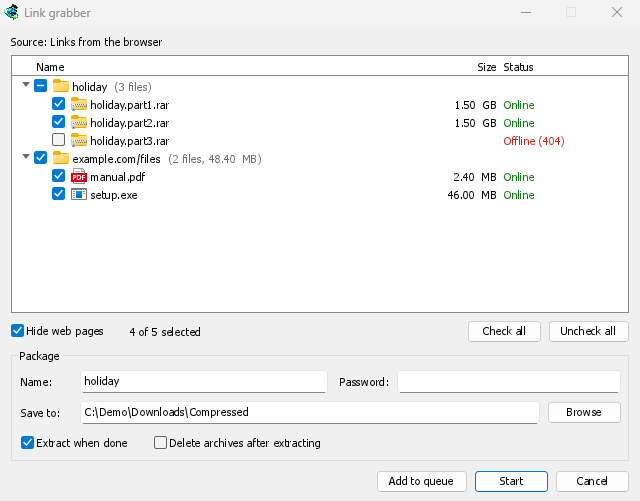
링크 출처
- The browser. Right-click a page for Download all links with Volt Download Manager, or select part of it for Download selected links with Volt Download Manager. The page's referrer and cookies go with each link. Both also send the pictures located on the page (or in the selection), hidden at first (see Hide images located on this web page below).
- 페이지의 이미지. 브라우저 추가 기능의 도구 모음 버튼인 이 페이지 → 이미지 찾기는 페이지에 있는 그림 중 나열된 가장 큰 크기의 그림을 전송하며, 크기와 유형별로 유지한 그림(이 페이지의 이미지)을 전송합니다.
- 작업 → 가져오기 → 텍스트 파일에서 및 IDM 내보내기 파일에서.
.ef2파일은 각 다운로드의 리퍼러와 쿠키, 그리고 목록에 파일 이름이 있는 경우(filename:줄; 이름만, 폴더는 아님)를 가져옵니다. - 다운로드 목록에 여러 링크 또는
.txt이나.ef2목록을 드롭했습니다. - 클립보드. 작업 → 클립보드에서 일괄 다운로드 추가(Ctrl+B, 트레이 아이콘 메뉴에도 있음)는 선택 시 복사된 텍스트를 읽고 그 안에 있는 모든 다운로드 링크를 나열합니다.
http,https,ftp및 마그넷 링크가 목록, 포럼 게시물, Markdown 또는 HTML 형식으로 각각 한 번씩 나열됩니다.thunder://,flashget://또는qqdl://링크는 해당 링크로 래핑된 주소로 나열되므로, 래핑된 파일과 일반 파일로 연결된 동일한 파일은 한 행으로 표시됩니다. 이는 붙여넣은 텍스트 및 가져온 목록에도 적용됩니다. - 붙여넣기. 작업 → 링크 그래버...를 선택하고 Ctrl+V를 누르면 복사된 텍스트에 있는 모든 다운로드 링크가 추가됩니다.
- A web page's address. Paste or copy the address of a page (
https://example.com/downloads) and VDM reads the page and lists the links on it, as the browser's Download all links does, in a package named after the page. The page itself is left unticked. This works for addresses that came on their own (pasted, copied, typed, in a list), not for the links found on a page, so VDM never wanders off through a site. VDM reads only what the page itself holds: links a page's scripts add after it loads come only through the browser. - A folder. Paste or copy the address of an
ftp://folder (ftp://ftp.example.org/pub/) or of the page a web server makes of a folder ("Index of /pub/"), and VDM lists every file in it and in its subfolders, each folder's files in a package of their own. See Folders. - A Hugging Face model or dataset, a GitHub release. Paste the address of a model or dataset on Hugging Face, of a folder in one, or of a release on GitHub, in Add URL or here, and VDM lists every file in it, with its size and folder. See Models, datasets and releases.
- A Google Drive folder. Paste a shared folder's link (
https://drive.google.com/drive/folders/…) in Add URL or here, or right-click it in the browser and choose Download with Volt Download Manager, and VDM lists every file in it and in its subfolders. See Google Drive folders. - 링크 사이트의 Click'n'Load 버튼을 켜면 작동합니다. Click'n'Load를 참조하세요.
A magnet link shows as Magnet link and isn't looked up: once you click Start or Add to queue, VDM finds the torrent's files and adds it with all of them, in the package's folder (or the Torrents folder when the package has none).
창이 열려 있는 동안 들어오는 링크는 기존 링크에 추가됩니다. 창에 이미 있는 링크는 중복으로 추가되지 않습니다. 다운로드 목록에 이미 있는 링크는 이미 목록에 있습니다 아래에 선택되지 않은 상태로 표시됩니다.
패키지
각 패키지는 열고 닫을 수 있는 행입니다(화살표 클릭, 두 번 클릭 또는 Right와 Left 누르기). 패키지를 선택하면 모든 링크가 선택됩니다. 일부 링크만 선택된 경우 상자가 절반만 채워집니다.
- 하나의 압축 파일을 구성하는 분할 파일(
movie.part1.rar,movie.part2.rar…, 또는backup.7z.001,backup.7z.002…)은 같은 사이트에서 온 경우 압축 파일 이름으로 된 하나의 패키지로 묶입니다. - 한 페이지에 있는 나머지 링크는 페이지 이름으로 된 하나의 패키지로 묶입니다.
- 그 외 모든 링크는 기타 파일에 포함됩니다.
- 사이트에서 묶은 링크(Click'n'Load)는 사이트에서 제공한 압축 파일 암호와 함께 사이트의 패키지와 이름을 유지합니다.
- 폴더의 파일은 각 폴더에 대해 해당 폴더의 이름을 딴 패키지를 형성하며, 저장 위치는 폴더의 트리를 유지합니다(폴더 참조).
- 모델, 데이터셋 또는 릴리스의 파일은 하나의 패키지를 구성하며, 저장 위치는 해당 폴더를 유지합니다 (자세한 내용은 모델, 데이터셋 및 릴리스 참조).
폴더
링크 그래버에 페이지 주소를 제공하는 방식과 동일하게 폴더 주소를 제공합니다. Ctrl+V로 붙여넣거나, 작업 → 클립보드에서 일괄 다운로드 추가를 위해 복사하거나, 작업 → 가져오기를 위해 목록에 넣거나, 다운로드 목록에 드롭합니다.
- An FTP folder: an
ftp://,ftpes://orftps://address that ends in/(ftp://ftp.example.org/pub/). VDM logs in as it does for a download from that address (its user name and password, else your Sites Logins, else as anonymous) and asks the server for the folder's list. Each file comes with the size the server lists, so it isn't looked up again. - A web server's folder listing: the page Apache, nginx, IIS and other servers make of a folder without its own page, titled Index of /pub/ (or Directory listing for /pub/). VDM recognizes it, so it reads the folder instead of listing the page's links.
링크 그래버는 해당 폴더와 하위 폴더의 모든 파일을 나열합니다. 각 폴더의 파일은 폴더 이름을 딴 패키지이며, 저장 위치는 다운로드 폴더(옵션 → 저장 위치) 아래의 해당 폴더이므로 트리가 유지됩니다. ftp://ftp.example.org/pub/iso/disc.iso는 Downloads\pub\iso\disc.iso로 이동합니다. 원하는 항목을 선택하세요. 웹 페이지 숨기기 및 패키지 상자는 다른 링크와 동일하게 작동합니다.
Options → Archives and Link grabber → Folders: 3 levels deep, types: ... sets how far VDM goes and what it keeps:
- 단계 깊이: 하위 폴더를 읽는 깊이로, 기본값은 3이며 최대 10입니다. 0은 폴더 자체의 파일만 나열합니다.
- 유형: 파일 형식 페이지(
ISO ZIP R0*)에 작성된 대로 이러한 유형의 파일만 해당됩니다. 비어 있으면(기본값) 모든 유형을 유지합니다.
VDM stays inside the folder you gave. It never goes up to the folder above (../), never onto another site, never through a link the listing makes to somewhere else, and an FTP folder's links to other folders (symbolic links) aren't followed. A name that isn't a plain file or folder name (one with / or \ in it, ..) is left out. One folder lists at most 10,000 files, and VDM reads at most 500 folders for it; past that, the window's Source line says the folder was listed only in part (pub: only its first 10000 files).
폴더는 웹 페이지와 마찬가지로 링크 도착 시 조회가 켜져 있을 때만 읽습니다(기본값). 마지막 /가 없는 FTP 주소는 파일로 간주됩니다.
모델, 데이터셋 및 릴리스
URL 추가(Ctrl+N) 또는 링크 그래버에 Ctrl+V로 다음 주소 중 하나를 붙여넣으세요(복사, 가져오기 또는 드롭도 가능):
- Hugging Face 모델 또는 데이터셋:
https://huggingface.co/<owner>/<name>또는https://huggingface.co/datasets/<owner>/<name>, 전체 저장소. - 모델 또는 데이터셋의 폴더(특정 브랜치, 태그 또는 커밋): 폴더 페이지의 주소,
https://huggingface.co/<owner>/<name>/tree/<revision>/<folder>. - GitHub 릴리스:
https://github.com/<owner>/<repo>/releases/tag/<tag>또는 최신 릴리스의 경우…/releases/latest. 릴리스가 없는 태그는 소스 코드를 나열합니다.
VDM asks the site's public API for the list of files and opens Link grabber with all of them in one package: each file with its size and the folder it is in, unticked, so you tick only what you need (the package's box ticks them all). Its Save to is the address's path under your download folder (Options → Save to), and each file keeps its folder inside it: onnx/model.onnx of huggingface.co/org/tiny goes to Downloads\org\tiny\onnx\model.onnx, a dataset's files under Downloads\datasets\…, a release's under Downloads\<owner>\<repo>\<tag>. A folder of a repository keeps its place in it (org\tiny\onnx\…), so files you take later from another folder land beside it. Start or Add to queue adds them as one group, with one summary when the last is done.
- Checked against the site's digest. Hugging Face publishes a SHA-256 for each large file, GitHub for each release file. VDM checks the finished file against it, as Verify checksum does; a file that doesn't match stays unfinished and says so (the file's SHA-256 checksum doesn't match), and Redownload fetches it again. Small files kept in the repository itself, and a release's source code, have no digest of their own to check.
- 단일 버전. 저장소 파일은 브랜치 또는 태그가 나열될 때 가리키던 커밋에서 요청되므로, 다운로드 중에 브랜치가 이동하더라도 두 버전이 혼합되지 않습니다.
- Straight from the sites. Files come from Hugging Face's and GitHub's own servers, never through a mirror, through VDM's own connections, speed limits and proxy, like any download.
- 게이트 모델. 파일에 대한 약관 동의가 필요한 저장소는 Hugging Face 액세스 토큰으로 다운로드됩니다. 해당 페이지에서 약관에 동의하고, Hugging Face 설정에서 토큰을 생성한 다음, 옵션 → 사이트 로그인에서 사이트
huggingface.co, 사용자 이름(아무거나), 비밀번호(토큰)를 사용하여 추가하세요. 이 토큰은 시스템 키체인에 다른 비밀번호와 함께 보관되며,huggingface.co로만 전송되고 파일을 보내는 서버로는 절대 전송되지 않습니다. 게이트 저장소에 아직 토큰이 없으면 원본 줄에 표시됩니다. - 제한. 두 사이트 모두 계정 없이 컴퓨터에서 보낼 수 있는 요청 수를 제한합니다(GitHub는 시간당 60회). 제한에 도달하면 주소 행에 나중에 다시 시도하세요라고 표시되며, 팁에는 남은 시간이 표시됩니다.
사이트 목록의 내용은 사용하기 전에 확인됩니다. 경로가 폴더 밖으로 나가는 파일(.., 절대 경로, 드라이브 문자, CON와 같은 장치 이름)은 제외되며, 원본 줄에 그 수가 표시됩니다. 하나의 주소에 대해 최대 10,000개의 파일이 나열됩니다. 폴더는 링크가 도착하면 찾아보기가 켜져 있을 때만 읽힙니다(기본값).
Google Drive folders
Paste a shared folder's link, the one Drive's Share → Copy link gives (https://drive.google.com/drive/folders/…?usp=sharing), in Add URL (Ctrl+N) or in Link grabber with Ctrl+V. VDM reads the folder's page, the one your browser opens, and its subfolders' pages, one after the other, and opens Link grabber with all their files in one package, ticked, each with its name and size and the subfolder it is in. Its Save to is a folder of the Drive folder's name under your download folder (Options → Save to), and each file keeps its subfolders inside it: Day 2/hills.jpg of a folder named Holiday photos goes to Downloads\Holiday photos\Day 2\hills.jpg. Start or Add to queue adds them as one group, with one summary when the last is done.
- Each file as a single Drive file. Every file downloads the way a Drive file's own link does (Google Drive links): from Google's own servers, through VDM's connections, speed limits and proxy, past the can't scan this file for viruses page as Download anyway does. When Drive refuses one (too many downloads lately, a sign-in needed, no access), that file says so in its row, and the others go on.
- Google Docs, Sheets and Slides come as Word (
.docx), Excel (.xlsx) and PowerPoint (.pptx) files, Drawings as.png; their size shows once they are looked up. Forms, shortcuts and Sites aren't files: they are left out, and the Source line says how many. - Folders shared with your account only. Sign in to Google in your browser, right-click the folder's link there and choose Download with Volt Download Manager: the browser add-on passes your Google sign-in with it, and VDM uses it for the folder's pages and its files, on Google Drive only. Pasted without one, the folder's row says Needs a sign-in.
- 50 items a folder. Drive's page lists a folder's first 50 items, so a folder (or a subfolder) with more shows only 50 of them. The Source line says so when a folder shows 50; Drive's own Download on the folder gets all of it, as a zip, which the browser add-on hands to VDM.
- Names. Drive lets a name hold characters a disk doesn't take (
a/b,x:y) or be a Windows device's name (CON); VDM makes them plain names (a_b,x_y,_CON), as for any download. A name that is only dots (..) is left out, and the Source line counts it. A file's address is made from its Drive ID, never taken from the page.
Click'n'Load
Many link sites have a Click'n'Load button that sends their links straight to a download manager on your computer, as JDownloader's documentation for web sites describes. Turn it on in Options → Archives and Link grabber → Accept Click'n'Load from web pages (off by default). VDM then listens on port 9666 of this computer only, and the links a page sends open in Link grabber, with the page's package name and archive password.
Any web page can send links there, not only the link site you are on, so VDM is careful with them:
- The first time a site sends links, VDM asks: Allow (that site's links go to Link grabber from now on), Block (they never do), or Not now (these links are dropped, and the site is asked again next time). The site is the one your browser names, never what the page claims. When the browser names none (a page that hides where it is, or one inside a sandboxed frame), the window says An unknown site: it is asked about every time, and its answer is never kept. Turning Click'n'Load off forgets the answers.
- 페이지에서 보낸 링크는 조회되지 않습니다. 링크 그래버는 이를 조회되지 않음으로 표시하며, 대기열에 추가하기 전까지는 사이트 로그인 또는 디브리드 계정 유무에 관계없이 어떠한 요청도 보내지 않습니다. 그 전에는 아무것도 다운로드되지 않습니다.
- Links to this computer or your network are left out: a link to
localhost, to a private or link-local address (192.168.…,10.…,172.16.…,169.254.…, their IPv6 kin), or to a name without a dot or under.local,.lanor.internalnever reaches Link grabber. A link site's files aren't there, and such an address could be your router or another device. VDM judges the address as written: a public-looking name that points into your network isn't recognized, so look at a package before you add it. - Limits: at most 10 posts a minute from one site, 500 links and 256 KB a post; more is refused, and one site's posts don't use up another's. At most 20 posts wait for an answer. A site brings VDM's window to the front at most once a minute; its links still arrive in Link grabber in between.
- 페이지 자체 주소는 링크의 리퍼러로 전송되지 않습니다. 페이지는 어떤 이름이든 지정할 수 있습니다.
- VDM doesn't say it is JDownloader. Some sites first ask whether JDownloader is running (a script named
jdcheck.js) and show their button only then. VDM doesn't answer that question, so such a site may say no program was found; a site that simply sends its form works. - Only one program can listen on port 9666. If JDownloader is running, VDM says so: close it, then turn the option off and on again.
- A button that sends a DLC container instead of links isn't taken: reading one needs a key VDM can't use. The site's plain links, or its Click'n'Load button, are the way.
- Some sites hide the key in a script VDM doesn't run (only the plain form the documentation shows is read): then their button reports a failure, and the site's plain links are the way.
링크 확인
As links arrive, VDM asks each server about its file, as IDM's Download all links does. A few links are checked at a time, and only a few from any one site. Each link then shows its real name and size, and a status:
- 온라인: 서버에 파일이 있습니다.
- 오프라인 (404): 파일이 없습니다. 링크는 선택 해제됩니다.
- 로그인이 필요합니다: 서버에서 사용자 이름과 암호 또는 페이지의 쿠키를 요청합니다.
- 사용 중, 나중에 다시 시도: 서버에서 잠시 기다려 달라고 요청했습니다.
Turn the look-ups off in Options → Archives → Look links up when they arrive. Some file hosts count a look-up as a download. With the look-ups off, VDM asks nothing of the network until you start, so a web page's address isn't read for its links either.
웹 페이지 숨기기(기본값으로 켜짐)는 페이지 링크(.html, .php 등, 그리고 조회 결과 웹 페이지로 확인된 모든 링크)를 제외합니다. 이 링크들은 표시되거나 다운로드되지 않습니다.
이 웹 페이지에 있는 이미지 숨기기는 브라우저가 페이지에 표시된 그림(페이지의 이미지, 각 그림에 대해 페이지에 나열된 가장 큰 크기)을 제외하므로 목록에는 페이지의 링크가 포함됩니다. 이러한 그림이 있는 페이지 링크가 올 때마다 다시 선택되며, 기억되지 않습니다. 그림을 보려면 선택을 해제하고 원하는 그림을 선택하세요. 선택되어 있는 동안에는 표시되거나 다운로드되지 않습니다. 그림으로 연결되는 링크(전체 크기로 연결되는 썸네일)는 다른 링크와 동일하며, 동일한 그림이 페이지에 표시되어 있더라도 항상 표시됩니다.
패키지 상자
목록 아래 상자에서 선택한 패키지를 편집할 수 있습니다.
- 이름: 패키지의 이름으로, 다운로드와 함께 유지됩니다.
- 저장 위치: 파일이 저장될 폴더입니다. 패키지에 여러 종류의 파일이 있으면 상자에 각 파일의 범주 폴더라고 표시됩니다. 이 경우 각 파일은 가져오기 기능에서처럼 해당 범주의 폴더(옵션 → 저장 위치)에 저장됩니다.
- 암호: 압축 파일에 암호가 있다면 입력합니다. 이 암호는 메모리에만 저장되며 자체적으로는 저장되지 않습니다. 다른 패키지에도 사용하려면 압축 파일 암호에 추가하세요.
- 완료 시 추출: 패키지에 압축 파일이 있으면 자동으로 선택됩니다.
- 추출 후 압축 파일 삭제: 추출이 끝나면 압축 파일이 휴지통(macOS 및 Linux에서는 휴지통)으로 이동합니다.
링크 추가
- 시작을 누르면 선택한 링크가 기본 다운로드 대기열에 추가되고 대기열이 시작됩니다. 대기열에서 허용하는 수만큼 파일을 동시에 다운로드합니다.
- 대기열에 추가를 선택하면 IDM의 가져오기와 마찬가지로 다운로드를 시작하지 않고 기본 다운로드 대기열에 추가합니다.
- 취소를 선택하면 창이 닫히고 아무것도 추가되지 않습니다.
압축 파일 추출
VDM itself extracts zip archives (AES-encrypted and Deflate64 ones too), tar, tar.gz and tar.xz archives, and single .gz and .xz files.
7z and RAR archives need 7-Zip, a free program (7-zip.org). VDM runs it when it is installed, for split and encrypted archives too. RAR's own extraction code can't be part of a free program like VDM, and 7-Zip extracts 7z best.
Options → Archives says whether 7-Zip was found. Without it, a 7z or RAR archive isn't extracted, and the 7-Zip needed window says so, with a Get 7-Zip button. On Linux, install your distribution's 7zip (or p7zip) package: VDM finds 7zz, 7z or 7za on its own.
Another archiver built on 7-Zip does as well, so there is no need for a second copy. On Windows VDM finds the 7-Zip that PeaZip brings with it (PeaZip\res\bin\7z\7z.exe in Program Files) and NanaZip's command line (NanaZipC.exe) by itself, after 7-Zip's own folders. For any other, such as a portable copy or one installed for your user only, press Use another program... in Options → Archives and choose its 7-Zip command line program: 7z.exe, 7za.exe or 7zz, not the archiver's own window. VDM runs it once to see that it answers as 7-Zip, then uses it for 7z and RAR archives, with the same arguments as always. Find 7-Zip automatically goes back to the one VDM finds, which is also used if the chosen program is removed.
HatchZip으로 제자리 추출
HatchZip is another free extractor (MIT or Apache-2.0), optional. VDM uses its command line program, hatchzip, when it is on the PATH (its installers and packages put it there; the desktop app alone isn't enough):
- Options → Archives → Extract in place with HatchZip (off by default): HatchZip removes the archive while its files come out, so a 180 GB download that unpacks to 200 GB needs a little over 200 GB, not 380 GB. It reads zip, 7z, RAR and tar archives, split ones too; single
.gzand.xzfiles are still extracted by VDM. A solid RAR archive can't be extracted in place (HatchZip says so before it changes anything): VDM then extracts it as usual, with 7-Zip, and keeps the archive. HatchZip's own release builds read RAR; a build from crates.io doesn't. - HatchZip은 변경하기 전에 파일이 맞는지 확인하고 암호를 검증합니다. 암호가 없거나 틀렸거나 공간이 부족하면 아무것도 변경되지 않습니다. 로그에 해당 내용이 표시되고, 압축 파일 암호 창이 평소처럼 열립니다. 암호는 HatchZip의 환경 변수를 통해 전달되며, 명령줄에는 절대 전달되지 않습니다.
- 파일은 다른 추출과 마찬가지로 압축 파일 내용 저장 위치에 지정된 곳으로 이동합니다. 이동 중에는 압축 파일 옆에
<archive>.hatchzip-out라는 이름의 폴더에 있습니다. - If it stops partway (VDM closed, the download deleted, the disk filled by something else), the files extracted so far stay in that folder and the rest is still in the archive. Extract continues where it stopped, even with the option off: only HatchZip can finish such an archive. VDM continues only a run it started itself (it keeps a note of it in its own data): a HatchZip progress file (
<archive>.hatchzip) that comes with a download or a torrent starts nothing, and that archive is extracted as usual. - Nothing HatchZip extracted is ever deleted, those files are no longer in the archive. Entries VDM leaves out (links, names leading outside the folder) stay in that folder, and so do the files a failed move couldn't put in place (a file held open by another program); the log says where. So after an extraction in place, a link an archive held that VDM considers unsafe is still in your download folder, inside
<archive>.hatchzip-out: it is never followed or moved, but it isn't removed either, as it is by every other extraction. Look at what is left in that folder before you open it. - 그런 다음 압축 파일을 휴지통으로 이동은 나중에 이동할 것이 없습니다. 압축 파일은 이미 사라졌기 때문입니다.
- 옵션이 꺼져 있어도 7z 및 RAR 압축 파일에는 여전히 7-Zip이 필요합니다.
압축 파일은 다음과 같은 경우에 추출됩니다.
- 패키지에 완료 시 추출이 설정되어 있을 때,
- 다른 모든 다운로드의 경우 옵션 → 압축 파일 → 다운로드 완료 시 압축 파일 추출이 켜져 있을 때(기본값은 꺼짐),
- 완료된 압축 파일을 마우스 오른쪽 버튼으로 클릭하고 추출을 선택할 때.
분할 압축 파일은 마지막 볼륨이 다운로드되면 한 번 추출됩니다. 파일은 압축 파일 옆에 저장됩니다.
- 최상위에 여러 항목이 있는 경우 압축 파일 이름으로 된 폴더에 저장됩니다(항상 또는 절대 안 함: 옵션 → 압축 파일).
- 이미 있는 파일은 유지되고 새 파일은 번호가 매겨집니다:
report (1).txt.
추출된 파일은 압축 파일과 마찬가지로 인터넷에서 온 것으로 표시되므로 Windows는 여전히 해당 파일에서 프로그램을 실행하기 전에 경고합니다.
VDM extracts safely. A name that would lead outside the folder is left out, and so is a link to somewhere else on the disk. An archive that would write far more than its size, or more than the disk has room for, stops before it fills it. When something goes wrong, nothing but the archive is left behind.
다운로드 로그(목록에서 마우스를 올리면 표시됨)에 발생한 상황이 표시됩니다. 예를 들어 12개 파일을 …에 추출했습니다 또는 movie.7z.001을 추출할 수 없습니다: 볼륨 3이 없습니다와 같이 이유가 표시됩니다. 모든 압축 파일은 먼저 암호 없이 시도됩니다. 암호화된 것으로 밝혀진 파일은 해당 패키지의 암호로 시도된 다음, 저장된 암호(옵션 → 압축 파일 → 압축 파일 암호...) 각각을 순서대로 시도합니다. 따라서 암호가 필요 없는 압축 파일은 암호를 만나지 않습니다. 암호가 모두 맞지 않을 때만 압축 파일 암호 창이 열립니다. 암호를 입력하고 추출을 클릭하거나, 취소를 클릭하여 압축 파일을 그대로 둡니다. 다른 압축 파일에도 기억 (처음에는 선택 해제됨)을 선택하여 저장된 암호에 추가합니다. 7-Zip에는 각 암호가 입력으로 제공되며, 컴퓨터의 다른 프로그램이 읽을 수 있는 명령줄에는 절대 제공되지 않습니다.
압축 파일 암호
Options → Archives → Archive passwords... keeps the passwords you use again and again (a site's own, say), one per line. The download's log says Trying the saved archive passwords... while VDM tries them. The one that opens an archive moves to the top of the list, so the passwords you need most are tried first. A package's password (one you typed in Link grabber, or one that came with the links) is tried first and never added to the list by itself; when it is one of your saved passwords already, it moves to the top like any other. A password typed in the Archive password window is added only with Remember it for other archives ticked, and only once it fits. The list is kept in the system's keychain, as the other passwords are (see Where the sign-in is kept).
각 시도마다 추출이 다시 시작됩니다. 긴 목록과 파일 이름이 암호화되지 않은 큰 압축 파일의 경우 올바른 암호를 찾는 데 시간이 걸릴 수 있습니다.
압축 파일 테스트
A finished archive can still be broken: a server sent wrong bytes, or a proxy on the way mangled part of the file. It shows only when someone opens it, often much later. So VDM tests ZIP, 7z and RAR archives, split ones too once every volume is in, when their download completes: Options → Archives → Test archives when their download completes is on by default, up to 4 GB. A test reads the whole archive, so a larger one is tested only when you ask: right-click a finished archive and choose Test archive, whatever its size.
- The test is 7-Zip's (
7z t, with the 7-Zip that Options → Archives names): every file in the archive is read back and checked, and nothing is written. Without 7-Zip, VDM tests ZIP archives itself; 7z and RAR archives aren't tested. - 테스트가 끝나면 다운로드가 완료된 것으로 간주됩니다. 그동안 목록에는 확인 중 45%로 표시되고, 큐는 이를 기다리며, 다운로드 완료 창, 소리, 추출은 테스트 후에 나타납니다.
- 비밀번호로 보호된 압축 파일은 파일 내용을 읽을 수 없으므로 테스트되지 않습니다. 로그에는 photos.zip을 테스트할 수 없음: 비밀번호가 필요함이라고 표시됩니다. tar, gz, xz 파일도 테스트되지 않습니다.
- 손상된 압축 파일은 목록에 손상됨으로 표시되고, 로그에는 손상된 파일 이름이 나타나며, 손상된 압축 파일 창에서 다시 다운로드를 제안합니다. 이는 압축 파일(분할 압축 파일의 모든 볼륨)을 처음부터 다시 다운로드합니다. 자동으로 추출되지 않으며, 추출을 시도할 수 있습니다.
- A ZIP in one file is repaired instead, when VDM can tell where its damaged files are in it: their bytes alone are downloaded again, from the same server, and the archive is tested once more. The log says Downloading the damaged parts again (1.20 MB), then Tested again: the archive has no errors now. The bytes come only from the same version of the file: VDM asks for them as it resumes any download (with the file's ETag or date,
If-Range), and checks the bytes just before each part against the ones on disk. A file that changed on the server stops the download with the file changed on the server instead of mixing two versions: Redownload downloads the new one. An archive still damaged after that is offered for Redownload. - 7z 및 RAR 압축 파일은 7-Zip 테스트에서 파일 내 위치를 제공하지 않는 블록에 파일을 보관하며, 분할 압축 파일의 볼륨은 별도의 다운로드입니다. 이러한 파일은 테스트되고, 손상된 경우 다시 다운로드가 제안되며, 부분적으로 복구되지 않습니다.
- 분할 압축 파일(
photos.zip.001,photos.z01,notes.7z.001,movie.part1.rar,movie.r00)은 모든 볼륨이 다운로드되면, 그중 마지막으로 완료된 볼륨부터 첫 번째 볼륨까지 한 번 테스트됩니다. 볼륨은 종종 하나씩 완료되며(한 번에 하나씩 다운로드하는 큐, 파일 사이에 기다리게 하는 호스트), 지금까지 읽힌 볼륨은 잘린 압축 파일로 읽히므로 자체적으로 테스트되지 않습니다. 아직 완료되지 않은 분할 압축 파일에서 압축 파일 테스트를 선택하면 아직 테스트되지 않음: photos.zip.001이 완료되지 않음 (볼륨 3이 아직 없음)이라고 표시됩니다. - Closing VDM stops a test; the archive is tested again at the next start.
다음 단계
무료, 오픈 소스, 광고 없음, 평가판 없음.
Download Volt Download Manager