

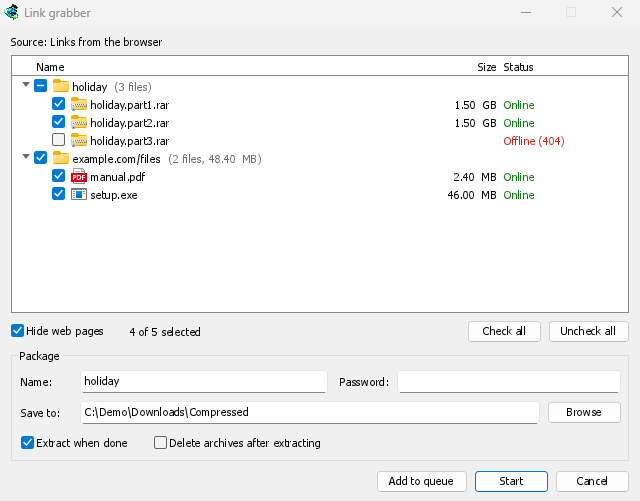
Link grabber gathers many links at once, sorts them into packages, and lets you tick the ones to download. VDM can then extract the archives it downloaded (zip, 7z, rar and more), by itself or when you ask.
منابع پیوندها
- The browser. Right-click a page for Download all links with Volt Download Manager, or select part of it for Download selected links with Volt Download Manager. The page's referrer and cookies go with each link. Both also send the pictures located on the page (or in the selection), hidden at first (see Hide images located on this web page below).
- تصاویر یک صفحه. دکمه نوار ابزار افزونه مرورگر، این صفحه → یافتن تصاویر، تصاویر یک صفحه را با بزرگترین اندازهای که فهرست میکند، ارسال میکند، آنهایی که شما بر اساس اندازه و نوع نگه داشتهاید (تصاویر در این صفحه).
- وظایف ← وارد کردن ← از فایل متنی و از فایل خروجی IDM. یک فایل
.ef2ارجاعدهنده و کوکیهای هر بارگیری و نام فایل آن را (وقتی لیست آن را مشخص کرده باشد، یک خطfilename:؛ فقط نام، نه پوشه) وارد میکند. - چندین پیوند، یا یک فهرست
.txtیا.ef2، که روی فهرست دانلود رها شدهاند. - کلیپبورد. وظایف → افزودن بارگیری دستهای از کلیپبورد (Ctrl+B، همچنین در منوی آیکون سینی) متن کپی شده را هنگام انتخاب میخواند و هر پیوند بارگیری را در آن فهرست میکند:
http،https،ftpو پیوندهای مگنت، در یک لیست، یک پست انجمن، Markdown یا HTML، هر کدام یک بار. یک پیوندthunder://،flashget://یاqqdl://به عنوان آدرس محصور در آن فهرست میشود، بنابراین همان فایل که به صورت محصور و ساده پیوند داده شده است، یک ردیف است؛ این برای متن چسبانده شده و لیستهای وارد شده نیز صدق میکند. - چسباندن. وظایف → رباینده پیوند... را انتخاب کنید و Ctrl+V را فشار دهید: هر پیوند بارگیری در متن کپیشده اضافه میشود.
- A web page's address. Paste or copy the address of a page (
https://example.com/downloads) and VDM reads the page and lists the links on it, as the browser's Download all links does, in a package named after the page. The page itself is left unticked. This works for addresses that came on their own (pasted, copied, typed, in a list), not for the links found on a page, so VDM never wanders off through a site. VDM reads only what the page itself holds: links a page's scripts add after it loads come only through the browser. - A folder. Paste or copy the address of an
ftp://folder (ftp://ftp.example.org/pub/) or of the page a web server makes of a folder ("Index of /pub/"), and VDM lists every file in it and in its subfolders, each folder's files in a package of their own. See Folders. - A Hugging Face model or dataset, a GitHub release. Paste the address of a model or dataset on Hugging Face, of a folder in one, or of a release on GitHub, in Add URL or here, and VDM lists every file in it, with its size and folder. See Models, datasets and releases.
- A Google Drive folder. Paste a shared folder's link (
https://drive.google.com/drive/folders/…) in Add URL or here, or right-click it in the browser and choose Download with Volt Download Manager, and VDM lists every file in it and in its subfolders. See Google Drive folders. - دکمههای Click'n'Load در سایتهای پیوند، پس از فعال کردن آن. به Click'n'Load مراجعه کنید.
A magnet link shows as Magnet link and isn't looked up: once you click Start or Add to queue, VDM finds the torrent's files and adds it with all of them, in the package's folder (or the Torrents folder when the package has none).
پیوندهایی که در حین باز بودن پنجره میآیند به پیوندهای موجود میپیوندند. پیوندی که از قبل در پنجره است، دوباره اضافه نمیشود. پیوندی که از قبل در لیست بارگیری شما است، تحت از قبل در لیست است قرار میگیرد و علامت نخورده است.
بستهها
هر بسته یک ردیف است که میتوانید آن را باز و بسته کنید (روی فلش آن کلیک کنید، روی آن دوبار کلیک کنید، یا راست و چپ را فشار دهید). علامت زدن یک بسته، همه پیوندهای آن را علامت میزند؛ جعبه آن زمانی نیمهپر میشود که فقط برخی از آنها علامت خورده باشند.
- حجمهای یک بایگانی (
movie.part1.rar،movie.part2.rar…، یاbackup.7z.001،backup.7z.002…) یک بسته را تشکیل میدهند که به نام بایگانی نامگذاری شده است، به شرطی که از یک سایت باشند. - سایر پیوندهای یک صفحه یک بسته را تشکیل میدهند که به نام صفحه نامگذاری شده است.
- هر چیز دیگری به فایلهای مختلف میرود.
- پیوندهایی که یک سایت بستهبندی کرده است (Click'n'Load)، بستهها و نامهای سایت را به همراه رمز عبور بایگانی آنها (در صورت ارائه توسط سایت) حفظ میکنند.
- فایلهای یک پوشه برای هر پوشه یک بسته تشکیل میدهند که به نام آن نامگذاری شده است و ذخیره در آن درخت پوشه را حفظ میکند (به پوشهها مراجعه کنید).
- فایلهای یک مدل، مجموعه داده یا انتشار یک بسته را تشکیل میدهند که ذخیره در آن پوشههایشان را حفظ میکند (به مدلها، مجموعه دادهها و انتشارها مراجعه کنید).
پوشهها
آدرس یک پوشه را به رباینده پیوند بدهید، همانطور که آدرس یک صفحه را میدهید: آن را با Ctrl+V بچسبانید، آن را برای وظایف → افزودن بارگیری دستهای از کلیپبورد کپی کنید، آن را در یک لیست برای وظایف → وارد کردن قرار دهید، یا آن را روی لیست بارگیری رها کنید.
- An FTP folder: an
ftp://,ftpes://orftps://address that ends in/(ftp://ftp.example.org/pub/). VDM logs in as it does for a download from that address (its user name and password, else your Sites Logins, else as anonymous) and asks the server for the folder's list. Each file comes with the size the server lists, so it isn't looked up again. - A web server's folder listing: the page Apache, nginx, IIS and other servers make of a folder without its own page, titled Index of /pub/ (or Directory listing for /pub/). VDM recognizes it, so it reads the folder instead of listing the page's links.
رباینده پیوند سپس هر فایل موجود در پوشه و زیرپوشههای آن را فهرست میکند. فایلهای هر پوشه یک بسته به نام پوشه هستند، و ذخیره در آن پوشه در زیر پوشه بارگیری شما (گزینهها → ذخیره در) است، بنابراین درخت حفظ میشود: ftp://ftp.example.org/pub/iso/disc.iso به Downloads\pub\iso\disc.iso میرود. آنچه را میخواهید علامت بزنید؛ پنهان کردن صفحات وب و کادرهای بسته مانند هر پیوند دیگری کار میکنند.
Options → Archives and Link grabber → Folders: 3 levels deep, types: ... sets how far VDM goes and what it keeps:
- سطوح عمق: چند سطح از زیرپوشهها خوانده میشوند، به طور پیشفرض 3، حداکثر 10. 0 فقط فایلهای خود پوشه را فهرست میکند.
- انواع: فقط فایلهای این انواع، همانطور که در صفحه انواع فایل نوشته شده است (
ISO ZIP R0*). خالی (پیشفرض) هر نوعی را حفظ میکند.
VDM stays inside the folder you gave. It never goes up to the folder above (../), never onto another site, never through a link the listing makes to somewhere else, and an FTP folder's links to other folders (symbolic links) aren't followed. A name that isn't a plain file or folder name (one with / or \ in it, ..) is left out. One folder lists at most 10,000 files, and VDM reads at most 500 folders for it; past that, the window's Source line says the folder was listed only in part (pub: only its first 10000 files).
پوشهها فقط با هنگام رسیدن پیوندها را جستجو کن (پیشفرض) خوانده میشوند، همانطور که صفحات وب هستند. یک آدرس FTP بدون / نهایی آن به عنوان یک فایل در نظر گرفته میشود.
مدلها، مجموعهدادهها و نسخهها
یکی از این نشانیها را در افزودن URL (Ctrl+N) یا در رباینده پیوند با Ctrl+V بچسبانید (کپی، وارد یا رها کردن نیز کار میکند):
- یک مدل یا مجموعه داده Hugging Face:
https://huggingface.co/<owner>/<name>یاhttps://huggingface.co/datasets/<owner>/<name>، کل مخزن. - یک پوشه از آن، در یک شاخه، یک برچسب یا یک کامیت: نشانی صفحه پوشه،
https://huggingface.co/<owner>/<name>/tree/<revision>/<folder>. - یک انتشار GitHub:
https://github.com/<owner>/<repo>/releases/tag/<tag>، یا…/releases/latestبرای جدیدترین آن. یک برچسب بدون انتشار، کد منبع آن را فهرست میکند.
VDM asks the site's public API for the list of files and opens Link grabber with all of them in one package: each file with its size and the folder it is in, unticked, so you tick only what you need (the package's box ticks them all). Its Save to is the address's path under your download folder (Options → Save to), and each file keeps its folder inside it: onnx/model.onnx of huggingface.co/org/tiny goes to Downloads\org\tiny\onnx\model.onnx, a dataset's files under Downloads\datasets\…, a release's under Downloads\<owner>\<repo>\<tag>. A folder of a repository keeps its place in it (org\tiny\onnx\…), so files you take later from another folder land beside it. Start or Add to queue adds them as one group, with one summary when the last is done.
- Checked against the site's digest. Hugging Face publishes a SHA-256 for each large file, GitHub for each release file. VDM checks the finished file against it, as Verify checksum does; a file that doesn't match stays unfinished and says so (the file's SHA-256 checksum doesn't match), and Redownload fetches it again. Small files kept in the repository itself, and a release's source code, have no digest of their own to check.
- یک نسخه. فایلهای یک مخزن در کامیتی که شاخه یا برچسب آن در زمان فهرستشدن به آن اشاره میکرد، درخواست میشوند، بنابراین شاخهای که در حین بارگیری حرکت میکند، هرگز دو نسخه را با هم مخلوط نمیکند.
- Straight from the sites. Files come from Hugging Face's and GitHub's own servers, never through a mirror, through VDM's own connections, speed limits and proxy, like any download.
- مدلهای محدودشده. مخزنی که فایلهایش نیاز به پذیرش شرایط آن دارند، با توکن دسترسی Hugging Face شما بارگیری میشود: شرایط را در صفحه آن بپذیرید، یک توکن در تنظیمات Hugging Face خود بسازید، و آن را در گزینهها ← ورود به سایتها با سایت
huggingface.co، هر نام کاربری و توکن به عنوان رمز عبور اضافه کنید. این توکن با سایر رمزهای عبور شما، در زنجیره کلید سیستم نگهداری میشود و فقط بهhuggingface.coارسال میشود، هرگز به سرورهایی که فایلها را از آنها ارسال میکند، فرستاده نمیشود. خط منبع نشان میدهد که یک مخزن محدودشده هنوز توکن ندارد. - محدودیتها. هر دو سایت فقط تعداد محدودی درخواست را از یک رایانه بدون حساب کاربری مجاز میدانند (GitHub 60 درخواست در ساعت). وقتی محدودیت به پایان برسد، ردیف نشانی بعدا دوباره امتحان کنید را نشان میدهد، و راهنمای آن مدت زمان را میگوید.
آنچه فهرست یک سایت میگوید قبل از استفاده بررسی میشود: فایلی که مسیر آن از پوشهاش خارج میشود (..، یک مسیر مطلق، یک حرف درایو، یک نام دستگاه مانند CON) حذف میشود، و خط منبع آنها را میشمارد. حداکثر 10,000 فایل برای یک نشانی فهرست میشود. پوشهها فقط با فعال بودن هنگام رسیدن پیوندها را جستجو کن (پیشفرض) خوانده میشوند.
Google Drive folders
Paste a shared folder's link, the one Drive's Share → Copy link gives (https://drive.google.com/drive/folders/…?usp=sharing), in Add URL (Ctrl+N) or in Link grabber with Ctrl+V. VDM reads the folder's page, the one your browser opens, and its subfolders' pages, one after the other, and opens Link grabber with all their files in one package, ticked, each with its name and size and the subfolder it is in. Its Save to is a folder of the Drive folder's name under your download folder (Options → Save to), and each file keeps its subfolders inside it: Day 2/hills.jpg of a folder named Holiday photos goes to Downloads\Holiday photos\Day 2\hills.jpg. Start or Add to queue adds them as one group, with one summary when the last is done.
- Each file as a single Drive file. Every file downloads the way a Drive file's own link does (Google Drive links): from Google's own servers, through VDM's connections, speed limits and proxy, past the can't scan this file for viruses page as Download anyway does. When Drive refuses one (too many downloads lately, a sign-in needed, no access), that file says so in its row, and the others go on.
- Google Docs, Sheets and Slides come as Word (
.docx), Excel (.xlsx) and PowerPoint (.pptx) files, Drawings as.png; their size shows once they are looked up. Forms, shortcuts and Sites aren't files: they are left out, and the Source line says how many. - Folders shared with your account only. Sign in to Google in your browser, right-click the folder's link there and choose Download with Volt Download Manager: the browser add-on passes your Google sign-in with it, and VDM uses it for the folder's pages and its files, on Google Drive only. Pasted without one, the folder's row says Needs a sign-in.
- 50 items a folder. Drive's page lists a folder's first 50 items, so a folder (or a subfolder) with more shows only 50 of them. The Source line says so when a folder shows 50; Drive's own Download on the folder gets all of it, as a zip, which the browser add-on hands to VDM.
- Names. Drive lets a name hold characters a disk doesn't take (
a/b,x:y) or be a Windows device's name (CON); VDM makes them plain names (a_b,x_y,_CON), as for any download. A name that is only dots (..) is left out, and the Source line counts it. A file's address is made from its Drive ID, never taken from the page.
Click'n'Load
Many link sites have a Click'n'Load button that sends their links straight to a download manager on your computer, as JDownloader's documentation for web sites describes. Turn it on in Options → Archives and Link grabber → Accept Click'n'Load from web pages (off by default). VDM then listens on port 9666 of this computer only, and the links a page sends open in Link grabber, with the page's package name and archive password.
Any web page can send links there, not only the link site you are on, so VDM is careful with them:
- The first time a site sends links, VDM asks: Allow (that site's links go to Link grabber from now on), Block (they never do), or Not now (these links are dropped, and the site is asked again next time). The site is the one your browser names, never what the page claims. When the browser names none (a page that hides where it is, or one inside a sandboxed frame), the window says An unknown site: it is asked about every time, and its answer is never kept. Turning Click'n'Load off forgets the answers.
- پیوندهایی که یک صفحه ارسال کرده است جستجو نمیشوند: رباینده پیوند آنها را به عنوان جستجو نشده نشان میدهد و هیچ درخواستی برای آنها، با یا بدون ورود به سایتها یا حسابهای debrid شما، ارسال نمیشود تا زمانی که آنها را به صف اضافه کنید. هیچ چیز قبل از آن بارگیری نمیشود.
- Links to this computer or your network are left out: a link to
localhost, to a private or link-local address (192.168.…,10.…,172.16.…,169.254.…, their IPv6 kin), or to a name without a dot or under.local,.lanor.internalnever reaches Link grabber. A link site's files aren't there, and such an address could be your router or another device. VDM judges the address as written: a public-looking name that points into your network isn't recognized, so look at a package before you add it. - Limits: at most 10 posts a minute from one site, 500 links and 256 KB a post; more is refused, and one site's posts don't use up another's. At most 20 posts wait for an answer. A site brings VDM's window to the front at most once a minute; its links still arrive in Link grabber in between.
- آدرس خود صفحه به عنوان ارجاعدهنده پیوندها ارسال نمیشود: یک صفحه میتواند هر نامی را ببرد.
- VDM doesn't say it is JDownloader. Some sites first ask whether JDownloader is running (a script named
jdcheck.js) and show their button only then. VDM doesn't answer that question, so such a site may say no program was found; a site that simply sends its form works. - Only one program can listen on port 9666. If JDownloader is running, VDM says so: close it, then turn the option off and on again.
- A button that sends a DLC container instead of links isn't taken: reading one needs a key VDM can't use. The site's plain links, or its Click'n'Load button, are the way.
- Some sites hide the key in a script VDM doesn't run (only the plain form the documentation shows is read): then their button reports a failure, and the site's plain links are the way.
جستجوی پیوندها
As links arrive, VDM asks each server about its file, as IDM's Download all links does. A few links are checked at a time, and only a few from any one site. Each link then shows its real name and size, and a status:
- آنلاین: سرور فایل را دارد.
- آفلاین (404): ندارد. پیوند علامت نخورده است.
- به ورود نیاز دارد: سرور نام کاربری و گذرواژه یا کوکیهای صفحه را میخواهد.
- مشغول است، بعدا امتحان کنید: سرور درخواست کرده است که منتظر بمانید.
Turn the look-ups off in Options → Archives → Look links up when they arrive. Some file hosts count a look-up as a download. With the look-ups off, VDM asks nothing of the network until you start, so a web page's address isn't read for its links either.
پنهان کردن صفحات وب (بهطور پیشفرض فعال است) پیوندهای صفحات (.html، .php و موارد مشابه، و هر پیوندی که بررسی آن یک صفحه وب را پیدا کرده باشد) را حذف میکند: آنها نه نمایش داده میشوند و نه بارگیری.
پنهان کردن تصاویر موجود در این صفحه وب تصاویری را که مرورگر در صفحه نشان داده شده است (تصاویر آن، با بزرگترین اندازهای که صفحه برای هر کدام فهرست میکند) حذف میکند، بنابراین لیست پیوندهای صفحه را نگه میدارد. هر بار که پیوندهای یک صفحه با چنین تصاویری میآیند، دوباره علامت زده میشود و به خاطر سپرده نمیشود: برای دیدن تصاویر و علامت زدن مواردی که میخواهید، علامت آن را بردارید؛ در حالی که علامت زده شده است، نه نمایش داده میشوند و نه بارگیری میشوند. یک پیوند به یک تصویر (یک تصویر کوچک که به اندازه کامل آن پیوند میدهد) مانند هر پیوند دیگری است و همیشه نمایش داده میشود، حتی زمانی که همان تصویر در صفحه نیز نشان داده شده است.
جعبه بسته
جعبه زیر لیست، بستهای را که انتخاب کردهاید ویرایش میکند:
- نام: نام بسته، که با بارگیریهای آن نگهداری میشود.
- ذخیره در: پوشهای که فایلهای آن به آنجا میروند. هنگامی که یک بسته چندین نوع فایل را در خود جای میدهد، جعبه میگوید پوشه دستهبندی هر فایل: هر فایل به پوشه دستهبندی خود میرود (گزینهها ← ذخیره در)، همانطور که وارد کردن همیشه انجام میداد.
- گذرواژه: گذرواژه بایگانیها، اگر داشته باشند. این گذرواژه فقط در حافظه نگهداری میشود و هرگز بهتنهایی ذخیره نمیشود: برای نگهداری آن برای بستههای دیگر، آن را به گذرواژههای بایگانی خود اضافه کنید.
- استخراج پس از اتمام: زمانی که بسته حاوی یک بایگانی باشد، به طور خودکار علامت میخورد.
- حذف بایگانیها پس از استخراج: پس از استخراج، بایگانیها به سطل بازیافت (Trash در macOS و Linux) میروند.
افزودن پیوندها
- شروع پیوندهای علامتخورده را به صف اصلی دانلود اضافه میکند و صف را شروع میکند. به تعداد فایلهایی که صف اجازه میدهد، به یکباره بارگیری میکند.
- افزودن به صف آنها را به صف اصلی دانلود اضافه میکند بدون اینکه آنها را شروع کند، همانطور که وارد کردن IDM انجام میدهد.
- لغو پنجره را میبندد و چیزی اضافه نمیکند.
استخراج بایگانیها
VDM itself extracts zip archives (AES-encrypted and Deflate64 ones too), tar, tar.gz and tar.xz archives, and single .gz and .xz files.
7z and RAR archives need 7-Zip, a free program (7-zip.org). VDM runs it when it is installed, for split and encrypted archives too. RAR's own extraction code can't be part of a free program like VDM, and 7-Zip extracts 7z best.
Options → Archives says whether 7-Zip was found. Without it, a 7z or RAR archive isn't extracted, and the 7-Zip needed window says so, with a Get 7-Zip button. On Linux, install your distribution's 7zip (or p7zip) package: VDM finds 7zz, 7z or 7za on its own.
Another archiver built on 7-Zip does as well, so there is no need for a second copy. On Windows VDM finds the 7-Zip that PeaZip brings with it (PeaZip\res\bin\7z\7z.exe in Program Files) and NanaZip's command line (NanaZipC.exe) by itself, after 7-Zip's own folders. For any other, such as a portable copy or one installed for your user only, press Use another program... in Options → Archives and choose its 7-Zip command line program: 7z.exe, 7za.exe or 7zz, not the archiver's own window. VDM runs it once to see that it answers as 7-Zip, then uses it for 7z and RAR archives, with the same arguments as always. Find 7-Zip automatically goes back to the one VDM finds, which is also used if the chosen program is removed.
در محل، با HatchZip
HatchZip is another free extractor (MIT or Apache-2.0), optional. VDM uses its command line program, hatchzip, when it is on the PATH (its installers and packages put it there; the desktop app alone isn't enough):
- Options → Archives → Extract in place with HatchZip (off by default): HatchZip removes the archive while its files come out, so a 180 GB download that unpacks to 200 GB needs a little over 200 GB, not 380 GB. It reads zip, 7z, RAR and tar archives, split ones too; single
.gzand.xzfiles are still extracted by VDM. A solid RAR archive can't be extracted in place (HatchZip says so before it changes anything): VDM then extracts it as usual, with 7-Zip, and keeps the archive. HatchZip's own release builds read RAR; a build from crates.io doesn't. - قبل از هر تغییری، HatchZip بررسی میکند که فایلها جا میشوند و گذرواژه را تأیید میکند. گذرواژه اشتباه یا گمشده، یا فضای ناکافی، هیچ تغییری ایجاد نمیکند: گزارش این را اعلام میکند و پنجره گذرواژه بایگانی طبق معمول درخواست میکند. گذرواژه از طریق محیط به HatchZip ارسال میشود، هرگز در خط فرمان آن قرار نمیگیرد.
- فایلها به محلی میروند که محتوای بایگانی به آنجا میرود مشخص میکند، مانند هر استخراج دیگری. در طول مسیر، آنها در پوشهای به نام
<archive>.hatchzip-outکنار بایگانی قرار میگیرند. - If it stops partway (VDM closed, the download deleted, the disk filled by something else), the files extracted so far stay in that folder and the rest is still in the archive. Extract continues where it stopped, even with the option off: only HatchZip can finish such an archive. VDM continues only a run it started itself (it keeps a note of it in its own data): a HatchZip progress file (
<archive>.hatchzip) that comes with a download or a torrent starts nothing, and that archive is extracted as usual. - Nothing HatchZip extracted is ever deleted, those files are no longer in the archive. Entries VDM leaves out (links, names leading outside the folder) stay in that folder, and so do the files a failed move couldn't put in place (a file held open by another program); the log says where. So after an extraction in place, a link an archive held that VDM considers unsafe is still in your download folder, inside
<archive>.hatchzip-out: it is never followed or moved, but it isn't removed either, as it is by every other extraction. Look at what is left in that folder before you open it. - سپس بایگانیها را به سطل بازیافت منتقل کنید چیزی برای انتقال پس از آن ندارد: بایگانی قبلا حذف شده است.
- بایگانیهای 7z و RAR همچنان به 7-Zip نیاز دارند، حتی اگر گزینه خاموش باشد.
بایگانی در این موارد استخراج میشود:
- وقتی در بسته آن گزینه پس از اتمام استخراج کن انتخاب شده باشد،
- وقتی گزینه گزینهها → بایگانیها → بایگانیها را پس از اتمام دانلود استخراج کن روشن باشد (بهطور پیشفرض خاموش است)، برای هر بارگیری دیگری،
- وقتی روی بایگانی بارگیریشده راستکلیک میکنید و استخراج را انتخاب میکنید.
بایگانی چندبخشی پس از بارگیری آخرین بخش، یکبار استخراج میشود. فایلها در کنار بایگانی قرار میگیرند:
- در پوشهای به نام بایگانی، اگر در سطح اول آن چند مورد باشد (یا همیشه یا هرگز: گزینهها → بایگانیها)،
- فایلی که از قبل وجود دارد حفظ میشود و فایل جدید شمارهگذاری میشود:
report (1).txt.
فایلهای استخراجشده، مانند خود بایگانی، بهعنوان فایلهای دریافتشده از اینترنت علامتگذاری میشوند؛ بنابراین Windows پیش از اجرای برنامهای که از آنها آمده باشد، همچنان هشدار میدهد.
VDM extracts safely. A name that would lead outside the folder is left out, and so is a link to somewhere else on the disk. An archive that would write far more than its size, or more than the disk has room for, stops before it fills it. When something goes wrong, nothing but the archive is left behind.
گزارش بارگیری (با نگه داشتن نشانگر ماوس روی آن در لیست) آنچه را که اتفاق افتاده است نشان میدهد: 12 فایل به … استخراج شد، یا دلیل عدم استخراج، برای مثال movie.7z.001 قابل استخراج نبود: جلد 3 آن گم شده است. هر بایگانی ابتدا بدون گذرواژه امتحان میشود. بایگانیای که رمزگذاری شده باشد، با گذرواژه بستهاش، سپس با هر یک از گذرواژههای ذخیرهشده شما (گزینهها ← بایگانیها ← گذرواژههای بایگانی…)، به ترتیب امتحان میشود، بنابراین بایگانیای که نیازی به گذرواژه ندارد هرگز با آنها مواجه نمیشود. فقط زمانی که هیچکدام مناسب نباشد، پنجره گذرواژه بایگانی باز میشود. گذرواژه را تایپ کرده و استخراج را کلیک کنید، یا لغو را برای دست نخورده گذاشتن بایگانی. آن را برای بایگانیهای دیگر به خاطر بسپار (بهطور پیشفرض تیک نخورده است) را تیک بزنید تا به گذرواژههای ذخیرهشده اضافه شود. 7-Zip هر گذرواژه را از ورودی خود دریافت میکند، هرگز از خط فرمان خود، جایی که برنامههای دیگر روی رایانه میتوانند آن را بخوانند.
گذرواژههای بایگانی
Options → Archives → Archive passwords... keeps the passwords you use again and again (a site's own, say), one per line. The download's log says Trying the saved archive passwords... while VDM tries them. The one that opens an archive moves to the top of the list, so the passwords you need most are tried first. A package's password (one you typed in Link grabber, or one that came with the links) is tried first and never added to the list by itself; when it is one of your saved passwords already, it moves to the top like any other. A password typed in the Archive password window is added only with Remember it for other archives ticked, and only once it fits. The list is kept in the system's keychain, as the other passwords are (see Where the sign-in is kept).
هر بار تلاش، استخراج را دوباره شروع میکند: با یک لیست طولانی و یک بایگانی بزرگ که نام فایلهایش رمزگذاری نشدهاند، ممکن است مدتی طول بکشد تا گذرواژه صحیح پیدا شود.
آزمایش بایگانیها
A finished archive can still be broken: a server sent wrong bytes, or a proxy on the way mangled part of the file. It shows only when someone opens it, often much later. So VDM tests ZIP, 7z and RAR archives, split ones too once every volume is in, when their download completes: Options → Archives → Test archives when their download completes is on by default, up to 4 GB. A test reads the whole archive, so a larger one is tested only when you ask: right-click a finished archive and choose Test archive, whatever its size.
- The test is 7-Zip's (
7z t, with the 7-Zip that Options → Archives names): every file in the archive is read back and checked, and nothing is written. Without 7-Zip, VDM tests ZIP archives itself; 7z and RAR archives aren't tested. - بارگیری پس از پایان آزمایش آن، کاملشده محسوب میشود. در این مدت، لیست در حال بررسی 45٪ را نشان میدهد، صف آن منتظر میماند و پنجره بارگیری کامل شد، صدای آن و استخراج آن پس از آزمایش انجام میشود.
- یک بایگانی محافظتشده با رمز عبور آزمایش نمیشود، زیرا فایلهای آن بدون رمز قابل خواندن نیستند: در گزارش نوشته میشود امکان آزمایش photos.zip وجود نداشت: به رمز عبور نیاز دارد. فایلهای tar، gz و xz نیز آزمایش نمیشوند.
- یک بایگانی آسیبدیده در لیست آسیبدیده نشان داده میشود، گزارش آن فایلهای آسیبدیده را نام میبرد و پنجره آرشیو آسیبدیده گزینه بارگیری مجدد را ارائه میدهد: این گزینه بایگانی (هر قسمت از یک بایگانی چندقسمتی) را دوباره از ابتدا بارگیری میکند. این بایگانی بهطور خودکار استخراج نمیشود؛ استخراج همچنان آن را امتحان میکند.
- A ZIP in one file is repaired instead, when VDM can tell where its damaged files are in it: their bytes alone are downloaded again, from the same server, and the archive is tested once more. The log says Downloading the damaged parts again (1.20 MB), then Tested again: the archive has no errors now. The bytes come only from the same version of the file: VDM asks for them as it resumes any download (with the file's ETag or date,
If-Range), and checks the bytes just before each part against the ones on disk. A file that changed on the server stops the download with the file changed on the server instead of mixing two versions: Redownload downloads the new one. An archive still damaged after that is offered for Redownload. - بایگانیهای 7z و RAR فایلهای خود را در بلوکهایی نگه میدارند که محل آنها در فایل توسط آزمایش 7-Zip مشخص نمیشود و قسمتهای یک بایگانی چندقسمتی بارگیریهای جداگانهای هستند: اینها آزمایش میشوند و در صورت آسیبدیدگی برای بارگیری مجدد ارائه میشوند، هرگز بهصورت جزئی تعمیر نمیشوند.
- یک بایگانی چندقسمتی (
photos.zip.001،photos.z01،notes.7z.001،movie.part1.rar،movie.r00) یک بار، از اولین قسمت آن، زمانی که همه قسمتها بارگیری شدند، هر کدام که آخر تمام شود، آزمایش میشود. قسمتهای آن اغلب یکی پس از دیگری تمام میشوند (صفی که یکییکی بارگیری میکند، میزبانی که شما را بین فایلها منتظر میگذارد) و قسمتهای موجود بهعنوان یک بایگانی ناقص خوانده میشوند، بنابراین بهتنهایی آزمایش نمیشوند. آزمایش آرشیو روی یک بایگانی چندقسمتی که هنوز کامل نشده است، این را میگوید: هنوز آزمایش نشده است: photos.zip.001 کامل نیست (قسمت 3 هنوز موجود نیست). - Closing VDM stops a test; the archive is tested again at the next start.
مراحل بعدی
رایگان، متنباز، بدون تبلیغات، بدون دوره آزمایشی.
Download Volt Download Manager