

VDM runs on Windows 10 and Windows 11 (x64, ARM64 and 32-bit), and on 64-bit Linux (x86-64 and ARM64): see On Linux. Builds for macOS are new and still experimental: see On a Mac.
یک بارگیری انتخاب کنید
هر نسخه در صفحه انتشارها موجود است. برای Windows سه فایل وجود دارد:
| فایل | چیست |
|---|---|
VoltDownloadManager-<version>-setup.exe |
The installer. Pick this one unless you have a reason not to. It can set up browser integration and open .torrent files and magnet links with VDM. |
VoltDownloadManager-<version>-portable.zip |
نسخهای قابلحمل. فهرست بارگیریها و تنظیمات در پوشه data کنار برنامه میمانند و چیزی در رجیستری نوشته نمیشود. برای یکپارچهسازی مرورگر به نصبکننده نیاز دارید. حالت قابلحمل را ببینید. |
VoltDownloadManager-<version>-x64.zip |
همان برنامهها، بدون نصبکننده. دادههای برنامه در %APPDATA%\voltdownloadmanager نگه داشته میشوند، درست مانند نسخه نصبشده. |
این سه مورد برای Windows 64 بیتی با پردازنده اینتل یا AMD (x64) هستند که رایجترین نوع رایانه شخصی است. از نسخه 0.6.0 به بعد، هر کدام برای دو نوع دیگر رایانه شخصی نیز ارائه میشوند که نام پردازنده در نام آنها ذکر شده است:
| فایلها | برای |
|---|---|
...-setup-arm64.exe، ...-portable-arm64.zip،...-arm64.zip |
Windows روی ARM (رایانههای شخصی با پردازنده اسنپدراگون یا دیگر پردازندههای ARM). در Windows 11، فایلهای x64 نیز در آنجا اجرا میشوند، که توسط Windows ترجمه شده و کندتر هستند. نصب ARM64 روی x64 آن را جایگزین میکند؛ فهرست و تنظیمات شما باقی میمانند، زیرا آنها در نمایه شما نگهداری میشوند، نه با برنامه. |
...-setup-x86.exe، ...-portable-x86.zip،...-x86.zip |
32-bit Windows 10. Not sure which you have? Settings → System → About → System type says it. VDM can't download ffmpeg for you there (none is built for 32-bit Windows that VDM can check): to get the best video qualities, choose an ffmpeg of your own in Helpers... (Video). |
راهنما ← بررسی بهروزرسانیها هر نسخه را به فایلهای مربوط به پردازنده خودش بهروزرسانی میکند.
با WinGet
VDM is also in WinGet, Windows' package manager. In a terminal, the first line installs VDM and the second updates it to the latest version:
winget install MikaiL.VoltDownloadManager
winget upgrade MikaiL.VoltDownloadManager
WinGet downloads the setup and installs VDM without the setup's questions.
در Linux
VDM runs on 64-bit Linux with a desktop session. It is tested on Ubuntu 24.04, Debian 12 and
Fedora, with GNOME, KDE Plasma, Xfce and Cinnamon, on X11 and in Wayland sessions. Pick one
of these files (up to version 0.2.4, their names end in -experimental, as in
...-linux-x86_64-experimental.deb). From version 0.6.0, each also comes for 64-bit
ARM computers, with arm64 in place of x86_64 (...-linux-arm64.deb); they are built and
tested on GitHub's ARM machines. On ARM, VDM doesn't download gallery-dl itself (its author
builds none for it): install it with your system's packages or pip.
| فایل | چیست |
|---|---|
...-linux-x86_64.deb |
For Ubuntu, Debian, Mint and Pop!_OS: sudo apt install ./<file>.deb. It brings the libraries VDM needs. |
...-linux-x86_64.rpm |
For Fedora, openSUSE and RHEL: sudo dnf install ./<file>.rpm. It brings the libraries VDM needs. |
...-linux-x86_64.AppImage |
روی بیشتر توزیعها اجرا میشود: آن را اجرایی کنید (chmod +x) و اجرا کنید. خودش را در همان محل بهروزرسانی میکند (راهنما ← بررسی بهروزرسانیها). |
...-linux-x86_64.tar.gz |
برنامههای معمولی، برای هر توزیعی. |
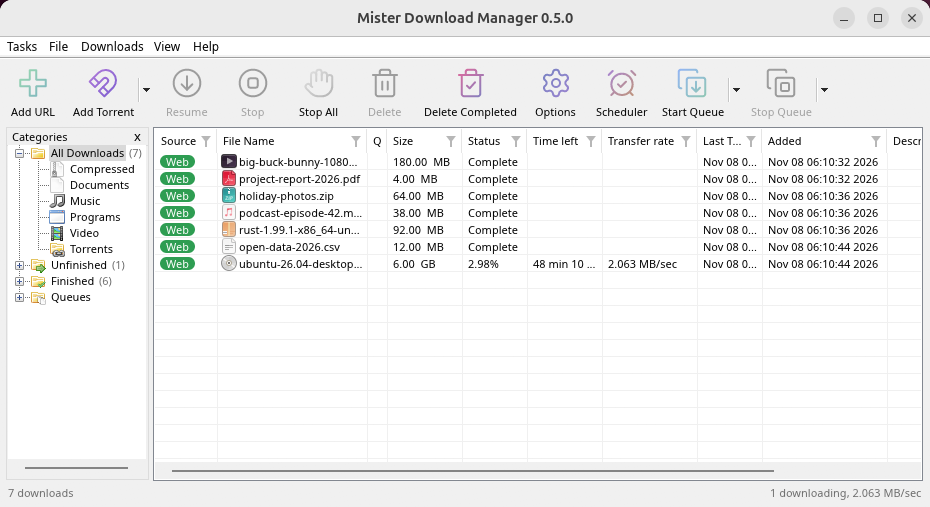
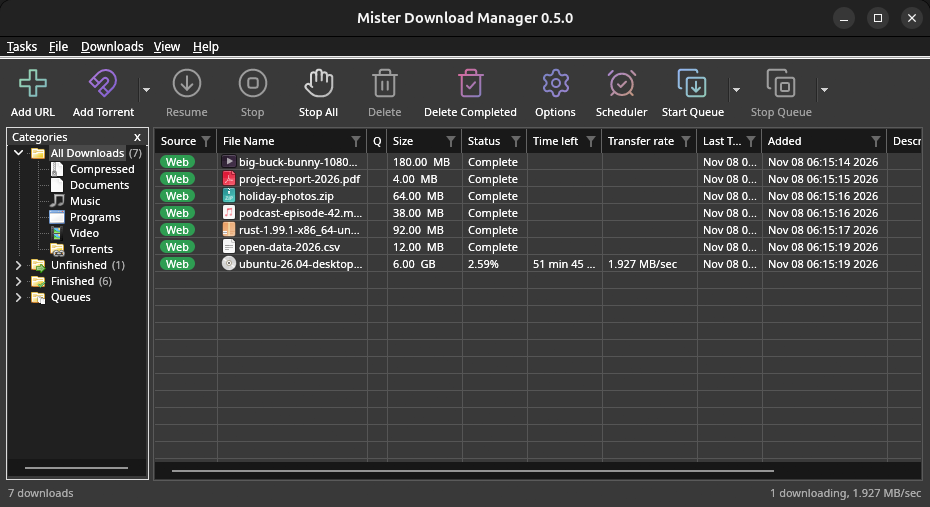
Browser integration is set up by VDM itself at each start (the browsers installed then are found); add the extension as in Browser integration. Firefox installed as a Snap (Ubuntu's) reaches VDM once you allow it; other Snap and Flatpak browsers can't (see Flatpak and Snap browsers). The tray icon, Dark Mode support and Launch on startup work on GNOME (Ubuntu's), KDE Plasma, Xfce and Cinnamon. Running downloads show their progress on VDM's icon in docks that can show it, such as Ubuntu Dock and KDE Plasma's task manager, as on the Windows taskbar (more).
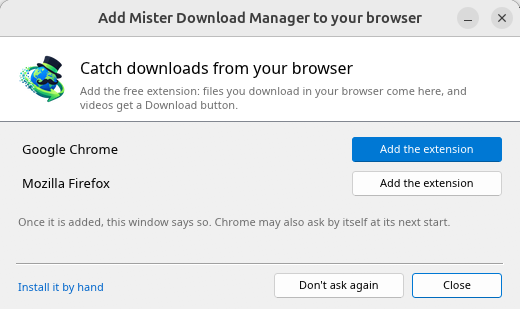
In a Wayland session the windows go through XWayland or Wayland (below). Not there yet on Linux: screen readers (Orca) don't read VDM's windows; browsers installed as a Flatpak can't reach VDM (Firefox from Flathub may, through the desktop as the Snap does, but that isn't checked yet); and View → Draw with → Vulkan is a choice, OpenGL stays the default.
In a Wayland session, VDM chooses its windows' system as it starts, the same way however it was started (its menu entry, the browser's helper, the session's autostart). Its windows run through XWayland where X11 programs look right: only X11 lets VDM open its menus and drop-down lists right under what you clicked (on Wayland they open where the compositor puts new windows, often the middle of the screen) and hide its window in the notification area. That is GNOME and KDE Plasma, which tell X11 programs the screen's scale, and any desktop whose screens aren't scaled. On a scaled screen where nothing tells X11 programs the scale (Hyprland, labwc, sway and other wlroots compositors), the compositor would scale VDM's windows up, blurry, so VDM uses Wayland's own windows there. View → Window system picks X11 (XWayland) or Wayland instead, from the next start, for every way VDM starts (Automatic goes back to VDM's choice); VDM_WAYLAND=1 or VDM_WAYLAND=0 decides for one start. If the system lacks a library X11 windows need (such as libxkbcommon-x11, which the .deb and .rpm bring but the AppImage and the tar.gz can't), VDM opens on Wayland instead; with no window system it can use, it names what's missing and the command that installs it.
پنجرهها همانهایی هستند که در این راهنما توضیح داده شدهاند، با فونتها، آیکونهای فایل و نوارهای عنوان دسکتاپ:
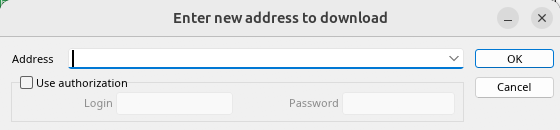
افزودن URL. 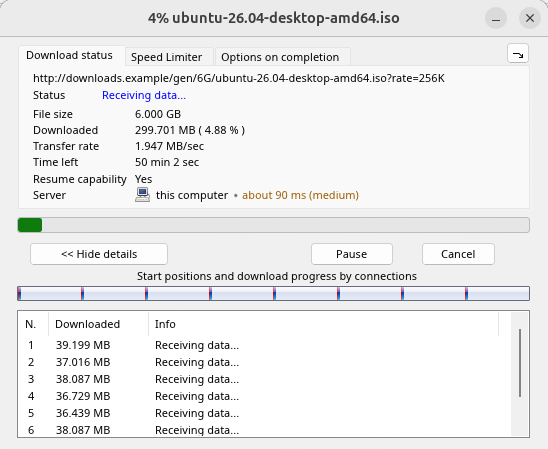
پیشرفت یک بارگیری. 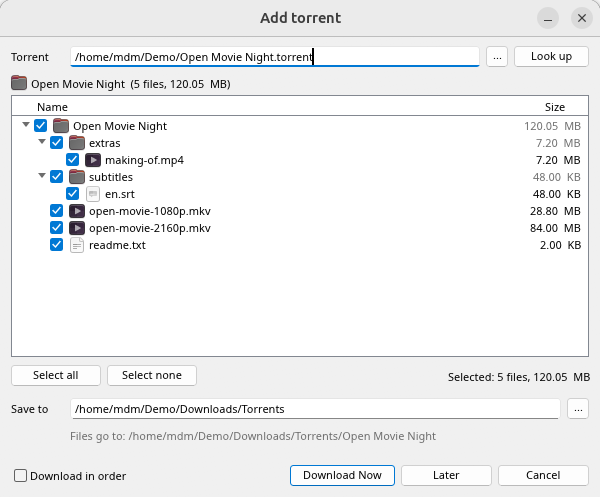
افزودن تورنت. 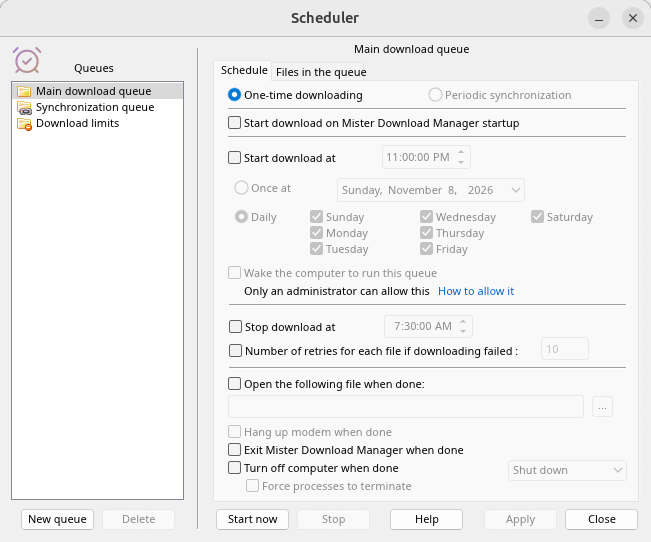
زمانبند. 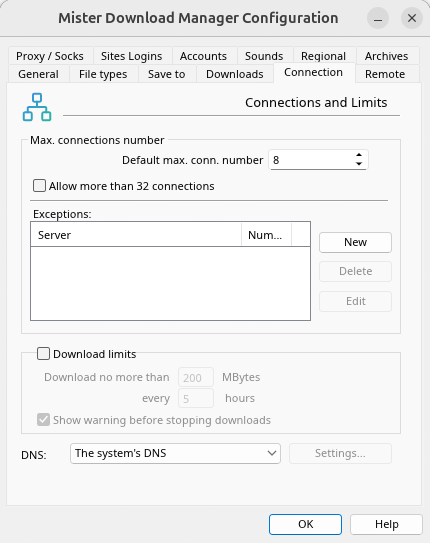
گزینهها.
و روی سایر دسکتاپهایی که روی آنها بررسی شد:
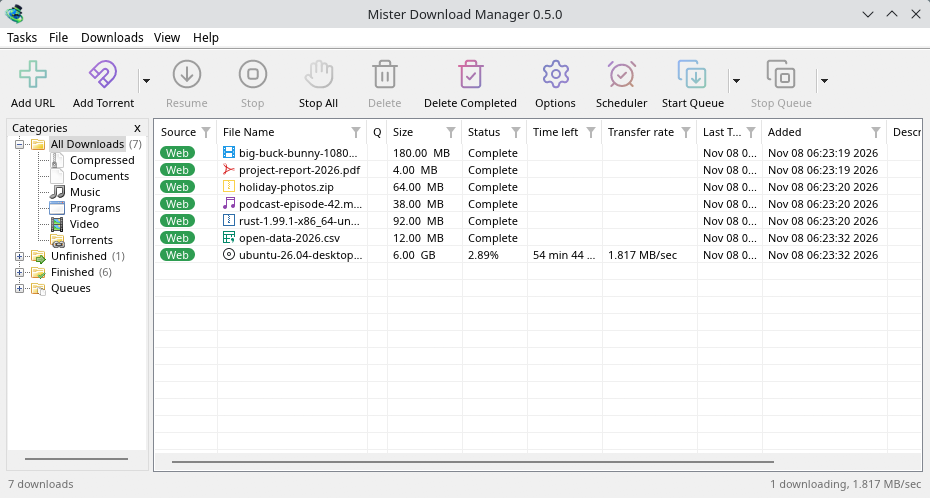
KDE Plasma. 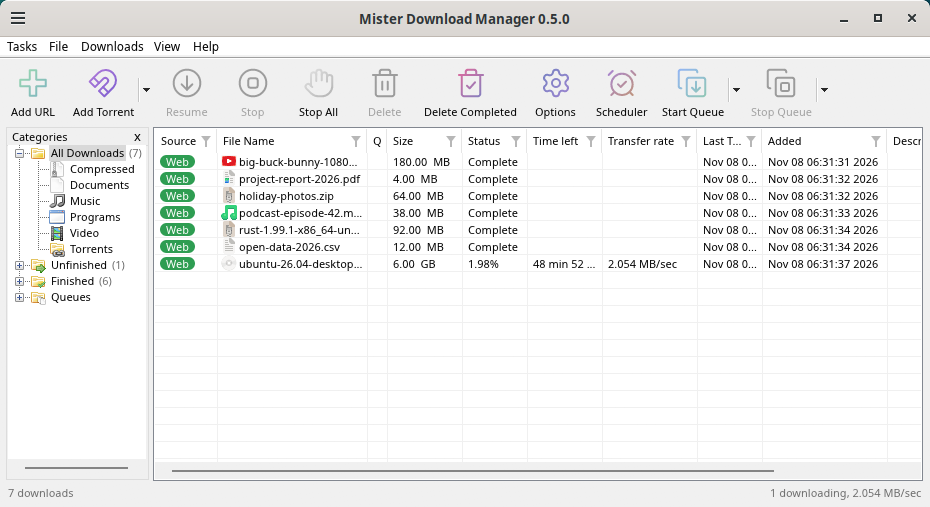
Cinnamon. 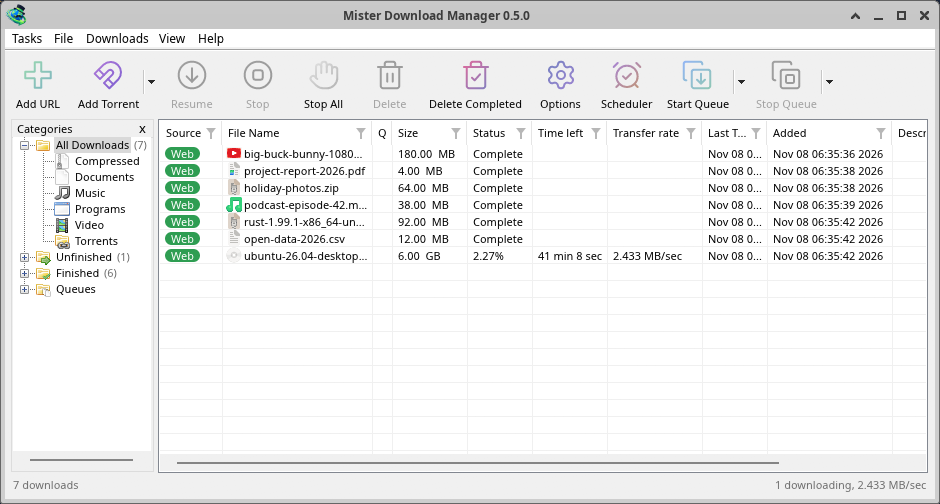
Xfce.
حذف نصب در Linux
sudo apt remove voltdownloadmanager (or sudo dnf remove voltdownloadmanager) removes the
programs, and the small files that tell your browsers where VDM's helper is: the .deb and .rpm
install those for everyone (in /etc and /usr/lib), for Chrome, Chromium, Edge, Brave, Vivaldi,
Helium and Firefox (the Snap too), so VDM doesn't write them in your home folder. For the AppImage
or the tar.gz, delete the file or the folder.
What VDM keeps in your home folder stays, as with any package: your list and settings
(~/.local/share/voltdownloadmanager), the AppImage's and the tar.gz's browser files, and
those of the browsers that read them only there (Opera, Helium, Thorium, and Firefox's forks:
Zen, LibreWolf, Floorp, Waterfox). A package can't remove those: it never touches
home folders. Without VDM they lead nowhere, so the extension says it can't reach VDM. To remove
them as well, run this as each user who used VDM, before uninstalling:
voltdownloadmanager-nmhost --unregister
(از AppImage: ~/.local/share/voltdownloadmanager/browser-host/voltdownloadmanager-nmhost --unregister.) قبلا حذف نصب شده است؟ این دستور همان فایلها را حذف میکند:
find ~/.mozilla ~/.librewolf ~/.config -name com.voltdownloadmanager.host.json -delete 2>/dev/null
در مک
نسخههای macOS جدید و هنوز آزمایشی هستند: ما هنوز آنها را روی مک خودمان امتحان نکردهایم، بنابراین شما جزو اولینها خواهید بود. لطفا به ما بگویید چگونه پیش رفت، خوب یا بد.
| فایل | چیست |
|---|---|
...-macos-arm64-experimental.dmg |
For a Mac with Apple Silicon (M1 or later: Apple menu → About This Mac shows a Chip). Open it and drag Volt Download Manager to Applications. macOS asks before its first start, because the app isn't notarized by Apple: right-click it and choose Open (on macOS 15 and later: System Settings → Privacy & Security → Open Anyway). |
...-macos-x86_64-experimental.dmg |
همین نسخه برای Macهای دارای پردازنده Intel است (درباره این Mac عبارت پردازنده را نشان میدهد). |
Browser integration is set up by VDM itself at each start (the browsers installed then are found); add the extension as in Browser integration.
نصب با برنامه نصب
VoltDownloadManager-<version>-setup.exeرا اجرا کنید.- Choose the language. Windows' display language is already selected. The setup offers every language VDM has, and VDM starts in the one you pick.
- انتخاب کنید که برنامه فقط برای شما نصب شود یا برای همه کاربران رایانه. نصب فقط برای شما به دسترسی مدیر نیاز ندارد و در
%LOCALAPPDATA%\Programs\Volt Download Managerانجام میشود. نصب برای همه درProgram Filesانجام میشود. - Pick what the setup should do: - Set up browser integration (Chrome, Edge, Brave, Firefox) - Open .torrent files and magnet links with Volt Download Manager - Start Volt Download Manager when Windows starts - Create a desktop shortcut (off unless you tick it)
- Click Install, then Finish to start VDM.
If VDM is already running, the setup asks it to save and close first. To update, use Help → Check for updates → Update now, or run the setup of the new version (or update with WinGet); your list and settings stay.
برای یکپارچهسازی مرورگر، باید در هر مرورگر یک مرحله دیگر انجام دهید: افزودن افزونه. در Firefox، در صفحه افزونه در addons.mozilla.org روی افزودن به Firefox کلیک کنید؛ در Chrome، Edge، Brave، Opera و Vivaldi، در صفحه افزونه در فروشگاه وب Chrome روی افزودن به Chrome کلیک کنید. یکپارچهسازی مرورگر روش انجام این کار را توضیح میدهد.
حذف نصب
Uninstall VDM from Windows Settings → Apps. The uninstaller asks whether to delete your download list and settings too. Your downloaded files are never touched.
استفاده از یک کپی زیپ
- فایل را در پوشهای که امکان نوشتن در آن را دارید از حالت فشرده خارج کنید (نه مستقیما در
Program Files). voltdownloadmanager.exeرا اجرا کنید.
فایلهای فشرده همان برنامههای نسخه نصبشونده را دارند: برنامه، voltdownloadmanager-cli.exe (بارگیری از خط فرمان؛ به خط فرمان و خودکارسازی مراجعه کنید) و پوشه extension.
نخستین اجرا و زبان
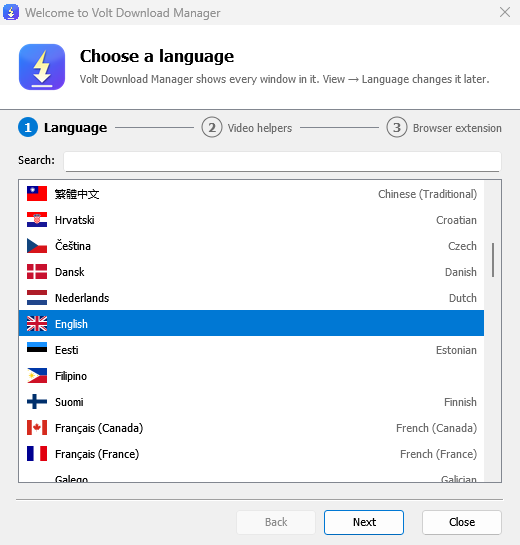
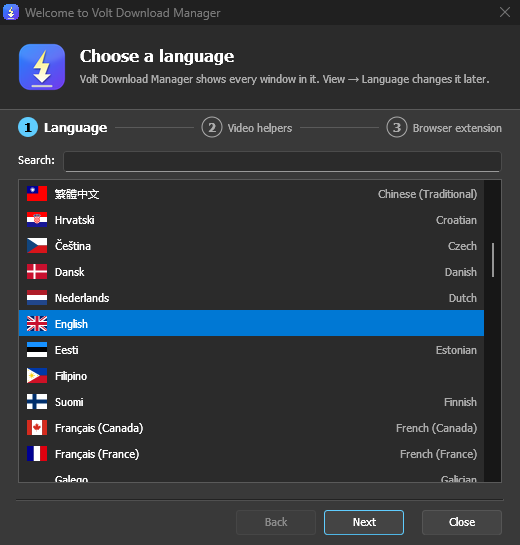
On its first start VDM opens one Welcome to Volt Download Manager window that walks you through what it needs, a step at a time: the steps are named on top, Back and Next move between them, and Finish on the last one closes it. Each step can be passed with Next without doing anything, Close or the window's × ends the setup at any step, and once it is finished or closed it doesn't come back: everything in it stays in the menus. Steps that aren't needed are left out.
- Language. - Installed with the setup: VDM starts in the language you chose in the setup, and this step is left out. - Otherwise: the list of languages, each with its flag and its own name. Click yours: the window switches to it at once, right to left for Arabic, Hebrew, Persian and Urdu.
میتوانید آن را در هر زمان در نما → زبان تغییر دهید. اطلاعات بیشتر در زبانها.
- ابزارهای کمکی ویدئو (در ادامه).
- Browser extension: each browser VDM found, with Add the extension for it, as in Browser integration. Left out when a browser's extension already reached VDM, or in a portable copy.
ابزارهای ویدیو
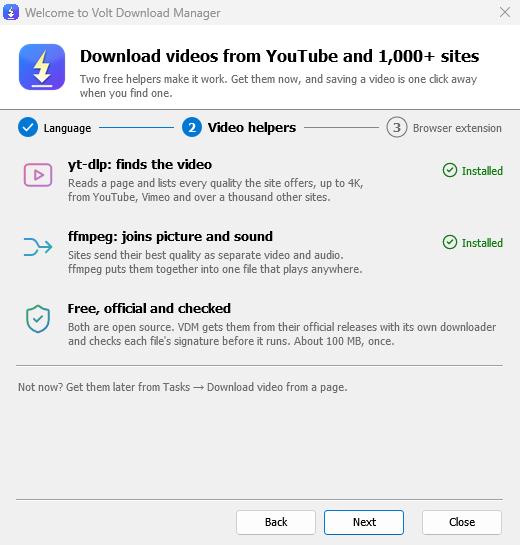
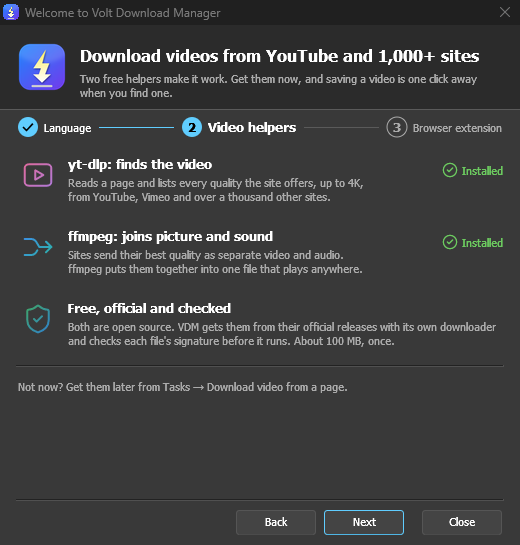
The setup's second step offers VDM's free video helpers: yt-dlp, which finds the video on a page, ffmpeg, which joins its picture and sound (on Windows; elsewhere VDM uses your system's), and Node.js, which YouTube needs, when your computer has no JavaScript runtime. Each says whether it is already there; one that isn't has its own Install button, and Yes, download them (recommended) gets every one that is missing. They download in the background, about 100 MB, once, each with its progress in its row, and go on if you close the window. Nothing is downloaded until you press one. Next leaves them for later: the video window offers them when you first need them. The step is left out when they are all there. More in Videos.
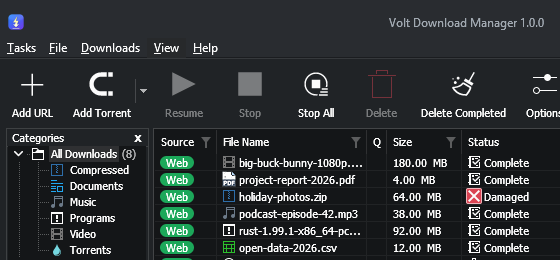
پنجره اصلی
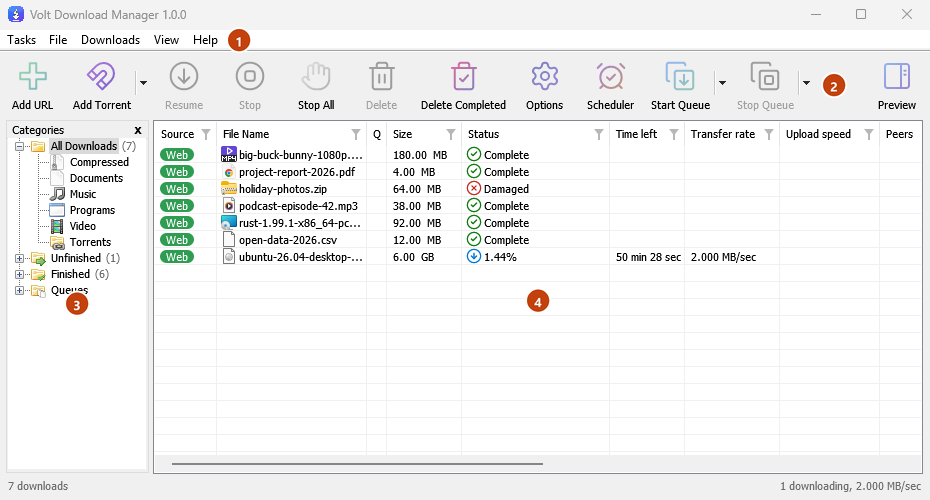
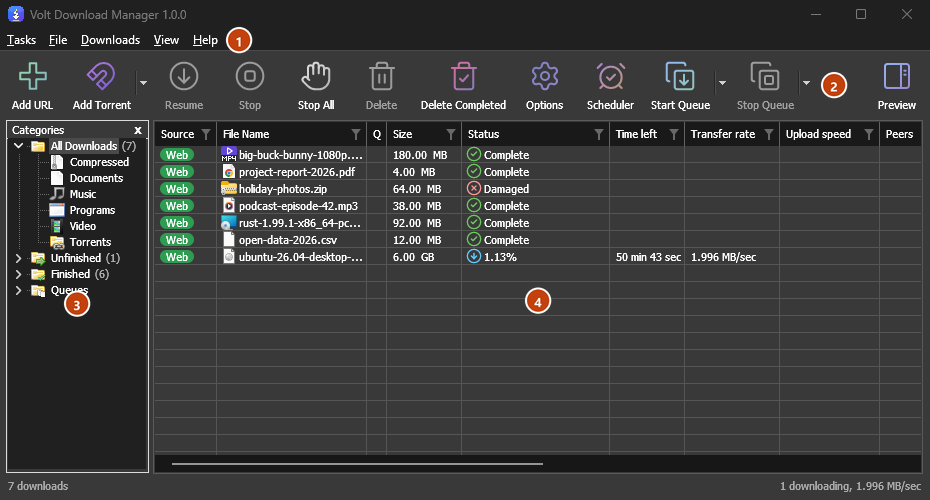
از بالا به پایین:
- نوار منو.
- وظایف — افزودن بارگیریها، تورنتها، پیوندهای مگنت، بارگیریهای دستهای و ویدیوها از یک صفحه؛ تنظیمات تورنت؛ رباینده پیوند؛ فیدهای RSS؛ نمایش هدف کشیدن و رها کردن؛ وارد و صادر کردن لیست؛ خروج.
- فایل — دانلود انتخابشده: توقف دانلود، حذف، اکنون بارگیری کن، بارگیری مجدد.
- بارگیریها — مکث همه، توقف همه، حذف همه تکمیلشدهها، جستجو، زمانبند، صفها، محدودکننده سرعت و گزینهها.
- نما — نمایش یا پنهان کردن دستهها، مرتبسازی فهرست (مرتبسازی فایلها)، پشتیبانی از حالت تاریک، همیشه تیره، پوسته، اندازه رابط (هر پنجره بزرگتر، 100٪ تا 200٪؛ Ctrl +، Ctrl − و Ctrl 0 نیز)، فونت (فایل فونت و اندازه متن خود رابط، جدا از اندازه رابط)، متن (Windows: حروف صاف یا کلاسیک)، ترسیم با (OpenGL، یا Direct3D در Windows، Vulkan در Linux، Metal در macOS) و زبان.
- Help — help pages and tutorials (on the website, in your language when it has it), Keyboard shortcuts, Report a problem, Check for updates, About, Tell a friend and Support VDM (its creator's GitHub Sponsors page: optional, nothing in VDM changes).
- نوار ابزار. افزودن URL، افزودن تورنت، ادامه، توقف، توقف همه، حذف، حذف تکمیلشدهها، گزینهها، زمانبند، شروع صف، توقف صف. فلش کوچک کنار افزودن تورنت، شروع صف و توقف صف گزینههای بیشتری را باز میکند.
- دستهها (چپ). انتخاب کنید که لیست چه چیزی را نشان دهد: همه دانلودها، ناتمام، تکمیلشده و صفها، هر کدام با دستههای خود. شکاف بین پنل و لیست را بکشید تا پهنتر شود.
- فهرست بارگیریها (سمت راست). برای هر بارگیری یک ردیف. به فهرست بارگیریها مراجعه کنید.
حالت تاریک
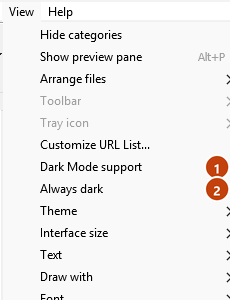
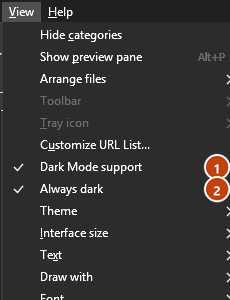
VDM follows your system: when Windows (or your desktop's light/dark preference on Linux and macOS) is set to dark mode, so is VDM. To keep VDM light whatever the system does, turn off View → Dark Mode support. To keep it dark whatever the system does, for example on a desktop that reports no preference, turn on View → Always dark.
پوستهها
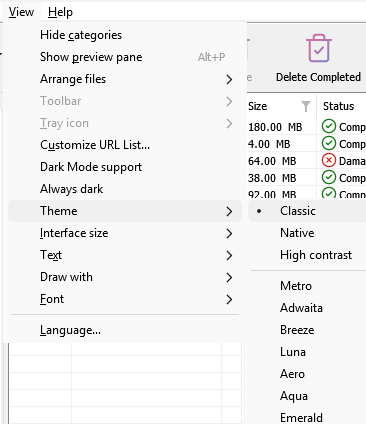
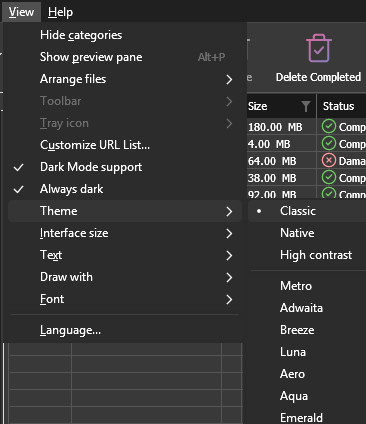
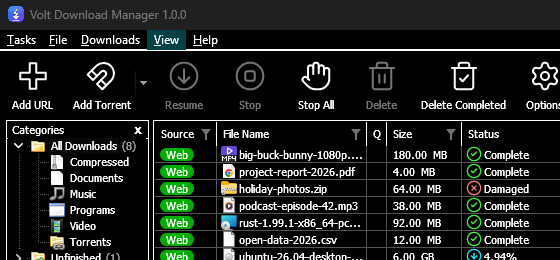
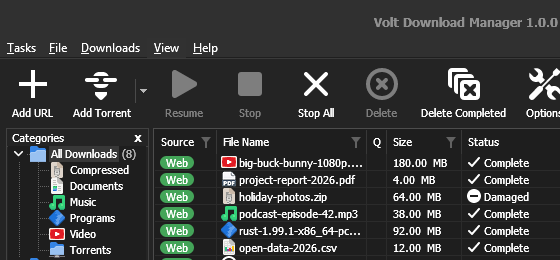
View → Theme changes VDM's look at once, keeping its layout:
- Classic: VDM's own look, the default.
- بومی: رنگهای سیستم شما. رنگ برجسته Windows (تنظیمات ← شخصیسازی ← رنگها) و در صورت فعال بودن، پوسته کنتراست آن؛ رنگ برجسته دسکتاپ و تنظیم کنتراست بالاتر آن در Linux (GNOME 47 و بالاتر، KDE Plasma)؛ رنگ برجسته در macOS. با تغییر آنها، VDM نیز از آنها پیروی میکند.
- کنتراست بالا: سیاه و سفید، یک رنگ برجسته روشن، هر لبه ترسیم شده، متن با نسبت 7:1 یا بیشتر.
- Metro: Windows 8's flat look: square corners, flat buttons and boxes, a coloured title bar with the title centred (on Windows, where VDM draws it), and one-colour icons (Microsoft's Fluent UI System Icons).
- Adwaita: GNOME's look: round corners, flat grey buttons, a rounded focus ring, GNOME's check boxes, a header bar with the title in bold and round buttons (on Windows, where VDM draws it), and GNOME's Adwaita icons, in colour for files and categories, one colour in the toolbar.
- Breeze: KDE Plasma's look: rounded corners, buttons and boxes that take the accent's edge under the pointer or when focused, KDE's check boxes and focus frame, KDE's title bar with the title centred and round buttons (on Windows, where VDM draws it), and KDE's Breeze icons.
- Luna: Windows XP's look: buttons shaded from white with an orange glow under the pointer, green ticks, square text boxes, progress in green blocks, a deep blue title bar with the title in bold (on Windows, where VDM draws it), and colourful icons drawn for VDM in that manner.
- Aero: Windows 7's look: glossy buttons that turn light blue under the pointer, quiet check boxes, a glossy green progress bar, a glassy title bar with the title on a soft glow (on Windows), and glossy icons drawn for VDM in that manner.
- Aqua: Mac OS X's look: gel buttons round at the ends (the default one blue), glossy check boxes, a blue focus ring, a blue gel progress bar, a grey title bar with small round buttons (on Windows), and icons drawn for VDM in that manner.
- زمرد: یک بوم سفید با جوهر تقریبا سیاه و نردبانی از خاکستریهای خنثی برای ساختار، پرکنندههای زمردی که همیشه متن تقریبا سیاه را به جای سفید حمل میکنند، گوشههای 6 نقطهای در هر کنترل، و آیکونهای تکرنگ مترو.
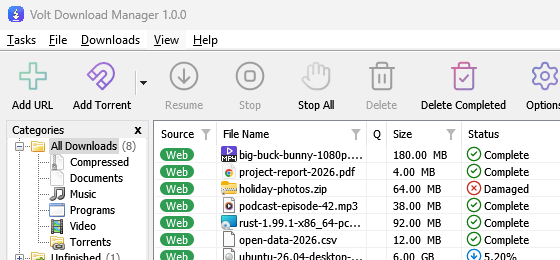
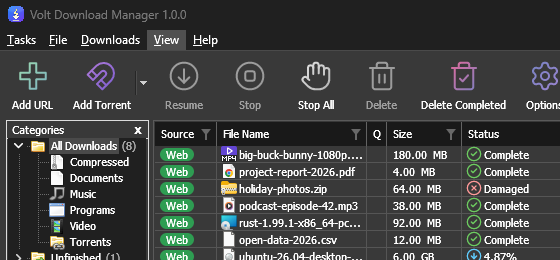
کلاسیک 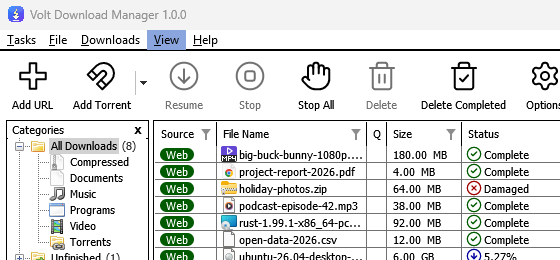
کنتراست بالا 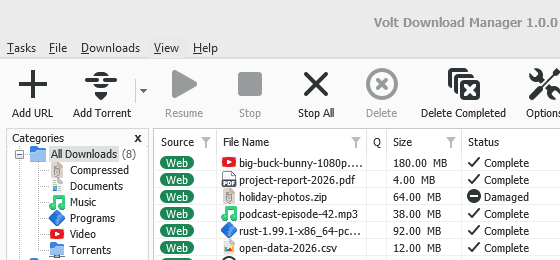
Adwaita 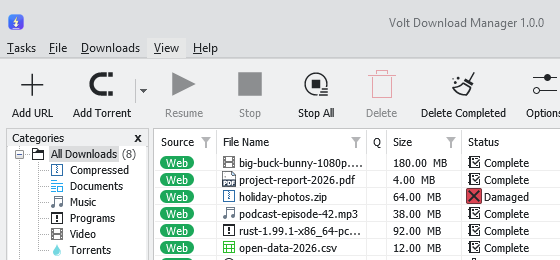
Breeze
هر کدام یک روی روشن و یک روی تیره دارند: پشتیبانی از حالت تاریک و همیشه تیره مانند قبل بین آنها انتخاب میکنند. فایلهای پوستهای که در پوشه پوستهها قرار میدهید (نما → پوسته → باز کردن پوشه پوستهها) نیز در آنجا فهرست میشوند، و همچنین طرحهای رنگی Base16 و pywal (نما → پوسته → افزودن فایل پوسته…؛ pywal هنگام اجرا از wal پیروی میکند): Themes میگوید آن پوشه کجاست، یک فایل پوسته چه چیزی را در خود جای میدهد (inherits، رنگها، اندازهها، اشکال کنترلها، آیکونها)، چگونه از رنگهای یک طرح استفاده میشود، و چگونه یکی را بسازید و به اشتراک بگذارید.
آیکون ناحیه اعلان
Closing the main window doesn't quit VDM. It hides in the notification area, and downloads, queues and schedules carry on. To make closing quit (a portable copy's folder can then be deleted), untick Options → General → Keep running when closing the window. If there is no icon for VDM at all — not in the notification area, nor behind the ^ hidden icons — the window minimizes to the taskbar instead, so downloads continue and there is a way back. An icon behind ^ can be clicked to bring the window back, and starting VDM again always does. On macOS the window closes into the Dock, as Mac apps' windows do: click VDM's icon in the Dock (or in the menu bar) to bring it back, and quit with Cmd+Q or Volt Download Manager → Quit.
On Linux this needs a tray, which most desktops have (KDE Plasma, Xfce, Cinnamon, Ubuntu's GNOME or GNOME with the AppIndicator extension, waybar's tray). On a desktop without one (some tiling window managers), closing the window quits VDM, since there would be nowhere to bring it back from.
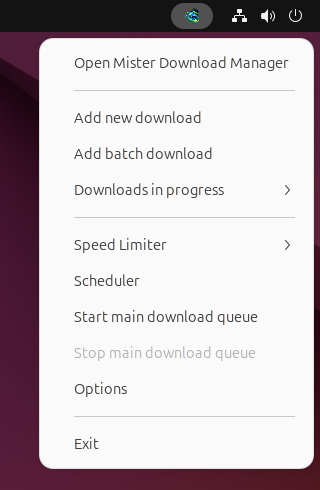
- Click the tray icon to see what is downloading: a small panel over the icon lists each running download with its progress bar, how much has come of how much, its speed and the time left, and the progress window's Pause (then Resume; Stop and save for a live stream being recorded) and Cancel beside it. Open Volt Download Manager at its bottom brings the window back. Its ×, Esc, a click elsewhere or another click on the icon closes it.
- برای بازگرداندن فوری پنجره، روی نماد سینی دوبار کلیک کنید (Windows).
- برای دسترسی به افزودن بارگیری جدید، افزودن بارگیری دستهای، بارگیریهای در حال انجام، محدودکننده سرعت، زمانبند، صف اصلی بارگیری، گزینهها و خروج، روی آن راستکلیک کنید.
- بارگیریهای در حال انجام، بارگیریهای فعال را فهرست میکند. یکی را انتخاب کنید تا پنجره پیشرفت آن را ببینید.
- Options → General → Show downloads when the notification area icon is clicked is ticked in a new copy of VDM. Untick it and a click on the icon brings the window back (or hides it there while it is in front), as it did before the panel. An VDM that was set up before the panel keeps that click: tick it to have the panel.
- On Linux the panel depends on the desktop's tray. KDE Plasma and Xfce send VDM the click, so the panel opens beside the icon. GNOME's AppIndicator extension may open the icon's menu on a left click instead, or send no place for the click: the panel then opens at the top right of the screen, under GNOME's top bar. In a native Wayland session the compositor decides where the panel goes and may not give it the focus, so a click elsewhere doesn't close it there: use its × or click the icon again. If the panel doesn't suit your desktop, untick the option above.
هنگامی که کوچکنمایی در ناحیه اعلان در گزینهها ← عمومی فعال است، کوچکنمایی نیز پنجره اصلی را در آنجا پنهان میکند. این گزینه بهطور پیشفرض فعال است؛ در صورتی که ناحیه اعلان آیکونی نداشته باشد، کوچکنمایی پنجره را به نوار وظیفه میفرستد.
پنجره پیشرفت بارگیری را هم میتوان با دکمه کوچکنمایی یا دکمه پنهان کردن در ناحیه اعلان به آنجا فرستاد؛ این دکمه خط تیره کوتاهی با پیکانی رو به پایین، به سمت گوشه، دارد.
در Windows، این دکمه در نوار عنوان پنجره، سمت چپ دکمه کوچکنمایی، و در منوی نوار عنوان (Alt+Space) قرار دارد. در Linux و macOS، در انتهای ردیف زبانههاست.
برای بازگرداندن پنجره، آن را در بارگیریهای در حال انجام انتخاب کنید یا روی بارگیری در فهرست دوبار کلیک کنید.
برای خروج، وظایف → خروج یا خروج را از منوی ناحیه اعلان انتخاب کنید.
Where VDM keeps its data
فهرست بارگیریها و تنظیمات در %APPDATA%\voltdownloadmanager (downloads.json) قرار دارند؛ در Linux در ~/.local/share/voltdownloadmanager، در مک در ~/Library/Application Support/voltdownloadmanager. یک کپی قابل حمل آنها را به جای آن در پوشه data خود نگه میدارد. فایلهای بارگیری شده به پوشه بارگیریها شما میروند که بر اساس دستهبندی در یک پوشه مرتب شدهاند؛ میتوانید این را در گزینهها ← ذخیره در تغییر دهید.
مراحل بعدی
رایگان، متنباز، بدون تبلیغات، بدون دوره آزمایشی.
Download Volt Download Manager