

There are several ways to give VDM something to download. Most of them end in the same window, Download File Info, where you choose where the file goes.
افزودن URL
- آدرس فایل را کپی کنید (در یک مرورگر: روی لینک راست کلیک کنید ← کپی لینک).
- روی افزودن URL در نوار ابزار کلیک کنید، وظایف ← افزودن دانلود جدید را انتخاب کنید، یا Ctrl+N را فشار دهید.
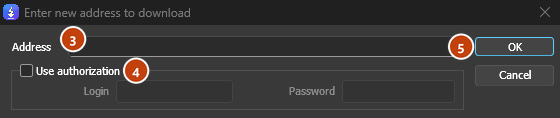
- پنجره آدرس جدید برای بارگیری را وارد کنید باز میشود. اگر نشانی وبی در تختهگیره باشد، از قبل در کادر وارد شده است. پیکان کنار نشانی، 20 نشانی آخری را که وارد کردهاید نشان میدهد؛ یکی را انتخاب کنید تا دوباره از آن استفاده کنید. برای برش، کپی، چسباندن، حذف و انتخاب همه، روی کادر راستکلیک کنید.
- اگر سرور به نام کاربری و رمز عبور نیاز دارد، استفاده از مجوز را علامت بزنید و آنها را تایپ کنید.
- روی تأیید کلیک کنید.
VDM takes http://, https://, ftp://, ftps://, ftpes:// and magnet: addresses. Anything else gets Invalid address.
A thunder://, flashget:// or qqdl:// link is one of those addresses wrapped in base64, as download pages made for Thunder (Xunlei), FlashGet and QQ's downloader write them. VDM unwraps it and downloads from the address inside, here, from the clipboard and in Link grabber; the download is listed under that address. A link that wraps anything else, or that can't be read, gets Invalid address too.
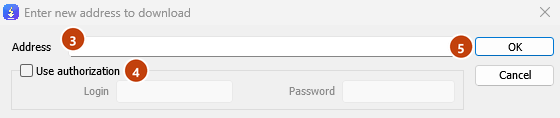
اگر نشانی مربوط به صفحه یک ویدئو باشد (مانند YouTube، Vimeo، TikTok و موارد دیگر)، پنجره ویدئو باز میشود. دانلودهای ویدئو را ببینید. با پیوند مگنت، پنجره افزودن تورنت باز میشود؛ تورنتها را ببینید.
FTP و FTPS
بارگیری FTP مانند بارگیری وب کار میکند: چند اتصال همزمان، امکان مکث و ازسرگیری و همان پنجره پیشرفت.
ftp://— FTP ساده.ftpes://— FTP که از ابتدای نشست با TLS ایمن میشود (FTPS صریح،AUTH TLS، معمولا با درگاه 21). اگر سرور اعلام کند از TLS پشتیبانی میکند، از این روش استفاده کنید.ftps://— FTPS ضمنی؛ درگاه 990، مگر اینکه نشانی درگاه دیگری را مشخص کند.
گواهی سرور در برابر گواهیهای مورد اعتماد Windows (یا سیستم)، مانند https://، و در برابر گواهیهای موزیلا، همانهایی که Firefox دارد، بررسی میشود؛ این کار زمانی انجام میشود که سیستم فاقد ریشه گواهی سرور باشد (مثلا یک Windows قدیمی که هنوز آن را دریافت نکرده است). یک سیستم Linux بدون آنها (یک نصب حداقلی بدون بسته ca-certificates) همچنان از طریق HTTP و FTP ساده بارگیری میکند؛ در این صورت، هر بارگیری امن بلافاصله با شکست مواجه میشود و پیامی مبنی بر نصب آن بسته نمایش میدهد.
An https:// site whose certificate is refused (expired, self-signed or from an issuer the system doesn't
trust, made for another site name) isn't downloaded from: Download File Info, the progress window
and the list say which of these it is, as a browser warns about the same site. VDM has no way
around it.
Logging in. Write the login in the address (ftp://user:password@server/folder/file.iso),
tick Use authorization, or save it in Options → Sites Logins. Without one, VDM logs in as
anonymous. The path is relative to the folder the login starts in; to start from the server's
root, write %2F after the server (ftp://server/%2Fpub/file.iso).
Resuming. VDM keeps the file's size and modification time. If either has changed when you resume, it says the file changed on the server instead of mixing two versions (Options → Downloads → Ignore file modification time changes skips the time check). The password is not written to the resume file next to the download: VDM gives it again when it resumes.
اتصالات. حالت Passive بهطور پیشفرض استفاده میشود. گزینهها ← پروکسی / SOCKS ← استفاده از FTP در حالت PASV آن را برای سرورهایی که فقط اتصالات Active را میپذیرند، غیرفعال میکند. FTP از طریق یک پروکسی SOCKS که در گزینهها ← پروکسی / SOCKS تنظیم شده است (در این حالت همیشه Passive است؛ ftps:// هنوز نمیتواند از طریق آن کار کند)، عبور میکند و زمانی که پروکسی از نوع HTTP باشد، مستقیما به سرور متصل میشود.
Browsers no longer download ftp:// links themselves. Right-click one and choose Download with
Volt Download Manager, or copy it and use Add URL.
پیوندهای Google Drive
پیوند Google Drive را همانطور که هست بچسبانید؛ همان پیوندی که با اشتراکگذاری → کپی پیوند دریافت میکنید:
https://drive.google.com/file/d/…/view?usp=sharing، با یا بدون/view؛https://drive.google.com/uc?id=…&export=downloadوhttps://drive.google.com/open?id=…؛https://docs.google.com/document/d/…/edit(و Sheets، Slides و Drawings).
VDM downloads the file itself, as it was uploaded (a video comes in its own format, not the player's copy), with its real name and size, over several connections, and it can resume. For a large file, Drive shows a page that says it can't scan this file for viruses; VDM goes past it as Download anyway does.
Google Docs، Sheets و Slides به شکل فایلهای Word (.docx)، Excel (.xlsx) و PowerPoint (.pptx) دریافت میشوند و Drawings به شکل .png. این فایلها هنگام درخواست ساخته میشوند، بنابراین اندازهشان تا زمان دریافت مشخص نیست و نمیتوان بارگیری آنها را از سر گرفت؛ اگر بارگیری قطع شود، دوباره آغاز میشود.
Files that aren't shared with everyone. Right-click the link in the browser and choose Download with Volt Download Manager, or use Drive's own Download button: the extension passes your browser's Google sign-in with the download. VDM never asks for or keeps your password. Without a sign-in, VDM says the file needs you to sign in.
When Drive won't give a file. Drive limits how often a file can be downloaded: after many downloads in a day it answers "too many users have viewed or downloaded this file recently". VDM shows Drive's own words and writes nothing. Try again later (it can take up to a day), or sign in to Google in your browser and download from there, which often gets past the limit. VDM doesn't try to get around it. A file whose owner turned off downloading, or that your account can't open, gets no access.
دکمه ویدئو روی ویدئویی در Drive فایل اصلی را بارگیری میکند، نه یکی از نسخههای کوچکتر پخشکننده را.
Folders: paste a shared folder's link (https://drive.google.com/drive/folders/…) in Add
URL, or right-click it in the browser and choose Download with Volt Download Manager, and
Link grabber lists its files and its subfolders' to download into the same folders. See
Google Drive folders.
اطلاعات فایل بارگیری
VDM asks the server for the file's name and size, and shows them in Download File Info:
- URL — نشانی.
- دسته — بر اساس نوع فایل انتخاب میشود (فشرده، اسناد، موسیقی، برنامهها، ویدئو یا عمومی). هر دسته پوشه مخصوص به خود را دارد. + کنار آن، دسته جدیدی ایجاد میکند.
- Save As — the folder and file name. You can type another, pick one of the last 20 folders you saved to from the arrow at its end, or choose the folder and the file name in the system's Save dialog with ... (a name typed there without an extension keeps the download's). If you choose a file that is already there and answer Yes when the dialog asks whether to replace it, the download replaces it once it is complete; until then the old file stays as it was, so it is kept if the download fails or you cancel it. A name of a file that is already there that you type in Save As itself is asked about as you press Start Download or Download Later: Add the duplicate with a numbered file name takes the next free name, such as
name (1).zip; Add the duplicate and overwrite the existing file replaces it once the download is complete, as above; Cancel goes back to the dialog. A name VDM gave that is taken by the time the download starts is numbered without asking. - این مسیر را برای دسته «…» به خاطر بسپار — با انتخاب این گزینه، پوشهای که وارد کردهاید از این پس پوشه پیشفرض آن دسته خواهد بود. اگر همه بارگیریها را در پوشه دسته «عمومی» ذخیره کن در گزینهها ← ذخیره در انتخاب شده باشد، هر بارگیری در پوشه عمومی آغاز میشود و این کادر نام عمومی را مشخص میکند: پوشهای که وارد کردهاید، پوشه پیشفرض برای همه بارگیریها خواهد شد.
- توضیحات — یادداشت شخصی شما. این یادداشت در ستون توضیحات فهرست نمایش داده میشود و میتوانید آن را جستجو کنید.
- Server — where the server is: its country's flag and name, and how long a round trip to it takes. See Where the server is. It stays blank when the browser handed the download over with its name and size, since VDM didn't need to ask the server.
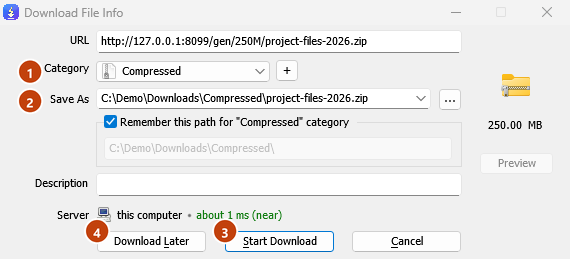
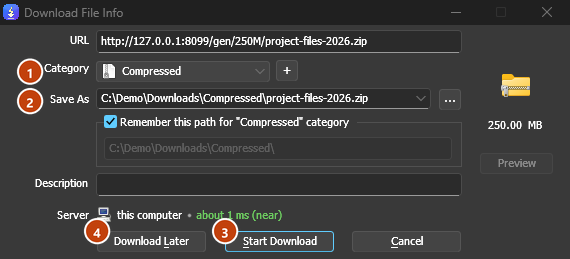
سپس یکی از این گزینهها را انتخاب کنید:
- شروع دانلود (یا Enter) — بارگیری را اکنون شروع کنید. پنجره پیشرفت باز میشود.
- بارگیری بعدا — آن را بدون شروع، به صف اضافه کنید. توضیحات بیشتر در ادامه آمده است.
- لغو (یا Esc) — چیزی اضافه نمیشود.
By default VDM starts downloading while this window is open, so no time is lost while you decide. Cancel drops what it fetched. You can turn this off in Options → Downloads → Start downloading immediately while displaying "Download File Info" dialog.
If the folder doesn't exist yet, VDM asks Do you want to create it? before it starts.
فقط برخی از فایلهای درون یک ZIP
برای یک .zip روی یک وبسرور، پیشنمایش (زیر اندازه فایل) محتویات را فهرست میکند، بنابراین میتوانید به جای کل آرشیو، فقط فایلهای مورد نیاز خود را بارگیری کنید: دو فایل از یک آرشیو 20 گیگابایتی، دو بارگیری کوچک را شامل میشود.
As the window opens, VDM asks the server for the archive's last bytes, where a ZIP keeps its list of files. Only a server that sends parts of a file can give files one by one, so Preview works only there; elsewhere it stays grey, and its tooltip says why (the server can't send parts of the ZIP...). The whole archive still downloads as usual.
پیشنمایش پیشنمایش ZIP را باز میکند: هر فایل در آرشیو با نام فایل (مسیر آن در ZIP)، بستهبندیشده (اندازه آن در ZIP)، اندازه و تاریخ تغییر. مواردی را که میخواهید علامت بزنید (انتخاب همه همه را علامت میزند) و روی تأیید کلیک کنید. تعداد فایلهای انتخابشده زیر پیشنمایش نشان داده میشود؛ برای دیدن مقصد آنها، نشانگر ماوس را روی آن نگه دارید. سپس شروع دانلود یا بارگیری بعدا آنها را به عنوان یک بارگیری، به جای آرشیو، اضافه میکند:
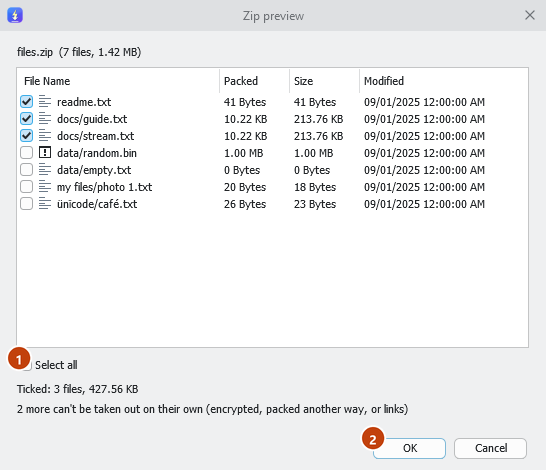
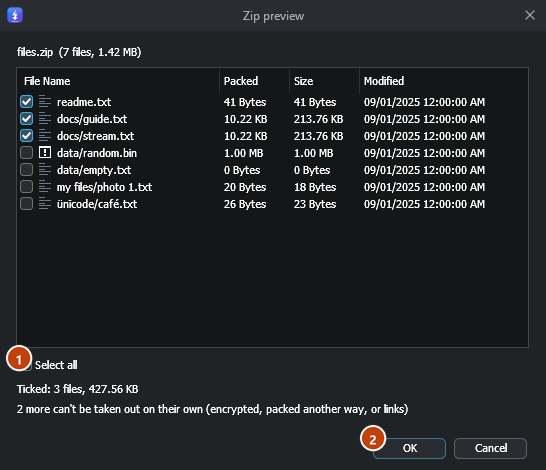
- آنها به پوشهای به نام آرشیو، در پوشهای که ذخیره با نام نشان میدهد (
Downloads\Compressed\photos\برایphotos.zip)، میروند و هر کدام مسیر خود را از داخل ZIP حفظ میکنند (photos\2025\beach.jpg). فایلی با همین نام که از قبل وجود دارد، حفظ میشود و فایل جدید شمارهگذاری میشود. - VDM fetches only each file's own bytes, unpacks it, and checks it against the checksum (CRC-32) and size the archive gives for it. A file that doesn't match is not kept, and the download says so.
- یک بارگیری متوقفشده با فایلهایی که هنوز واکشی نشدهاند ادامه مییابد؛ یک بخش متوقفشده دوباره واکشی میشود.
- حذف با همچنین حذف فایلها از دیسک پوشه و فایلهای آن را، مانند یک گالری تصویر، باقی میگذارد.
Some files can't be taken out on their own and aren't listed (the window counts them under the list): encrypted files, files packed with a method other than the two most ZIPs use (stored and Deflate), links, and names that would put a file outside its folder (../, a drive letter, an absolute path). A ZIP split over several files, or one whose list of files doesn't add up (files over each other, a list larger than VDM reads from a server), can't be previewed. For any of these, download the whole archive.
Each link opens a Download File Info of its own, so several can be open side by side, to compare their sizes before you choose. Each new one opens a little below and beside the one before and comes to the front; from the second on, its title carries its number: Download File Info (2), (3) and so on. Esc closes only the window you're in. Up to six are open at once: more links handed over together (a browser passing on several downloads) wait, and open one by one as you close windows; Cancel asks whether to cancel the ones still waiting. The same link handed over again brings its open window to the front. If you quit VDM with some still open, their downloads go to the Main download queue, as with Download Later.
بارگیری بعدا
Download Later puts the download in a queue instead of starting it. By default VDM asks which one: pick the queue under Add to queue, and tick Start the queue now if you want it to run straight away. Cancel leaves the download in the list, in no queue.
برای رد کردن این پرسش و استفاده همیشگی از صف اصلی دانلود، گزینه گزینهها → بارگیریها → نمایش پنل انتخاب صف هنگام فشردن دکمه «بارگیری بعدا» را خاموش کنید.
درباره صفها، در صفها و زمانبند بیشتر بخوانید.
از کلیپبورد
With Options → General → Offer to download links copied to the clipboard ticked (it is, unless you turned it off), when you copy a link to a file type in Options → File types (ZIP, EXE, MP4, PDF and many more), Download File Info opens with it filled in, ready for Start Download. Links to other pages are left alone. With Options → Downloads → Show start download dialog off, the download starts at once instead. Only links copied while VDM runs are taken, never one that was already there.
Copied several links at once, a list or a whole forum post? Choose Tasks → Add batch download from clipboard (Ctrl+B, also in the tray icon's menu). VDM reads the clipboard then, and only then, and finds every download link in the text: http, https, ftp and magnet links, one per line or among other words, in Markdown ([name](https://github.com/mikailhossenimran/voltdownloadmanager/blob/main/docs/link)) or between < and >. Each one is listed once in Link grabber, ticked and sorted into packages: pick a folder for each package, then Start or Add to queue. Downloads added together end with one Downloads complete summary. Magnet links are added as torrents with all their files once their files are known. thunder://, flashget:// and qqdl:// links count as the address wrapped in them, here and for a single copied link. A copied address with a number in its name, such as https://example.com/show/ep01.mp4, opens Batch download instead (below). If the clipboard holds no text, or no link, VDM says so.
کشیدن و رها کردن
- Choose Tasks → Show drop target. A small box with the VDM icon appears and stays on top of other windows.
- Drag a link from your browser onto it. VDM adds it as if you had used Add URL.
You can also drop magnet links and .torrent files on it. Drag the box to move it, and double-click it to bring the main window back. Right-click it for Show Volt Download Manager, Add new download and Hide drop target.
دانلود دستهای: چند فایل شمارهگذاریشده
برای فایلهایی که نامشان فقط در یک عدد یا حرف تفاوت دارد، مانند photo001.jpg تا photo150.jpg:
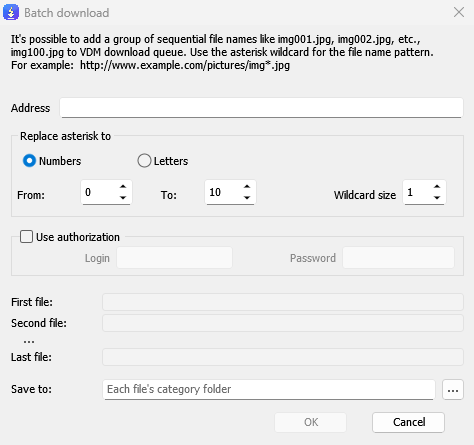
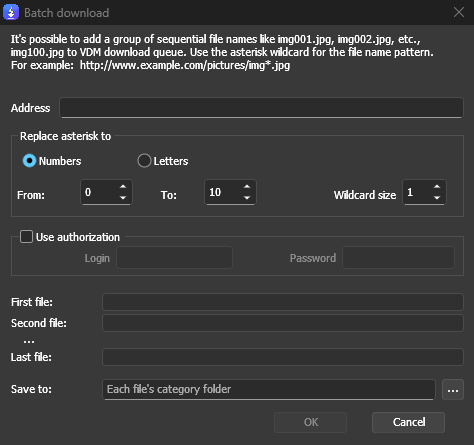
- وظایف ← افزودن بارگیری دستهای را انتخاب کنید. یک آدرس با یک عدد در نام فایل آن، مانند
https://example.com/show/ep01.mp4، را کپی کردهاید؟ وظایف ← افزودن بارگیری دستهای از کلیپبورد (Ctrl+B) ستاره را در جایی که عدد بود قرار میدهد، از و اندازه نویسه عام را از آن تنظیم میکند (ep*.mp4، از 1، اندازه 2) و در به منتظر آخرین عدد میماند. - در آدرس، آدرس را با یک ستاره در جایی که عدد یا حرف تغییر میکند بنویسید:
https://example.com/photo*.jpg. - در قسمت جایگزینی ستاره با، اعداد یا حروف را انتخاب کنید، سپس از و تا را انتخاب کنید.
- برای اعداد، اندازه نویسه عام را روی تعداد ارقام تنظیم کنید. با 3، فایلها
photo001.jpg،photo002.jpgو غیره هستند. - اگر سرور به ورود نیاز دارد، استفاده از مجوز را علامت بزنید.
- گزینههای فایل اول، فایل دوم و فایل آخر را انتخاب کنید.
- اگر ذخیره در خالی بماند، هر فایل در پوشه دسته خود (گزینهها ← ذخیره در) یا در پوشه عمومی ذخیره میشود، اگر همه بارگیریها به یک پوشه بروند. برای ذخیره همه فایلهای دستهای در یک پوشه، آن را در اینجا تایپ کنید یا با ... انتخاب کنید. سپس روی تأیید کلیک کنید.
The downloads go to a queue. As with Download Later, VDM asks which queue unless you turn off Options → Downloads → Show queue selection panel on closing batch download dialogs.
فهرستی از پیوندها
برای افزودن هر پیوند در یک فایل متنی:
- وظایف ← وارد کردن ← از فایل متنی را انتخاب کنید.
- Pick the file. Link grabber lists every web address VDM found in it, in packages. While VDM reads a long file, the strip under the list of downloads says Reading and the file's name; you can go on using VDM meanwhile. Import reads files of up to 64 MB, far more than any list of links holds: a larger file (a video, an archive, a backup picked by mistake) is refused with a message.
- آدرسهایی را که نمیخواهید تیکشان را بردارید (انتخاب همه و لغو انتخاب همه کمک میکنند)، سپس روی افزودن به صف کلیک کنید.
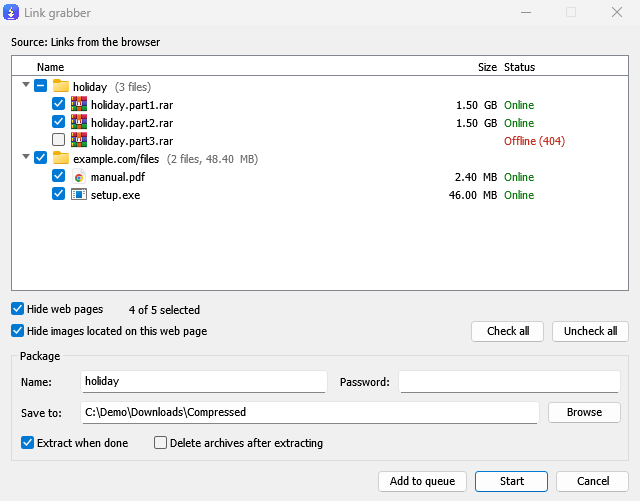
بارگیریها به صف اصلی دانلود اضافه میشوند و آماده شروع هستند (دکمه شروع نیز آن را آغاز میکند). وظایف → وارد کردن → از فایل خروجی IDM یک فایل .ef2 را میخواند که شامل ارجاعدهنده و کوکیهای هر بارگیری و نام فایلی است که در خط filename: مشخص شده است.
وظایف → دریافتکننده پیوند... همان پنجره را خالی باز میکند: متنی حاوی پیوندها را در آن بچسبانید (Ctrl+V). برای بستهها، رمز عبور بایگانی و استخراج بایگانیها پس از دانلود، به دریافتکننده پیوند و بایگانیها مراجعه کنید.
برای ذخیره لیست خود، از وظایف ← خروجی گرفتن ← به فایل متنی (یک آدرس در هر خط) یا به فایل صادراتی IDM استفاده کنید.
وقتی آدرس از قبل در لیست است
By default VDM asks what to do when you add an address it already has. You can choose a fixed answer in Options → Downloads → If a duplicate download link is added:
- نمایش یک کادر محاورهای و پرسش برای انجام کار.
- افزودن نسخه تکراری با نام فایل شمارهگذاری شده
- افزودن نسخه تکراری و بازنویسی فایل موجود
- اگر فایل موجود کامل است، گفتگوی تکمیل بارگیری را نشان بده؛ در غیر این صورت، آن را از سر بگیر.
مراحل بعدی
رایگان، متنباز، بدون تبلیغات، بدون دوره آزمایشی.
Download Volt Download Manager