

There are several ways to give VDM something to download. Most of them end in the same window, Download File Info, where you choose where the file goes.
URL hinzufügen
- Kopieren Sie die Adresse der Datei (im Browser: Rechtsklick auf den Link → Link kopieren).
- Klicken Sie in der Symbolleiste auf URL hinzufügen, wählen Sie Aufgaben → Neuen Download hinzufügen oder drücken Sie Strg+N.
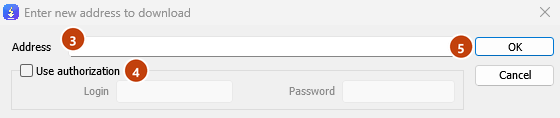
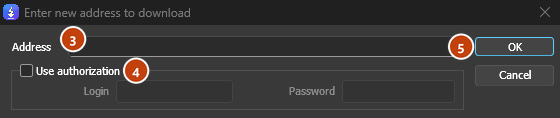
- Neue Adresse zum Herunterladen eingeben wird geöffnet. Wenn die Zwischenablage eine Webadresse enthält, ist diese bereits ausgefüllt. Der Pfeil am Ende von Adresse listet die letzten 20 eingegebenen Adressen auf; wählen Sie eine aus, um sie erneut zu verwenden. Klicken Sie mit der rechten Maustaste in das Feld für Ausschneiden, Kopieren, Einfügen, Löschen und Alle auswählen.
- Wenn der Server einen Benutzernamen und ein Passwort benötigt, aktivieren Sie Autorisierung verwenden und geben Sie diese ein.
- Klicken Sie auf OK.
VDM takes http://, https://, ftp://, ftps://, ftpes:// and magnet: addresses. Anything else gets Invalid address.
A thunder://, flashget:// or qqdl:// link is one of those addresses wrapped in base64, as download pages made for Thunder (Xunlei), FlashGet and QQ's downloader write them. VDM unwraps it and downloads from the address inside, here, from the clipboard and in Link grabber; the download is listed under that address. A link that wraps anything else, or that can't be read, gets Invalid address too.
Wenn die Adresse eine Videoseite ist (YouTube, Vimeo, TikTok und andere), öffnet sich stattdessen das Videofenster. Siehe Video-Downloads. Ein Magnet-Link öffnet Torrent hinzufügen; siehe Torrents.
FTP und FTPS
FTP-Downloads funktionieren wie Web-Downloads: mehrere Verbindungen gleichzeitig, Pause und Wiederaufnahme und dasselbe Fortschrittsfenster.
ftp://— einfaches FTP.ftpes://— FTP, das von Beginn der Sitzung an mit TLS gesichert ist (explizites FTPS,AUTH TLS, normalerweise Port 21). Verwenden Sie es, wenn der Server angibt, TLS zu unterstützen.ftps://— implizites FTPS, Port 990, es sei denn, die Adresse gibt einen anderen an.
Das Server-Zertifikat wird wie bei https:// mit den vertrauenswürdigen Zertifikaten von Windows (oder des Systems) und denen von Mozilla (die Firefox mitbringt) abgeglichen, falls dem System das Stammzertifikat des Servers fehlt (z. B. ein älteres Windows, das es noch nicht abgerufen hat). Ein Linux-System ohne diese (eine minimale Installation ohne das Paket ca-certificates) lädt weiterhin über unverschlüsseltes HTTP und FTP herunter; jeder sichere Download schlägt dann sofort fehl mit der Meldung, dieses Paket zu installieren.
An https:// site whose certificate is refused (expired, self-signed or from an issuer the system doesn't
trust, made for another site name) isn't downloaded from: Download File Info, the progress window
and the list say which of these it is, as a browser warns about the same site. VDM has no way
around it.
Logging in. Write the login in the address (ftp://user:password@server/folder/file.iso),
tick Use authorization, or save it in Options → Sites Logins. Without one, VDM logs in as
anonymous. The path is relative to the folder the login starts in; to start from the server's
root, write %2F after the server (ftp://server/%2Fpub/file.iso).
Resuming. VDM keeps the file's size and modification time. If either has changed when you resume, it says the file changed on the server instead of mixing two versions (Options → Downloads → Ignore file modification time changes skips the time check). The password is not written to the resume file next to the download: VDM gives it again when it resumes.
Verbindungen. Der Passivmodus wird standardmäßig verwendet. Optionen → Proxy / SOCKS → FTP im PASV-Modus verwenden schaltet ihn für Server aus, die nur aktive Verbindungen akzeptieren. FTP läuft über einen in Optionen → Proxy / SOCKS eingestellten SOCKS-Proxy (dann immer passiv; ftps:// kann noch nicht über einen laufen) und verbindet sich direkt mit dem Server, wenn der Proxy ein HTTP-Proxy ist.
Browsers no longer download ftp:// links themselves. Right-click one and choose Download with
Volt Download Manager, or copy it and use Add URL.
Google Drive-Links
Fügen Sie einen Google Drive-Link so ein, wie er ist, den Link, den Teilen → Link kopieren liefert:
https://drive.google.com/file/d/…/view?usp=sharing, mit oder ohne/view;https://drive.google.com/uc?id=…&export=downloadundhttps://drive.google.com/open?id=…;https://docs.google.com/document/d/…/edit(und Tabellen, Präsentationen, Zeichnungen).
VDM downloads the file itself, as it was uploaded (a video comes in its own format, not the player's copy), with its real name and size, over several connections, and it can resume. For a large file, Drive shows a page that says it can't scan this file for viruses; VDM goes past it as Download anyway does.
Google Docs, Tabellen und Präsentationen kommen als Word- (.docx), Excel- (.xlsx) und PowerPoint- (.pptx) Dateien, und Zeichnungen als .png. Diese Dateien werden erstellt, wenn sie angefordert werden, daher ist ihre Größe unbekannt, bis sie ankommen, und sie können nicht fortgesetzt werden: ein abgebrochener Download beginnt von Neuem.
Files that aren't shared with everyone. Right-click the link in the browser and choose Download with Volt Download Manager, or use Drive's own Download button: the extension passes your browser's Google sign-in with the download. VDM never asks for or keeps your password. Without a sign-in, VDM says the file needs you to sign in.
When Drive won't give a file. Drive limits how often a file can be downloaded: after many downloads in a day it answers "too many users have viewed or downloaded this file recently". VDM shows Drive's own words and writes nothing. Try again later (it can take up to a day), or sign in to Google in your browser and download from there, which often gets past the limit. VDM doesn't try to get around it. A file whose owner turned off downloading, or that your account can't open, gets no access.
Der Video-Button über einem Drive-Video lädt die Originaldatei herunter, nicht eine der kleineren Kopien des Players.
Folders: paste a shared folder's link (https://drive.google.com/drive/folders/…) in Add
URL, or right-click it in the browser and choose Download with Volt Download Manager, and
Link grabber lists its files and its subfolders' to download into the same folders. See
Google Drive folders.
Dateiinformationen herunterladen
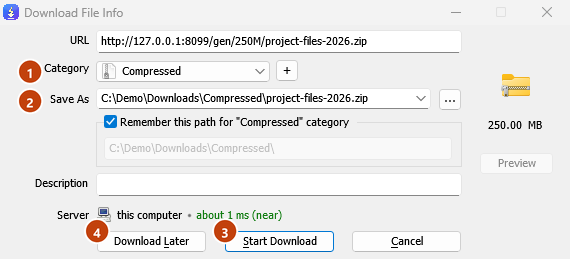
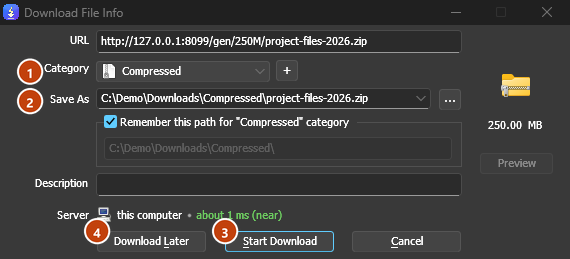
VDM asks the server for the file's name and size, and shows them in Download File Info:
- URL — die Adresse.
- Kategorie — ausgewählt nach Dateityp (Komprimiert, Dokumente, Musik, Programme, Video oder Allgemein). Jede Kategorie hat ihren eigenen Ordner. + daneben erstellt eine neue Kategorie.
- Save As — the folder and file name. You can type another, pick one of the last 20 folders you saved to from the arrow at its end, or choose the folder and the file name in the system's Save dialog with ... (a name typed there without an extension keeps the download's). If you choose a file that is already there and answer Yes when the dialog asks whether to replace it, the download replaces it once it is complete; until then the old file stays as it was, so it is kept if the download fails or you cancel it. A name of a file that is already there that you type in Save As itself is asked about as you press Start Download or Download Later: Add the duplicate with a numbered file name takes the next free name, such as
name (1).zip; Add the duplicate and overwrite the existing file replaces it once the download is complete, as above; Cancel goes back to the dialog. A name VDM gave that is taken by the time the download starts is numbered without asking. - Diesen Pfad für Kategorie „…“ merken – aktivieren Sie diese Option, um den eingegebenen Ordner zum Standardordner für diese Kategorie zu machen. Wenn Alle Downloads im Ordner der Kategorie „Allgemein“ speichern unter Optionen → Speichern in aktiviert ist, starten alle Downloads im Ordner „Allgemein“. In diesem Fall bezieht sich das Kontrollkästchen auf „Allgemein“: Der eingegebene Ordner wird dann für alle Downloads verwendet.
- Beschreibung — eine eigene Notiz. Sie wird in der Spalte Beschreibung der Liste angezeigt und kann von der Suchfunktion durchsucht werden.
- Server — where the server is: its country's flag and name, and how long a round trip to it takes. See Where the server is. It stays blank when the browser handed the download over with its name and size, since VDM didn't need to ask the server.
Dann wählen Sie:
- Download starten (oder Enter) — jetzt herunterladen. Das Fortschrittsfenster wird geöffnet.
- Später herunterladen — zur Warteschlange hinzufügen, ohne zu starten. Siehe unten.
- Abbrechen (oder Esc) — nichts hinzufügen.
By default VDM starts downloading while this window is open, so no time is lost while you decide. Cancel drops what it fetched. You can turn this off in Options → Downloads → Start downloading immediately while displaying "Download File Info" dialog.
If the folder doesn't exist yet, VDM asks Do you want to create it? before it starts.
Nur einzelne Dateien aus einem ZIP-Archiv
Bei einem .zip auf einem Webserver listet Vorschau (unter der Dateigröße) den Inhalt auf, sodass Sie nur die benötigten Dateien anstelle des gesamten Archivs herunterladen können: Zwei Dateien aus einem 20-GB-Archiv erfordern zwei kleine Downloads.
As the window opens, VDM asks the server for the archive's last bytes, where a ZIP keeps its list of files. Only a server that sends parts of a file can give files one by one, so Preview works only there; elsewhere it stays grey, and its tooltip says why (the server can't send parts of the ZIP...). The whole archive still downloads as usual.
Vorschau öffnet die ZIP-Vorschau: Jede Datei im Archiv mit ihrem Dateiname (ihrem Pfad innerhalb des ZIP), Komprimiert (ihrer Größe innerhalb des ZIP), Größe und Geändert. Markieren Sie die gewünschten Dateien (Alle auswählen markiert alle) und klicken Sie auf OK. Die Anzahl der ausgewählten Dateien wird unter Vorschau angezeigt; fahren Sie mit der Maus darüber, um zu sehen, wohin sie gespeichert werden. Dann fügt Download starten oder Später herunterladen sie als einen Download anstelle des Archivs hinzu:
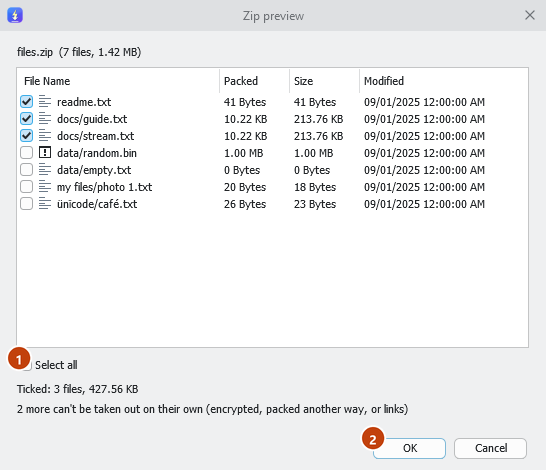
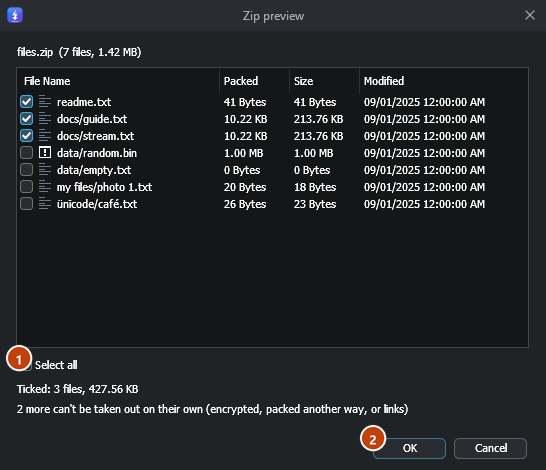
- Sie werden in einem Ordner gespeichert, der nach dem Archiv benannt ist, im Ordner, den Speichern unter anzeigt (
Downloads\Compressed\photos\fürphotos.zip), wobei jede Datei ihren Pfad aus dem ZIP beibehält (photos\2025\beach.jpg). Eine bereits vorhandene Datei mit demselben Namen wird beibehalten und die neue nummeriert. - VDM fetches only each file's own bytes, unpacks it, and checks it against the checksum (CRC-32) and size the archive gives for it. A file that doesn't match is not kept, and the download says so.
- Ein gestoppter Download wird mit den noch nicht abgerufenen Dateien fortgesetzt; eine teilweise gestoppte Datei wird erneut abgerufen.
- Löschen mit Dateien auch vom Datenträger löschen belässt den Ordner und seine Dateien, wie bei einer Bildergalerie.
Some files can't be taken out on their own and aren't listed (the window counts them under the list): encrypted files, files packed with a method other than the two most ZIPs use (stored and Deflate), links, and names that would put a file outside its folder (../, a drive letter, an absolute path). A ZIP split over several files, or one whose list of files doesn't add up (files over each other, a list larger than VDM reads from a server), can't be previewed. For any of these, download the whole archive.
Each link opens a Download File Info of its own, so several can be open side by side, to compare their sizes before you choose. Each new one opens a little below and beside the one before and comes to the front; from the second on, its title carries its number: Download File Info (2), (3) and so on. Esc closes only the window you're in. Up to six are open at once: more links handed over together (a browser passing on several downloads) wait, and open one by one as you close windows; Cancel asks whether to cancel the ones still waiting. The same link handed over again brings its open window to the front. If you quit VDM with some still open, their downloads go to the Main download queue, as with Download Later.
Später herunterladen
Download Later puts the download in a queue instead of starting it. By default VDM asks which one: pick the queue under Add to queue, and tick Start the queue now if you want it to run straight away. Cancel leaves the download in the list, in no queue.
Um diese Frage zu überspringen und immer die Haupt-Downloadwarteschlange zu verwenden, deaktivieren Sie Optionen → Downloads → Warteschlangen-Auswahlbereich beim Drücken der Schaltfläche „Später herunterladen“ anzeigen.
Mehr über Warteschlangen erfahren Sie unter Warteschlangen und der Zeitplaner.
Aus der Zwischenablage
With Options → General → Offer to download links copied to the clipboard ticked (it is, unless you turned it off), when you copy a link to a file type in Options → File types (ZIP, EXE, MP4, PDF and many more), Download File Info opens with it filled in, ready for Start Download. Links to other pages are left alone. With Options → Downloads → Show start download dialog off, the download starts at once instead. Only links copied while VDM runs are taken, never one that was already there.
Copied several links at once, a list or a whole forum post? Choose Tasks → Add batch download from clipboard (Ctrl+B, also in the tray icon's menu). VDM reads the clipboard then, and only then, and finds every download link in the text: http, https, ftp and magnet links, one per line or among other words, in Markdown ([name](https://github.com/mikailhossenimran/voltdownloadmanager/blob/main/docs/link)) or between < and >. Each one is listed once in Link grabber, ticked and sorted into packages: pick a folder for each package, then Start or Add to queue. Downloads added together end with one Downloads complete summary. Magnet links are added as torrents with all their files once their files are known. thunder://, flashget:// and qqdl:// links count as the address wrapped in them, here and for a single copied link. A copied address with a number in its name, such as https://example.com/show/ep01.mp4, opens Batch download instead (below). If the clipboard holds no text, or no link, VDM says so.
Ziehen und Ablegen
- Choose Tasks → Show drop target. A small box with the VDM icon appears and stays on top of other windows.
- Drag a link from your browser onto it. VDM adds it as if you had used Add URL.
You can also drop magnet links and .torrent files on it. Drag the box to move it, and double-click it to bring the main window back. Right-click it for Show Volt Download Manager, Add new download and Hide drop target.
Batch-Download: viele nummerierte Dateien
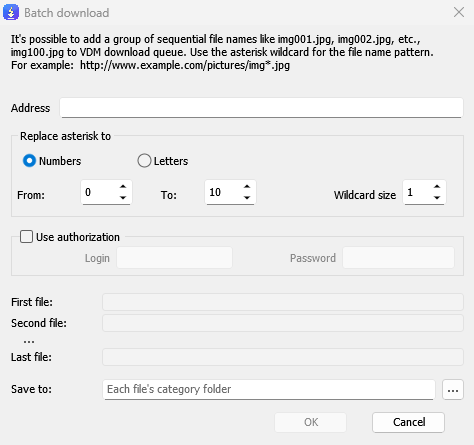
Für Dateien, deren Namen sich nur durch eine Zahl oder einen Buchstaben unterscheiden, wie photo001.jpg bis photo150.jpg:
- Wählen Sie Aufgaben → Batch-Download hinzufügen. Haben Sie eine Adresse mit einer Zahl im Dateinamen kopiert, z. B.
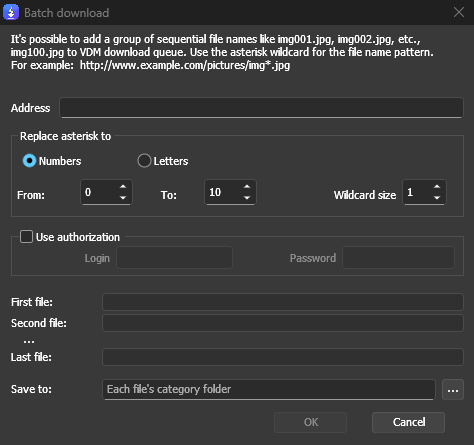
https://example.com/show/ep01.mp4? Aufgaben → Stapel-Download aus der Zwischenablage hinzufügen (Strg+B) setzt den Stern an die Stelle der Zahl, legt Von und Platzhaltergröße davon fest (ep*.mp4, von 1, Größe 2) und wartet in Bis auf die letzte Zahl. - Geben Sie unter Adresse die Adresse mit einem Sternchen an der Stelle ein, an der sich die Zahl oder der Buchstabe ändert:
https://example.com/photo*.jpg. - Wählen Sie unter Sternchen ersetzen durch Zahlen oder Buchstaben, dann Von und Bis.
- Für Zahlen stellen Sie Platzhaltergröße auf die Anzahl der Ziffern ein. Bei 3 sind die Dateien
photo001.jpg,photo002.jpgund so weiter. - Wenn der Server eine Anmeldung benötigt, aktivieren Sie Autorisierung verwenden.
- Aktivieren Sie Erste Datei, Zweite Datei und Letzte Datei.
- Bleibt Speichern in leer, wird jede Datei im Ordner ihrer Kategorie abgelegt (Optionen → Speichern in) oder im Ordner „Allgemein“, wenn alle Downloads dort gespeichert werden. Um alle Dateien des Stapels in einem Ordner abzulegen, geben Sie diesen dort ein oder wählen Sie ihn über ... aus. Klicken Sie anschließend auf OK.
The downloads go to a queue. As with Download Later, VDM asks which queue unless you turn off Options → Downloads → Show queue selection panel on closing batch download dialogs.
Eine Liste von Links
Um jeden Link in einer Textdatei hinzuzufügen:
- Wählen Sie Aufgaben → Importieren → Aus Textdatei.
- Pick the file. Link grabber lists every web address VDM found in it, in packages. While VDM reads a long file, the strip under the list of downloads says Reading and the file's name; you can go on using VDM meanwhile. Import reads files of up to 64 MB, far more than any list of links holds: a larger file (a video, an archive, a backup picked by mistake) is refused with a message.
- Deaktivieren Sie die Adressen, die Sie nicht möchten (Alle auswählen und Alle deaktivieren sind hilfreich), und klicken Sie dann auf Zur Warteschlange hinzufügen.
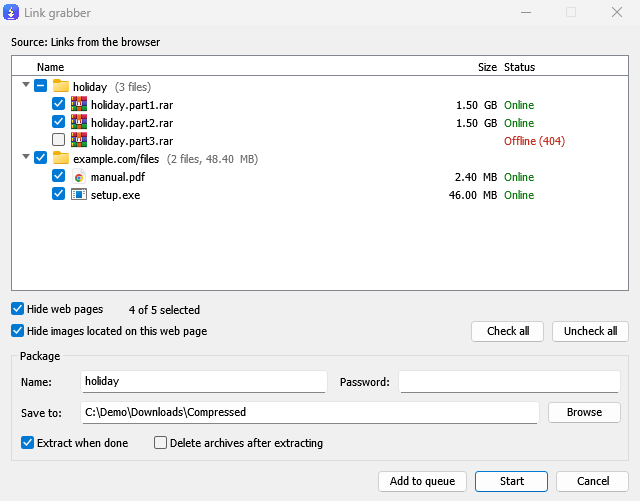
Die Downloads werden der Haupt-Downloadwarteschlange hinzugefügt und sind bereit zum Starten (Starten startet sie ebenfalls). Aufgaben → Importieren → Aus IDM-Exportdatei liest eine .ef2-Datei, die den Referrer und die Cookies jedes Downloads sowie den Dateinamen enthält, den eine Liste in einer filename:-Zeile angibt.
Aufgaben → Link-Grabber... öffnet dasselbe Fenster leer: Fügen Sie Text mit Links ein (Strg+V). Siehe Link-Grabber und Archive für die Pakete, das Archivpasswort und das Extrahieren von Archiven nach dem Download.
Um Ihre eigene Liste zu speichern, verwenden Sie Aufgaben → Exportieren → In Textdatei (eine Adresse pro Zeile) oder In IDM-Exportdatei.
Wenn die Adresse bereits in der Liste ist
By default VDM asks what to do when you add an address it already has. You can choose a fixed answer in Options → Downloads → If a duplicate download link is added:
- Dialog anzeigen und fragen, was zu tun ist.
- Duplikat mit nummeriertem Dateinamen hinzufügen
- Duplikat hinzufügen und vorhandene Datei überschreiben
- Wenn die vorhandene Datei vollständig ist, den Dialog „Download abgeschlossen“ anzeigen; andernfalls fortsetzen.
Nächste Schritte
- Send browser downloads to VDM →
- Einen Download im Fortschrittsfenster beobachten →
- Downloads für später in die Warteschlange stellen →
Kostenlos, Open Source, keine Werbung, keine Testversion.
Download Volt Download Manager