

VDM downloads BitTorrent files from magnet links and .torrent files. Torrents appear in the same list as other downloads, marked Torrent in the Source column, and can be queued and scheduled like them.
Einen Torrent hinzufügen
- Klicken Sie in der Symbolleiste auf Torrent hinzufügen, um eine
.torrent-Datei auszuwählen. Oder klicken Sie auf den Pfeil daneben und wählen Sie Torrent-Datei öffnen... oder Magnet-Link hinzufügen... (auch unter Aufgaben). - Torrent hinzufügen wird geöffnet. Fügen Sie einen Magnet-Link in Torrent ein oder klicken Sie auf ..., um eine
.torrent-Datei auszuwählen, und klicken Sie dann auf Suchen. - VDM reads the torrent and shows its files as a folder tree. A
.torrentfile is read at once. A magnet link first has to get the file list from other peers, usually within seconds. While it waits, Add torrent shows how many peers it found, from the trackers, the DHT or your local network, and how many answered. After 30 seconds without an answer, it says what may be in the way: a link with no trackers while the DHT is off, or a firewall, a VPN or a network that blocks BitTorrent. - Deaktivieren Sie die Ordner oder Dateien, die Sie nicht möchten. Alle auswählen und Nichts auswählen helfen bei großen Torrents. Ausgewählt zeigt an, wie viele Dateien und wie viele Daten Sie ausgewählt haben.
- Prüfen Sie Speichern in. Dateien gehen nach zeigt den genauen Ordner an. Torrents haben ihre eigene Kategorie, daher ist dies standardmäßig
Downloads\Torrents. Bei einem Multi-Datei-Torrent, der direkt über BitTorrent heruntergeladen wird, ist Ordner für diesen Torrent erstellen standardmäßig aktiviert. Deaktivieren Sie diese Option, um die Dateien direkt in Speichern in abzulegen und ihre internen Ordner beizubehalten. Die Dateistruktur und Dateien gehen nach werden entsprechend aktualisiert. Umbenennen ist deaktiviert, solange kein äußerer Ordner zum Benennen vorhanden ist. - Um ein Video während des Downloads anzusehen, aktivieren Sie In Reihenfolge herunterladen (siehe In Reihenfolge herunterladen).
- Klicken Sie auf Jetzt herunterladen oder auf Später, um es der Liste hinzuzufügen, ohne den Download zu starten.
Ein Ziel, das bereits von einem anderen Download beansprucht wird, einschließlich eines mit Später wartenden, muss geändert werden, bevor der Torrent hinzugefügt werden kann. Dies schließt nicht ausgewählte Pfade ein, da ein überlappendes Stück in diese schreiben kann. Ein älterer Torrent ohne gespeicherte Dateianspruchsliste reserviert konservativ sein gesamtes Ziel; wählen Sie ein anderes Ziel oder entfernen Sie diesen Listeneintrag, ohne seine Dateien zu löschen, bevor Sie das Verzeichnis freigeben.
Also delete the file from disk removes the files VDM made for the torrent, each recognised by its file index and the time it was created, so a file that took the same name later is never taken for the torrent's. Files that were already there, files another download claims and files you agreed to use stay. VDM creates every ticked file of a torrent itself, empty, before it starts, so they are removed with it. Unticked files aren't made in the folder: the parts of the pieces they share with ticked files are kept in VDM's own torrent data, and go with the torrent; a file ticked later is made then, and gets them. Only empty folders VDM created are removed; existing folders and a shared Save to folder stay. A torrent with its own outer folder, added before this version, is deleted the way it always was. An older one-file torrent is deleted by name, from its own folder. Another older torrent (saved without an outer folder) has no record of its files: VDM keeps them and says why, so check and remove them yourself. A filesystem that gives no reliable creation time (FAT and exFAT, some network and Linux filesystems) keeps its files: VDM never deletes what it cannot recognise. Whenever Also delete the file from disk leaves files on the disk, VDM lists them. A Save to folder that does not exist yet is made, with its parents, when the torrent starts. A torrent added before this version, with its own folder or one file, takes the files already there as its own once, so resuming it or sharing it again does not ask about files VDM itself downloaded.
The torrent can only write into files VDM has checked, however it starts (Download Now, Resume, the Files tab, Recheck, or when VDM opens). If a file is at one of its paths and VDM did not make it (saved there after the torrent was added, replaced while the torrent was stopped, or moved to another drive by something other than VDM), VDM asks before using it. Yes lets the torrent use the file and write into it, and VDM never deletes it; No leaves it as it is and the torrent does not start. Starting it again asks again. An empty file is asked about too (a .gitkeep, or a file another program has just made and is about to write). If you replace a file while its torrent is stopped, starting the torrent adds it again on the file that is there now, so what you agreed to is what it writes to. When VDM opens, finished torrents are shared again only if their files are as VDM left them; one with a file that would need your permission is left stopped, and VDM asks nothing then.
An older VDM can open a list that holds a torrent saved without its own folder, but it does not know that its folder is shared: do not Move, Rename or Delete that torrent there. Its Delete with files removes every file of the torrent in Save to, those you agreed to use included, and Save to itself if that is then empty. This version recognises such a torrent again from its address, which an older VDM keeps.
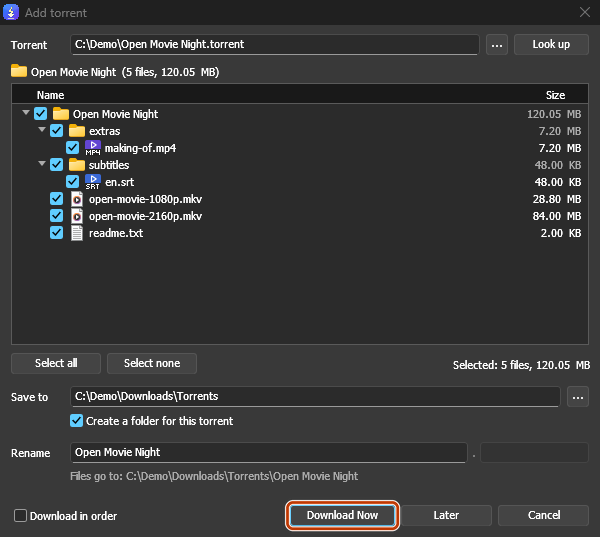
Deaktivieren Sie, was Sie nicht möchten, und klicken Sie dann auf „Jetzt herunterladen“. 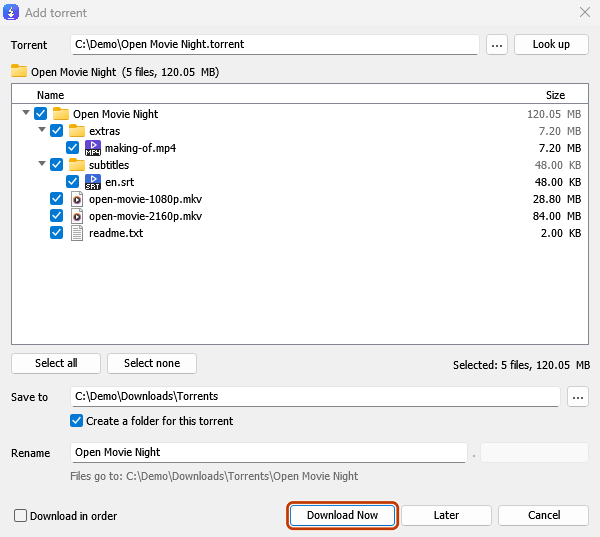
Das Fortschrittsfenster: jede Datei und wie viel davon hier ist. 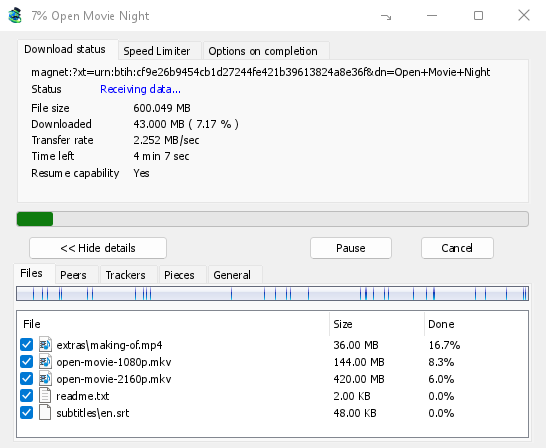
Teile: die Karte des Torrents, die sich füllt. 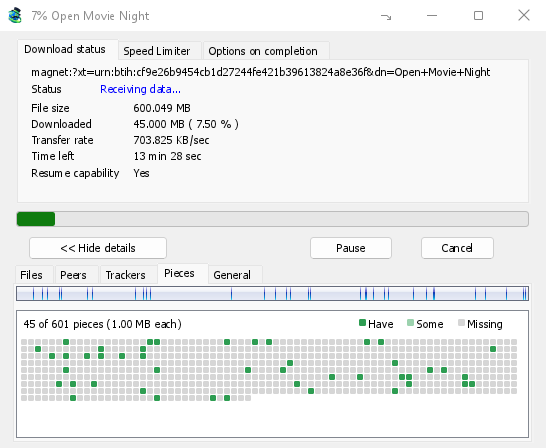
You can also paste a magnet link into Add URL, or drop a magnet link or a .torrent file on the drop target (Tasks → Show drop target). If a torrent is already in the list, VDM says so instead of adding it twice.
A .torrent file's web address works too: paste it into Add URL or Torrent, or let the browser hand the download over. VDM fetches the file, with the browser's cookies when the browser sent it, and Add torrent shows what it holds. The browser hands .torrent downloads over when TORRENT is in Options → File types and Open magnet links and .torrent files with Volt Download Manager is on in Torrent settings. TORRENT is in the list by default; a list you had before it came keeps what it had, so add TORRENT to it yourself. While that setting is off, the browser keeps .torrent downloads and opens them in your own torrent program, and the extension's button says why. Download with Volt Download Manager on a link always hands it over. A command line with /n (silent) saves the .torrent file itself, like any file. VDM fetches at most 10 MB: anything bigger isn't a .torrent file.
If some of the torrent's files are already in the folder, VDM asks before using them. Yes keeps them for the torrent: VDM checks them, keeps what matches the torrent and downloads the rest, which is how you continue a download started elsewhere or share files you already have. No (the default) goes back, so you can choose another folder and nothing of yours is overwritten.
The chosen layout is kept when the torrent is paused or VDM restarts. A multi-file torrent saved directly in Save to shares that directory: Move/Rename and folder renaming on completion are disabled for it so they cannot move unrelated files. Deleting the torrent's files leaves unrelated files and the shared destination folder in place. The layout option applies to direct BitTorrent downloads; torrents downloaded through a debrid account keep their existing layout.
Some programs (BitComet, for one) write a torrent's names in another encoding and add a UTF-8 copy of them (name.utf-8, path.utf-8); VDM shows and saves the files under the UTF-8 names. A torrent like that which was downloading in an earlier version starts those files again under their correct names, and leaves the files with the old names in the folder.
VDM refuses a torrent with file names your system can't write safely, says which name, and writes nothing. What others can see, the network switches in Torrent settings, blocklists and proxies: Torrents and your security.
Während des Downloads
Doppelklicken Sie in der Liste auf den Torrent, um das Fortschrittsfenster zu öffnen. Neben dem üblichen Status hat das Torrent-Fenster fünf Registerkarten:
- Dateien — jede Datei, ihre Größe und wie viel davon erledigt ist. Dateien, die Sie abgewählt haben, zeigen Übersprungen. Aktivieren oder deaktivieren Sie das Kontrollkästchen einer Datei, um zu ändern, was heruntergeladen wird, auch während der Torrent läuft. Mindestens eine Datei bleibt aktiviert. Wenn Sie alles noch Fehlende deaktivieren, ist der Torrent beendet. Wenn ein beendeter Torrent, der nicht läuft, eine Datei zurückbekommt, wartet er als gestoppt, bis Sie ihn fortsetzen, damit nichts ungesehen heruntergeladen wird.
- Peers – die Computer, von denen Sie herunterladen, mit Angabe, wie viel Sie von jedem empfangen und an jeden gesendet haben.
- Tracker – die Tracker des Torrents. Ohne Tracker kommen Peers vom DHT und anderen Peers.
- Teile – eine Karte der Torrent-Teile: vorhanden, teilweise vorhanden oder fehlend.
- General — the info hash, pieces, peers, how much was sent, the share ratio, how long it has been shared and the folder. What was sent and the time shared add up over all of the torrent's runs: they don't start again at 0 after a pause or a restart of VDM.
Die Tabs bleiben, sobald der Torrent fertig ist, solange er freigegeben wird.
A file is made when its first byte is downloaded, and only a ticked one is made in the folder: what an unticked file shares with a ticked one waits in VDM's own torrent data. A running torrent keeps only the files it is reading or writing open, a few hundred at most for all of VDM's torrents together (fewer where the system allows fewer, as macOS does), so a torrent of thousands of files runs where it used to fail with "Too many open files".
A stopped torrent keeps none of its files open: you can move, rename or delete them, or open them in another program, while it waits. When you start it again, VDM opens them where they are; a file that was moved away or deleted meanwhile is made again and its pieces downloaded again. A finished torrent that is shared (Keep sharing torrents after they finish, in Torrent settings) keeps its files open only to read them: other programs can open, copy, run, move or rename them meanwhile.
Der Reiter Geschwindigkeitsbegrenzer eines Torrent-Fensters bietet neben dem Download-Limit auch die Option Upload begrenzen auf eine Geschwindigkeit Ihrer Wahl. Dieses Limit bleibt beim Torrent gespeichert: Es wird jedes Mal angewendet, wenn der Torrent läuft oder teilt. Ein Torrent kann so oder so nicht unter 16 KByte/Sek gehalten werden.
Torrent-Befehle
Klicken Sie mit der rechten Maustaste auf einen Torrent in der Liste und öffnen Sie Torrent:
- Dateien erneut prüfen — liest jedes Stück der Torrent-Dateien und prüft es, zum Beispiel nachdem Sie Dateien verschoben haben oder eine Festplatte Fehler hatte. Ein laufender Torrent läuft danach weiter und holt das Fehlende. Ein gestoppter bleibt gestoppt. Sein Ereignisprotokoll sagt, wie viel gefunden wurde: Ein beendeter Torrent mit einem beschädigten Stück wird gestoppt, und das Fortsetzen holt das Stück erneut.
- Erneut ankündigen — fragt die Tracker des Torrents jetzt erneut nach Peers, anstatt auf die nächste Runde zu warten. Es funktioniert, während der Torrent läuft oder geteilt wird.
- Add trackers... — adds trackers, one address a line (
http,httpsorudp). They are kept with the torrent, after the ones it has, and the Trackers tab shows them. A tracker on your computer or your local network is refused: VDM never contacts those (why). - In Reihenfolge herunterladen — lädt die Dateien des Torrents vom Anfang an herunter (siehe unten). Klicken Sie erneut darauf, um wieder zuerst die seltensten Teile herunterzuladen.
- Erste und letzte Teile zuerst — bei In Reihenfolge herunterladen kommen die ersten und letzten Teile jeder Datei vor dem Rest. Dies ist standardmäßig aktiviert.
- Magnet-Link kopieren — kopiert einen Magnet-Link für den Torrent, mit seinen Trackern.
Das Ergebnis jedes Befehls wird im Ereignisprotokoll des Torrents angezeigt; fahren Sie mit der Maus über die Zelle Status in der Liste, um es zu lesen.
In Reihenfolge herunterladen
By default VDM downloads the pieces that the fewest peers have first, as BitTorrent programs usually do. That way a piece only one peer has is fetched before that peer leaves, and VDM can pass it on to others sooner. On VDM's test swarms it finished just as fast as downloading in order, and it was the only order that finished when a scarce piece's only holder left.
In Reihenfolge herunterladen ruft stattdessen zuerst den Anfang einer Datei ab, sodass Sie ein Video während des Downloads ansehen können: Öffnen Sie es in Ihrem Player, sobald der erste Teil vorhanden ist. Aktivieren Sie es unter Torrent hinzufügen oder wählen Sie jederzeit, auch während des Betriebs, Torrent → In Reihenfolge herunterladen im Rechtsklickmenü der Liste. Die nächsten angeforderten Teile folgen der neuen Reihenfolge.
- Mit Erste und letzte Teile zuerst (standardmäßig aktiviert) kommen auch die letzten Teile jeder Datei frühzeitig. Die meisten Videodateien speichern ihren Index am Ende, und ein Player liest ihn, bevor etwas abgespielt wird.
- Mehrere Dateien werden nacheinander und alphabetisch sortiert heruntergeladen.
- Langsamere Peers nehmen Teile etwas weiter vorne, damit der Anfang nicht auf sie warten muss.
Ein Torrent, der in Reihenfolge heruntergeladen wird, ist nicht schneller fertig und hilft dem Schwarm weniger: Verwenden Sie ihn für das, was Sie jetzt ansehen möchten.
RSS-Feeds
Many sites publish their new torrents as an RSS or Atom feed. VDM can watch feeds, list what they hold, and add the new torrents you want by itself. Choose Tasks → RSS feeds..., or click the arrow next to Add Torrent.
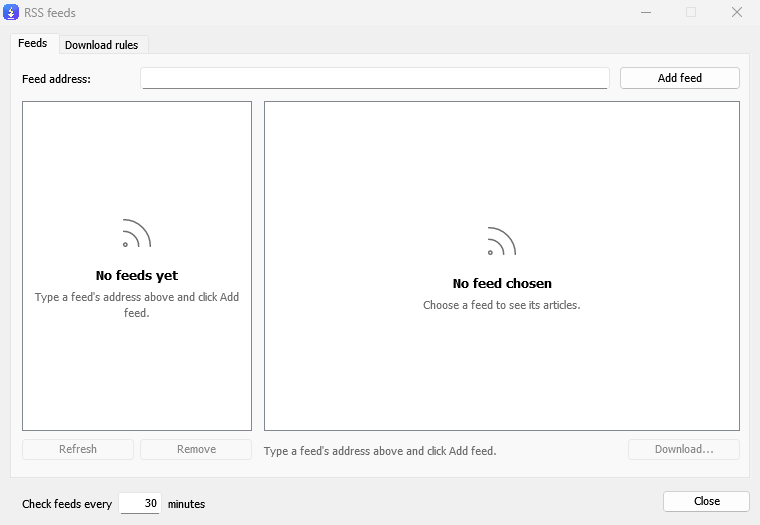
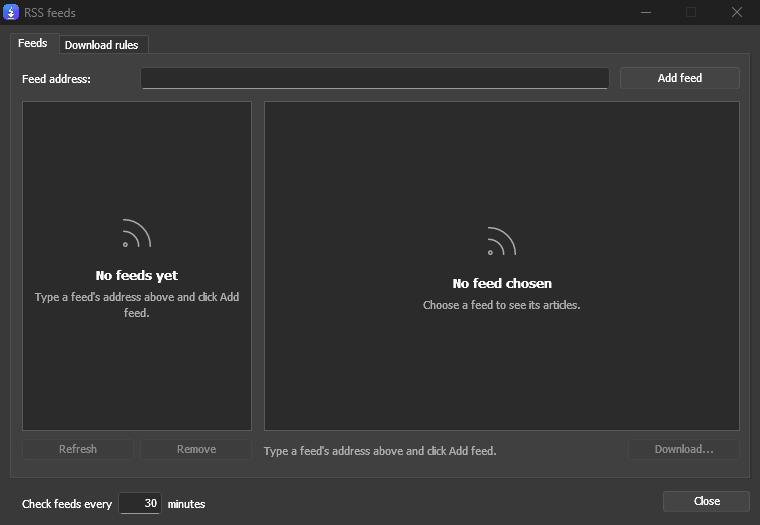
Registerkarte Feeds:
- Type a feed's address into Feed address and click Add feed. VDM fetches it at once, then every 30 minutes; change that under Check feeds every ... minutes, 5 at the least.
- Wählen Sie links einen Feed aus, um dessen Artikel anzuzeigen. Ein Artikel mit einem Torrent zeigt ein Torrent-Symbol und dessen Größe an, wenn der Feed diese angibt. Doppelklicken Sie auf einen oder wählen Sie ihn aus und klicken Sie auf Herunterladen..., um Torrent hinzufügen damit zu öffnen, wie bei jedem Magnet-Link oder
.torrent-Adresse. - Aktualisieren ruft den ausgewählten Feed jetzt ab. Entfernen beendet die Überwachung. Ein Feed, der nicht gelesen werden kann, wird rot angezeigt, und die Zeile unten gibt den Grund an.
Registerkarte Downloadregeln: Eine Regel fügt die Torrents neuer Artikel hinzu, deren Titel sie ohne Nachfrage abgleicht.
- Muss enthalten: Wörter, die der Titel enthalten muss, alle davon, in beliebiger Reihenfolge.
|trennt Alternativen (1080p|2160p), und*und?sind Platzhalter. Groß- und Kleinschreibung spielt keine Rolle. - Darf nicht enthalten: Wörter, die dazu führen, dass die Regel einen Artikel überspringt, auf die gleiche Weise geschrieben.
- Reguläre Ausdrücke: Die beiden Felder enthalten stattdessen reguläre Ausdrücke.
- Episoden: Welche Episoden übernommen werden sollen, gelesen aus
S01E05oder1x05im Titel.1x2ist Staffel 1 Episode 2,1x5-8Episoden 5 bis 8,2x1-alles ab Staffel 2 Episode 1 und3die gesamte Staffel 3, getrennt durch;. Leer: beliebiger Artikel. Eine Regel nimmt jede Episode einmal: Eine zweite Veröffentlichung einer bereits hinzugefügten Episode wird übersprungen. - Speichern unter: Der Ordner, in den die Torrents gespeichert werden; leer, der Ordner der Kategorie Torrents. Ohne Starten hinzufügen fügt sie hinzu, wie es Später herunterladen tun würde.
- Feeds: Die Feeds, die überwacht werden; keine angekreuzt, alle davon.
Rules only look at articles that are new since the feed was last fetched, and a feed's first fetch only lists what is there. So adding a feed or a rule never downloads a whole backlog. Matches ... articles now shows which of the articles the feeds hold now the rule matches, to check it; download those by hand. A torrent the list already has isn't added again, and neither is one whose files are already in the folder: VDM never writes into files it didn't make without asking. The bottom line of the tab says what the rules did last, and a torrent a rule added says so in its event log.
Feeds and rules are kept in rss.json in VDM's data folder. VDM reads at most 5 MB of a feed.
Torrent-Einstellungen
Wählen Sie Aufgaben → Torrent-Einstellungen... (oder den Pfeil neben Torrent hinzufügen):
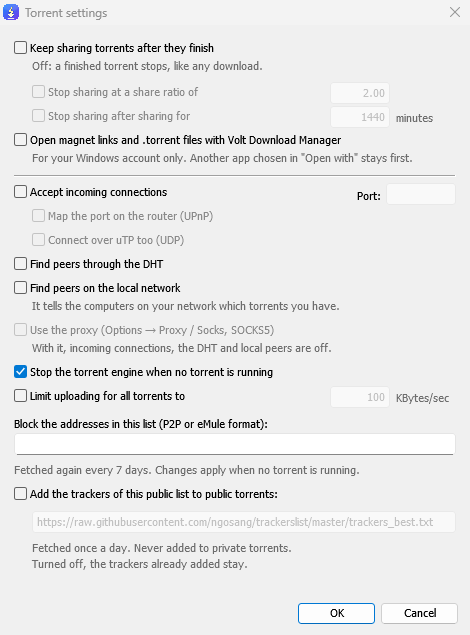
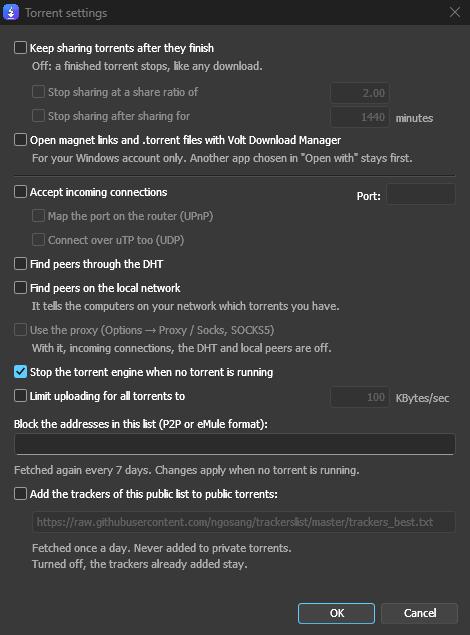
- Torrents nach Abschluss weitergeben – standardmäßig ausgeschaltet: Ein abgeschlossener Torrent stoppt wie jeder andere Download. Schalten Sie es ein, um nach Abschluss Ihres Downloads weiterhin auf andere Peers hochzuladen.
- Freigabe beenden bei einem Freigabeverhältnis von – ein fertiger Torrent wird nicht mehr freigegeben, sobald er das Vielfache dessen gesendet hat, was er besitzt (2,00: das Doppelte). Standardmäßig deaktiviert.
- Freigabe beenden nach … Minuten – oder sobald er so lange freigegeben wurde, über alle seine Läufe hinweg. Standardmäßig deaktiviert.
A torrent stopped by one of these says so in its event log, and isn't shared again when VDM starts. Raise or turn off the limit to share it again.
- Limit uploading for all torrents to — off by default. Caps what all your torrents together send to other peers, while they download and while they share. A torrent's own upload limit, in its progress window, applies on top of it.
- Open magnet links and .torrent files with Volt Download Manager — Windows then opens magnet links in your browser and .torrent files in Explorer with VDM. This is for your Windows account only. It also lists VDM in Windows' Settings → Apps → Default apps for MAGNET and .torrent. A program already chosen there (or in Open with) stays first, because Windows lets only you change that choice: when you turn the setting on and Windows still opens them with another program, VDM says which and opens its own Default apps page, where you set MAGNET and .torrent to Volt Download Manager. Firefox can keep a choice of its own for magnet links: when magnet is listed in its Settings → General → Applications, set its action to Volt Download Manager (shown as the default once Windows has it) or to Always ask. The setup can turn it on for you. It also decides whether the browser hands .torrent downloads to VDM: off, they stay with the browser for your own torrent program, even with TORRENT in Options → File types. It starts as you chose in the setup; a portable copy, or an VDM updated from an earlier version, starts with it on when your system already opens .torrent files with this VDM (or you had ticked it), off otherwise. From then on it stays as you leave it. On Linux it makes VDM your desktop's default app for them; on macOS, their default app (Finder offers VDM in Open With for .torrent files either way, and a double-click opens them in VDM when no other app is their default).
-
Connect over uTP too (UDP) — on by default. uTP is BitTorrent over UDP. Many peers (qBittorrent's, µTorrent's, Transmission's and others) take uTP, and some take nothing else: without it, VDM can't reach those, and a torrent with few peers may find almost none. VDM tries TCP first and uTP when TCP doesn't answer within a second, on the same port it listens on, so uTP needs Accept incoming connections on. A SOCKS5 proxy carries only TCP, so with Use the proxy on, uTP is off. A chosen network adapter holds uTP's socket too.
-
Add the trackers of this public list to public torrents — off by default. While it is on, every public torrent also asks the trackers of a public tracker list, so it finds peers sooner, above all an old torrent whose own trackers have gone quiet: the ones you add from then on, and those already in your list (once, when you turn it on). The list is ngosang/trackerslist's best trackers unless you type another address in the box (one tracker per line). VDM fetches it with its own downloader, through your proxy and network adapter, once a day (an hour later when a fetch failed), and keeps the last good copy: a new torrent never waits for it, and takes the list as last fetched. When a newer list brings new trackers, each torrent gets those too. A private torrent (one from a private tracker, marked so inside the torrent) never gets them: it may only ask its own trackers. Turning it off doesn't take away the trackers already added. Each torrent's Trackers tab shows them, and its event log says how many were added.
voltdownloadmanager-cli torrent-getfollows the same switch.
Dasselbe Fenster enthält die Netzwerkeinstellungen (eingehende Verbindungen, Port, UPnP, uTP, DHT, SOCKS5-Proxy), die Blockliste und die öffentliche Tracker-Liste: siehe Torrents und Ihre Sicherheit.
VDM starts its torrent engine the first time you add a torrent. If you never use torrents, it never listens for peers.
When the network comes back after a drop (Wi-Fi reconnecting, the computer waking from sleep, a VPN connecting or switching), VDM notices within a few seconds and calls the torrents' peers again at once, and asks their trackers and the DHT again, so a download picks up where it was instead of waiting minutes for each peer's next try. Each peer is called once for it; a tracker is still never asked sooner than its minimum interval. Behind a SOCKS5 proxy, a drop the computer itself doesn't see (the router losing its line while Wi-Fi stays up) is noticed only through the DHT, which is off there, so those torrents come back on their own, as before.
To find peers without trackers, VDM joins the DHT through four public routers (dht.libtorrent.org, dht.transmissionbt.com, router.bittorrent.com and router.utorrent.com); any one that answers is enough. It keeps the DHT nodes it found for the next start, so later starts don't depend on those routers.
VDM's log (logs\vdm.log in VDM's data folder) says where it listens, for example torrents: listening for peers on TCP and uTP (UDP) port 51413 (every address, IPv4 and IPv6: [::]:51413). That is one socket for IPv4 and IPv6 (and one UDP socket for uTP), so on Windows netstat -ano -p tcp (IPv4 only) doesn't list it; netstat -ano or Get-NetTCPConnection -State Listen does, under [::] or :: (and Get-NetUDPEndpoint the uTP one).
On a Linux system without CA certificates (a minimal install without the ca-certificates package), torrents still work: peers, the DHT and http:// trackers. An https:// tracker can't be checked there, so VDM skips it; install that package to use those too.
With a debrid account, torrents and magnet links can go to the service instead of to peers, and VDM downloads the files from it over HTTP: see Torrents through the service.
Nächste Schritte
Kostenlos, Open Source, keine Werbung, keine Testversion.
Download Volt Download Manager