

VDM downloads BitTorrent files from magnet links and .torrent files. Torrents appear in the same list as other downloads, marked Torrent in the Source column, and can be queued and scheduled like them.
Добавить торрент
- Нажмите Добавить торрент на панели инструментов, чтобы выбрать
.torrent-файл. Или нажмите стрелку рядом с ней и выберите Открыть торрент-файл... или Добавить magnet-ссылку... (также в меню Задачи). - Откроется окно Добавить торрент. Вставьте magnet-ссылку в поле Торрент или нажмите ..., чтобы выбрать
.torrent-файл, затем нажмите Найти. - VDM reads the torrent and shows its files as a folder tree. A
.torrentfile is read at once. A magnet link first has to get the file list from other peers, usually within seconds. While it waits, Add torrent shows how many peers it found, from the trackers, the DHT or your local network, and how many answered. After 30 seconds without an answer, it says what may be in the way: a link with no trackers while the DHT is off, or a firewall, a VPN or a network that blocks BitTorrent. - Снимите отметки с ненужных папок или файлов. Кнопки Выбрать все и Снять выделение помогут управлять большими торрентами. Выбрано показывает количество выбранных файлов и их общий размер.
- Установите флажок Сохранить в. Файлы сохраняются в показывает точную папку. Торренты имеют свою собственную категорию, поэтому по умолчанию это
Downloads\Torrents. Для торрента с несколькими файлами, загружаемого напрямую через BitTorrent, флажок Создать папку для этого торрента установлен по умолчанию. Снимите его, чтобы поместить файлы непосредственно в Сохранить в, сохраняя их внутренние папки. Дерево файлов и Файлы сохраняются в обновляются соответствующим образом. Переименовать отключено, пока нет внешней папки для именования. - Чтобы смотреть видео во время загрузки, установите флажок Скачивать по порядку (см. Скачивать по порядку).
- Нажмите Загрузить сейчас или Позже, чтобы добавить его в список без начала загрузки.
Место назначения, уже занятое другой загрузкой, включая ту, что ожидает с Позже, должно быть изменено, прежде чем торрент будет добавлен. Это включает невыбранные пути, потому что перекрывающийся фрагмент может записывать в них. Более старый торрент без сохраненного списка заявленных файлов консервативно резервирует все свое место назначения; выберите другое место назначения или удалите эту запись из списка, не удаляя ее файлы, прежде чем делиться каталогом.
Also delete the file from disk removes the files VDM made for the torrent, each recognised by its file index and the time it was created, so a file that took the same name later is never taken for the torrent's. Files that were already there, files another download claims and files you agreed to use stay. VDM creates every ticked file of a torrent itself, empty, before it starts, so they are removed with it. Unticked files aren't made in the folder: the parts of the pieces they share with ticked files are kept in VDM's own torrent data, and go with the torrent; a file ticked later is made then, and gets them. Only empty folders VDM created are removed; existing folders and a shared Save to folder stay. A torrent with its own outer folder, added before this version, is deleted the way it always was. An older one-file torrent is deleted by name, from its own folder. Another older torrent (saved without an outer folder) has no record of its files: VDM keeps them and says why, so check and remove them yourself. A filesystem that gives no reliable creation time (FAT and exFAT, some network and Linux filesystems) keeps its files: VDM never deletes what it cannot recognise. Whenever Also delete the file from disk leaves files on the disk, VDM lists them. A Save to folder that does not exist yet is made, with its parents, when the torrent starts. A torrent added before this version, with its own folder or one file, takes the files already there as its own once, so resuming it or sharing it again does not ask about files VDM itself downloaded.
The torrent can only write into files VDM has checked, however it starts (Download Now, Resume, the Files tab, Recheck, or when VDM opens). If a file is at one of its paths and VDM did not make it (saved there after the torrent was added, replaced while the torrent was stopped, or moved to another drive by something other than VDM), VDM asks before using it. Yes lets the torrent use the file and write into it, and VDM never deletes it; No leaves it as it is and the torrent does not start. Starting it again asks again. An empty file is asked about too (a .gitkeep, or a file another program has just made and is about to write). If you replace a file while its torrent is stopped, starting the torrent adds it again on the file that is there now, so what you agreed to is what it writes to. When VDM opens, finished torrents are shared again only if their files are as VDM left them; one with a file that would need your permission is left stopped, and VDM asks nothing then.
An older VDM can open a list that holds a torrent saved without its own folder, but it does not know that its folder is shared: do not Move, Rename or Delete that torrent there. Its Delete with files removes every file of the torrent in Save to, those you agreed to use included, and Save to itself if that is then empty. This version recognises such a torrent again from its address, which an older VDM keeps.
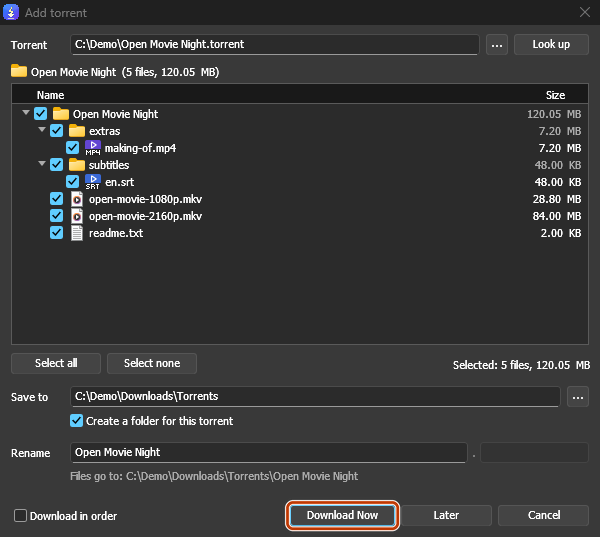
Снимите отметки с ненужных файлов, затем нажмите «Загрузить сейчас». 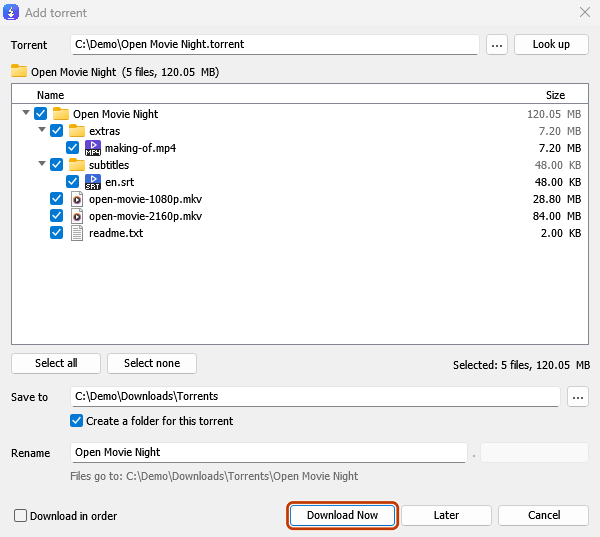
Окно хода загрузки: каждый файл и его текущий объем. 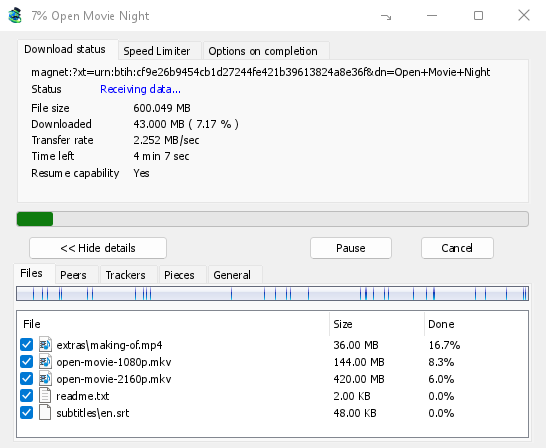
Части: карта торрента, заполняющаяся по мере загрузки. 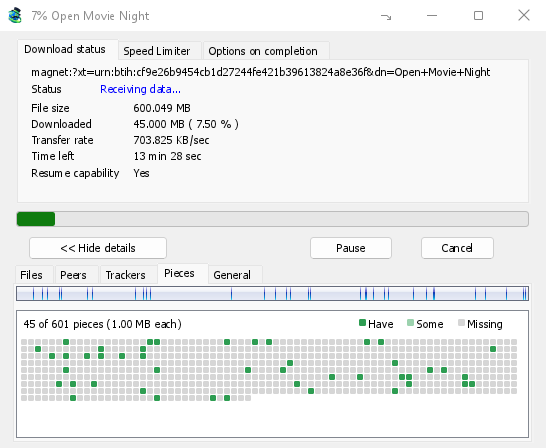
You can also paste a magnet link into Add URL, or drop a magnet link or a .torrent file on the drop target (Tasks → Show drop target). If a torrent is already in the list, VDM says so instead of adding it twice.
A .torrent file's web address works too: paste it into Add URL or Torrent, or let the browser hand the download over. VDM fetches the file, with the browser's cookies when the browser sent it, and Add torrent shows what it holds. The browser hands .torrent downloads over when TORRENT is in Options → File types and Open magnet links and .torrent files with Volt Download Manager is on in Torrent settings. TORRENT is in the list by default; a list you had before it came keeps what it had, so add TORRENT to it yourself. While that setting is off, the browser keeps .torrent downloads and opens them in your own torrent program, and the extension's button says why. Download with Volt Download Manager on a link always hands it over. A command line with /n (silent) saves the .torrent file itself, like any file. VDM fetches at most 10 MB: anything bigger isn't a .torrent file.
If some of the torrent's files are already in the folder, VDM asks before using them. Yes keeps them for the torrent: VDM checks them, keeps what matches the torrent and downloads the rest, which is how you continue a download started elsewhere or share files you already have. No (the default) goes back, so you can choose another folder and nothing of yours is overwritten.
The chosen layout is kept when the torrent is paused or VDM restarts. A multi-file torrent saved directly in Save to shares that directory: Move/Rename and folder renaming on completion are disabled for it so they cannot move unrelated files. Deleting the torrent's files leaves unrelated files and the shared destination folder in place. The layout option applies to direct BitTorrent downloads; torrents downloaded through a debrid account keep their existing layout.
Some programs (BitComet, for one) write a torrent's names in another encoding and add a UTF-8 copy of them (name.utf-8, path.utf-8); VDM shows and saves the files under the UTF-8 names. A torrent like that which was downloading in an earlier version starts those files again under their correct names, and leaves the files with the old names in the folder.
VDM refuses a torrent with file names your system can't write safely, says which name, and writes nothing. What others can see, the network switches in Torrent settings, blocklists and proxies: Torrents and your security.
Во время загрузки
Дважды щелкните торрент в списке, чтобы открыть окно его прогресса. Помимо обычного статуса, окно торрента имеет пять вкладок:
- Файлы — каждый файл, его размер и степень завершения. Файлы, которые вы сняли с отметки, показывают Пропущено. Отметьте или снимите отметку с файла, чтобы изменить то, что загружается, даже во время работы торрента. По крайней мере один файл остается отмеченным. Если вы снимете отметку со всего, что ещё отсутствует, торрент завершится. Если завершенный торрент, который не работает, снова получает файл, он ожидает в состоянии остановки, пока вы его не возобновите, чтобы ничего не загружалось незаметно.
- Пиры — компьютеры, с которых вы загружаете, с указанием объема полученных и отправленных данных каждому.
- Трекеры — трекеры торрента. Если их нет, пиры приходят из DHT и от других пиров.
- Части — карта частей торрента: есть, частично есть или отсутствуют.
- General — the info hash, pieces, peers, how much was sent, the share ratio, how long it has been shared and the folder. What was sent and the time shared add up over all of the torrent's runs: they don't start again at 0 after a pause or a restart of VDM.
Вкладки остаются после завершения торрента, пока он раздаётся.
A file is made when its first byte is downloaded, and only a ticked one is made in the folder: what an unticked file shares with a ticked one waits in VDM's own torrent data. A running torrent keeps only the files it is reading or writing open, a few hundred at most for all of VDM's torrents together (fewer where the system allows fewer, as macOS does), so a torrent of thousands of files runs where it used to fail with "Too many open files".
A stopped torrent keeps none of its files open: you can move, rename or delete them, or open them in another program, while it waits. When you start it again, VDM opens them where they are; a file that was moved away or deleted meanwhile is made again and its pieces downloaded again. A finished torrent that is shared (Keep sharing torrents after they finish, in Torrent settings) keeps its files open only to read them: other programs can open, copy, run, move or rename them meanwhile.
Вкладка Ограничитель скорости в окне торрента, помимо ограничения загрузки, имеет опцию Ограничить отдачу до выбранной вами скорости. Это ограничение сохраняется с торрентом: оно применяется каждый раз, когда торрент запускается или раздаётся. Торрент не может быть ограничен ниже 16 КБ/сек ни в одном из направлений.
Команды торрента
Щелкните правой кнопкой мыши по торренту в списке и откройте Торрент:
- Повторная проверка файлов — считывает и проверяет каждый фрагмент файлов торрента, например, после того как вы переместили файлы или на диске возникли ошибки. Работающий торрент затем продолжает работу и получает недостающее. Остановленный торрент остается остановленным. В его журнале событий указано, сколько было найдено: завершенный торрент с поврежденным фрагментом становится остановленным, и возобновление его работы снова получает этот фрагмент.
- Повторный анонс — снова запрашивает пиры у трекеров торрента сейчас, вместо того чтобы ждать их следующего раунда. Работает, пока торрент загружается или раздается.
- Add trackers... — adds trackers, one address a line (
http,httpsorudp). They are kept with the torrent, after the ones it has, and the Trackers tab shows them. A tracker on your computer or your local network is refused: VDM never contacts those (why). - Скачивать по порядку — загружает файлы торрента с самого начала (см. ниже). Нажмите ещё раз, чтобы снова загружать сначала самые редкие части.
- Сначала первые и последние части — при включенной опции Скачивать по порядку сначала загружаются первые и последние части каждого файла. Включено по умолчанию.
- Копировать magnet-ссылку — копирует magnet-ссылку для торрента, включая его трекеры.
Результат каждой команды заносится в журнал событий торрента; наведите курсор на ячейку Состояние в списке, чтобы прочитать его.
Скачивать по порядку
By default VDM downloads the pieces that the fewest peers have first, as BitTorrent programs usually do. That way a piece only one peer has is fetched before that peer leaves, and VDM can pass it on to others sooner. On VDM's test swarms it finished just as fast as downloading in order, and it was the only order that finished when a scarce piece's only holder left.
Скачивать по порядку сначала загружает начало файла, чтобы вы могли смотреть видео во время загрузки: откройте его в своем проигрывателе, как только загрузится первая часть. Установите флажок в окне Добавить торрент или выберите Торрент → Скачивать по порядку в контекстном меню списка в любое время, даже во время работы. Следующие запрашиваемые части будут следовать новому порядку.
- При включенной опции Сначала первые и последние части (включена по умолчанию) последние части каждого файла также загружаются раньше. Большинство видеофайлов хранят свой индекс в конце, и проигрыватель считывает его до начала воспроизведения.
- Несколько файлов загружаются один за другим, отсортированные по имени.
- Более медленные пиры получают части чуть дальше по файлу, чтобы начало загрузки не ждало их.
Торрент, загружаемый по порядку, не завершится быстрее и приносит меньше пользы рою. Используйте этот режим, если хотите посмотреть файл прямо сейчас.
Ленты RSS
Many sites publish their new torrents as an RSS or Atom feed. VDM can watch feeds, list what they hold, and add the new torrents you want by itself. Choose Tasks → RSS feeds..., or click the arrow next to Add Torrent.
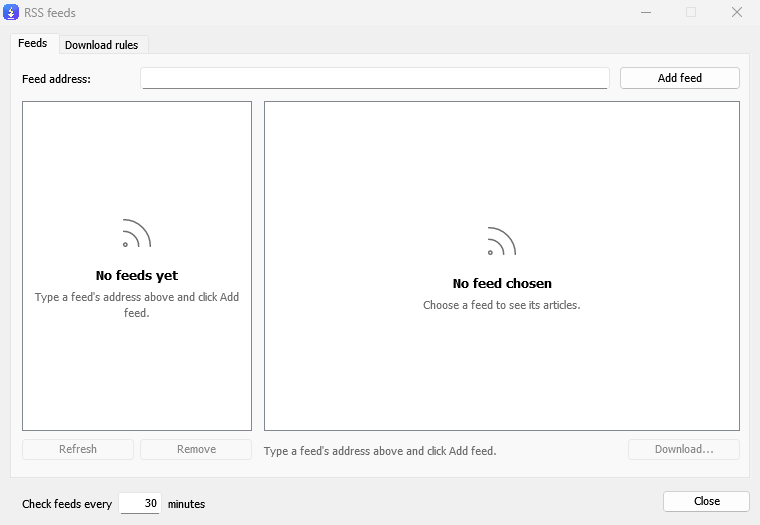
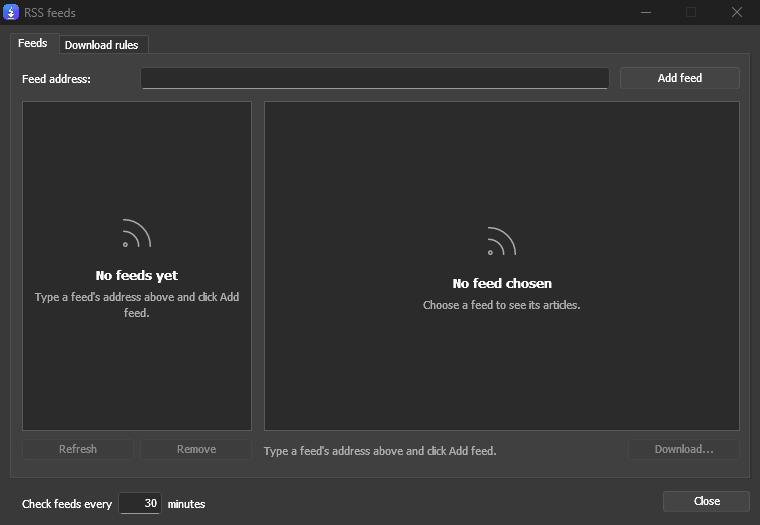
Вкладка Ленты:
- Type a feed's address into Feed address and click Add feed. VDM fetches it at once, then every 30 minutes; change that under Check feeds every ... minutes, 5 at the least.
- Выберите ленту слева, чтобы увидеть её статьи. Статья с торрентом показывает значок торрента и его размер, если это указано в ленте. Дважды щёлкните по статье или выберите её и нажмите Загрузить..., чтобы открыть окно Добавить торрент, как для любой magnet-ссылки или
.torrentадреса. - Обновить загружает выбранную ленту сейчас. Удалить прекращает отслеживание. Лента, которую не удалось прочитать, отображается красным цветом, а в нижней строке указывается причина.
Вкладка Правила загрузки: правило добавляет торренты из новых статей, заголовки которых ему соответствуют, без запроса.
- Должно содержать: слова, которые должны содержаться в заголовке, все из них, в любом порядке.
|разделяет альтернативы (1080p|2160p), а*и?являются подстановочными знаками. Регистр не имеет значения. - Не должно содержать: слова, из-за которых правило пропускает статью, написанные таким же образом.
- Регулярные выражения: оба поля содержат регулярные выражения.
- Эпизоды: какие эпизоды загружать. Они определяются по
S01E05или1x05в заголовке.1x2— 1 сезон, 2 эпизод;1x5-8— эпизоды с 5-го по 8-й;2x1-— всё начиная со 2 сезона, 1 эпизода;3— весь 3 сезон. Значения разделяются;. Если поле пустое, подходят любые статьи. Правило добавляет каждый эпизод только один раз: повторный выпуск уже добавленного эпизода будет пропущен. - Сохранить в: папка, куда сохраняются торренты; если пусто, то папка категории «Торренты». Добавить без запуска добавляет их так же, как Загрузить позже.
- Ленты: отслеживаемые ленты; если ни одна не отмечена, то все.
Rules only look at articles that are new since the feed was last fetched, and a feed's first fetch only lists what is there. So adding a feed or a rule never downloads a whole backlog. Matches ... articles now shows which of the articles the feeds hold now the rule matches, to check it; download those by hand. A torrent the list already has isn't added again, and neither is one whose files are already in the folder: VDM never writes into files it didn't make without asking. The bottom line of the tab says what the rules did last, and a torrent a rule added says so in its event log.
Feeds and rules are kept in rss.json in VDM's data folder. VDM reads at most 5 MB of a feed.
Настройки торрента
Выберите Задачи → Настройки торрента... (или стрелку рядом с Добавить торрент):
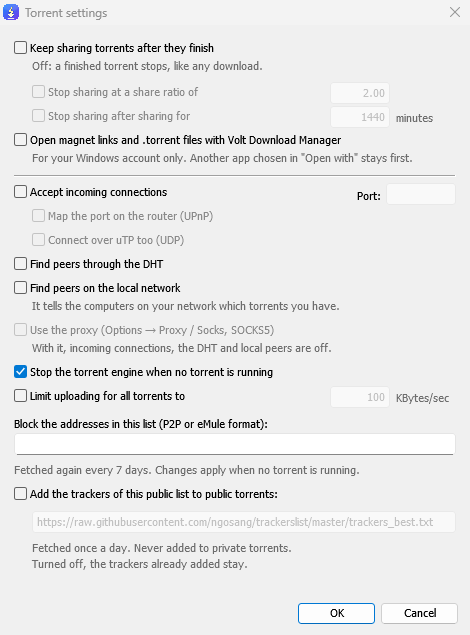
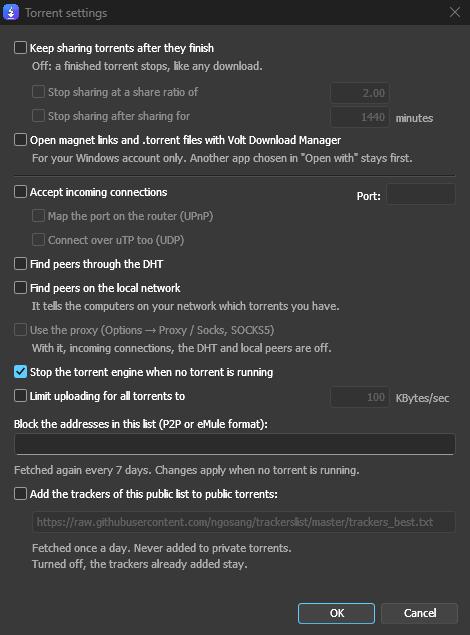
- Продолжать раздачу торрентов после завершения — по умолчанию отключено: завершенный торрент останавливается, как и любая загрузка. Включите эту опцию, чтобы продолжать загружать данные другим пирам после завершения вашей загрузки.
- Остановить раздачу при коэффициенте раздачи — завершённый торрент перестаёт раздаваться, как только он отправил в столько раз больше, чем получил (2.00: в два раза). По умолчанию отключено.
- Остановить раздачу после раздачи в течение … минут — или как только он раздавался столько времени за все свои запуски. По умолчанию отключено.
A torrent stopped by one of these says so in its event log, and isn't shared again when VDM starts. Raise or turn off the limit to share it again.
- Limit uploading for all torrents to — off by default. Caps what all your torrents together send to other peers, while they download and while they share. A torrent's own upload limit, in its progress window, applies on top of it.
- Open magnet links and .torrent files with Volt Download Manager — Windows then opens magnet links in your browser and .torrent files in Explorer with VDM. This is for your Windows account only. It also lists VDM in Windows' Settings → Apps → Default apps for MAGNET and .torrent. A program already chosen there (or in Open with) stays first, because Windows lets only you change that choice: when you turn the setting on and Windows still opens them with another program, VDM says which and opens its own Default apps page, where you set MAGNET and .torrent to Volt Download Manager. Firefox can keep a choice of its own for magnet links: when magnet is listed in its Settings → General → Applications, set its action to Volt Download Manager (shown as the default once Windows has it) or to Always ask. The setup can turn it on for you. It also decides whether the browser hands .torrent downloads to VDM: off, they stay with the browser for your own torrent program, even with TORRENT in Options → File types. It starts as you chose in the setup; a portable copy, or an VDM updated from an earlier version, starts with it on when your system already opens .torrent files with this VDM (or you had ticked it), off otherwise. From then on it stays as you leave it. On Linux it makes VDM your desktop's default app for them; on macOS, their default app (Finder offers VDM in Open With for .torrent files either way, and a double-click opens them in VDM when no other app is their default).
-
Connect over uTP too (UDP) — on by default. uTP is BitTorrent over UDP. Many peers (qBittorrent's, µTorrent's, Transmission's and others) take uTP, and some take nothing else: without it, VDM can't reach those, and a torrent with few peers may find almost none. VDM tries TCP first and uTP when TCP doesn't answer within a second, on the same port it listens on, so uTP needs Accept incoming connections on. A SOCKS5 proxy carries only TCP, so with Use the proxy on, uTP is off. A chosen network adapter holds uTP's socket too.
-
Add the trackers of this public list to public torrents — off by default. While it is on, every public torrent also asks the trackers of a public tracker list, so it finds peers sooner, above all an old torrent whose own trackers have gone quiet: the ones you add from then on, and those already in your list (once, when you turn it on). The list is ngosang/trackerslist's best trackers unless you type another address in the box (one tracker per line). VDM fetches it with its own downloader, through your proxy and network adapter, once a day (an hour later when a fetch failed), and keeps the last good copy: a new torrent never waits for it, and takes the list as last fetched. When a newer list brings new trackers, each torrent gets those too. A private torrent (one from a private tracker, marked so inside the torrent) never gets them: it may only ask its own trackers. Turning it off doesn't take away the trackers already added. Each torrent's Trackers tab shows them, and its event log says how many were added.
voltdownloadmanager-cli torrent-getfollows the same switch.
В этом же окне находятся сетевые переключатели (входящие соединения, порт, UPnP, uTP, DHT, прокси SOCKS5), черный список и список публичных трекеров: см. Торренты и ваша безопасность.
VDM starts its torrent engine the first time you add a torrent. If you never use torrents, it never listens for peers.
When the network comes back after a drop (Wi-Fi reconnecting, the computer waking from sleep, a VPN connecting or switching), VDM notices within a few seconds and calls the torrents' peers again at once, and asks their trackers and the DHT again, so a download picks up where it was instead of waiting minutes for each peer's next try. Each peer is called once for it; a tracker is still never asked sooner than its minimum interval. Behind a SOCKS5 proxy, a drop the computer itself doesn't see (the router losing its line while Wi-Fi stays up) is noticed only through the DHT, which is off there, so those torrents come back on their own, as before.
To find peers without trackers, VDM joins the DHT through four public routers (dht.libtorrent.org, dht.transmissionbt.com, router.bittorrent.com and router.utorrent.com); any one that answers is enough. It keeps the DHT nodes it found for the next start, so later starts don't depend on those routers.
VDM's log (logs\vdm.log in VDM's data folder) says where it listens, for example torrents: listening for peers on TCP and uTP (UDP) port 51413 (every address, IPv4 and IPv6: [::]:51413). That is one socket for IPv4 and IPv6 (and one UDP socket for uTP), so on Windows netstat -ano -p tcp (IPv4 only) doesn't list it; netstat -ano or Get-NetTCPConnection -State Listen does, under [::] or :: (and Get-NetUDPEndpoint the uTP one).
On a Linux system without CA certificates (a minimal install without the ca-certificates package), torrents still work: peers, the DHT and http:// trackers. An https:// tracker can't be checked there, so VDM skips it; install that package to use those too.
With a debrid account, torrents and magnet links can go to the service instead of to peers, and VDM downloads the files from it over HTTP: see Torrents through the service.
Дальнейшие действия
Бесплатно, с открытым исходным кодом, без рекламы, без пробного периода.
Download Volt Download Manager