

Set up the extension once, and every download link you click in Firefox, Chrome, Edge, Brave, Opera, Vivaldi or Helium goes to VDM.
Перед началом
On Windows, VDM must be installed with the setup, with Set up browser integration (Chrome, Edge, Brave, Firefox) ticked. It is ticked by default. If you're not sure, run the setup again. A portable copy can't do this. On Linux and macOS, start VDM once: it sets browser integration up itself.
VDM's Add Volt Download Manager to your browser window, which opens at each start until a browser's extension has reached VDM, does the steps below for you: Add the extension opens the store's page in that browser.
После настройки ссылка на скачивание выглядит так:
Click a download link in the browser: Download File Info opens in VDM. 

Начать загрузку: в окне отображается ход загрузки. 

Загрузка завершена: откройте файл или папку. 

В Firefox
- Open the add-on's page on addons.mozilla.org, Volt Download Manager, and click Add to Firefox. Zen and LibreWolf use the same page.
- Firefox попросит подтвердить действие: нажмите Добавить. Firefox будет автоматически обновлять дополнение.
- Go to a web page and click a download link, for example a ZIP or an EXE: VDM opens Download File Info. Click Start Download.
В Chrome, Edge, Brave, Opera или Vivaldi
- Open the extension's page in the Chrome Web Store, Volt Download Manager, and click Add to Chrome. In Edge the button is Get, and Edge first asks to Allow extensions from other stores: click Allow.
- Браузер попросит подтвердить действие: нажмите Добавить расширение. Браузер будет автоматически обновлять расширение.
- Go to a web page and click a download link, for example a ZIP or an EXE: VDM opens Download File Info. Click Start Download.
Helium устанавливает его с той же страницы, если Helium разрешено скачивать расширения: см. Helium.
Без магазина
Если браузер не может использовать свой магазин (компьютер, управляемый организацией, или ваша собственная сборка), добавьте расширение вручную:
- Откройте страницу расширений вашего браузера: введите
chrome://extensions,edge://extensionsилиbrave://extensionsв адресную строку. - Включите Режим разработчика.
- Нажмите Загрузить распакованное.
- Choose the
extension\chromiumfolder inside VDM's folder. If you installed VDM for yourself, that is%LOCALAPPDATA%\Programs\Volt Download Manager\extension\chromium; you can paste that path into the folder box. - Volt Download Manager appears. Make sure it is turned on.
- Перейдите на веб-страницу и нажмите на ссылку для скачивания, например, ZIP или EXE.
- VDM opens Download File Info instead of the browser downloading the file. Click Start Download.
You don't need to start VDM first: if it isn't running, it starts by itself.
Choose what VDM takes
- Какие типы файлов: Параметры → Типы файлов → Автоматически начинать загрузку следующих типов файлов. Добавьте или удалите типы, разделенные пробелами.
- Сайты, которые нужно игнорировать: Параметры → Типы файлов → Не начинать загрузку автоматически со следующих сайтов. Добавьте имя сайта, например
example.com: это относится кwww.example.comи другим поддоменам сайта, а также к файлам, на которые ссылаются его страницы на другом сервере. - One browser only: Options → General → Capture downloads from the following browsers. Untick the ones VDM should leave alone.
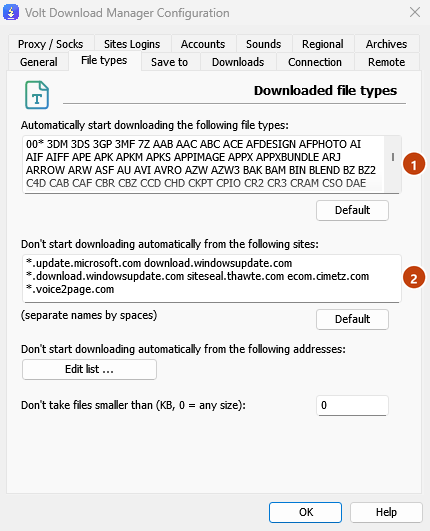
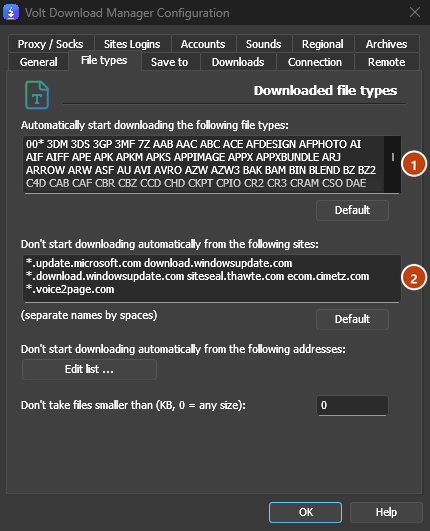
Everything VDM doesn't take stays with the browser.
Скачать ссылку, которую браузер открыл бы
Links to a PDF or a video file, which the browser would open itself, go to VDM too when their type is listed. To leave one to the browser, hold Alt while clicking it: the browser opens it as a plain click would. Any other link: right-click it and choose Download with Volt Download Manager, which takes any type.
Дальнейшие действия
- Интеграция с браузером подробно (Firefox, приватные окна, что отправляется) →
- Если браузер не передаёт загрузки →
- Загрузка на ночь →
Бесплатно, с открытым исходным кодом, без рекламы, без пробного периода.
Download Volt Download Manager