

Set up the extension once, and every download link you click in Firefox, Chrome, Edge, Brave, Opera, Vivaldi or Helium goes to VDM.
Başlamadan önce
On Windows, VDM must be installed with the setup, with Set up browser integration (Chrome, Edge, Brave, Firefox) ticked. It is ticked by default. If you're not sure, run the setup again. A portable copy can't do this. On Linux and macOS, start VDM once: it sets browser integration up itself.
VDM's Add Volt Download Manager to your browser window, which opens at each start until a browser's extension has reached VDM, does the steps below for you: Add the extension opens the store's page in that browser.
Ayarladıktan sonra, indirme bağlantısı şöyle çalışır:
Click a download link in the browser: Download File Info opens in VDM. 

İndirmeyi Başlat: İlerleme penceresi, dosyanın indirildiğini gösterir. 

İndirme tamamlandı: Dosyayı açın veya Klasörü açın. 

Firefox'ta
- Open the add-on's page on addons.mozilla.org, Volt Download Manager, and click Add to Firefox. Zen and LibreWolf use the same page.
- Firefox onaylamanızı ister: Ekle düğmesine tıklayın. Firefox eklentiyi güncel tutar.
- Go to a web page and click a download link, for example a ZIP or an EXE: VDM opens Download File Info. Click Start Download.
Chrome, Edge, Brave, Opera veya Vivaldi'de
- Open the extension's page in the Chrome Web Store, Volt Download Manager, and click Add to Chrome. In Edge the button is Get, and Edge first asks to Allow extensions from other stores: click Allow.
- Tarayıcı onaylamanızı ister: Uzantıyı ekle düğmesine tıklayın. Bu, uzantıyı güncel tutar.
- Go to a web page and click a download link, for example a ZIP or an EXE: VDM opens Download File Info. Click Start Download.
Helium, uzantıları indirebildiği sürece aynı sayfadan yükler: Helium bölümüne bakın.
Mağaza olmadan
Bir tarayıcı mağazasını kullanamadığında (bir kuruluş tarafından yönetilen bir bilgisayar veya kendi derlemeniz), uzantıyı elle ekleyin:
- Tarayıcınızın uzantılar sayfasını açın: adres çubuğuna
chrome://extensions,edge://extensionsveyabrave://extensionsyazın. - Geliştirici modunu açın.
- Paketlenmemiş uzantıyı yükle’ye tıklayın.
- Choose the
extension\chromiumfolder inside VDM's folder. If you installed VDM for yourself, that is%LOCALAPPDATA%\Programs\Volt Download Manager\extension\chromium; you can paste that path into the folder box. - Volt Download Manager appears. Make sure it is turned on.
- Bir web sayfasına gidin ve bir indirme bağlantısına tıklayın, örneğin bir ZIP veya bir EXE.
- VDM opens Download File Info instead of the browser downloading the file. Click Start Download.
You don't need to start VDM first: if it isn't running, it starts by itself.
Choose what VDM takes
- Hangi dosya türleri: Seçenekler → Dosya türleri → Aşağıdaki dosya türlerini otomatik olarak indirmeye başla. Boşluklarla ayırarak türleri ekleyin veya kaldırın.
- Hariç tutulacak siteler: Seçenekler → Dosya türleri → Aşağıdaki sitelerden otomatik indirmeyi başlatma. Sitenin adını ekleyin, örneğin
example.com: bu,www.example.comve sitenin diğer alt alanlarını, ayrıca sayfalarının başka bir sunucuda bağlantı verdiği dosyaları kapsar. - One browser only: Options → General → Capture downloads from the following browsers. Untick the ones VDM should leave alone.
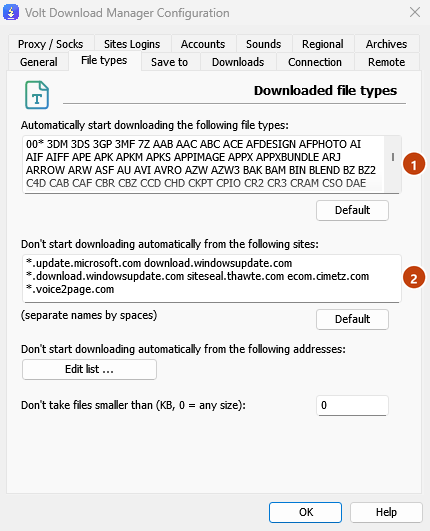
Everything VDM doesn't take stays with the browser.
Tarayıcının açacağı bir bağlantıyı indirin
Links to a PDF or a video file, which the browser would open itself, go to VDM too when their type is listed. To leave one to the browser, hold Alt while clicking it: the browser opens it as a plain click would. Any other link: right-click it and choose Download with Volt Download Manager, which takes any type.
Sonraki adımlar
- Tarayıcı tümleştirmesi ayrıntılı (Firefox, gizli pencereler, ne gönderilir) →
- Tarayıcı indirmeleri devretmiyorsa →
- Gece boyunca indir →
Ücretsiz, açık kaynak, reklamsız, deneme sürümü yok.
Download Volt Download Manager