

Set up the extension once, and every download link you click in Firefox, Chrome, Edge, Brave, Opera, Vivaldi or Helium goes to VDM.
शुरू करने से पहले
On Windows, VDM must be installed with the setup, with Set up browser integration (Chrome, Edge, Brave, Firefox) ticked. It is ticked by default. If you're not sure, run the setup again. A portable copy can't do this. On Linux and macOS, start VDM once: it sets browser integration up itself.
VDM's Add Volt Download Manager to your browser window, which opens at each start until a browser's extension has reached VDM, does the steps below for you: Add the extension opens the store's page in that browser.
सेटअप पूरा होने पर, डाउनलोड लिंक इस तरह काम करता है:
Click a download link in the browser: Download File Info opens in VDM. 

डाउनलोड प्रारंभ करें: प्रगति विंडो में डाउनलोड होते हुए दिखता है। 

डाउनलोड पूरा: फ़ाइल खोलें, या फ़ोल्डर खोलें। 

Firefox में
- Open the add-on's page on addons.mozilla.org, Volt Download Manager, and click Add to Firefox. Zen and LibreWolf use the same page.
- Firefox पुष्टि करने के लिए पूछता है: जोड़ें पर क्लिक करें। Firefox ऐड-ऑन को अपडेट रखता है।
- Go to a web page and click a download link, for example a ZIP or an EXE: VDM opens Download File Info. Click Start Download.
Chrome, Edge, Brave, Opera या Vivaldi में
- Open the extension's page in the Chrome Web Store, Volt Download Manager, and click Add to Chrome. In Edge the button is Get, and Edge first asks to Allow extensions from other stores: click Allow.
- ब्राउज़र पुष्टि करने के लिए कहता है: एक्सटेंशन जोड़ें पर क्लिक करें। ब्राउज़र एक्सटेंशन को अपडेट रखता है।
- Go to a web page and click a download link, for example a ZIP or an EXE: VDM opens Download File Info. Click Start Download.
Helium इसे उसी पेज से इंस्टॉल करता है, बशर्ते Helium एक्सटेंशन डाउनलोड कर सके: Helium देखें।
स्टोर के बिना
जब कोई ब्राउज़र अपने स्टोर का उपयोग नहीं कर सकता (जैसे किसी संगठन द्वारा प्रबंधित कंप्यूटर पर या आपके अपने बनाए बिल्ड में), तो एक्सटेंशन हाथ से जोड़ें:
- अपने ब्राउज़र का एक्सटेंशन पेज खोलें: एड्रेस बार में
chrome://extensions,edge://extensionsयाbrave://extensionsटाइप करें। - डेवलपर मोड चालू करें।
- अनपैक किया हुआ लोड करें पर क्लिक करें।
- Choose the
extension\chromiumfolder inside VDM's folder. If you installed VDM for yourself, that is%LOCALAPPDATA%\Programs\Volt Download Manager\extension\chromium; you can paste that path into the folder box. - Volt Download Manager appears. Make sure it is turned on.
- किसी वेब पेज पर जाएँ और डाउनलोड लिंक पर क्लिक करें, जैसे ZIP या EXE फ़ाइल का लिंक।
- VDM opens Download File Info instead of the browser downloading the file. Click Start Download.
You don't need to start VDM first: if it isn't running, it starts by itself.
Choose what VDM takes
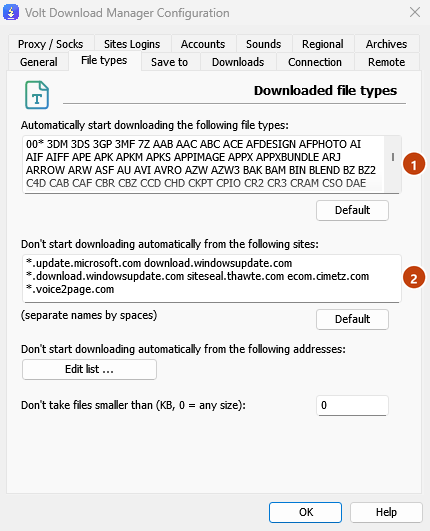
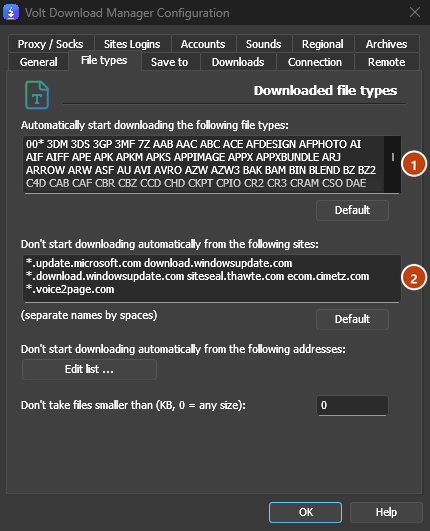
- कौन-से फ़ाइल प्रकार: विकल्प → फ़ाइल प्रकार → निम्नलिखित फ़ाइल प्रकारों को स्वचालित रूप से डाउनलोड करना प्रारंभ करें। प्रकारों को रिक्त स्थान से अलग करके जोड़ें या हटाएँ।
- जिन साइटों को छोड़ना है: विकल्प → फ़ाइल प्रकार → निम्नलिखित साइटों से स्वतः डाउनलोड करना प्रारंभ न करें। साइट का नाम जोड़ें, उदाहरण के लिए
example.com: यहwww.example.comऔर साइट के अन्य सबडोमेन को कवर करता है, और उन फ़ाइलों को भी कवर करता है जिनसे उसके पेज किसी अन्य सर्वर पर लिंक करते हैं। - One browser only: Options → General → Capture downloads from the following browsers. Untick the ones VDM should leave alone.
Everything VDM doesn't take stays with the browser.
ऐसा लिंक डाउनलोड करें जिसे ब्राउज़र खोलता
Links to a PDF or a video file, which the browser would open itself, go to VDM too when their type is listed. To leave one to the browser, hold Alt while clicking it: the browser opens it as a plain click would. Any other link: right-click it and choose Download with Volt Download Manager, which takes any type.
अगले चरण
- ब्राउज़र एकीकरण की पूरी जानकारी (Firefox, निजी विंडो, क्या भेजा जाता है) →
- अगर ब्राउज़र डाउनलोड VDM को नहीं सौंपता →
- रात भर डाउनलोड करें →
मुफ़्त, ओपन सोर्स, कोई विज्ञापन नहीं, कोई ट्रायल नहीं।
Download Volt Download Manager