

Set up the extension once, and every download link you click in Firefox, Chrome, Edge, Brave, Opera, Vivaldi or Helium goes to VDM.
Zanim zaczniesz
On Windows, VDM must be installed with the setup, with Set up browser integration (Chrome, Edge, Brave, Firefox) ticked. It is ticked by default. If you're not sure, run the setup again. A portable copy can't do this. On Linux and macOS, start VDM once: it sets browser integration up itself.
VDM's Add Volt Download Manager to your browser window, which opens at each start until a browser's extension has reached VDM, does the steps below for you: Add the extension opens the store's page in that browser.
Po skonfigurowaniu link do pobierania działa następująco:
Click a download link in the browser: Download File Info opens in VDM. 

Rozpocznij pobieranie: okno postępu pokazuje, jak plik jest pobierany. 

Pobieranie zakończone: Otwórz plik lub Otwórz folder. 

W Firefox
- Open the add-on's page on addons.mozilla.org, Volt Download Manager, and click Add to Firefox. Zen and LibreWolf use the same page.
- Firefox poprosi o potwierdzenie. Kliknij Dodaj. Firefox będzie automatycznie aktualizować dodatek.
- Go to a web page and click a download link, for example a ZIP or an EXE: VDM opens Download File Info. Click Start Download.
W Chrome, Edge, Brave, Opera lub Vivaldi
- Open the extension's page in the Chrome Web Store, Volt Download Manager, and click Add to Chrome. In Edge the button is Get, and Edge first asks to Allow extensions from other stores: click Allow.
- Przeglądarka poprosi o potwierdzenie. Kliknij Dodaj rozszerzenie. Przeglądarka będzie automatycznie aktualizować rozszerzenie.
- Go to a web page and click a download link, for example a ZIP or an EXE: VDM opens Download File Info. Click Start Download.
Helium instaluje rozszerzenie z tej samej strony, o ile Helium może pobierać rozszerzenia: zobacz Helium.
Bez sklepu
Jeśli przeglądarka nie może korzystać ze swojego sklepu (na przykład na komputerze zarządzanym przez organizację lub w samodzielnie skompilowanej wersji przeglądarki), dodaj rozszerzenie ręcznie:
- Otwórz stronę rozszerzeń przeglądarki: wpisz
chrome://extensions,edge://extensionslubbrave://extensionsw pasku adresu. - Włącz Tryb programisty.
- Kliknij Załaduj rozpakowane.
- Choose the
extension\chromiumfolder inside VDM's folder. If you installed VDM for yourself, that is%LOCALAPPDATA%\Programs\Volt Download Manager\extension\chromium; you can paste that path into the folder box. - Volt Download Manager appears. Make sure it is turned on.
- Przejdź na stronę internetową i kliknij link do pobrania, na przykład pliku ZIP lub EXE.
- VDM opens Download File Info instead of the browser downloading the file. Click Start Download.
You don't need to start VDM first: if it isn't running, it starts by itself.
Choose what VDM takes
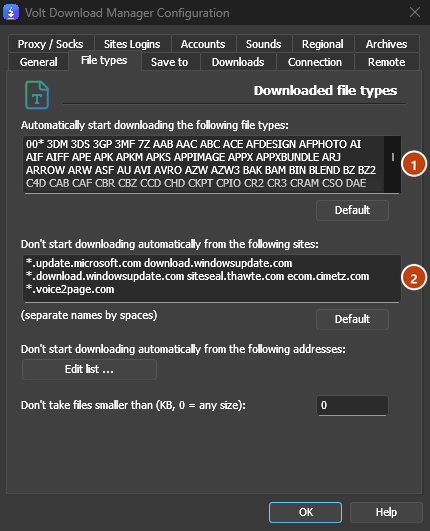
- Jakie typy plików: Opcje → Typy plików → Automatycznie rozpoczynaj pobieranie następujących typów plików. Dodaj lub usuń typy, oddzielone spacjami.
- Witryny do ignorowania: Opcje → Typy plików → Nie rozpoczynaj pobierania automatycznie z następujących witryn. Dodaj nazwę witryny, na przykład
example.com: obejmuje towww.example.comi inne subdomeny witryny oraz pliki, do których odsyłają jej strony na innym serwerze. - One browser only: Options → General → Capture downloads from the following browsers. Untick the ones VDM should leave alone.
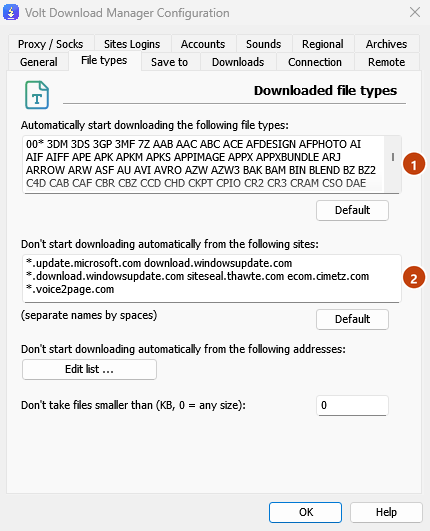
Everything VDM doesn't take stays with the browser.
Pobieranie linków otwieranych w przeglądarce
Links to a PDF or a video file, which the browser would open itself, go to VDM too when their type is listed. To leave one to the browser, hold Alt while clicking it: the browser opens it as a plain click would. Any other link: right-click it and choose Download with Volt Download Manager, which takes any type.
Następne kroki
- Szczegółowe informacje o integracji z przeglądarką (Firefox, okna prywatne, wysyłane dane) →
- Jeśli przeglądarka nie przekazuje pobieranych plików →
- Pobieranie w nocy →
Darmowy, open source, bez reklam, bez wersji próbnej.
Download Volt Download Manager