

Link grabber gathers many links at once, sorts them into packages, and lets you tick the ones to download. VDM can then extract the archives it downloaded (zip, 7z, rar and more), by itself or when you ask.
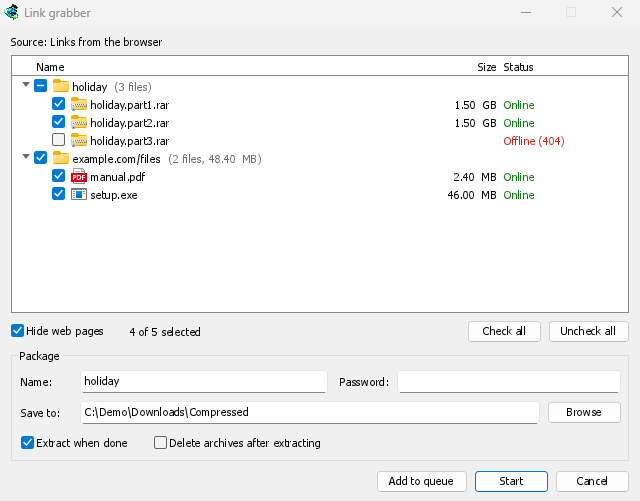
链接来源
- The browser. Right-click a page for Download all links with Volt Download Manager, or select part of it for Download selected links with Volt Download Manager. The page's referrer and cookies go with each link. Both also send the pictures located on the page (or in the selection), hidden at first (see Hide images located on this web page below).
- 页面图片。 浏览器附加组件的工具栏按钮,此页面 → 查找图片,会发送页面上列出的最大尺寸图片,即您按尺寸和类型保留的图片(此页面上的图片)。
- 任务 → 导入 → 从文本文件 和 从 IDM 导出文件。
.ef2文件会导入每个下载的引用页和 Cookie,以及列表中给出的文件名(filename:行;仅文件名,不包含文件夹)。 - 将多个链接,或一个
.txt或.ef2链接列表,拖放到下载列表中。 - 剪贴板。 任务 → 从剪贴板批量添加下载(Ctrl+B,也可在托盘图标菜单中找到)在您选择时读取复制的文本,并列出其中所有的下载链接:
http、https、ftp和磁力链接,无论是列表、论坛帖子、Markdown 还是 HTML,每个链接只列出一次。thunder://、flashget://或qqdl://链接会列出其包裹的地址,因此包裹和未包裹的相同文件只占一行;这同样适用于粘贴的文本和导入的列表。 - 粘贴。 选择任务 → 链接抓取器...并按下Ctrl+V:复制文本中的所有下载链接都将被添加。
- A web page's address. Paste or copy the address of a page (
https://example.com/downloads) and VDM reads the page and lists the links on it, as the browser's Download all links does, in a package named after the page. The page itself is left unticked. This works for addresses that came on their own (pasted, copied, typed, in a list), not for the links found on a page, so VDM never wanders off through a site. VDM reads only what the page itself holds: links a page's scripts add after it loads come only through the browser. - A folder. Paste or copy the address of an
ftp://folder (ftp://ftp.example.org/pub/) or of the page a web server makes of a folder ("Index of /pub/"), and VDM lists every file in it and in its subfolders, each folder's files in a package of their own. See Folders. - A Hugging Face model or dataset, a GitHub release. Paste the address of a model or dataset on Hugging Face, of a folder in one, or of a release on GitHub, in Add URL or here, and VDM lists every file in it, with its size and folder. See Models, datasets and releases.
- A Google Drive folder. Paste a shared folder's link (
https://drive.google.com/drive/folders/…) in Add URL or here, or right-click it in the browser and choose Download with Volt Download Manager, and VDM lists every file in it and in its subfolders. See Google Drive folders. - 启用后,链接网站上的Click'n'Load按钮即可使用。请参阅Click'n'Load。
A magnet link shows as Magnet link and isn't looked up: once you click Start or Add to queue, VDM finds the torrent's files and adds it with all of them, in the package's folder (or the Torrents folder when the package has none).
窗口打开期间收到的链接会加入已有链接。窗口中已有的链接不会重复添加。已在下载列表中的链接会显示在已在列表中下方,且不会被勾选。
软件包
每个分组占一行,可展开或收起(单击箭头、双击,或按Right和Left)。勾选分组会勾选其中的所有链接;只勾选部分链接时,分组复选框会显示为半选状态。
- 同一存档的分卷(
movie.part1.rar、movie.part2.rar…,或backup.7z.001、backup.7z.002…)来自同一站点时,会组成一个以存档命名的分组。 - 同一页面上的其他链接会组成一个以页面命名的分组。
- 其他所有链接都会归入各种文件。
- 网站打包的链接(Click'n'Load)会保留网站的包和名称,以及网站提供的压缩包密码。
- 文件夹中的文件为每个文件夹形成一个包,以文件夹命名,其保存到会保留文件夹的树状结构(参见文件夹)。
- 模型、数据集或发布的文件构成一个包,其保存到会保留它们的文件夹(请参阅模型、数据集和发布)。
文件夹
您可以像给页面地址一样,将文件夹地址提供给“链接抓取器”:使用 Ctrl+V 粘贴,为 任务 → 从剪贴板批量添加下载 复制,将其放入 任务 → 导入 列表,或将其拖放到下载列表中。
- An FTP folder: an
ftp://,ftpes://orftps://address that ends in/(ftp://ftp.example.org/pub/). VDM logs in as it does for a download from that address (its user name and password, else your Sites Logins, else as anonymous) and asks the server for the folder's list. Each file comes with the size the server lists, so it isn't looked up again. - A web server's folder listing: the page Apache, nginx, IIS and other servers make of a folder without its own page, titled Index of /pub/ (or Directory listing for /pub/). VDM recognizes it, so it reads the folder instead of listing the page's links.
链接抓取器随后会列出文件夹及其子文件夹中的所有文件。每个文件夹的文件都是一个以文件夹命名的包,其保存到是您的下载文件夹(选项 → 保存到)下的该文件夹,因此树状结构得以保留:ftp://ftp.example.org/pub/iso/disc.iso 会保存到 Downloads\pub\iso\disc.iso。勾选您想要的文件;隐藏网页和包复选框的工作方式与任何链接相同。
Options → Archives and Link grabber → Folders: 3 levels deep, types: ... sets how far VDM goes and what it keeps:
- 深度:读取子文件夹的层级数,默认为 3 级,最多 10 级。0 级仅列出文件夹本身的文件。
- 类型:仅保留这些类型的文件,按照文件类型页面上的写法(
ISO ZIP R0*)。留空(默认)表示保留所有类型。
VDM stays inside the folder you gave. It never goes up to the folder above (../), never onto another site, never through a link the listing makes to somewhere else, and an FTP folder's links to other folders (symbolic links) aren't followed. A name that isn't a plain file or folder name (one with / or \ in it, ..) is left out. One folder lists at most 10,000 files, and VDM reads at most 500 folders for it; past that, the window's Source line says the folder was listed only in part (pub: only its first 10000 files).
文件夹仅在链接到达时查找(默认开启)时读取,就像网页一样。没有末尾 / 的 FTP 地址被视为文件。
模型、数据集和发布
将以下地址之一粘贴到添加 URL(Ctrl+N)中,或通过Ctrl+V粘贴到链接抓取器中(复制、导入或拖放也同样有效):
- Hugging Face 模型或数据集:
https://huggingface.co/<owner>/<name>或https://huggingface.co/datasets/<owner>/<name>,整个仓库。 - 其中一个文件夹,位于某个分支、标签或提交:文件夹页面的地址,
https://huggingface.co/<owner>/<name>/tree/<revision>/<folder>。 - GitHub 发布:
https://github.com/<owner>/<repo>/releases/tag/<tag>,或…/releases/latest表示最新发布。没有发布的标签会列出其源代码。
VDM asks the site's public API for the list of files and opens Link grabber with all of them in one package: each file with its size and the folder it is in, unticked, so you tick only what you need (the package's box ticks them all). Its Save to is the address's path under your download folder (Options → Save to), and each file keeps its folder inside it: onnx/model.onnx of huggingface.co/org/tiny goes to Downloads\org\tiny\onnx\model.onnx, a dataset's files under Downloads\datasets\…, a release's under Downloads\<owner>\<repo>\<tag>. A folder of a repository keeps its place in it (org\tiny\onnx\…), so files you take later from another folder land beside it. Start or Add to queue adds them as one group, with one summary when the last is done.
- Checked against the site's digest. Hugging Face publishes a SHA-256 for each large file, GitHub for each release file. VDM checks the finished file against it, as Verify checksum does; a file that doesn't match stays unfinished and says so (the file's SHA-256 checksum doesn't match), and Redownload fetches it again. Small files kept in the repository itself, and a release's source code, have no digest of their own to check.
- 一个版本。 仓库文件在列出时,会根据其分支或标签指向的提交进行请求,因此在下载过程中移动的分支绝不会混淆两个版本。
- Straight from the sites. Files come from Hugging Face's and GitHub's own servers, never through a mirror, through VDM's own connections, speed limits and proxy, like any download.
- 受限模型。 需要接受条款才能下载文件的仓库,使用您的 Hugging Face 访问令牌进行下载:在其页面上接受条款,在您的 Hugging Face 设置中生成一个令牌,并在选项 → 站点登录中添加它,站点为
huggingface.co,任意用户名,令牌作为密码。它与您的其他密码一起保存在系统的钥匙串中,并且只发送到huggingface.co,绝不发送到提供文件的服务器。当受限仓库尚无令牌时,“来源”行会显示。 - 限制。 两个站点都只允许没有帐户的计算机发出一定数量的请求(GitHub 每小时 60 个)。当达到限制时,地址行会显示稍后重试,其提示会显示持续时间。
站点列表的内容在使用前会进行检查:路径会导致文件超出其文件夹(..、绝对路径、驱动器号、设备名称,例如CON)的文件会被排除,并且“来源”行会统计它们。一个地址最多列出 10,000 个文件。文件夹只有在链接到达时查找链接(默认)开启时才会读取。
Google Drive folders
Paste a shared folder's link, the one Drive's Share → Copy link gives (https://drive.google.com/drive/folders/…?usp=sharing), in Add URL (Ctrl+N) or in Link grabber with Ctrl+V. VDM reads the folder's page, the one your browser opens, and its subfolders' pages, one after the other, and opens Link grabber with all their files in one package, ticked, each with its name and size and the subfolder it is in. Its Save to is a folder of the Drive folder's name under your download folder (Options → Save to), and each file keeps its subfolders inside it: Day 2/hills.jpg of a folder named Holiday photos goes to Downloads\Holiday photos\Day 2\hills.jpg. Start or Add to queue adds them as one group, with one summary when the last is done.
- Each file as a single Drive file. Every file downloads the way a Drive file's own link does (Google Drive links): from Google's own servers, through VDM's connections, speed limits and proxy, past the can't scan this file for viruses page as Download anyway does. When Drive refuses one (too many downloads lately, a sign-in needed, no access), that file says so in its row, and the others go on.
- Google Docs, Sheets and Slides come as Word (
.docx), Excel (.xlsx) and PowerPoint (.pptx) files, Drawings as.png; their size shows once they are looked up. Forms, shortcuts and Sites aren't files: they are left out, and the Source line says how many. - Folders shared with your account only. Sign in to Google in your browser, right-click the folder's link there and choose Download with Volt Download Manager: the browser add-on passes your Google sign-in with it, and VDM uses it for the folder's pages and its files, on Google Drive only. Pasted without one, the folder's row says Needs a sign-in.
- 50 items a folder. Drive's page lists a folder's first 50 items, so a folder (or a subfolder) with more shows only 50 of them. The Source line says so when a folder shows 50; Drive's own Download on the folder gets all of it, as a zip, which the browser add-on hands to VDM.
- Names. Drive lets a name hold characters a disk doesn't take (
a/b,x:y) or be a Windows device's name (CON); VDM makes them plain names (a_b,x_y,_CON), as for any download. A name that is only dots (..) is left out, and the Source line counts it. A file's address is made from its Drive ID, never taken from the page.
Click'n'Load
Many link sites have a Click'n'Load button that sends their links straight to a download manager on your computer, as JDownloader's documentation for web sites describes. Turn it on in Options → Archives and Link grabber → Accept Click'n'Load from web pages (off by default). VDM then listens on port 9666 of this computer only, and the links a page sends open in Link grabber, with the page's package name and archive password.
Any web page can send links there, not only the link site you are on, so VDM is careful with them:
- The first time a site sends links, VDM asks: Allow (that site's links go to Link grabber from now on), Block (they never do), or Not now (these links are dropped, and the site is asked again next time). The site is the one your browser names, never what the page claims. When the browser names none (a page that hides where it is, or one inside a sandboxed frame), the window says An unknown site: it is asked about every time, and its answer is never kept. Turning Click'n'Load off forgets the answers.
- 网页发送的链接不会被查找:链接抓取器会将其显示为未查找,并且在您将其添加到队列之前,不会发出任何请求,无论是否使用您的站点登录信息或网盘账户。在此之前,不会下载任何内容。
- Links to this computer or your network are left out: a link to
localhost, to a private or link-local address (192.168.…,10.…,172.16.…,169.254.…, their IPv6 kin), or to a name without a dot or under.local,.lanor.internalnever reaches Link grabber. A link site's files aren't there, and such an address could be your router or another device. VDM judges the address as written: a public-looking name that points into your network isn't recognized, so look at a package before you add it. - Limits: at most 10 posts a minute from one site, 500 links and 256 KB a post; more is refused, and one site's posts don't use up another's. At most 20 posts wait for an answer. A site brings VDM's window to the front at most once a minute; its links still arrive in Link grabber in between.
- 网页本身的地址不会作为链接的引用者发送:网页可以指定任何引用者。
- VDM doesn't say it is JDownloader. Some sites first ask whether JDownloader is running (a script named
jdcheck.js) and show their button only then. VDM doesn't answer that question, so such a site may say no program was found; a site that simply sends its form works. - Only one program can listen on port 9666. If JDownloader is running, VDM says so: close it, then turn the option off and on again.
- A button that sends a DLC container instead of links isn't taken: reading one needs a key VDM can't use. The site's plain links, or its Click'n'Load button, are the way.
- Some sites hide the key in a script VDM doesn't run (only the plain form the documentation shows is read): then their button reports a failure, and the site's plain links are the way.
查找链接
As links arrive, VDM asks each server about its file, as IDM's Download all links does. A few links are checked at a time, and only a few from any one site. Each link then shows its real name and size, and a status:
- 在线:服务器上有该文件。
- 离线(404):服务器上没有该文件。该链接不会被勾选。
- 需要登录:服务器需要用户名和密码,或需要页面的 Cookie。
- 繁忙,请稍后重试:服务器要求稍后再试。
Turn the look-ups off in Options → Archives → Look links up when they arrive. Some file hosts count a look-up as a download. With the look-ups off, VDM asks nothing of the network until you start, so a web page's address isn't read for its links either.
隐藏网页(默认开启)会排除指向网页的链接(.html、.php等,以及任何查找后发现是网页的链接):它们既不会显示也不会下载。
隐藏此网页上的图片会忽略浏览器在页面上找到的图片(页面图片,以页面列出的最大尺寸显示),因此列表只包含页面的链接。每次页面链接附带此类图片时,此选项都会再次勾选,并且不会记住:取消勾选以查看图片并勾选您想要的图片;勾选时,它们既不显示也不下载。指向图片的链接(缩略图链接到其完整尺寸)是与其他链接一样的链接,并且始终显示,即使同一图片也显示在页面上。
包框
列表下方的设置框用于编辑所选分组:
- 名称:分组名称,会与其中的下载一起保存。
- 保存到:文件的保存文件夹。如果一个分组包含多种文件,设置框会显示每个文件的类别文件夹:每个文件都会保存到对应类别的文件夹(选项 → 保存到),与导入时的处理方式相同。
- 密码:压缩包的密码(如果有)。密码仅保存在内存中,不会自动保存:若要为其他压缩包保留此密码,请将其添加到压缩包密码。
- 完成后提取:分组中包含存档时,此项会自动勾选。
- 提取后删除存档:提取完成后,存档会移入回收站(macOS 和 Linux 上的废纸篓)。
添加链接
- 开始会将勾选的链接添加到主下载队列并启动队列。队列会同时下载其允许数量的文件。
- 添加到队列会将这些链接添加到主下载队列,但不会开始下载,类似 IDM 的导入功能。
- 取消关闭窗口,不添加任何内容。
提取存档
VDM itself extracts zip archives (AES-encrypted and Deflate64 ones too), tar, tar.gz and tar.xz archives, and single .gz and .xz files.
7z and RAR archives need 7-Zip, a free program (7-zip.org). VDM runs it when it is installed, for split and encrypted archives too. RAR's own extraction code can't be part of a free program like VDM, and 7-Zip extracts 7z best.
Options → Archives says whether 7-Zip was found. Without it, a 7z or RAR archive isn't extracted, and the 7-Zip needed window says so, with a Get 7-Zip button. On Linux, install your distribution's 7zip (or p7zip) package: VDM finds 7zz, 7z or 7za on its own.
Another archiver built on 7-Zip does as well, so there is no need for a second copy. On Windows VDM finds the 7-Zip that PeaZip brings with it (PeaZip\res\bin\7z\7z.exe in Program Files) and NanaZip's command line (NanaZipC.exe) by itself, after 7-Zip's own folders. For any other, such as a portable copy or one installed for your user only, press Use another program... in Options → Archives and choose its 7-Zip command line program: 7z.exe, 7za.exe or 7zz, not the archiver's own window. VDM runs it once to see that it answers as 7-Zip, then uses it for 7z and RAR archives, with the same arguments as always. Find 7-Zip automatically goes back to the one VDM finds, which is also used if the chosen program is removed.
使用 HatchZip 原地解压
HatchZip is another free extractor (MIT or Apache-2.0), optional. VDM uses its command line program, hatchzip, when it is on the PATH (its installers and packages put it there; the desktop app alone isn't enough):
- Options → Archives → Extract in place with HatchZip (off by default): HatchZip removes the archive while its files come out, so a 180 GB download that unpacks to 200 GB needs a little over 200 GB, not 380 GB. It reads zip, 7z, RAR and tar archives, split ones too; single
.gzand.xzfiles are still extracted by VDM. A solid RAR archive can't be extracted in place (HatchZip says so before it changes anything): VDM then extracts it as usual, with 7-Zip, and keeps the archive. HatchZip's own release builds read RAR; a build from crates.io doesn't. - 在更改任何内容之前,HatchZip 会检查文件是否适合并验证密码。密码缺失或错误,或空间不足,都不会改变任何内容:日志会显示此信息,并且压缩包密码窗口会像往常一样询问。密码通过其环境传递给 HatchZip,绝不会通过其命令行传递。
- 文件会保存到压缩包内容保存位置所指定的位置,与其他任何解压操作一样。在此过程中,它们会先保存在压缩包旁一个名为
<archive>.hatchzip-out的文件夹中。 - If it stops partway (VDM closed, the download deleted, the disk filled by something else), the files extracted so far stay in that folder and the rest is still in the archive. Extract continues where it stopped, even with the option off: only HatchZip can finish such an archive. VDM continues only a run it started itself (it keeps a note of it in its own data): a HatchZip progress file (
<archive>.hatchzip) that comes with a download or a torrent starts nothing, and that archive is extracted as usual. - Nothing HatchZip extracted is ever deleted, those files are no longer in the archive. Entries VDM leaves out (links, names leading outside the folder) stay in that folder, and so do the files a failed move couldn't put in place (a file held open by another program); the log says where. So after an extraction in place, a link an archive held that VDM considers unsafe is still in your download folder, inside
<archive>.hatchzip-out: it is never followed or moved, but it isn't removed either, as it is by every other extraction. Look at what is left in that folder before you open it. - 然后将压缩包移至回收站之后没有要移动的内容:压缩包已经消失。
- 当该选项关闭时,7z 和 RAR 压缩包仍需要 7-Zip。
以下情况会提取存档:
- 当其包显示“完成后提取”时,
- 当“选项 → 存档 → 下载完成后提取存档”开启时(默认为关闭),适用于任何其他下载,
- 右键点击已下载完成的存档并选择“提取”时。
分卷存档会在最后一个分卷下载完成后提取一次。提取的文件会放在存档所在位置:
- 如果存档顶层包含多个项目,则提取到以存档命名的文件夹中(也可设置为始终或从不创建文件夹:选项 → 存档),
- 已存在的文件会保留,新文件会添加编号:
report (1).txt。
提取的文件会像存档一样标记为来自互联网,因此 Windows 在运行其中的程序前仍会发出警告。
VDM extracts safely. A name that would lead outside the folder is left out, and so is a link to somewhere else on the disk. An archive that would write far more than its size, or more than the disk has room for, stops before it fills it. When something goes wrong, nothing but the archive is left behind.
下载日志(在列表中将鼠标悬停在下载项上)会显示发生了什么:已解压 12 个文件到…,或者为什么没有解压,例如无法解压 movie.7z.001:缺少第 3 卷。每个压缩包都会先尝试不使用密码解压。如果发现加密,则会尝试使用其压缩包的密码,然后按顺序尝试您保存的每个密码(选项 → 压缩包 → 压缩包密码…),因此不需要密码的压缩包永远不会遇到它们。只有当所有密码都不匹配时,才会打开压缩包密码窗口。输入密码并点击解压,或点击取消以保持压缩包不变。勾选记住此密码以用于其他压缩包(默认未勾选)以将其添加到已保存的密码中。7-Zip 会通过其输入接收每个密码,绝不会通过其命令行接收,以防计算机上的其他程序读取它。
压缩包密码
Options → Archives → Archive passwords... keeps the passwords you use again and again (a site's own, say), one per line. The download's log says Trying the saved archive passwords... while VDM tries them. The one that opens an archive moves to the top of the list, so the passwords you need most are tried first. A package's password (one you typed in Link grabber, or one that came with the links) is tried first and never added to the list by itself; when it is one of your saved passwords already, it moves to the top like any other. A password typed in the Archive password window is added only with Remember it for other archives ticked, and only once it fits. The list is kept in the system's keychain, as the other passwords are (see Where the sign-in is kept).
每次尝试都会重新开始解压:如果列表很长,并且压缩包很大,文件名未加密,则可能需要一段时间才能找到正确的密码。
测试压缩包
A finished archive can still be broken: a server sent wrong bytes, or a proxy on the way mangled part of the file. It shows only when someone opens it, often much later. So VDM tests ZIP, 7z and RAR archives, split ones too once every volume is in, when their download completes: Options → Archives → Test archives when their download completes is on by default, up to 4 GB. A test reads the whole archive, so a larger one is tested only when you ask: right-click a finished archive and choose Test archive, whatever its size.
- The test is 7-Zip's (
7z t, with the 7-Zip that Options → Archives names): every file in the archive is read back and checked, and nothing is written. Without 7-Zip, VDM tests ZIP archives itself; 7z and RAR archives aren't tested. - 下载在测试结束后才算完成。在此期间,列表会显示正在检查 45%,下载队列会等待它,并且其下载完成窗口、声音和解压操作都会在测试之后进行。
- 受密码保护的压缩包不会进行测试,因为没有密码无法读取其文件:日志会显示无法测试 photos.zip:需要密码。tar、gz 和 xz 文件也不会测试。
- 损坏的压缩包在列表中显示已损坏,其日志会列出损坏的文件,并且损坏的压缩包窗口会提供重新下载:它会从头开始再次下载该压缩包(分卷压缩包的每个分卷)。它不会自行解压;解压仍会尝试解压。
- A ZIP in one file is repaired instead, when VDM can tell where its damaged files are in it: their bytes alone are downloaded again, from the same server, and the archive is tested once more. The log says Downloading the damaged parts again (1.20 MB), then Tested again: the archive has no errors now. The bytes come only from the same version of the file: VDM asks for them as it resumes any download (with the file's ETag or date,
If-Range), and checks the bytes just before each part against the ones on disk. A file that changed on the server stops the download with the file changed on the server instead of mixing two versions: Redownload downloads the new one. An archive still damaged after that is offered for Redownload. - 7z 和 RAR 压缩包将其文件保存在块中,7-Zip 的测试不会提供这些块在文件中的位置,并且分卷压缩包的每个分卷都是单独的下载:这些压缩包会进行测试,并在损坏时提供重新下载,但绝不会部分修复。
- 分卷压缩包(
photos.zip.001、photos.z01、notes.7z.001、movie.part1.rar、movie.r00)在所有分卷下载完成后,从第一个分卷开始进行一次测试,无论哪个分卷最后完成。其分卷通常会一个接一个地完成(一次下载一个的队列,或主机要求您在文件之间等待),并且已下载的分卷会被读取为不完整的压缩包,因此它们不会单独进行测试。测试压缩包对尚未完成的分卷压缩包会显示:尚未测试:photos.zip.001 不完整(分卷 3 尚未下载)。 - Closing VDM stops a test; the archive is tested again at the next start.
下一步
免费、开源、无广告、无试用版。
Download Volt Download Manager