

VDM downloads videos from their web pages: YouTube, Vimeo, Dailymotion, Twitch, TikTok, X, Instagram, Facebook, Reddit, SoundCloud and well over a thousand other sites. yt-dlp, an open-source program whose community keeps it working as sites change, finds the video on the page; VDM's own downloader then brings it in, the way it downloads any file.
开始视频下载
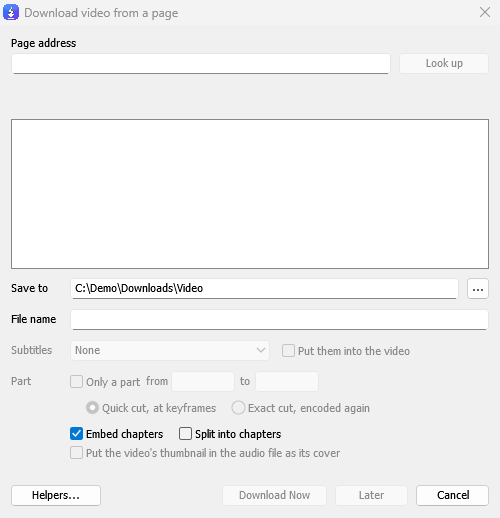
- Give the video's page address to Add URL (Ctrl+N). VDM recognises video pages and opens the video window, already looking the page up.
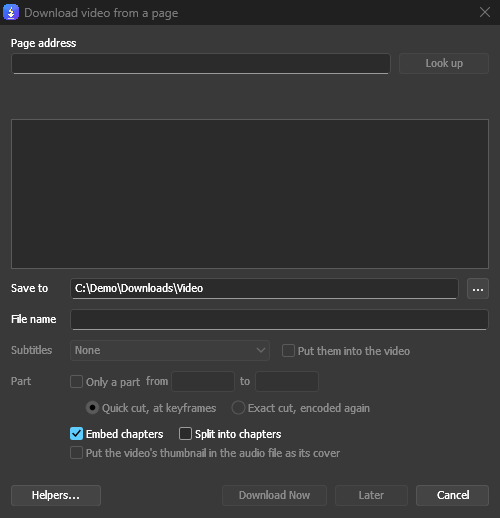
- 或者选择任务 → 从页面下载视频...,将地址粘贴到页面地址中,然后点击查找。
任何其他不是文件而是网页的页面地址,也会被提供给视频窗口。在一个yt-dlp没有自己的阅读器的网站上,如果页面指定了视频(在其告知搜索引擎和链接预览的内容中:其JSON-LD、og:video或twitter:player),则该视频是页面所说的视频,而不是其HTML中写入的第一个播放器,并且文件以页面命名的方式命名。
粘贴页面地址,然后点击“查找”。 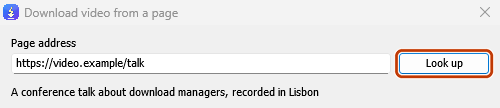
选择画质,然后点击“立即下载”。 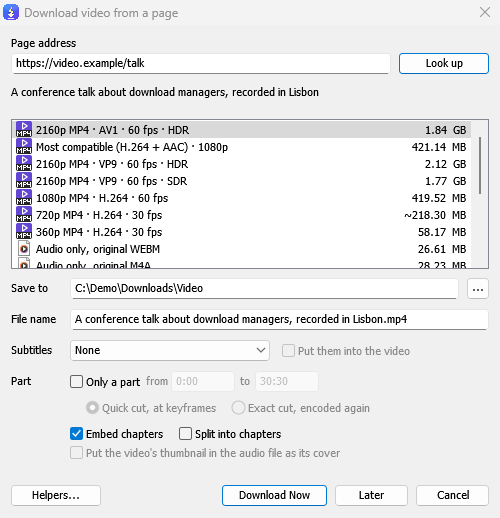
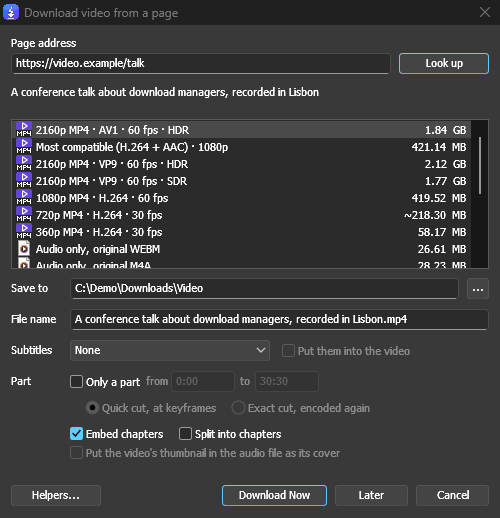
它会像其他文件一样下载,在列表中占据一行,并有自己的窗口。 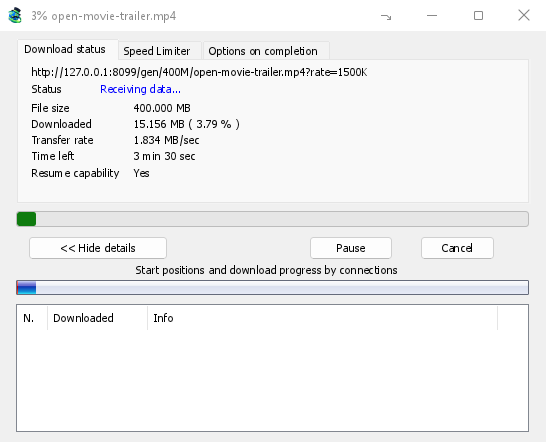
yt-dlp 和 ffmpeg
VDM offers its two helpers on its first start, and again the first time they are needed. It downloads them from their official releases with its own downloader, so a cut connection resumes, and uses your proxy settings:
- yt-dlp (about 23 MB) looks the page up and finds where the video and its sound come from; VDM downloads them (How a video comes down). The first time, click Install yt-dlp. VDM checks the download against the signature yt-dlp's developers publish before it uses it.
- ffmpeg (about 80 MB) joins a video and its sound when a site keeps them apart, which most sites do for the higher qualities, and turns the sound into an MP3, Opus or FLAC file. Click Install ffmpeg when VDM offers it. VDM installs only a build its maintainers checked: the download must match the SHA-256 in VDM's own list of builds, which carries VDM's signature. When that list can't be downloaded or checked, VDM says so and installs nothing; you can still choose your own ffmpeg in Helpers....
- Each processor gets its own build: yt-dlp's for x64, ARM64 and 32-bit Windows and for Linux on ARM, and ffmpeg's for x64 and ARM64 Windows. No ffmpeg is built for 32-bit Windows that VDM can check, so there VDM offers none: choose your own in Helpers... (below), or download the qualities that come with their sound.
You can install them ahead of time too: in Helpers..., a helper that isn't there yet says Not installed yet, and Install yt-dlp, Install ffmpeg or Install gallery-dl in its row downloads VDM's own copy, checked the same way, and keeps it up to date from then on. Where VDM has no copy for your system, the button is greyed out and the row says what to do instead.
Both are kept in a tools folder in VDM's data folder. For YouTube, yt-dlp also needs a JavaScript runtime, which VDM can download too: see A JavaScript runtime for YouTube.
保持最新
Sites change all the time, and a newer yt-dlp is usually what makes a page that stopped working download again. So VDM keeps its own copies of yt-dlp, gallery-dl, ffmpeg and Node.js up to date by itself:
- When: a few seconds after VDM starts, then again while it runs: yt-dlp and gallery-dl at most every 6 hours, Node.js once a day, ffmpeg once a week (a newer ffmpeg comes when VDM's list of checked builds names one, usually with a new version of VDM). VDM remembers when it last asked, so starting it many times doesn't ask again.
- How: each new version is downloaded and checked exactly as the first install was (yt-dlp's, gallery-dl's and Node.js's signed checksum lists, VDM's signed list of ffmpeg builds), never an older one, and installed beside the one in use.
- 何时切换: 仅当没有下载、查找或其他运行正在使用该帮助程序时。当新的 yt-dlp 到达时,正在下载的视频会使用其开始时使用的版本完成;新版本从使用它的最后一个下载结束时开始使用。
- 以前的版本会保留,因此您可以回滚到它。更旧的版本会被删除。
- A video that fails with an error that usually means yt-dlp is out of date for the site (Unable to extract, Unsupported URL, YouTube's Sign in to confirm you're not a bot, HTTP Error 403, a failed signature or n challenge, Requested format is not available), or a gallery whose gallery-dl reports an unexpected error: VDM looks for a newer version at once, installs it if there is one, and tries that download again with it, once. Its log says so. If there is none, the error stands as before.
- A check that fails (no connection, GitHub busy) is tried again an hour later. It is written in VDM's log, never shown as an error.
In Helpers..., each of VDM's own copies says how it stands: Up to date, Version X available, Updated to X, or Version X is ready: used once its downloads end. Update gets the newest version of that one now, Go back to X uses the previous version again (automatic updates then wait for a version newer than the one you left; Update brings it back), and Check for updates checks them all. Untick Keep VDM's helpers up to date automatically to update only when you ask. Programs you chose with Use another program..., and your system's copies, say Updated by you: VDM leaves them to you.
在命令行中,update-helpers 会检查并更新所有帮助程序并打印它们的版本(命令行)。
使用您自己的副本
On Linux and macOS, VDM finds yt-dlp, ffmpeg and gallery-dl on your PATH and in the usual package-manager folders, including Homebrew's. A program you selected yourself takes priority, followed by VDM's own installed copy. The system copy is used when neither is present, and your package manager keeps it up to date: VDM never downloads over it on its own. If your distribution's yt-dlp is old, Use VDM's own copy in Helpers downloads VDM's, which keeps itself current and is used from then on.
Already have yt-dlp or ffmpeg for another program? Use those instead of a second copy: in Download video from a page, click Helpers..., then Use another program... beside yt-dlp or ffmpeg, and choose the program. VDM runs it once to check that it is that program, and uses it from then on, the command line too. VDM doesn't update a program you chose: keep it up to date yourself (yt-dlp: yt-dlp -U, or your package manager). Use VDM's own copy goes back to the one VDM downloads and checks.
YouTube 的 JavaScript 运行时
YouTube hides most of a video's qualities behind small puzzles that yt-dlp solves with a JavaScript runtime: Node.js, Deno, QuickJS or Bun. Without one, a look-up is slow, the list is short (sometimes only the sound and a low quality) or it fails with Requested format is not available, and VDM says so: YouTube needs a JavaScript runtime to list its video qualities. Other sites don't need one.
The quickest way is VDM's own copy of Node.js: click Install Node.js beside that message, or, in Helpers..., Install Node.js in the JavaScript runtime (for YouTube) row. The first start's setup offers it too, in its Video helpers step, when your computer has no runtime. VDM downloads Node.js's newest long-term support (LTS) build for your system and processor from nodejs.org with its own downloader (about 40 MB on Windows, 60 MB on Linux and macOS; Windows x64, ARM64 and 32-bit, Linux x64 and ARM64, macOS), checks the release's checksum list against the signing keys of Node.js's releasers and the download against that list before it uses it, keeps only the node program in the tools folder beside yt-dlp and ffmpeg, and from then on tells yt-dlp to use it. It keeps it up to date the way it keeps yt-dlp's (Keeping them up to date), never with an older version. 32-bit Windows gets the newest LTS line Node.js still builds for it, 22, which Node.js supports until April 2027; after that VDM has no Node.js for 32-bit Windows, and a runtime of your own (Use another program...) is needed there. VDM never installs a Node.js older than the LTS line current when that VDM was made, whatever nodejs.org's list says. The video is looked up again by itself once Node.js is in.
Already have one? Then nothing needs downloading: a runtime on your computer comes first. VDM finds Deno, Node.js (22 or newer, also one installed with nvm), QuickJS and Bun by itself, in the order yt-dlp prefers them, and passes over one too old for yt-dlp (Node.js 20, say) or a Node.js whose line has reached its end of life on nodejs.org's schedule (then VDM's own is used, which it keeps on a supported release). A supported Node.js of your computer's is used as it is: you or your package manager keep it up to date. Helpers says which one yt-dlp uses and where it is: Node.js 24.11.0, your system's, nothing to download. To use another one, a portable copy or one that isn't on the PATH, click Use another program... in that row and choose its program (node.exe, deno.exe, qjs.exe, bun.exe): VDM asks it for its version first and refuses one yt-dlp can't use. Use VDM's own copy goes back to the one VDM finds or downloads. (Choosing your own runtime was YairDies' idea.)
Earlier versions of VDM installed Deno. That copy keeps working until VDM's Node.js is in place (the next update check brings it, or Use VDM's own copy); then yt-dlp switches to Node.js and VDM removes its own Deno, once no download is using it. A Deno you installed yourself is never touched, nor VDM's own once you chose it with Use another program.... While VDM asks the runtimes on your computer for their versions, Helpers says Looking for a JavaScript runtime on this computer....
If you'd rather install one yourself, any of them works; then look the video up again. If VDM still says so, the new program's folder isn't on the PATH VDM started with (Windows' installers add it for programs started after them): quit VDM (Tasks → Exit) and start it again.
- Windows:
winget install DenoLand.Deno,或winget install OpenJS.NodeJS.LTS。deno.com 和 nodejs.org 上的安装程序也适用。 - Ubuntu 和 Debian:
sudo apt install nodejs - Fedora:
sudo dnf install nodejs - Arch:
sudo pacman -S nodejs,或sudo pacman -S deno - macOS:
brew install deno,或brew install node - 任何系统,Deno 仅限当前用户:
curl -fsSL https://deno.land/install.sh | sh(在 Windows 上,于 PowerShell 中:irm https://deno.land/install.ps1 | iex)
A distribution's yt-dlp can also be too old for YouTube: if the list stays short, click Use VDM's own copy beside yt-dlp in Helpers.... A yt-dlp older than 2025.11.12 can't be told of a runtime at all; VDM then leaves the runtime out rather than stop the look-up.
选择画质
- Wait for the list. It shows each quality with its size, best first, then the sound alone:
- A video's line says its resolution, the file it makes, its picture's codec, its frame rate and whether it is HDR:
2160p MP4 · AV1 · 60 fps · HDR. MP4 is only the file: what's inside it can be AV1, VP9 or H.264, and the codec says which, the very one that downloads (should the site no longer offer that stream, VDM takes the nearest of the same codec and resolution first). A resolution that comes in several (AV1, VP9 and H.264, HDR and SDR) has a line for each: AV1 makes the smallest file, H.264 plays on the most devices, and an HDR video looks washed out on a screen without HDR.SDRis said only beside an HDR line of the same resolution. - Most compatible (H.264 + AAC), second in the list: the best H.264 video the site has (YouTube's usually go up to 1080p) with AAC sound (in stereo when the site has it beside surround), in an MP4 that Premiere Pro and other editors, older TVs and most phones open as it is. YouTube's best qualities are AV1 or VP9 with Opus sound, which some of them can't read. The line says its resolution:Most compatible (H.264 + AAC) · 1080p. VDM picks those streams, it doesn't convert anything: when the site has no H.264 video with AAC sound the line isn't there, and when the best line already is that, it isn't listed twice. - The size is that of exactly what downloads, the video and its sound. A size with~before it (~532 MB) is only an estimate: the site didn't say the size, so it comes from the stream's bitrate and length. - Audio only, original: the site's own file, not converted, once for each type the site has it in (WebM with Opus inside, M4A), the best first. The best sound there is, in the smallest file. - Audio only MP3 at its best variable bitrate (VBR) and at 320, 256, 192 and 128 kbps, for players that only take MP3. - Audio only OPUS: an.opusfile. When the site's sound is Opus already (YouTube's usually is), it's only moved into that file, not converted, so nothing is lost. - Audio only FLAC: a lossless.flacfile, for a library or a program that wants FLAC. It can't add quality: the site's sound is already compressed with losses, and FLAC keeps it exactly as it came, in a file several times bigger. The window says so when you choose it. - 选择一项。如果没有 ffmpeg,列表只会显示包含音频的画质选项,不会提供 MP3、Opus 或 FLAC(这些格式由 ffmpeg 生成)。
- 检查保存到(默认为视频类别的文件夹)和文件名,文件名来自视频标题。长标题会在单词末尾缩短,以便视频下载时旁边保存的文件符合系统对路径长度的限制;您输入的名称会保持原样。
- When the video's sound comes in several languages, choose one in Sound (see The sound's language). Choose Subtitles if you want them (see below). Embed chapters is ticked: see Chapters. To keep only a stretch of it, tick Only a part: see Download only a part. For a sound alone, Put the video's thumbnail in the audio file as its cover is ticked: see A cover for the sound.
- 点击立即下载,或点击稍后将其添加到列表而不开始下载。
然后视频会像其他文件一样下载,在列表中有自己的行和进度窗口。
视频下载方式
yt-dlp looks the page up and picks the quality's video and sound. VDM's own downloader then brings each of them in, one after the other, the way it downloads any file:
- 通过多个连接:与选项 → 连接中为文件设置的连接数相同。进度窗口的连接表会显示每个连接,分段图会显示视频及其音频。
- A stream sent in many small pieces (HLS, DASH, as most sites other than YouTube send theirs) comes down that many pieces at once, each kept on disk as it arrives, then joined in order into one file, as yt-dlp joins them. Pieces encrypted with AES-128 are decrypted with the key the stream's playlist names. When their addresses expire, VDM asks yt-dlp for the stream's new list and carries on with the pieces still missing.
- 在您的速度限制下:包括速度限制器的限制、视频本身的限制(其进度窗口的速度限制器选项卡),以及所有下载任务的总限制。任何更改都会立即生效。
- Paused and resumed like a file, also after quitting VDM: it carries on from the bytes already saved.
- When an address stops working: a video's addresses are signed and expire after a few hours (YouTube's after six). VDM asks yt-dlp for a fresh one for the same quality and carries on from where it stopped.
然后 yt-dlp 会在下载后执行其操作:它会使用 ffmpeg 将视频和声音合并为一个 MP4 文件,保存或嵌入字幕,将章节放入文件中,并为 MP3、Opus 或 FLAC 选项转换声音。
YouTube serves each connection's long requests slowly, so VDM asks for the video in pieces of 10 MB at most, as yt-dlp does, and several at once.
yt-dlp 仍然会自行下载一些视频,通过它自己的连接,进度窗口会显示:
- 正在录制的直播流(正在录制直播流);
- 通过 RTMP、RTSP、MMS 或 FTP 发送的流;
- 其他类型(Adobe 的 HDS、Microsoft 的 Smooth Streaming)的稀有分块流,以及网站直接将密钥交给 yt-dlp 的流。
对于这些下载,新的速度限制会从上次停止的地方重新开始下载(速度限制);正在录制的直播流会在下次启动时应用该限制。
正在录制直播流
A live stream, a broadcast still going on, is recorded by yt-dlp with ffmpeg into an unfinished file, so VDM can't know its length. While it records, the progress window says Recording..., and Downloaded and Transfer rate follow the size of what has been recorded so far.
- 正在录制...从录制器打开文件的那一刻开始显示,一旦它连接到流(下载开始后几秒钟;在此之前窗口显示正在连接...;无法连接的流永远不会到达此状态)。已下载显示已写入磁盘的内容,录制器以 256 KB 的块写入,因此在写入第一个块之前它会保持 0 KB(对于低比特率的流可能需要一段时间),然后逐块增长。停止并保存在第一个块写入之前不会保留任何内容:下载会保持停止状态,文件为空,以便续传重新录制。如果上次运行留下了一个空的未完成文件,当录制重新开始时它会被删除(因为它不包含任何内容),因此恢复的录制会从同一时刻开始显示正在录制...。
- Stop and save is what the progress window's pause button reads for a live stream that is recording. It, Stop and Stop All in the list (toolbar and menus), a queue's stop (by hand, at its scheduled stop time, or through the API) and the phone page's pause all end the recording and keep it. VDM makes the recording an MP4 itself, as yt-dlp does when a live stream ends: the streams are copied as they are, nothing is converted. The window says Saving... meanwhile, and the download is then Complete, as when a live stream ends by itself: the queue goes on and the completion notice and actions run.
- 最后几秒可能缺失:最多是录制器尚未写入的最后 1 MiB。这相当于几秒钟的视频,对于纯音频流,最多可能缺失大约一分钟。
- 如果无法生成 MP4 文件,录制内容将保存为 MPEG-TS 文件(
.ts),大多数播放器都可以打开。如果也无法完成此操作,下载会显示错误信息,未完成的文件将保持原样。 - 仅当 MP4 文件包含所有内容时,录制文件才会被删除:即录制内容在误差一秒内,其图像和声音也都在误差一秒内(ffprobe 的时长;如果没有这些信息,则至少达到录制文件大小的 90%)。如果生成的 MP4 文件较短,则会与录制文件一起保留,显示为
My stream (recording 1).ts,下载日志会说明原因(如果录制文件无法重命名,日志会显示此信息:它将保持为未完成的文件)。 - A live stream that ends by itself while VDM records it is made an MP4 the same way, with the same check: yt-dlp is told to leave its recording as it is, and VDM makes the MP4 of it (when it has ffmpeg and the recording is the MPEG-TS yt-dlp made). From the moment yt-dlp says the recording is finished, the window says Saving... (only a moment when there is no MP4 to make), and a Stop waits for it: the download is then Complete. The recording goes only when the MP4 holds all of it, it is kept beside a shorter one, and if no MP4 can be made it is the download's
.tsfile (My stream (recording 1).tswhenMy stream.tsis taken). Subtitles asked to go inside the video are saved beside it instead, and no chapters are added: the recording isn't changed once it is made. - 直播的 MP3、Opus 或 FLAC:音频会按要求保存,其原始录制内容会作为
My stream (recording 1).ts文件保留在旁边。 - 当视频未包含所有内容时,yt-dlp 在直播结束后自行合并的图片和音频会保留在视频旁边,与 yt-dlp 留下的内容相同;否则它们会被删除。
- A recording yt-dlp finished but VDM didn't make an MP4 of (a try that failed just after, or VDM closed meanwhile) is still MPEG-TS under the MP4's name. Before the download starts again, VDM makes it an MP4 with the same check (the list says Merging meanwhile, and a Stop waits for it, then stops the download before anything else runs): when the MP4 holds all of it, it is the download. Otherwise the recording is kept as
My stream (recording 1).tsand the download starts over. Without VDM's ffmpeg it is set aside the same way. The same goes for a normal video in pieces (HLS) VDM's engine left as MPEG-TS inMy video.mp4when yt-dlp failed or was stopped while it fixed it up. - 分段录制(yt-dlp 分开的图像和声音部分)会合并成一个包含所有内容的 MP4 文件。如果无法合并,下载会显示错误信息,并且每个部分都将保持原样。
- Cancel in the progress window only stops the download: the recording stays in its unfinished file. So does reaching a download limit, which counts a recording as it grows and stops it as it stops other downloads. Resume, or VDM starting the download again by itself (after a network adapter change or the download limit, or a queue that starts when VDM opens), records the stream anew. It first sets the earlier recording aside, next to it, as
My stream (recording 1).ts(then(recording 2), and so on), so nothing is recorded over; so it does when the stream has ended meanwhile and the download goes on as a normal video. (An unfinished MPEG-TS file yt-dlp downloads directly, without its resume state, is taken for a recording the same way: it starts over, what it had kept aside.) If that file can't be set aside, VDM doesn't record over it and says so. - 这些保留的录制文件并非下载任务本身的文件:删除任务及其文件时,这些录制文件会保留。
- Closing VDM while a live stream records, or while it saves one, stops it without saving: the recording stays in its unfinished file (a half-made MP4 is left as
<name>.temp.mp4, which Delete with its files removes), and it is set aside when the download starts again. The command line (voltdownloadmanager-cli) doesn't save a live stream this way. - 队列停止保存的直播流被视为已完成,因此每日队列不会在第二天再次启动它。
The sound's language
More and more videos come with their sound in several languages: the one they were made in, the original, and others dubbed (YouTube's dubbed and automatically dubbed tracks, for one). When the site names each track's language, Download video has a Sound list under File name, the original first and marked: English, original, then Deutsch · German, Español · Spanish... (each language in its own words, and in English when that differs). A video in one language has no such list and looks as before.
- The qualities follow it. Every line in the list is then in that language: a video line joins its picture with that language's sound and its size is theirs, and Audio only (as the site has it), MP3, Opus and FLAC take that language's sound. A video line whose file carries another language's sound (YouTube's 360p in one file) isn't offered for a dubbed language; without ffmpeg, which joins a picture and a sound, only the sound in that language is.
- One sound track per file. The file has the language chosen, never two.
- For every video and playlist: Options → Regional → Videos' sound chooses one language, which every video looked up starts on when it has it (in Download video, where you can still choose another, and in the button over a video) and which every video of a playlist downloads with. A video without that language comes with its original sound. Each video's original, the default, keeps every video in the language it was made in.
- The button over a video says the language of each line's sound in its menu, and its Audio tab has each other language's sound as the site has it too.
- If the site no longer offers that language when the download starts, the video comes with its original sound.
A cover for the sound
A sound saved alone has no picture, so music players show an empty square. With Put the video's thumbnail in the audio file as its cover ticked in Download video (under Embed chapters), the picture the site shows for that video becomes the file's cover once it is saved.
- It is ticked to begin with, and stays as you leave it for the next video. It applies to a playlist's sound too.
- Which files: an M4A as the site has it (Audio only, original M4A), and an MP3, Opus or FLAC. A WebM (Audio only, original WEBM, YouTube's Opus as it comes) can't hold a cover: choose M4A or Opus instead. Videos are saved as they are.
- How: VDM brings the picture in with its own connections (your proxy and network adapter, as every download), from where the site says that video's picture is, nothing from anywhere else. ffmpeg puts it into the file as its cover (Opus files as the picture comment music players read in them), copying the sound as it is: nothing is encoded again. A WebP picture is made a JPEG first.
- It needs ffmpeg. Without it, or when the picture can't be had, the file is saved as before, without a cover, and the download's log says why.
字幕
视频有字幕时,字幕列表会显示可用字幕:首先是上传者提供的语言(有多种时会显示上传者所有),然后是网站自动生成的字幕,并标记为自动。自动字幕只会列出视频原声语言的字幕,以及它们的英语和界面语言翻译。YouTube 等网站还会提供机器翻译,支持其提供的所有语言。
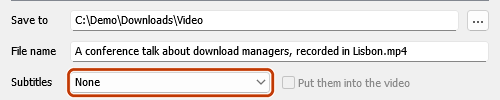
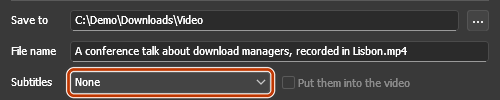
- 字幕文件会保存在视频旁边,文件名与视频相同,并带有语言信息:
My video.fr.srt。VLC 和 MPV 等播放器会自动识别字幕。使用 ffmpeg 时,字幕始终为 SRT 格式;不使用 ffmpeg 时,则采用网站提供的格式(通常是 WebVTT,.vtt)。 - 将字幕嵌入视频会将字幕作为可在播放器中切换的轨道嵌入到文件中。这需要 ffmpeg 和 MP4 或 MKV 视频。直播录制会将字幕保留在旁边(正在录制)。
- 纯音频选项(仅音频、MP3、Opus、FLAC)不提供字幕。
VDM offers the same choice again for the next video when it has that language.
A site may refuse subtitles when it's asked too often: YouTube does, most of all for its translated captions. The video is saved all the same. VDM asks for the subtitles once more after 20 seconds, and if they still don't come, the Download complete window and the download's log say which ones are missing and why. Try them again later. When subtitles meant to go inside the video only come on that second try, they're saved beside it instead.
章节
许多视频在其页面上都分成了章节:YouTube 播放器下方的列表,每个部分都有标题和开始时间。勾选嵌入章节(在字幕下方)后,它们会嵌入到视频文件中,这样 VLC、MPV、MPC-HC 和 Windows Media Player 等播放器就能列出它们并从一个章节跳到下一个章节。
- 它默认是勾选的,并且会保留您上次设置的状态,用于下一个视频。
- 它需要 ffmpeg 来写入章节。没有章节的视频会按原样保存。
- 它们会嵌入到视频(MP4、MKV、WebM)和网站提供的音频(仅音频,原始)中,但不会嵌入到 MP3、Opus 或 FLAC 文件中,也不会嵌入到直播录制中。
- 命令行(
video-get)也会将它们嵌入,只要 ffmpeg 存在。
勾选按章节拆分(在嵌入章节旁边,或在长语言中在其下方)后,视频也会拆分成单独的章节文件(<filename> - <NN> - <chapter name>.<ext>,或无标题时为<filename> - <NN>.<ext>)。整个视频也会保留。
- 这需要 ffmpeg,并且会保留您为下一个视频设置的选项。
- Splitting uses stream copy without re-encoding, so it runs losslessly and near-instantly. Each cut lands on a keyframe, so a chapter can start a second or a few early (yt-dlp's
--force-keyframes-at-cutsmakes it exact, but re-encodes, so VDM does not turn it on by default). - 没有章节或只有一个章节的视频会保存为单个文件,不进行拆分。
- 章节标题会缩短以适应系统对文件名和路径的限制;在非常深的文件夹中,章节仅以其编号命名。
- 不提供仅下载部分内容选项:部分内容没有章节。
- 命令行中的
video-get和playlist-get通过--split-chapters支持此功能。 - 删除下载及其文件也会清理其拆分的章节文件,同时保留同一文件夹中不相关的文件。
仅下载部分内容
要仅保存视频或音频的一部分(一个场景、长混音中的一首歌、播客的几分钟),请在字幕下方的部分行上勾选仅下载部分内容,然后输入开始和结束时间。
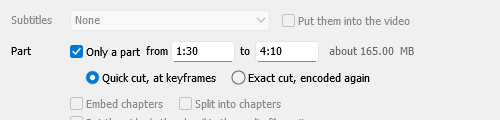
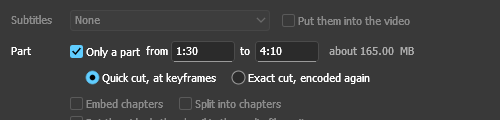
- 时间可以输入为
1:30(一分半)、1:02:03(一小时两分三秒)或以秒为单位(90)。输入框默认显示整个视频的时间,从 0:00 到结束;上移和下移会以一秒为单位移动时间,上页和下页会以十秒为单位移动。当时间无效时(不是有效时间、结束时间早于开始时间、超出视频总时长,或选择的部分是整个视频),输入框会变为红色,立即下载会显示原因。 - 第一种选择是快速剪切,在关键帧处:图像和声音按原样复制,不重新编码,因此速度快且无损。图像只能在关键帧处干净地开始,所以部分内容会从您指定开始时间之前的最后一个关键帧开始:最多提前几秒,绝不会延迟。M4A 中的纯音频会从您指定的位置开始;WebM (Opus) 中的纯音频会从其之前的最后一个查找点开始,这可能提前十秒。
- 精确剪切,重新编码:部分内容会从您指定的位置开始和结束。ffmpeg 会重新编码(MP4 中为 H.264 和 AAC,WebM 中为 VP9 和 Opus,纯音频为其自身格式),这大约需要您的计算机编码相同分钟数的时间,并且图像可能会略有损失。
- 时间旁边的大小是估算值:该部分占总体的比例。
- 文件名显示部分内容:
My video (1m30s-4m10s).mp4。您输入的名称将按您输入的方式保留。 - 部分内容不包含字幕和章节:它们将是整个视频的字幕和章节,时间也对应整个视频。字幕和嵌入章节在选中仅下载部分内容时会变灰。
- 它需要 ffmpeg 来剪切部分内容,以及网站显示长度的视频(不是直播流)。播放列表中的视频将完整下载。
- 从浏览器:视频上方的下载视频按钮菜单中包含从此处下载部分内容...。它会打开此窗口,其中仅下载部分内容已勾选,并且其开始时间是视频正在播放的位置。
How a part comes down: yt-dlp's ffmpeg finds the part in each stream by the stream's own index (an MP4's or a WebM's, an HLS stream's playlist) and reads only that part, never the whole file. What it reads comes in through VDM's own connections, in requests of a MB at most, several at once: a part comes about as fast as a whole video would (YouTube sends one long request at about the video's own pace), under your speed limits (a change applies at once), and through your proxy or network adapter. The progress window shows what has come against the part's estimated size. Paused and resumed, a part starts again from its beginning: ffmpeg can't go on from the middle of a cut. A stream sent another way (a DASH manifest, RTMP) is read by ffmpeg itself.
播放列表和频道
粘贴播放列表 (youtube.com/playlist?list=…) 或频道视频 (youtube.com/@name/videos) 的地址,然后点击 查找。窗口不会显示单个视频的画质选项,而会列出播放列表中的视频及其时长。
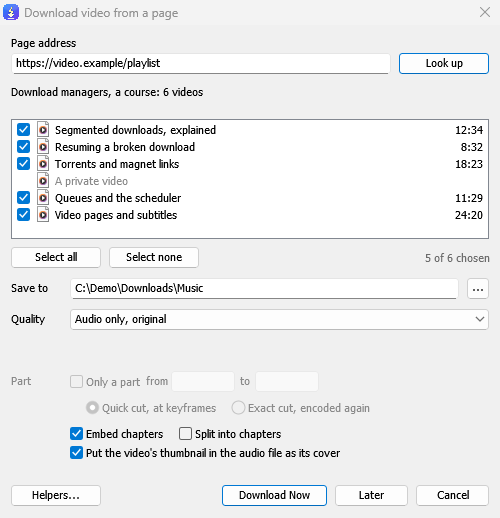
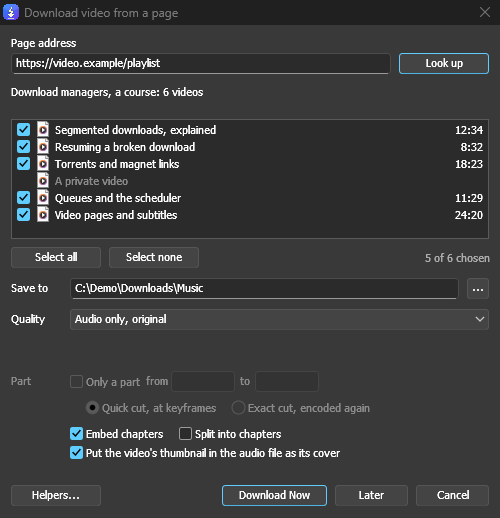
- 播放列表会逐步列出其中的视频:列表上方会显示进度(“正在列出视频:6,000 个中的 1,200 个”)。停止列出会保留已列出的视频,列出其余部分会从那里继续。如果网站中途停止响应(YouTube 在请求过于频繁时可能会这样),窗口会显示已列出多少个视频以及原因,然后列出其余部分会从那里继续尝试。
- 频道每次列出 50 个视频,最新的视频排在前面。加载更多会列出接下来的 50 个视频。
- 每个视频默认都已勾选。取消勾选不需要的视频,或使用全选和不选。私人和已删除的视频会显示为灰色,无法勾选。
- The sound's language: every video of the list downloads with Options → Regional → Videos' sound's language when it has it, else its original (The sound's language).
- 画质 适用于所有视频:最佳画质、最兼容 (H.264 + AAC)(每个视频的最佳 H.264 画面配 AAC 音频;没有此格式的视频不会下载)、最高 某个高度(每个视频在该高度或低于该高度的最近画质)、仅音频,原始、仅音频 MP3、仅音频 OPUS 或 仅音频 FLAC。如果没有 ffmpeg,则只提供自带音频的画质,不提供 MP3、Opus 或 FLAC。
- 视频会分别按其标题命名,并保存到保存到中以列表命名的文件夹里。
立即下载会将每个视频分别添加为一个下载任务,并启动主队列。队列会按照您在计划程序(同时下载 N 个文件)中设置的数量同时下载。稍后会添加视频,但不启动下载。一次添加超过 500 个视频时会先询问。
VDM lists at most 20,000 videos of one list.
如果页面地址指向播放列表或混音中的某个视频(例如 watch?v=…&list=…),只会下载该视频,不会下载整个列表。
速度限制
Videos keep to the Speed Limiter: the limit for one file, a video's own limit (the Speed Limiter tab of its progress window), and the limit for all downloads together, which they share with every other download. VDM's own downloader brings them in, so a change applies at once, as for a file.
A video yt-dlp downloads by itself (How a video comes down) takes a limit only as it starts: when you turn the limiter on or off, change its settings or the video's own limit, VDM stops it and starts it again with the new limit, and it goes on from where it was (the log says "Stopped: the speed limit changed; starting again with it"). A live stream that is recording is the exception: restarting it would cut the recording, so it keeps recording and takes the limit the next time it starts. Under the limit for all downloads, such videos share it evenly: when another starts, the ones running with more than their share start again with it; when one ends, the others keep theirs. A gallery's pictures that VDM brings in follow a change at once; what gallery-dl still fetches itself starts again with the new limit, skipping the files already saved. Other changes (torrents taking more or less of the limit for all downloads, Only while I'm using the computer) apply to the next one that starts.
通过 VPN 适配器
With Options → Proxy / Socks → Network adapter set, video downloads go through that adapter too, with the same kill switch as other downloads. VDM's own downloader opens its connections through the adapter as for any file; for yt-dlp's look-ups (and what it downloads itself, with the ffmpeg it starts) VDM hands it a proxy of its own on this computer, and opens every connection through the adapter, looking the names up with the DNS you chose in Options → Connection (without an adapter, yt-dlp uses the system's DNS). When the adapter disconnects, the video download stops, and it starts again when the adapter is back. Formats sent over RTMP, RTSP, MMS or FTP can't go through it and are refused.
需要登录的网站
有些视频仅供登录用户观看:会员视频、私人视频或有年龄限制的视频。YouTube 有时还会要求它怀疑的网络(VPN、共享或云地址)中的任何观看者“登录以确认您不是机器人”。yt-dlp 此时需要您的浏览器 Cookie,即让您保持登录状态的小文件。
- 视频上方的“下载视频”按钮会传递该页面在您当前窗口和配置文件(私人窗口、Firefox 容器)中的 Cookie,用于查找和下载,因此您在浏览器中登录的状态也会在 VDM 中保持。无需设置。每个 Cookie 都与浏览器保存它的域相关联,因此在 YouTube Music (music.youtube.com) 或 YouTube 移动网站上的登录也会影响 www.youtube.com。
- 粘贴的地址(添加 URL、从页面下载视频、播放列表):在选项 → 站点登录 → 视频网站的 Cookie中选择您的浏览器。yt-dlp 随后会读取该浏览器在此计算机上的 Cookie,用于查找或下载每个视频。如果扩展程序传递了页面自身的 Cookie,则会优先使用这些 Cookie:它们属于该页面和该会话。
- 一个独立的备用账户:您不必将主账户借给 yt-dlp。在浏览器中创建第二个配置文件,使用备用账户登录该网站,然后将该配置文件放入配置文件(其名称,或其文件夹,使用...)。yt-dlp 只读取该配置文件的 Cookie。yt-dlp 的开发者也建议这样做:网站可能会限制被程序使用的账户。
Signed in, YouTube sometimes refuses what it gives a visitor: its servers answer the video with HTTP Error 403: Forbidden, or the look-up with its bot check, where a private window plays it. When YouTube refuses a video anyone may watch that way, VDM looks it up once more without your cookies, as a private window would, and the download's log says so. A private, members' or age-restricted video keeps them.


Sign in to the site in that browser first. VDM never logs or shows the cookies; the download's log names only the browser they came from.
支持的浏览器
来自浏览器列出了 yt-dlp 可读取的浏览器:Firefox、Chrome、Edge、Brave、Opera、Vivaldi、Chromium 和 Whale,以及 macOS 上的 Safari。配置文件是可选的:配置文件的名称(Profile 1)或其文件夹;留空则使用上次使用的配置文件。
- Firefox可在所有系统上运行。如果您刚登录 Firefox,请关闭一次浏览器,以便它将登录信息写入文件。
- Windows 上的 Chrome、Edge 和 Brave将其 Cookie 锁定给自己(Chrome 127 及更高版本,“应用绑定加密”),并且在浏览器打开时 yt-dlp 也无法读取它们。窗口会显示此信息;请选择 Firefox,或使用视频上方的按钮,该按钮适用于任何浏览器。
- 在 Linux 上,Chrome 系列浏览器将其 Cookie 密钥保存在系统的密钥环中(GNOME Keyring、KWallet);yt-dlp 会请求它,因此密钥环必须处于解锁状态。
- 其他基于 Chromium 的浏览器(Helium、Thorium、ungoogled-chromium...):选择Chromium和该浏览器的配置文件文件夹(其
Default文件夹,或Profile 1...;在 Linux 上位于~/.config下,在 Windows 上位于%LOCALAPPDATA%下)。yt-dlp 会读取该文件夹,但如果浏览器将其密钥以自己的名称保存在密钥环中,或像 Chrome 一样锁定其 Cookie,则无法通过此方式读取:请使用其扩展程序的按钮。
无法连接到视频服务器时
Some sites, YouTube among them, send each viewer to a nearby video server, sometimes one inside the internet provider's own network. If that server can't be reached from your connection, a browser quietly switches to another one, but yt-dlp on its own would give up. Before each video download VDM checks the servers in the video's links and, if one doesn't answer, switches to the next one the site lists. The download's log says when this happens.
视频无法下载时
- 将鼠标悬停在下载任务的状态上,或打开其进度窗口,即可查看 yt-dlp 的提示。
- 此页面上没有可下载的视频表示 yt-dlp 未在该页面找到视频。请确认地址是视频本身的页面。
- 此视频需要您登录,或网站要求您登录:请参阅需要登录的网站。
- Sites change often, and a newer yt-dlp usually fixes it. VDM keeps its own yt-dlp up to date by itself, and when a download fails in a way that usually means yt-dlp is out of date, it looks for a newer one at once and tries again (Keeping them up to date). To check right now: Helpers... → Check for updates. If you chose your own yt-dlp in Helpers, update it yourself (
yt-dlp -U, or your package manager). - The path is too long for Windows (or the file name is too long) means the folder and the file name together, with the files saved beside the video while it downloads, are longer than the system allows: 259 characters on Windows unless long paths are turned on there, 255 a name (255 bytes on Linux and macOS). VDM shortens a title by itself, so this comes from a name you typed or a very deep Save to folder: add the video again with a shorter name, or a folder nearer the top of the drive.
- Videos protected with DRM (most paid streaming services) can't be downloaded, and VDM doesn't try. The browser extension's Media on this page shows such a stream as Protected and doesn't send it.
- 如果窗口找不到页面中的视频:在浏览器中播放视频,然后使用扩展程序的此页面上的媒体发送页面加载的视频流。
- 下载可能违反某些网站的服务条款。是否违反条款由您自行确认。
- 仍无法解决?使用帮助 → 报告问题,并附上页面地址。
下一步
免费、开源、无广告、无试用版。
Download Volt Download Manager