

VDM downloads videos from their web pages: YouTube, Vimeo, Dailymotion, Twitch, TikTok, X, Instagram, Facebook, Reddit, SoundCloud and well over a thousand other sites. yt-dlp, an open-source program whose community keeps it working as sites change, finds the video on the page; VDM's own downloader then brings it in, the way it downloads any file.
Iniciar una descarga de vídeo
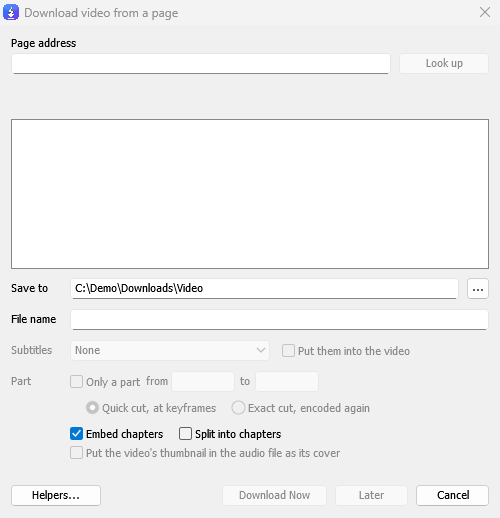
- Give the video's page address to Add URL (Ctrl+N). VDM recognises video pages and opens the video window, already looking the page up.
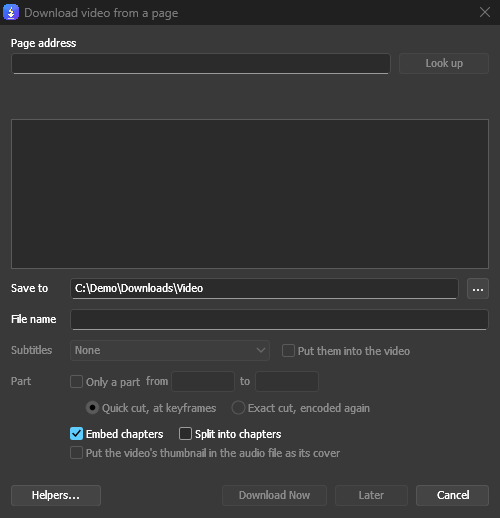
- O elige Tareas → Descargar vídeo de una página..., pega la dirección en Dirección de la página y haz clic en Buscar.
Cualquier otra dirección que resulte ser una página web, no un archivo, también se ofrece a la ventana de vídeo. En un sitio para el que yt-dlp no tiene un lector propio, el vídeo es el que la página dice que es, cuando nombra uno (en lo que les dice a los motores de búsqueda y a las vistas previas de enlaces: su JSON-LD, og:video o twitter:player), en lugar del primer reproductor escrito en su HTML, y el archivo se nombra como la página lo nombra.
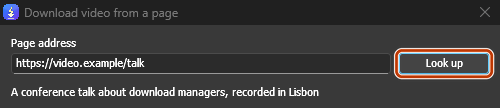
Pega la dirección de la página y haz clic en Buscar. 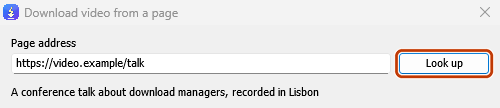
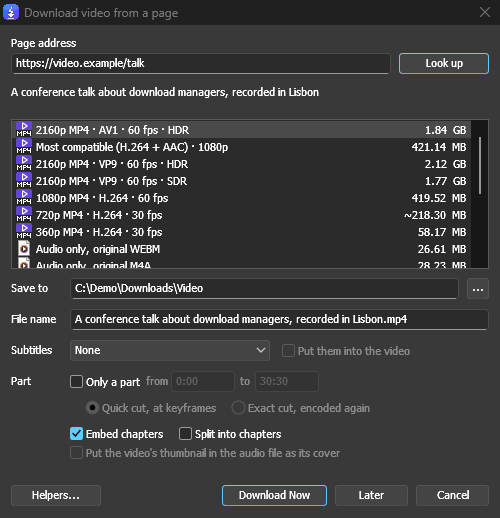
Elige una calidad y luego Descargar ahora. 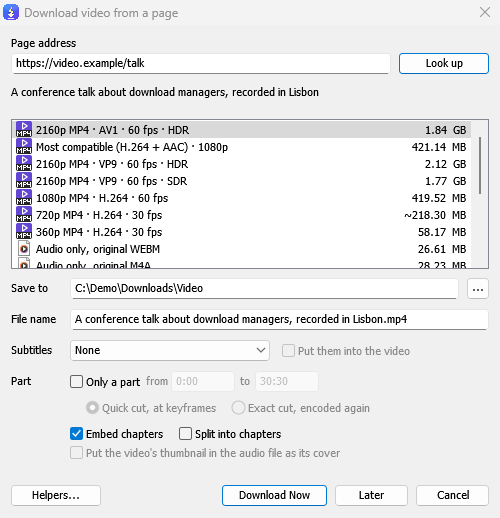
Se descarga como cualquier otro archivo, en su propia fila y ventana. 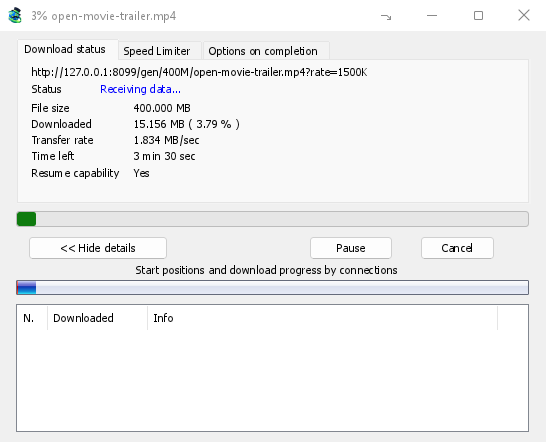
yt-dlp y ffmpeg
VDM offers its two helpers on its first start, and again the first time they are needed. It downloads them from their official releases with its own downloader, so a cut connection resumes, and uses your proxy settings:
- yt-dlp (about 23 MB) looks the page up and finds where the video and its sound come from; VDM downloads them (How a video comes down). The first time, click Install yt-dlp. VDM checks the download against the signature yt-dlp's developers publish before it uses it.
- ffmpeg (about 80 MB) joins a video and its sound when a site keeps them apart, which most sites do for the higher qualities, and turns the sound into an MP3, Opus or FLAC file. Click Install ffmpeg when VDM offers it. VDM installs only a build its maintainers checked: the download must match the SHA-256 in VDM's own list of builds, which carries VDM's signature. When that list can't be downloaded or checked, VDM says so and installs nothing; you can still choose your own ffmpeg in Helpers....
- Each processor gets its own build: yt-dlp's for x64, ARM64 and 32-bit Windows and for Linux on ARM, and ffmpeg's for x64 and ARM64 Windows. No ffmpeg is built for 32-bit Windows that VDM can check, so there VDM offers none: choose your own in Helpers... (below), or download the qualities that come with their sound.
You can install them ahead of time too: in Helpers..., a helper that isn't there yet says Not installed yet, and Install yt-dlp, Install ffmpeg or Install gallery-dl in its row downloads VDM's own copy, checked the same way, and keeps it up to date from then on. Where VDM has no copy for your system, the button is greyed out and the row says what to do instead.
Both are kept in a tools folder in VDM's data folder. For YouTube, yt-dlp also needs a JavaScript runtime, which VDM can download too: see A JavaScript runtime for YouTube.
Mantenerlos actualizados
Sites change all the time, and a newer yt-dlp is usually what makes a page that stopped working download again. So VDM keeps its own copies of yt-dlp, gallery-dl, ffmpeg and Node.js up to date by itself:
- When: a few seconds after VDM starts, then again while it runs: yt-dlp and gallery-dl at most every 6 hours, Node.js once a day, ffmpeg once a week (a newer ffmpeg comes when VDM's list of checked builds names one, usually with a new version of VDM). VDM remembers when it last asked, so starting it many times doesn't ask again.
- How: each new version is downloaded and checked exactly as the first install was (yt-dlp's, gallery-dl's and Node.js's signed checksum lists, VDM's signed list of ffmpeg builds), never an older one, and installed beside the one in use.
- Cuándo cambia: solo mientras ninguna descarga, búsqueda u otra ejecución esté usando ese ayudante. Un vídeo que se esté descargando cuando llegue el nuevo yt-dlp terminará con el que empezó; el nuevo se usará desde el momento en que finalice la última descarga que lo utilice.
- La versión anterior se mantiene, para que puedas volver a ella. Las más antiguas se eliminan.
- A video that fails with an error that usually means yt-dlp is out of date for the site (Unable to extract, Unsupported URL, YouTube's Sign in to confirm you're not a bot, HTTP Error 403, a failed signature or n challenge, Requested format is not available), or a gallery whose gallery-dl reports an unexpected error: VDM looks for a newer version at once, installs it if there is one, and tries that download again with it, once. Its log says so. If there is none, the error stands as before.
- A check that fails (no connection, GitHub busy) is tried again an hour later. It is written in VDM's log, never shown as an error.
In Helpers..., each of VDM's own copies says how it stands: Up to date, Version X available, Updated to X, or Version X is ready: used once its downloads end. Update gets the newest version of that one now, Go back to X uses the previous version again (automatic updates then wait for a version newer than the one you left; Update brings it back), and Check for updates checks them all. Untick Keep VDM's helpers up to date automatically to update only when you ask. Programs you chose with Use another program..., and your system's copies, say Updated by you: VDM leaves them to you.
En la línea de comandos, update-helpers los comprueba y actualiza todos e imprime sus versiones (Línea de comandos).
Usar sus propias copias
On Linux and macOS, VDM finds yt-dlp, ffmpeg and gallery-dl on your PATH and in the usual package-manager folders, including Homebrew's. A program you selected yourself takes priority, followed by VDM's own installed copy. The system copy is used when neither is present, and your package manager keeps it up to date: VDM never downloads over it on its own. If your distribution's yt-dlp is old, Use VDM's own copy in Helpers downloads VDM's, which keeps itself current and is used from then on.
Already have yt-dlp or ffmpeg for another program? Use those instead of a second copy: in Download video from a page, click Helpers..., then Use another program... beside yt-dlp or ffmpeg, and choose the program. VDM runs it once to check that it is that program, and uses it from then on, the command line too. VDM doesn't update a program you chose: keep it up to date yourself (yt-dlp: yt-dlp -U, or your package manager). Use VDM's own copy goes back to the one VDM downloads and checks.
Un entorno de ejecución de JavaScript para YouTube
YouTube hides most of a video's qualities behind small puzzles that yt-dlp solves with a JavaScript runtime: Node.js, Deno, QuickJS or Bun. Without one, a look-up is slow, the list is short (sometimes only the sound and a low quality) or it fails with Requested format is not available, and VDM says so: YouTube needs a JavaScript runtime to list its video qualities. Other sites don't need one.
The quickest way is VDM's own copy of Node.js: click Install Node.js beside that message, or, in Helpers..., Install Node.js in the JavaScript runtime (for YouTube) row. The first start's setup offers it too, in its Video helpers step, when your computer has no runtime. VDM downloads Node.js's newest long-term support (LTS) build for your system and processor from nodejs.org with its own downloader (about 40 MB on Windows, 60 MB on Linux and macOS; Windows x64, ARM64 and 32-bit, Linux x64 and ARM64, macOS), checks the release's checksum list against the signing keys of Node.js's releasers and the download against that list before it uses it, keeps only the node program in the tools folder beside yt-dlp and ffmpeg, and from then on tells yt-dlp to use it. It keeps it up to date the way it keeps yt-dlp's (Keeping them up to date), never with an older version. 32-bit Windows gets the newest LTS line Node.js still builds for it, 22, which Node.js supports until April 2027; after that VDM has no Node.js for 32-bit Windows, and a runtime of your own (Use another program...) is needed there. VDM never installs a Node.js older than the LTS line current when that VDM was made, whatever nodejs.org's list says. The video is looked up again by itself once Node.js is in.
Already have one? Then nothing needs downloading: a runtime on your computer comes first. VDM finds Deno, Node.js (22 or newer, also one installed with nvm), QuickJS and Bun by itself, in the order yt-dlp prefers them, and passes over one too old for yt-dlp (Node.js 20, say) or a Node.js whose line has reached its end of life on nodejs.org's schedule (then VDM's own is used, which it keeps on a supported release). A supported Node.js of your computer's is used as it is: you or your package manager keep it up to date. Helpers says which one yt-dlp uses and where it is: Node.js 24.11.0, your system's, nothing to download. To use another one, a portable copy or one that isn't on the PATH, click Use another program... in that row and choose its program (node.exe, deno.exe, qjs.exe, bun.exe): VDM asks it for its version first and refuses one yt-dlp can't use. Use VDM's own copy goes back to the one VDM finds or downloads. (Choosing your own runtime was YairDies' idea.)
Earlier versions of VDM installed Deno. That copy keeps working until VDM's Node.js is in place (the next update check brings it, or Use VDM's own copy); then yt-dlp switches to Node.js and VDM removes its own Deno, once no download is using it. A Deno you installed yourself is never touched, nor VDM's own once you chose it with Use another program.... While VDM asks the runtimes on your computer for their versions, Helpers says Looking for a JavaScript runtime on this computer....
If you'd rather install one yourself, any of them works; then look the video up again. If VDM still says so, the new program's folder isn't on the PATH VDM started with (Windows' installers add it for programs started after them): quit VDM (Tasks → Exit) and start it again.
- Windows:
winget install DenoLand.Deno, owinget install OpenJS.NodeJS.LTS. Los instaladores de deno.com y nodejs.org también funcionan. - Ubuntu y Debian:
sudo apt install nodejs - Fedora:
sudo dnf install nodejs - Arch:
sudo pacman -S nodejs, osudo pacman -S deno - macOS:
brew install deno, obrew install node - Cualquier sistema, Deno solo para tu usuario:
curl -fsSL https://deno.land/install.sh | sh(en Windows, en PowerShell:irm https://deno.land/install.ps1 | iex)
A distribution's yt-dlp can also be too old for YouTube: if the list stays short, click Use VDM's own copy beside yt-dlp in Helpers.... A yt-dlp older than 2025.11.12 can't be told of a runtime at all; VDM then leaves the runtime out rather than stop the look-up.
Elegir la calidad
- Wait for the list. It shows each quality with its size, best first, then the sound alone:
- A video's line says its resolution, the file it makes, its picture's codec, its frame rate and whether it is HDR:
2160p MP4 · AV1 · 60 fps · HDR. MP4 is only the file: what's inside it can be AV1, VP9 or H.264, and the codec says which, the very one that downloads (should the site no longer offer that stream, VDM takes the nearest of the same codec and resolution first). A resolution that comes in several (AV1, VP9 and H.264, HDR and SDR) has a line for each: AV1 makes the smallest file, H.264 plays on the most devices, and an HDR video looks washed out on a screen without HDR.SDRis said only beside an HDR line of the same resolution. - Most compatible (H.264 + AAC), second in the list: the best H.264 video the site has (YouTube's usually go up to 1080p) with AAC sound (in stereo when the site has it beside surround), in an MP4 that Premiere Pro and other editors, older TVs and most phones open as it is. YouTube's best qualities are AV1 or VP9 with Opus sound, which some of them can't read. The line says its resolution:Most compatible (H.264 + AAC) · 1080p. VDM picks those streams, it doesn't convert anything: when the site has no H.264 video with AAC sound the line isn't there, and when the best line already is that, it isn't listed twice. - The size is that of exactly what downloads, the video and its sound. A size with~before it (~532 MB) is only an estimate: the site didn't say the size, so it comes from the stream's bitrate and length. - Audio only, original: the site's own file, not converted, once for each type the site has it in (WebM with Opus inside, M4A), the best first. The best sound there is, in the smallest file. - Audio only MP3 at its best variable bitrate (VBR) and at 320, 256, 192 and 128 kbps, for players that only take MP3. - Audio only OPUS: an.opusfile. When the site's sound is Opus already (YouTube's usually is), it's only moved into that file, not converted, so nothing is lost. - Audio only FLAC: a lossless.flacfile, for a library or a program that wants FLAC. It can't add quality: the site's sound is already compressed with losses, and FLAC keeps it exactly as it came, in a file several times bigger. The window says so when you choose it. - Elige uno. Sin ffmpeg, solo se enumeran las calidades que vienen con su sonido, y no hay MP3, Opus o FLAC (ffmpeg los crea).
- Comprueba Guardar en (la carpeta de la categoría Vídeo por defecto) y Nombre de archivo, que proviene del título del vídeo. Un título largo se acorta, al final de una palabra, para que los archivos guardados junto al vídeo mientras se descarga se ajusten al límite del sistema en la longitud de una ruta; un nombre que escribas se mantiene tal como lo escribiste.
- When the video's sound comes in several languages, choose one in Sound (see The sound's language). Choose Subtitles if you want them (see below). Embed chapters is ticked: see Chapters. To keep only a stretch of it, tick Only a part: see Download only a part. For a sound alone, Put the video's thumbnail in the audio file as its cover is ticked: see A cover for the sound.
- Haz clic en Descargar ahora, o en Más tarde para añadirlo a la lista sin iniciar la descarga.
El vídeo se descarga como cualquier otro archivo, con su propia fila en la lista y su ventana de progreso.
Cómo se descarga un vídeo
yt-dlp looks the page up and picks the quality's video and sound. VDM's own downloader then brings each of them in, one after the other, the way it downloads any file:
- A través de varias conexiones: tantas como Opciones → Conexión permita para un archivo. La tabla de conexiones de la ventana de progreso muestra cada una, y el mapa de segmentos muestra el vídeo y luego su sonido.
- A stream sent in many small pieces (HLS, DASH, as most sites other than YouTube send theirs) comes down that many pieces at once, each kept on disk as it arrives, then joined in order into one file, as yt-dlp joins them. Pieces encrypted with AES-128 are decrypted with the key the stream's playlist names. When their addresses expire, VDM asks yt-dlp for the stream's new list and carries on with the pieces still missing.
- Bajo tus límites de velocidad: los del Limitador de velocidad, los propios del vídeo (la pestaña Limitador de velocidad de su ventana de progreso) y el límite para todas las descargas juntas. Un cambio se aplica de inmediato.
- Paused and resumed like a file, also after quitting VDM: it carries on from the bytes already saved.
- When an address stops working: a video's addresses are signed and expire after a few hours (YouTube's after six). VDM asks yt-dlp for a fresh one for the same quality and carries on from where it stopped.
Luego yt-dlp hace lo que hace después de una descarga: une el vídeo y su sonido con ffmpeg en un solo MP4, guarda o inserta los subtítulos, pone los capítulos en el archivo y convierte el sonido para una elección de MP3, Opus o FLAC.
YouTube serves each connection's long requests slowly, so VDM asks for the video in pieces of 10 MB at most, as yt-dlp does, and several at once.
Algunos vídeos yt-dlp todavía los descarga por sí mismo, a través de su propia conexión, y la ventana de progreso lo indica:
- una transmisión en directo que aún se está grabando (Grabando una transmisión en directo);
- una transmisión enviada por RTMP, RTSP, MMS o FTP;
- las raras transmisiones en piezas de otros tipos (HDS de Adobe, Smooth Streaming de Microsoft) y una cuya clave el sitio le entrega directamente a yt-dlp.
Para esos, un nuevo límite de velocidad reinicia la descarga con él, desde donde estaba (Límites de velocidad); una transmisión en directo que se está grabando lo toma la próxima vez que se inicia.
Grabando una transmisión en directo
A live stream, a broadcast still going on, is recorded by yt-dlp with ffmpeg into an unfinished file, so VDM can't know its length. While it records, the progress window says Recording..., and Downloaded and Transfer rate follow the size of what has been recorded so far.
- Grabando... se muestra desde el momento en que la grabadora abre su archivo, una vez que se ha conectado a la transmisión (unos segundos después de que comience la descarga; hasta entonces la ventana dice Conectando...; una transmisión a la que no se puede acceder nunca llega a ese estado). Descargado muestra lo que ha llegado al disco, y la grabadora lo escribe en bloques de 256 KB, por lo que permanece en 0 KB hasta que se escribe el primer bloque (eso puede tardar un tiempo en una transmisión de baja tasa de bits), luego crece bloque a bloque. Detener y guardar antes del primer bloque no guarda nada todavía: la descarga se deja detenida, con su archivo vacío, para que Reanudar grabe de nuevo. Un archivo vacío sin terminar que dejó una ejecución anterior se elimina cuando la grabación se reinicia (no contiene nada), por lo que una grabación reanudada muestra Grabando... desde el mismo momento.
- Stop and save is what the progress window's pause button reads for a live stream that is recording. It, Stop and Stop All in the list (toolbar and menus), a queue's stop (by hand, at its scheduled stop time, or through the API) and the phone page's pause all end the recording and keep it. VDM makes the recording an MP4 itself, as yt-dlp does when a live stream ends: the streams are copied as they are, nothing is converted. The window says Saving... meanwhile, and the download is then Complete, as when a live stream ends by itself: the queue goes on and the completion notice and actions run.
- Pueden faltar los últimos momentos: como máximo el último MiB que la grabadora aún no había escrito. Eso son unos pocos segundos de vídeo, y hasta aproximadamente un minuto para una transmisión solo con sonido.
- Si no se puede crear el MP4, la grabación se guarda como un archivo MPEG-TS (
.ts), que la mayoría de los reproductores abren. Si eso tampoco se puede hacer, la descarga lo indica y el archivo sin terminar permanece tal cual. - La grabación se elimina solo cuando el MP4 la contiene toda: la grabación con una precisión de un segundo, su imagen y su sonido también (duraciones de ffprobe; sin ellas, al menos el 90 % del tamaño de la grabación). Un MP4 más corto se mantiene con la grabación a su lado, como
My stream (recording 1).ts, y el registro de la descarga indica por qué (si la grabación no se puede renombrar, el registro lo indica: permanece como el archivo sin terminar). - A live stream that ends by itself while VDM records it is made an MP4 the same way, with the same check: yt-dlp is told to leave its recording as it is, and VDM makes the MP4 of it (when it has ffmpeg and the recording is the MPEG-TS yt-dlp made). From the moment yt-dlp says the recording is finished, the window says Saving... (only a moment when there is no MP4 to make), and a Stop waits for it: the download is then Complete. The recording goes only when the MP4 holds all of it, it is kept beside a shorter one, and if no MP4 can be made it is the download's
.tsfile (My stream (recording 1).tswhenMy stream.tsis taken). Subtitles asked to go inside the video are saved beside it instead, and no chapters are added: the recording isn't changed once it is made. - MP3, Opus o FLAC de una transmisión en directo: el sonido se guarda como se pidió, y la grabación de la que se hizo permanece junto a él, como
My stream (recording 1).ts. - Una imagen y un sonido que yt-dlp unió por sí mismo una vez que la transmisión terminó permanecen junto al vídeo, tal como yt-dlp los dejó, cuando el vídeo no contiene todo de ambos; de lo contrario, se van.
- A recording yt-dlp finished but VDM didn't make an MP4 of (a try that failed just after, or VDM closed meanwhile) is still MPEG-TS under the MP4's name. Before the download starts again, VDM makes it an MP4 with the same check (the list says Merging meanwhile, and a Stop waits for it, then stops the download before anything else runs): when the MP4 holds all of it, it is the download. Otherwise the recording is kept as
My stream (recording 1).tsand the download starts over. Without VDM's ffmpeg it is set aside the same way. The same goes for a normal video in pieces (HLS) VDM's engine left as MPEG-TS inMy video.mp4when yt-dlp failed or was stopped while it fixed it up. - Una grabación en varias partes (una parte de imagen y otra de sonido que yt-dlp dejó separadas) se convierte en un solo MP4 con todas ellas. Si no se pueden unir, la descarga lo indica y cada parte permanece tal cual.
- Cancel in the progress window only stops the download: the recording stays in its unfinished file. So does reaching a download limit, which counts a recording as it grows and stops it as it stops other downloads. Resume, or VDM starting the download again by itself (after a network adapter change or the download limit, or a queue that starts when VDM opens), records the stream anew. It first sets the earlier recording aside, next to it, as
My stream (recording 1).ts(then(recording 2), and so on), so nothing is recorded over; so it does when the stream has ended meanwhile and the download goes on as a normal video. (An unfinished MPEG-TS file yt-dlp downloads directly, without its resume state, is taken for a recording the same way: it starts over, what it had kept aside.) If that file can't be set aside, VDM doesn't record over it and says so. - Estas grabaciones guardadas no son los archivos propios de la descarga: Eliminar con sus archivos los deja.
- Closing VDM while a live stream records, or while it saves one, stops it without saving: the recording stays in its unfinished file (a half-made MP4 is left as
<name>.temp.mp4, which Delete with its files removes), and it is set aside when the download starts again. The command line (voltdownloadmanager-cli) doesn't save a live stream this way. - Una transmisión en directo guardada por la detención de una cola se cuenta como completa, por lo que una cola diaria no la inicia de nuevo al día siguiente.
The sound's language
More and more videos come with their sound in several languages: the one they were made in, the original, and others dubbed (YouTube's dubbed and automatically dubbed tracks, for one). When the site names each track's language, Download video has a Sound list under File name, the original first and marked: English, original, then Deutsch · German, Español · Spanish... (each language in its own words, and in English when that differs). A video in one language has no such list and looks as before.
- The qualities follow it. Every line in the list is then in that language: a video line joins its picture with that language's sound and its size is theirs, and Audio only (as the site has it), MP3, Opus and FLAC take that language's sound. A video line whose file carries another language's sound (YouTube's 360p in one file) isn't offered for a dubbed language; without ffmpeg, which joins a picture and a sound, only the sound in that language is.
- One sound track per file. The file has the language chosen, never two.
- For every video and playlist: Options → Regional → Videos' sound chooses one language, which every video looked up starts on when it has it (in Download video, where you can still choose another, and in the button over a video) and which every video of a playlist downloads with. A video without that language comes with its original sound. Each video's original, the default, keeps every video in the language it was made in.
- The button over a video says the language of each line's sound in its menu, and its Audio tab has each other language's sound as the site has it too.
- If the site no longer offers that language when the download starts, the video comes with its original sound.
A cover for the sound
A sound saved alone has no picture, so music players show an empty square. With Put the video's thumbnail in the audio file as its cover ticked in Download video (under Embed chapters), the picture the site shows for that video becomes the file's cover once it is saved.
- It is ticked to begin with, and stays as you leave it for the next video. It applies to a playlist's sound too.
- Which files: an M4A as the site has it (Audio only, original M4A), and an MP3, Opus or FLAC. A WebM (Audio only, original WEBM, YouTube's Opus as it comes) can't hold a cover: choose M4A or Opus instead. Videos are saved as they are.
- How: VDM brings the picture in with its own connections (your proxy and network adapter, as every download), from where the site says that video's picture is, nothing from anywhere else. ffmpeg puts it into the file as its cover (Opus files as the picture comment music players read in them), copying the sound as it is: nothing is encoded again. A WebP picture is made a JPEG first.
- It needs ffmpeg. Without it, or when the picture can't be had, the file is saved as before, without a cover, and the download's log says why.
Subtítulos
Cuando el vídeo tiene subtítulos, la lista Subtítulos los ofrece: primero los idiomas propios del cargador (y Todos los del cargador cuando hay varios), luego los subtítulos automáticos del sitio, marcados como automáticos. De estos, solo se listan los del idioma hablado y sus traducciones al inglés y al idioma de su interfaz; sitios como YouTube ofrecen una traducción automática a todos los idiomas que conocen.
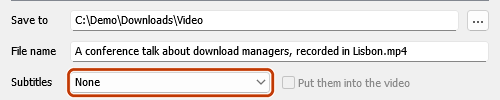
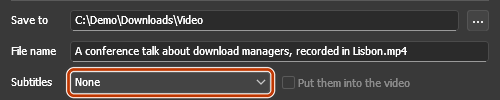
- Guardados junto al vídeo, toman su nombre y el idioma:
My video.fr.srt. Reproductores como VLC y MPV los detectan solos. Con ffmpeg siempre son SRT; sin él, el formato propio del sitio (a menudo WebVTT,.vtt). - Ponerlos en el vídeo los inserta dentro del archivo, como pistas que activas en el reproductor. Necesita ffmpeg y un vídeo MP4 o MKV. La grabación de una transmisión en directo los mantiene junto a ella (Grabando una transmisión en directo).
- Una opción de solo sonido (Solo audio, MP3, Opus, FLAC) no tiene subtítulos.
VDM offers the same choice again for the next video when it has that language.
A site may refuse subtitles when it's asked too often: YouTube does, most of all for its translated captions. The video is saved all the same. VDM asks for the subtitles once more after 20 seconds, and if they still don't come, the Download complete window and the download's log say which ones are missing and why. Try them again later. When subtitles meant to go inside the video only come on that second try, they're saved beside it instead.
Capítulos
Muchos vídeos están divididos en capítulos en su página: la lista de YouTube debajo del reproductor, con un título y una hora de inicio para cada parte. Con Insertar capítulos marcado, debajo de Subtítulos, estos se insertan en el archivo de vídeo, de modo que reproductores como VLC, MPV, MPC-HC y el Reproductor de Windows Media los listan y permiten saltar de uno a otro.
- Está marcado al principio y se mantiene como lo dejes para el siguiente vídeo.
- Necesita ffmpeg, que los escribe. Un vídeo sin capítulos se guarda tal cual.
- Se insertan en un vídeo (MP4, MKV, WebM) y en el sonido tal como lo tiene el sitio (Solo audio, original), no en un archivo MP3, Opus o FLAC, ni en la grabación de una transmisión en directo.
- La línea de comandos (
video-get) también los inserta, siempre que ffmpeg esté presente.
Con Dividir en capítulos marcado (junto a Insertar capítulos, o debajo en un idioma largo), el vídeo también se divide en archivos de capítulo individuales (<filename> - <NN> - <chapter name>.<ext>, o <filename> - <NN>.<ext> cuando no tienen título). El vídeo completo también se conserva.
- Necesita ffmpeg y se mantiene como lo dejes para el siguiente vídeo.
- Splitting uses stream copy without re-encoding, so it runs losslessly and near-instantly. Each cut lands on a keyframe, so a chapter can start a second or a few early (yt-dlp's
--force-keyframes-at-cutsmakes it exact, but re-encodes, so VDM does not turn it on by default). - Un vídeo sin capítulos o con un solo capítulo se guarda como un único archivo sin dividir.
- El título de un capítulo se acorta para ajustarse a los límites del sistema en nombres de archivo y rutas; en una carpeta muy profunda, un capítulo se nombra solo por su número.
- No se ofrece con Solo una parte: una parte no tiene capítulos.
- Los
video-getyplaylist-getde la línea de comandos lo admiten a través de--split-chapters. - Eliminar la descarga junto con sus archivos también limpia sus archivos de capítulo divididos, mientras se conservan los archivos no relacionados en la misma carpeta.
Descargar solo una parte
Para guardar solo un fragmento de un vídeo o de un sonido (una escena, una canción de una mezcla larga, unos minutos de un podcast), marca Solo una parte en la fila Parte, debajo de Subtítulos, y escribe dónde empieza y dónde termina.
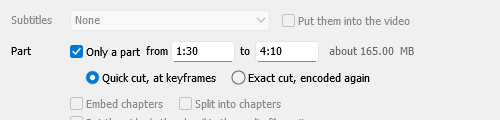
- Los Tiempos se escriben como
1:30(un minuto y medio),1:02:03(una hora, dos minutos y tres segundos) o en segundos (90). Las casillas comienzan en el vídeo completo, de 0:00 hasta su final; Arriba y Abajo mueven un tiempo un segundo, Re Pág y Av Pág diez. Una casilla se pone roja mientras su tiempo no es válido (no es un tiempo, el final es anterior al inicio, supera el final del vídeo o la parte es el vídeo completo), y Descargar ahora indica por qué. - Corte rápido, en fotogramas clave, la primera opción: la imagen y el sonido se copian tal cual, no se recodifica nada, por lo que es rápido y no pierde calidad. Una imagen solo puede empezar limpiamente en un fotograma clave, así que la parte empieza en el último antes de tu inicio: como mucho unos segundos antes, nunca después. Un sonido solo en un M4A empieza donde indiques; en un WebM (Opus), en el último punto de búsqueda anterior, que puede ser diez segundos antes.
- Corte exacto, recodificado: la parte empieza y termina donde indicaste. ffmpeg la recodifica de nuevo (H.264 y AAC en un MP4, VP9 y Opus en un WebM, el sonido solo en su propio formato), lo que tarda tanto como la codificación de esos minutos en tu equipo, y la imagen puede perder un poco de calidad.
- El tamaño junto a los tiempos es una estimación: la proporción de la parte respecto al total.
- Nombre de archivo indica la parte:
My video (1m30s-4m10s).mp4. Un nombre que escribas se mantiene tal cual. - Las partes no llevan subtítulos ni capítulos: serían los del vídeo completo, con los tiempos del vídeo completo. Subtítulos e Insertar capítulos aparecen atenuados mientras Solo una parte está marcada.
- Necesita ffmpeg, que corta la parte, y un vídeo cuya duración indique el sitio (no una transmisión en directo). Los vídeos de una lista de reproducción se descargan enteros.
- Desde el navegador: el menú del botón Descargar vídeo sobre un vídeo tiene Descargar una parte desde aquí.... Abre esta ventana con Solo una parte marcada y su inicio donde se está reproduciendo el vídeo.
How a part comes down: yt-dlp's ffmpeg finds the part in each stream by the stream's own index (an MP4's or a WebM's, an HLS stream's playlist) and reads only that part, never the whole file. What it reads comes in through VDM's own connections, in requests of a MB at most, several at once: a part comes about as fast as a whole video would (YouTube sends one long request at about the video's own pace), under your speed limits (a change applies at once), and through your proxy or network adapter. The progress window shows what has come against the part's estimated size. Paused and resumed, a part starts again from its beginning: ffmpeg can't go on from the middle of a cut. A stream sent another way (a DASH manifest, RTMP) is read by ffmpeg itself.
Listas de reproducción y canales
Pega la dirección de una lista de reproducción (youtube.com/playlist?list=…) o de los vídeos de un canal (youtube.com/@name/videos) y haz clic en Buscar. En lugar de mostrar las calidades de un vídeo, la ventana muestra los vídeos de la lista y la duración de cada uno.
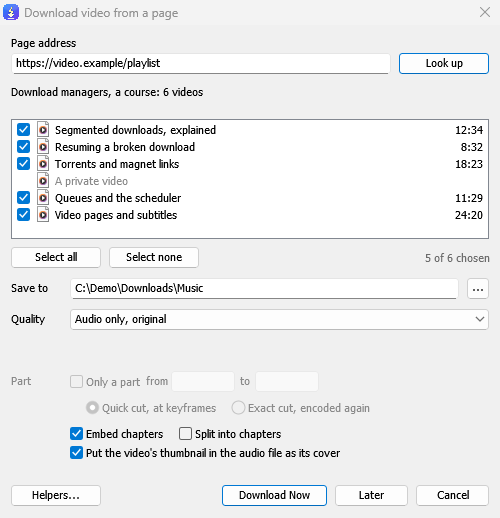
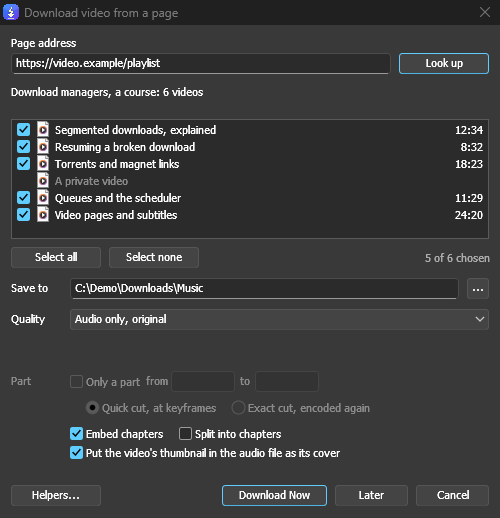
- Los vídeos de una lista de reproducción aparecen a medida que se van obteniendo. La línea situada encima de la lista indica el progreso ("Listando los vídeos: 1,200 de 6,000"). Detener listado conserva los vídeos obtenidos hasta ese momento, y Listar el resto continúa desde ahí. Si el sitio deja de responder a mitad del proceso (puede ocurrir con YouTube si se le hacen demasiadas peticiones), la ventana indica cuántos vídeos se han obtenido y por qué se ha detenido. Listar el resto vuelve a intentarlo desde ahí.
- Los vídeos de un canal se muestran de 50 en 50, empezando por los más recientes. Cargar más muestra los siguientes 50.
- Todos los vídeos aparecen seleccionados. Desmarca los que no quieras o usa Seleccionar todo y No seleccionar ninguno. Los vídeos privados y eliminados aparecen en gris y no se pueden seleccionar.
- The sound's language: every video of the list downloads with Options → Regional → Videos' sound's language when it has it, else its original (The sound's language).
- La Calidad se aplica a todos los vídeos: Mejor calidad, Más compatible (H.264 + AAC) (la mejor imagen H.264 de cada vídeo con sonido AAC; un vídeo que no tenga ninguno no se descarga), Hasta una altura (cada vídeo a esa altura, o la más cercana por debajo), Solo audio, original, Solo audio MP3, Solo audio OPUS o Solo audio FLAC. Sin ffmpeg, solo se ofrecen las calidades que vienen con su sonido, y no MP3, Opus o FLAC.
- Los vídeos se guardan en una carpeta con el nombre de la lista, dentro de Guardar en, cada uno con su propio título.
Descargar ahora añade cada vídeo como una descarga independiente e inicia la cola principal, que descarga tantos archivos a la vez como se haya configurado en el Programador (Descargar N archivos al mismo tiempo). Más tarde los añade sin iniciar las descargas. Si se añaden más de 500 a la vez, se solicita confirmación.
VDM lists at most 20,000 videos of one list.
Si la dirección de una página lleva a un vídeo de una lista de reproducción o una mezcla (por ejemplo, watch?v=…&list=…), se descarga solo ese vídeo, nunca la lista completa.
Límites de velocidad
Videos keep to the Speed Limiter: the limit for one file, a video's own limit (the Speed Limiter tab of its progress window), and the limit for all downloads together, which they share with every other download. VDM's own downloader brings them in, so a change applies at once, as for a file.
A video yt-dlp downloads by itself (How a video comes down) takes a limit only as it starts: when you turn the limiter on or off, change its settings or the video's own limit, VDM stops it and starts it again with the new limit, and it goes on from where it was (the log says "Stopped: the speed limit changed; starting again with it"). A live stream that is recording is the exception: restarting it would cut the recording, so it keeps recording and takes the limit the next time it starts. Under the limit for all downloads, such videos share it evenly: when another starts, the ones running with more than their share start again with it; when one ends, the others keep theirs. A gallery's pictures that VDM brings in follow a change at once; what gallery-dl still fetches itself starts again with the new limit, skipping the files already saved. Other changes (torrents taking more or less of the limit for all downloads, Only while I'm using the computer) apply to the next one that starts.
A través del adaptador de una VPN
With Options → Proxy / Socks → Network adapter set, video downloads go through that adapter too, with the same kill switch as other downloads. VDM's own downloader opens its connections through the adapter as for any file; for yt-dlp's look-ups (and what it downloads itself, with the ffmpeg it starts) VDM hands it a proxy of its own on this computer, and opens every connection through the adapter, looking the names up with the DNS you chose in Options → Connection (without an adapter, yt-dlp uses the system's DNS). When the adapter disconnects, the video download stops, and it starts again when the adapter is back. Formats sent over RTMP, RTSP, MMS or FTP can't go through it and are refused.
Sitios que requieren iniciar sesión
Algunos vídeos solo se reproducen para un espectador que ha iniciado sesión: un vídeo de miembro o privado, o uno con restricción de edad. Y YouTube a veces pide a cualquier espectador de una red de la que duda (una VPN, una dirección compartida o en la nube) que «Inicie sesión para confirmar que no es un bot». yt-dlp necesita entonces las cookies de tu navegador, los pequeños archivos que te mantienen con la sesión iniciada.
- El botón Descargar vídeo sobre el vídeo pasa las cookies de esa página, de la ventana y el perfil en los que te encuentras (una ventana privada, un contenedor de Firefox), para la búsqueda y la descarga, de modo que inicias sesión como lo haces en el navegador. Nada que configurar. Cada cookie va con el dominio para el que el navegador la guarda, por lo que un inicio de sesión en YouTube Music (music.youtube.com) o el sitio móvil de YouTube también llega a www.youtube.com.
- Una dirección pegada (Añadir URL, Descargar vídeo de una página, una lista de reproducción): elige tu navegador en Opciones → Inicios de sesión de sitios → Cookies para sitios de vídeo. yt-dlp lee entonces las cookies de ese navegador en este equipo para cada vídeo que busca o descarga. Cuando la extensión pasó las cookies propias de la página, se usan estas en su lugar: son de esa página y de esa sesión.
- Una cuenta secundaria, en un perfil propio: no tienes que prestar a yt-dlp tu cuenta principal. Crea un segundo perfil en tu navegador, inicia sesión en el sitio allí con una cuenta secundaria y pon ese perfil en Perfil (su nombre, o su carpeta con ...). yt-dlp lee solo las cookies de ese perfil. Los desarrolladores de yt-dlp también aconsejan esto: un sitio puede limitar una cuenta que ve utilizada por un programa.
Signed in, YouTube sometimes refuses what it gives a visitor: its servers answer the video with HTTP Error 403: Forbidden, or the look-up with its bot check, where a private window plays it. When YouTube refuses a video anyone may watch that way, VDM looks it up once more without your cookies, as a private window would, and the download's log says so. A private, members' or age-restricted video keeps them.


Sign in to the site in that browser first. VDM never logs or shows the cookies; the download's log names only the browser they came from.
Qué navegadores
Desde el navegador lista los navegadores que lee yt-dlp: Firefox, Chrome, Edge, Brave, Opera, Vivaldi, Chromium y Whale, y Safari en macOS. Perfil es opcional: el nombre de un perfil (Profile 1) o su carpeta; si está vacío, el perfil usado por última vez.
- Firefox funciona en todos los sistemas. Si iniciaste sesión hace solo unos instantes con Firefox abierto, ciérralo una vez para que escriba el inicio de sesión en sus archivos.
- Chrome, Edge y Brave en Windows bloquean sus cookies (Chrome 127 y posteriores, «cifrado ligado a la aplicación»), y yt-dlp tampoco puede leerlas mientras el navegador está abierto. La ventana lo indica; elige Firefox, o usa el botón sobre el vídeo, que funciona con cualquier navegador.
- En Linux, los navegadores de la familia Chrome guardan la clave de sus cookies en el llavero del sistema (GNOME Keyring, KWallet); yt-dlp la pide, por lo que debe estar desbloqueado.
- Otro navegador basado en Chromium (Helium, Thorium, ungoogled-chromium...): elige Chromium y la carpeta de perfil de ese navegador (su carpeta
Default, oProfile 1...; en~/.configen Linux,%LOCALAPPDATA%en Windows). yt-dlp lee la carpeta, pero un navegador que guarda su clave con su propio nombre en el llavero, o bloquea sus cookies como Chrome, no se puede leer de esta manera: usa el botón de su extensión.
Cuando no se puede acceder a un servidor de vídeo
Some sites, YouTube among them, send each viewer to a nearby video server, sometimes one inside the internet provider's own network. If that server can't be reached from your connection, a browser quietly switches to another one, but yt-dlp on its own would give up. Before each video download VDM checks the servers in the video's links and, if one doesn't answer, switches to the next one the site lists. The download's log says when this happens.
Si no se puede descargar un vídeo
- Pasa el ratón por el Estado de la descarga o abre su ventana de progreso para leer el mensaje de yt-dlp.
- No hay vídeo que se pueda descargar en esa página significa que yt-dlp no ha encontrado nada en la página. Comprueba que la dirección corresponda a la página del propio vídeo.
- Este vídeo requiere que inicies sesión, o el sitio requiere que inicies sesión: consulta Sitios que requieren iniciar sesión.
- Sites change often, and a newer yt-dlp usually fixes it. VDM keeps its own yt-dlp up to date by itself, and when a download fails in a way that usually means yt-dlp is out of date, it looks for a newer one at once and tries again (Keeping them up to date). To check right now: Helpers... → Check for updates. If you chose your own yt-dlp in Helpers, update it yourself (
yt-dlp -U, or your package manager). - The path is too long for Windows (or the file name is too long) means the folder and the file name together, with the files saved beside the video while it downloads, are longer than the system allows: 259 characters on Windows unless long paths are turned on there, 255 a name (255 bytes on Linux and macOS). VDM shortens a title by itself, so this comes from a name you typed or a very deep Save to folder: add the video again with a shorter name, or a folder nearer the top of the drive.
- Videos protected with DRM (most paid streaming services) can't be downloaded, and VDM doesn't try. The browser extension's Media on this page shows such a stream as Protected and doesn't send it.
- Si la ventana no encuentra el vídeo de una página, reprodúcelo en el navegador y usa Contenido multimedia en esta página, en la extensión, para enviar la emisión que ha cargado la página.
- Descargar contenido puede ir en contra de las condiciones de algunos sitios. Comprobarlo es responsabilidad tuya.
- ¿Sigues sin poder continuar? Usa Ayuda → Informar de un problema e incluye la dirección de la página.
Pasos siguientes
Gratis, código abierto, sin anuncios, sin prueba.
Download Volt Download Manager