

VDM downloads videos from their web pages: YouTube, Vimeo, Dailymotion, Twitch, TikTok, X, Instagram, Facebook, Reddit, SoundCloud and well over a thousand other sites. yt-dlp, an open-source program whose community keeps it working as sites change, finds the video on the page; VDM's own downloader then brings it in, the way it downloads any file.
একটি ভিডিও ডাউনলোড শুরু করুন
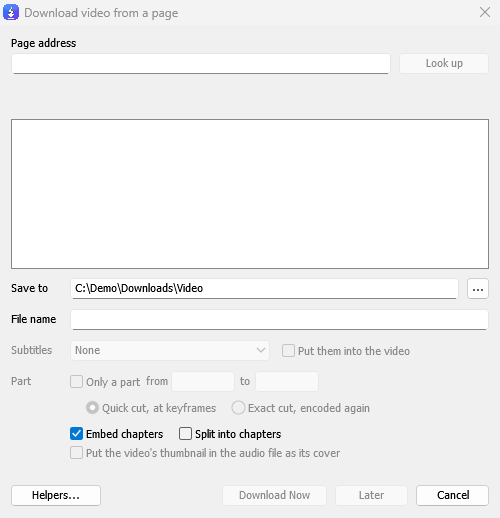
- Give the video's page address to Add URL (Ctrl+N). VDM recognises video pages and opens the video window, already looking the page up.
- অথবা কাজগুলি → একটি পৃষ্ঠা থেকে ভিডিও ডাউনলোড করুন... নির্বাচন করুন, পৃষ্ঠার ঠিকানা ঘরে ঠিকানাটি পেস্ট করুন এবং খুঁজুন-এ ক্লিক করুন।
অন্য যেকোনো পেজের ঠিকানা যা কোনো ফাইল নয়, বরং একটি ওয়েব পেজ, সেটিও ভিডিও উইন্ডোতে দেখানো হয়। yt-dlp-এর নিজস্ব রিডার নেই এমন কোনো সাইটে, ভিডিওটি হলো সেই ভিডিও যা পেজটি সম্পর্কে বলে, যখন এটি একটির নাম দেয় (যা এটি সার্চ ইঞ্জিন এবং লিংক প্রিভিউকে জানায়: এর JSON-LD, og:video অথবা twitter:player-এ), এর HTML-এ লেখা প্রথম প্লেয়ারের পরিবর্তে, এবং ফাইলটির নাম পেজটি যেভাবে দেয় সেভাবে রাখা হয়।
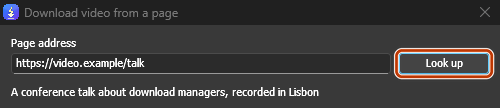
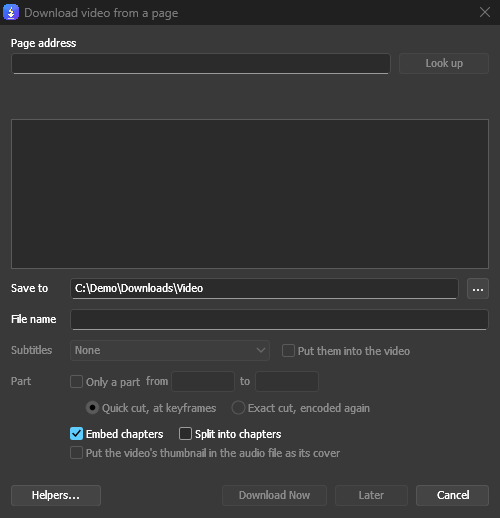
পৃষ্ঠার ঠিকানা পেস্ট করুন এবং “খুঁজুন”-এ ক্লিক করুন। 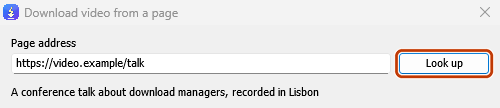
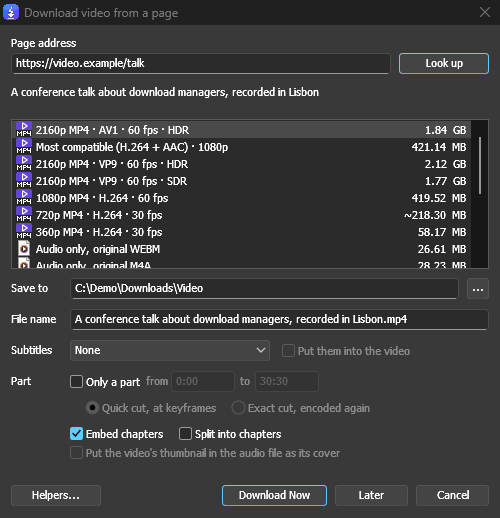
একটি মান বেছে নিন, তারপর “এখনই ডাউনলোড করুন”-এ ক্লিক করুন। 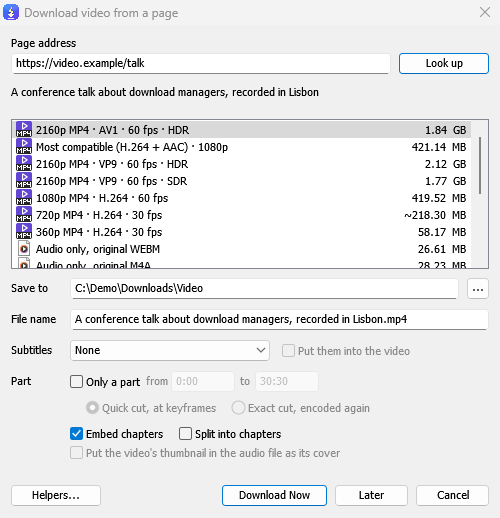
এটি অন্য যেকোনো ফাইলের মতোই ডাউনলোড হয়, নিজস্ব সারি এবং উইন্ডোতে। 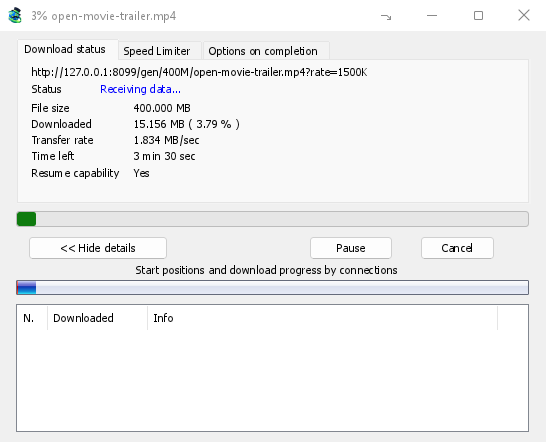
yt-dlp এবং ffmpeg
VDM offers its two helpers on its first start, and again the first time they are needed. It downloads them from their official releases with its own downloader, so a cut connection resumes, and uses your proxy settings:
- yt-dlp (about 23 MB) looks the page up and finds where the video and its sound come from; VDM downloads them (How a video comes down). The first time, click Install yt-dlp. VDM checks the download against the signature yt-dlp's developers publish before it uses it.
- ffmpeg (about 80 MB) joins a video and its sound when a site keeps them apart, which most sites do for the higher qualities, and turns the sound into an MP3, Opus or FLAC file. Click Install ffmpeg when VDM offers it. VDM installs only a build its maintainers checked: the download must match the SHA-256 in VDM's own list of builds, which carries VDM's signature. When that list can't be downloaded or checked, VDM says so and installs nothing; you can still choose your own ffmpeg in Helpers....
- Each processor gets its own build: yt-dlp's for x64, ARM64 and 32-bit Windows and for Linux on ARM, and ffmpeg's for x64 and ARM64 Windows. No ffmpeg is built for 32-bit Windows that VDM can check, so there VDM offers none: choose your own in Helpers... (below), or download the qualities that come with their sound.
You can install them ahead of time too: in Helpers..., a helper that isn't there yet says Not installed yet, and Install yt-dlp, Install ffmpeg or Install gallery-dl in its row downloads VDM's own copy, checked the same way, and keeps it up to date from then on. Where VDM has no copy for your system, the button is greyed out and the row says what to do instead.
Both are kept in a tools folder in VDM's data folder. For YouTube, yt-dlp also needs a JavaScript runtime, which VDM can download too: see A JavaScript runtime for YouTube.
আপ টু ডেট রাখা
Sites change all the time, and a newer yt-dlp is usually what makes a page that stopped working download again. So VDM keeps its own copies of yt-dlp, gallery-dl, ffmpeg and Node.js up to date by itself:
- When: a few seconds after VDM starts, then again while it runs: yt-dlp and gallery-dl at most every 6 hours, Node.js once a day, ffmpeg once a week (a newer ffmpeg comes when VDM's list of checked builds names one, usually with a new version of VDM). VDM remembers when it last asked, so starting it many times doesn't ask again.
- How: each new version is downloaded and checked exactly as the first install was (yt-dlp's, gallery-dl's and Node.js's signed checksum lists, VDM's signed list of ffmpeg builds), never an older one, and installed beside the one in use.
- কখন এটি পরিবর্তিত হয়: শুধুমাত্র যখন কোনো ডাউনলোড, লুক-আপ বা অন্য কোনো রান সেই হেল্পার ব্যবহার করছে না। নতুন yt-dlp আসার সময় যে ভিডিও ডাউনলোড হচ্ছে, সেটি যে সংস্করণ দিয়ে শুরু হয়েছিল, সেটি দিয়েই শেষ হয়; নতুন সংস্করণটি শেষ ডাউনলোডটি শেষ হওয়ার মুহূর্ত থেকে ব্যবহার করা হয়।
- আগের সংস্করণটি থাকে, যাতে আপনি সেটিতে ফিরে যেতে পারেন। পুরোনো সংস্করণগুলো বাদ দেওয়া হয়।
- A video that fails with an error that usually means yt-dlp is out of date for the site (Unable to extract, Unsupported URL, YouTube's Sign in to confirm you're not a bot, HTTP Error 403, a failed signature or n challenge, Requested format is not available), or a gallery whose gallery-dl reports an unexpected error: VDM looks for a newer version at once, installs it if there is one, and tries that download again with it, once. Its log says so. If there is none, the error stands as before.
- A check that fails (no connection, GitHub busy) is tried again an hour later. It is written in VDM's log, never shown as an error.
In Helpers..., each of VDM's own copies says how it stands: Up to date, Version X available, Updated to X, or Version X is ready: used once its downloads end. Update gets the newest version of that one now, Go back to X uses the previous version again (automatic updates then wait for a version newer than the one you left; Update brings it back), and Check for updates checks them all. Untick Keep VDM's helpers up to date automatically to update only when you ask. Programs you chose with Use another program..., and your system's copies, say Updated by you: VDM leaves them to you.
কমান্ড লাইনে, update-helpers সেগুলোর সবগুলোকে যাচাই ও আপডেট করে এবং তাদের সংস্করণগুলো প্রিন্ট করে (কমান্ড লাইন)।
আপনার নিজস্ব কপি ব্যবহার করুন
On Linux and macOS, VDM finds yt-dlp, ffmpeg and gallery-dl on your PATH and in the usual package-manager folders, including Homebrew's. A program you selected yourself takes priority, followed by VDM's own installed copy. The system copy is used when neither is present, and your package manager keeps it up to date: VDM never downloads over it on its own. If your distribution's yt-dlp is old, Use VDM's own copy in Helpers downloads VDM's, which keeps itself current and is used from then on.
Already have yt-dlp or ffmpeg for another program? Use those instead of a second copy: in Download video from a page, click Helpers..., then Use another program... beside yt-dlp or ffmpeg, and choose the program. VDM runs it once to check that it is that program, and uses it from then on, the command line too. VDM doesn't update a program you chose: keep it up to date yourself (yt-dlp: yt-dlp -U, or your package manager). Use VDM's own copy goes back to the one VDM downloads and checks.
YouTube-এর জন্য একটি জাভাস্ক্রিপ্ট রানটাইম
YouTube hides most of a video's qualities behind small puzzles that yt-dlp solves with a JavaScript runtime: Node.js, Deno, QuickJS or Bun. Without one, a look-up is slow, the list is short (sometimes only the sound and a low quality) or it fails with Requested format is not available, and VDM says so: YouTube needs a JavaScript runtime to list its video qualities. Other sites don't need one.
The quickest way is VDM's own copy of Node.js: click Install Node.js beside that message, or, in Helpers..., Install Node.js in the JavaScript runtime (for YouTube) row. The first start's setup offers it too, in its Video helpers step, when your computer has no runtime. VDM downloads Node.js's newest long-term support (LTS) build for your system and processor from nodejs.org with its own downloader (about 40 MB on Windows, 60 MB on Linux and macOS; Windows x64, ARM64 and 32-bit, Linux x64 and ARM64, macOS), checks the release's checksum list against the signing keys of Node.js's releasers and the download against that list before it uses it, keeps only the node program in the tools folder beside yt-dlp and ffmpeg, and from then on tells yt-dlp to use it. It keeps it up to date the way it keeps yt-dlp's (Keeping them up to date), never with an older version. 32-bit Windows gets the newest LTS line Node.js still builds for it, 22, which Node.js supports until April 2027; after that VDM has no Node.js for 32-bit Windows, and a runtime of your own (Use another program...) is needed there. VDM never installs a Node.js older than the LTS line current when that VDM was made, whatever nodejs.org's list says. The video is looked up again by itself once Node.js is in.
Already have one? Then nothing needs downloading: a runtime on your computer comes first. VDM finds Deno, Node.js (22 or newer, also one installed with nvm), QuickJS and Bun by itself, in the order yt-dlp prefers them, and passes over one too old for yt-dlp (Node.js 20, say) or a Node.js whose line has reached its end of life on nodejs.org's schedule (then VDM's own is used, which it keeps on a supported release). A supported Node.js of your computer's is used as it is: you or your package manager keep it up to date. Helpers says which one yt-dlp uses and where it is: Node.js 24.11.0, your system's, nothing to download. To use another one, a portable copy or one that isn't on the PATH, click Use another program... in that row and choose its program (node.exe, deno.exe, qjs.exe, bun.exe): VDM asks it for its version first and refuses one yt-dlp can't use. Use VDM's own copy goes back to the one VDM finds or downloads. (Choosing your own runtime was YairDies' idea.)
Earlier versions of VDM installed Deno. That copy keeps working until VDM's Node.js is in place (the next update check brings it, or Use VDM's own copy); then yt-dlp switches to Node.js and VDM removes its own Deno, once no download is using it. A Deno you installed yourself is never touched, nor VDM's own once you chose it with Use another program.... While VDM asks the runtimes on your computer for their versions, Helpers says Looking for a JavaScript runtime on this computer....
If you'd rather install one yourself, any of them works; then look the video up again. If VDM still says so, the new program's folder isn't on the PATH VDM started with (Windows' installers add it for programs started after them): quit VDM (Tasks → Exit) and start it again.
- Windows:
winget install DenoLand.Deno, অথবাwinget install OpenJS.NodeJS.LTS। deno.com এবং nodejs.org এর ইনস্টলারগুলিও কাজ করে। - উবুন্টু এবং ডেবিয়ান:
sudo apt install nodejs - ফেডোরা:
sudo dnf install nodejs - আর্চ:
sudo pacman -S nodejs, অথবাsudo pacman -S deno - macOS:
brew install deno, অথবাbrew install node - যেকোনো সিস্টেম, শুধুমাত্র আপনার ব্যবহারকারীর জন্য Deno:
curl -fsSL https://deno.land/install.sh | sh(Windows-এ, পাওয়ারশেলে:irm https://deno.land/install.ps1 | iex)
A distribution's yt-dlp can also be too old for YouTube: if the list stays short, click Use VDM's own copy beside yt-dlp in Helpers.... A yt-dlp older than 2025.11.12 can't be told of a runtime at all; VDM then leaves the runtime out rather than stop the look-up.
গুণমান নির্বাচন করুন
- Wait for the list. It shows each quality with its size, best first, then the sound alone:
- A video's line says its resolution, the file it makes, its picture's codec, its frame rate and whether it is HDR:
2160p MP4 · AV1 · 60 fps · HDR. MP4 is only the file: what's inside it can be AV1, VP9 or H.264, and the codec says which, the very one that downloads (should the site no longer offer that stream, VDM takes the nearest of the same codec and resolution first). A resolution that comes in several (AV1, VP9 and H.264, HDR and SDR) has a line for each: AV1 makes the smallest file, H.264 plays on the most devices, and an HDR video looks washed out on a screen without HDR.SDRis said only beside an HDR line of the same resolution. - Most compatible (H.264 + AAC), second in the list: the best H.264 video the site has (YouTube's usually go up to 1080p) with AAC sound (in stereo when the site has it beside surround), in an MP4 that Premiere Pro and other editors, older TVs and most phones open as it is. YouTube's best qualities are AV1 or VP9 with Opus sound, which some of them can't read. The line says its resolution:Most compatible (H.264 + AAC) · 1080p. VDM picks those streams, it doesn't convert anything: when the site has no H.264 video with AAC sound the line isn't there, and when the best line already is that, it isn't listed twice. - The size is that of exactly what downloads, the video and its sound. A size with~before it (~532 MB) is only an estimate: the site didn't say the size, so it comes from the stream's bitrate and length. - Audio only, original: the site's own file, not converted, once for each type the site has it in (WebM with Opus inside, M4A), the best first. The best sound there is, in the smallest file. - Audio only MP3 at its best variable bitrate (VBR) and at 320, 256, 192 and 128 kbps, for players that only take MP3. - Audio only OPUS: an.opusfile. When the site's sound is Opus already (YouTube's usually is), it's only moved into that file, not converted, so nothing is lost. - Audio only FLAC: a lossless.flacfile, for a library or a program that wants FLAC. It can't add quality: the site's sound is already compressed with losses, and FLAC keeps it exactly as it came, in a file several times bigger. The window says so when you choose it. - একটি বেছে নিন। ffmpeg না থাকলে শুধু অডিওসহ পাওয়া মানগুলোই তালিকায় দেখানো হয়; MP3, Opus বা FLAC দেখানো হয় না (এগুলো ffmpeg তৈরি করে)।
- এতে সংরক্ষণ করুন (ভিডিও শ্রেণির ফোল্ডার ডিফল্ট হিসেবে) এবং ফাইলের নাম পরীক্ষা করুন, যা ভিডিওর শিরোনাম থেকে আসে। একটি দীর্ঘ শিরোনাম শব্দের শেষে ছোট করা হয়, যাতে ভিডিও ডাউনলোড হওয়ার সময় এর পাশে সংরক্ষিত ফাইলগুলো পাথের দৈর্ঘ্যের সিস্টেমের সীমা মেনে চলে; আপনি যে নাম টাইপ করেন তা আপনি যেভাবে টাইপ করেছেন সেভাবেই রাখা হয়।
- When the video's sound comes in several languages, choose one in Sound (see The sound's language). Choose Subtitles if you want them (see below). Embed chapters is ticked: see Chapters. To keep only a stretch of it, tick Only a part: see Download only a part. For a sound alone, Put the video's thumbnail in the audio file as its cover is ticked: see A cover for the sound.
- এখনই ডাউনলোড করুন ক্লিক করুন, অথবা শুরু না করে তালিকায় যোগ করতে পরে ক্লিক করুন।
ভিডিওটি তখন অন্য যেকোনো ফাইলের মতো ডাউনলোড হয়, তালিকার নিজস্ব সারিতে এবং এর অগ্রগতি উইন্ডোতে।
একটি ভিডিও কীভাবে ডাউনলোড হয়
yt-dlp looks the page up and picks the quality's video and sound. VDM's own downloader then brings each of them in, one after the other, the way it downloads any file:
- একাধিক সংযোগের মাধ্যমে: সেটিংস → সংযোগ একটি ফাইলের জন্য যতগুলো দেয়। অগ্রগতি উইন্ডোর সংযোগ সারণী প্রতিটি সংযোগ দেখায় এবং সেগমেন্ট ম্যাপ প্রথমে ভিডিও এবং তারপর এর সাউন্ড দেখায়।
- A stream sent in many small pieces (HLS, DASH, as most sites other than YouTube send theirs) comes down that many pieces at once, each kept on disk as it arrives, then joined in order into one file, as yt-dlp joins them. Pieces encrypted with AES-128 are decrypted with the key the stream's playlist names. When their addresses expire, VDM asks yt-dlp for the stream's new list and carries on with the pieces still missing.
- আপনার গতির সীমার অধীনে: স্পিড লিমিটার-এর, ভিডিওর নিজস্ব (এর অগ্রগতি উইন্ডোর স্পিড লিমিটার ট্যাব), এবং সমস্ত ডাউনলোডের জন্য সম্মিলিত সীমা। একটি পরিবর্তন অবিলম্বে কার্যকর হয়।
- Paused and resumed like a file, also after quitting VDM: it carries on from the bytes already saved.
- When an address stops working: a video's addresses are signed and expire after a few hours (YouTube's after six). VDM asks yt-dlp for a fresh one for the same quality and carries on from where it stopped.
তারপর yt-dlp ডাউনলোডের পরে যা করে: এটি ffmpeg দিয়ে ভিডিও এবং এর শব্দকে একটি MP4 এ যুক্ত করে, সাবটাইটেল সংরক্ষণ বা এম্বেড করে, অধ্যায়গুলি ফাইলটিতে রাখে এবং একটি MP3, Opus বা FLAC পছন্দের জন্য শব্দকে রূপান্তর করে।
YouTube serves each connection's long requests slowly, so VDM asks for the video in pieces of 10 MB at most, as yt-dlp does, and several at once.
কিছু ভিডিও yt-dlp এখনও নিজে ডাউনলোড করে, এর নিজস্ব সংযোগের মাধ্যমে, এবং অগ্রগতি উইন্ডো তা বলে:
- একটি লাইভ স্ট্রিম যা এখনো রেকর্ড করা হচ্ছে (একটি লাইভ স্ট্রিম রেকর্ড করা হচ্ছে);
- RTMP, RTSP, MMS বা FTP এর মাধ্যমে পাঠানো একটি স্ট্রিম;
- অন্যান্য ধরনের বিরল স্ট্রিম (Adobe-এর HDS, Microsoft-এর মসৃণ স্ট্রিমিং), এবং যেগুলোর কী সাইট সরাসরি yt-dlp-কে দেয়।
এগুলোর জন্য, একটি নতুন স্পিড লিমিট ডাউনলোডটিকে আবার শুরু করে, যেখানে এটি ছিল সেখান থেকে (স্পিড লিমিট); একটি লাইভ স্ট্রিম যা রেকর্ড হচ্ছে, সেটি পরের বার শুরু হলে এটি নেয়।
একটি লাইভ স্ট্রিম রেকর্ড করা হচ্ছে
A live stream, a broadcast still going on, is recorded by yt-dlp with ffmpeg into an unfinished file, so VDM can't know its length. While it records, the progress window says Recording..., and Downloaded and Transfer rate follow the size of what has been recorded so far.
- রেকর্ড করা হচ্ছে... রেকর্ডার তার ফাইল খোলার মুহূর্ত থেকে দেখায়, একবার এটি স্ট্রিমের সাথে সংযোগ স্থাপন করলে (ডাউনলোড শুরু হওয়ার কয়েক সেকেন্ড পরে; ততক্ষণ পর্যন্ত উইন্ডোটি সংযোগ করা হচ্ছে... বলে; একটি স্ট্রিম যা পৌঁছানো যায় না সেটি কখনোই সেখানে পৌঁছায় না)। ডাউনলোড করা হয়েছে দেখায় ডিস্কে কী পৌঁছেছে, এবং রেকর্ডার এটি 256 KB ব্লকে লেখে, তাই প্রথম ব্লক লেখা না হওয়া পর্যন্ত এটি 0 KB থাকে (কম বিটরেটের স্ট্রিমে এটি কিছুটা সময় নিতে পারে), তারপর ব্লক বাই ব্লক বৃদ্ধি পায়। প্রথম ব্লকের আগে থামান এবং সংরক্ষণ করুন এখনো কিছু রাখে না: ডাউনলোডটি তার খালি ফাইল সহ থেমে থাকে, পুনরায় শুরু করুন নতুন করে রেকর্ড করার জন্য। আগের চালানো একটি খালি অসম্পূর্ণ ফাইল যখন রেকর্ডিং আবার শুরু হয় তখন সরানো হয় (এটি কিছু রাখে না), তাই একটি পুনরায় শুরু করা রেকর্ডিং একই মুহূর্ত থেকে রেকর্ড করা হচ্ছে... দেখায়।
- Stop and save is what the progress window's pause button reads for a live stream that is recording. It, Stop and Stop All in the list (toolbar and menus), a queue's stop (by hand, at its scheduled stop time, or through the API) and the phone page's pause all end the recording and keep it. VDM makes the recording an MP4 itself, as yt-dlp does when a live stream ends: the streams are copied as they are, nothing is converted. The window says Saving... meanwhile, and the download is then Complete, as when a live stream ends by itself: the queue goes on and the completion notice and actions run.
- শেষ মুহূর্তগুলো অনুপস্থিত থাকতে পারে: রেকর্ডার এখনো লেখেনি এমন সর্বোচ্চ শেষ 1 MiB। এটি কয়েক সেকেন্ডের ভিডিও, এবং শুধুমাত্র শব্দ সহ একটি স্ট্রিমের জন্য প্রায় এক মিনিট পর্যন্ত।
- যদি MP4 তৈরি করা না যায়, রেকর্ডিংটি একটি MPEG-TS ফাইল (
.ts) হিসাবে রাখা হয়, যা বেশিরভাগ প্লেয়ার খোলে। যদি সেটিও করা না যায়, ডাউনলোডটি তা বলে এবং অসম্পূর্ণ ফাইলটি যেমন আছে তেমনই থাকে। - রেকর্ডিংটি শুধুমাত্র তখনই সরানো হয় যখন MP4 এর সবটুকু ধারণ করে: রেকর্ডিংটি এক সেকেন্ডের মধ্যে, এর ছবি এবং এর শব্দ প্রতিটিও (ffprobe-এর সময়কাল; সেগুলো ছাড়া, রেকর্ডিংয়ের আকারের অন্তত 90%)। একটি ছোট MP4 রেকর্ডিংয়ের পাশে
My stream (recording 1).tsহিসাবে রাখা হয়, এবং ডাউনলোডের লগ বলে কেন (যদি রেকর্ডিংয়ের নাম পরিবর্তন করা না যায়, লগ তা বলে: এটি অসম্পূর্ণ ফাইল হিসাবে থাকে)। - A live stream that ends by itself while VDM records it is made an MP4 the same way, with the same check: yt-dlp is told to leave its recording as it is, and VDM makes the MP4 of it (when it has ffmpeg and the recording is the MPEG-TS yt-dlp made). From the moment yt-dlp says the recording is finished, the window says Saving... (only a moment when there is no MP4 to make), and a Stop waits for it: the download is then Complete. The recording goes only when the MP4 holds all of it, it is kept beside a shorter one, and if no MP4 can be made it is the download's
.tsfile (My stream (recording 1).tswhenMy stream.tsis taken). Subtitles asked to go inside the video are saved beside it instead, and no chapters are added: the recording isn't changed once it is made. - একটি লাইভ স্ট্রিমের MP3, Opus বা FLAC: সাউন্ড যেমন চাওয়া হয়েছে সেভাবে সংরক্ষণ করা হয়, এবং যে রেকর্ডিং থেকে এটি তৈরি হয়েছিল তা এর পাশে
My stream (recording 1).tsহিসাবে থাকে। - যখন স্ট্রিম শেষ হয়, তখন একটি ছবি এবং একটি সাউন্ড যা yt-dlp নিজেই যুক্ত করেছে ভিডিওর পাশে থাকে, যেমন yt-dlp সেগুলোকে রেখেছিল, যখন ভিডিওতে দুটির সবটুকু থাকে না; অন্যথায় সেগুলো চলে যায়।
- A recording yt-dlp finished but VDM didn't make an MP4 of (a try that failed just after, or VDM closed meanwhile) is still MPEG-TS under the MP4's name. Before the download starts again, VDM makes it an MP4 with the same check (the list says Merging meanwhile, and a Stop waits for it, then stops the download before anything else runs): when the MP4 holds all of it, it is the download. Otherwise the recording is kept as
My stream (recording 1).tsand the download starts over. Without VDM's ffmpeg it is set aside the same way. The same goes for a normal video in pieces (HLS) VDM's engine left as MPEG-TS inMy video.mp4when yt-dlp failed or was stopped while it fixed it up. - কয়েকটি অংশে একটি রেকর্ডিং (একটি ছবি এবং একটি শব্দ অংশ যা yt-dlp আলাদা রেখেছিল) সেগুলোকে নিয়ে একটি MP4 তৈরি করা হয়। যদি সেগুলোকে যুক্ত করা না যায়, ডাউনলোডটি তা বলে এবং প্রতিটি অংশ যেমন আছে তেমনই থাকে।
- Cancel in the progress window only stops the download: the recording stays in its unfinished file. So does reaching a download limit, which counts a recording as it grows and stops it as it stops other downloads. Resume, or VDM starting the download again by itself (after a network adapter change or the download limit, or a queue that starts when VDM opens), records the stream anew. It first sets the earlier recording aside, next to it, as
My stream (recording 1).ts(then(recording 2), and so on), so nothing is recorded over; so it does when the stream has ended meanwhile and the download goes on as a normal video. (An unfinished MPEG-TS file yt-dlp downloads directly, without its resume state, is taken for a recording the same way: it starts over, what it had kept aside.) If that file can't be set aside, VDM doesn't record over it and says so. - এই সংরক্ষিত রেকর্ডিংগুলি ডাউনলোডের নিজস্ব ফাইল নয়: এর ফাইল সহ মুছুন সেগুলোকে রেখে দেয়।
- Closing VDM while a live stream records, or while it saves one, stops it without saving: the recording stays in its unfinished file (a half-made MP4 is left as
<name>.temp.mp4, which Delete with its files removes), and it is set aside when the download starts again. The command line (voltdownloadmanager-cli) doesn't save a live stream this way. - একটি সারির থামানো দ্বারা সংরক্ষিত একটি লাইভ স্ট্রিম সম্পূর্ণ হিসাবে গণ্য হয়, তাই একটি দৈনিক সারি পরের দিন এটি আবার শুরু করে না।
The sound's language
More and more videos come with their sound in several languages: the one they were made in, the original, and others dubbed (YouTube's dubbed and automatically dubbed tracks, for one). When the site names each track's language, Download video has a Sound list under File name, the original first and marked: English, original, then Deutsch · German, Español · Spanish... (each language in its own words, and in English when that differs). A video in one language has no such list and looks as before.
- The qualities follow it. Every line in the list is then in that language: a video line joins its picture with that language's sound and its size is theirs, and Audio only (as the site has it), MP3, Opus and FLAC take that language's sound. A video line whose file carries another language's sound (YouTube's 360p in one file) isn't offered for a dubbed language; without ffmpeg, which joins a picture and a sound, only the sound in that language is.
- One sound track per file. The file has the language chosen, never two.
- For every video and playlist: Options → Regional → Videos' sound chooses one language, which every video looked up starts on when it has it (in Download video, where you can still choose another, and in the button over a video) and which every video of a playlist downloads with. A video without that language comes with its original sound. Each video's original, the default, keeps every video in the language it was made in.
- The button over a video says the language of each line's sound in its menu, and its Audio tab has each other language's sound as the site has it too.
- If the site no longer offers that language when the download starts, the video comes with its original sound.
A cover for the sound
A sound saved alone has no picture, so music players show an empty square. With Put the video's thumbnail in the audio file as its cover ticked in Download video (under Embed chapters), the picture the site shows for that video becomes the file's cover once it is saved.
- It is ticked to begin with, and stays as you leave it for the next video. It applies to a playlist's sound too.
- Which files: an M4A as the site has it (Audio only, original M4A), and an MP3, Opus or FLAC. A WebM (Audio only, original WEBM, YouTube's Opus as it comes) can't hold a cover: choose M4A or Opus instead. Videos are saved as they are.
- How: VDM brings the picture in with its own connections (your proxy and network adapter, as every download), from where the site says that video's picture is, nothing from anywhere else. ffmpeg puts it into the file as its cover (Opus files as the picture comment music players read in them), copying the sound as it is: nothing is encoded again. A WebP picture is made a JPEG first.
- It needs ffmpeg. Without it, or when the picture can't be had, the file is saved as before, without a cover, and the download's log says why.
সাবটাইটেল
ভিডিওতে সাবটাইটেল থাকলে সাবটাইটেল তালিকায় সেগুলো দেখানো হয়: প্রথমে আপলোডারের নিজস্ব ভাষার সাবটাইটেল (একাধিক থাকলে আপলোডার-এর সব), তারপর সাইটের স্বয়ংক্রিয় ক্যাপশন, যেগুলোকে স্বয়ংক্রিয় হিসেবে চিহ্নিত করা হয়। তালিকায় শুধু বলা ভাষার সাবটাইটেল এবং সেগুলোর ইংরেজি ও আপনার ইন্টারফেসের ভাষায় অনুবাদ দেখানো হয়। YouTube-এর মতো সাইটগুলো তাদের জানা প্রতিটি ভাষায় যান্ত্রিক অনুবাদ দেয়।
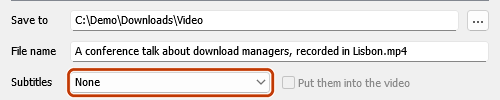
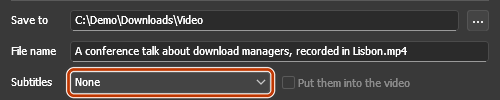
- ভিডিওর পাশে সংরক্ষণ করলে সাবটাইটেল ফাইলের নামের সঙ্গে ভাষার নামও যুক্ত হয়:
My video.fr.srt। VLC ও MPV-এর মতো প্লেয়ার সেগুলো নিজে থেকেই খুঁজে নেয়। ffmpeg থাকলে সব সময় SRT ফরম্যাটে থাকে; না থাকলে সাইটের নিজস্ব ফরম্যাটে (প্রায়ই WebVTT,.vtt) থাকে। - এগুলোকে ভিডিওতে রাখুন সেগুলোকে ফাইলের ভেতরে রাখে, প্লেয়ারে আপনি যে ট্র্যাকগুলো চালু করেন সেগুলোর মতো। এটির জন্য ffmpeg এবং একটি MP4 বা MKV ভিডিও প্রয়োজন। একটি লাইভ স্ট্রিমের রেকর্ডিং সেগুলোকে এর পাশে রাখে (রেকর্ড করা হচ্ছে একটি লাইভ স্ট্রিম)।
- শুধু অডিওর বিকল্পে (শুধুমাত্র অডিও, MP3, Opus, FLAC) কোনো সাবটাইটেল থাকে না।
VDM offers the same choice again for the next video when it has that language.
A site may refuse subtitles when it's asked too often: YouTube does, most of all for its translated captions. The video is saved all the same. VDM asks for the subtitles once more after 20 seconds, and if they still don't come, the Download complete window and the download's log say which ones are missing and why. Try them again later. When subtitles meant to go inside the video only come on that second try, they're saved beside it instead.
অধ্যায়গুলি
অনেক ভিডিও তাদের পৃষ্ঠায় অধ্যায়ে বিভক্ত থাকে: প্লেয়ারের নিচে YouTube-এর তালিকা, প্রতিটি অংশের জন্য একটি শিরোনাম এবং একটি শুরুর সময় সহ। সাবটাইটেল এর নিচে, অধ্যায়গুলি এম্বেড করুন টিক দেওয়া থাকলে, তারা ভিডিও ফাইলটিতে চলে যায়, যাতে VLC, MPV, MPC-HC এবং Windows-এর মিডিয়া প্লেয়ারের মতো প্লেয়ারগুলি সেগুলিকে তালিকাভুক্ত করে এবং এক অধ্যায় থেকে পরের অধ্যায়ে যেতে পারে।
- এটি শুরুতেই টিক দেওয়া থাকে এবং পরবর্তী ভিডিওর জন্য আপনি যেমন রেখে যাবেন তেমনই থাকবে।
- এটির জন্য ffmpeg প্রয়োজন, যা এগুলি লেখে। অধ্যায়বিহীন একটি ভিডিও যেমন আছে তেমনই সংরক্ষণ করা হয়।
- এগুলো একটি ভিডিওতে (MP4, MKV, WebM) এবং সাইটে যেমন আছে সেভাবে সাউন্ডে (শুধুমাত্র অডিও, আসল) যায়, কিন্তু MP3, Opus বা FLAC ফাইলে, অথবা একটি লাইভ স্ট্রিমের রেকর্ডিংয়ে যায় না।
- কমান্ড লাইন (
video-get) এগুলিও রাখে, যখনই ffmpeg থাকে।
অধ্যায়ে ভাগ করুন টিক দেওয়া থাকলে ( অধ্যায়গুলো এম্বেড করুন-এর পাশে, অথবা একটি দীর্ঘ ভাষার ক্ষেত্রে এর নিচে), ভিডিওটি পৃথক অধ্যায় ফাইলগুলোতেও ভাগ করা হয় (<filename> - <NN> - <chapter name>.<ext>, অথবা <filename> - <NN>.<ext> যখন শিরোনামহীন)। পুরো ভিডিওটিও রাখা হয়।
- এটির জন্য ffmpeg প্রয়োজন, এবং পরবর্তী ভিডিওর জন্য আপনি যেমন রাখবেন তেমনই থাকবে।
- Splitting uses stream copy without re-encoding, so it runs losslessly and near-instantly. Each cut lands on a keyframe, so a chapter can start a second or a few early (yt-dlp's
--force-keyframes-at-cutsmakes it exact, but re-encodes, so VDM does not turn it on by default). - অধ্যায়বিহীন বা একক অধ্যায়যুক্ত একটি ভিডিও বিভাজন ছাড়াই একটি একক ফাইল হিসাবে সংরক্ষণ করা হয়।
- একটি অধ্যায়ের শিরোনাম ফাইল নাম এবং পাথের সিস্টেমের সীমা অনুসারে ছোট করা হয়; একটি খুব গভীর ফোল্ডারে একটি অধ্যায়ের নাম শুধুমাত্র এর নম্বর দ্বারা দেওয়া হয়।
- এটি শুধুমাত্র একটি অংশ-এর সাথে অফার করা হয় না: একটি অংশের কোনো অধ্যায় থাকে না।
- কমান্ড লাইনের
video-getএবংplaylist-get--split-chapters-এর মাধ্যমে এটিকে সমর্থন করে। - ডাউনলোডটি এর ফাইল সহ মুছে ফেললে এর বিভক্ত অধ্যায় ফাইলগুলোও পরিষ্কার হয়ে যায়, একই ফোল্ডারে থাকা সম্পর্কহীন ফাইলগুলো অক্ষত রেখে।
শুধুমাত্র একটি অংশ ডাউনলোড করুন
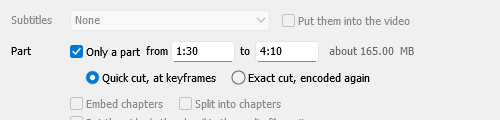
একটি ভিডিও বা একটি শব্দের শুধুমাত্র একটি অংশ (একটি দৃশ্য, একটি দীর্ঘ মিক্স থেকে একটি গান, একটি পডকাস্টের কয়েক মিনিট) সংরক্ষণ করতে, সাবটাইটেল-এর নিচে, অংশ সারিতে শুধুমাত্র একটি অংশ টিক দিন এবং এটি কোথা থেকে শুরু হয় এবং কোথায় শেষ হয় তা টাইপ করুন।
- সময়
1:30(দেড় মিনিট),1:02:03(এক ঘন্টা, দুই মিনিট এবং তিন সেকেন্ড) বা সেকেন্ডে (90) টাইপ করা হয়। বক্সগুলি পুরো ভিডিও থেকে শুরু হয়, 0:00 থেকে এর শেষ পর্যন্ত; উপরে এবং নিচে একটি সময়কে এক সেকেন্ড করে সরিয়ে দেয়, পেজ আপ এবং পেজ ডাউন দশ সেকেন্ড করে। একটি বক্স লাল হয়ে যায় যখন এর সময়টি হতে পারে না (এটি একটি সময় নয়, শেষটি শুরুর আগে আসে, এটি ভিডিওর শেষের পরে, অথবা অংশটি পুরো ভিডিও), এবং এখনই ডাউনলোড করুন কেন তা বলে। - দ্রুত কাট, কীফ্রেমগুলোতে, প্রথম পছন্দ: ছবি ও শব্দ যেমন আছে তেমনই কপি করা হয়, নতুন করে কিছু এনকোড করা হয় না, তাই এটি দ্রুত হয় এবং কিছু হারায় না। একটি ছবি শুধুমাত্র একটি কীফ্রেমে পরিষ্কারভাবে শুরু হতে পারে, তাই অংশটি আপনার শুরুর আগের শেষ কীফ্রেমে শুরু হয়: সর্বোচ্চ কয়েক সেকেন্ড আগে, কখনো দেরি করে নয়। একটি M4A-তে শুধুমাত্র একটি শব্দ আপনি যেখানে বলবেন সেখান থেকে শুরু হয়; একটি WebM (Opus)-এ এটি তার আগের শেষ অনুসন্ধান পয়েন্ট থেকে শুরু হয়, যা দশ সেকেন্ড আগে হতে পারে।
- সঠিক কাট, আবার এনকোড করা হয়েছে: অংশটি আপনি যেখানে বলেছেন সেখান থেকে শুরু হয় এবং সেখানেই শেষ হয়। ffmpeg এটিকে আবার এনকোড করে (একটি MP4-এ H.264 এবং AAC, একটি WebM-এ VP9 এবং Opus, শব্দ একা তার নিজস্ব ফরম্যাটে), যা আপনার কম্পিউটারে সেই সংখ্যক মিনিট এনকোড করতে যে সময় লাগে প্রায় ততটাই সময় নেয়, এবং ছবির মান কিছুটা কমতে পারে।
- সময়ের পাশে আকার একটি অনুমান: পুরো অংশের মধ্যে এই অংশের ভাগ।
- ফাইলের নাম অংশটি বলে:
My video (1m30s-4m10s).mp4। আপনি যে নাম টাইপ করেছেন তা তেমনই রাখা হবে। - একটি অংশের সাথে কোনো সাবটাইটেল এবং কোনো অধ্যায় যায় না: সেগুলো পুরো ভিডিওর, পুরো ভিডিওর সময় অনুযায়ী হবে। সাবটাইটেল এবং অধ্যায়গুলো এম্বেড করুন ধূসর থাকে যখন শুধুমাত্র একটি অংশ টিক দেওয়া হয়।
- এটির জন্য ffmpeg প্রয়োজন, যা অংশটি কাটবে, এবং একটি ভিডিও যার দৈর্ঘ্য সাইটটি বলে (লাইভ স্ট্রিম নয়)। একটি প্লেলিস্টের ভিডিওগুলো সম্পূর্ণ ডাউনলোড করা হয়।
- ব্রাউজার থেকে: একটি ভিডিওর উপর ভিডিও ডাউনলোড করুন বাটনের মেনুতে এখান থেকে একটি অংশ ডাউনলোড করুন... থাকে। এটি শুধুমাত্র একটি অংশ টিক দেওয়া অবস্থায় এবং ভিডিওটি যেখানে চলছে সেখান থেকে শুরু হয়ে এই উইন্ডোটি খোলে।
How a part comes down: yt-dlp's ffmpeg finds the part in each stream by the stream's own index (an MP4's or a WebM's, an HLS stream's playlist) and reads only that part, never the whole file. What it reads comes in through VDM's own connections, in requests of a MB at most, several at once: a part comes about as fast as a whole video would (YouTube sends one long request at about the video's own pace), under your speed limits (a change applies at once), and through your proxy or network adapter. The progress window shows what has come against the part's estimated size. Paused and resumed, a part starts again from its beginning: ffmpeg can't go on from the middle of a cut. A stream sent another way (a DASH manifest, RTMP) is read by ffmpeg itself.
প্লেলিস্ট ও চ্যানেল
প্লেলিস্টের (youtube.com/playlist?list=…) বা কোনো চ্যানেলের ভিডিওর (youtube.com/@name/videos) ঠিকানা পেস্ট করুন এবং খুঁজুন-এ ক্লিক করুন। একটি ভিডিওর গুণমানের বদলে, উইন্ডোতে প্লেলিস্টের ভিডিওগুলো এবং প্রতিটির দৈর্ঘ্য দেখানো হয়।
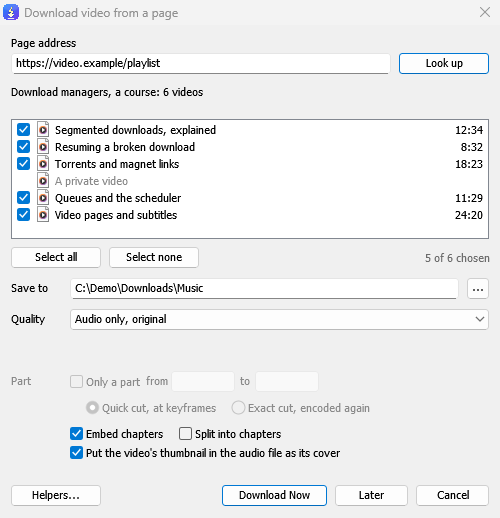
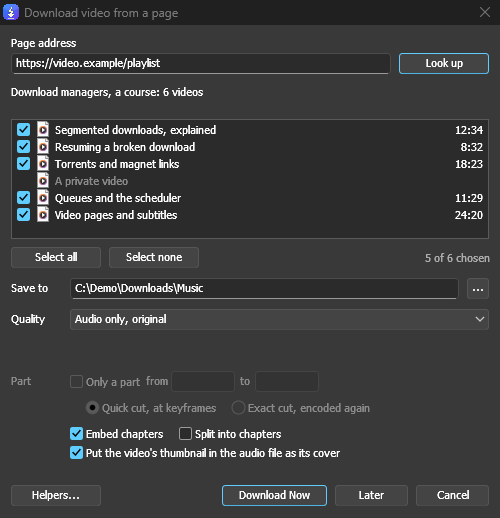
- প্লেলিস্টের ভিডিও আসার সঙ্গে সঙ্গে পুরো প্লেলিস্টের তালিকা তৈরি হয়। তালিকার ওপরের লাইনে কতদূর এগিয়েছে তা দেখানো হয় ("ভিডিওর তালিকা তৈরি হচ্ছে: 6,000টির মধ্যে 1,200টি")। তালিকাভুক্তি বন্ধ করুন এখন পর্যন্ত তালিকাভুক্ত ভিডিওগুলো রেখে দেয়, আর বাকিগুলো তালিকাভুক্ত করুন সেখান থেকে চালিয়ে যায়। মাঝপথে সাইটটি সাড়া দেওয়া বন্ধ করলে (YouTube-এ খুব ঘন ঘন অনুরোধ করলে এমন হতে পারে), কতটি ভিডিওর পর এবং কেন এটি ঘটেছে তা উইন্ডোতে দেখানো হয়। বাকিগুলো তালিকাভুক্ত করুন সেখান থেকে আবার চেষ্টা করে।
- একবারে একটি চ্যানেলের 50টি ভিডিও তালিকাভুক্ত করা হয়, নতুনগুলো আগে। আরও লোড করুন পরের 50টি তালিকাভুক্ত করে।
- সব ভিডিও শুরুতে নির্বাচিত থাকে। যেগুলো চান না, সেগুলো থেকে টিক তুলে দিন, অথবা সব নির্বাচন করুন ও কোনোটি নির্বাচন করবেন না ব্যবহার করুন। ব্যক্তিগত ও মুছে ফেলা ভিডিওগুলো ধূসর দেখায় এবং সেগুলো নির্বাচন করা যায় না।
- The sound's language: every video of the list downloads with Options → Regional → Videos' sound's language when it has it, else its original (The sound's language).
- গুণমান প্রতিটি ভিডিওর জন্য প্রযোজ্য: সেরা গুণমান, সর্বাধিক সামঞ্জস্যপূর্ণ (H.264 + AAC) (প্রতিটি ভিডিওর সেরা H.264 ছবি AAC সাউন্ড সহ; যে ভিডিওতে এটি নেই তা ডাউনলোড হয় না), একটি উচ্চতা পর্যন্ত (সেই উচ্চতার প্রতিটি ভিডিও, বা তার নিচের নিকটতম), শুধুমাত্র অডিও, আসল, শুধুমাত্র অডিও MP3, শুধুমাত্র অডিও OPUS অথবা শুধুমাত্র অডিও FLAC। ffmpeg ছাড়া, শুধুমাত্র সেই গুণমানগুলো অফার করা হয় যা তাদের সাউন্ড সহ আসে, এবং কোনো MP3, Opus বা FLAC নয়।
- ভিডিওগুলো এতে সংরক্ষণ করুন-এ নির্ধারিত ফোল্ডারের ভেতরে প্লেলিস্টের নামে একটি ফোল্ডারে সংরক্ষিত হয়। প্রতিটি ভিডিওর ফাইলের নাম হয় তার শিরোনাম।
এখনই ডাউনলোড করুন প্রতিটি ভিডিওকে আলাদা ডাউনলোড হিসেবে যোগ করে এবং মূল সারি শুরু করে। সময়সূচী-তে (একই সময়ে Nটি ফাইল ডাউনলোড করুন) যতগুলো নির্ধারণ করা হয়েছে, সারিতে ততগুলো একসঙ্গে চলে। পরে ডাউনলোড শুরু না করে ভিডিওগুলো যোগ করে। একবারে 500টির বেশি যোগ করতে চাইলে আগে জিজ্ঞাসা করা হয়।
VDM lists at most 20,000 videos of one list.
প্লেলিস্ট বা মিক্সের মধ্যে থাকা একটি ভিডিওর ঠিকানা (উদাহরণস্বরূপ watch?v=…&list=…) দিলে শুধু সেই ভিডিওটি ডাউনলোড হয়, পুরো প্লেলিস্ট নয়।
গতির সীমা
Videos keep to the Speed Limiter: the limit for one file, a video's own limit (the Speed Limiter tab of its progress window), and the limit for all downloads together, which they share with every other download. VDM's own downloader brings them in, so a change applies at once, as for a file.
A video yt-dlp downloads by itself (How a video comes down) takes a limit only as it starts: when you turn the limiter on or off, change its settings or the video's own limit, VDM stops it and starts it again with the new limit, and it goes on from where it was (the log says "Stopped: the speed limit changed; starting again with it"). A live stream that is recording is the exception: restarting it would cut the recording, so it keeps recording and takes the limit the next time it starts. Under the limit for all downloads, such videos share it evenly: when another starts, the ones running with more than their share start again with it; when one ends, the others keep theirs. A gallery's pictures that VDM brings in follow a change at once; what gallery-dl still fetches itself starts again with the new limit, skipping the files already saved. Other changes (torrents taking more or less of the limit for all downloads, Only while I'm using the computer) apply to the next one that starts.
VPN-এর অ্যাডাপ্টারের মাধ্যমে
With Options → Proxy / Socks → Network adapter set, video downloads go through that adapter too, with the same kill switch as other downloads. VDM's own downloader opens its connections through the adapter as for any file; for yt-dlp's look-ups (and what it downloads itself, with the ffmpeg it starts) VDM hands it a proxy of its own on this computer, and opens every connection through the adapter, looking the names up with the DNS you chose in Options → Connection (without an adapter, yt-dlp uses the system's DNS). When the adapter disconnects, the video download stops, and it starts again when the adapter is back. Formats sent over RTMP, RTSP, MMS or FTP can't go through it and are refused.
যেসব সাইটে সাইন ইন করা প্রয়োজন
কিছু ভিডিও শুধুমাত্র সাইন-ইন করা দর্শকদের জন্য চলে: একজন সদস্যের বা একটি ব্যক্তিগত ভিডিও, একটি বয়স-সীমাবদ্ধ ভিডিও। এবং YouTube কখনও কখনও সন্দেহজনক নেটওয়ার্ক থেকে (একটি VPN, একটি শেয়ার করা বা ক্লাউড ঠিকানা) যেকোনো দর্শককে "আপনি বট নন তা নিশ্চিত করতে সাইন ইন করুন" বলে। yt-dlp এর জন্য আপনার ব্রাউজারের কুকিজ প্রয়োজন, ছোট ফাইল যা আপনাকে সাইন ইন করে রাখে।
- ভিডিওর উপরে থাকা ভিডিও ডাউনলোড করুন বোতামটি আপনার বর্তমান উইন্ডো এবং প্রোফাইল (একটি ব্যক্তিগত উইন্ডো, একটি Firefox কন্টেইনার) থেকে সেই পৃষ্ঠার কুকিজ ব্যবহার করে, যা অনুসন্ধান এবং ডাউনলোডের জন্য ব্যবহৃত হয়। এর ফলে আপনি ব্রাউজারে যেভাবে সাইন ইন করা আছেন, সেভাবেই কাজ করতে পারবেন। কোনো সেটআপের প্রয়োজন নেই। প্রতিটি কুকি ব্রাউজার যে ডোমেইনের জন্য এটি সংরক্ষণ করে, তার সাথে যায়, তাই YouTube Music (music.youtube.com) বা YouTube-এর মোবাইল সাইটে সাইন ইন করলে www.youtube.com-এও তা প্রযোজ্য হয়।
- একটি পেস্ট করা ঠিকানা (URL যোগ করুন, একটি পৃষ্ঠা থেকে ভিডিও ডাউনলোড করুন, একটি প্লেলিস্ট): সেটিংস → সাইটের লগইন তথ্য → ভিডিও সাইটের জন্য কুকিজ থেকে আপনার ব্রাউজার নির্বাচন করুন। yt-dlp তখন এই কম্পিউটারে সেই ব্রাউজারের কুকিজ প্রতিটি ভিডিও অনুসন্ধান বা ডাউনলোডের জন্য পড়ে। যখন এক্সটেনশন পৃষ্ঠার নিজস্ব কুকিজ পাস করে, তখন সেগুলি ব্যবহার করা হয়: সেগুলি সেই পৃষ্ঠা এবং সেই সেশনের জন্য।
- একটি অতিরিক্ত অ্যাকাউন্ট, নিজস্ব প্রোফাইলে: আপনাকে আপনার প্রধান অ্যাকাউন্ট yt-dlp কে ধার দিতে হবে না। আপনার ব্রাউজারে একটি দ্বিতীয় প্রোফাইল তৈরি করুন, সেখানে একটি অতিরিক্ত অ্যাকাউন্ট দিয়ে সাইটে সাইন ইন করুন এবং সেই প্রোফাইলটি প্রোফাইল এ রাখুন (এর নাম, অথবা ... সহ এর ফোল্ডার)। yt-dlp শুধুমাত্র সেই প্রোফাইলের কুকিজ পড়ে। yt-dlp এর ডেভেলপাররাও এটি পরামর্শ দেন: একটি সাইট একটি প্রোগ্রাম দ্বারা ব্যবহৃত একটি অ্যাকাউন্টকে সীমাবদ্ধ করতে পারে।
Signed in, YouTube sometimes refuses what it gives a visitor: its servers answer the video with HTTP Error 403: Forbidden, or the look-up with its bot check, where a private window plays it. When YouTube refuses a video anyone may watch that way, VDM looks it up once more without your cookies, as a private window would, and the download's log says so. A private, members' or age-restricted video keeps them.


Sign in to the site in that browser first. VDM never logs or shows the cookies; the download's log names only the browser they came from.
কোন ব্রাউজারগুলি
ব্রাউজার থেকে yt-dlp যে ব্রাউজারগুলো পড়ে সেগুলোর তালিকা দেয়: Firefox, Chrome, Edge, Brave, Opera, Vivaldi, Chromium এবং Whale, এবং macOS-এ Safari। প্রোফাইল ঐচ্ছিক: একটি প্রোফাইলের নাম (Profile 1) বা এর ফোল্ডার; খালি থাকলে, শেষ ব্যবহৃত প্রোফাইলটি।
- Firefox প্রতিটি সিস্টেমে কাজ করে। আপনি যদি কিছুক্ষণ আগে Firefox খোলা রেখে সাইন ইন করে থাকেন, তাহলে একবার এটি বন্ধ করুন যাতে এটি সাইন-ইন তথ্য তার ফাইলগুলিতে লিখে রাখে।
- Windows-এ Chrome, Edge এবং Brave তাদের কুকিজ নিজেদের কাছে লক করে রাখে (Chrome 127 এবং পরবর্তী সংস্করণ, "অ্যাপ-বাউন্ড এনক্রিপশন"), এবং ব্রাউজার খোলা থাকা অবস্থায় yt-dlp সেগুলো পড়তে পারে না। উইন্ডোটি তা বলে; Firefox নির্বাচন করুন, অথবা ভিডিওর উপরের বোতামটি ব্যবহার করুন, যা যেকোনো ব্রাউজারের সাথে কাজ করে।
- Linux-এ, Chrome-পরিবারের ব্রাউজারগুলি তাদের কুকিজের চাবি সিস্টেমের কীরিংয়ে (GNOME Keyring, KWallet) রাখে; yt-dlp এটি জিজ্ঞাসা করে, তাই এটি আনলক করা থাকতে হবে।
- Chromium-এর উপর ভিত্তি করে তৈরি অন্য একটি ব্রাউজার (Helium, Thorium, ungoogled-chromium...): Chromium এবং সেই ব্রাউজারের প্রোফাইল ফোল্ডার (এর
Defaultফোল্ডার, অথবাProfile 1...; Linux-এ~/.configএর অধীনে, Windows-এ%LOCALAPPDATA%এর অধীনে) নির্বাচন করুন। yt-dlp ফোল্ডারটি পড়ে, কিন্তু যে ব্রাউজার তার কী-রিং-এ তার নিজস্ব নামের অধীনে তার কী রাখে, অথবা Chrome-এর মতো তার কুকিজ লক করে, সেগুলোকে এভাবে পড়া যায় না: এর এক্সটেনশনের বোতামটি ব্যবহার করুন।
ভিডিও সার্ভারে সংযোগ করা না গেলে
Some sites, YouTube among them, send each viewer to a nearby video server, sometimes one inside the internet provider's own network. If that server can't be reached from your connection, a browser quietly switches to another one, but yt-dlp on its own would give up. Before each video download VDM checks the servers in the video's links and, if one doesn't answer, switches to the next one the site lists. The download's log says when this happens.
ভিডিও ডাউনলোড না হলে
- yt-dlp-এর বার্তা পড়তে ডাউনলোডের স্ট্যাটাস-এর ওপর মাউস রাখুন, অথবা এর অগ্রগতি উইন্ডো খুলুন।
- এই পৃষ্ঠায় ডাউনলোডযোগ্য কোনো ভিডিও নেই—এর মানে yt-dlp পৃষ্ঠায় কোনো ভিডিও খুঁজে পায়নি। ঠিকানাটি ভিডিওটির নিজস্ব পৃষ্ঠার কি না দেখুন।
- এই ভিডিওটির জন্য আপনাকে সাইন ইন করতে হবে, অথবা সাইটটি আপনাকে সাইন ইন করতে চায়: যেসব সাইটে সাইন ইন করা প্রয়োজন দেখুন।
- Sites change often, and a newer yt-dlp usually fixes it. VDM keeps its own yt-dlp up to date by itself, and when a download fails in a way that usually means yt-dlp is out of date, it looks for a newer one at once and tries again (Keeping them up to date). To check right now: Helpers... → Check for updates. If you chose your own yt-dlp in Helpers, update it yourself (
yt-dlp -U, or your package manager). - The path is too long for Windows (or the file name is too long) means the folder and the file name together, with the files saved beside the video while it downloads, are longer than the system allows: 259 characters on Windows unless long paths are turned on there, 255 a name (255 bytes on Linux and macOS). VDM shortens a title by itself, so this comes from a name you typed or a very deep Save to folder: add the video again with a shorter name, or a folder nearer the top of the drive.
- Videos protected with DRM (most paid streaming services) can't be downloaded, and VDM doesn't try. The browser extension's Media on this page shows such a stream as Protected and doesn't send it.
- ভিডিও উইন্ডো কোনো পৃষ্ঠায় ভিডিও খুঁজে না পেলে, ব্রাউজারে ভিডিওটি চালান। তারপর এক্সটেনশনের এই পৃষ্ঠার মিডিয়া ব্যবহার করে পৃষ্ঠায় লোড হওয়া স্ট্রিমটি পাঠান।
- কিছু সাইটের শর্তাবলীর বিরুদ্ধে ডাউনলোড করা হতে পারে। বিষয়টি যাচাই করার দায়িত্ব আপনার।
- এখনও সমস্যার সমাধান হয়নি? সহায়তা → একটি সমস্যা রিপোর্ট করুন ব্যবহার করে পৃষ্ঠার ঠিকানাটি দিন।
পরবর্তী ধাপ
বিনামূল্যে, ওপেন সোর্স, কোনো বিজ্ঞাপন নেই, কোনো ট্রায়াল নেই।
Download Volt Download Manager