

VDM downloads videos from their web pages: YouTube, Vimeo, Dailymotion, Twitch, TikTok, X, Instagram, Facebook, Reddit, SoundCloud and well over a thousand other sites. yt-dlp, an open-source program whose community keeps it working as sites change, finds the video on the page; VDM's own downloader then brings it in, the way it downloads any file.
Розпочати завантаження відео
- Give the video's page address to Add URL (Ctrl+N). VDM recognises video pages and opens the video window, already looking the page up.
- Або виберіть Завдання → Завантажити відео зі сторінки..., вставте адресу в Адреса сторінки та натисніть Знайти.
Будь-яка інша адреса сторінки, яка виявляється вебсторінкою, а не файлом, також пропонується у вікні відео. На сайті, для якого yt-dlp не має власного зчитувача, відео є тим, про яке йдеться на сторінці, якщо воно назване (у тому, що сторінка повідомляє пошуковим системам та попереднім переглядам посилань: її JSON-LD, og:video або twitter:player), а не першим програвачем, написаним у її HTML, і файл називається так, як його називає сторінка.
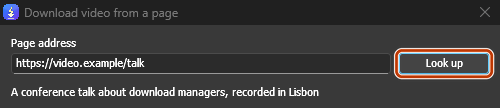
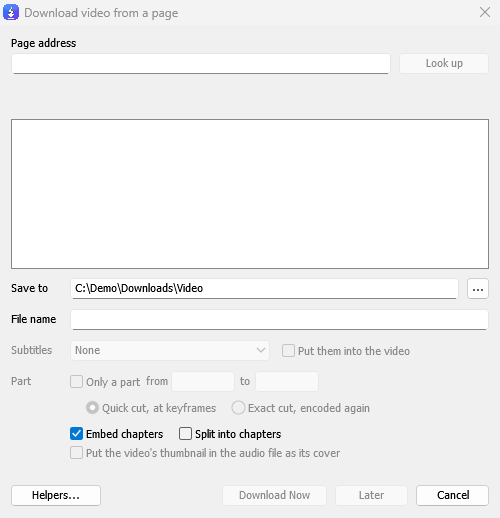
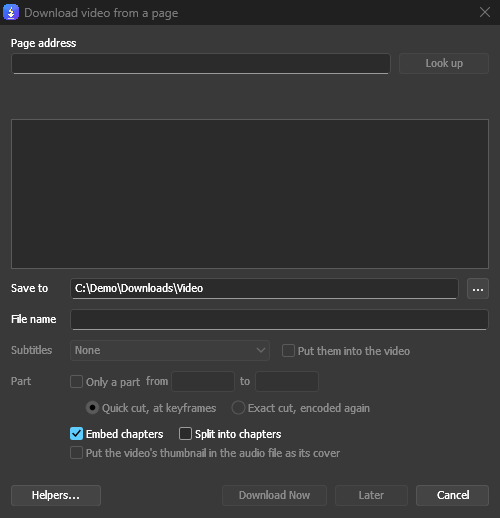
Вставте адресу сторінки та натисніть «Знайти». 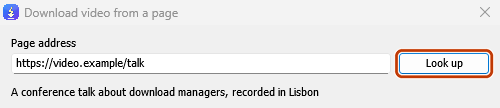
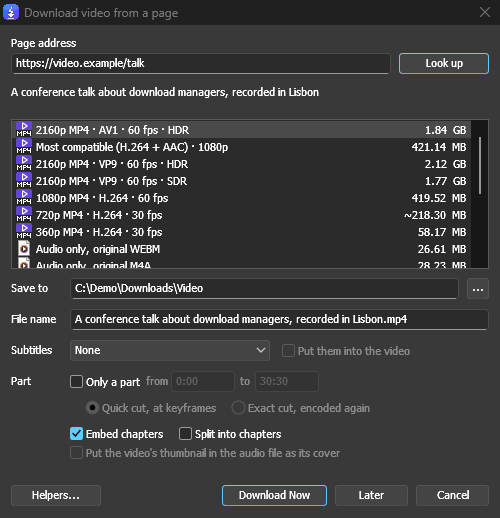
Виберіть якість, потім «Завантажити зараз». 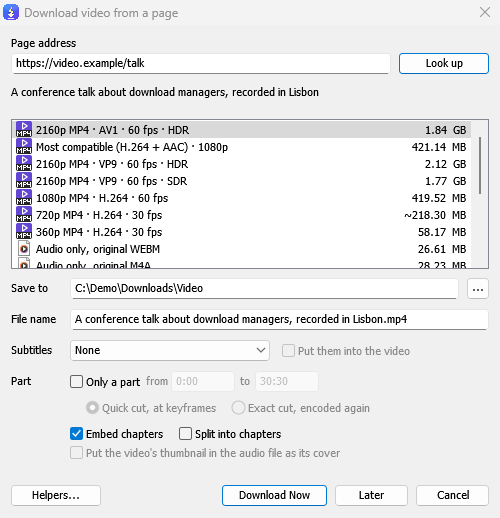
Відео завантажується так само, як будь-який інший файл, і має окремий рядок і вікно. 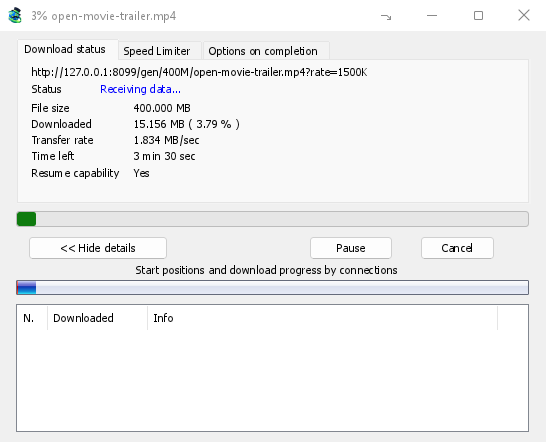
yt-dlp та ffmpeg
VDM offers its two helpers on its first start, and again the first time they are needed. It downloads them from their official releases with its own downloader, so a cut connection resumes, and uses your proxy settings:
- yt-dlp (about 23 MB) looks the page up and finds where the video and its sound come from; VDM downloads them (How a video comes down). The first time, click Install yt-dlp. VDM checks the download against the signature yt-dlp's developers publish before it uses it.
- ffmpeg (about 80 MB) joins a video and its sound when a site keeps them apart, which most sites do for the higher qualities, and turns the sound into an MP3, Opus or FLAC file. Click Install ffmpeg when VDM offers it. VDM installs only a build its maintainers checked: the download must match the SHA-256 in VDM's own list of builds, which carries VDM's signature. When that list can't be downloaded or checked, VDM says so and installs nothing; you can still choose your own ffmpeg in Helpers....
- Each processor gets its own build: yt-dlp's for x64, ARM64 and 32-bit Windows and for Linux on ARM, and ffmpeg's for x64 and ARM64 Windows. No ffmpeg is built for 32-bit Windows that VDM can check, so there VDM offers none: choose your own in Helpers... (below), or download the qualities that come with their sound.
You can install them ahead of time too: in Helpers..., a helper that isn't there yet says Not installed yet, and Install yt-dlp, Install ffmpeg or Install gallery-dl in its row downloads VDM's own copy, checked the same way, and keeps it up to date from then on. Where VDM has no copy for your system, the button is greyed out and the row says what to do instead.
Both are kept in a tools folder in VDM's data folder. For YouTube, yt-dlp also needs a JavaScript runtime, which VDM can download too: see A JavaScript runtime for YouTube.
Підтримка актуальності
Sites change all the time, and a newer yt-dlp is usually what makes a page that stopped working download again. So VDM keeps its own copies of yt-dlp, gallery-dl, ffmpeg and Node.js up to date by itself:
- When: a few seconds after VDM starts, then again while it runs: yt-dlp and gallery-dl at most every 6 hours, Node.js once a day, ffmpeg once a week (a newer ffmpeg comes when VDM's list of checked builds names one, usually with a new version of VDM). VDM remembers when it last asked, so starting it many times doesn't ask again.
- How: each new version is downloaded and checked exactly as the first install was (yt-dlp's, gallery-dl's and Node.js's signed checksum lists, VDM's signed list of ffmpeg builds), never an older one, and installed beside the one in use.
- Коли перемикається: лише тоді, коли жодне завантаження, пошук чи інший запуск не використовує цю допоміжну програму. Відео, що завантажується, коли надходить нова версія yt-dlp, завершується тією, з якої воно почалося; нова використовується з моменту завершення останнього завантаження, що її використовувало.
- Попередня версія залишається, тому ви можете повернутися до неї. Старіші версії видаляються.
- A video that fails with an error that usually means yt-dlp is out of date for the site (Unable to extract, Unsupported URL, YouTube's Sign in to confirm you're not a bot, HTTP Error 403, a failed signature or n challenge, Requested format is not available), or a gallery whose gallery-dl reports an unexpected error: VDM looks for a newer version at once, installs it if there is one, and tries that download again with it, once. Its log says so. If there is none, the error stands as before.
- A check that fails (no connection, GitHub busy) is tried again an hour later. It is written in VDM's log, never shown as an error.
In Helpers..., each of VDM's own copies says how it stands: Up to date, Version X available, Updated to X, or Version X is ready: used once its downloads end. Update gets the newest version of that one now, Go back to X uses the previous version again (automatic updates then wait for a version newer than the one you left; Update brings it back), and Check for updates checks them all. Untick Keep VDM's helpers up to date automatically to update only when you ask. Programs you chose with Use another program..., and your system's copies, say Updated by you: VDM leaves them to you.
У командному рядку update-helpers перевіряє та оновлює їх усі та виводить їхні версії (Командний рядок).
Використовуйте власні копії
On Linux and macOS, VDM finds yt-dlp, ffmpeg and gallery-dl on your PATH and in the usual package-manager folders, including Homebrew's. A program you selected yourself takes priority, followed by VDM's own installed copy. The system copy is used when neither is present, and your package manager keeps it up to date: VDM never downloads over it on its own. If your distribution's yt-dlp is old, Use VDM's own copy in Helpers downloads VDM's, which keeps itself current and is used from then on.
Already have yt-dlp or ffmpeg for another program? Use those instead of a second copy: in Download video from a page, click Helpers..., then Use another program... beside yt-dlp or ffmpeg, and choose the program. VDM runs it once to check that it is that program, and uses it from then on, the command line too. VDM doesn't update a program you chose: keep it up to date yourself (yt-dlp: yt-dlp -U, or your package manager). Use VDM's own copy goes back to the one VDM downloads and checks.
Середовище JavaScript для YouTube
YouTube hides most of a video's qualities behind small puzzles that yt-dlp solves with a JavaScript runtime: Node.js, Deno, QuickJS or Bun. Without one, a look-up is slow, the list is short (sometimes only the sound and a low quality) or it fails with Requested format is not available, and VDM says so: YouTube needs a JavaScript runtime to list its video qualities. Other sites don't need one.
The quickest way is VDM's own copy of Node.js: click Install Node.js beside that message, or, in Helpers..., Install Node.js in the JavaScript runtime (for YouTube) row. The first start's setup offers it too, in its Video helpers step, when your computer has no runtime. VDM downloads Node.js's newest long-term support (LTS) build for your system and processor from nodejs.org with its own downloader (about 40 MB on Windows, 60 MB on Linux and macOS; Windows x64, ARM64 and 32-bit, Linux x64 and ARM64, macOS), checks the release's checksum list against the signing keys of Node.js's releasers and the download against that list before it uses it, keeps only the node program in the tools folder beside yt-dlp and ffmpeg, and from then on tells yt-dlp to use it. It keeps it up to date the way it keeps yt-dlp's (Keeping them up to date), never with an older version. 32-bit Windows gets the newest LTS line Node.js still builds for it, 22, which Node.js supports until April 2027; after that VDM has no Node.js for 32-bit Windows, and a runtime of your own (Use another program...) is needed there. VDM never installs a Node.js older than the LTS line current when that VDM was made, whatever nodejs.org's list says. The video is looked up again by itself once Node.js is in.
Already have one? Then nothing needs downloading: a runtime on your computer comes first. VDM finds Deno, Node.js (22 or newer, also one installed with nvm), QuickJS and Bun by itself, in the order yt-dlp prefers them, and passes over one too old for yt-dlp (Node.js 20, say) or a Node.js whose line has reached its end of life on nodejs.org's schedule (then VDM's own is used, which it keeps on a supported release). A supported Node.js of your computer's is used as it is: you or your package manager keep it up to date. Helpers says which one yt-dlp uses and where it is: Node.js 24.11.0, your system's, nothing to download. To use another one, a portable copy or one that isn't on the PATH, click Use another program... in that row and choose its program (node.exe, deno.exe, qjs.exe, bun.exe): VDM asks it for its version first and refuses one yt-dlp can't use. Use VDM's own copy goes back to the one VDM finds or downloads. (Choosing your own runtime was YairDies' idea.)
Earlier versions of VDM installed Deno. That copy keeps working until VDM's Node.js is in place (the next update check brings it, or Use VDM's own copy); then yt-dlp switches to Node.js and VDM removes its own Deno, once no download is using it. A Deno you installed yourself is never touched, nor VDM's own once you chose it with Use another program.... While VDM asks the runtimes on your computer for their versions, Helpers says Looking for a JavaScript runtime on this computer....
If you'd rather install one yourself, any of them works; then look the video up again. If VDM still says so, the new program's folder isn't on the PATH VDM started with (Windows' installers add it for programs started after them): quit VDM (Tasks → Exit) and start it again.
- Windows:
winget install DenoLand.Deno, абоwinget install OpenJS.NodeJS.LTS. Інсталятори на deno.com та nodejs.org також працюють. - Ubuntu та Debian:
sudo apt install nodejs - Fedora:
sudo dnf install nodejs - Arch:
sudo pacman -S nodejs, абоsudo pacman -S deno - macOS:
brew install deno, абоbrew install node - Будь-яка система, Deno лише для вашого користувача:
curl -fsSL https://deno.land/install.sh | sh(у Windows, у PowerShell:irm https://deno.land/install.ps1 | iex)
A distribution's yt-dlp can also be too old for YouTube: if the list stays short, click Use VDM's own copy beside yt-dlp in Helpers.... A yt-dlp older than 2025.11.12 can't be told of a runtime at all; VDM then leaves the runtime out rather than stop the look-up.
Виберіть якість
- Wait for the list. It shows each quality with its size, best first, then the sound alone:
- A video's line says its resolution, the file it makes, its picture's codec, its frame rate and whether it is HDR:
2160p MP4 · AV1 · 60 fps · HDR. MP4 is only the file: what's inside it can be AV1, VP9 or H.264, and the codec says which, the very one that downloads (should the site no longer offer that stream, VDM takes the nearest of the same codec and resolution first). A resolution that comes in several (AV1, VP9 and H.264, HDR and SDR) has a line for each: AV1 makes the smallest file, H.264 plays on the most devices, and an HDR video looks washed out on a screen without HDR.SDRis said only beside an HDR line of the same resolution. - Most compatible (H.264 + AAC), second in the list: the best H.264 video the site has (YouTube's usually go up to 1080p) with AAC sound (in stereo when the site has it beside surround), in an MP4 that Premiere Pro and other editors, older TVs and most phones open as it is. YouTube's best qualities are AV1 or VP9 with Opus sound, which some of them can't read. The line says its resolution:Most compatible (H.264 + AAC) · 1080p. VDM picks those streams, it doesn't convert anything: when the site has no H.264 video with AAC sound the line isn't there, and when the best line already is that, it isn't listed twice. - The size is that of exactly what downloads, the video and its sound. A size with~before it (~532 MB) is only an estimate: the site didn't say the size, so it comes from the stream's bitrate and length. - Audio only, original: the site's own file, not converted, once for each type the site has it in (WebM with Opus inside, M4A), the best first. The best sound there is, in the smallest file. - Audio only MP3 at its best variable bitrate (VBR) and at 320, 256, 192 and 128 kbps, for players that only take MP3. - Audio only OPUS: an.opusfile. When the site's sound is Opus already (YouTube's usually is), it's only moved into that file, not converted, so nothing is lost. - Audio only FLAC: a lossless.flacfile, for a library or a program that wants FLAC. It can't add quality: the site's sound is already compressed with losses, and FLAC keeps it exactly as it came, in a file several times bigger. The window says so when you choose it. - Виберіть варіант. Без ffmpeg у списку будуть лише варіанти, що містять звук; MP3, Opus і FLAC не буде (їх створює ffmpeg).
- Перевірте Зберегти до (за замовчуванням папка категорії «Відео») та Ім'я файлу, яке походить від назви відео. Довга назва скорочується в кінці слова, щоб файли, збережені поруч із відео під час його завантаження, відповідали системному обмеженню на довжину шляху; назва, яку ви вводите, зберігається так, як ви її ввели.
- When the video's sound comes in several languages, choose one in Sound (see The sound's language). Choose Subtitles if you want them (see below). Embed chapters is ticked: see Chapters. To keep only a stretch of it, tick Only a part: see Download only a part. For a sound alone, Put the video's thumbnail in the audio file as its cover is ticked: see A cover for the sound.
- Натисніть Завантажити зараз або Пізніше, щоб додати його до списку без початку завантаження.
Потім відео завантажується як будь-який інший файл, з власним рядком у списку та вікном прогресу.
Як завантажується відео
yt-dlp looks the page up and picks the quality's video and sound. VDM's own downloader then brings each of them in, one after the other, the way it downloads any file:
- Через кілька з’єднань: стільки, скільки Параметри → Підключення дозволяє для файлу. Таблиця з’єднань у вікні прогресу показує кожне з них, а карта сегментів показує відео, а потім його звук.
- A stream sent in many small pieces (HLS, DASH, as most sites other than YouTube send theirs) comes down that many pieces at once, each kept on disk as it arrives, then joined in order into one file, as yt-dlp joins them. Pieces encrypted with AES-128 are decrypted with the key the stream's playlist names. When their addresses expire, VDM asks yt-dlp for the stream's new list and carries on with the pieces still missing.
- Відповідно до ваших обмежень швидкості: Обмежувача швидкості, власного обмеження відео (вкладка Обмежувач швидкості у вікні його прогресу) та загального обмеження для всіх завантажень. Зміни застосовуються негайно.
- Paused and resumed like a file, also after quitting VDM: it carries on from the bytes already saved.
- When an address stops working: a video's addresses are signed and expire after a few hours (YouTube's after six). VDM asks yt-dlp for a fresh one for the same quality and carries on from where it stopped.
Потім yt-dlp робить те, що робить після завантаження: об'єднує відео та його звук за допомогою ffmpeg в один MP4, зберігає або вбудовує субтитри, додає розділи до файлу та конвертує звук для вибору MP3, Opus або FLAC.
YouTube serves each connection's long requests slowly, so VDM asks for the video in pieces of 10 MB at most, as yt-dlp does, and several at once.
Деякі відео yt-dlp все ще завантажує самостійно, через власне з’єднання, і вікно прогресу про це повідомляє:
- пряма трансляція, яка ще записується (Запис прямої трансляції);
- потік, що надсилається через RTMP, RTSP, MMS або FTP;
- рідкісні потоки частинами інших типів (Adobe HDS, Microsoft Smooth Streaming) та ті, ключ до яких сайт передає yt-dlp безпосередньо.
Для них нове обмеження швидкості знову починає завантаження з того місця, де воно було (Обмеження швидкості); пряма трансляція, яка записується, бере його наступного разу, коли вона починається.
Запис прямої трансляції
A live stream, a broadcast still going on, is recorded by yt-dlp with ffmpeg into an unfinished file, so VDM can't know its length. While it records, the progress window says Recording..., and Downloaded and Transfer rate follow the size of what has been recorded so far.
- «Запис...» відображається з моменту відкриття файлу записувачем, після підключення до потоку (через кілька секунд після початку завантаження; до цього моменту у вікні відображається Підключення...; потік, до якого неможливо дістатися, ніколи не досягає цього стану). Завантажено показує, що досягло диска, і записувач записує це блоками по 256 КБ, тому воно залишається на 0 КБ, доки не буде записано перший блок (це може зайняти деякий час для потоку з низьким бітрейтом), потім зростає блок за блоком. Зупинити та зберегти до першого блоку ще нічого не зберігає: завантаження залишається зупиненим, з його порожнім файлом, для Відновити для нового запису. Порожній незавершений файл, залишений попереднім запуском, видаляється, коли запис починається знову (він нічого не містить), тому відновлений запис показує Запис... з того ж моменту.
- Stop and save is what the progress window's pause button reads for a live stream that is recording. It, Stop and Stop All in the list (toolbar and menus), a queue's stop (by hand, at its scheduled stop time, or through the API) and the phone page's pause all end the recording and keep it. VDM makes the recording an MP4 itself, as yt-dlp does when a live stream ends: the streams are copied as they are, nothing is converted. The window says Saving... meanwhile, and the download is then Complete, as when a live stream ends by itself: the queue goes on and the completion notice and actions run.
- Останні моменти можуть бути відсутніми: щонайбільше останній 1 МіБ, який записувач ще не записав. Це кілька секунд відео, і до приблизно хвилини для потоку лише зі звуком.
- Якщо MP4 не може бути створений, запис зберігається як файл MPEG-TS (
.ts), який відкриває більшість плеєрів. Якщо це також неможливо, завантаження повідомляє про це, і незавершений файл залишається як є. - Запис видаляється лише тоді, коли MP4 містить його повністю: якщо запис з точністю до секунди, його зображення та звук також (тривалість ffprobe; без них, принаймні 90 % розміру запису). Коротший MP4 зберігається разом із записом поруч, як
My stream (recording 1).ts, і журнал завантаження пояснює, чому (якщо запис не може бути перейменований, журнал повідомляє про це: він залишається як незавершений файл). - A live stream that ends by itself while VDM records it is made an MP4 the same way, with the same check: yt-dlp is told to leave its recording as it is, and VDM makes the MP4 of it (when it has ffmpeg and the recording is the MPEG-TS yt-dlp made). From the moment yt-dlp says the recording is finished, the window says Saving... (only a moment when there is no MP4 to make), and a Stop waits for it: the download is then Complete. The recording goes only when the MP4 holds all of it, it is kept beside a shorter one, and if no MP4 can be made it is the download's
.tsfile (My stream (recording 1).tswhenMy stream.tsis taken). Subtitles asked to go inside the video are saved beside it instead, and no chapters are added: the recording isn't changed once it is made. - MP3, Opus або FLAC з прямої трансляції: звук зберігається за запитом, а запис, з якого він був зроблений, залишається поруч, як
My stream (recording 1).ts. - Зображення та звук, які yt-dlp об’єднав сам після завершення трансляції, залишаються поруч з відео, як їх залишив yt-dlp, коли відео не містить їх обох повністю; інакше вони видаляються.
- A recording yt-dlp finished but VDM didn't make an MP4 of (a try that failed just after, or VDM closed meanwhile) is still MPEG-TS under the MP4's name. Before the download starts again, VDM makes it an MP4 with the same check (the list says Merging meanwhile, and a Stop waits for it, then stops the download before anything else runs): when the MP4 holds all of it, it is the download. Otherwise the recording is kept as
My stream (recording 1).tsand the download starts over. Without VDM's ffmpeg it is set aside the same way. The same goes for a normal video in pieces (HLS) VDM's engine left as MPEG-TS inMy video.mp4when yt-dlp failed or was stopped while it fixed it up. - Запис у кількох частинах (частина зображення та частина звуку, які yt-dlp залишив окремо) об'єднується в один MP4. Якщо їх неможливо об'єднати, завантаження повідомляє про це, і кожна частина залишається як є.
- Cancel in the progress window only stops the download: the recording stays in its unfinished file. So does reaching a download limit, which counts a recording as it grows and stops it as it stops other downloads. Resume, or VDM starting the download again by itself (after a network adapter change or the download limit, or a queue that starts when VDM opens), records the stream anew. It first sets the earlier recording aside, next to it, as
My stream (recording 1).ts(then(recording 2), and so on), so nothing is recorded over; so it does when the stream has ended meanwhile and the download goes on as a normal video. (An unfinished MPEG-TS file yt-dlp downloads directly, without its resume state, is taken for a recording the same way: it starts over, what it had kept aside.) If that file can't be set aside, VDM doesn't record over it and says so. - Ці збережені записи не є власними файлами завантаження: Видалити з його файлами залишає їх.
- Closing VDM while a live stream records, or while it saves one, stops it without saving: the recording stays in its unfinished file (a half-made MP4 is left as
<name>.temp.mp4, which Delete with its files removes), and it is set aside when the download starts again. The command line (voltdownloadmanager-cli) doesn't save a live stream this way. - Пряма трансляція, збережена зупинкою черги, вважається завершеною, тому щоденна черга не запускає її знову наступного дня.
The sound's language
More and more videos come with their sound in several languages: the one they were made in, the original, and others dubbed (YouTube's dubbed and automatically dubbed tracks, for one). When the site names each track's language, Download video has a Sound list under File name, the original first and marked: English, original, then Deutsch · German, Español · Spanish... (each language in its own words, and in English when that differs). A video in one language has no such list and looks as before.
- The qualities follow it. Every line in the list is then in that language: a video line joins its picture with that language's sound and its size is theirs, and Audio only (as the site has it), MP3, Opus and FLAC take that language's sound. A video line whose file carries another language's sound (YouTube's 360p in one file) isn't offered for a dubbed language; without ffmpeg, which joins a picture and a sound, only the sound in that language is.
- One sound track per file. The file has the language chosen, never two.
- For every video and playlist: Options → Regional → Videos' sound chooses one language, which every video looked up starts on when it has it (in Download video, where you can still choose another, and in the button over a video) and which every video of a playlist downloads with. A video without that language comes with its original sound. Each video's original, the default, keeps every video in the language it was made in.
- The button over a video says the language of each line's sound in its menu, and its Audio tab has each other language's sound as the site has it too.
- If the site no longer offers that language when the download starts, the video comes with its original sound.
A cover for the sound
A sound saved alone has no picture, so music players show an empty square. With Put the video's thumbnail in the audio file as its cover ticked in Download video (under Embed chapters), the picture the site shows for that video becomes the file's cover once it is saved.
- It is ticked to begin with, and stays as you leave it for the next video. It applies to a playlist's sound too.
- Which files: an M4A as the site has it (Audio only, original M4A), and an MP3, Opus or FLAC. A WebM (Audio only, original WEBM, YouTube's Opus as it comes) can't hold a cover: choose M4A or Opus instead. Videos are saved as they are.
- How: VDM brings the picture in with its own connections (your proxy and network adapter, as every download), from where the site says that video's picture is, nothing from anywhere else. ffmpeg puts it into the file as its cover (Opus files as the picture comment music players read in them), copying the sound as it is: nothing is encoded again. A WebP picture is made a JPEG first.
- It needs ffmpeg. Without it, or when the picture can't be had, the file is saved as before, without a cover, and the download's log says why.
Субтитри
Якщо для відео доступні субтитри, у списку Субтитри буде наведено доступні варіанти: спочатку мови, додані автором відео (якщо їх кілька, також варіант Усі субтитри від автора), а потім автоматичні субтитри сайту з позначкою автоматичні. Серед них наведено лише субтитри мовою оригіналу та їхні переклади англійською й мовою інтерфейсу. Такі сайти, як YouTube, пропонують машинний переклад усіма доступними мовами.
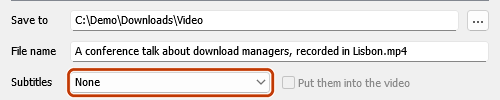
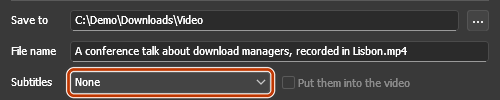
- Якщо субтитри збережено поруч із відео, їхній файл матиме назву відео та позначення мови:
My video.fr.srt. Програвачі на кшталт VLC і MPV знаходять такі файли автоматично. З ffmpeg субтитри завжди зберігаються у форматі SRT; без нього — у форматі, який використовує сайт (часто WebVTT,.vtt). - Вставити у відео поміщає їх всередину файлу, як доріжки, які ви вмикаєте в плеєрі. Для цього потрібен ffmpeg та відео MP4 або MKV. Запис прямої трансляції зберігає їх поруч (Запис).
- Для варіанта лише зі звуком (Лише аудіо, MP3, Opus, FLAC) субтитри недоступні.
VDM offers the same choice again for the next video when it has that language.
A site may refuse subtitles when it's asked too often: YouTube does, most of all for its translated captions. The video is saved all the same. VDM asks for the subtitles once more after 20 seconds, and if they still don't come, the Download complete window and the download's log say which ones are missing and why. Try them again later. When subtitles meant to go inside the video only come on that second try, they're saved beside it instead.
Розділи
Багато відео розділені на розділи на їхній сторінці: список YouTube під плеєром, з назвою та часом початку для кожної частини. Якщо позначено Вбудувати розділи, під Субтитри, вони додаються до відеофайлу, тому такі плеєри, як VLC, MPV, MPC-HC та Windows Media Player, відображають їх і дозволяють переходити від одного до іншого.
- Він позначений на початку і залишається таким, як ви його залишили для наступного відео.
- Для цього потрібен ffmpeg, який їх записує. Відео без розділів зберігається як є.
- Вони потрапляють у відео (MP4, MKV, WebM) та у звук, як це є на сайті (Лише аудіо, оригінал), а не у файл MP3, Opus або FLAC, а також не у запис прямої трансляції.
- Командний рядок (
video-get) також додає їх, якщо є ffmpeg.
Якщо позначено Розділити на розділи (поруч із Вбудувати розділи або під ним у довгій мові), відео також розділяється на окремі файли розділів (<filename> - <NN> - <chapter name>.<ext> або <filename> - <NN>.<ext>, якщо без назви). Зберігається також все відео.
- Для цього потрібен ffmpeg, і він залишається таким, яким ви його залишили для наступного відео.
- Splitting uses stream copy without re-encoding, so it runs losslessly and near-instantly. Each cut lands on a keyframe, so a chapter can start a second or a few early (yt-dlp's
--force-keyframes-at-cutsmakes it exact, but re-encodes, so VDM does not turn it on by default). - Відео без розділів або з одним розділом зберігається як один файл без розділення.
- Назва розділу скорочується, щоб відповідати системним обмеженням на імена файлів та шляхи; у дуже глибокій папці розділ називається лише своїм номером.
- Ця опція не пропонується з Лише частина: частина не має розділів.
- Параметри командного рядка
video-getтаplaylist-getпідтримують це через--split-chapters. - Видалення завантаження разом з його файлами також очищає розділені файли розділів, зберігаючи непов'язані файли в тій самій папці.
Завантажити лише частину
Щоб зберегти лише частину відео або звуку (сцену, пісню з довгого міксу, кілька хвилин подкасту), позначте Лише частина у рядку Частина, під Субтитри, і введіть, де вона починається і де закінчується.
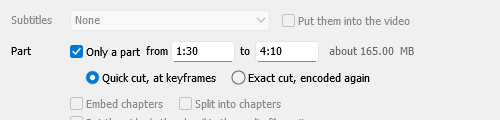
- Час вводиться як
1:30(півтори хвилини),1:02:03(година, дві хвилини та три секунди) або в секундах (90). Поля починаються з усього відео, від 0:00 до його кінця; Вгору та Вниз переміщують час на секунду, Page Up та Page Down — на десять. Поле стає червоним, якщо його час неможливий (це не час, кінець настає раніше початку, він перевищує кінець відео, або частина є цілим відео), і Завантажити зараз пояснює, чому. - Швидке обрізання, за ключовими кадрами — перший варіант: зображення та звук копіюються як є, нічого не перекодовується, тому це швидко і без втрат. Зображення може починатися чисто лише з ключового кадру, тому частина починається з останнього перед вашим початком: максимум на кілька секунд раніше, ніколи не пізніше. Лише звук у M4A починається там, де ви вкажете; у WebM (Opus) — з останньої точки пошуку перед ним, що може бути на десять секунд раніше.
- Точне обрізання, повторне кодування: частина починається і закінчується там, де ви вказали. ffmpeg перекодовує її знову (H.264 та AAC в MP4, VP9 та Opus у WebM, лише звук у власному форматі), що займає приблизно стільки ж часу, скільки кодування такої кількості хвилин на вашому комп’ютері, і зображення може трохи втратити якість.
- Розмір поруч із часом є приблизним: це частка частини від цілого.
- Ім'я файлу вказує на частину:
My video (1m30s-4m10s).mp4. Введене вами ім’я зберігається так, як ви його ввели. - Без субтитрів і без розділів для частини: вони були б для всього відео, за часом всього відео. Субтитри та Вбудувати розділи неактивні, поки позначено Лише частина.
- Для цього потрібен ffmpeg, який обрізає частину, та відео, довжину якого вказує сайт (не пряма трансляція). Відео зі списку відтворення завантажуються повністю.
- З браузера: меню кнопки Завантажити відео над відео має пункт Завантажити частину звідси.... Воно відкриває це вікно з позначеним Лише частина та початком там, де відтворюється відео.
How a part comes down: yt-dlp's ffmpeg finds the part in each stream by the stream's own index (an MP4's or a WebM's, an HLS stream's playlist) and reads only that part, never the whole file. What it reads comes in through VDM's own connections, in requests of a MB at most, several at once: a part comes about as fast as a whole video would (YouTube sends one long request at about the video's own pace), under your speed limits (a change applies at once), and through your proxy or network adapter. The progress window shows what has come against the part's estimated size. Paused and resumed, a part starts again from its beginning: ffmpeg can't go on from the middle of a cut. A stream sent another way (a DASH manifest, RTMP) is read by ffmpeg itself.
Списки відтворення та канали
Вставте адресу списку відтворення (youtube.com/playlist?list=…) або відео каналу (youtube.com/@name/videos) і натисніть Знайти. Замість якості одного відео, у вікні відображаються відео зі списку, кожне зі своєю тривалістю.
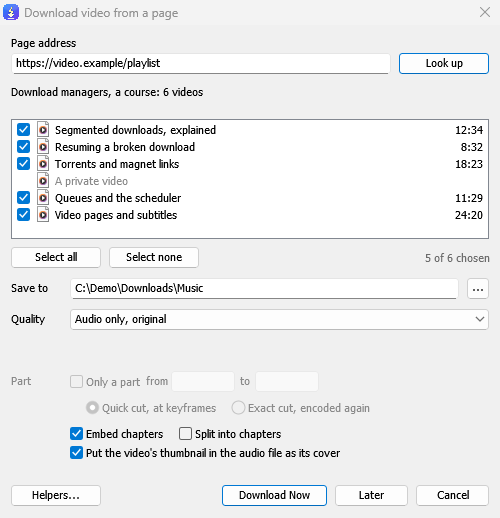
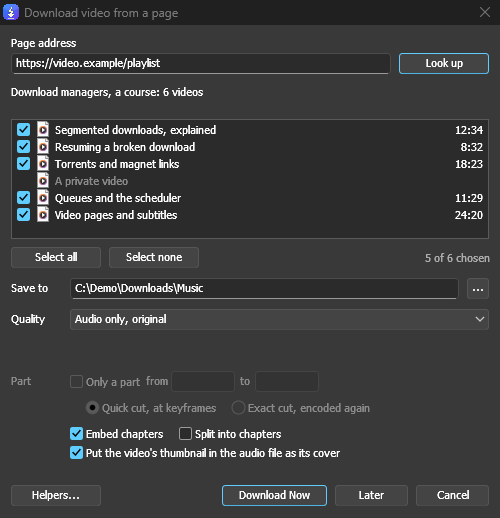
- Весь список відтворення перелічується повністю, у міру надходження відео: рядок над списком показує, наскільки він заповнений («Перелік відео: 1200 з 6000»). Зупинити перелік зберігає вже перелічені, а Перелічити решту продовжує з цього місця. Якщо сайт перестає відповідати на півдорозі (YouTube може, якщо його запитують занадто часто), у вікні вказується, після скількох відео і чому, а Перелічити решту намагається знову з цього місця.
- Канал відображається по 50 відео за раз, починаючи з найновіших. Завантажити ще відображає наступні 50.
- Кожне відео спочатку позначено. Зніміть позначки з тих, які вам не потрібні, або скористайтеся Вибрати все та Скасувати вибір. Приватні та видалені відео виділені сірим кольором і не можуть бути позначені.
- The sound's language: every video of the list downloads with Options → Regional → Videos' sound's language when it has it, else its original (The sound's language).
- Якість застосовується до кожного відео: Найкраща якість, Найсумісніший (H.264 + AAC) (найкраще зображення H.264 кожного відео зі звуком AAC; відео, яке не має такого, не завантажується), До певної висоти (кожне відео на цій висоті або найближче нижче), Лише аудіо, оригінал, Лише аудіо MP3, Лише аудіо OPUS або Лише аудіо FLAC. Без ffmpeg пропонуються лише ті якості, які постачаються зі своїм звуком, і без MP3, Opus або FLAC.
- Відео зберігаються в папку, названу на честь списку, всередині Зберегти до, кожне під власною назвою.
Завантажити зараз додає кожне відео як окреме завантаження та запускає основну чергу, яка одночасно виконує стільки завантажень, скільки ви встановили в Планувальник (Завантажити N файлів одночасно). Пізніше додає їх без запуску. Додавання понад 500 одночасно спочатку запитує підтвердження.
VDM lists at most 20,000 videos of one list.
Адреса сторінки, яка вказує на одне відео у списку відтворення або міксі (наприклад, watch?v=…&list=…), завантажує це одне відео, а не весь список.
Обмеження швидкості
Videos keep to the Speed Limiter: the limit for one file, a video's own limit (the Speed Limiter tab of its progress window), and the limit for all downloads together, which they share with every other download. VDM's own downloader brings them in, so a change applies at once, as for a file.
A video yt-dlp downloads by itself (How a video comes down) takes a limit only as it starts: when you turn the limiter on or off, change its settings or the video's own limit, VDM stops it and starts it again with the new limit, and it goes on from where it was (the log says "Stopped: the speed limit changed; starting again with it"). A live stream that is recording is the exception: restarting it would cut the recording, so it keeps recording and takes the limit the next time it starts. Under the limit for all downloads, such videos share it evenly: when another starts, the ones running with more than their share start again with it; when one ends, the others keep theirs. A gallery's pictures that VDM brings in follow a change at once; what gallery-dl still fetches itself starts again with the new limit, skipping the files already saved. Other changes (torrents taking more or less of the limit for all downloads, Only while I'm using the computer) apply to the next one that starts.
Через адаптер VPN
With Options → Proxy / Socks → Network adapter set, video downloads go through that adapter too, with the same kill switch as other downloads. VDM's own downloader opens its connections through the adapter as for any file; for yt-dlp's look-ups (and what it downloads itself, with the ffmpeg it starts) VDM hands it a proxy of its own on this computer, and opens every connection through the adapter, looking the names up with the DNS you chose in Options → Connection (without an adapter, yt-dlp uses the system's DNS). When the adapter disconnects, the video download stops, and it starts again when the adapter is back. Formats sent over RTMP, RTSP, MMS or FTP can't go through it and are refused.
Сайти, що вимагають входу
Деякі відео відтворюються лише для користувачів, які увійшли в систему: відео для учасників або приватне відео, відео з віковими обмеженнями. А YouTube іноді просить будь-якого глядача з мережі, якій він не довіряє (VPN, спільна або хмарна адреса), «Увійти, щоб підтвердити, що ви не робот». Тоді yt-dlp потрібні файли cookie вашого браузера, невеликі файли, які зберігають ваш вхід.
- Кнопка «Завантажити відео» над відео передає файли cookie цієї сторінки, з вікна та профілю, в якому ви перебуваєте (приватне вікно, контейнер Firefox), для пошуку та завантаження, тому ви входите в систему так само, як і в браузері. Нічого налаштовувати. Кожен файл cookie зберігається з доменом, для якого його зберігає браузер, тому вхід на YouTube Music (music.youtube.com) або мобільний сайт YouTube також досягає www.youtube.com.
- Вставлена адреса (Додати URL, Завантажити відео зі сторінки, список відтворення): виберіть свій браузер у Параметри → Входи на сайти → Файли cookie для відеосайтів. Тоді yt-dlp читає файли cookie цього браузера на цьому комп’ютері для кожного відео, яке він шукає або завантажує. Коли розширення передало власні файли cookie сторінки, використовуються вони: це файли cookie цієї сторінки та цієї сесії.
- Запасний обліковий запис у власному профілі: вам не потрібно надавати yt-dlp свій основний обліковий запис. Створіть другий профіль у своєму браузері, увійдіть на сайт там із запасним обліковим записом і помістіть цей профіль у Профіль (його назва або його папка з ...). yt-dlp читає лише файли cookie цього профілю. Розробники yt-dlp також радять це: сайт може обмежити обліковий запис, який використовується програмою.
Signed in, YouTube sometimes refuses what it gives a visitor: its servers answer the video with HTTP Error 403: Forbidden, or the look-up with its bot check, where a private window plays it. When YouTube refuses a video anyone may watch that way, VDM looks it up once more without your cookies, as a private window would, and the download's log says so. A private, members' or age-restricted video keeps them.


Sign in to the site in that browser first. VDM never logs or shows the cookies; the download's log names only the browser they came from.
Які браузери
З браузера перераховує браузери, які читає yt-dlp: Firefox, Chrome, Edge, Brave, Opera, Vivaldi, Chromium і Whale, а також Safari на macOS. Профіль необов’язковий: ім’я профілю (Profile 1) або його папка; якщо порожньо, використовується останній профіль.
- Firefox працює на кожній системі. Якщо ви щойно ввійшли в обліковий запис з відкритим Firefox, закрийте його один раз, щоб він записав дані для входу у свої файли.
- Chrome, Edge і Brave у Windows блокують свої файли cookie для себе (Chrome 127 і новіші, «шифрування, прив’язане до програми»), і yt-dlp не може їх читати, поки браузер відкритий. Вікно про це повідомляє; виберіть Firefox або скористайтеся кнопкою над відео, яка працює з будь-яким браузером.
- У Linux браузери сімейства Chrome зберігають ключ до своїх файлів cookie у системному сховищі ключів (GNOME Keyring, KWallet); yt-dlp запитує його, тому він має бути розблокований.
- Інший браузер, побудований на Chromium (Helium, Thorium, ungoogled-chromium...): виберіть Chromium та папку профілю цього браузера (його папка
DefaultабоProfile 1...; у~/.configна Linux,%LOCALAPPDATA%на Windows). yt-dlp читає папку, але браузер, який зберігає свій ключ під власним ім’ям у сховищі ключів або блокує свої файли cookie, як це робить Chrome, не може бути прочитаний таким чином: використовуйте кнопку його розширення.
Коли відеосервер недоступний
Some sites, YouTube among them, send each viewer to a nearby video server, sometimes one inside the internet provider's own network. If that server can't be reached from your connection, a browser quietly switches to another one, but yt-dlp on its own would give up. Before each video download VDM checks the servers in the video's links and, if one doesn't answer, switches to the next one the site lists. The download's log says when this happens.
Якщо відео не завантажується
- Наведіть курсор на Стан завантаження або відкрийте його вікно прогресу, щоб прочитати повідомлення yt-dlp.
- На цій сторінці немає відео, яке можна завантажити означає, що yt-dlp нічого не знайшов на сторінці. Перевірте, чи адреса є власною сторінкою відео.
- Це відео вимагає, щоб ви ввійшли в обліковий запис, або сайт вимагає входу: дивіться Сайти, що вимагають входу.
- Sites change often, and a newer yt-dlp usually fixes it. VDM keeps its own yt-dlp up to date by itself, and when a download fails in a way that usually means yt-dlp is out of date, it looks for a newer one at once and tries again (Keeping them up to date). To check right now: Helpers... → Check for updates. If you chose your own yt-dlp in Helpers, update it yourself (
yt-dlp -U, or your package manager). - The path is too long for Windows (or the file name is too long) means the folder and the file name together, with the files saved beside the video while it downloads, are longer than the system allows: 259 characters on Windows unless long paths are turned on there, 255 a name (255 bytes on Linux and macOS). VDM shortens a title by itself, so this comes from a name you typed or a very deep Save to folder: add the video again with a shorter name, or a folder nearer the top of the drive.
- Videos protected with DRM (most paid streaming services) can't be downloaded, and VDM doesn't try. The browser extension's Media on this page shows such a stream as Protected and doesn't send it.
- Сторінка, відео з якої вікно не може знайти: відтворіть відео у своєму браузері, потім використайте Медіа на цій сторінці розширення, щоб надіслати потік, завантажений сторінкою.
- Завантаження може суперечити умовам деяких сайтів. Перевірка цього залежить від вас.
- Все ще не працює? Використайте Довідка → Повідомити про проблему та вкажіть адресу сторінки.
Наступні кроки
Безкоштовно, з відкритим кодом, без реклами, без пробного періоду.
Download Volt Download Manager