

먼저, 무슨 일이 일어났는지 확인하세요
모든 다운로드는 재시도, 리디렉션, 서버 응답 및 오류와 같은 최근 이벤트 로그를 유지합니다.
- 목록에서 다운로드의 상태에 마우스를 올리면 확인할 수 있습니다.
- 또는 진행 창을 엽니다(미완료 다운로드를 두 번 클릭). 연결 테이블은 각 연결이 무엇을 하는지 보여주며, 연결이 실패하면 이유와 함께 재시도 중으로 표시됩니다.
- 파일 속성(Alt+Enter)은 마지막 시도 및 결과를 보여줍니다.
다운로드에 오류가 표시됩니다
- 이유를 읽어보세요(상태에 마우스를 올립니다).
- 다운로드를 선택하고 다시 시작을 클릭합니다. 많은 오류는 서버나 연결이 일시적으로 불안정할 때 발생합니다.
- If the link has expired (common for links from sites you sign in to, or links with a time limit in them), get a new one: right-click → Refresh download address, then start the download again in the browser, and VDM gives its new address to the download that waits for it, which continues (a Rapidgator download waits by itself: starting it again in the browser is enough). See Resume a broken download.
- If it says the file changed on the server, the file isn't the one VDM started with. Right-click → Redownload to start again from the beginning.
- Google Drive에서 지금 이 파일을 제공하지 않습니다라고 표시되면 해당 파일의 Drive 다운로드 제한에 도달한 것입니다. Google Drive 링크를 참조하세요.
- If it says this site lets only browsers through, the site's bot check (Cloudflare's, for one) turned VDM away. VDM has already asked once more connecting the way your browser does, with your browser's cookies for that site, and once under its own name (some checks let a program that says what it is through), and the site still wants its check answered in a browser. Hold Alt (Option on a Mac) as you click the link: the browser opens it in the tab, runs the site's check there ("Just a moment...", sometimes a box to tick), and keeps the download that comes after it. VDM leaves that download alone for a minute after your click. See Browser integration.
- If it says the site sent a web page instead of the file, the link led to the site's own page: a file host's countdown, a captcha, a Download button to press, or a sign-in. VDM never saves that page as your file. Click Open in browser in the download's progress window (or open the link yourself), finish there, and when the browser starts the real download, VDM's extension hands it to VDM. Without the extension, let the browser download it.
다운로드 상태가 손상됨으로 표시될 때
압축 파일 테스트 결과 파일이 온전히 읽히지 않는 것으로 나타났습니다(압축 파일 테스트): 상태에 마우스를 올리면 어떤 파일인지 확인할 수 있습니다.
- 마우스 오른쪽 버튼을 클릭하여 다시 다운로드를 선택하거나(손상된 압축 파일 창의 다시 다운로드 버튼을 클릭) 처음부터 다시 다운로드합니다.
- A ZIP whose damaged parts VDM downloaded again and still came damaged, or a 7z or RAR that is damaged again after a Redownload, is probably damaged on the server itself: ask the site for another copy.
- 수동으로 다시 테스트하려면 마우스 오른쪽 버튼을 클릭하여 압축 파일 테스트를 선택하세요.
다운로드가 다시 시작되지 않고 처음부터 다시 시작됩니다
- Look at Resume capability in the progress window. No means the server can't send a file in parts, so VDM can't continue it later.
- 일부 서버는 동일한 파일에 대해 매번 새 날짜를 보고합니다. 옵션 → 다운로드 → 다운로드 다시 시작 시 파일 수정 시간 변경 무시를 선택하세요.
다운로드가 느립니다
- 속도 제한이 꺼져 있는지 확인하세요: 다운로드 → 속도 제한 → 끄기. 또한 다운로드 → 속도 제한 → 설정... → 모든 다운로드 제한을 확인하세요. 이는 제한기가 꺼져 있어도 적용됩니다.
- 진행 창에서 다운로드 자체의 속도 제한 탭을 확인하세요.
- Check Options → Connection. A low Default max. conn. number, or an exception for the server, means fewer connections. Rows marked (auto) are servers that refused more connections; VDM can't do more there.
- 예약 관리자에서 다운로드 제한을 확인하세요. 제한에 도달하면 다운로드는 대기 중: 다운로드 제한에 도달했습니다(스케줄러)로 대기합니다.
The browser doesn't send downloads to VDM
- Was VDM installed with the setup, with Set up browser integration ticked? A portable copy can't take browser downloads. Run the setup again to add it.
- Is the extension loaded and turned on? Look for Volt Download Manager on the browser's extensions page. In Firefox, install it from addons.mozilla.org: a temporary add-on is gone after a restart. See Browser integration.
- 옵션 → 일반 → 고급 브라우저 통합 사용이 켜져 있고, 다음 브라우저에서 다운로드 캡처 아래에 브라우저가 선택되어 있습니까?
- Is the file's type in Options → File types? Only listed types are taken automatically. Download with Volt Download Manager on the right-click menu takes any link.
- 사이트가 다음 사이트에서 자동으로 다운로드 시작 안 함에 있습니까?
When none of this helps, the browser keeps the download, so nothing is lost. The extension's toolbar button says why it couldn't reach VDM; see The browser and VDM aren't connected.
예약 관리자가 큐를 시작하지 않았습니다
- VDM must be running at that time. Closing the window is fine (it stays in the tray); Tasks → Exit is not.
- 시간을 설정한 후 적용을 클릭했습니까?
- 매일은 선택한 요일에만 시작됩니다. 다음 시간에 한 번은 해당 날짜에만 시작됩니다.
- 컴퓨터가 절전 모드일 때는 이 큐를 실행하기 위해 컴퓨터 절전 모드 해제가 선택되어 있지 않으면 아무것도 실행되지 않습니다 (Windows에서는 전원 관리 옵션에서 절전 모드 해제 타이머 허용이 필요하며, 예약 관리자에서 꺼져 있는지 확인할 수 있습니다). 큐 실행을 위해 컴퓨터 절전 모드 해제를 참조하세요.
동영상이 다운로드되지 않습니다
동영상이 다운로드되지 않는 경우를 참조하세요.
마그넷 링크가 오래 걸립니다
A magnet link has to get the torrent's file list from other peers first. That can take a minute or two, and longer for torrents with few peers. If nobody answers in about three minutes, VDM gives up; try again later, or use the .torrent file if the site offers one.
VDM uses a lot of memory
작업 관리자에는 여러 수치가 표시되며, 각각 다른 의미를 가집니다:
- Memory (on the Processes tab) is what VDM holds for itself alone, its private working set. With the window open and nothing downloading, that is about 70 MB.
- Working set (Details tab, add the column) adds memory shared with other programs. VDM draws its windows with the graphics card, so the graphics driver's memory counts here too, about 120 MB in all.
- Commit size is memory VDM has reserved, whether in use or not.
Closed to the notification area, VDM gives its memory back to Windows: Memory drops to under 10 MB within seconds and stays low while it waits. Downloads, queues and the scheduler go on as before. The list of every language (View → Language) loads fonts for every script while it's open; VDM lets them go when it closes.
텍스트가 너무 작거나 흐릿하게 보입니다
VDM keeps Internet Download Manager's compact sizes. On a large or high-resolution screen, choose View → Interface size (110 %, 115 %, 120 %, 125 %, 150 %, 175 % or 200 %), or press Ctrl + and Ctrl − in any VDM window, as in a browser; Ctrl 0 goes back to 100 %. Every window follows at once, and VDM starts at that size next time. It comes on top of Windows' own display scale (Settings → System → Display → Scale).
Where only the letters are too small, the sizes under View → Font draw the interface's text larger (or smaller) on its own: from 75 % to 150 % of the theme's sizes. The windows keep their compact layout, so nothing is pushed off the screen; the text is simply larger in the same place. View → Font also draws every window's text in a font file of your own (Choose a font file..., a TrueType, OpenType or collection file), and System font goes back to Segoe UI (Windows) or the computer's own font. While a file is in use, its own name sits checked in the menu, so what is on is always said. Both choices are saved for the next start. If the chosen file is moved or deleted, VDM draws with the system font until another one is chosen.
해당 크기에서 화면보다 큰 창 (1366 × 768 화면에서 200%로 설정된 옵션)은 화면이 허용하는 최대 크기로 열리며, 나머지는 스크롤됩니다. 스크롤 막대, 마우스 휠 또는 Tab 키를 사용하여 다음 컨트롤로 이동할 수 있습니다.
VDM tells Windows it draws for each monitor's own scale, so Windows never stretches its windows into blur, and it draws Windows' fonts grid-fitted to whole pixels. If the text still looks blurred, tell us your screen's resolution and Windows' display scale when you report it.
창이 멈추거나 잘못 그려집니다
On Windows, VDM draws its windows with Direct3D 12; on Linux and macOS, with OpenGL, or with Vulkan (Linux) or Metal (macOS) when you choose them. A graphics driver can still misbehave: a window that holds still for seconds, flickers, or shows wrong colours or blocks. Try the other one: choose View → Draw with → OpenGL (or Direct3D, Vulkan, Metal), then quit VDM (Tasks → Exit) and start it again. Choosing the first one goes back the same way.
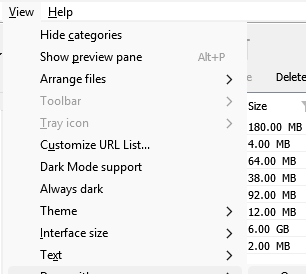
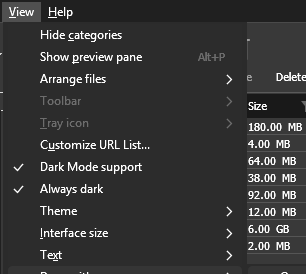
- If Direct3D, Vulkan or Metal can't start on your graphics card (no driver for it, some virtual machines), or its first window doesn't show within 10 seconds of its own (the time VDM spends loading your list and its icons doesn't count, however slow the computer is just after it starts), VDM draws with OpenGL, and View → Draw with says so and why. Choosing it again tries it again at the next start.
- Linux에서 Vulkan을 사용하려면 그래픽 카드용 Vulkan 드라이버가 필요합니다. AMD와 Intel 그래픽 카드에는 Mesa 드라이버(
mesa-vulkan-driversUbuntu 및 Debian,vulkan-radeon또는vulkan-intelArch)를, NVIDIA 그래픽 카드에는 NVIDIA 전용 드라이버를 사용하세요. - If neither can start, VDM draws with a software renderer (Microsoft's on Windows, Mesa's on Linux), so the window still opens (Remote Desktop, a virtual machine without a graphics driver). It works, but keeps the processor busier while a window changes.
- On Windows, Microsoft's software renderer (WARP) keeps the processor much busier than Mesa's (llvmpipe), the more so the larger the window. Where WARP draws for want of a graphics driver, VDM offers once to download llvmpipe (about 66 MB, from Mesa's Windows builds on GitHub), and View → Draw with → Download Mesa's software renderer (llvmpipe)... offers it at any time. Nothing downloads until you press Download; it is checked against VDM's signed list of checked builds, as ffmpeg is, and kept in VDM's data folder (
tools\mesa). VDM draws with it from its next start, and View → Draw with says Software (llvmpipe). If it can't start or draw there, VDM remembers that and draws with WARP again (Software (llvmpipe) didn't start here: WARP draws); a newer llvmpipe is tried again. To stop using it, quit VDM and delete thetools\mesafolder. - On Windows, when OpenGL fails on a card without Direct3D 12, VDM draws with Direct3D on Microsoft's software renderer (WARP) from the next start, and View → Draw with says why: OpenGL couldn't start, it is too old to draw VDM (older than 3.0, such as Intel's first HD Graphics, whose OpenGL 2.1 drew VDM's windows as garbage), its first window didn't show within 10 seconds, VDM froze inside the graphics driver while OpenGL showed a frame (the older Intel HD Graphics and AMD Radeon cards' drivers did), or VDM crashed inside it (OpenGL crashed inside its driver here). Choosing OpenGL there tries it again; so does a graphics driver update.
- If the graphics card is reset while VDM runs (a driver update, or a driver that resets by itself, as some older Radeon cards' do with Direct3D 12), VDM starts again by itself. Lost twice in 10 minutes, it goes back to OpenGL, and View → Draw with says why. If the card isn't back yet when VDM starts again, that start draws another way (OpenGL, or WARP), and the next start tries the card again.
- 카드 제조업체 사이트(Intel, AMD 또는 NVIDIA)에서 그래픽 드라이버를 업데이트하면 이러한 문제 중 상당수가 해결됩니다.
- A freeze whose report shows the window thread inside the graphics driver as it shows a frame (
ig4icd64.dllorig9icd64.dllfor Intel,nvoglv64.dllfor NVIDIA,atio6axx.dllfor AMD, underopengl32.dll) is the driver's OpenGL stuck, not VDM: on Windows, choose View → Draw with → Direct3D (the default) and restart VDM, and update the graphics driver. If Draw with says Direct3D didn't start there, the line under it says why; VDM then remembers the freeze and draws with WARP from the next start. - A crash report whose crashed thread is inside the graphics driver while VDM drew with OpenGL is the same: the driver's names above, or
d3d11.dllalone with nothing of VDM's on the thread (NVIDIA's driver on a laptop with two graphics chips shows OpenGL's frames through Direct3D 11). On Windows, VDM remembers it and draws with Direct3D 12 from the next start, on WARP if the card can't; updating the graphics driver is still the real fix. - A freeze or crash report says which one was drawing, on which graphics card and driver, and why that one (chosen, the default, or the other one failing), on its
Drawing with:line near the top: include it when you report a problem. A freeze report also says whether VDM was busy, waiting, or hardly ran at all (a computer too busy to run it); see Crash reports.
The setup or VDM won't start
- Windows에서 Windows에서 PC를 보호했습니다라고 표시되면 자세히를 클릭하고 파일이
VoltDownloadManager-<version>-setup.exe인지 확인한 다음, 릴리스 페이지에서 받은 파일이면 그래도 실행을 클릭하세요. - VDM runs only once. Starting it again brings the running copy's window to the front. If nothing appears, look for VDM's icon in the notification area.
- Linux, from the AppImage or the tar.gz: if the system lacks a library VDM's window needs (such as
libxkbcommon-x11), VDM names it on the terminal and in a message box, with the command that installs it (sudo apt install libxkbcommon-x11-0, or your distribution's). The .deb and .rpm bring these libraries themselves. In a Wayland session VDM opens its window on Wayland instead. - Linux, the first start is slow: VDM looks up the system's fonts for every script once, all together, while it starts (fontconfig); a first start on a busy computer can take a few seconds more. Install your distribution's Noto fonts if some scripts or symbols show as boxes.
My antivirus or VirusTotal flags VDM
It is most likely a false alarm. Some antivirus programs judge a program they don't know by an educated guess, not by a known virus: detection names such as Malware.AI, Gen:, ML or Heur mean such a guess. What they flag most is a new download few people have run yet, from a small project, without a publisher's signature; VDM's installer isn't code-signed yet. On VirusTotal, a handful of engines flagging a new setup while most stay clean is the usual sign of a false positive.
다운로드한 파일이 당사의 파일인지 확인하세요.
- Download VDM only from vdm.mikaillab.com or GitHub Releases.
- 다운로드한 파일 이름 대신
<file>을 사용하여 파일의 SHA-256 체크섬을 확인하세요. Windows에서는 PowerShell에서Get-FileHash <file>를 사용하고, Linux에서는sha256sum <file>를 사용하며, macOS에서는shasum -a 256 <file>를 사용합니다. - Compare it with the same file's line in that release's
SHA256SUMS.txt(capital or small letters don't matter). To be sure the list itself is ours, check its signature,SHA256SUMS.txt.sig, with VDM's release key: see Check your download.
If they match, it is the file we published. VDM is open source and built in public: every release is built from the public source code by GitHub Actions, on GitHub's servers, with every build's log there to see, so anyone can read what went into it and build it again.
그런 다음:
- 파일을 안티바이러스에 오탐으로 보고하세요. Microsoft Defender, Malwarebytes, Avast, AVG, Bitdefender, Kaspersky, ESET.
- 어떤 안티바이러스였는지, 탐지 이름과 파일을 GitHub에 알려주세요. 저희도 보고할 수 있습니다.
- If your antivirus quarantined VDM, restore it and add an exception for its folder.
체크섬이 일치하지 않거나 다른 곳에서 복사본을 가져온 경우 실행하지 마세요. 삭제하고 저희에게 알려주세요.
HTTPS 다운로드가 "인증서 없음" 오류로 실패합니다 (Linux)
A minimal Linux system (often with the AppImage, the tar.gz or a build from source) may have no CA certificates, which VDM needs to check a secure server. Plain http:// and ftp:// downloads still work; each https:// or ftps:// one stops at once saying the computer has no certificates to check the server with. Install the ca-certificates package (sudo apt install ca-certificates, sudo dnf install ca-certificates), then resume the download. The .deb and .rpm bring it.
HTTPS 다운로드 실패: "신뢰할 수 없음" 또는 "알 수 없는 발급자"
VDM checks a secure server's certificate the way your browser does: with your system's trusted certificates (Windows', macOS's, or the Linux CA bundle), and with Mozilla's, the ones Firefox carries. On Windows, Mozilla's are used only when Windows' own don't complete the chain; on macOS and Linux they are added to the system's. A Windows 10 or 11 that hasn't been updated for a while fetches the roots it trusts from Windows Update only when a site first needs one, and behind a proxy that can fail: VDM then goes by Firefox's list, so such a site still downloads. One consequence: a root you removed from the system's store, or marked as not trusted, is still trusted by VDM when Mozilla's list has it, as Firefox trusts it.
If a site still says not trusted (self-signed or from an unknown issuer), its certificate isn't from an issuer any browser trusts. On a company or school network, a proxy or an antivirus that inspects HTTPS shows its own certificate instead of the site's: VDM trusts it when it is installed in the system's store, as Edge and Chrome do (Firefox has its own setting for it). Opening the site in Edge (on Windows) shows the same certificate VDM sees.
데이터 위치
- 설치된 버전 또는 일반 zip:
%APPDATA%\voltdownloadmanager. 목록과 설정은downloads.json에 있습니다. - 포터블 버전:
data폴더는voltdownloadmanager.exe옆에 있습니다. - Linux:
~/.local/share/voltdownloadmanager; Mac:~/Library/Application Support/voltdownloadmanager. - 비밀번호 (사이트 로그인, 프록시, 디브리드 계정)는
downloads.json이 아닌 시스템 키체인에 저장됩니다. 옵션 → 사이트 로그인을 참조하세요.
To back up your list, quit VDM (Tasks → Exit) and copy downloads.json.
업데이트
Help → Check for updates... tells you whether a newer version is out, and what is new in it. Check for updates at every start in that window lets VDM look by itself: a few seconds after it starts, and once a day while it stays open. When there's a new version, its window opens in front.
When there is one, Update now downloads it, checks it, puts it in place and restarts VDM; your list, settings and downloads stay as they are:
| 설치 유형 | 지금 업데이트 기능 |
|---|---|
| Windows, 설치 프로그램 | 새 설치 프로그램을 창을 표시하지 않고 실행합니다. 모든 사용자를 대상으로 설치할 때는 관리자 권한을 요청합니다. |
| Windows, 포터블 또는 일반 zip | 해당 폴더의 프로그램을 교체합니다(포터블 복사본의 data 폴더는 유지됩니다). |
| Mac | 응용 프로그램 폴더의 앱을 교체합니다. |
| Linux, AppImage 또는 .tar.gz | AppImage 또는 해당 폴더의 프로그램을 교체합니다. |
| Linux, .deb 또는 .rpm | 확인된 패키지를 시스템의 패키지 설치 프로그램으로 엽니다. 이 프로그램은 암호를 요청합니다. |
| Linux, 다른 패키지 관리자의 패키지 (pacman, ...) | 없음: 창에 그렇게 표시되며, 시스템 업데이트를 통해 새 버전이 제공됩니다. |
VDM installs an update only when the release's list of checksums is signed by VDM's release key and the file matches it; anything else is refused, and Download opens the Releases page instead. Updating this way starts with version 0.2.1: earlier versions open the Releases page.
VDM asks GitHub's API for the newest version (of VDM, and of yt-dlp). GitHub answers 60 such questions an hour for each internet address, so on a network many people share (a mobile or home internet provider that puts many customers behind one address, a campus, an office) others can use them up. VDM then reads GitHub's ordinary release pages instead, with the same checks of what it downloads. If GitHub refuses those too, the window says api.github.com refused the request (403 Forbidden): too many requests from your network for now: try again in an hour, or from another network.
AppImage는 AppImage 도구(AppImageLauncher, Gear Lever, AppImageUpdate)를 통해 업데이트할 수도 있습니다. 업데이트 주소를 가지고 있으며, 각 릴리스에는 .AppImage.zsync 파일이 있어 해당 도구는 변경된 부분만 다운로드합니다. 이 기능은 버전 0.2.4 이후의 AppImage부터 시작됩니다.
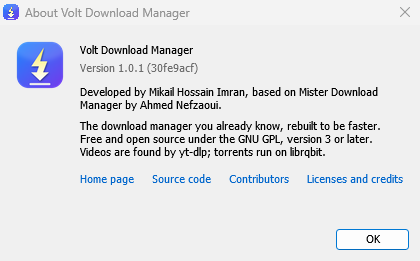
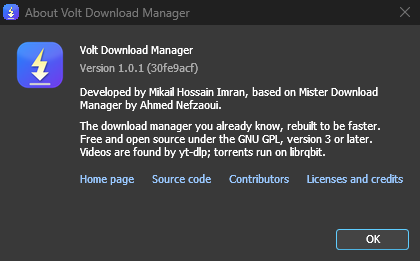
Help → About Volt Download Manager shows the version you have.
문제 보고
Choose Help → Report a problem. It opens the bug report form on GitHub with your VDM version, your system and its version, how VDM was installed and its interface language already filled in. Describe what happened, what you expected and the steps that make it happen. For a download, include the address if you can share it, and the reason shown under Status.
직접 양식을 열 수도 있습니다. 동일한 세부 정보를 요청합니다.
다음 단계
무료, 오픈 소스, 광고 없음, 평가판 없음.
Download Volt Download Manager