

With the VDM extension, clicking a download link in your browser hands the download to VDM. VDM gets the address together with the page it came from (the referrer), your cookies for the site and the browser's User-Agent, so downloads that need you to be signed in still work. It also gets the address the browser's own download had reached: when a site refuses VDM the link itself (a one-time link the browser has already used, or a site that lets only browsers ask for its links), VDM goes on from there once, without your cookies if it is another site. When a site's bot check (Cloudflare's, for one) or its refusal of programs (FileHippo's 412 Precondition Failed) turns VDM's own connection away, VDM asks once more connecting the way your browser does (the same handshake, settings and order of headers), with your browser's User-Agent and its cookies for that site only, and downloads on it with as many connections as any download, each asking for its part of the file (on one connection when the site refuses parts there); your proxy, network adapter and speed limits apply as usual. The pieces of a video stream (HLS, DASH) go the same way when the site's check refuses them. Some checks (SourceForge's) refuse anything that calls itself a browser without connecting exactly like one, and let a program that says what it is through: when that connection is refused too, VDM asks once more under its own name (VoltDownloadManager/ and its version, or the User-Agent you typed in Options → Downloads), with the same cookies and referrer, and remembers the site until VDM closes, so its next downloads, and a paused one when it resumes, go that way at once. It solves no challenge: a site that still wants one answered (some Cloudflare checks ask it of every visitor, for the site's pages too) refuses again, and VDM says this site lets only browsers through; Alt+click the link to leave the download to the browser, which opens the link, passes the check and keeps the file.
ส่วนขยายนี้ทำงานใน Google Chrome, Microsoft Edge, Brave, Opera และ Vivaldi, ใน Firefox เวอร์ชัน 140 ขึ้นไป และใน Safari เวอร์ชัน 17 ขึ้นไปบน Mac (ดู Safari)
Browsers built on them work too: Chromium and Helium take the extension as Chrome does, Brave Origin as Brave does, Zen and LibreWolf as Firefox does. On Windows, Zen has a bug of its own (see The browser and VDM aren't connected).
ตั้งค่า
การรวมเบราว์เซอร์มีสองส่วน: โปรแกรมช่วยขนาดเล็กที่เบราว์เซอร์ใช้สื่อสารด้วย และส่วนขยายเอง
- Install VDM with the setup and keep Set up browser integration (Chrome, Edge, Brave, Firefox) ticked. This registers the helper. (The portable copy can't do this; see Portable mode.) On Linux and macOS VDM registers it itself, each time it starts, for the browsers installed then.
- Add the extension to each browser you use, as below: Firefox from its add-ons store, the others from the Chrome Web Store. On the first start this is a step of the setup window. Until a browser's extension has reached VDM, VDM's Add Volt Download Manager to your browser window opens at each later start: it lists the browsers it found, and Add the extension opens the store's page in that browser. Install it by hand opens the steps for loading it without the store; Don't ask again stops the window.
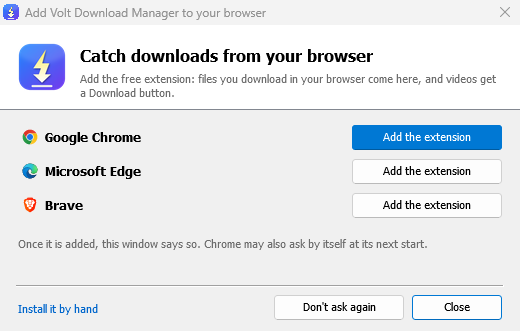
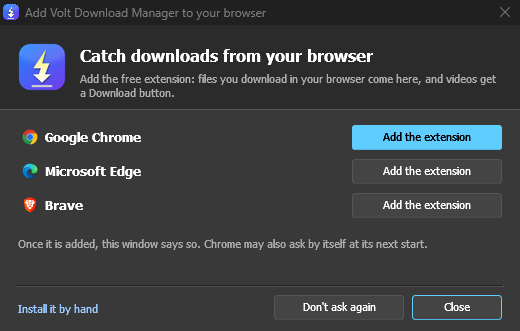
Firefox
Firefox 140 or later is needed. Install the add-on from its page on addons.mozilla.org, Volt Download Manager: click Add to Firefox. Firefox keeps it updated. Zen and LibreWolf install it from the same page. (VDM's Add Volt Download Manager to your browser window opens that page for you.)
For developers, Firefox can also load the add-on by hand: in about:debugging, This Firefox → Load Temporary Add-on..., choose vdm-firefox.xpi, which comes with VDM: in the extension folder where it is installed on Windows (as below), in /usr/share/voltdownloadmanager from the Linux packages. Firefox keeps that copy only until it restarts, and it doesn't update itself; its toolbar button's popup says so. The add-on from addons.mozilla.org is the one to use.
Chrome, Edge, Brave, Opera และ Vivaldi
Install the extension from its page in the Chrome Web Store, Volt Download Manager: click Add to Chrome. In Edge the button is Get: Edge first asks to Allow extensions from other stores (click Allow), then Add extension. The browser keeps it updated. VDM's Add Volt Download Manager to your browser window opens that page in each browser for you, and Chrome may offer it by itself at its next start once VDM is installed.
To load it by hand instead (a browser that can't use the store, or a build of your own): its files are in the extension folder where VDM is installed: %LOCALAPPDATA%\Programs\Volt Download Manager\extension if you installed it for yourself, or Program Files\Volt Download Manager\extension if you installed it for everyone. Every release also has them as their own download, ...-extension-chromium.zip (unzip it first).
- เปิดหน้าส่วนขยาย:
chrome://extensions,edge://extensionsหรือbrave://extensions - เปิด โหมดนักพัฒนาซอฟต์แวร์
- คลิก โหลดส่วนขยายที่ไม่ได้แพ็ค และเลือกโฟลเดอร์
extension\chromium
Volt Download Manager appears in the list. Leave it turned on. Pin its button to the toolbar to see at a glance whether the browser reaches VDM.
Helium
Helium ติดตั้งส่วนขยายจากหน้าเดียวกันใน Chrome Web Store: คลิก เพิ่มใน Chrome Helium ดึงส่วนขยายผ่านบริการของตนเอง ดังนั้นจะทำงานได้เฉพาะเมื่อได้รับอนุญาตเท่านั้น หาก Helium แจ้งว่า การดาวน์โหลดส่วนขยายถูกปิดใช้งาน ให้เปิด helium://settings/privacy/services (การตั้งค่า → ความเป็นส่วนตัวและความปลอดภัย → บริการ Helium) เปิด อนุญาตให้เชื่อมต่อกับบริการ Helium และ พร็อกซีการดาวน์โหลดและการอัปเดตส่วนขยาย แล้วคลิก เพิ่มใน Chrome อีกครั้ง หากปิดการตั้งค่าเหล่านี้ ให้โหลดส่วนขยายด้วยตนเองแทน ตามที่กล่าวไว้ข้างต้น (chrome://extensions ใช้งานได้ใน Helium ด้วย)
VDM's setup registers the helper where Helium looks for it, on Windows, Linux and macOS. On Linux and macOS VDM also offers the extension to Helium, through Helium's own services, so with them allowed it arrives by itself at Helium's next start (on macOS Helium asks first: New extension added in its menu, where you turn it on). The Linux packages (.deb, .rpm) leave that to the window below, writing nothing in your home folder. On Windows Helium can't be offered the extension this way: VDM's Add Volt Download Manager to your browser window opens the store's page in Helium when Helium was installed with its setup; Helium from its zip isn't found there, so open the store's page in it yourself. Helium presents itself as Google Chrome, on purpose, so in Options → General → Capture downloads from the following browsers it is Google Chrome.
Safari (macOS)
แอป Mac มีส่วนขยาย Safari อยู่แล้ว ไม่ต้องดาวน์โหลดอะไรเพิ่มเติม ต้องใช้ Safari 17 ขึ้นไป และ macOS 14 ขึ้นไป
- Drag VDM to Applications and start it once. VDM's Add Volt Download Manager to your browser window lists Safari: How to Add shows the steps below.
- In Safari open Settings → Extensions and tick Volt Download Manager. Click Always Allow on Every Website: the extension needs to read the site to pass your sign-in on.
- ในขณะที่แอปยังไม่ได้รับการรับรองจาก Apple (เวอร์ชันทดลองยังไม่ได้รับการรับรอง) Safari จะแสดงส่วนขยายนี้เมื่ออนุญาตส่วนขยายที่ไม่ได้ลงชื่อเท่านั้น: การตั้งค่า → ขั้นสูง → แสดงคุณสมบัติสำหรับนักพัฒนาเว็บ จากนั้น การตั้งค่า → นักพัฒนา → อนุญาตส่วนขยายที่ไม่ได้ลงชื่อ Safari จะลืมการตั้งค่านี้ทุกครั้งที่ปิด
Safari ไม่อนุญาตให้ส่วนขยายเห็นหรือหยุดการดาวน์โหลดของเบราว์เซอร์ ดังนั้นการทำงานจึงแตกต่างจากเบราว์เซอร์อื่น:
- Works as in the other browsers: the right-click items, the button over videos, Media on this page, the toolbar button, Alt-click, VDM starting by itself, and every rule in Options.
- A click on a link to a file type VDM takes goes to VDM. A download the page starts by itself (a script, or a link with no file name in its address that the server answers with a file) stays with Safari: use right-click → Download with Volt Download Manager for those.
- ไม่สามารถใช้งานได้: การแชร์พร็อกซีหรือ VPN ของเบราว์เซอร์ และการดาวน์โหลดจากฟอร์ม
จากไฟล์ zip ธรรมดา
The -x64.zip copy has no installer, but you can register the helper yourself. Open a command prompt in VDM's folder and run:
voltdownloadmanager-nmhost.exe --register
นี่สำหรับบัญชี Windows ของคุณเท่านั้น --unregister จะยกเลิกการตั้งค่านี้ จากนั้นโหลดส่วนขยายตามด้านบน จากโฟลเดอร์ extension ของไฟล์ zip
สิ่งที่ต้องทำ
When you click a download, the extension checks VDM's Options:
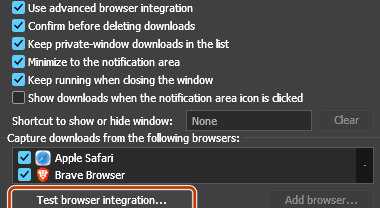
- Options → General → Use advanced browser integration must be on. Turn it off to send nothing to VDM.
- ตัวเลือก → ทั่วไป → ดักจับการดาวน์โหลดจากเบราว์เซอร์ต่อไปนี้ ต้องมีเบราว์เซอร์ของคุณทำเครื่องหมายไว้
- ตัวเลือก → ชนิดไฟล์ → เริ่มดาวน์โหลดชนิดไฟล์ต่อไปนี้โดยอัตโนมัติ ต้องระบุชนิดไฟล์นั้น รายการเริ่มต้นด้วยชนิดไฟล์ทั่วไป: ZIP, RAR, 7Z, EXE, MSI, ISO, DMG, DEB, RPM, APPIMAGE, MP3, MP4, MKV, WEBM, PDF, โมเดล AI เช่น GGUF และ SAFETENSORS, ไฟล์ 3D เช่น GLB และ STL และอื่น ๆ อีกมากมาย สามารถเพิ่มชนิดไฟล์อื่น ๆ ลงในรายการได้
- ตัวเลือก → ชนิดไฟล์ → ไม่เริ่มดาวน์โหลดอัตโนมัติจากไซต์ต่อไปนี้ ต้องไม่มีชื่อไซต์นั้นอยู่ ชื่อจะคั่นด้วยช่องว่าง; ชื่อหนึ่งจะครอบคลุมโดเมนย่อย (
example.comครอบคลุมwww.example.comเช่นเดียวกับ*.update.microsoft.comครอบคลุมdl.update.microsoft.com;*ตรงกับทุกอย่าง เช่นใน*.example.*) และไฟล์ที่หน้าของไซต์เชื่อมโยงไปยังเซิร์ฟเวอร์อื่น (CDN) ซึ่งระบุโดยหน้าที่มาของการดาวน์โหลด (referrer) แก้ไขรายการ... ด้านล่างจะแสดงที่อยู่ทั้งหมดที่จะไม่ดำเนินการ หนึ่งบรรทัดต่อหนึ่งที่อยู่ (https://example.com/private/*) - ตัวเลือก → ชนิดไฟล์ → ไม่รับไฟล์ที่เล็กกว่า จะปล่อยให้ไฟล์ขนาดเล็ก (ใบเสร็จ, ไอคอน) ถูกดาวน์โหลดโดยเบราว์เซอร์ หากตั้งค่าเป็น 0 จะรับทุกขนาด
- A
.torrentfile goes to VDM only while Tasks → Torrent settings → Open magnet links and .torrent files with Volt Download Manager is on. Off, the browser keeps it and opens it in your own torrent program. See Torrents. - ต้องอนุญาตให้ส่วนขยายอ่านเว็บไซต์ได้ เมื่อคุณจำกัดให้ใช้ได้กับบางเว็บไซต์ (หรือ เมื่อคลิก) ส่วนขยายจะไม่สามารถส่งข้อมูลการลงชื่อเข้าใช้ของคุณไปได้ ดังนั้นจึงปล่อยให้การดาวน์โหลดจากเว็บไซต์เหล่านั้นถูกจัดการโดยเบราว์เซอร์
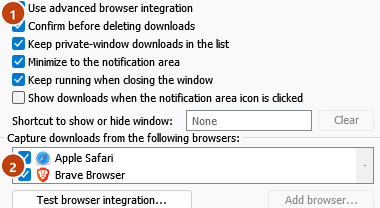
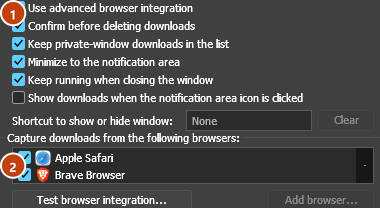
When the browser keeps a download, the extension's button says which of these left it there, with the file's name, and VDM's log has a line for each one (logs\vdm.log in VDM's data folder).
ทั้งที่อยู่ที่คุณคลิกและที่อยู่ที่ถูกเปลี่ยนเส้นทางไปจะถูกตรวจสอบ ดังนั้นเว็บไซต์ที่คุณยกเว้นจะยังคงถูกยกเว้นแม้ว่าจะส่งคุณไปยังเซิร์ฟเวอร์อื่นก็ตาม ส่วนที่เหลือจะยังคงอยู่กับเบราว์เซอร์ การเปลี่ยนแปลงในตัวเลือกจะส่งผลถึงเบราว์เซอร์ภายในหนึ่งนาที คุณไม่จำเป็นต้องรีสตาร์ทเบราว์เซอร์
When VDM takes a download, it gets the browser's file name, size and type with it, so Download File Info shows them at once without asking the server again. A download from a form (a button that posts and gets a file back) is posted again by VDM with the form's data; a form that sends a file stays with the browser.
When VDM takes a download, the browser's own copy is cancelled and removed from the browser's download list. In Firefox and the browsers built on it (Waterfox, Zen, LibreWolf), VDM takes it as soon as the server answers, before the browser asks What should … do with this file?: for a file VDM takes, that question never shows (Waterfox asks it for every new type of file). Files VDM doesn't take get the question as before. Download File Info opens in VDM (unless you turned it off in Options → Downloads). Cancelling there doesn't hand the download back to the browser.
Click a download link in the browser: Download File Info opens in VDM. 

เริ่มการดาวน์โหลด: หน้าต่างความคืบหน้าแสดงการดาวน์โหลด 

ดาวน์โหลดเสร็จสมบูรณ์: เปิดไฟล์ หรือ เปิดโฟลเดอร์ 

A download takes your cookies with it, as the browser sends them: those of the link's site, and of every site the link sent the browser on to (a sign-in step, a file host's download server), the one the download ended at included, with the page's partitioned cookies. Cookies a site sets along the way are kept for the next step, as a browser keeps them. Each site only ever gets its own cookies, and none go from a secure (https) address down to a plain http one.
Downloads from a private window use that window's cookies, never the normal ones, and are kept in VDM's list like any other, so they are still there after a restart (their cookies are never saved). A small mask before a download's status marks it as a private window's; its tip says whether the list keeps it. To keep them in memory only, as the browser keeps its private history, untick Options → General → Keep private-window downloads in the list: then they are gone from the list when VDM closes.
Files VDM downloads from the browser are marked as coming from the internet, as the browser marks its own: Windows checks a program with SmartScreen before it runs and Office opens a document in Protected View. Like the browser, VDM leaves the mark out when Windows' Group Policy Do not preserve zone information in file attachments is on; Options → Save to can turn it off for VDM alone.
ไฟล์ที่เบราว์เซอร์จะเปิด
A PDF, a song or a video that the browser would show or play itself goes to VDM too, when its type is in Options → File types (not on the excluded sites). That's one you open from a link or the address bar, and one a page shows in a frame, as many course and document sites show their PDFs. To turn this off, untick Also take files the browser would open in Options → General → Keys.... This needs a Chromium browser (Chrome, Edge, Brave, Opera, Vivaldi) version 128 or later, or Firefox.
A page with a PDF viewer of its own (its own page numbers, zoom and buttons, while the address bar keeps the page's address) reads the file itself and draws it. VDM leaves that file to the page: if VDM took it, the page would get nothing and say the document failed to load. To download such a file, open its address in a tab of its own, or use the page's own download button if it has one.
ปุ่มบนแถบเครื่องมือ
The extension's button shows whether the browser reaches VDM. A red ! means it doesn't; click the button to see why, and How to fix it opens the matching section of The browser and VDM aren't connected. While VDM downloads, the button shows how many downloads are running, in blue; II means taking downloads is paused. Its popup says under VDM's name whether it is connected, and to which version; the gear opens VDM's Options. It has three tabs:
- Downloads: VDM's newest downloads (see Recent downloads, below).
- This page: Media on this page, what the page has loaded that VDM can download (see below), Images on this page (below), and Never take downloads from the current site, a switch: on, the site goes on VDM's excluded sites and the popup says Downloads from the site stay with the browser, whenever you open it there; off takes it off the list again. A site that a pattern of your own in Options excludes (
*.example.com) shows the switch on, and greyed: Options holds it. - Settings: Take downloads from this browser (off pauses: every download stays with the browser until you turn it on again), the browser's proxy (see below), Hide the download button in full screen, Send downloads to (this computer or another VDM, see Remote control), Options... and Open Volt Download Manager.
การดาวน์โหลดล่าสุด
Downloads lists VDM's newest downloads, newest first, and keeps them up to date while the popup is open: each with your system's own icon for its file type (as Explorer, Finder or your file manager shows it), its size and what it is doing. A running download shows a progress bar, its speed and the time left; a finished one when it finished; a failed one why; a finished one whose file was deleted or moved since says so. The search box finds downloads by any words of their name or address, and All, Running, Done and Failed show only those (each with how many there are). The popup shows the newest 60 that match; VDM's own window lists them all.
ชี้ไปที่การดาวน์โหลด (หรือใช้แป้นพิมพ์ไปที่รายการ) เพื่อดู แสดงในโฟลเดอร์ และ หยุดชั่วคราว หรือ ดำเนินการต่อ คลิกชื่อไฟล์ที่เสร็จสิ้นเพื่อเปิด เมนู ⋯ มีส่วนที่เหลือ:
- Open, Show in folder: as in VDM; the program or folder opens in front of the browser.
- คัดลอกไฟล์: ไฟล์จะถูกคัดลอกไปยังคลิปบอร์ด เหมือนที่การคัดลอกของตัวจัดการไฟล์ทำ วางลงในโฟลเดอร์, แชท, อีเมล หรือช่องอัปโหลดของหน้าเว็บ (เบราว์เซอร์รับไฟล์ที่วาง)
- แชร์...: แผ่นงานการแชร์ของระบบของคุณพร้อมไฟล์ (Windows 10 และ 11, macOS) ไม่ว่าจะขนาดใดก็ตาม Linux ไม่มีแผ่นงานการแชร์มาตรฐาน ดังนั้นจึงไม่มีตัวเลือกแชร์: ใช้ คัดลอกไฟล์ หรือ แสดงในโฟลเดอร์
- คัดลอกลิงก์: ที่อยู่ของการดาวน์โหลด
- Download again: from the start (a file; videos and torrents have their own way in VDM).
- นำออกจากรายการ (ไฟล์ยังคงอยู่) และ ลบไฟล์... ซึ่งจะถามก่อน: ไฟล์จะถูกลบออกจากคอมพิวเตอร์ของคุณ ซึ่งไม่สามารถยกเลิกได้
Clear finished takes every finished download off the list; their files stay where they are. When VDM isn't running, the tab says so, with a button to start it.
ป๊อปอัปไม่สามารถลากไฟล์ออกจากเบราว์เซอร์ไปยังโปรแกรมอื่นหรือหน้าเว็บได้ (เบราว์เซอร์ไม่อนุญาตให้ป๊อปอัปของส่วนเสริมพกพาไฟล์จริงในการลาก) ดังนั้น คัดลอกไฟล์ และ แสดงในโฟลเดอร์ จึงทำหน้าที่นั้น
When downloads go to another VDM (a server), the list is that server's: Pause, Resume, Remove from list and Copy link work, and the buttons that need the file on this computer (open it, its folder, copy, share, delete) aren't shown; a line at the top says so.
On Linux, Copy file works in X11 sessions and in Wayland sessions with XWayland (GNOME, KDE and most others have it): VDM keeps the file on the clipboard until something else is copied.
ส่วนขยาย VPN หรือพร็อกซี
A VPN or proxy extension is a proxy for the browser only. Switch on Send downloads through this browser's proxy or VPN extension in the extension's toolbar popup (it's off as installed), and VDM downloads what it takes from the browser through the same proxy (with Options → Proxy / Socks → Use proxy/socks from a browser's request, on by default; see Options). Switched off, the extension reads nothing of the browser's proxy.
- Firefox asks you once, at the switch, to allow the extension to read the browser's proxy; switching it off takes that permission back. VDM gets the proxy the browser's own request for the file took, including the ones a VPN extension picks for each request.
- Chrome, Edge, Brave, Opera and Vivaldi can't ask for that permission at the switch, so the
extension has it from the install (Chrome counts it under the access to every site the extension
already asks for, so it adds no line to the install prompt and the update asks for nothing new).
The switch asks nothing. VDM gets the browser's effective proxy, whoever set it (a VPN or proxy
extension, a policy, the command line): a fixed server for the download's scheme (
http,https,socks4,socks5), unless the address is on its bypass list, or its proxy auto-config script (by its address or inline). With no proxy, or the system's, nothing is sent and VDM goes by its own Options. A QUIC proxy can't be shared.
ในทั้งสองกรณี จะไม่มีการอ่านข้อมูลเข้าสู่ระบบของพร็อกซี: พร็อกซีที่ขอข้อมูลเข้าสู่ระบบของส่วนขยาย VPN เองไม่สามารถแชร์ได้ และการดาวน์โหลดจะแจ้งให้ทราบแทนที่จะดำเนินการโดยไม่มีข้อมูลนั้น
สื่อในหน้านี้
บางหน้าเล่นวิดีโอโดยไม่มีลิงก์ไปยังวิดีโอ และเครื่องเล่นบางตัวก็ซ่อนวิดีโอจากปุ่มดาวน์โหลดด้วย ปุ่มบนแถบเครื่องมือจะแสดงสิ่งที่หน้าเว็บโหลดไว้ คุณจึงยังบันทึกได้:
- สตรีม: HLS (
.m3u8) และ DASH (.mpd), วิธีที่เว็บไซต์ส่วนใหญ่ใช้เล่นวิดีโอขนาดยาว สตรีมแต่ละรายการจะแสดงเพียงครั้งเดียว ไม่ว่าเครื่องเล่นจะสลับคุณภาพกี่ครั้ง โดยจะแสดงคุณภาพ (1080p · 720p) และความยาวหากส่วนขยายอ่านข้อมูลเหล่านี้ได้ นอกจากนี้ยังตรวจพบสตรีมที่ที่อยู่ไม่ได้ลงท้ายด้วย.m3u8หรือ.mpdและส่งมาเป็นข้อความธรรมดาได้ด้วย: เมื่อเปิดรายการ (หรือกดปุ่มดาวน์โหลดเหนือเครื่องเล่น) ขณะที่เครื่องเล่นกำลังเล่นสตรีม ส่วนขยายจะอ่านข้อมูลสองสามกิโลไบต์แรกที่เครื่องเล่นดึงมาเพื่อระบุสตรีม จะไม่มีการอ่านข้อมูลจนกว่าจะสั่ง - ไฟล์วิดีโอและเสียง ที่หน้าเว็บเล่น (MP4, WebM, MP3 และอื่นๆ) พร้อมขนาดไฟล์ และขนาดภาพสำหรับวิดีโอ
Start the video first: the list fills as the page loads things, and it's emptied when the tab goes
to another page. Each file is listed under the name it will be saved with. A file the site sends
through a program's address (stream.php, remote_control.php, videoplayback, a bare number)
has no name of its own: it's named after the page (The page.mp4; a title's site name at its end,
as in The page | Example, is left out), or after the file= name in
its address when there is one, with the type its server says it is (MP4, not PHP). With Prefix
media file names with the page title on, a file with a name of its own is named after the page,
then that name (The page - clip.mp4). Click Download beside one: a stream opens VDM's Download video from a page
window, which reads its qualities (yt-dlp does the work); a file goes to VDM's list like any other
download. Your cookies for its server, the page as the referrer and your browser's User-Agent go
with it, as they do for a link you click.
Pieces of a stream (its segments) are never listed. A copy-protected stream (DRM: Widevine, PlayReady, FairPlay, as most paid streaming services use) is listed as Protected, with no Download button: no tool may break that protection, and VDM doesn't try.
ไม่ต้องดำเนินการใดๆ เพิ่มเติม: ส่วนขยายมองเห็นสิ่งที่เบราว์เซอร์ดาวน์โหลดอยู่แล้ว เพื่อส่งต่อการดาวน์โหลด ข้อมูลที่บันทึกไว้จะอยู่ในหน่วยความจำของเบราว์เซอร์ และจะถูกลบเมื่อปิดเบราว์เซอร์
รูปภาพในหน้านี้
หากต้องการดาวน์โหลดแกลเลอรี หรือรูปภาพทั้งหมดในหน้าเว็บ ให้เปิดแท็บ หน้านี้ ของปุ่มบนแถบเครื่องมือ แล้วคลิก ค้นหารูปภาพ จะไม่มีการค้นหาจนกว่าคุณจะคลิก ส่วนขยายจะพบ:
- รูปภาพแต่ละรูปที่หน้าเว็บแสดง ในขนาดที่ใหญ่ที่สุดที่หน้าเว็บระบุไว้: รูปภาพที่เสนอหลายขนาด (เช่น
srcset,<picture>ที่มีแหล่งที่มา,1xและ2x) จะถูกพบเพียงครั้งเดียวในขนาดที่ใหญ่ที่สุด ไม่ใช่ขนาดที่หน้าเว็บแสดงอยู่ - รูปภาพที่หน้าเว็บโหลดเมื่อคุณเลื่อนไปถึงเท่านั้น (เช่น
data-srcหรือdata-srcset) ซึ่งอยู่ถัดจากตัวยึดตำแหน่งที่แสดงอยู่ก่อนหน้านั้น - ลิงก์ที่ตรงไปยังรูปภาพ เช่น รูปย่อที่เชื่อมโยงไปยังขนาดเต็ม
แต่ละที่อยู่จะถูกพบเพียงครั้งเดียวในหน้าเว็บและในเฟรมของหน้าเว็บ ในรูปแบบที่อยู่เต็ม รูปภาพที่เขียนลงในหน้าเว็บโดยตรง (ที่อยู่ data:) และรูปภาพที่สร้างโดยสคริปต์ (blob:) ไม่ใช่ไฟล์ที่เซิร์ฟเวอร์มี ดังนั้นจึงถูกละเว้น รูปภาพพื้นหลังที่กำหนดโดยสไตล์ของหน้าเว็บจะไม่ถูกค้นหา
จากนั้นเลือกรูปภาพที่จะส่ง:
- อย่างน้อย ความกว้างและความสูงเป็นพิกเซล เพื่อละเว้นไอคอนและรูปย่อ รูปภาพที่หน้าเว็บไม่ได้ระบุขนาด (รูปภาพที่ยังไม่ได้โหลด หรือรูปภาพที่เชื่อมโยงเท่านั้น) จะถูกเก็บไว้ และบรรทัดใต้ตัวกรองจะระบุจำนวนรูปภาพดังกล่าว
- ปุ่มสำหรับแต่ละประเภทที่พบ (JPEG, PNG, WEBP, GIF, AVIF, SVG, ..., อื่น ๆ) พร้อมจำนวนของแต่ละประเภท: คลิกหนึ่งครั้งเพื่อละเว้นประเภทนั้น คลิกอีกครั้งเพื่อนำกลับมา ประเภทคือสิ่งที่ที่อยู่ระบุ (นามสกุลไฟล์ หรือรูปแบบที่บริการรูปภาพระบุ)
Send to Link grabber hands the kept ones to VDM's Link grabber, the way Download all links does, with the page as their referrer and your cookies for it. Link grabber looks each one up for its real name and size, and you tick there the ones to download.
Right-click: Download with Volt Download Manager
Right-click a link, a video, a sound or a picture and choose Download with Volt Download Manager. VDM downloads it whatever its type: you asked for it, so the file types list and the excluded sites don't apply here (they only decide which downloads VDM takes over by itself). A video that plays as a stream goes to the Download video window with the stream its player loaded (HLS or DASH), as the button over videos sends it, with your cookies for the stream's server and what the browser sent with the stream (its referrer and origin, else the page as the referrer).
Select part of a page and right-click it for Download selected links with Volt Download Manager, or right-click the page for Download all links with Volt Download Manager: the links open in Link grabber, sorted into packages, where you tick the ones you want. A page with tens of thousands of links works too: the extension sends a long list in parts, and Link grabber shows it once they are all in.
ดาวน์โหลดลิงก์ทั้งหมด ยังส่งรูปภาพที่อยู่ในหน้าเว็บและในเฟรมของหน้าเว็บ (รูปภาพของหน้าเว็บ แต่ละรูปในขนาดที่ใหญ่ที่สุดที่หน้าเว็บระบุไว้ เช่นเดียวกับที่ ค้นหารูปภาพ พบ โดยไม่มีการละเว้นตามขนาดหรือประเภท) และ ดาวน์โหลดลิงก์ที่เลือก จะส่งรูปภาพที่อยู่ในส่วนที่เลือก ตัวดึงลิงก์จะซ่อนรูปภาพเหล่านั้นเมื่อ ซ่อนรูปภาพที่อยู่ในหน้าเว็บนี้ ถูกเลือก ซึ่งจะถูกเลือกทุกครั้งที่มีรายการดังกล่าวมา: ยกเลิกการเลือกเพื่อดูรูปภาพและเลือกรูปภาพที่คุณต้องการ ลิงก์ไปยังรูปภาพเป็นลิงก์และจะแสดงเสมอ แม้ว่ารูปภาพเดียวกันจะแสดงบนหน้าเว็บด้วยก็ตาม รูปภาพพื้นหลังที่กำหนดโดยสไตล์ของหน้าเว็บจะไม่ถูกส่ง
If VDM can't be reached when you choose one of these, the help page opens at the section that explains why.
ปุ่มดาวน์โหลดเหนือวิดีโอ
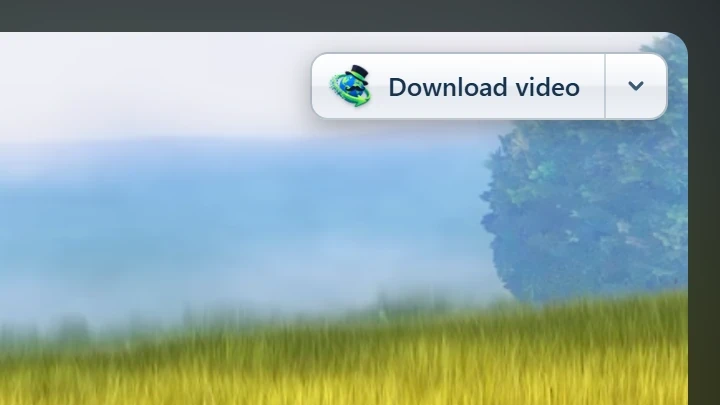
Point at a video on a web page and a small tab appears at its top corner: VDM's logo and a green Download video part, an arrow for its list and ✕ to hide it on this video. It follows Windows' light or dark mode. As it appears, VDM looks the video up (when VDM is running), and the button then names the best quality it found (1080p, 4K). Click it and that quality downloads at once, with only its progress window; VDM's main window stays where it is (with Do not start downloading, only add files to the queue on in Options, it goes in the queue instead). Clicking while VDM is still looking works too: it takes the best quality as soon as it is known. A video that plays a plain file (not a stream) needs no look-up: the button shows its picture size and downloads the file itself. When nothing could be looked up (VDM wasn't running, yt-dlp isn't installed, the page is a playlist, or you send downloads to another VDM), a click opens the Download video from a page window, which says why and offers what to do.
It takes the video you clicked: its own file when it plays one, or the stream the player loaded (HLS or DASH), else the page. A video that hasn't started yet, on a site yt-dlp doesn't read, has loaded no stream: the button then takes the stream address the page wrote for its player (an HLS or DASH playlist in its scripts or the player's attributes; the master playlist, else the best quality it names), on a page with one video, so you don't need to play it first. It only asks for addresses the page names. In a feed it takes the post the video sits in. When VDM finds nothing there (a feed that names no post, a post or a site yt-dlp can't read, such as Douyin's recommended videos), the button offers what the tab played for that video instead: the file or the stream whose length is the video's, never the next video the feed loaded meanwhile. When more than one could be it, it says Can't tell which video this is rather than guess; the toolbar button's Media on this page lists what the page loaded. Embedded players work too, and your sign-in for the site, the page that embeds the player and your browser's User-Agent go with it, so videos for members, or that play only on the site that embeds them, can be downloaded. A stream goes with what the browser sent when the player asked for it, its referrer, its origin and its cookies (a player embedded from another site may have cookies the browser keeps for that page only), and VDM sends them again with each of its playlists and pieces: a site's video server that serves its own pages' players only lets VDM through as well. A video the site names (YouTube, Vimeo and the others yt-dlp reads) keeps its own title; a stream known by no title of its own (its address is only playlist.m3u8) is named after the page you're on, without the site's name at its end: on a page titled A film | Example, it's A film.mp4, even when the player is embedded from another site. Sound players get the button too.
หลังจากคลิก ปุ่มจะแสดงสิ่งที่เกิดขึ้นด้วยสีของตัวเอง:
- Added to VDM (green), with the quality: Show brings VDM's window up with that download selected.
- เปิดโพสต์เพื่อดาวน์โหลด (สีเหลืองอำพัน): วิดีโออยู่ในฟีดและไม่สามารถดาวน์โหลดจากที่นั่นได้ เปิดโพสต์ จะเปิดโพสต์ในแท็บใหม่ เมื่อปุ่มทราบ; ใช้ปุ่มที่นั่น
- VDM didn't answer (red): VDM isn't installed or didn't start. Get VDM opens its download page; Retry tries again.
- ปิดใช้งานบนไซต์นี้ (สีเทา): หลังจาก ไม่แสดงบน ไซต์นี้ หรือเมื่อตัวเลือกปิดใช้งานไว้ที่นั่น เปิด จะแสดงบนไซต์อีกครั้ง
- วิดีโอที่มีการป้องกัน · ไม่สามารถบันทึกได้ (สีเทา, พร้อมแม่กุญแจ): วิดีโอที่มีการป้องกันการคัดลอก (DRM) ซึ่งไม่มีเครื่องมือใดสามารถบันทึกได้
ปุ่มนี้จะไม่รบกวนการใช้งาน: จะแสดงขึ้นเมื่อคุณเลื่อนตัวชี้เมาส์ไปบนวิดีโอเท่านั้น (หรือเมื่อโปรแกรมเล่นมีโฟกัสของแป้นพิมพ์; จากนั้น Tab จะเลื่อนไปยังปุ่ม) จะจางลง 1.5 วินาทีหลังจากตัวชี้หยุดนิ่ง หรือหลังจากออกจากวิดีโอ และจะหายไปใน 3 วินาทีต่อมา เมื่อจางลงก็ยังคงอยู่ให้ค้นหา และการชี้ไปที่ปุ่มจะทำให้กลับมาเต็มรูปแบบ จะไม่จางหายไปในขณะที่เมนูเปิดอยู่ และเมื่อระบบลดการเคลื่อนไหว ปุ่มจะเปลี่ยนโดยไม่มีการจางหายไป ปุ่มนี้จะไม่แสดงบนวิดีโอขนาดเล็กและวิดีโอวนสั้น ๆ ที่ไม่มีเสียง (ภาพเคลื่อนไหว, พื้นหลัง) และจะไม่ทับปุ่มของหน้าเว็บ: เมื่อปุ่มของหน้าเว็บอยู่ใต้ส่วนใดส่วนหนึ่งของมุมปุ่ม (ปุ่มแสดงความคิดเห็นหรือการตั้งค่าของโปรแกรมเล่น, ปุ่มดูภายหลังของภาพขนาดย่อ) ปุ่มจะย้ายไปยังมุมถัดไปที่ว่างและคงอยู่ที่นั่นในขณะที่โปรแกรมเล่นแสดงและซ่อนปุ่มของมัน เพื่อให้ปุ่มยังคงอยู่เมื่อคุณต้องการใช้งาน เหนือภาพตัวอย่างที่เล่นในขณะที่ตัวชี้อยู่บนภาพขนาดย่อ (หน้าแรกของ YouTube, การค้นหา, ช่อง) หน้าเว็บจะหยุดภาพตัวอย่างเมื่อตัวชี้ไปถึงปุ่ม; ปุ่มจะยังคงอยู่ที่เดิมในขณะที่ตัวชี้อยู่บนนั้น และการคลิกจะดาวน์โหลดวิดีโอของภาพตัวอย่างนั้น การเล่นหรือหยุดวิดีโอชั่วคราวจะไม่ทำให้ปุ่มกลับมา เมื่อติดตั้ง (ขนาดปุ่ม: อัตโนมัติ ใน ตัวเลือก ด้านล่าง) ปุ่มจะแสดงเฉพาะโลโก้ ลูกศร และ ✕ เหนือวิดีโอในฟีด (Facebook, X, LinkedIn, Instagram, Reddit, หน้าแรกของ YouTube และอื่น ๆ) และเหนือโปรแกรมเล่นขนาดเล็ก และปุ่มเต็มรูปแบบพร้อมข้อความจะแสดงเหนือโปรแกรมเล่นขนาดใหญ่ เช่น หน้าสำหรับดูวิดีโอ; บนวิดีโอที่มีความกว้างน้อยกว่า 360 พิกเซล หรือในที่ที่ข้อความไม่พอดี ปุ่มจะเป็นปุ่มกลมเสมอ เต็ม จะแสดงข้อความทุกที่ที่พอดี; กะทัดรัด จะทำให้เป็นปุ่มกลมบนวิดีโอทุกรายการ ในโหมดเต็มหน้าจอ ปุ่มจะตามวิดีโอเมื่อโปรแกรมเล่นอนุญาต และการเข้าสู่โหมดเต็มหน้าจอจะทำให้ปุ่มไม่รบกวนจนกว่าคุณจะเลื่อนตัวชี้อีกครั้ง
- Its menu (the arrow next to it, or ↓ when the button has the keyboard's focus): the video's title, length and site; its filters, when the qualities differ: All, Video (the picture with its sound) or Audio only, and the file type (MP4, WEBM, M4A, MP3...) or the picture's codec (AV1, VP9, H.264), kept for the site; Download best first (the best of what the filters keep), then one numbered line per quality under VIDEO and AUDIO, with its file type, codec, frame rate or bitrate and size (
1080pMP4 · AV1 · 60 fps, as the Download video window says it), the best one marked, and Most compatible (H.264 + AAC) beside the resolution of the one that plays everywhere (Choose the quality); All qualities and subtitles..., which opens the Download video from a page window; then Put the button back in its corner (once you moved it on the site), Hide on this video (Esc), Hide the download button in full screen, Never on the site (VDM remembers the site), and Button settings..., which opens VDM's Options. The arrow keys move through it, Enter picks, Esc closes it. - ย้าย: ลากโดยใช้จุดเพื่อไปยังตำแหน่งใดก็ได้บนวิดีโอ, ไปยังมุมหรือขอบอื่น, หรือนอกเครื่องเล่น, ด้านบน, ด้านล่าง หรือด้านข้าง (สำหรับเว็บไซต์ที่ครอบเครื่องเล่นหรือสร้างการควบคุมของตัวเองในตำแหน่งที่ปุ่มควรจะอยู่); ใกล้ขอบหรือด้านนอก, ขอบและจุดที่ปุ่มจะยึดติด (มุมและตรงกลาง) จะแสดงขึ้น เมื่ออยู่นอกเครื่องเล่น ปุ่มจะยังคงอยู่ด้านในบนขอบนั้นเมื่อหน้าต่างไม่มีพื้นที่ (เครื่องเล่นอยู่ด้านบนของหน้าต่าง, เต็มหน้าจอ) ปุ่มจะอยู่ที่ที่คุณวางไว้บนเว็บไซต์นั้น; ย้ายปุ่มกลับไปที่มุมเดิม ในเมนูจะนำปุ่มกลับมา, และป๊อปอัปของส่วนเสริมมี การตั้งค่า → ปุ่มดาวน์โหลดบนวิดีโอ → รีเซ็ต สำหรับทุกเว็บไซต์ (รวมถึงตัวกรองด้วย)
- Turn it off, make it smaller, or see the sites it stays off: Options → General → Customize VDM Download panels in browsers → Edit.... Button size has a 80%, 100% or 120% scale beside it, and is Automatic as installed (round in a feed and over a small player, its words over a big one), Full (its words wherever they fit) or Compact (only VDM's logo, the arrow and ✕, on every video, as on a small one); after a click it still says what happened in words. Pages already open follow a change within a few seconds, without a reload.
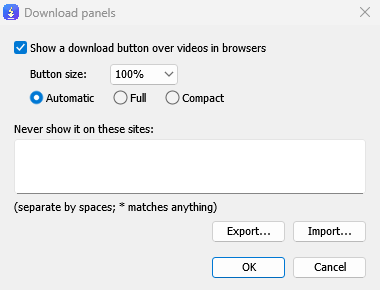
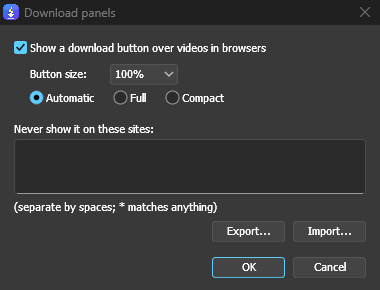
ปุ่มนี้ทำงานตามการตั้งค่าการรวมเบราว์เซอร์ส่วนอื่น โดยจะไม่แสดงเมื่อปิด ใช้การรวมเบราว์เซอร์ขั้นสูง หรือไม่ได้เลือกเบราว์เซอร์
ปุ่มสำหรับบังคับหรือป้องกันการดักจับ
Hold Alt (Option on a Mac) while clicking a link to let the browser download it instead of VDM. The extension follows the link as a plain click would, in every browser, and the browser keeps what comes of it: the link opens in the tab, so a site's bot check (Cloudflare's "Just a moment...") runs there first. Without the extension in the way, Chromium browsers and Safari would save the link without opening it, which saves the check's page instead of the file; Firefox would do nothing. When the link redirects, or the page it leads to starts the download by script ("your download starts in 5 seconds"), that download stays with the browser too when it starts within ten seconds; the link's own address, and a download its own page starts (a bot check's page once its check is passed), within a minute. Alt with Ctrl, Shift or Cmd, and the middle button, keep their meaning (a new tab or window). Options → General → Keys... says so, and holds Also take files the browser would open.
หากต้องการให้เบราว์เซอร์จัดการดาวน์โหลดจากเว็บไซต์หนึ่งต่อไป ให้ใช้ ไม่รับการดาวน์โหลดจาก บนปุ่มแถบเครื่องมือ หรือเพิ่มเว็บไซต์ลงในรายการ ไม่เริ่มดาวน์โหลดอัตโนมัติจากเว็บไซต์ต่อไปนี้ หากต้องการให้เบราว์เซอร์จัดการไฟล์บางประเภท ให้นำประเภทไฟล์นั้นออกจากรายการประเภทไฟล์
When VDM isn't running
You don't need to start VDM first. When the browser hands over a download and VDM isn't running, the helper starts it and passes the download on.
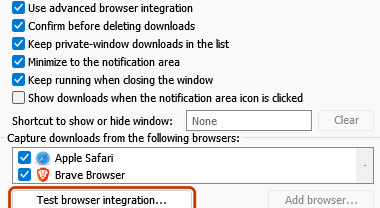
If VDM can't be reached at all (it was uninstalled, or the helper isn't registered), the download stays with the browser, so nothing is lost, and the toolbar button shows a red !. See The browser and VDM aren't connected, or run Options → General → Test browser integration....
ขั้นตอนถัดไป
- บทแนะนำ: รับการดาวน์โหลดจากเบราว์เซอร์ →
- Change which file types VDM takes →
- หากเบราว์เซอร์ไม่ส่งรายการดาวน์โหลดให้ →
ฟรี, โอเพนซอร์ส, ไม่มีโฆษณา, ไม่มีช่วงทดลองใช้
Download Volt Download Manager