

進行状況ウィンドウ
実行中のダウンロードごとに進行状況ウィンドウがあります。これはダウンロードの開始時に開きます (ただし、オプション → ダウンロード → 「ダウンロードの進行状況」ダイアログをカスタマイズ → 編集... でこの機能をオフにした場合、または最小化して表示を選択した場合は除きます)。再度開くには、リスト内のダウンロードをダブルクリックします。
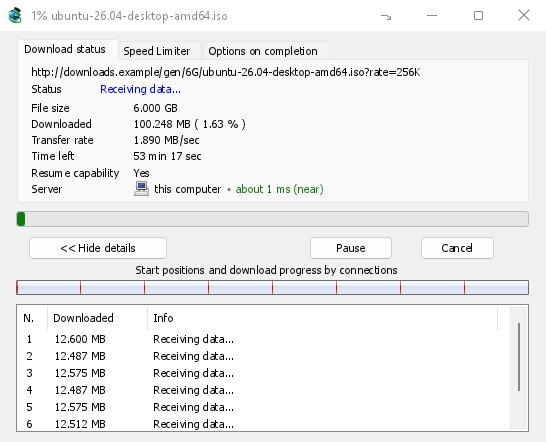
「ダウンロードの状態」タブには以下が表示されます。
- 状態 — 接続中...、データを受信しています...、一時停止、完了、またはエラー。
- ファイル サイズ、ダウンロード済み、転送速度。
- 残り時間。
- Resume capability — Yes if the server lets VDM continue the download later, No if it doesn't.
- サーバー — サーバーの場所と距離。サーバーの場所をご覧ください。
詳細を表示 >>(既定で開いています)を選ぶと、接続ビューが表示されます。
- ファイル全体のバーで、各接続の開始位置と進行状況が表示されます(接続ごとの開始位置とダウンロード進行状況)。
- 接続ごとに1行のテーブル: 接続番号、ダウンロード量、現在の動作。
ボタン:
- 一時停止はダウンロードを停止し、ダウンロード済みの部分を保持します。再開はダウンロードを続行します。
- インターネット ラジオ、カメラのフィード、サイズを送信せず再開できないサーバー (再開機能: なし) など、自動的に終了しないダウンロードの場合、一時停止の代わりに停止して保持が使われます。一時停止すると受信したデータは破棄されますが、停止して保持はそこでダウンロードを終了し、受信したデータを完成ファイルとしてフォルダーに保存し、完了として一覧に表示します。終了しないダウンロードを参照してください。
- キャンセルはダウンロードを停止し、ウィンドウを閉じます。ダウンロードはリストに残り、再開できます。
- ウィンドウの閉じるボタンでウィンドウを閉じても、ダウンロードは実行されたままになります。
- Hide to the notification area (a short dash with an arrow down to the corner; on Windows in the title bar, left of Minimize) puts the window in the notification area; Downloads in progress in the tray icon's menu brings it back. See The tray icon.
サーバーの場所
ダウンロード ファイル情報、進行状況ウィンドウ、およびプロパティには、ダウンロード元サーバーの場所が表示されます。国旗と国名に続いて、サーバーとの往復にかかる時間が表示されます。たとえば、約 24 ms (近い)のように表示されます。
- 近い(緑):60 ミリ秒未満。通常、同じ国または隣接する国です。
- 中程度(琥珀色):60~150 ミリ秒。通常、同じ大陸内です。
- 遠い(赤):150 ミリ秒以上。通常、別の大陸です。遠いサーバーは速度が遅いことが多く、接続数を増やすことで最も効果が得られます。
行にカーソルを合わせると、サーバーのアドレスと時間の測定方法が表示されます。
How VDM knows:
- The country comes from a table of address ranges that comes with VDM (IP to Country Lite by DB-IP, CC BY 4.0), looked up on your computer. VDM never sends the address anywhere to ask where it is. The table is updated with each release; an address that has moved since may show its old country.
- The time is measured from the download's own connections, as each one opens: VDM sends nothing extra to the server. It is an estimate (the time to open a connection, divided by its round trips: one for http, two for https), so it says about. The quickest connection counts.
- お使いのコンピューターまたはローカルネットワーク上のサーバーは、旗なしでそのように表示されます。
- Through a proxy, VDM only sees the proxy, so it says through a proxy (with the proxy's country when it knows it) instead of guessing the server's. A VPN that works at the system level can't be seen: the country is then the server's, but the time includes the VPN's detour.
- コンテンツデリバリーネットワーク(Cloudflare、Amazon CloudFront、Fastly、Akamai など)は、サイト所有者のサーバーからではなく、お近くのサーバーからファイルを配信します。ツールチップにその旨が表示されます。場所はネットワークのサーバーであり、サイトの場所ではありません。
- Torrents and galleries have no single server of VDM's own (peers, or the many a gallery's pictures come from), so their windows don't show one. A video in one file shows the server it comes from.
プロパティには、最後に実行されたときに確認された情報が保持されるため、完了したダウンロードでもどこから来たかが表示されます。
さらに2つのタブ:
- 速度制限 — このダウンロードのみの制限。以下を参照。
- 完了時のオプション — ファイルの保存先を表示します。「ダウンロード完了ダイアログを表示」のチェックを外すと、このファイルでは「ダウンロード完了」ダイアログが表示されなくなります。
タブを非表示 をクリックすると、このダウンロードのウィンドウからタブが削除され、ダウンロードの状態 に戻ります。タブを元に戻すには、タブの行を右クリックして 非表示のタブを表示 を選択します。ウィンドウを閉じて再度開いても元に戻ります。
ダウンロードが完了したとき
ダウンロード完了 には、ファイルのサイズ、アドレス、保存先が表示されます。開く、プログラムから開く、フォルダーを開く、または 閉じる を選択します。Windows では、右下にある小さなボックスをエクスプローラー、メール、チャットにドラッグして、ファイルをそこにドロップすることもできます。エクスプローラーでファイルをドラッグする場合と同様に、同じドライブ上のフォルダーにはファイルが移動され、別のドライブにはコピーが作成されます (Shift キーを押しながらドラッグすると移動、Ctrl キーを押しながらドラッグするとコピー)。ダウンロードは移動されたファイルに従います。リストと 開く は、新しい場所でファイルを見つけます。このウィンドウは、クリックするまで他のプログラムの上に表示され、入力中のプログラムからキーボードのフォーカスを奪うことはありません。
今後表示しないようにするには、「今後このダイアログを表示しない」にチェックを入れます。これは「オプション → ダウンロード → ダウンロード完了ダイアログを表示」で再度オンにできます。
How VDM uses connections
VDM splits a file into parts and downloads them over several connections at once:
- 既定では8つの接続を使用します。オプション → 接続 → 既定の最大接続数で1から32まで設定できます。また、そこで32以上の接続を許可にチェックを入れると、最大128まで設定できます。接続数を増やしても、サーバーが各接続を制限された速度で送信し、かつ1つのアドレスからその数の接続を許可する場合にのみ役立ちます。ほとんどのサーバーははるかに少ない接続数しか許可しません。
- 接続がその部分のダウンロードを完了すると、残っている最大の半分を引き継ぐため、他の接続がまだ作業している間、アイドル状態になる接続はありません。
- 他の接続よりもはるかに遅い接続は切断され、再度開かれます。
- Some servers allow only a few connections. VDM notices this and stops asking that server for more. What it has learned shows in Options → Connection under Exceptions, marked (auto).
- サーバーの接続数は、自分で設定できます。オプション → 接続 → 新規を選択し、サーバー名と接続数を入力します。
*は任意のテキストを表します。*.example.comは example.com のすべてのサブドメイン (example.com 自体は含まない) を、files*.example.netは名前がそのように始まるすべてのサーバーを表します。複数の例外がサーバー名を指定している場合、リストの最初のものが適用されます。
Each connection writes straight into the file's place on disk, in a part file named <name>.vdm.part next to the final file. When every part is done, VDM checks the size and renames it. There is no temporary folder and no joining step at the end.
サイト ルール
一部のサイトでは、特定のユーザー エージェント、追加のヘッダー、または少ない接続数を要求したり、ブラウザのみを許可したり、他のサイトでは不要なプロキシ (またはプロキシなし) を必要としたりする場合があります。オプション → 接続 → サイト ルール... で、サイトからのすべてのダウンロードに対してこれらの設定を一度に行います。
- サイト — 例外と同様に、サイトの名前を指定します。
example.com、*.example.com(そのサブドメイン)、files*.example.net。先頭にスキーム (https://example.com) を付けると、そのスキームにのみルールが適用されます。 - User-Agent — the name VDM gives itself to that site, instead of your browser's or the one set in Options → Downloads. Empty: as usual.
- リクエスト ヘッダー — 1 行に 1 つずつ、
Name: value(Accept-Language: de、X-Api-Key: ...) の形式で指定します。ブラウザーの Referer など、ダウンロードに既に含まれているヘッダーは置き換えられます。Cookie および Authorization という名前のヘッダーは、ダウンロードが別の場所に送信されてもサイトに残ります。他のヘッダーは、他のダウンロード プログラムと同様に、ダウンロードに追従します。 - 接続数 — サイト固有の接続数です。上記の例外と同じです。ルールの接続数は例外の下に表示され、例外はルールとして表示されます。
- Always connect the way a browser does — VDM asks the site the way a browser connects from the first request, instead of only after the site turned it away ("this site lets only browsers through").
- Proxy — As in Options (the default: Options → Proxy / Socks decides), No proxy (straight to the site, whatever Options says), or This proxy: one of its own, typed as a download's own proxy is,
host:port,http://host:port,https://host:port,socks5://host:port(socks5h://to have the proxy look the site's name up). Proxy user and Password are its login, if it needs one; the password is kept with VDM's other passwords (in the system's keychain), never in the settings file as it is. This replaces switching Options back and forth, or writing a proxy auto-config script, when only some sites need a proxy.
Each setting comes from the first rule in the list that names the site and sets it, so put a narrower rule (dl.example.com) above a wider one (*.example.com) with Move up and Move down. Rules apply to downloads VDM's engine makes, as they start or resume. The command line's get and resume use them too, unless you give the same thing on the command line.
ダウンロードが経由するプロキシは、まずダウンロード独自のプロキシ (下記)、次にサイト名を指定してプロキシを設定する最初のルール、次に オプション → プロキシ / SOCKS (そして ブラウザのリクエストからプロキシ/SOCKSを使用する がオンの場合、ブラウザのプロキシ) です。ルールのプロキシは、ダウンロード ファイル情報の検索も行い、ルールが指定するビデオまたはギャラリー ページの場合、yt-dlp と gallery-dl の検索とビデオのダウンロードも行います。そのため、取得されるリンクは同じアドレスから使用されます。オプション → プロキシ / SOCKS で選択されたネットワーク アダプターとそのキル スイッチは、すべての接続を保持します。アダプターが選択されている場合、それを迂回するものは何もありません。
個別のダウンロード設定
停止したダウンロードのプロパティ → 接続...では、そのダウンロードが再開するときの接続方法を変更できます。ユーザー エージェント、リクエスト ヘッダー、プロキシ (オプションと同様に、なし、または入力したhost:portまたはsocks5://host:port)、および接続数を設定できます。これらはサイト ルールとオプションよりも優先され、リストと共に保持されます。ダウンロードの実行中はボタンがグレー表示されるため、まず一時停止してください。
When it resumes, VDM checks it is still the same file (its size, and the ETag and date the server gives) before it writes anything. If the new settings lead to another version of the file, the download stops with the file changed on the server and keeps what it had: start it again from the beginning only if you want the new one. Changed settings never mix two files.
再開
A download resumes where it stopped: after you stop it, after the connection drops, or after Windows or VDM crashes. VDM saves how far each part has got as it goes.
- 失敗した接続は自動的に再試行されます。進行状況ウィンドウのテーブルには、再試行中とその理由が表示されます。
- 停止したダウンロードを続行するには、ダウンロードを選択し、ツールバーの再開(またはファイル → 今すぐダウンロード)をクリックします。
- Before continuing, VDM checks that the file on the server is still the same. If it changed, the download stops with the file changed on the server. Use Redownload to start again from the beginning.
- If Resume capability is No, the server can't send a file in parts. VDM then downloads it over one connection, and a download that stops has to start over.
中断されたダウンロードを再開するには、期限切れのリンクも含まれます。
終了しないダウンロード
インターネット ラジオ局、カメラのライブ画像、送信を続けるサーバーなど、一部のアドレスは自動的に終了しません。これらのサーバーはサイズを通知せず、部分的な送信もできないため、進行状況ウィンドウには再開機能: なしと表示され、ダウンロード済みはパーセンテージなしで増加し、一時停止ボタンは停止して保持と表示されます。
- 停止して保持は、ダウンロードをその場で終了し、受信したすべてのデータを完成ファイルとして保持します。ファイルは名前が付けられ、フォルダーに保存され、リストには完了と表示され、他のファイルと同様にダウンロード完了ウィンドウが表示されます。
- 停止して保持は、データを保持する唯一の方法です。ツールバーの停止、すべて停止、キューの停止 (手動または停止時刻による)、トレイ パネルの一時停止、電話ページの停止、およびキャンセルはすべて、サーバーが再開できないダウンロードと同様に、何も保持せずに停止します。その後の再開は最初からやり直します。
- この方法で保持されたファイルに対して、ダウンロードに指定したチェックサムはチェックされません。チェックサムはファイル全体に対してのみ有効です。
- Closing VDM while such a download runs, and the command line, don't keep it.
これは、サーバーがサイズを送信せず、範囲を受け付けないすべてのダウンロードにも当てはまります。その中には、要求に応じてサイトが作成するファイルも含まれます。停止して保持は、これまでに受信したデータをファイルとして保持するものであり、ファイル全体ではありません。このようなファイルを完全に取得するには、ダウンロードが完了するまで待ってください。
VPN のみを使用: ネットワーク アダプターとそのキル スイッチ
Options → Proxy / Socks → Network adapter holds every connection VDM opens to one network adapter, usually your VPN's: downloads, FTP, torrents, video pages and galleries, VDM's own downloads and the update check. It works as a kill switch: when the adapter disconnects, or the VPN is switched off, nothing goes out through your normal connection. Running downloads stop with … is not connected, and start again by themselves when the adapter is back. The line under the list shows the adapter's address, or that it isn't connected. Details in Options → Proxy / Socks and, for torrents, in Torrents and your security.
DNS
Options → Connection → DNS chooses who turns the servers' names into addresses: the system's DNS (the default), or an encrypted one (DNS over HTTPS or TLS) such as Cloudflare, Google, Quad9, AdGuard, NextDNS or your own. With a network adapter chosen, VDM asks it through the adapter, so the names stay inside your VPN too. See Options → Connection.
速度制限
The Speed Limiter keeps VDM from using all of your connection.
すべてのダウンロードに適用
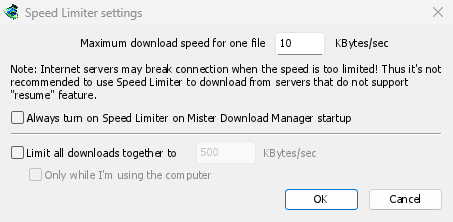
- ダウンロード → 速度制限 → 設定...を選択します。
- 1つのファイルに対する最大ダウンロード速度をKB/秒で設定します。初期値は10なので、リミッターをオンにする前に設定してください。
- OKをクリックします。
- ダウンロード → 速度制限 → オンにするを選択します。オフにすると、再びフルスピードになります。
Always turn on Speed Limiter on Volt Download Manager startup turns it on each time VDM starts.
ここでは、トレントは 1 つのファイルとしてカウントされます。各トレントには独自の制限が適用されます。動画や画像ギャラリー (動画) も同様です。独自の制限があるダウンロード (1 つのダウンロードの場合を参照) は、その制限を維持します。
すべてのダウンロードを合計して制限
In the same window, tick Limit all downloads together to and set the speed. This caps VDM as a whole, however many files are downloading, torrents included. When torrents and other downloads run at the same time, each side gets at least half of the speed, and more when the other side needs less: a torrent going slowly leaves the rest to the other downloads, and the other way round. It applies whenever it is ticked, whether the per-file limiter is on or off.
Tick Only while I'm using the computer to apply it only while you use the mouse or keyboard. After a minute without input, VDM goes back to full speed.
個別のダウンロードに適用
ダウンロードの進行状況ウィンドウで、速度制限タブを開きます。
- 速度制限を使用するにチェックを入れます。
- 最大ダウンロード速度をKB/秒で設定します。新しい制限はすぐに適用されます。
- Tick Remember Speed Limiter settings for this file on download stop/resume to keep this limit for the file: it applies again when you resume it later, even after restarting VDM.
動画またはギャラリーも同様に独自の制限を受けます。トレントの場合、制限はそのトレントのみに適用され、他のトレントはそれぞれの制限を維持します。トレントは 16 KB/秒未満に制限できません。それより低い制限を設定しても 16 KB/秒になります。
一部のサーバーでは、速度が非常に低い場合に接続が切断されることがあります。再開できないサーバー(再開機能: いいえ)では、厳しい制限を避けてください。
次のステップ
無料、オープンソース、広告なし、試用期間なし。
Download Volt Download Manager