

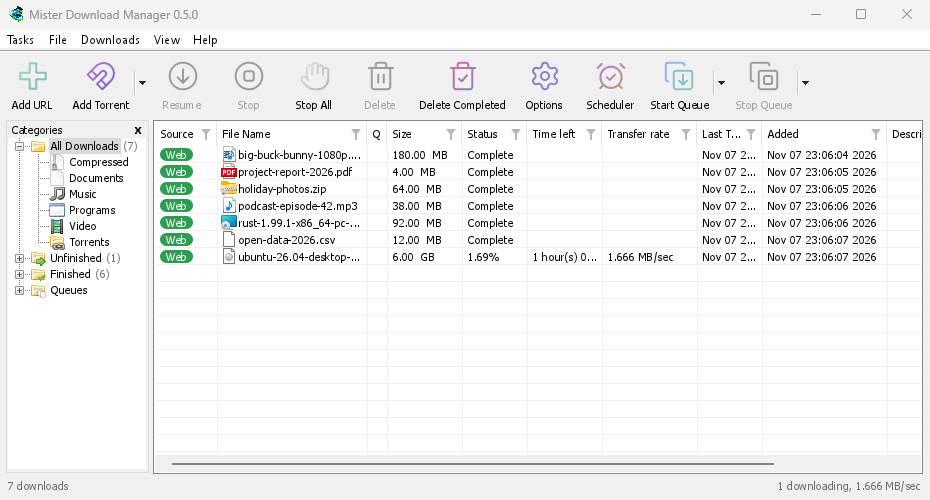
Volt Download Manager (VDM) is a free download manager for Windows and Linux (and, still experimental, macOS). It is laid out the way Internet Download Manager users expect: a toolbar, categories on the left, one list of downloads and a browser extension that hands downloads to it.
These pages explain each part of the program. The tutorials walk through the things people do most, one task each.
Start here
- Getting started — install VDM (setup, portable or zip on Windows; the packages on Linux; the .dmg on a Mac), choose a language and find your way around the main window.
- Your first download — a two-minute walk-through from copied link to opened file.
Downloading
- Adding downloads — Add URL, the clipboard, the drop target, batch downloads and lists of links, and Start Download versus Download Later.
- Link grabber and archives — many links at once, in packages; zip, 7z and rar archives extracted when they are downloaded.
- Browser integration — the extension for Firefox (from addons.mozilla.org), Chrome, Edge, Brave, Opera, Vivaldi and Helium (from the Chrome Web Store), which downloads it takes, and what happens when VDM isn't running.
- Run VDM on a server — VDM without a window on a home server or NAS (Docker, Unraid), downloading into its folders; send it downloads from your phone or browser.
- Control VDM from your phone — add links, magnets and torrents from a phone or another computer at home, and watch and control the list.
Organising
- The download list — columns, filters, the categories tree, selecting many downloads, finding one, and deleting downloads with or without their files.
- Queues and the Scheduler — run downloads a few at a time, start and stop them by the clock, and turn the computer off when they are done.
Speed and connections
- Connections and speed — the progress window, how VDM splits a file over several connections, resuming, and the Speed Limiter.
Video and torrents
- Video downloads — download a video from its page (YouTube, Vimeo and many more) with yt-dlp.
- Image galleries — download a gallery's pictures (Wikimedia Commons, Flickr, DeviantArt and many more) with gallery-dl.
- Torrents — magnet links and .torrent files, choosing files, and sharing.
- Torrents and your security — what others can see, the network switches, blocklists, proxies.
- Debrid service accounts — Real-Debrid, AllDebrid, Premiumize, TorBox and Mega-Debrid: file-host links through your own account.
Settings
- Options — every page of the Options window.
- Themes — the built-in looks (Classic, Native, High contrast, Metro, Adwaita, Breeze, Luna, Aero, Aqua, Emerald), and how to make your own in a text file.
- Languages — the 87 interface languages, numbers and dates, right-to-left layouts, and how to help translate.
- Portable mode — run VDM from a folder or a USB stick without installing it.
- Keyboard shortcuts — every key the main window answers, and screen readers.
- Command line and automation — IDM's command-line switches, the
voltdownloadmanager-clitool, and the automation API other programs can use. - AI assistants (MCP) — let Claude, Cursor, VS Code or another MCP assistant list, add, pause and remove your downloads.
Tutorials
- Download a file — copy a link, add it, open the file.
- Catch downloads from your browser — set up the extension so clicked downloads go to VDM.
- Download overnight — queue files and let the Scheduler start them at night.
- Resume a broken download — continue after a cut connection, a crash or an expired link.
- Keep some speed for everything else — cap VDM so browsing and calls stay smooth.
- Download a video from a page — pick a quality and save a video.
- Carry VDM on a USB stick — the portable copy, with downloads saved to the stick.
- Find a download in a long list — Find, Find Next and column filters.
Help
- Crash reports — what the crash report window shows when VDM closes unexpectedly or stops responding, what a report contains, and how to send it.
- Troubleshooting — what to check when a download fails, the browser doesn't hand over a download, or a schedule doesn't start.
- The browser and VDM aren't connected — what the extension's red ! means, reason by reason, and how to fix each.
- Releases — download the latest version.
- Rate VDM — one to five stars on the website's home or download page; pick again to change your rating, or remove it.
- Report a problem — or use Help → Report a problem in VDM, which fills in your version, system and how VDM was installed for you.
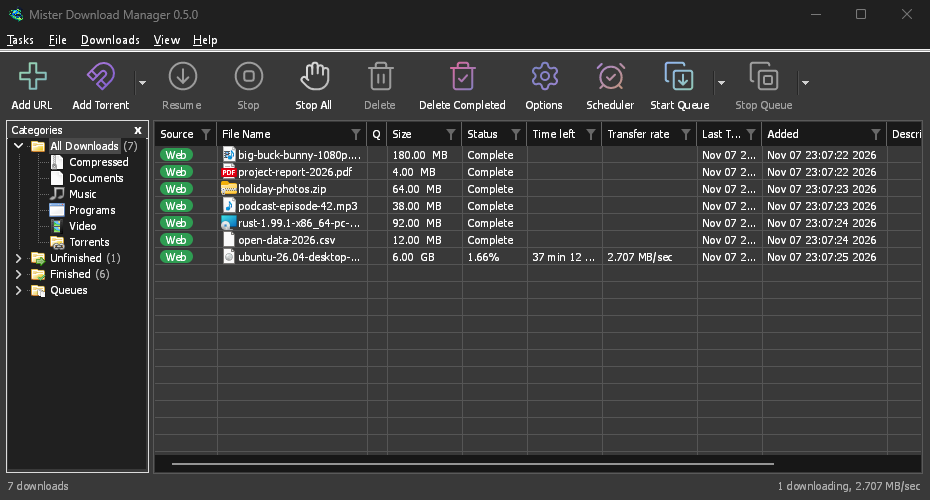
Screenshots in these docs show Windows and the light theme unless noted; on the website each has its dark version beside it. VDM follows the system's dark mode: when Windows (or your desktop) is set to dark, VDM is dark too.
Free, open source, no ads, no trial.
Download Volt Download Manager