

Every download, finished or not, has a row in the list. The categories on the left choose which rows you see.
The strip under the list says how many downloads it shows and how many are selected, and while downloads run, how many and how fast in all (the tray icon's tip says the same). When the list is empty it says why: nothing in this category or queue, or the column filters hide everything (with Clear all filters).
VDM opens where you left it: the window's place and size, the Categories pane, its open branches and the category or queue you were looking at.
Columns
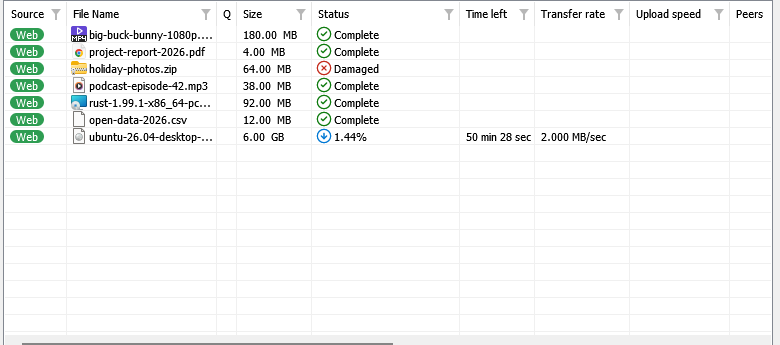
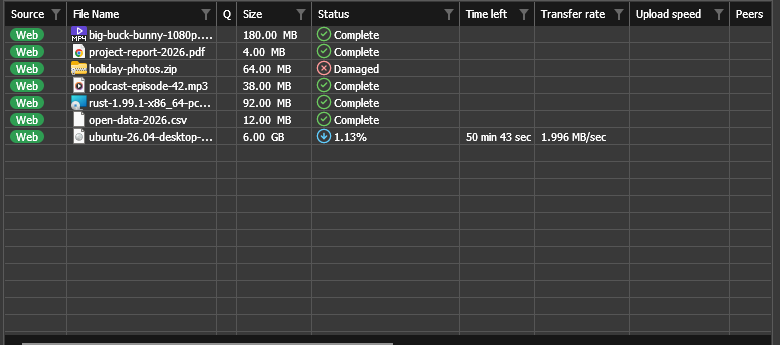
| Column | What it shows |
|---|---|
| Source | Web (a web server) or Torrent. |
| File Name | The file's name, after its type's icon: your system's own (Windows Explorer's, macOS Finder's, your Linux desktop's icon theme), or VDM's where the system has none. |
| Q | A queue icon when the download is in a queue. |
| Size | The file's size, when the server told it. |
| Status | How far it is, or Complete, Error and so on. |
| Time left | While it downloads. |
| Transfer rate | The current speed. |
| Upload speed | A torrent: what it sends to peers, while it runs. |
| Peers | A torrent's connected peers while it runs, seeders and leechers alike. |
| Share ratio | A torrent: what it has sent to peers against what it took. |
| Last Try Date | When it last ran. |
| Added | When you added it. |
| Description | Your note from Download File Info or Properties. |
| Save To | The folder the download is saved in (a torrent's or a gallery's own folder is in it). |
- Sort: click a column title. Click again to reverse the order, and a third time to go back to the order of addition. View → Arrange files does the same from the menu (By Save Path sorts by the Save To column's folder).
- Move a column: drag its title sideways.
- Resize a column: drag the line between two titles; double-click it to fit the column to its contents.
- Choose columns: right-click any column title and tick the ones you want. Reset columns in the same menu puts them back as they first were.
- The Columns window: right-click a column title → Columns..., or View → Customize URL List.... Tick the columns to show and put them in order with Move up and Move down; Reset puts them back as they first were (widths too, on OK). From the keyboard: Up, Down, Home, End or typing a name picks a column, Space shows or hides it, Alt+Up and Alt+Down move it, Enter is OK. File Name always shows.
VDM remembers the columns, their widths and the sort order. A list from an earlier version gets Save To at its end; untick it there if you don't want it.
Filters
Each column title has a faint funnel. Click it to filter the list by that column:
- Source, Q and Status offer a few values to tick, such as only Error under Status, or only Not in a queue under Q.
- The other columns take text: type a word, and only rows whose cell contains it stay.
A filtered column's funnel turns blue. To remove every filter, right-click a column title and choose Clear all filters. Filters last until you close VDM.
Categories
The pane on the left has four branches:
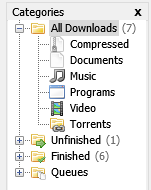
- All Downloads — everything, with a node per category below it.
- Unfinished — downloads that aren't complete yet, by category.
- Finished — complete downloads, by category.
- Queues — each queue; select one to see only its downloads.
Each download falls into a category by its file type: General, Compressed, Documents, Music, Programs or Video. Torrents have their own Torrents category. Programs takes programs, installers and app packages (EXE, MSI, APK, IPA, DMG, PKG, DEB, RPM, AppImage, MSIX…), Compressed archives and disc images (ZIP, RAR, 7Z, TAR, XZ, ISO, IMG, VHD…), Documents text documents, spreadsheets and e-books (PDF, DOCX, XLSX, ODT, EPUB, MOBI…), Music audio (MP3, FLAC, OPUS, M4A…) and Video videos (MP4, MKV, WEBM…); every other file goes to General. Your own categories come before the built-in ones. Each category has its own folder, by default inside your Downloads folder (Downloads\Compressed, Downloads\Video and so on; General uses Downloads itself).
Right-click a category for:
- Browse — open its folder in Explorer.
- Properties — change its name, its file types and its folder. General and Torrents only change their folder. A renamed category keeps its folder; a built-in one keeps its name in your language until you rename it.
- Add category — make your own, for example Books for
EPUB MOBI(they then go to Books, not Documents). Give it a name, the file types (separated by spaces,*allowed) and a folder. - Delete — remove a category, your own or a built-in one (not General or Torrents). VDM asks what happens to its downloads: Move its downloads to General, or Remove its downloads from the list (a download that is running moves to General instead). Their files stay where they are either way. From then on, files of its types go to another category that has them, or to General.
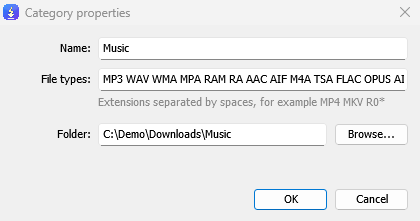
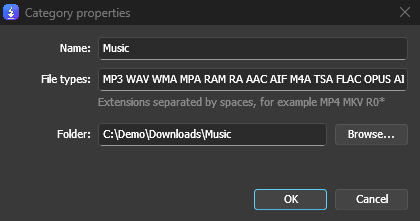
To bring the built-in categories back as they came, with their names, file types and folders, use Options → Save to → Restore the built-in categories. Your own categories, General and Torrents stay as they are.
The top branches show how many downloads they hold. View → Hide categories gives the list the whole window.
The preview pane
View → Show preview pane, the Preview button at the toolbar's end, or Alt+P opens a pane beside the list (on its left in right-to-left languages) with the selected download:
- its picture: the one your file manager shows (Windows' thumbnail of a photo, a video, a PDF or a document, a program's own icon; on Linux your desktop's thumbnail, or one VDM makes of a photo or a video's frame), else its file type's large icon. Only a finished file has one;
- its name and type, its size (how much has come while it downloads, with its progress bar) and its status;
- File: whether the finished file is still there, or was moved or deleted (VDM looks again every few seconds while it is shown), or its folder can't be reached now (a drive that isn't plugged in);
- where it was saved, its address and the web page it came from (right-click one to copy it), when it was added and when it finished.
With several downloads selected it says how many, how many are finished and their total size. Drag the pane's edge to make it wider or narrower; its x, the button or Alt+P again hide it. VDM remembers it shown or hidden, and its width. In a language whose menu bar has P for a menu's letter (Polish, Croatian...), Alt+P opens that menu instead, as Windows' menus do.
Progress on the taskbar and the dock
While downloads run, VDM's button on the Windows taskbar fills with their progress, all of them as one bar: how much has come of every running download whose size is known. A download's progress window shows its own on its taskbar button. On Linux the same bar is drawn on VDM's icon in docks that show apps' progress (Ubuntu Dock, Dash to Dock, KDE Plasma's task manager and others), and on macOS along the bottom of VDM's icon in the Dock. It goes away when nothing is downloading; paused and failed downloads aren't counted. Where the dock can't show progress, nothing changes.
Dropping links and files
Drag a link from a browser (or a page's text with links in it) onto the list to add it: one
link opens Download File Info, several open Link grabber to choose which to add. Drop a
.torrent file to add the torrent, or a list of addresses (.txt, .ef2) to import it. The
list is outlined while something you can drop is over it. On macOS and Linux, files can be
dropped (links from a browser only on Windows).
Right-click the list's blank space for Add new download, Select all, Arrange files, Clear all filters and Delete All Completed.
Opening a download
- Double-click or press Enter on an unfinished download to see its progress window.
- On a finished download, double-click shows its Properties. To open the file instead, right-click any download and choose On Double click → Open.
- Alt+Enter always opens Properties.
Dragging files out of the list
On Windows, drag a finished download from the list onto a folder in Explorer, a program (a player, an archive tool) or a chat to drop its file there. Select several to drag them all; downloads that haven't finished stay behind. As when you drag files in Explorer, a folder on the same drive gets them moved and another drive gets copies (hold Shift to move them, Ctrl to copy them, Alt for shortcuts). A download follows its moved file: the list and Open find it in its new place. On macOS and Linux, use Open folder and drag the file from there.
The right-click menu has everything you can do with a download: Open, Open with..., Open folder, Move/Rename, Redownload, Resume Download, Stop Download, Refresh download address, Verify checksum..., Remove, Add to queue and Properties.
Properties
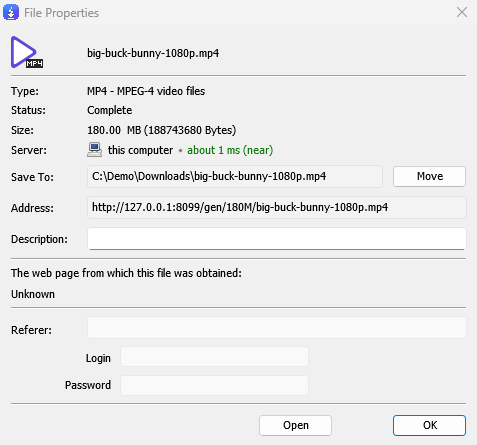
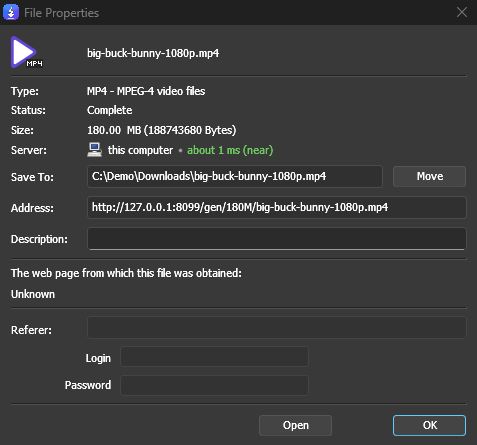
File Properties shows a download's type, status, size and folder, its address, your description, the page it came from (Referer), where its server is (country and round trip, as its last run saw them) and a login for the site. Last try and Result tell you how its last attempt went.
- Move — move a finished file to another folder, or choose another folder for a download that hasn't started.
- Address — for an unfinished download, you can paste a new address here. See Resume a broken download.
- Connection... — for a stopped download: its own User-Agent, request headers, proxy and number of connections, for when it goes on. VDM still checks it is the same file before it writes anything. See One download's settings.
- Open — open the file.
Move/Rename (Ctrl+M) moves or renames the file of a finished download, or of one that hasn't started yet. With several downloads selected it asks for a folder and moves them all there, each under its own name.
Redownload downloads a file again from the start, one download at a time. A finished file stays as it is while the new copy comes in, and the new copy takes its place, under the same name, only once it is complete: if the new download fails or you stop it, you still have your file. If another program has the file open at that moment (on Windows), VDM keeps both, saves the new copy beside it with a number (name (1).ext) and tells you. Torrents, videos and image galleries don't have it: a torrent's Recheck files finds and fetches its damaged pieces, and a finished gallery's Resume Download fetches the files it is missing.
Verify checksum
Many sites publish a checksum next to the download. Right-click the download, choose Verify checksum... and paste it. VDM reads MD5, SHA-1, SHA-256, SHA-512 and CRC32. A finished file is checked at once; an unfinished one is checked when its download ends. VDM then says The file matches or The file does NOT match.
A checksum you give this way (or with the command line's --checksum), or one the site publishes and VDM reads itself (Hugging Face's and GitHub's, in Link grabber), must match: a file that doesn't stays unfinished, says the file's SHA-256 checksum doesn't match, and Redownload fetches it again.
Without one, VDM checks the file against the checksum its server sends with it, if any (Content-MD5, Digest, Repr-Digest, Google Cloud Storage's x-goog-hash). Servers sometimes send the checksum of the file as they store it rather than of what they send, so a file that doesn't match is still kept: its status says Checksum warning, and its tip, its log, Properties and Download complete say Downloaded, but the server's MD5 checksum didn't match; the file may still be fine. If it matters, check it with Verify checksum... and the checksum its site publishes: when it matches, the warning goes. A server's checksum isn't used at all when the server says it changed the file on the way (a compressed answer, or a file stored encoded, as PikPak's are).
Selecting several downloads
- Ctrl+click adds or removes one download.
- Shift+click selects every download up to the one you click.
- Drag on blank space to draw a box around downloads.
- Ctrl+A selects all.
- Shift+Up / Shift+Down makes the selection longer or shorter.
Resume, Stop, Remove and the queue commands then act on all the selected downloads. The other commands need one download. The full list of keys is in Keyboard shortcuts.
Finding a download
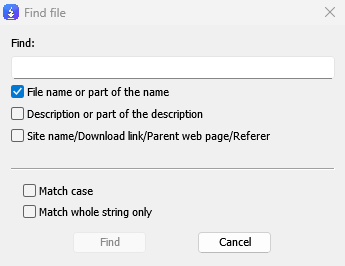
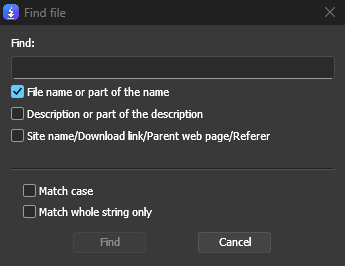
Press Ctrl+F (or Downloads → Find), type part of the name and click Find. F3 jumps to the next match. You can also search descriptions and addresses. Step by step in Find a download in a long list.
Typing the start of a name while the list has the focus jumps to the first download whose name starts with it.
Deleting downloads
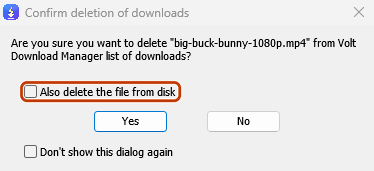
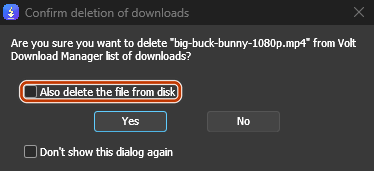
Select one or more downloads and press Delete, click Delete on the toolbar, or choose File → Remove. VDM asks first:
- Also delete the file from disk — unticked every time the question opens. Tick it to delete the files too. For an unfinished download, this deletes the part downloaded so far. When finished downloads are among the ones you delete, the question says how many finished files go with them. Leave it unticked to take the downloads off the list and keep the files.
- Don't show this dialog again — VDM stops asking: Delete then only takes downloads off the list and keeps their files. To be asked again, tick Options → General → Confirm before deleting downloads.
Click Yes to delete, or No to keep everything.
Shift+Delete (or Remove with files) opens the same question with Also delete the file from disk already ticked, for that time only. It always asks, even after Don't show this dialog again: VDM never deletes a file from the disk without asking. The box is never remembered: the next Delete starts unticked again.
After deleting, the next download in the list is selected, so you can press Delete again.
A download that is running isn't deleted. Stop it first.
Delete Completed on the toolbar (or Downloads → Delete All Completed) removes every finished download from the list, with the same question. Their files stay unless you tick Also delete the files from disk in that question.
Next steps
Free, open source, no ads, no trial.
Download Volt Download Manager