

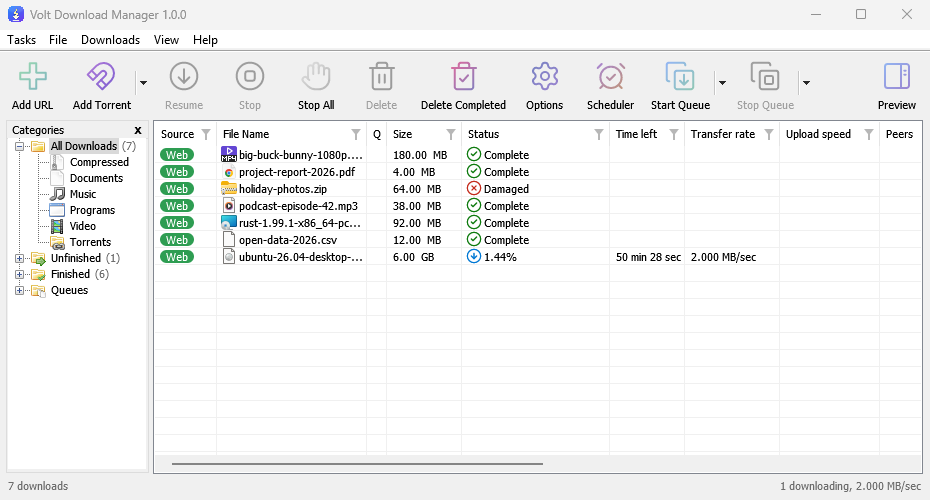
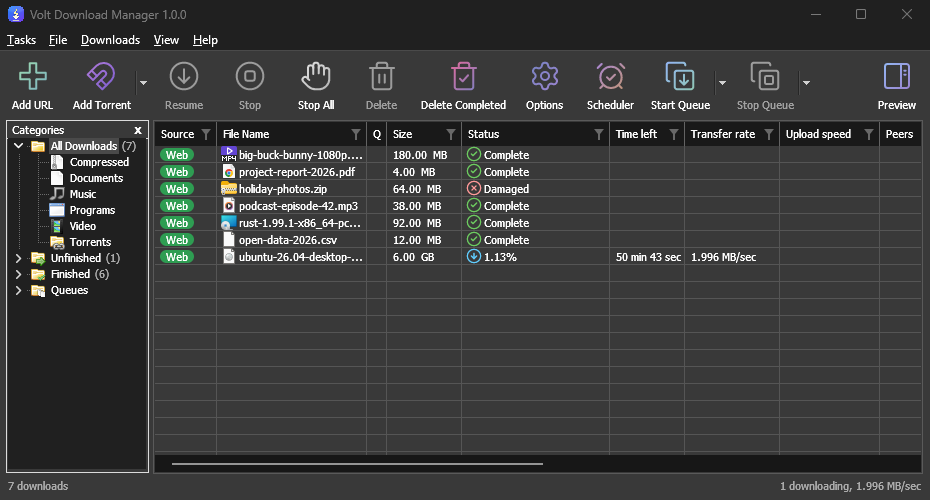
Every file finds its folder
A download falls into a category by its file type: General, Compressed, Documents,
Music, Programs or Video, and torrents into Torrents. Each category has its own
folder inside your Downloads folder, so a ZIP file lands in Downloads\Compressed and a film in
Downloads\Video without you choosing.
Pick another folder in Download File Info and, by default, it becomes the category's folder from then on. Options → Save to shows each category's file types and folder in one place.
Or one folder for all of them
Rather have every download in one place? Tick Options → Save to → Save every download in "General" category's folder, and every new download goes to General's folder, whatever its type: from the browser, Add URL, a batch, Link grabber, a queue or the command line. The categories stay, to sort and filter the list. One download can still go elsewhere: change its folder in Download File Info. Downloads already in the list stay where they are.
Finished and unfinished, at a glance
The pane on the left has four branches. All Downloads holds everything, Unfinished what isn't complete yet and Finished what is, each by category. Queues lists each queue. The top branches show how many downloads they hold, and right-click → Browse opens a category's folder.
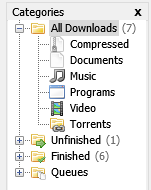
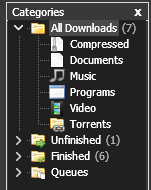
VDM opens where you left it, with the same branches open and the same category shown. View → Hide categories gives the list the whole window.
See where each one went
The list's Save To column shows the folder each download is saved in, so a file you sent somewhere else is easy to spot. Click its title, or choose View → Arrange files → By Save Path, to sort the list by folder. Like every column, right-click any column title to show or hide it, and drag it where you want it. Columns... in that menu (or View → Customize URL List...) opens a window to choose them all and their order at once, from the keyboard too.
Make your own
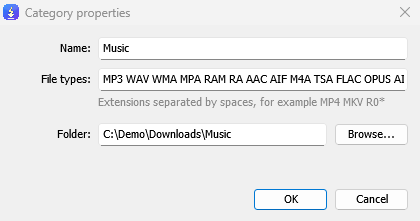
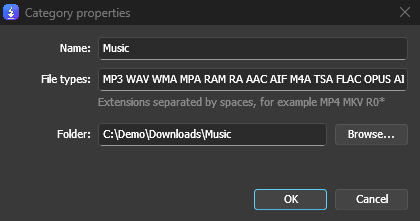
Right-click → Add category makes one for what you collect, say Books for EPUB MOBI:
a name, the file types separated by spaces (* allowed) and a folder. Change it later with
Properties, or remove it with Delete. The files stay where they are.
The built-in ones are yours too
Compressed, Documents, Music, Programs and Video can be renamed, given other file types or deleted, like your own. A renamed category keeps its folder. Deleting one asks what happens to its downloads: move them to General, or take them off the list. Their files stay either way.
Changed your mind? Options → Save to → Restore the built-in categories brings them back as they came, and leaves your own categories alone. General and Torrents still change only their folder.
Free, open source, no ads, no trial.
Download Volt Download Manager