

Inicia com o computador, sem atrapalhar
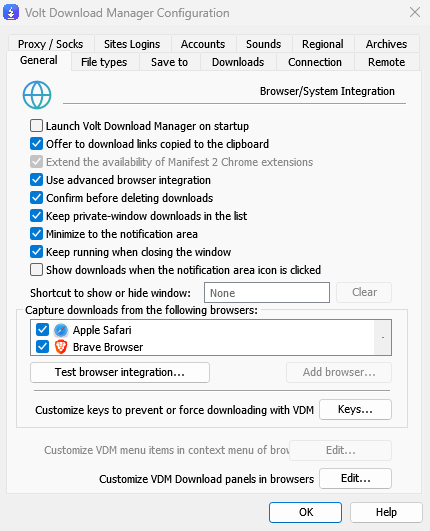
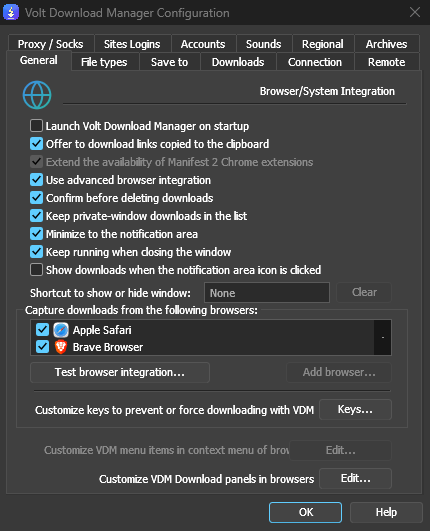
Tick Launch Volt Download Manager on startup in Options → General and VDM starts when you sign in, hidden, its icon in the notification area. Its downloads, queues, the Scheduler and downloads from the browser all run from there. Click the icon, or start VDM again, and the window opens as usual.
The option is off until you tick it. On Linux and macOS VDM starts with your session the same way. A portable copy can't start with Windows, since that needs the registry, so the option is greyed there.
Um clique oculta a janela de um download
A janela de progresso de um download tem um botão Ocultar na área de notificação: um traço curto com uma seta para baixo em direção ao canto. No Windows, ele fica na barra de título, à esquerda de Minimizar, e no menu da barra de título (Alt+Espaço). No Linux e macOS, ele fica no final da linha de abas. O download continua.
Para vê-lo novamente, clique com o botão direito no ícone da bandeja e escolha-o em Downloads em andamento, que lista todos os downloads em execução. Clicar duas vezes no download na lista também traz sua janela de volta.
Minimizar também envia janelas para a bandeja
With Minimize to the notification area on in Options → General (it is on by default), Minimize hides the main window, and a progress window, in the notification area instead of leaving them on the taskbar. Closing the main window does the same: VDM keeps running until you choose Tasks → Exit or Exit in the tray menu.
O menu da bandeja também tem Adicionar novo download, Adicionar download em lote, Adicionar downloads em lote da área de transferência, o Limitador de Velocidade, o Agendador, a fila principal de downloads e Opções.
Nunca atrapalha seu jogo ou suas apresentações
While a full-screen game, a film or a presentation is on, or the screen is locked, Download complete and VDM's other windows that come up by themselves wait. The download finishes as usual; its window shows when you're back, and several show one after the other, in the order they came. The tray icon's tip says how many wait. A link you click in the browser still opens at once. To have them show at once anyway, untick Don't show pop-ups while a full-screen app or presentation is running in Options → Downloads.
Leve enquanto aguarda
Hidden in the notification area, VDM hands the memory it isn't using back to the system. Task Manager's Memory for VDM drops from about 50 MB to under 10 MB there, and VDM gives memory back again every 10 minutes while it stays hidden. On Linux it does the same with its free memory.
Onde não há bandeja
All of this needs a notification area that shows VDM's icon. Windows and macOS have one, and so do most Linux desktops (KDE, GNOME with its AppIndicator extension, waybar's tray). On a desktop without one, VDM starts minimized instead, closing the window quits VDM, and Minimize to the notification area is greyed. In a Wayland session the main window stays minimized in the dock, because Wayland can't hide a window.
Gratuito, de código aberto, sem anúncios, sem período de teste.
Download Volt Download Manager