

- Home
- Funzionalità
- Area di notifica
Non dà fastidio. E continua a scaricare.
VDM can start with your computer and wait in the notification area, its window closed and its downloads running. A download's progress window can go there too, with one click.
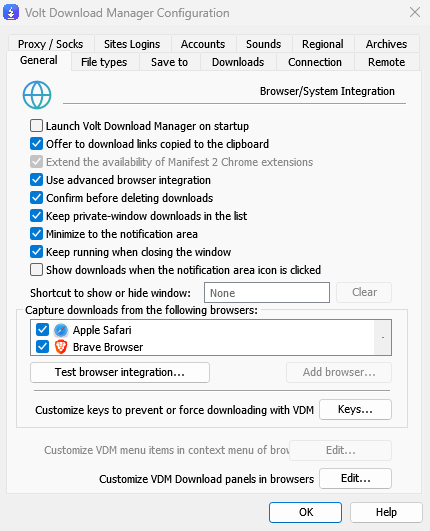
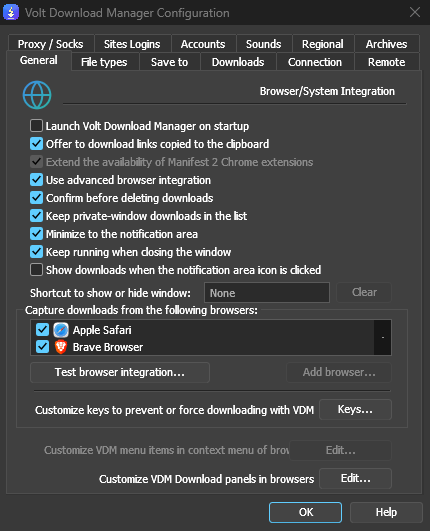
Si avvia con il sistema, senza mettersi in primo piano
Tick Launch Volt Download Manager on startup in Options → General and VDM starts when you sign in, hidden, its icon in the notification area. Its downloads, queues, the Scheduler and downloads from the browser all run from there. Click the icon, or start VDM again, and the window opens as usual.
The option is off until you tick it. On Linux and macOS VDM starts with your session the same way. A portable copy can't start with Windows, since that needs the registry, so the option is greyed there.
Un clic nasconde la finestra di un download
La finestra di avanzamento di un download ha un pulsante Nascondi nell'area di notifica: un trattino corto con una freccia verso l'angolo. Su Windows si trova nella barra del titolo, a sinistra di Riduci a icona, e nel menu della barra del titolo (Alt+Spazio). Su Linux e macOS si trova alla fine della riga delle schede. Il download continua.
Per vederla di nuovo, fai clic destro sull'icona nell'area di notifica e sceglila sotto Download in corso, che elenca ogni download in esecuzione. Anche un doppio clic sul download nell'elenco riapre la sua finestra.
Riduci a icona manda le finestre anche nell'area di notifica
With Minimize to the notification area on in Options → General (it is on by default), Minimize hides the main window, and a progress window, in the notification area instead of leaving them on the taskbar. Closing the main window does the same: VDM keeps running until you choose Tasks → Exit or Exit in the tray menu.
Il menu della barra delle applicazioni contiene anche Aggiungi nuovo download, Aggiungi download in batch, Aggiungi download in batch dagli Appunti, il Limitatore di velocità, il Pianificatore, la coda di download principale e le Opzioni.
Mai sopra il tuo gioco o le tue presentazioni
While a full-screen game, a film or a presentation is on, or the screen is locked, Download complete and VDM's other windows that come up by themselves wait. The download finishes as usual; its window shows when you're back, and several show one after the other, in the order they came. The tray icon's tip says how many wait. A link you click in the browser still opens at once. To have them show at once anyway, untick Don't show pop-ups while a full-screen app or presentation is running in Options → Downloads.
Leggero mentre aspetta
Hidden in the notification area, VDM hands the memory it isn't using back to the system. Task Manager's Memory for VDM drops from about 50 MB to under 10 MB there, and VDM gives memory back again every 10 minutes while it stays hidden. On Linux it does the same with its free memory.
Dove non c'è l'area di notifica
All of this needs a notification area that shows VDM's icon. Windows and macOS have one, and so do most Linux desktops (KDE, GNOME with its AppIndicator extension, waybar's tray). On a desktop without one, VDM starts minimized instead, closing the window quits VDM, and Minimize to the notification area is greyed. In a Wayland session the main window stays minimized in the dock, because Wayland can't hide a window.
Gratuito, open source, senza pubblicità, senza periodo di prova.
Download Volt Download Manager